

Try Basic Fixes
- Close recent apps: It’s possible that one of the apps you’re using with Gboard has frozen or encountered issues, making it seem like there’s a problem with Gboard. To resolve this, try force-closing all the recent apps and open them again.
- Update the Gboard app: If a recent update has caused issues with the Gboard app on your iPhone, developers will likely release a newer, more stable version soon. Head to the App Store to update the Gboard app and see if that helps.
Fix 1: Disable “Allow Full Access” Option
Gboard requires full access to your iPhone for features like Google search, voice dictation, and GIF search to function. To enhance your experience, all your searches are sent to Google.
However, some users have resolved the issue of Gboard not working by disabling the “Allow Full Access” option for Gboard. You can try this as well. Here’s how:
Step 1: Launch the Settings app and head to General > Keyboard > Keyboards.


Step 2: Select Gboard from the list and disable the switch next to Allow Full Access.


Fix 2: Remove and Re-Add Gboard
Sometimes, Gboard may fail to open on your iPhone and display “null” in the keyboard list. To fix this, you can remove Gboard from the keyboard list and then add it again.
Step 1: Launch the Settings app and head to General > Keyboard > Keyboards.
Step 2: Tap Edit in the top right corner to make changes.
Step 3: Tap the red minus sign on the left of the Gboard and select Delete to confirm. Then, tap Done.

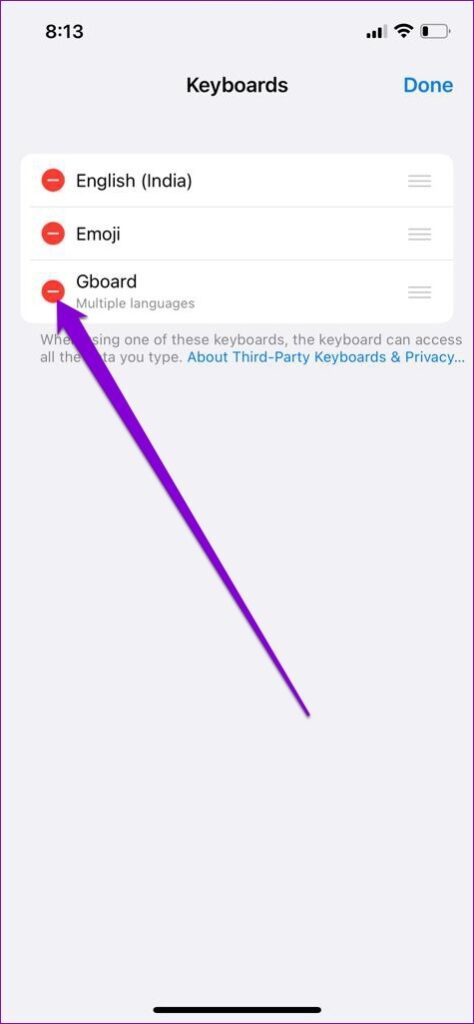

Step 4: On the Keyboards page, tap on Add New Keyboard. Then, scroll down to the Third-Party Keyboard section and select Gboard.


This will remove the null text next to Gboard, and you should be able to use Gboard again.
Fix 3: Set Gboard as Default Keyboard
Gboard may also malfunction if it’s set as the secondary keyboard while using multiple keyboard apps on your iPhone. Try setting Gboard as your default keyboard to see if that improves the situation.
Step 1: Launch the Settings app and head to General > Keyboard > Keyboards.
Step 2: Tap Edit in the top right corner to make changes.
Step 3: Tap and hold the three horizontal lines next to Gboard and drag it to the top. Lastly, tap Done to save changes.


Was this helpful?
Last updated on 26 July, 2024
Read Next
 5 Ways to Fix Gboard Not Working on Android
Basic Fixes Force stop and reopen Gboard: Open Android settings and select Apps.
5 Ways to Fix Gboard Not Working on Android
Basic Fixes Force stop and reopen Gboard: Open Android settings and select Apps.
 How to Stop Gboard From Collecting Your Personal Data on Android and iOS
Method 1: Change Gboard Privacy Settings Google claims to collect your usage data on Gboard to improve the product and user experience.
How to Stop Gboard From Collecting Your Personal Data on Android and iOS
Method 1: Change Gboard Privacy Settings Google claims to collect your usage data on Gboard to improve the product and user experience.
 3 Ways to Fix AirDrop Not Working on iPhone
Try Basic Fixes Enable Wi-Fi and Bluetooth: AirDrop uses Bluetooth on your iPhone to search for nearby devices and subsequently utilizes Wi-Fi to send or receive files.
3 Ways to Fix AirDrop Not Working on iPhone
Try Basic Fixes Enable Wi-Fi and Bluetooth: AirDrop uses Bluetooth on your iPhone to search for nearby devices and subsequently utilizes Wi-Fi to send or receive files.
 5 Ways to Fix Mail App Not Working on iPhone
Basic Fixes Check your network connection: Ensure your iPhone has a good internet connection.
5 Ways to Fix Mail App Not Working on iPhone
Basic Fixes Check your network connection: Ensure your iPhone has a good internet connection.
 2 Ways to Fix QR Code Scanner Not Working on iPhone
Common Fixes Use Camera in Photo mode: QR code scanning doesn't work in other camera modes such as Portrait, Pano, Macro, Video, etc.
2 Ways to Fix QR Code Scanner Not Working on iPhone
Common Fixes Use Camera in Photo mode: QR code scanning doesn't work in other camera modes such as Portrait, Pano, Macro, Video, etc.
 4 Ways to Fix Depth Effect Wallpaper Not Working on iPhone
Which iPhone Models Support the Depth Effect Feature The depth effect feature is only available on iPhones with an A12 Bionic chip or later.
4 Ways to Fix Depth Effect Wallpaper Not Working on iPhone
Which iPhone Models Support the Depth Effect Feature The depth effect feature is only available on iPhones with an A12 Bionic chip or later.
 3 Ways to Fix AutoFill Passwords Not Working on iPhone and iPad
Basic Fixes Turn off private browsing mode: The autofill feature does not work when you browse in private mode on your iPhone or iPad.
3 Ways to Fix AutoFill Passwords Not Working on iPhone and iPad
Basic Fixes Turn off private browsing mode: The autofill feature does not work when you browse in private mode on your iPhone or iPad.
 How to Fix Disney+ Not Working on iPhone or iPad
Common Fixes Check your network connection: Ensure your iPhone/iPad has a good internet connection.
How to Fix Disney+ Not Working on iPhone or iPad
Common Fixes Check your network connection: Ensure your iPhone/iPad has a good internet connection.
The article above may contain affiliate links which help support Guiding Tech. The content remains unbiased and authentic and will never affect our editorial integrity.

