


Preliminary Fixes
- Check the Network Connection: Ensuring a stable network connection is crucial for loading content on Facebook, including Reels. To check the network, launch your browser and go to Speedtest.
- Restart Facebook: Sometimes, simply restarting the app can resolve issues like Facebook Reels not showing. Open the recent apps menu and swipe the Facebook app off the screen.
- Reel Removed: It’s possible that the specific Reel you’re looking for has been removed by the user or Facebook. Use the Facebook search function to try and find the Reel or the user who posted it.
- Check Facebook Server Status: Occasionally, issues with Facebook’s servers can prevent Reels from loading properly. To check, Visit Downdetector and search for Facebook.
Fix 1: Enable Mobile Data Permission (iPhone)
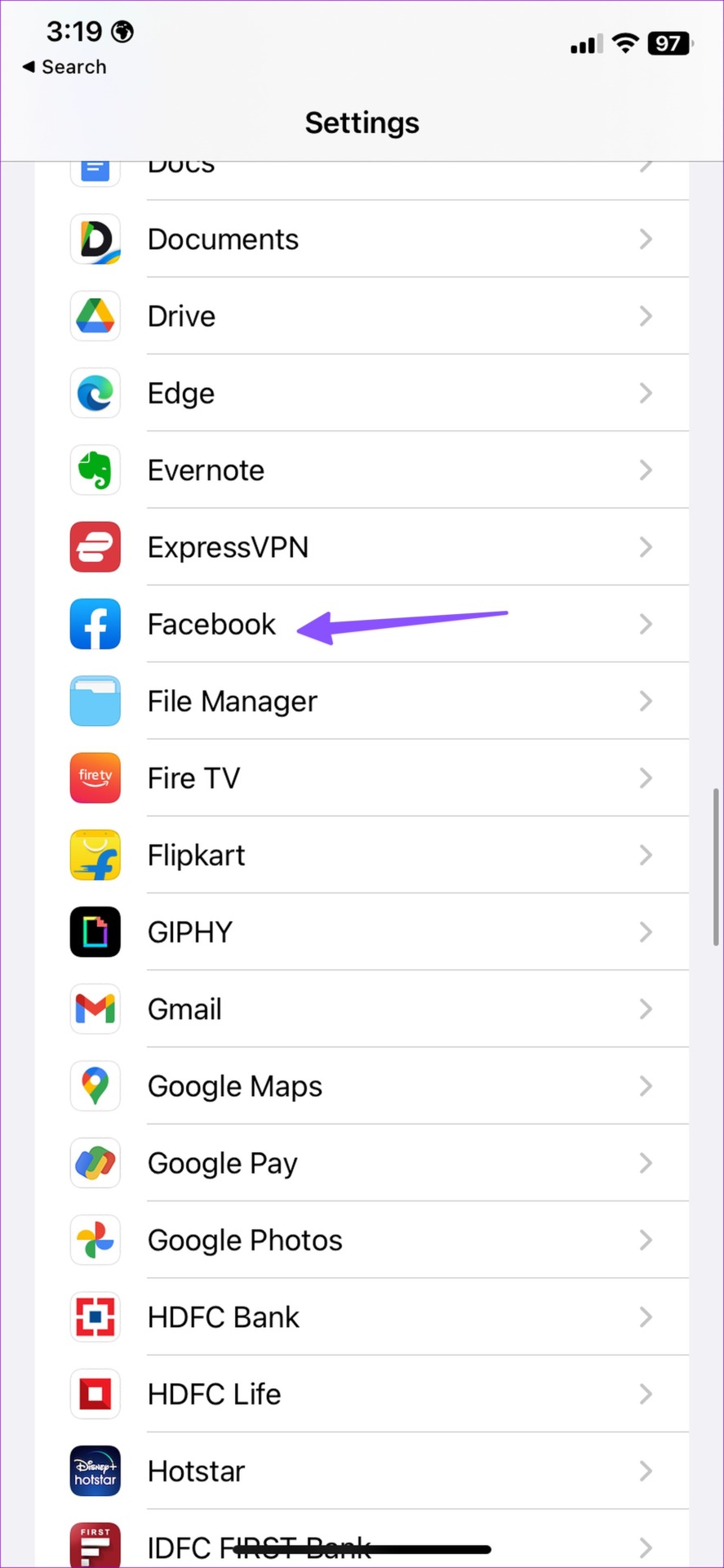
Step 1: Open the Settings app on your iPhone.
Step 2: Scroll down and tap Facebook.
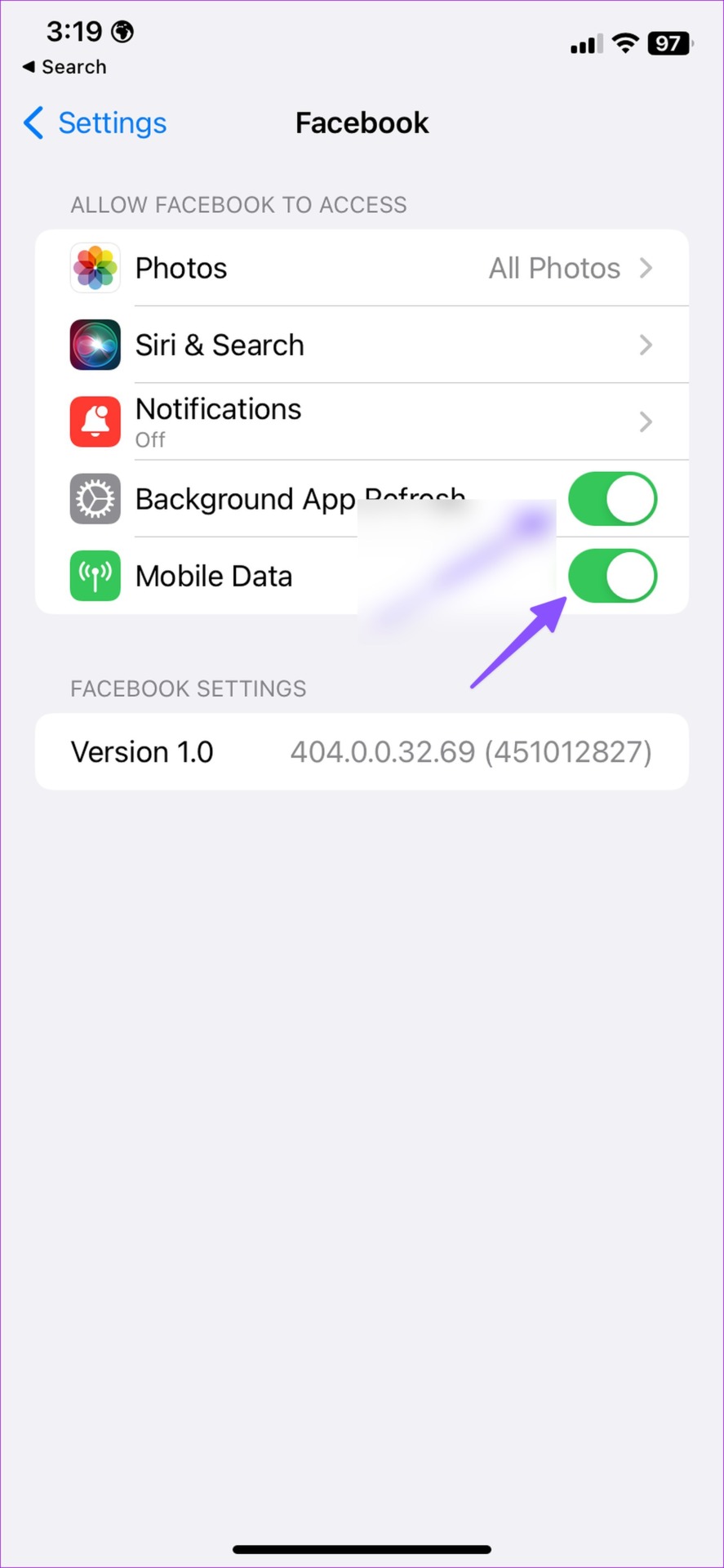
Step 3: Enable the toggle for mobile data.
Fix 2: Disable Low Data Mode
Step 1: Open the Facebook app on your phone and go to your profile.
Step 2: Expand Settings & Privacy.
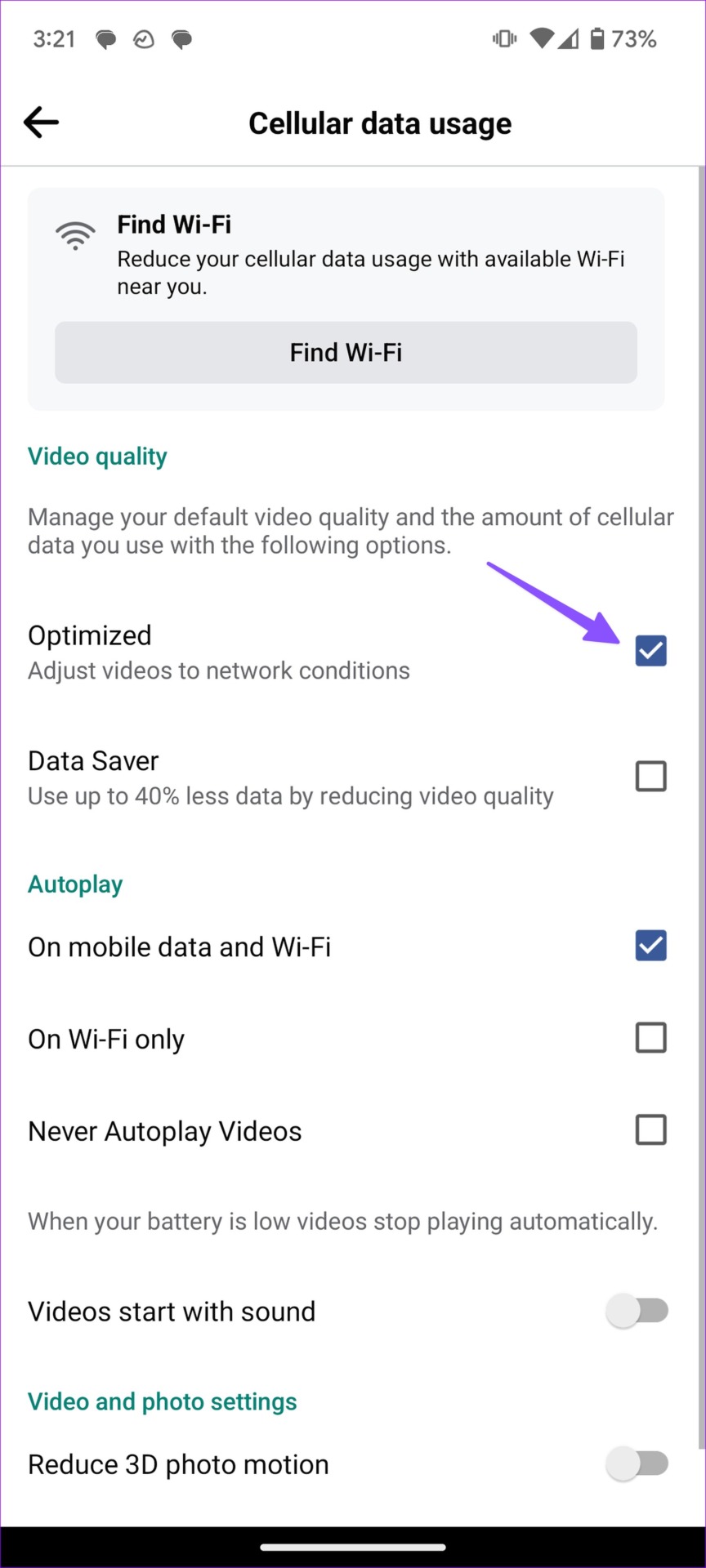
Step 3: Open Cellular Data Usage (or Mobile data use on iPhone).
Step 4: Enable the checkmark beside Optimized under the Video quality menu.

You can restart the Facebook app and try loading reels again.
Fix 3: Clear Facebook Cache
Step 1: Long-press on the Facebook app icon and tap the i icon to open the App Info menu.
Step 2: From the App Info menu, select Storage and cache.
Step 3: Hit the Clear cache button and try loading reels on Facebook.


If none of the tricks work, it’s time to reinstall Facebook on your phone.
Fix 4: Reinstall Facebook
You can open the Facebook app info menu (refer to the steps above) and hit Uninstall to delete the app.
iOS users can long-press the Facebook app icon and select Remove app to complete the uninstall process.
Once uninstalled, download Facebook from the Play Store or App Store, log in with your Facebook account details, and try loading reels.
Fix 5: Check Facebook Reels on the Desktop
Facebook reels are available on the desktop too. If the mobile apps aren’t showing reels, use the web version on the desktop.
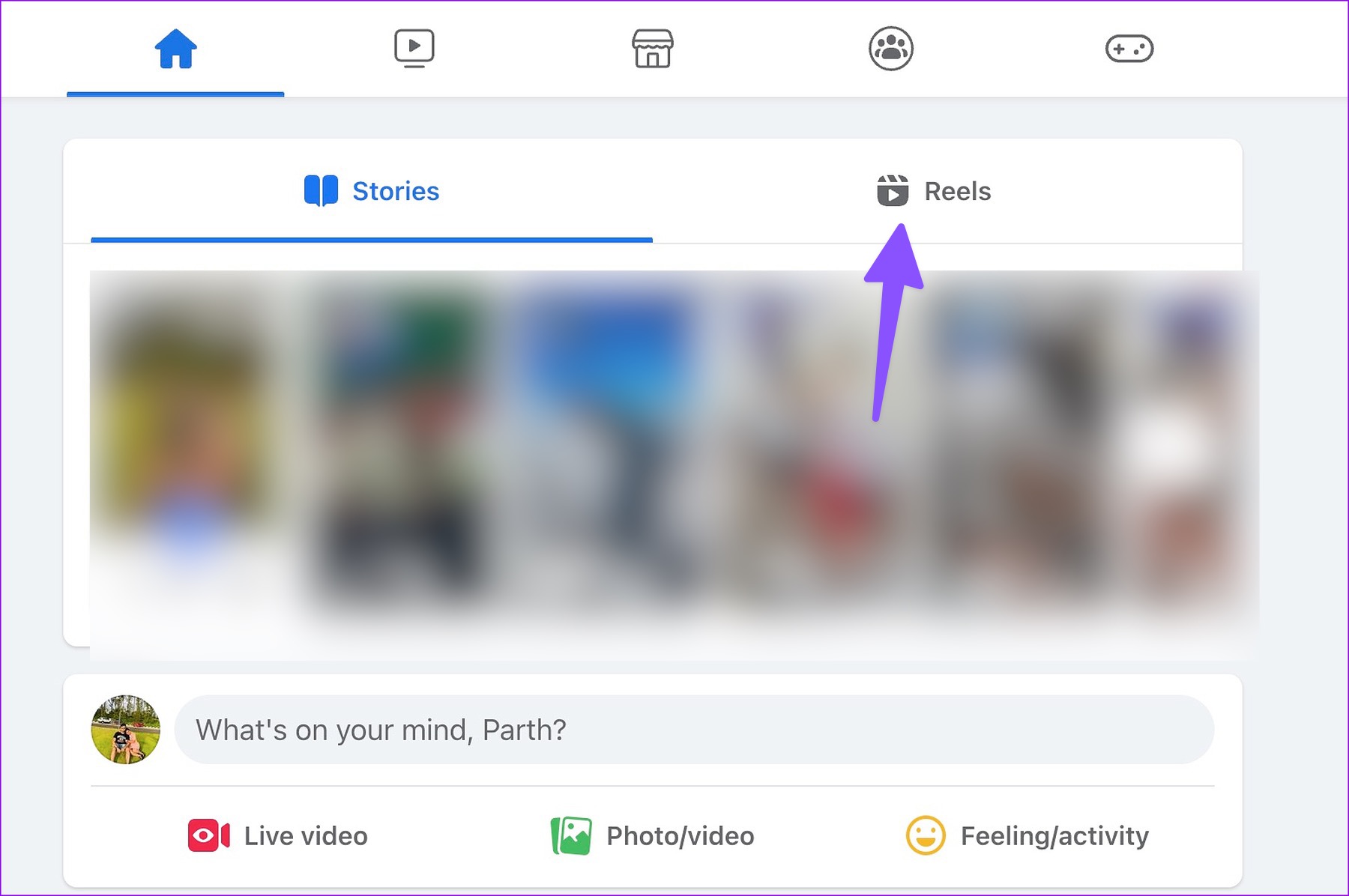
Step 1: Head to the Facebook website and log in with your Facebook account details.
Step 2: Click on the Reels tab and check all the trending short videos.
In most cases, a sketchy network connection can be the major culprit behind Facebook not showing reels on mobile. You can also browse Facebook on your mobile browser and check the latest reels.
Was this helpful?
Last updated on 15 July, 2024
7 Comments
Leave a Reply
Read Next
 How to Hide Reels on Facebook on Desktop or Mobile
How to Remove Reels on Facebook Note: For demonstration, we will go with a desktop.
How to Hide Reels on Facebook on Desktop or Mobile
How to Remove Reels on Facebook Note: For demonstration, we will go with a desktop.
 How to Fix Reels Not Showing on Instagram
Basic Fixes Check your Internet connection: You need a stable internet connection to view Instagram reels.
How to Fix Reels Not Showing on Instagram
Basic Fixes Check your Internet connection: You need a stable internet connection to view Instagram reels.
 How to Fix Instagram Showing the Same Reels
Basic Fixes Check your network connection: Ensure your device has a good internet connection.
How to Fix Instagram Showing the Same Reels
Basic Fixes Check your network connection: Ensure your device has a good internet connection.
 How to Find Liked and Saved Reels on Facebook
 If you've saved an intriguing reel on Facebook to watch later or are curious to check all the reels you've liked,
How to Find Liked and Saved Reels on Facebook
How to Find Liked and Saved Reels on Facebook If you've saved an intriguing reel on Facebook to watch later or are curious to check all the reels you've liked,
 3 Ways to Fix Sound Not Working on Instagram Reels
Basic Troubleshooting Unmute/raise the volume: When your phone is silent, Instagram mutes the video on the home feed and the Reels tab.
3 Ways to Fix Sound Not Working on Instagram Reels
Basic Troubleshooting Unmute/raise the volume: When your phone is silent, Instagram mutes the video on the home feed and the Reels tab.
 4 Ways to Fix if You Can’t Pause Instagram Videos or Reels
Fix 1: Tap to Open Videos From Feed The videos on the feed or timeline cannot be paused like reels.
4 Ways to Fix if You Can’t Pause Instagram Videos or Reels
Fix 1: Tap to Open Videos From Feed The videos on the feed or timeline cannot be paused like reels.
 How to Download Instagram Reels on iPhone and Android: 5 Best Ways
Instagram Reels allows you to create and share 15-second videos.
How to Download Instagram Reels on iPhone and Android: 5 Best Ways
Instagram Reels allows you to create and share 15-second videos.
 6 Fixes for Facebook Stories Not Showing on Mobile and PC
Try These Basic Fixes Update the Facebook app: It’s possible that the Facebook app is not showing stories because you're using an outdated app version.
6 Fixes for Facebook Stories Not Showing on Mobile and PC
Try These Basic Fixes Update the Facebook app: It’s possible that the Facebook app is not showing stories because you're using an outdated app version.
The article above may contain affiliate links which help support Guiding Tech. The content remains unbiased and authentic and will never affect our editorial integrity.
None of these are a permanent solution. After clearing cache it is ok once, next time you open fb it is same. So no use. we need a permanent solution. It is ok on windows.
FB reels button has vanished of both my iPhones. However my wife can log into fb on my phone and she has the reels button. Totally confused
Facebook reels upload problem.
I make my reels on Facebook not on instagram. It was showing on my Facebook profile page before but not on the last one week.
My FB reels completely disappear after I use my FB in another country than mine, still struggling to fix it.
kindly factory data reset my facebook account
My problem is that my facebook user interface is really not updating. There’s no plus (+) sign at the top right corner