Basic Fixes
- Check internet speed: Make sure you use either 5G or a strong Wi-Fi network to watch videos on the Facebook app.
- Force quit and relaunch Facebook: This will give the app a fresh start on your mobile device.
- Clear Facebook cache or Use Incognito mode: Try either of the methods and log in again to you account to check if the problem gets solved.
- Update Facebook app: Install the latest version of the Facebook app to get rid of bugs or glitches.
- The video might not be available in your region: Some videos might be region specific on Facebook.
- Check the Facebook server status: Visit DownDetector to check if Facebook servers are working in your area.
Fix 1: Change Facebook Video Quality
You can change the video quality on Facebook to load the clip on a slow network connection. It’s one of the effective ways to fix Facebook videos not loading.
Step 1: Open Facebook > Settings.
Step 2: Tap Quality and then select a lower resolution.


Fix 2: Enable Autoplay for Facebook Videos
Why are my Facebook videos not automatically playing? It’s one of the frequently asked questions by Facebook users. It’s possible that you may have disabled video playback on Facebook mobile. The video doesn’t autoplay until you hit the play button. If you are on Wi-Fi or unlimited data plans, you can enable autoplay for videos from settings.
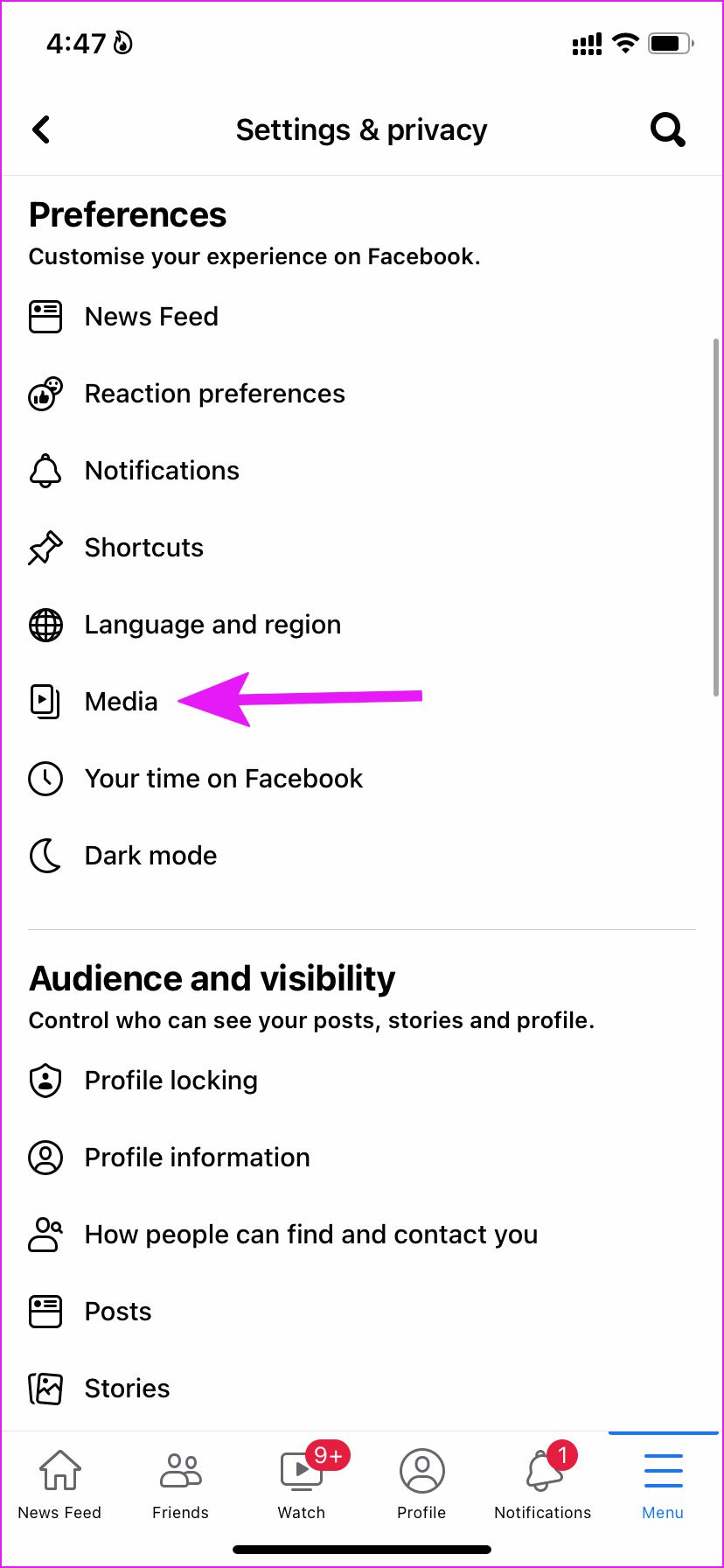
Step 1: Open Facebook > Settings > Media.
Step 2: Tap on the radio button beside Autoplay on the mobile data and the Wi-Fi option.

Fix 3: Disable Data Saver Mode (Facebook App and Mobile)
If you are browsing your Facebook feed on the Data Saver mode, you might face issues with playing videos.
On Facebook
Step 1: Open the Media menu in Facebook Settings.
Step 2: From the Video Quality menu, tap on the radio button beside Optimised.
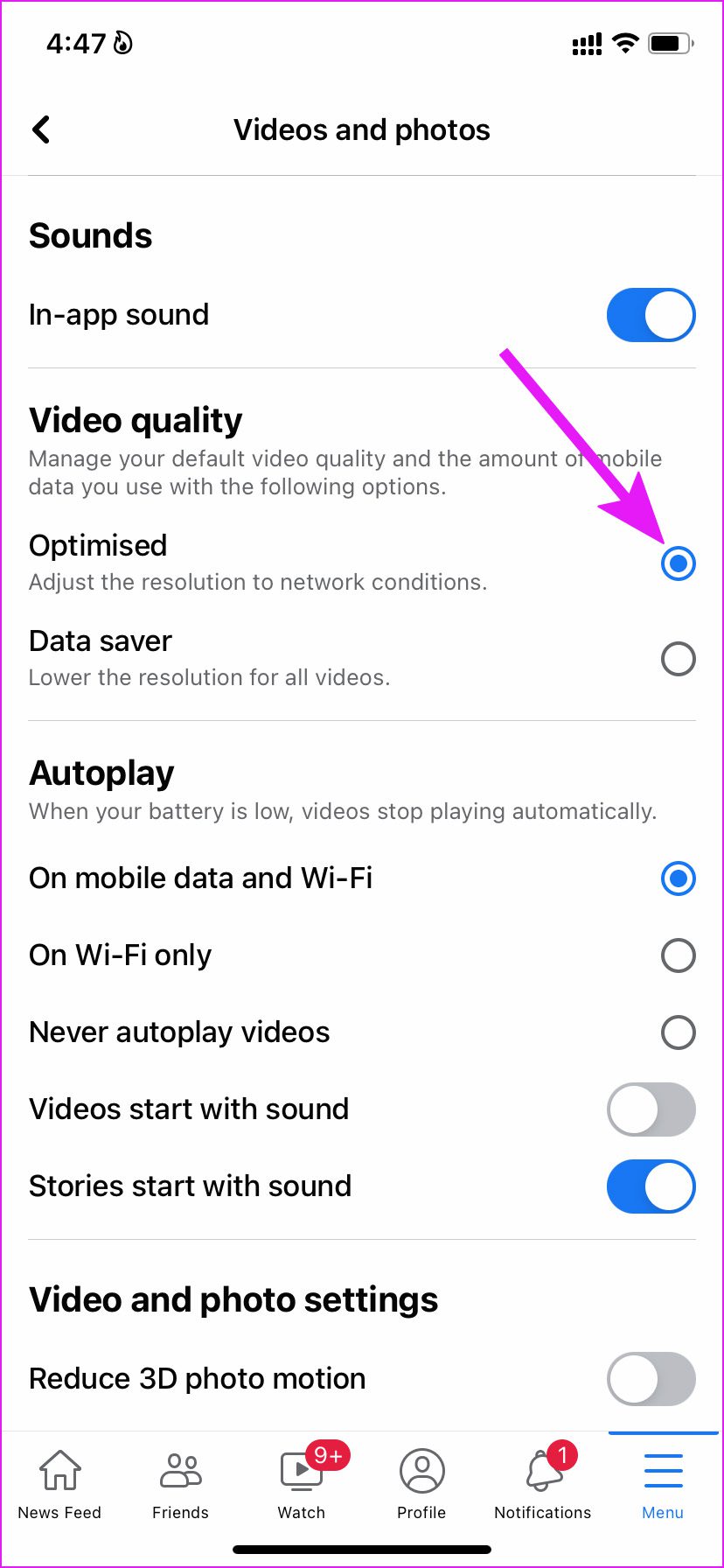
After that, Facebook will adjust the video resolution to network conditions, and you won’t face any buffering issues.
On Android
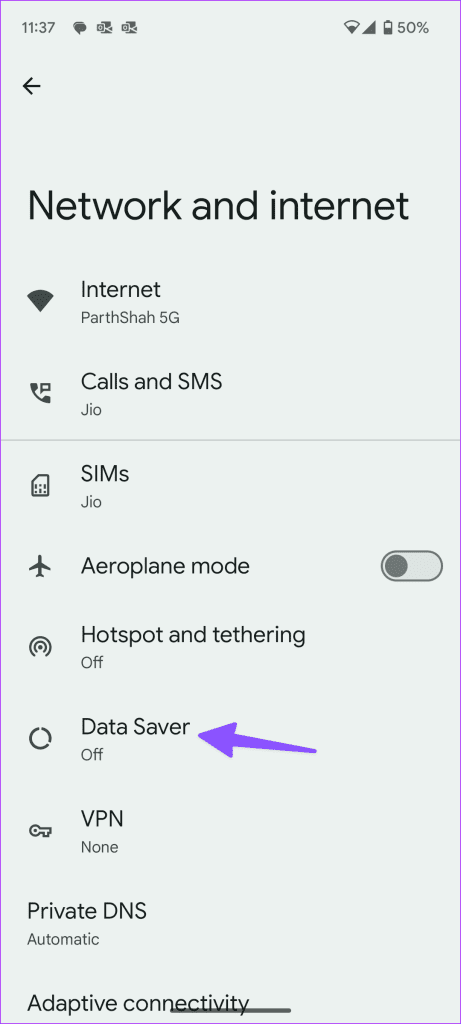
Open Settings > Network and internet > Data Saver > Disable Data Saver.

On iPhone
Step 1: Open Settings > Mobile Service.
Step 2: Select a main SIM and then disable the Low Data Mode.


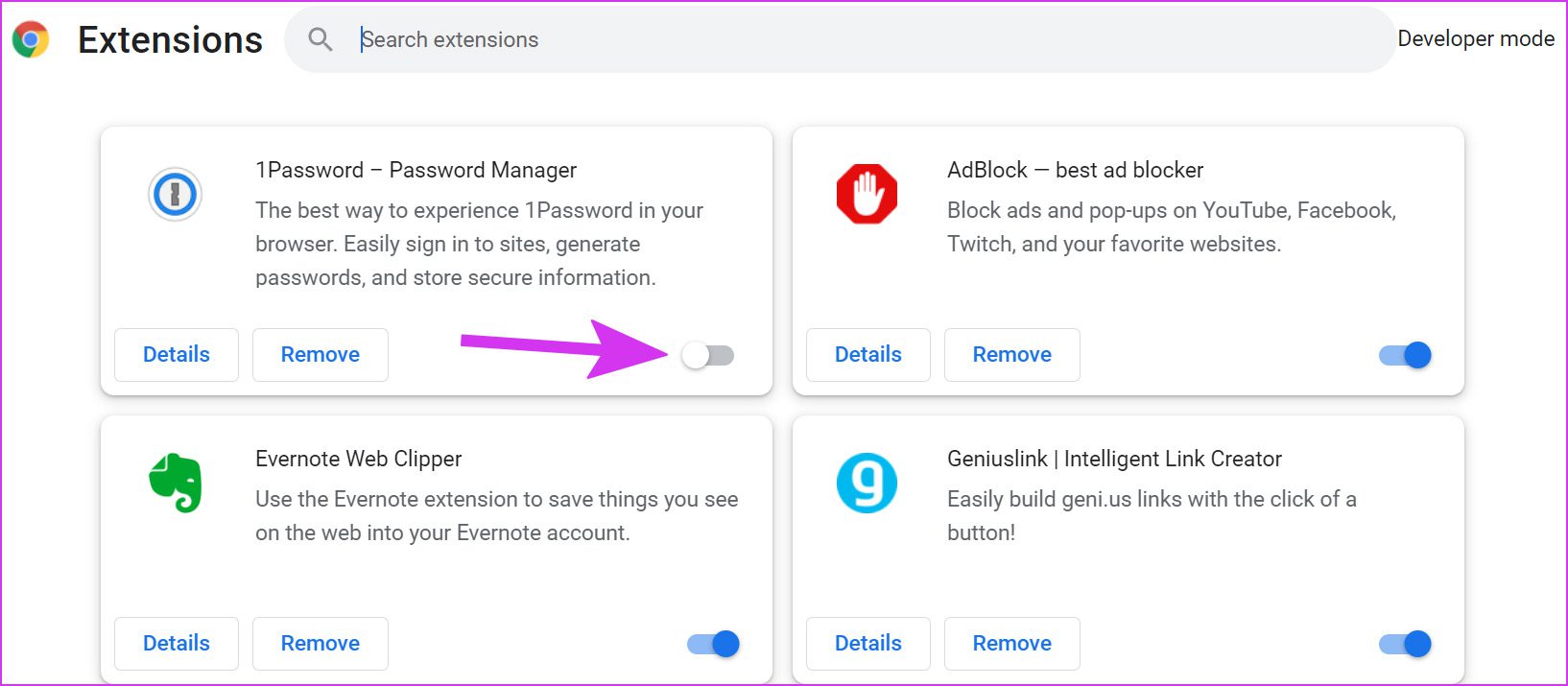
Fix 4: Disable Browser Extension (Desktop)
A data saver extension or an aggressive ad-blocker can interfere with video playback on Facebook. Let’s disable or uninstall such extensions. We are using Google Chrome as an example.
Step 1: Open the More tools menu in Google Chrome.
Step 2: Click on the Extensions menu.

Step 3: You can either disable or click on Remove to uninstall problematic extensions from the browser.
Was this helpful?
Last updated on 09 August, 2024
Read Next
 5 Ways to Fix Videos Not Playing in Microsoft Edge
Fix 1: Disable Extensions Third-party extensions can occasionally disrupt browser processes, leading to such issues.
5 Ways to Fix Videos Not Playing in Microsoft Edge
Fix 1: Disable Extensions Third-party extensions can occasionally disrupt browser processes, leading to such issues.
 3 Ways to Fix Videos Not Playing on Instagram
https://youtu.be/27MXAW2cROQ Try Basic Fixes Update the Instagram app: Running an older version of Instagram can lead to such problems.
3 Ways to Fix Videos Not Playing on Instagram
https://youtu.be/27MXAW2cROQ Try Basic Fixes Update the Instagram app: Running an older version of Instagram can lead to such problems.
 3 Ways to Fix Snapchat Not Playing Videos on Android and iPhone
Try Basic Fixes Check if Snapchat is down: At times, server congestion or other related issues can impact Snapchat’s performance and trigger various errors.
3 Ways to Fix Snapchat Not Playing Videos on Android and iPhone
Try Basic Fixes Check if Snapchat is down: At times, server congestion or other related issues can impact Snapchat’s performance and trigger various errors.
 How to Fix WhatsApp Videos Not Playing on iPhone or Android
Basic Fixes Check your network connection: Ensure your phone has a robust internet connection.
How to Fix WhatsApp Videos Not Playing on iPhone or Android
Basic Fixes Check your network connection: Ensure your phone has a robust internet connection.
 5 Ways to Fix Safari Not Playing Videos on iPhone
Fix 1: Disable Extensions Using third-party extensions in Safari can occasionally interfere with its video playback functionality.
5 Ways to Fix Safari Not Playing Videos on iPhone
Fix 1: Disable Extensions Using third-party extensions in Safari can occasionally interfere with its video playback functionality.
 4 Ways to Fix iPad Not Playing or Streaming Videos
Fix 1: Resolve App-Specific Problems Check app server status: Issues with the backend can affect app functions.
4 Ways to Fix iPad Not Playing or Streaming Videos
Fix 1: Resolve App-Specific Problems Check app server status: Issues with the backend can affect app functions.
 3 Ways to Fix Safari Not Playing Videos on Mac
Preliminary Fixes Check the Streaming Service status: Can't play videos from Netflix, Prime Video, Disney+, or YouTube on Safari?
3 Ways to Fix Safari Not Playing Videos on Mac
Preliminary Fixes Check the Streaming Service status: Can't play videos from Netflix, Prime Video, Disney+, or YouTube on Safari?
 Top 5 Ways to Fix Google Photos Not Playing Videos
Basic Fixes Check Network Connection: If you're trying to stream content backed up to the cloud, then you’ll need to use high-speed internet to sync and stream it.
Top 5 Ways to Fix Google Photos Not Playing Videos
Basic Fixes Check Network Connection: If you're trying to stream content backed up to the cloud, then you’ll need to use high-speed internet to sync and stream it.
The article above may contain affiliate links which help support Guiding Tech. The content remains unbiased and authentic and will never affect our editorial integrity.