Try Basic Fixes
- Free up storage space: A lack of free storage space on your Android can also cause Discord to misbehave and display the “Looks like Discord has crashed unexpectedly” error. To prevent this, it’s crucial to regularly check your phone’s storage status and ensure there’s enough free space.
- Update the Discord app: Updating the Discord app can resolve any bugs or obscure issues that might have been preventing the app from working correctly. Update the Discord app on your phone and see if it solves the problem.
- Install software updates: If you are experiencing similar issues with other apps as well, it’s worth checking your phone for pending software updates. After updating to the latest Android version, try using Discord again.
Fix 1: Turn Off Autoplay for GIFs, Emojis and Stickers
A common reason why Discord may keep crashing on your Android is due to the autoplay feature for elements like GIFs, emojis, and stickers. Hence, the first thing you should do is disable it.
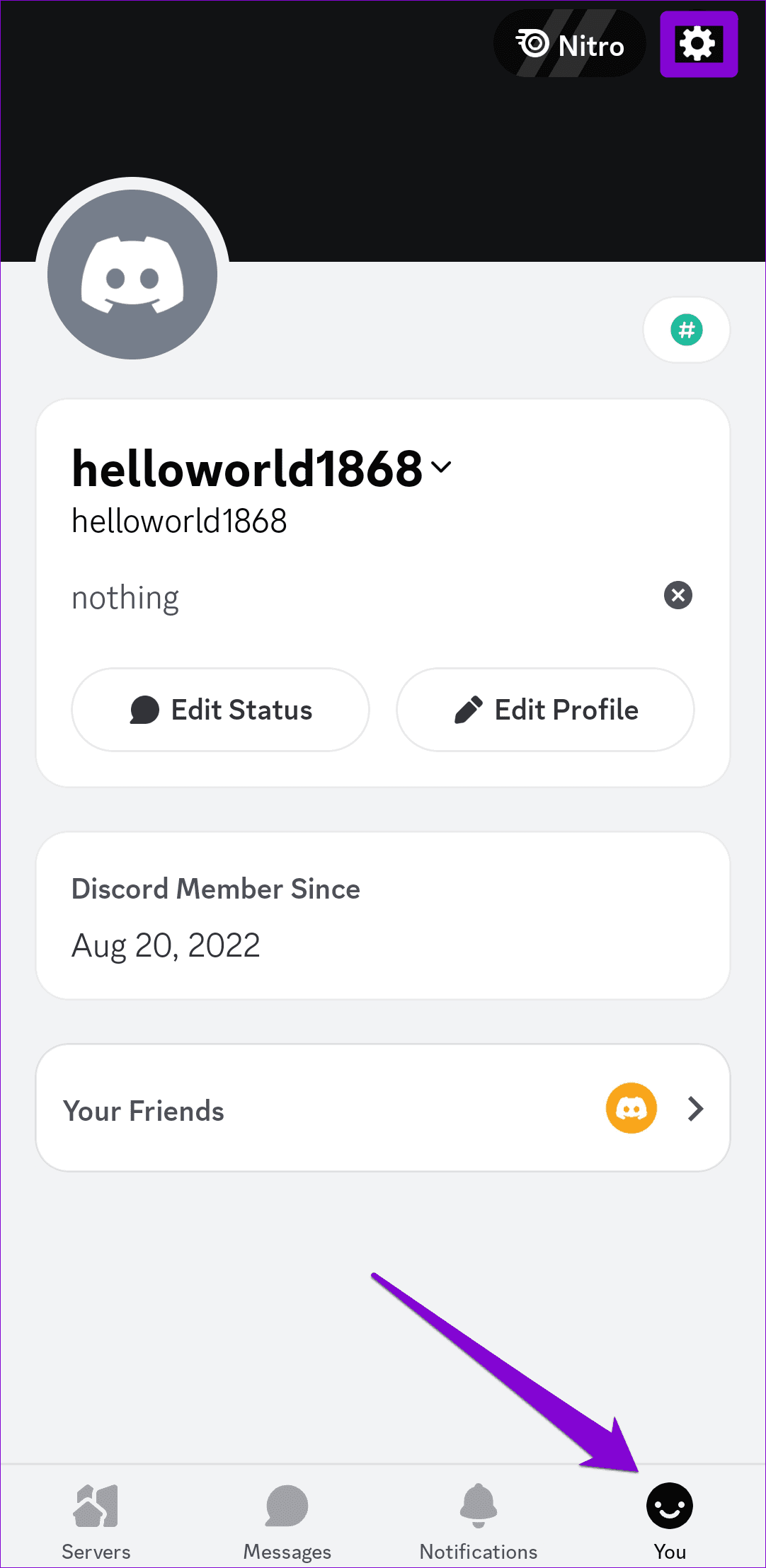
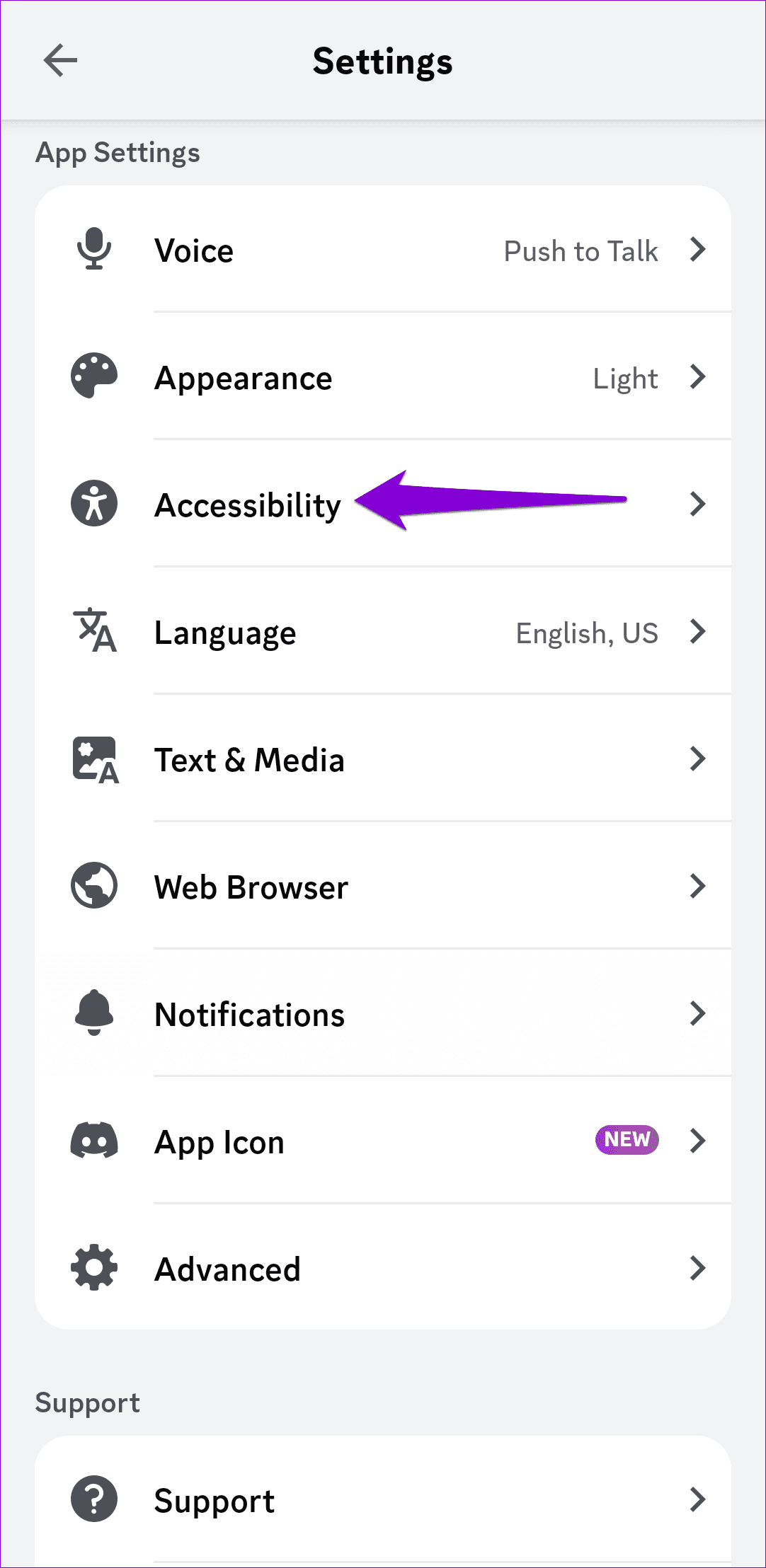
Step 1: Launch the Discord app on your phone. Tap the profile icon in the bottom-right corner and then tap the gear-shaped icon at the top.
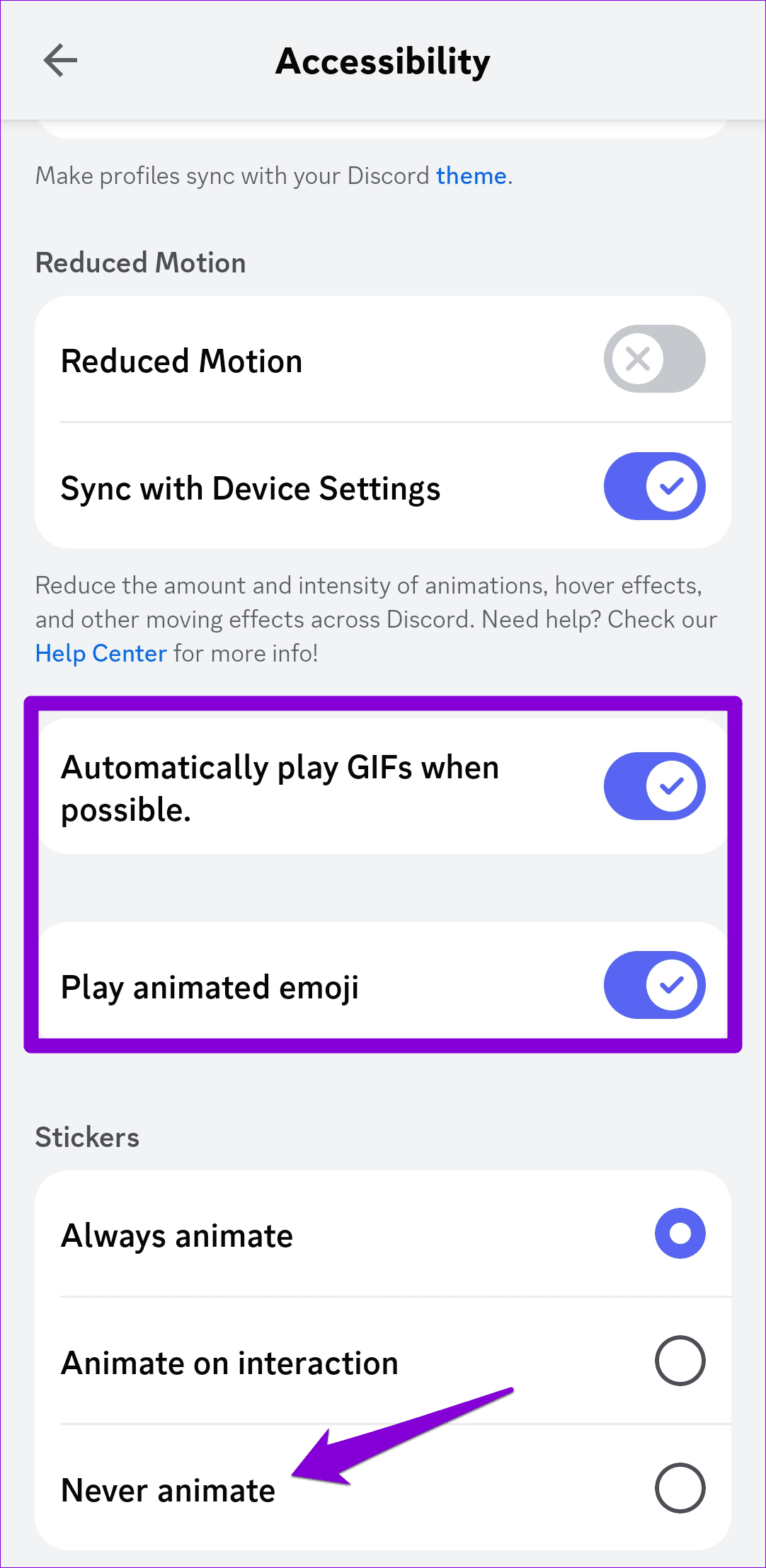
Step 2: Go to Accessibility and turn off the toggles next to Automatically play GIFs when possible and Play animated emoji. Then, select Never animate under Stickers.
Fix 2: Disable and Enable Android System WebView
Android System WebView is an essential system component that lets your apps display web content. However, if the Android System WebView isn’t working correctly, apps relying on it may crash frequently. You can try disabling the Android System WebView and enabling it again to see if that helps.
Step 1: Open the Settings app and scroll down to tap on Apps. Locate and tap Android System WebView.
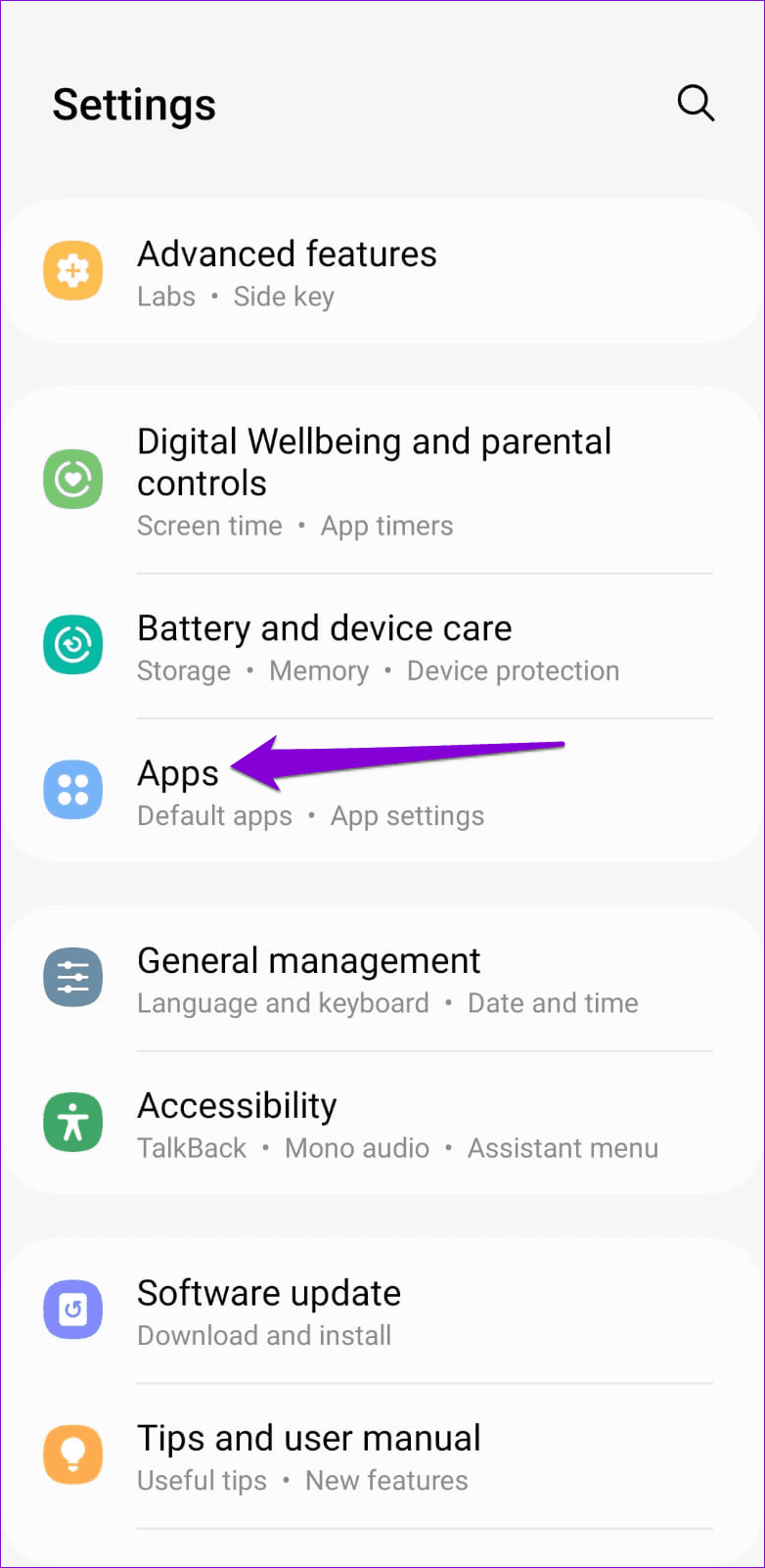
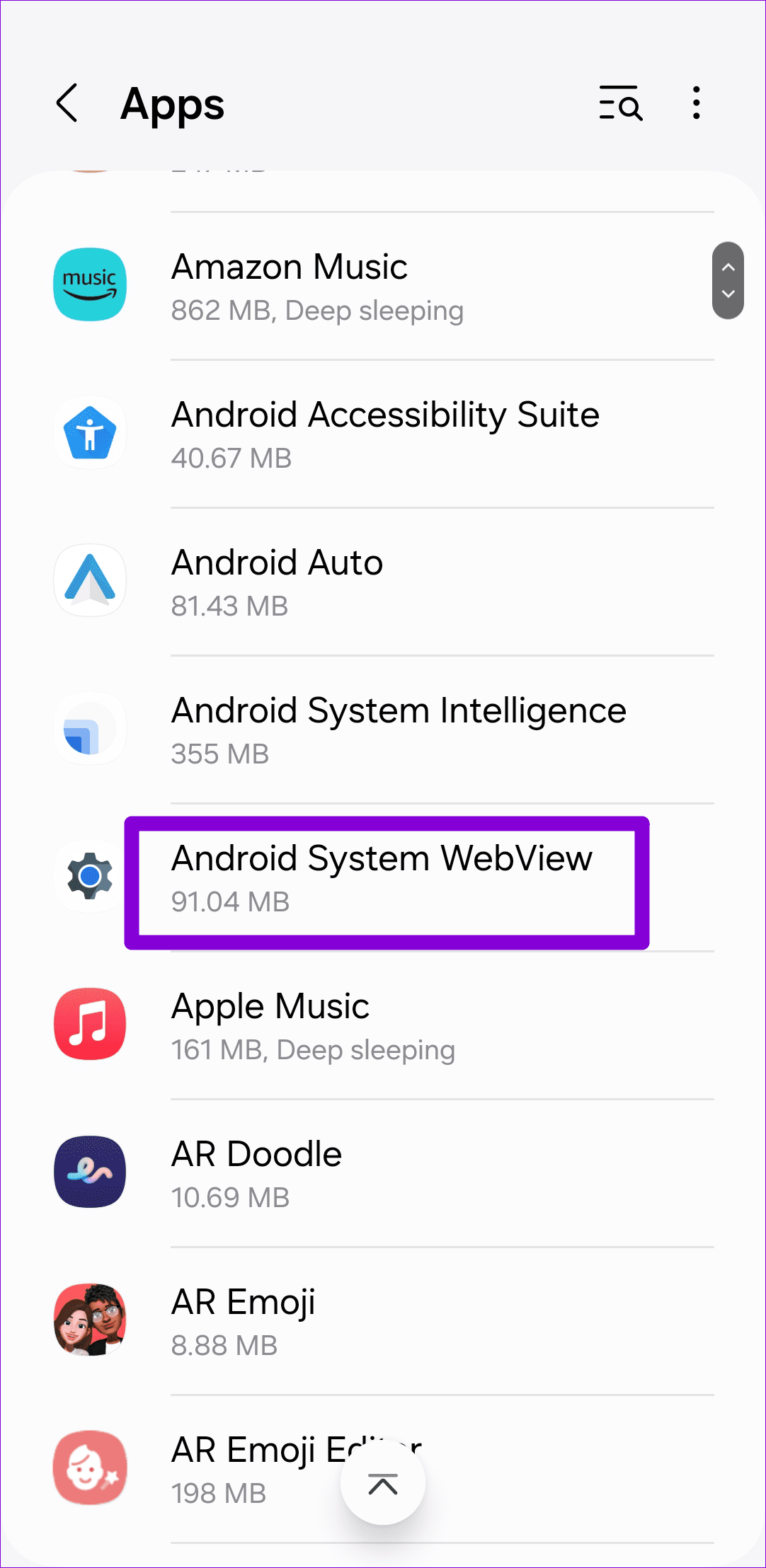
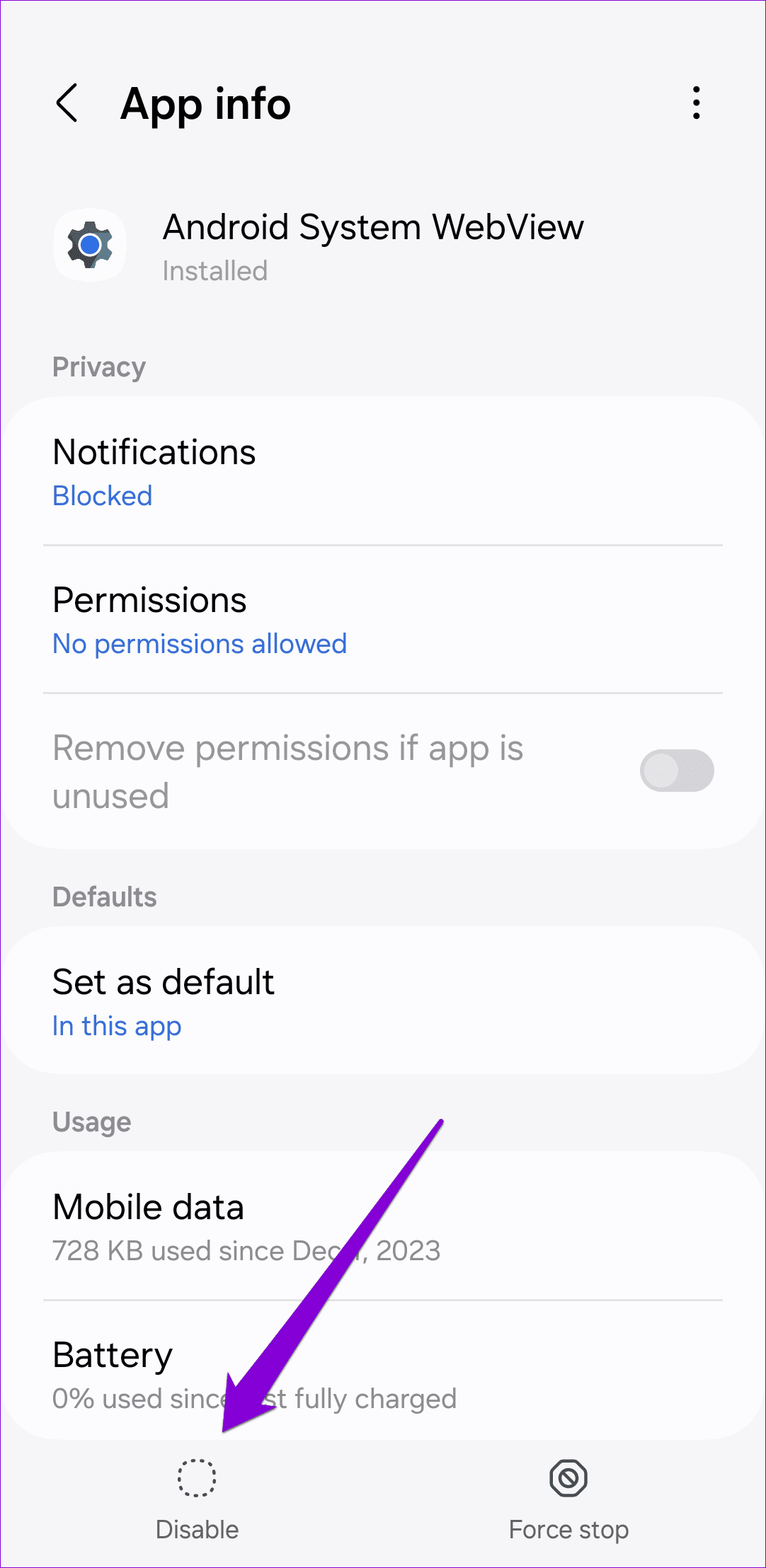
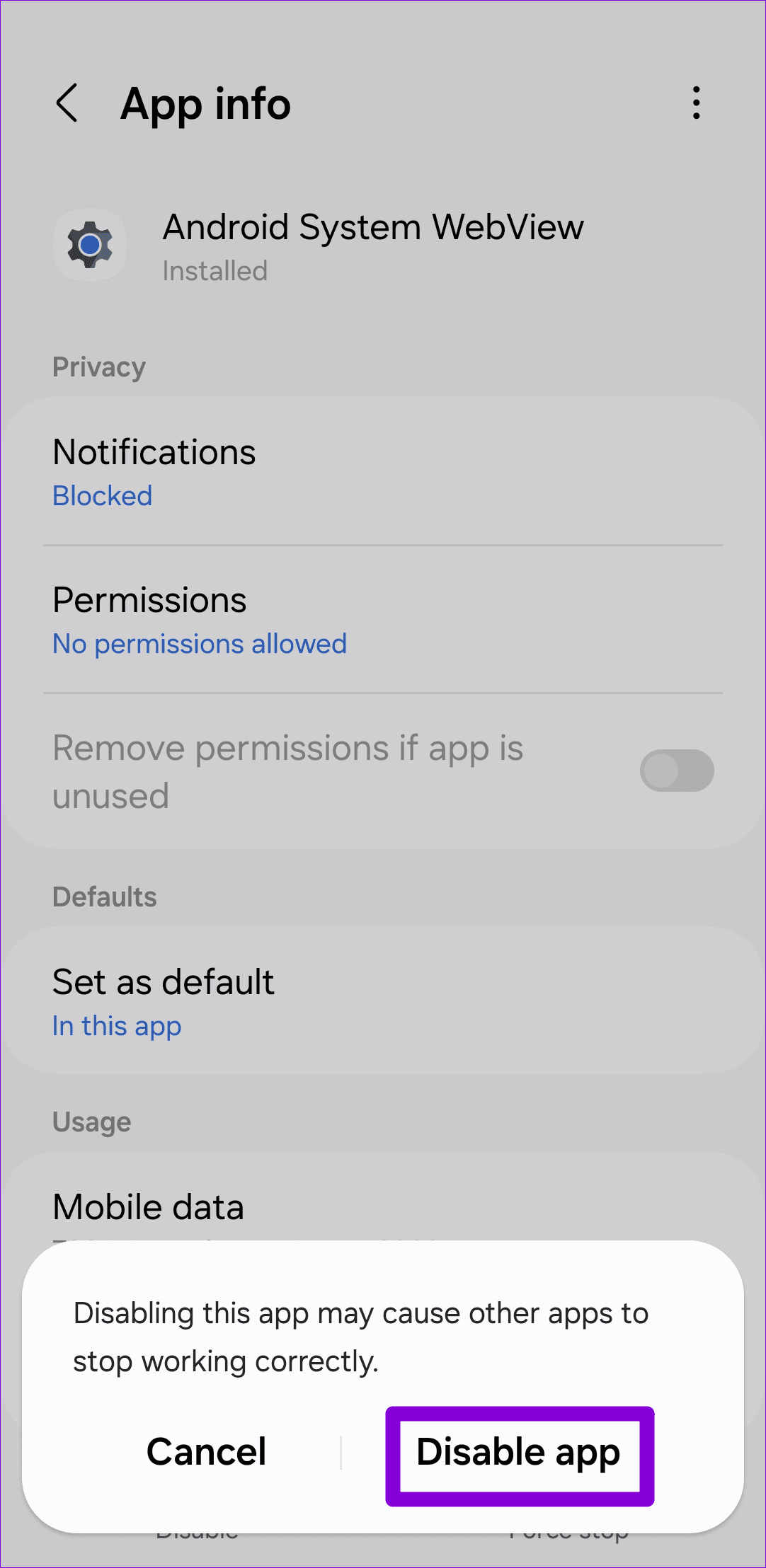
Step 2: Tap the Disable option at the bottom and select Disable app to confirm.
Step 3: Exit the Settings app and restart your phone. Then, enable Android System WebView on your phone.

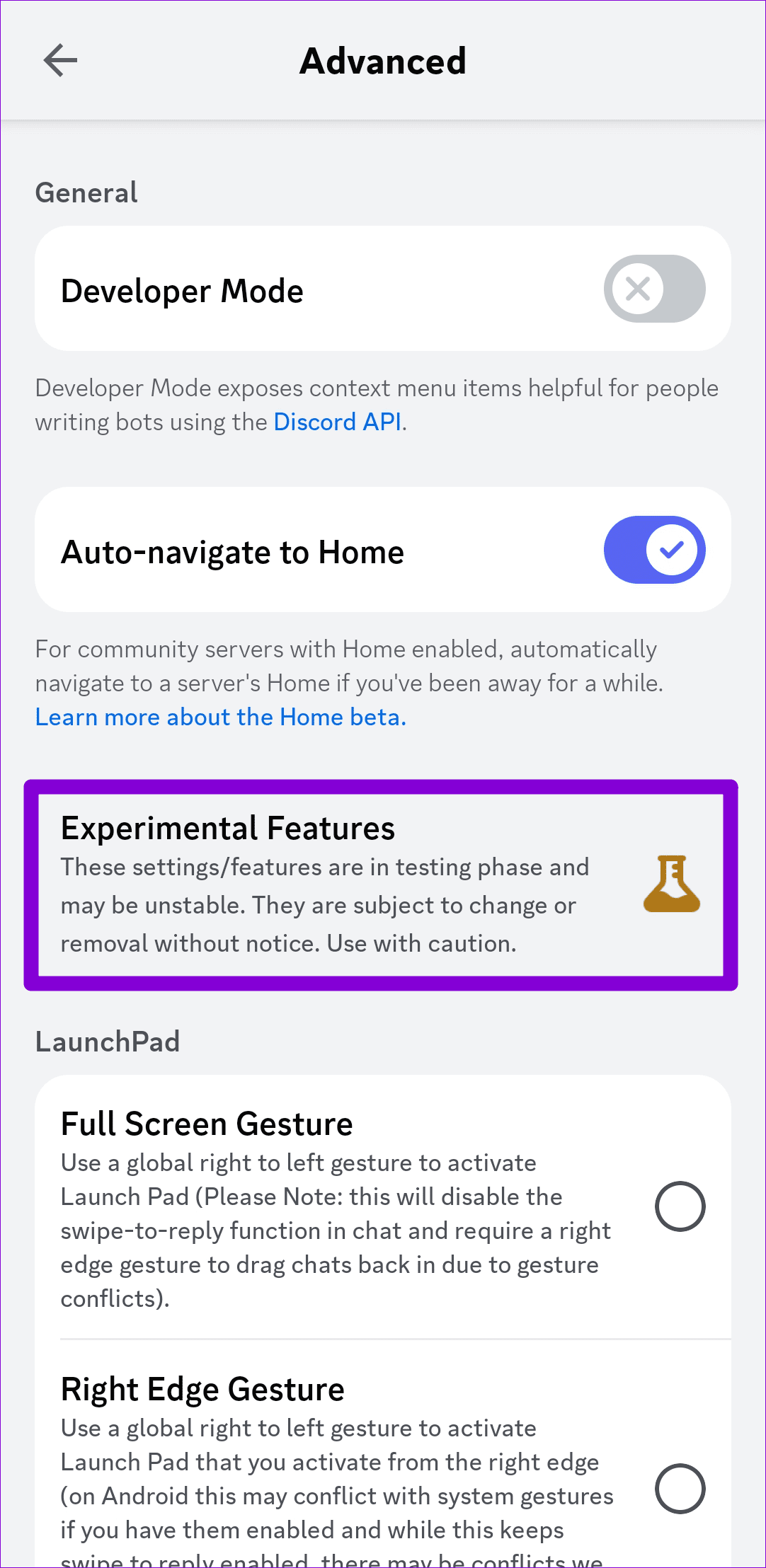
Fix 3: Avoid Using Experimental Features in the Discord App
Discord is one of the few apps that allows you to access some of the experimental features directly in the stable version of the app. However, as these features are highly experimental, they can sometimes interfere with the app’s performance and cause it to freeze or crash abruptly. Hence, it’s best not to use them.
Open the Discord app, switch to the profile tab, and tap the gear icon at the top. Turn off and avoid using any app features that are marked as experimental, and see if that helps.
Fix 4: Clear App Cache
If you’ve been using the Discord app for a while, the existing cache data might have become outdated, potentially causing interference with the app’s functionality. In that case, you can try clearing Discord’s app cache using these steps:
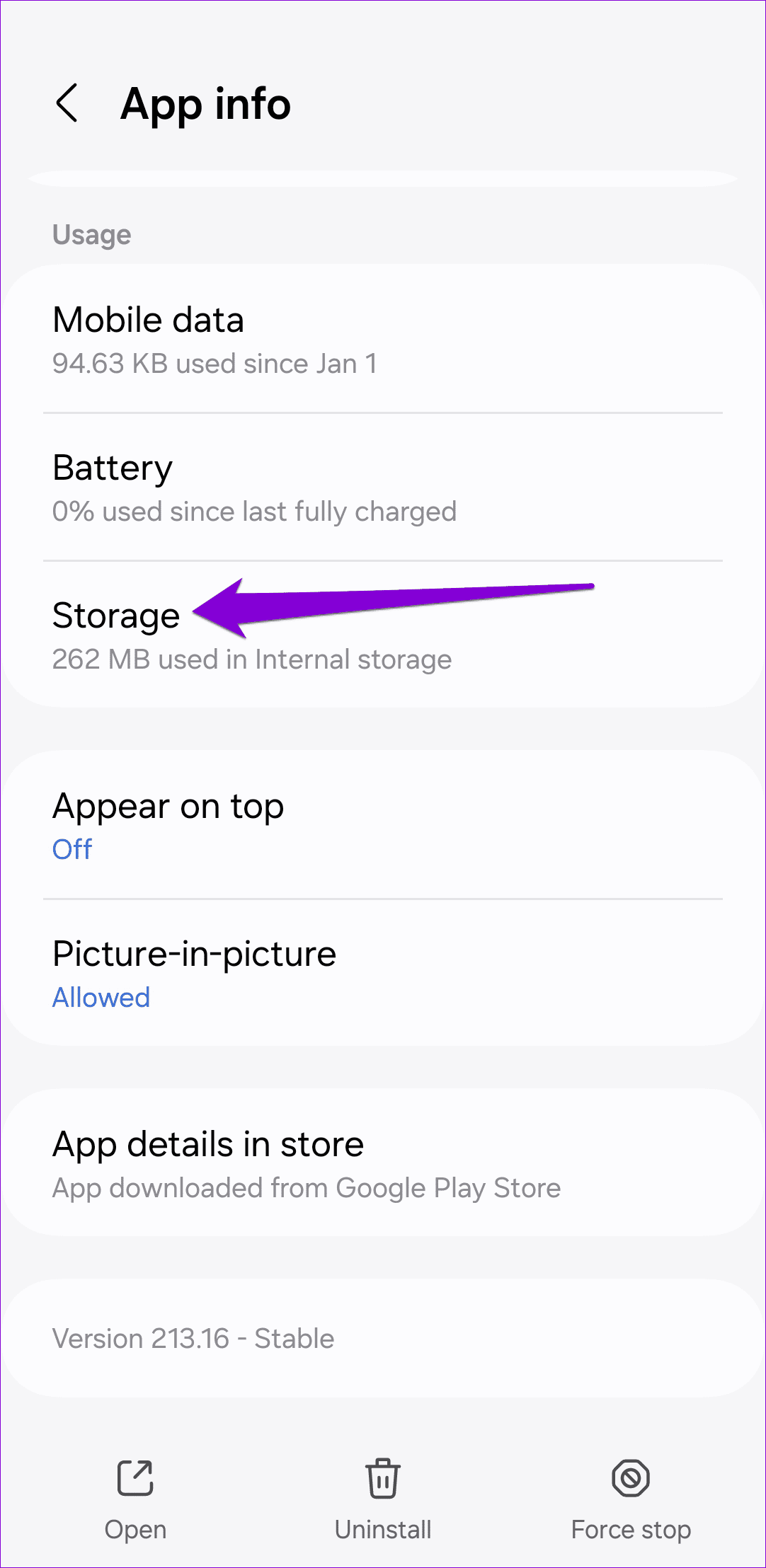
Step 1: Long press the Discord app icon and tap the info icon from the resulting menu.
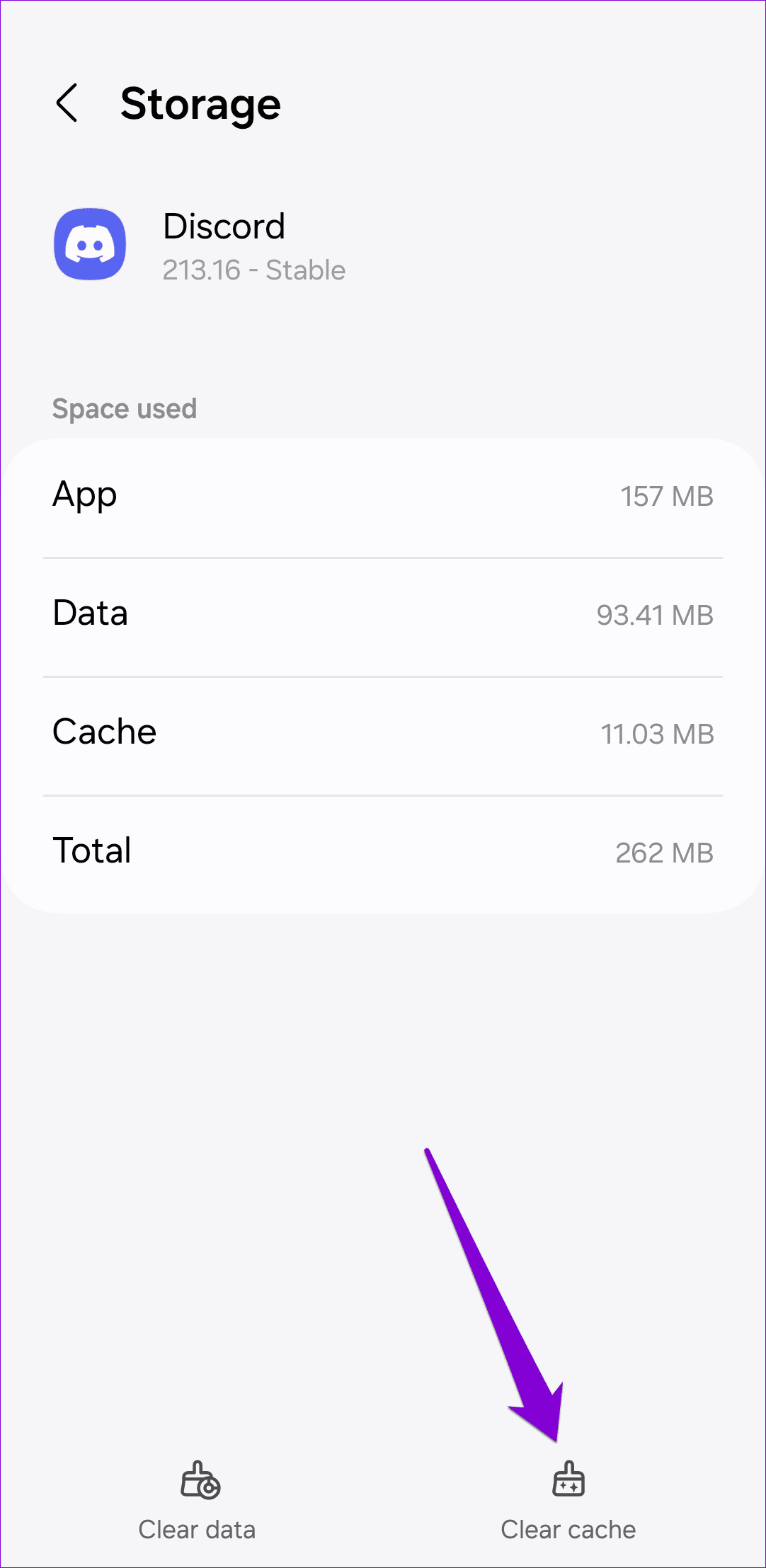
Step 2: Go to Storage and tap the Clear cache option at the bottom.

Was this helpful?
Last updated on 27 June, 2024
Read Next
 5 Ways to Fix Discord Keeps Crashing on Windows Computer
https://youtu.be/_uU0Ob5vTWM Try Basic Fixes End Discord processes using Task Manager: Press Ctrl + Shift + Esc keys to open Task Manager.
5 Ways to Fix Discord Keeps Crashing on Windows Computer
https://youtu.be/_uU0Ob5vTWM Try Basic Fixes End Discord processes using Task Manager: Press Ctrl + Shift + Esc keys to open Task Manager.
 5 Ways to Fix Android Messages Keeps Crashing Issue
Basic Fixes: Restart Phone: Start the troubleshooting process by restarting your phone.
5 Ways to Fix Android Messages Keeps Crashing Issue
Basic Fixes: Restart Phone: Start the troubleshooting process by restarting your phone.
 3 Ways to Fix Telegram Keeps Crashing on Android and iPhone
Try Basic Fixes Force stop and reopen Telegram: When an app on your phone starts misbehaving, the first thing to do is force close it and open it again.
3 Ways to Fix Telegram Keeps Crashing on Android and iPhone
Try Basic Fixes Force stop and reopen Telegram: When an app on your phone starts misbehaving, the first thing to do is force close it and open it again.
 3 Ways to Fix if YouTube Keeps Crashing on Android
https://youtu.be/q1GnaH9pC58 Basic Fixes Free up storage space: The YouTube app requires sufficient storage space to stream content on your Android.
3 Ways to Fix if YouTube Keeps Crashing on Android
https://youtu.be/q1GnaH9pC58 Basic Fixes Free up storage space: The YouTube app requires sufficient storage space to stream content on your Android.
 4 Ways to Fix Word Keeps Crashing on Windows
Basic Fixes Restart PC: Restart your PC to eliminate any temporary bugs and glitches.
4 Ways to Fix Word Keeps Crashing on Windows
Basic Fixes Restart PC: Restart your PC to eliminate any temporary bugs and glitches.
 Top 10 Ways to Fix Google Chrome Keeps Freezing or Crashing on Windows 10
Google Chrome is the go-to browser of millions across the world.
Top 10 Ways to Fix Google Chrome Keeps Freezing or Crashing on Windows 10
Google Chrome is the go-to browser of millions across the world.
 5 Ways to Fix Spotify Keeps Crashing Issue on Windows
Basic Fixes Restart Spotify: Open the Task Manager, right-click on Spotify, and select End Task.
5 Ways to Fix Spotify Keeps Crashing Issue on Windows
Basic Fixes Restart Spotify: Open the Task Manager, right-click on Spotify, and select End Task.
 6 Ways to Fix OBS Keeps Crashing on Windows
Preliminary Fixes Run OBS Studio as Administrator: If OBS crashes on startup, it's best to give it a shot by giving the app an administrative privilege.
6 Ways to Fix OBS Keeps Crashing on Windows
Preliminary Fixes Run OBS Studio as Administrator: If OBS crashes on startup, it's best to give it a shot by giving the app an administrative privilege.
The article above may contain affiliate links which help support Guiding Tech. The content remains unbiased and authentic and will never affect our editorial integrity.