Fix 1: Repair Missing Apps
If Windows 11 is only missing one or two apps, such as Microsoft Store or Photos, you can try repairing those problematic apps to see if that helps.
Step 1: Press the Windows key + I to open the Settings app and head to Apps > Installed apps.
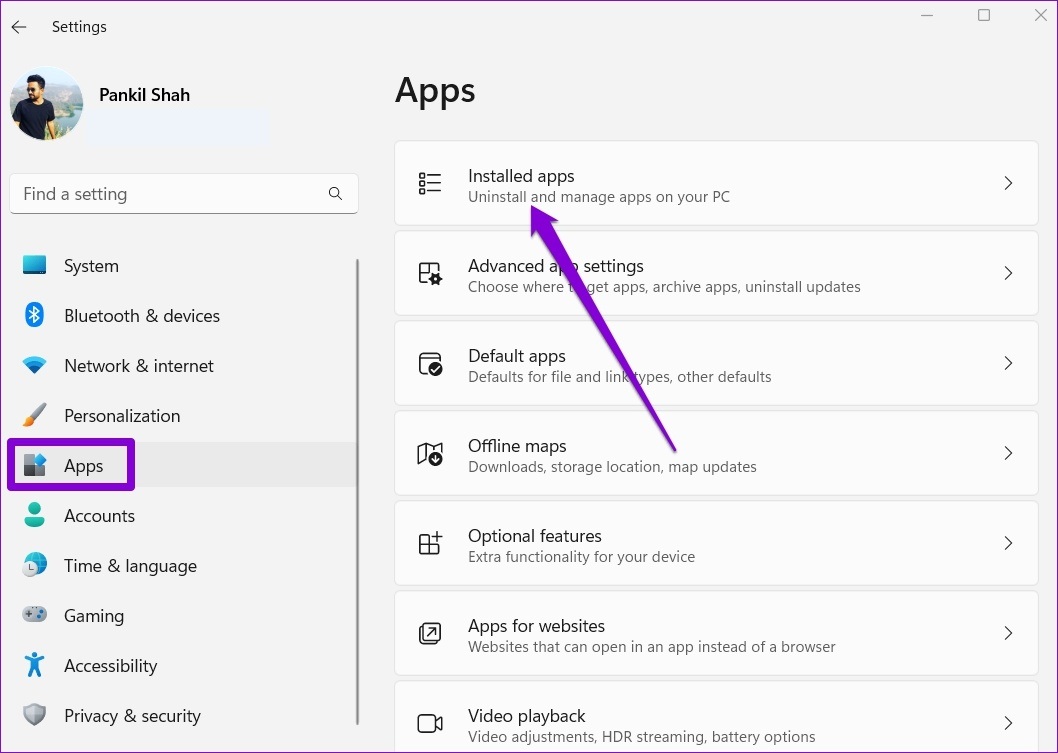
Step 2: Locate the app you want to repair. Click the three-dot menu icon next to it and go to Advanced options.

Step 3: Scroll down to the Reset section and click Repair.

If the problem persists, you can also Reset the app from the same menu. Note that this will remove all the app data.
Fix 2: Reinstall Apps Using PowerShell
If repairing the app doesn’t work, you can use Windows PowerShell to reinstall all the default apps on your PC. Here’s how.
Step 1: Click the search icon on the taskbar, type in windows powershell, and click Run as Administrator.

Step 2: Paste the following command in the console and press Enter.
Get-AppXPackage | Foreach {Add-AppxPackage -DisableDevelopmentMode -Register "$($_.InstallLocation)AppXManifest.xml"

This might take a while. Wait for the process to finish and then restart your PC. Your default apps will appear again.
Fix 3: Try Clean Boot
There’s a chance that a recently installed program or a third-party service running in the background is interfering with Windows. So, if the issue remains even after reinstalling default apps, you can boot your PC in a clean boot state.
Step 1: Press the Windows key + R to open the Run dialog, type in msconfig, and press Enter.
Step 2: Under the Services tab, mark the box that reads Hide all Microsoft services and click Disable all button in the bottom-right corner.

Step 3: Switch to the Startup tab and click Open Task Manager.
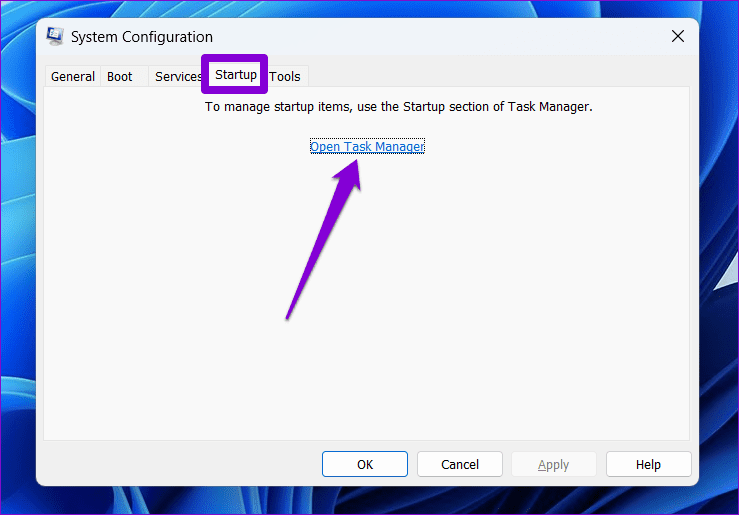
Step 4: In the Startup tab, select a third-party program and click Disable at the top. Repeat this step to disable all third-party apps and programs.

Restart your PC to boot Windows without third-party apps and services. Check to see if you can find your default apps. If this solves your problem, then you’ll need to remove any recently installed apps or programs individually to fix the issue.
To boot in normal mode again, use the above steps to enable all Startup apps and services, and then reboot your PC.
Fix 4: Create a New User Account
If the default apps are still missing, there could be an issue with your user account. In that case, you can create a new user account by following the steps below.
Step 1: Press the Windows key + I to launch the Settings app and head to Accounts > Family & other users.

Step 2: Under Other users, click the Add account button.
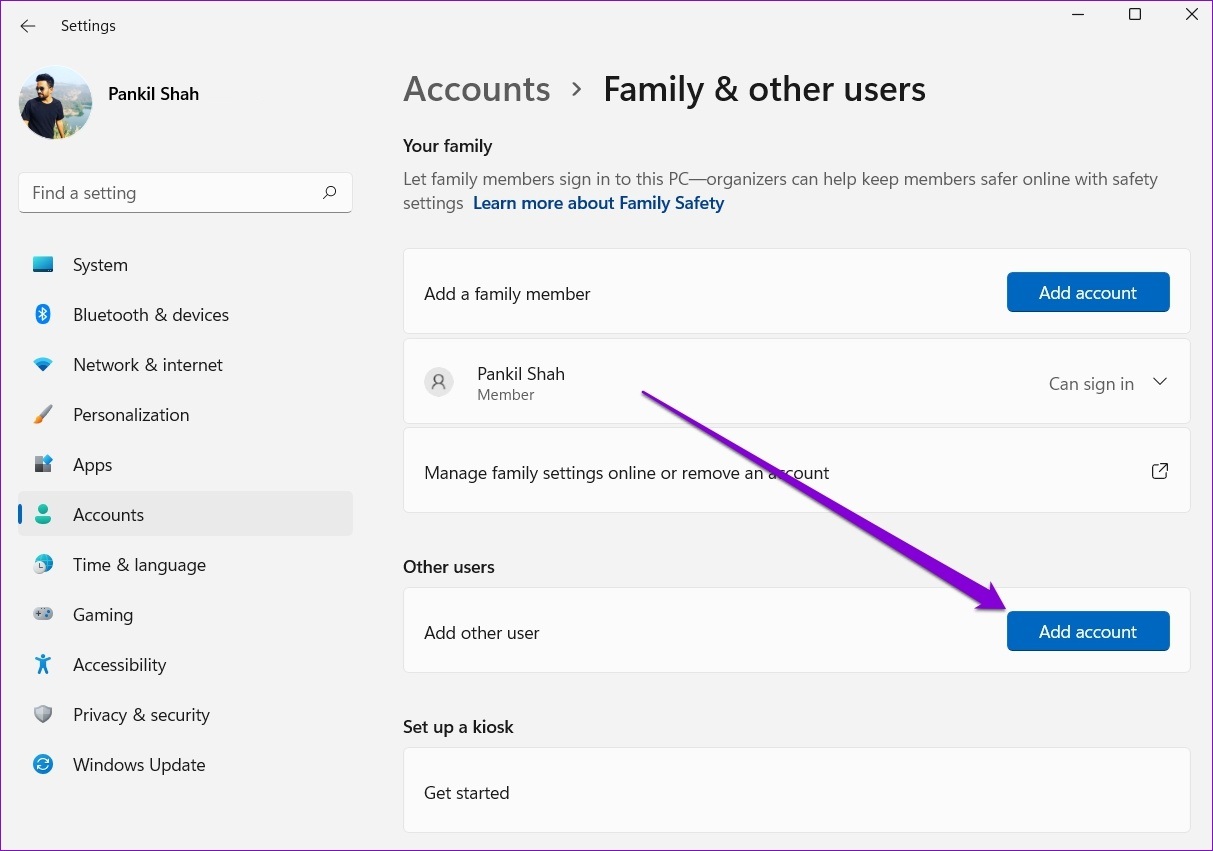
Step 4: Click I don’t have this person’s sign-in information and follow the on-screen instructions to create a new user account on Windows.
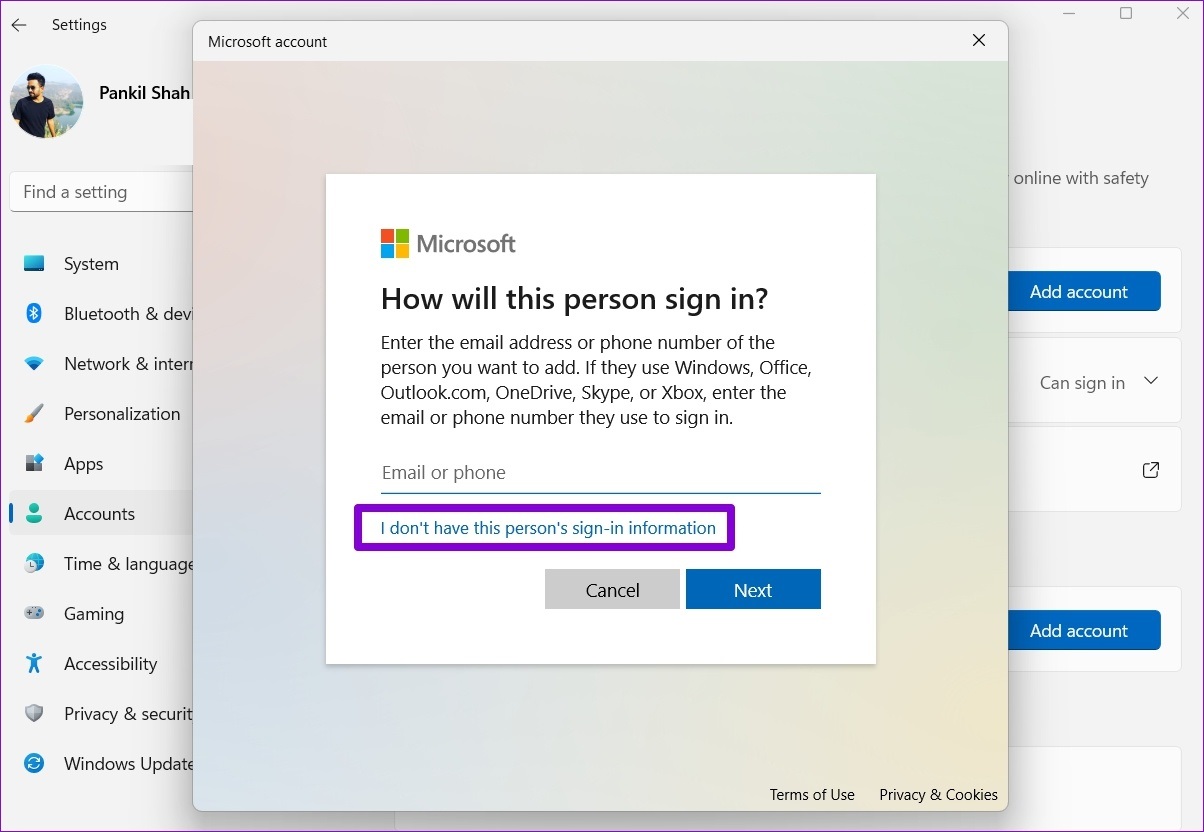
After that, sign in with the newly created user account, and your missing apps will appear again.
Fix 5: Reset Windows 11
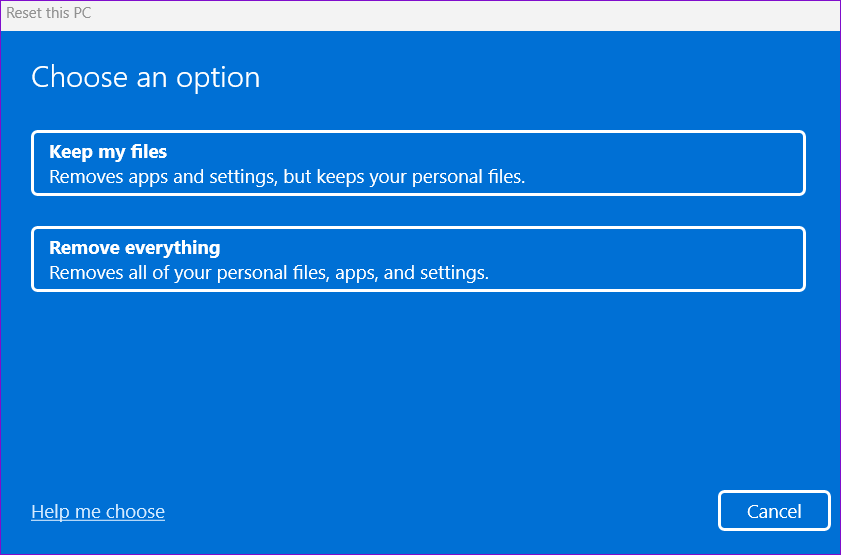
Lastly, if none of the above solutions work, you’ve no option but to reset your PC. Thankfully, you can reset Windows 11 without losing any of your personal data. However, this process will remove your installed apps and reset all the system settings.
Step 1: Press the Windows key + I to launch the Settings app. In the System tab, go to Recovery.

Step 2: Click on Reset PC.

Step 3: Select Keep my files and then follow the on-screen prompts to finish resetting Windows 11.
Was this helpful?
Last updated on 26 July, 2024
Read Next
 6 Ways to Fix Default Apps and Program Missing on Windows 10
There are two types of people: those who use default apps on their Windows PC and those who don't.
6 Ways to Fix Default Apps and Program Missing on Windows 10
There are two types of people: those who use default apps on their Windows PC and those who don't.
 5 Ways to Fix Background Apps Permissions Option Missing on Windows 11
Fix 1: Configure Background App Permissions via Battery Settings You can manage background app permissions in various ways in Windows 11.
5 Ways to Fix Background Apps Permissions Option Missing on Windows 11
Fix 1: Configure Background App Permissions via Battery Settings You can manage background app permissions in various ways in Windows 11.
 Top 4 Ways to Fix Microsoft Store Missing in Windows 10
The Microsoft Store (previously known as Windows Store) is an integral part of any Windows-powered computer.
Top 4 Ways to Fix Microsoft Store Missing in Windows 10
The Microsoft Store (previously known as Windows Store) is an integral part of any Windows-powered computer.
 8 Ways to Fix Windows Search Bar Is Missing Issue
Windows 10 came with a lot of tweaks under the hood.
8 Ways to Fix Windows Search Bar Is Missing Issue
Windows 10 came with a lot of tweaks under the hood.
 6 Ways to Fix Icons Missing From Start Menu on Windows 11
Fix 1: Restart Windows Explorer Windows Explorer process is responsible for providing the graphical interface for several utilities, including the Start menu.
6 Ways to Fix Icons Missing From Start Menu on Windows 11
Fix 1: Restart Windows Explorer Windows Explorer process is responsible for providing the graphical interface for several utilities, including the Start menu.
 5 Ways to Fix Some Update Files are Missing or Have Problems Error on Windows 11
Fix 1: Run the Windows Update Troubleshooter Windows 11 includes a dedicated troubleshooter to automatically identify and resolve any common issues with the Windows Update process.
5 Ways to Fix Some Update Files are Missing or Have Problems Error on Windows 11
Fix 1: Run the Windows Update Troubleshooter Windows 11 includes a dedicated troubleshooter to automatically identify and resolve any common issues with the Windows Update process.
 6 Ways to Fix the “Missing File Privileges” Error in Steam for Windows
Fix 1: End the igfxEM Module Process The igfxEM process is a component of the Intel Graphic Executable Main Module.
6 Ways to Fix the “Missing File Privileges” Error in Steam for Windows
Fix 1: End the igfxEM Module Process The igfxEM process is a component of the Intel Graphic Executable Main Module.
 Copilot Missing on Windows 11? Here’s How to Bring It Back
Get Copilot From the Microsoft Store If you can't find Microsoft Copilot on your Windows 11 system, install it from the Microsoft Store to get started.
Copilot Missing on Windows 11? Here’s How to Bring It Back
Get Copilot From the Microsoft Store If you can't find Microsoft Copilot on your Windows 11 system, install it from the Microsoft Store to get started.
The article above may contain affiliate links which help support Guiding Tech. The content remains unbiased and authentic and will never affect our editorial integrity.