

Try Basic Fixes
- Let your iPhone cool down: An overheating iPhone can malfunction and lag while capturing photos and videos. In such instances, power off your iPhone and wait a few minutes before turning it on. After that, the camera app should work smoothly.
- Free up storage space: Lack of storage space is another reason the camera app may lag on your iPhone. Ideally, keep at least 1GB of free storage space on your iPhone. If you aren’t keen on deleting favorite photos or videos, offload less-used apps from your iPhone.
- Install iOS updates: A buggy or outdated iOS build could cause the camera app to lag on your iPhone. If that’s the case, installing pending updates should help fix the problem.
Fix 1: Turn off Live Photo
Live Photo captures any movement before and after a photo is taken and combines it to create a small animation. Of course, this feature can also significantly slow down the camera app, as it is always recording. This is especially true if you’re using an old iPhone device.
So, if you aren’t keen on capturing a live photo, consider turning it off by tapping the three-circle icon at the top right corner.
Fix 2: Disable Low Power Mode
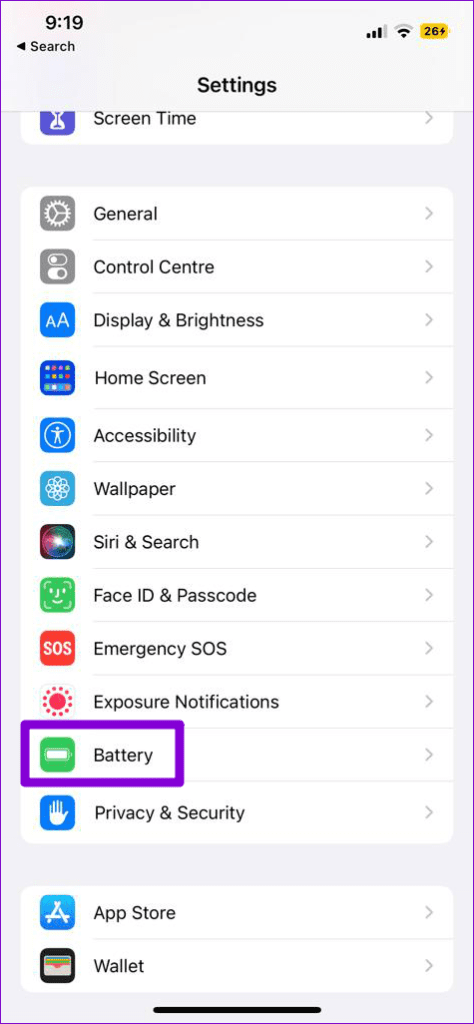
If you’ve been using your iPhone with Low Power Mode enabled, apps might have trouble running smoothly. Of course, this holds true for the Camera app as well.
To turn off Low Power Mode, open the Settings app and head to Battery. Then, turn off the toggle for Low Power Mode.

Fix 3: Turn off VoiceOver
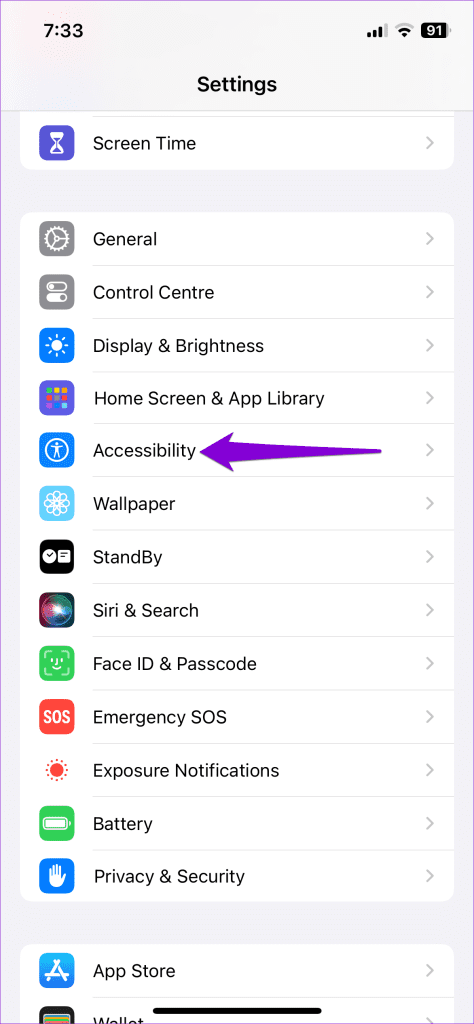
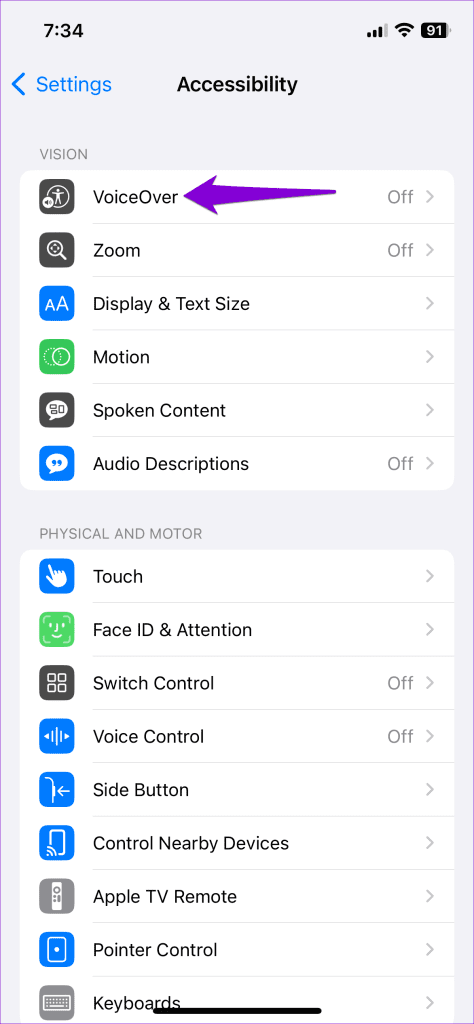
VoiceOver is a useful accessibility feature on the iPhone for people with visual disabilities. However, this feature can sometimes cause the iPhone camera to lag. Hence, it’s best to disable it if you don’t need it.
Step 1: Open Settings on your iPhone > tap on Accessibility.
Step 2: Go to VoiceOver > toggle it off from there.

Fix 4: Tweak Camera Capture Settings
If you’re still bothered by the camera lag on your iPhone, try tweaking the camera capture settings on your iPhone to see if that helps.
Step 1: Open Settings on your iPhone > go to Camera.
Step 2: Tap on Formats > select Most Compatible from the following menu.


Was this helpful?
Last updated on 30 July, 2024
1 Comment
Leave a Reply
Read Next
 4 Ways to Fix Snapchat Camera or Flash Lag on Your Phone
Basic Fixes: Restart the Snapchat app: Restarting the Snapchat app will close all app functions and start them afresh.
4 Ways to Fix Snapchat Camera or Flash Lag on Your Phone
Basic Fixes: Restart the Snapchat app: Restarting the Snapchat app will close all app functions and start them afresh.
 4 Ways to Fix Camera Lag on Android
Try Basic Fixes Close recent apps: Keeping too many apps running in the background can hold your phone’s memory and make the camera app slow.
4 Ways to Fix Camera Lag on Android
Try Basic Fixes Close recent apps: Keeping too many apps running in the background can hold your phone’s memory and make the camera app slow.
 5 Ways to Fix Instagram Lag on iPhone and Android
Preliminary Fixes Use Fast Internet Speeds: A slow or unstable internet connection is one of the primary causes of lag on Instagram.
5 Ways to Fix Instagram Lag on iPhone and Android
Preliminary Fixes Use Fast Internet Speeds: A slow or unstable internet connection is one of the primary causes of lag on Instagram.
 Top 7 Ways to Fix Zoom Lag on Windows 10
Even after fierce competition from the likes of Google Meet and Microsoft Teams, Zoom continues to grow its market share in the video calling market.
Top 7 Ways to Fix Zoom Lag on Windows 10
Even after fierce competition from the likes of Google Meet and Microsoft Teams, Zoom continues to grow its market share in the video calling market.
 7 Best Ways to Fix Lag on Amazon Fire TV Stick
Amazon Fire TV Stick is a wonderful streaming device.
7 Best Ways to Fix Lag on Amazon Fire TV Stick
Amazon Fire TV Stick is a wonderful streaming device.
 5 Ways to Fix Keyboard Lag on Windows 11
Basic Fixes Disconnect and reconnect the keyboard: If your keyboard is lagging due to a minor connection issue, disconnecting and reconnecting it should help.
5 Ways to Fix Keyboard Lag on Windows 11
Basic Fixes Disconnect and reconnect the keyboard: If your keyboard is lagging due to a minor connection issue, disconnecting and reconnecting it should help.
 Top 8 Ways to Fix Windows 11 Lag After an Update
While Windows 11 is a welcome change with the start menu, taskbar, and other design improvements, the upgrade didn’t go well with some users.
Top 8 Ways to Fix Windows 11 Lag After an Update
While Windows 11 is a welcome change with the start menu, taskbar, and other design improvements, the upgrade didn’t go well with some users.
 5 Ways to Fix Discord Lag on Windows and Mac
Basic Fixes Close unused apps: Unused open apps could cause lag in Discord.
5 Ways to Fix Discord Lag on Windows and Mac
Basic Fixes Close unused apps: Unused open apps could cause lag in Discord.
The article above may contain affiliate links which help support Guiding Tech. The content remains unbiased and authentic and will never affect our editorial integrity.


100% iphone propaganda. It’s slow because it’s garbage technology. Been slow since 0Gb of storage and is still slow today.