

Try Basic Fixes
- Close recent apps: Keeping too many apps running in the background can hold your phone’s memory and make the camera app slow. Close apps you aren’t using and see if that fixes the problem.
- Free up storage space: If your phone is running low on storage space, the camera app may struggle while saving photos or videos on your phone. Google recommends keeping at least 10% of the total storage free to avoid slowdowns.
- Turn off power saver mode: Enabling the battery saver causes your phone to disable some features and operate slowly. Hence, it’s best to disable the power saver mode on your phone.
- Install software updates: There’s a chance that such lag and stutters with the camera app are specific to the Android version you’re on. If that’s the case, installing pending software updates should help.
Fix 1: Tweak Camera Setting
The camera app on your phone comes packed with features and tricks that may or may not be very useful. Disabling some of the less useful features should help make the app more responsive, especially if you’re using a low-end Android phone or an old phone.
Step 1: Open the Camera app and tap the gear-shaped icon at the top left.
Step 2: Turn off the toggles for Scene optimizer, Scan QR codes, and Location tags.


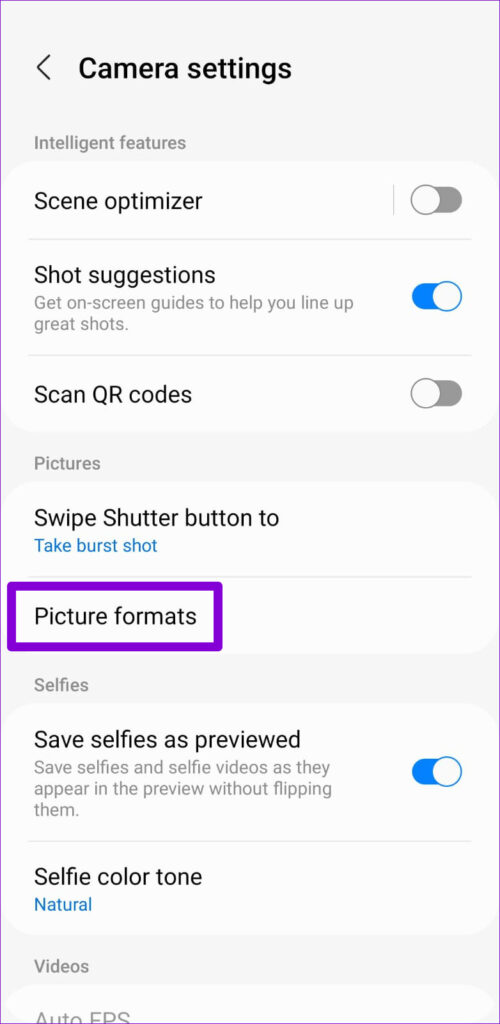
Step 3: Go to Picture formats > toggle off RAW copies.

Fix 2: Modify Processing Speed (For Samsung Phones Only)
If the camera app on your Samsung Galaxy phone is annoyingly slow or laggy, try increasing the processing speed on your phone to speed things up. Here’s how.
Step 1: Launch the Settings app on your phone > navigate to Device care.
Step 2: Tap on Processing speed > select High.

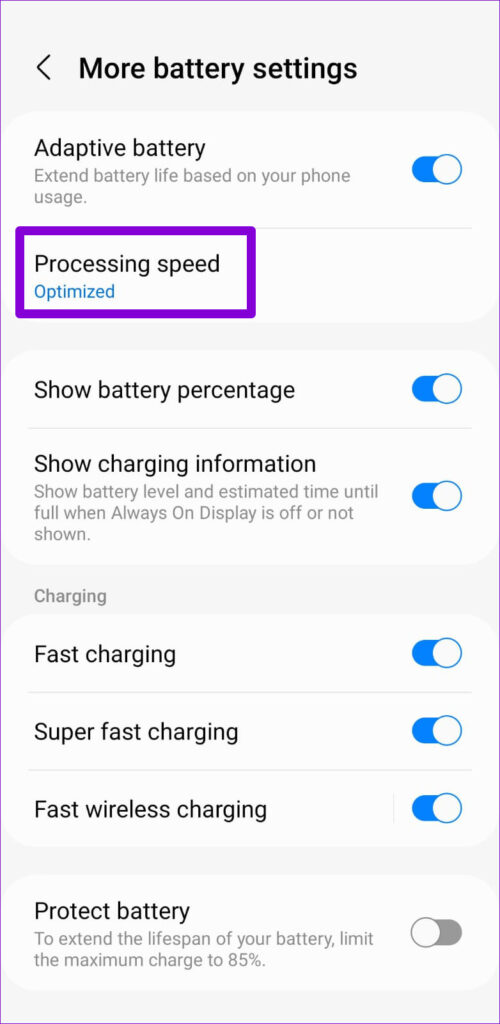
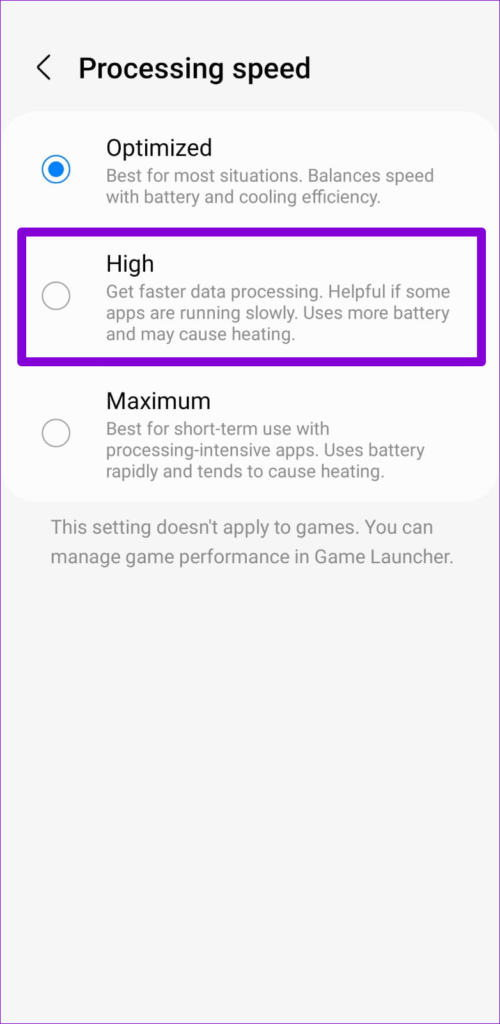
Alternatively, you can also set the processing speed to Maximum. However, this may overheat your phone and drain the battery quickly.
Fix 3: Clear Camera Cache
Like any other app, the camera app on your phone also collects cache during usage. If that cache becomes inaccessible, it may affect the app’s performance. You can try clearing the camera app cache and see if that fixes the lag.
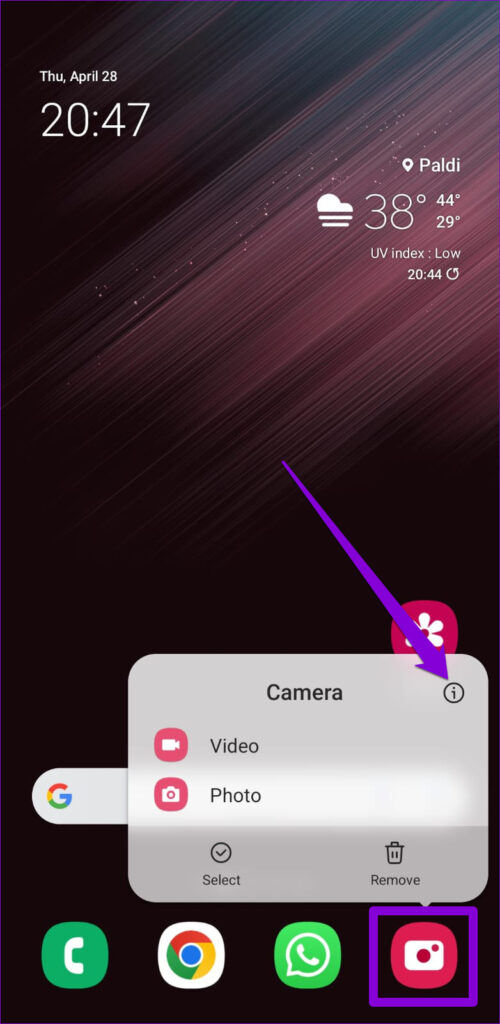
Step 1: Long-press on the Camera app icon and tap the info icon.
Step 2: Go to Storage > tap on Clear cache.


Fix 4: Reset Camera Settings
If nothing else works, consider resetting the camera settings on your phone using these steps:
Step 1: Launch the Camera app on your phone > tap the gear-shaped icon at the top left.
Step 2: Scroll down to select Reset settings > hit Reset to confirm.


Was this helpful?
Last updated on 09 August, 2024
2 Comments
Leave a Reply
Read Next
 4 Ways to Fix Snapchat Camera or Flash Lag on Your Phone
Basic Fixes: Restart the Snapchat app: Restarting the Snapchat app will close all app functions and start them afresh.
4 Ways to Fix Snapchat Camera or Flash Lag on Your Phone
Basic Fixes: Restart the Snapchat app: Restarting the Snapchat app will close all app functions and start them afresh.
 4 Ways to Fix Camera Lag on iPhone
Try Basic Fixes Let your iPhone cool down: An overheating iPhone can malfunction and lag while capturing photos and videos.
4 Ways to Fix Camera Lag on iPhone
Try Basic Fixes Let your iPhone cool down: An overheating iPhone can malfunction and lag while capturing photos and videos.
 4 Ways to Fix Facebook Messenger Lag on Android
Basic Fixes Check internet speeds: Check whether your Android phone is connected to a strong internet network.
4 Ways to Fix Facebook Messenger Lag on Android
Basic Fixes Check internet speeds: Check whether your Android phone is connected to a strong internet network.
 6 Ways to Fix Keyboard Typing Lag on Android
Basic Fixes: Let your phone cool down: After a long gaming season or extensive video recording, your Android phone might feel warm to touch on the sides.
6 Ways to Fix Keyboard Typing Lag on Android
Basic Fixes: Let your phone cool down: After a long gaming season or extensive video recording, your Android phone might feel warm to touch on the sides.
 5 Ways to Fix Instagram Lag on iPhone and Android
Preliminary Fixes Use Fast Internet Speeds: A slow or unstable internet connection is one of the primary causes of lag on Instagram.
5 Ways to Fix Instagram Lag on iPhone and Android
Preliminary Fixes Use Fast Internet Speeds: A slow or unstable internet connection is one of the primary causes of lag on Instagram.
 Top 7 Ways to Fix Zoom Lag on Windows 10
Even after fierce competition from the likes of Google Meet and Microsoft Teams, Zoom continues to grow its market share in the video calling market.
Top 7 Ways to Fix Zoom Lag on Windows 10
Even after fierce competition from the likes of Google Meet and Microsoft Teams, Zoom continues to grow its market share in the video calling market.
 Top 8 Ways to Fix Mouse Lag on Windows 11
A mouse that often stutters or lags can result in an unpleasant computing experience.
Top 8 Ways to Fix Mouse Lag on Windows 11
A mouse that often stutters or lags can result in an unpleasant computing experience.
 5 Ways to Fix Keyboard Lag on Windows 11
Basic Fixes Disconnect and reconnect the keyboard: If your keyboard is lagging due to a minor connection issue, disconnecting and reconnecting it should help.
5 Ways to Fix Keyboard Lag on Windows 11
Basic Fixes Disconnect and reconnect the keyboard: If your keyboard is lagging due to a minor connection issue, disconnecting and reconnecting it should help.
The article above may contain affiliate links which help support Guiding Tech. The content remains unbiased and authentic and will never affect our editorial integrity.

I wonder if they are referring to the app update that puts the first option as “Single Take”. It’s ridiculous. First option and default should be the simple “PHOTO” OPTION. That is a click and walla a photo is taken. Single take takes 15 seconds and gives you multiple styles. Sometimes I wonder who they get feedback from at Samsung!
The most useful suggestion is at #7. Resetting camera settings did the trick. Thank you!