Basic Fixes
- Ensure the Apple Watch is connected to the iPhone: The Apple Watch uses Bluetooth, so it must be connected to your iPhone to receive notifications.
- Force restart Apple Watch: To fix bugs and glitches, restart your Apple Watch by pressing and holding the side button and digital crown simultaneously for 10 seconds. Release the buttons when you see the Apple logo.
- Log in with the same Apple ID on iPhone and Apple Watch: You must use the same Apple ID on both your iPhone and Apple Watch to receive your iPhone’s notifications on the Apple Watch.
- Ensure the Apple watch is unlocked on your wrist: If your Apple Watch is not receiving notifications, ensure you wear it on your wrist.
- Update Apple Watch: Update your Apple Watch to the latest version of watchOS for a bug-free experience.
Fix 1: Enable Notifications From the Watch App
If notifications are not showing up on your Apple Watch, you may have disabled them from apps.
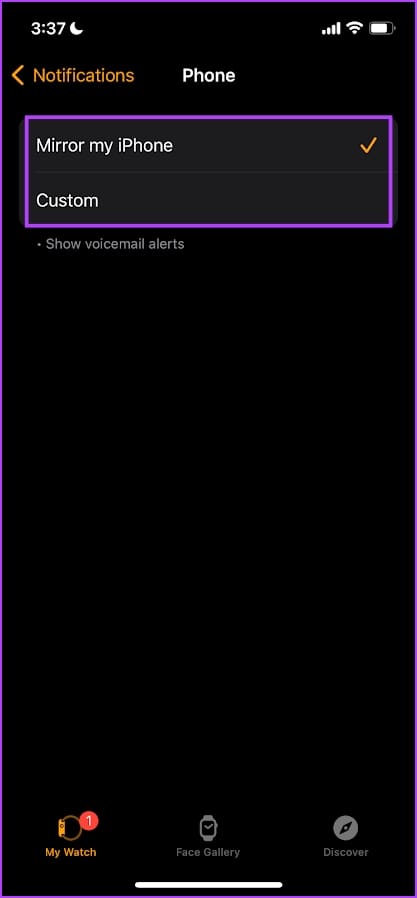
Step 1: Open the Watch app on your iPhone > tap on Notifications.
Step 2: Select the app for which you are not receiving notifications.
Step 3: Turn on the Mirror My iPhone option to use the same notification setting for the app from your iPhone to your Apple Watch.
Otherwise, you can create or select a custom notification scheme for the app.
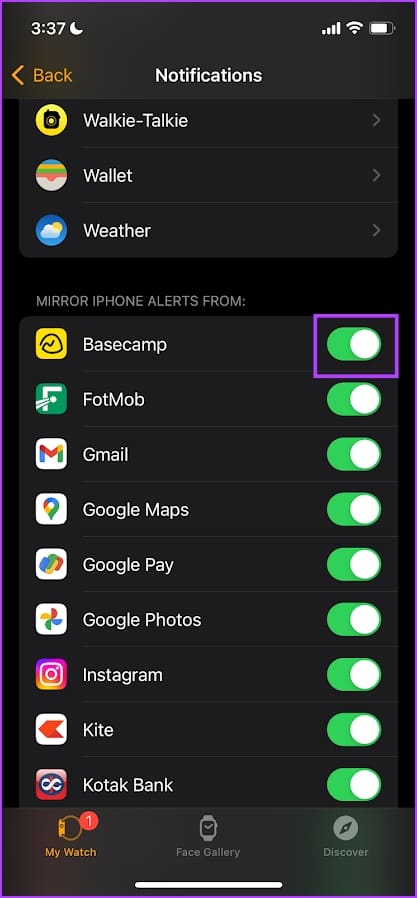
Note: For third-party apps, turn on the toggle for Mirror iPhone Alerts in the notifications menu.
Enabling this option applies the app’s notification setting from your iPhone to your Apple Watch. Hence, if you have disabled app notifications on your iPhone and enabled this option, you won’t receive notifications on your Apple Watch.

Also Read: How to make your Apple Watch vibrate for notifications
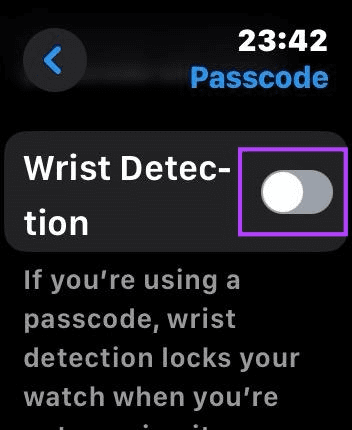
Fix 2: Disable Wrist Detection
Wrist Detection keeps your Apple Watch unlocked only when you are wearing it. However, if wrist detection faces a problem, you must enter the passcode to unlock and view notifications on your Apple Watch even when wearing it.
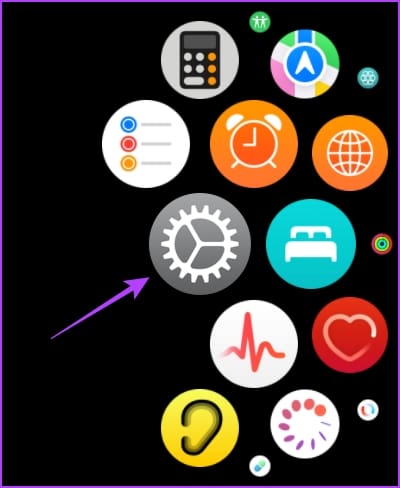
Step 1: Open the Settings app on your Apple Watch.
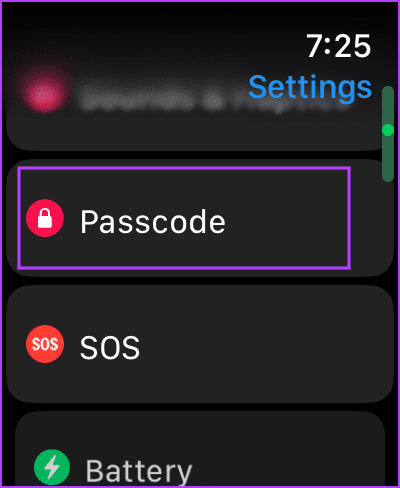
Step 2: Tap on Passcode > turn off the toggle for Wrist Detection > enter your passcode to confirm the action.
Fix 3: Turn off the Cover to Mute
Several users on Apple Forums have suggested that turning off the Cover to Mute toggle in Apple Watch settings fixes the issue of Apple Watch not receiving texts or other notifications.
Step 1: Open the Settings app on your Apple Watch > tap on Sound & Haptics.
Step 2: Turn off the toggle for Cover to Mute.


Also Read: How to fix Apple Watch not ringing for incoming calls
Fix 4: Disable Focus Modes
If you have enabled a Focus Mode on your Apple Watch that disables all the app notifications, you will not receive any vibrations for alerts.
Your Apple Watch consists of all the Focus Modes created on your iPhone. Therefore, if you want to modify Focus Mode, you can only do it from your iPhone. The changes to the Focus Mode will reflect on your Apple Watch.
Step 1: Open the Settings app on your iPhone. Tap on Focus.
Step 2: Select the Focus Mode you want to modify.
Step 3: Tap on Apps and make the necessary changes for notifications.


Step 4: The changes will apply to the Focus Mode on your Apple Watch. However, if you want to disable the Focus Mode, swipe up to open the Control Center and turn it off.
Press the side button once to access the control center (or swipe up if you are using watchOS 9 or earlier) and tap on the Focus Mode icon to disable it.

Was this helpful?
Last updated on 02 August, 2024
Read Next
 6 Best Fixes for Android Not Getting Gmail Notifications
Do you often miss out on important and timely information because your Gmail mobile app doesn't notify you of new emails?
6 Best Fixes for Android Not Getting Gmail Notifications
Do you often miss out on important and timely information because your Gmail mobile app doesn't notify you of new emails?
 Why Am I Getting Notifications When Do Not Disturb Is On?
On iPhone Apple has incorporated DND under Focus (an extended version of Do Not Disturb).
Why Am I Getting Notifications When Do Not Disturb Is On?
On iPhone Apple has incorporated DND under Focus (an extended version of Do Not Disturb).
 3 Ways to Make Your Apple Watch Vibrate for Notifications
Method 1: Set Apple Watch to Vibrate Only for Alarm and Notifications Here's how to make your Apple Watch vibrate to alert you of all the notifications.
3 Ways to Make Your Apple Watch Vibrate for Notifications
Method 1: Set Apple Watch to Vibrate Only for Alarm and Notifications Here's how to make your Apple Watch vibrate to alert you of all the notifications.
 How to Disable or Restrict Apps from Getting Deleted on iPhone
Method 1: Don't Allow Deleting Apps In the Content Restrictions menu on your iPhone, you can disable deleting apps.
How to Disable or Restrict Apps from Getting Deleted on iPhone
Method 1: Don't Allow Deleting Apps In the Content Restrictions menu on your iPhone, you can disable deleting apps.
 Why Am I Getting Calls When Do Not Disturb or Focus Mode Is On
Stop Getting Calls During DND or Focus Mode on iPhone 1.
Why Am I Getting Calls When Do Not Disturb or Focus Mode Is On
Stop Getting Calls During DND or Focus Mode on iPhone 1.
 How to Stop Getting Calls From Blocked Numbers
Method 1: Review the Blocked Numbers List Before you delve deeper, double-checking the list of blocked numbers on your phone should fix calls from blocked contacts.
How to Stop Getting Calls From Blocked Numbers
Method 1: Review the Blocked Numbers List Before you delve deeper, double-checking the list of blocked numbers on your phone should fix calls from blocked contacts.
 4 Fixes for Apple Watch Weather Not Showing or Updating
Basic Fixes Check Apple Watch connectivity: Ensure your Apple Watch is connected to Wi-Fi and your iPhone via Bluetooth.
4 Fixes for Apple Watch Weather Not Showing or Updating
Basic Fixes Check Apple Watch connectivity: Ensure your Apple Watch is connected to Wi-Fi and your iPhone via Bluetooth.
 How to Change Apple Watch Face from iPhone or Watch
Traditional watches had the problem that you couldn't change their clock face.
How to Change Apple Watch Face from iPhone or Watch
Traditional watches had the problem that you couldn't change their clock face.
The article above may contain affiliate links which help support Guiding Tech. The content remains unbiased and authentic and will never affect our editorial integrity.