Method 1: Disable Touchpad From Settings
The Windows 11 Settings app offers nifty features for modifying touchpad gestures, sensitivity, cursor, and more. You can also use it to disable the Touchpad.
Step 1: Press the Windows + I shortcut to open the Settings app, select Bluetooth & devices from the left sidebar, and click Touchpad.
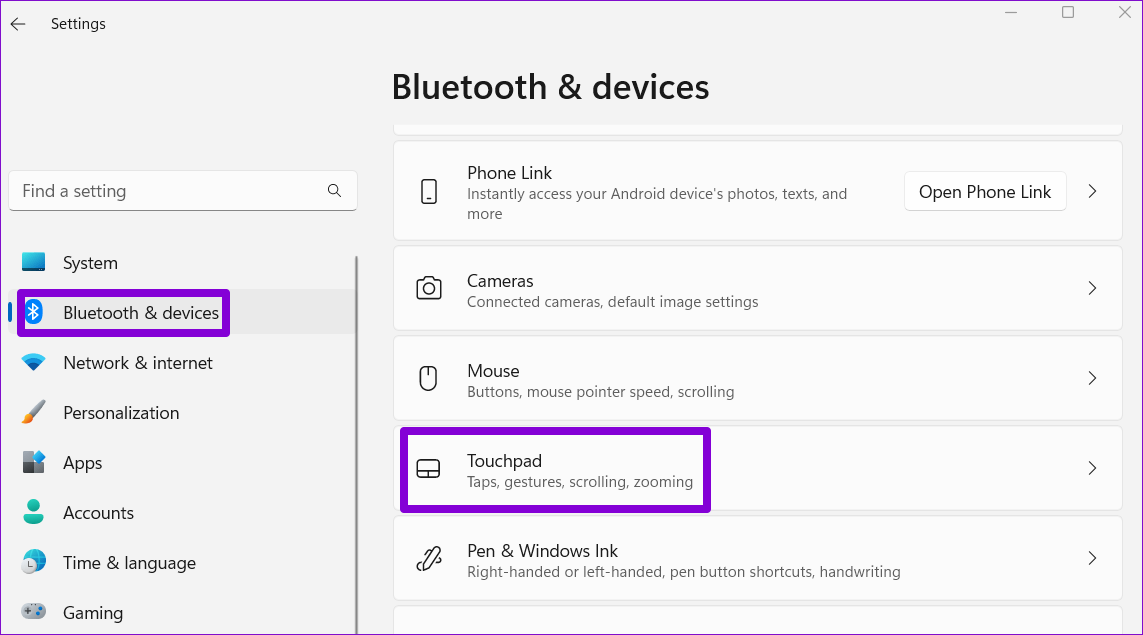
Step 2: Toggle off Touchpad to disable it.

Method 2: Use the Control Panel to Disable the Touchpad
Besides the Settings app, you can use the Control Panel to disable the Touchpad on your Windows 11 laptop with a few clicks.
Step 1: Open the Run dialog by pressing the Windows + R shortcut, type control, and press Enter.

Step 2: Switch View by to Large icons and click Mouse.
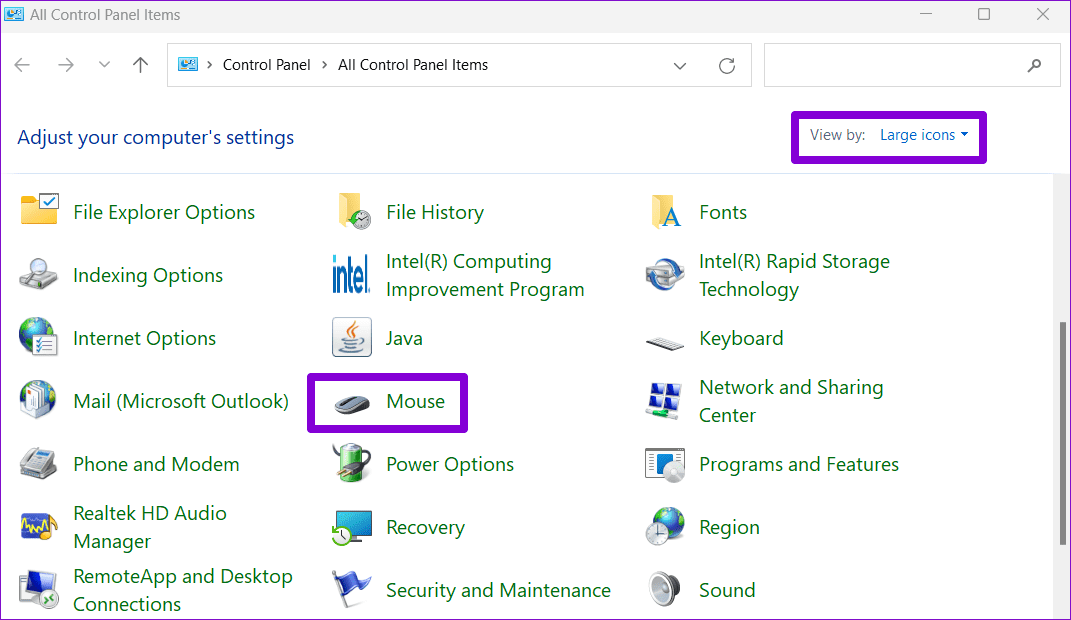
Step 3: Open the Hardware tab, select your touchpad, and click Properties.
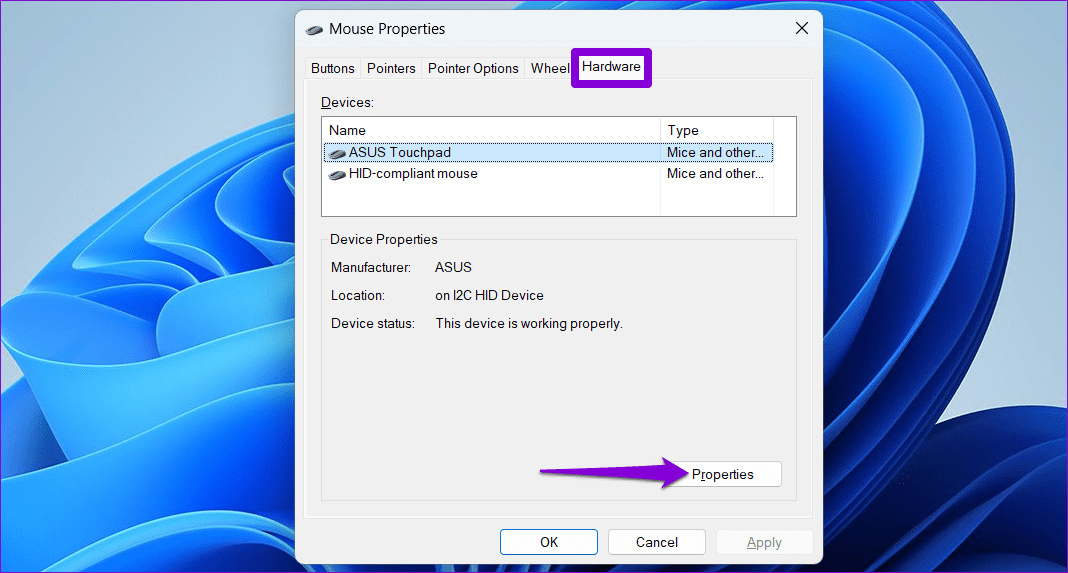
Step 4: Click Change settings, and approve the UAC prompt.

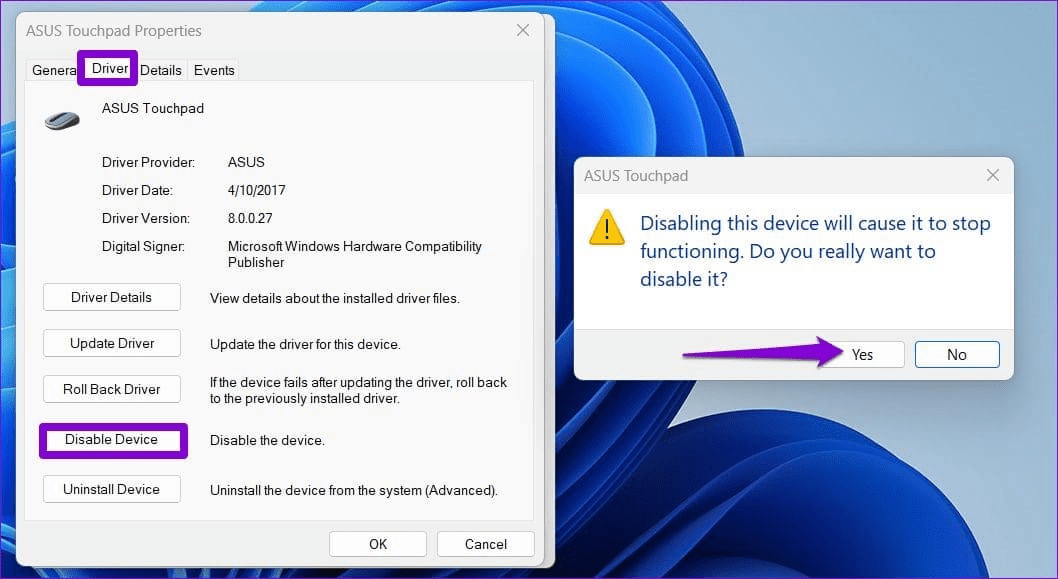
Step 5: Open the Driver tab, click Disable Device, and select Yes when prompted to disable the touchpad.
Method 3: Disable Touchpad via Device Manager
Device Manager is an integral part of Microsoft Management Console that lets you manage and troubleshoot connected devices on Windows 11. You can use it to disable the touchpad.
Step 1: Right-click the Start icon to open the Power User Menu and select Device Manager.

Step 2: Expand Mice and other pointing devices, right-click your touchpad, and select Disable device.

Step 3: Click Yes to confirm.

Method 4: Tweak Windows Registry to Disable Touchpad
Lastly, you can manually tweak the Windows 11 registry file using the Registry Editor app to disable the touchpad. Before you begin, back up existing registry keys using File > Export in the Registry Editor window.
Step 1: Click the Search icon in the taskbar, search Registry Editor, and select Run as administrator.

Step 2: Copy-paste the following path in the Registry Editor navigation bar, and press Enter.
Computer\HKEY_CURRENT_USER\SOFTWARE\Microsoft\Windows\CurrentVersion\PrecisionTouchPad\Status
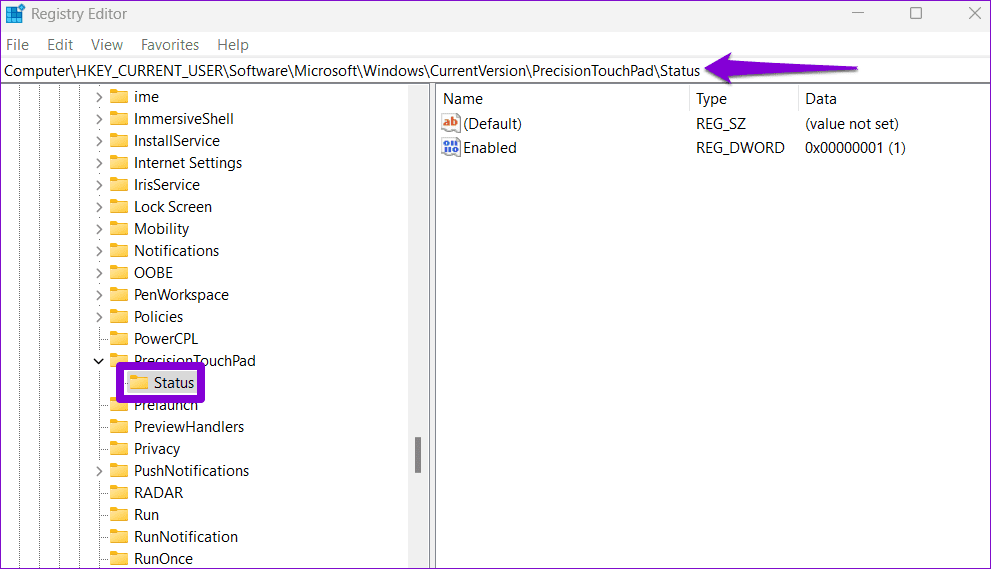
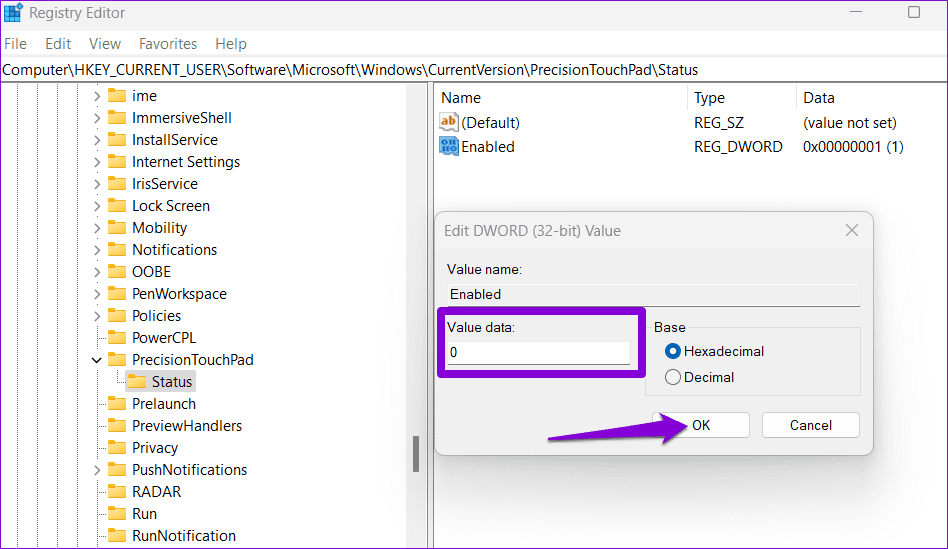
Step 3: Double-click the Enabled key, set its Value data to 0, and click OK. Restart your PC to apply changes.
Was this helpful?
Last updated on 12 July, 2024
Read Next
 3 Ways to Increase or Decrease Touchpad Sensitivity on Windows 11 Laptops
Method 1: Increase or Decrease Touchpad Sensitivity via the Settings App The Settings app in Windows makes it simple to adjust touchpad-related settings on your laptop.
3 Ways to Increase or Decrease Touchpad Sensitivity on Windows 11 Laptops
Method 1: Increase or Decrease Touchpad Sensitivity via the Settings App The Settings app in Windows makes it simple to adjust touchpad-related settings on your laptop.
 Top 9 Ways to Fix Touchpad Gestures Not Working in Windows 10
Windows 10 supports various touchpad (trackpad) gestures.
Top 9 Ways to Fix Touchpad Gestures Not Working in Windows 10
Windows 10 supports various touchpad (trackpad) gestures.
 4 Ways to Fix Touchpad Not Working on Windows 11
Fix 1: Run the Hardware and Devices Troubleshooter Windows offers several troubleshooters for diagnosing and fixing common issues with your system.
4 Ways to Fix Touchpad Not Working on Windows 11
Fix 1: Run the Hardware and Devices Troubleshooter Windows offers several troubleshooters for diagnosing and fixing common issues with your system.
 5 Ways to Fix Touchpad Gestures Not Working on Windows 11
Fix 1: Enable Touchpad Gestures The first thing you need to do is review the touchpad settings on your PC and ensure that gesture controls are enabled.
5 Ways to Fix Touchpad Gestures Not Working on Windows 11
Fix 1: Enable Touchpad Gestures The first thing you need to do is review the touchpad settings on your PC and ensure that gesture controls are enabled.
 How to Fix Synaptics TouchPad Settings Missing in Windows
If you use a Windows-based laptop, there’s a good chance your laptop uses Synaptics TouchPad — the reason you are here too.
How to Fix Synaptics TouchPad Settings Missing in Windows
If you use a Windows-based laptop, there’s a good chance your laptop uses Synaptics TouchPad — the reason you are here too.
 5 Ways to Fix Brightness Not Working on Windows 11 Laptops
https://youtu.be/S3hafZeGwBU Try Basic Fixes Adjust brightness from the Quick Settings panel or Settings app: If you can’t seem to adjust the screen brightness using the function keys on your keyboard,
5 Ways to Fix Brightness Not Working on Windows 11 Laptops
https://youtu.be/S3hafZeGwBU Try Basic Fixes Adjust brightness from the Quick Settings panel or Settings app: If you can’t seem to adjust the screen brightness using the function keys on your keyboard,
 5 Best Affordable Gaming Laptops for Valorant
Looking for the best laptop to play Valorant?
5 Best Affordable Gaming Laptops for Valorant
Looking for the best laptop to play Valorant?
 5 Best Gaming Laptops with Good Battery Life in 2024
As a gamer constantly on the go, you would seek good battery backup from your device.
5 Best Gaming Laptops with Good Battery Life in 2024
As a gamer constantly on the go, you would seek good battery backup from your device.
The article above may contain affiliate links which help support Guiding Tech. The content remains unbiased and authentic and will never affect our editorial integrity.