

Try These Basic Fixes
- Use fewer filters and labels: Gmail may load slower than usual if you use too many filters and email labels to organize your messages. While Gmail allows up to 500 labels and 500 filters, it’s recommended to use fewer to ensure optimal performance, as each filter and label requires additional processing.
- Try another browser: You can use Gmail in a different browser to rule out any issues with your current browser. If Gmail works fine in the other browser, disabling extensions in your previous browser or clearing its cache and cookies should help resolve the issue.
Fix 1: Reduce the Number of Emails per Page
By default, Gmail shows you 50 emails per page. However, you can configure it to load fewer emails per page to speed things up. Here’s how:
Step 1: Open Gmail in your web browser. Click the gear icon at the top right corner and select See all settings.

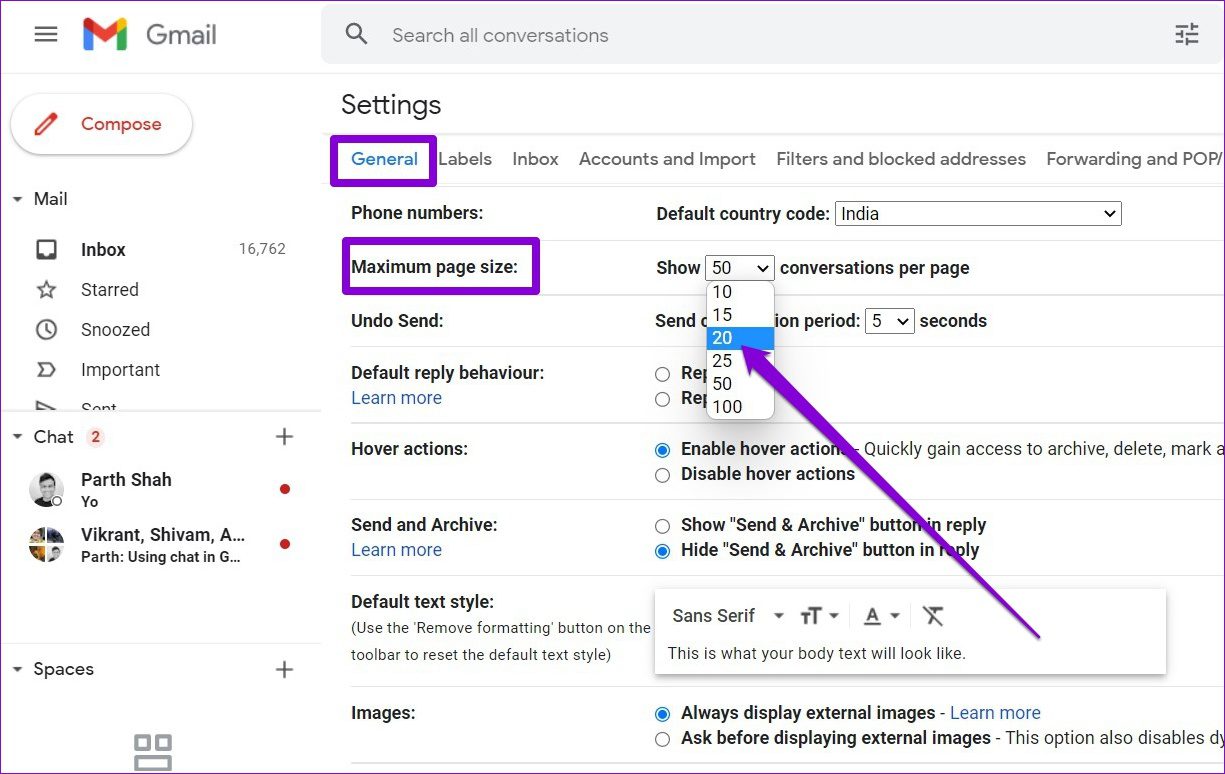
Step 2: Under General, use the drop-down menu next to the Maximum page size to reduce the number of emails per page.
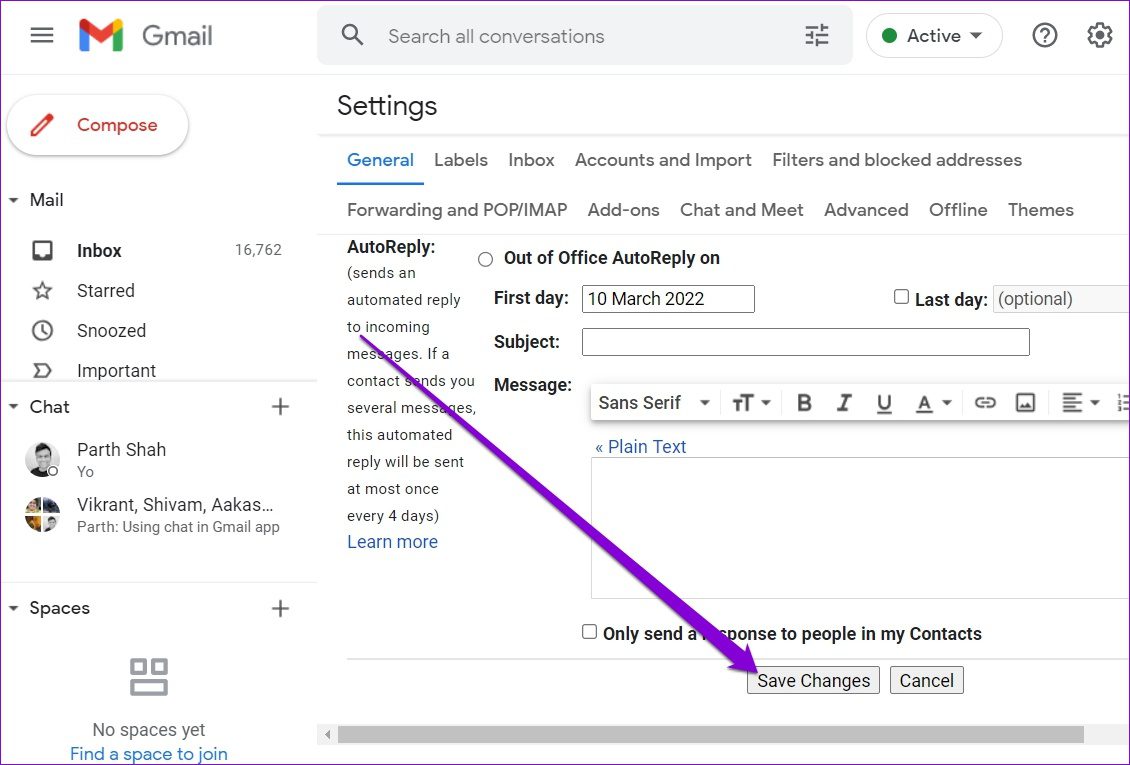
Step 3: Scroll down to click Save Changes.
Fix 2: Reduce the Number of Tabs
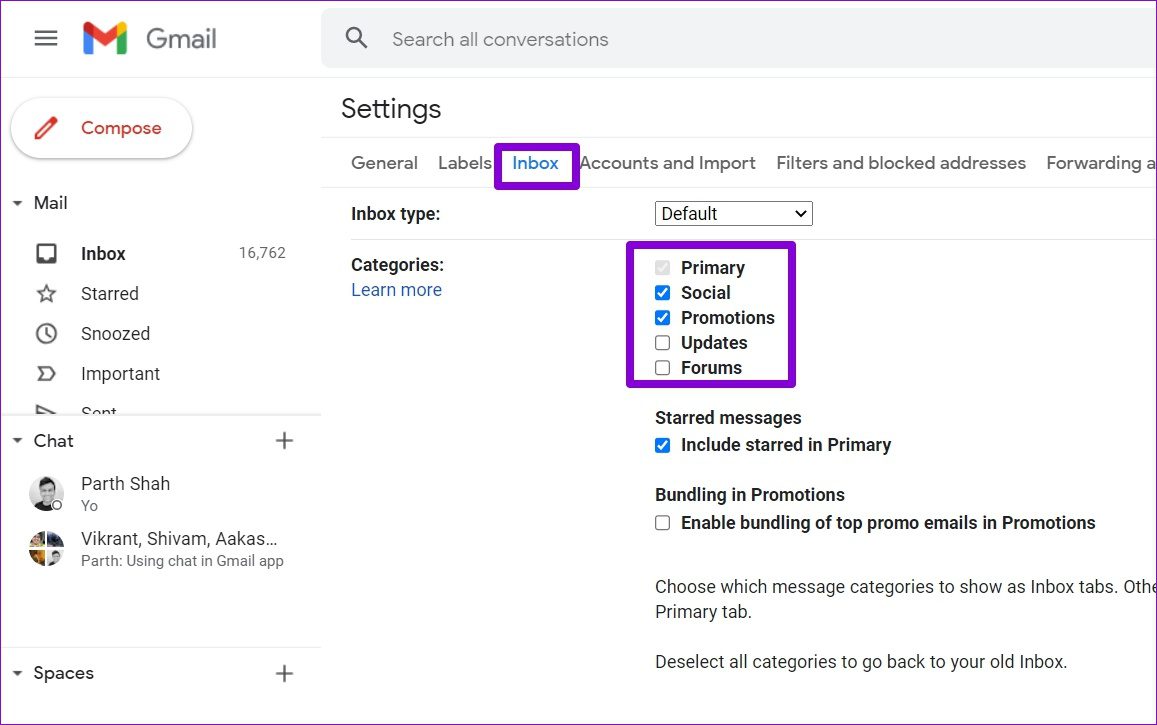
Gmail uses machine learning to separate your inbox into five categories that appear as tabs: Primary, Social, Promotions, Updates, and Forums. You can uncheck the tabs you don’t use to speed up Gmail further.
Step 1: In Gmail, head to Settings > Inbox.
Step 2: Uncheck the categories you don’t use and hit Save Changes at the bottom.
Fix 3: Turn off Gmail Advanced Settings
Gmail offers several advanced features, such as automatic replies, custom keyboard shortcuts, and more, to enhance your experience. However, these features can sometimes overwhelm Gmail, making it load slowly. You can temporarily disable these advanced features to see if that speeds up Gmail.
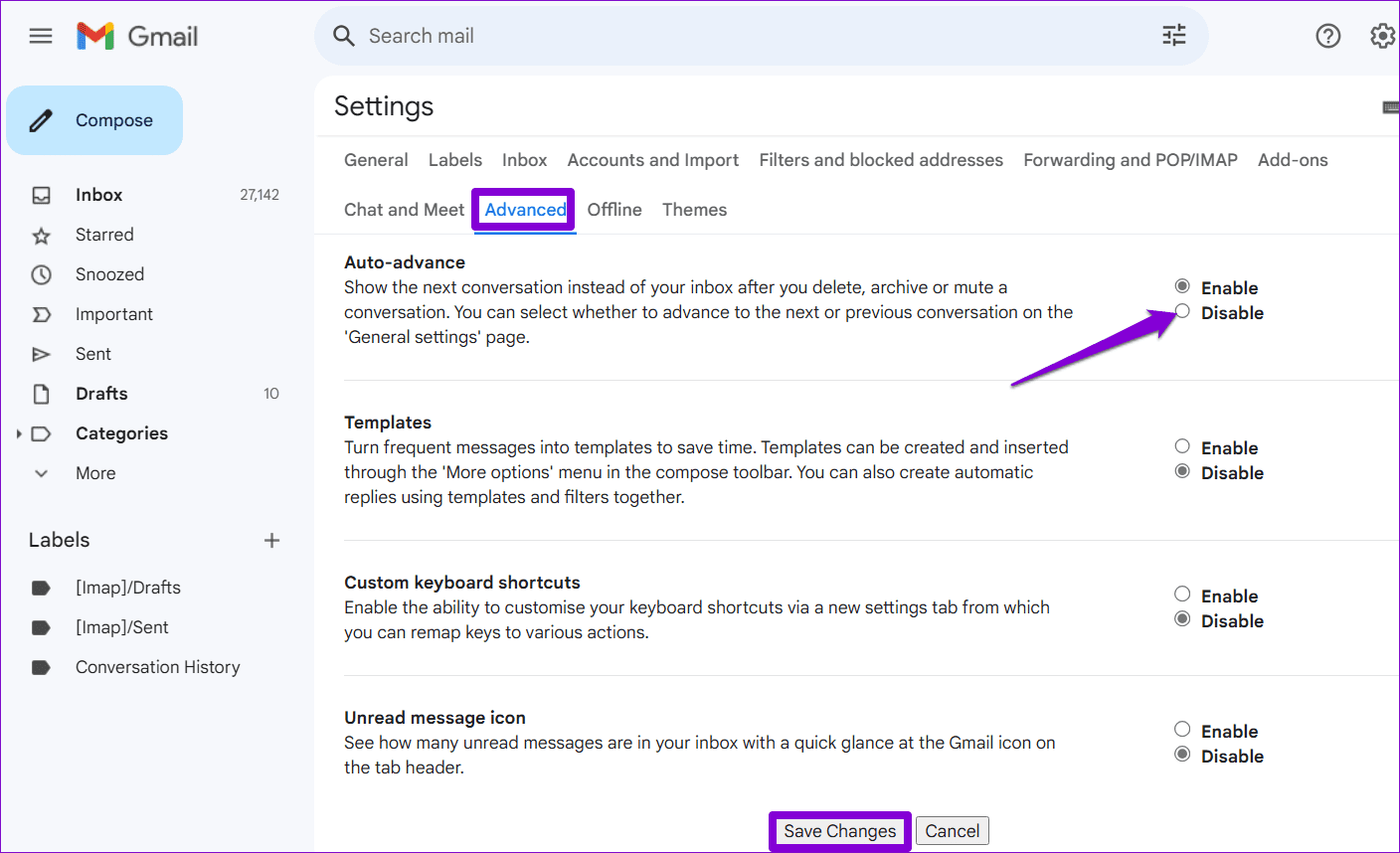
Step 1: In Gmail, head to Settings > Advanced.
Step 2: Select Disable for all the features and click the Save Changes button.
Fix 4: Disable the Chat Feature
Google Chat is one of those half-baked features in Gmail that is hardly useful. It uses more resources and slows down Gmail while loading. Thankfully, disabling it is straightforward.
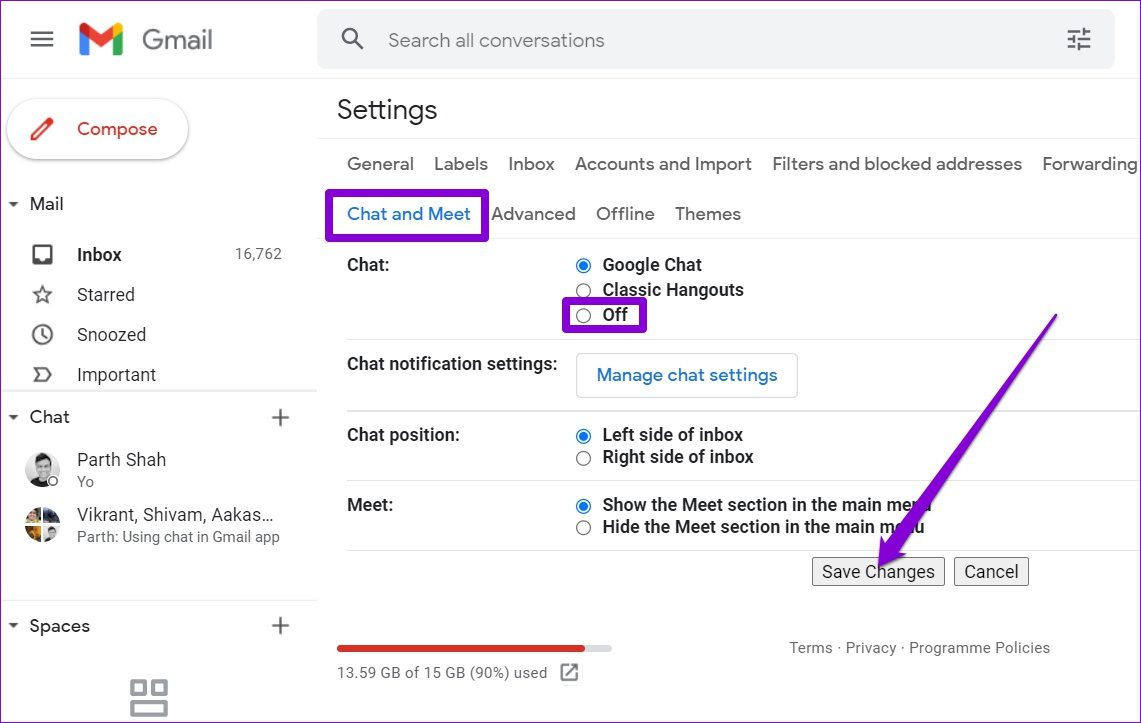
Step 1: Open Gmail in your web browser. Click on the gear icon > select See all settings.
Step 2: Switch to the Chat and Meet tab and select Off next to Chat. Then, hit Save Changes.
Fix 5: Use Offline Mode in Gmail
Offline mode in Gmail lets you view, delete, and even respond to your messages without an active internet connection. So, if you’re ever in an area where internet connectivity is unreliable, Gmail’s offline mode can help you access your inbox quickly. However, it’s only available on Google Chrome for now.
To use Gmail’s offline mode, you’ll need to enable it first. To do so, open Gmail’s settings > go to the Offline tab > tick the box for Enable offline mail.
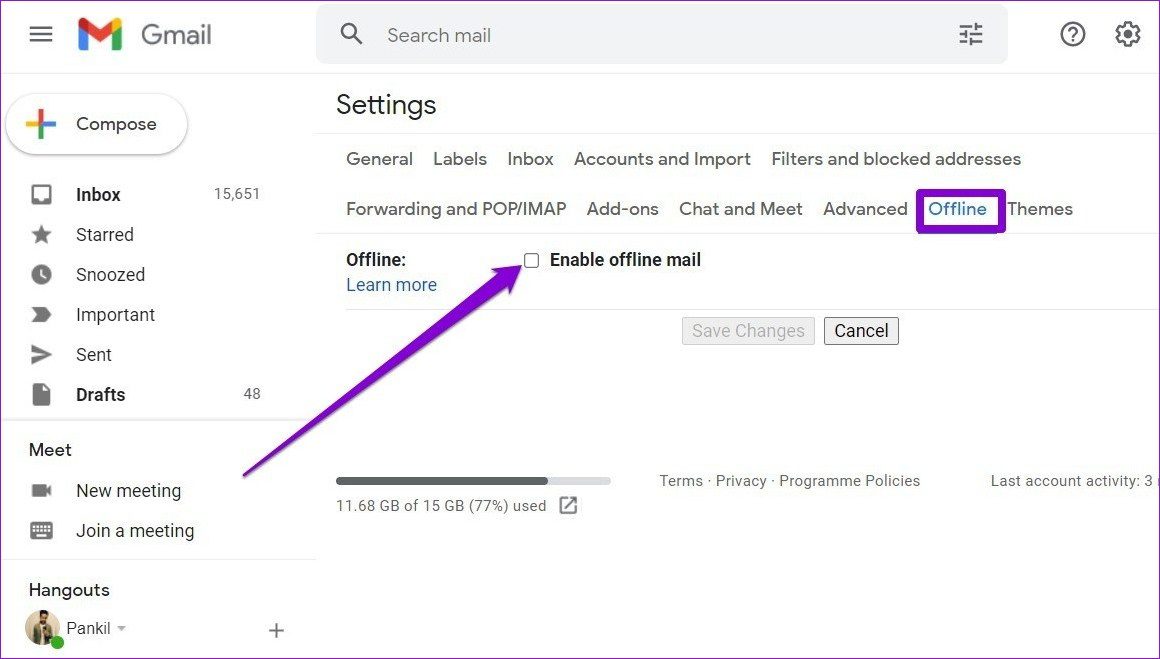
Your Gmail inbox and outbox will get updated automatically after you connect your PC to the internet.
Was this helpful?
Last updated on 03 July, 2024
1 Comment
Leave a Reply
Read Next
 Top 7 Useful Ways to Fix Windows 10 Photos Black Screen Error
Windows 10 got a lot of things right, but the Photos app was not one of them.
Top 7 Useful Ways to Fix Windows 10 Photos Black Screen Error
Windows 10 got a lot of things right, but the Photos app was not one of them.
 Easy Ways To Fix Excel Not Responding or Slow
Why Does Excel Keep Freezing or Lags on Windows If the Excel app or file stops responding or lags, it can be attributed to various factors.
Easy Ways To Fix Excel Not Responding or Slow
Why Does Excel Keep Freezing or Lags on Windows If the Excel app or file stops responding or lags, it can be attributed to various factors.
 How to Forward WhatsApp Messages With Sender Info and Image Caption
Before you start, there is a minor difference between iPhone and Android.
How to Forward WhatsApp Messages With Sender Info and Image Caption
Before you start, there is a minor difference between iPhone and Android.
 7 Ways to Fix Microsoft Edge Running Slow on Windows 11
Basic Fixes Update or reinstall Microsoft Edge: Open the Microsoft Store, search Microsoft Edge browser, and click Update.
7 Ways to Fix Microsoft Edge Running Slow on Windows 11
Basic Fixes Update or reinstall Microsoft Edge: Open the Microsoft Store, search Microsoft Edge browser, and click Update.
 5 Ways to Fix Slow Startup Times on Windows 10 and 11
Basic Fixes Install Windows Updates: Microsoft regularly releases updates that bring security patches, new features, and performance improvements to your Windows PC.
5 Ways to Fix Slow Startup Times on Windows 10 and 11
Basic Fixes Install Windows Updates: Microsoft regularly releases updates that bring security patches, new features, and performance improvements to your Windows PC.
 4 Ways to Fix Slow Google Maps on Android and iPhone
Basic Fixes Update Google Maps app: Keeping your apps updated helps them run smoothly and rules out incompatibility issues.
4 Ways to Fix Slow Google Maps on Android and iPhone
Basic Fixes Update Google Maps app: Keeping your apps updated helps them run smoothly and rules out incompatibility issues.
 6 Ways to Fix Slow Search on Windows 11
Fix 1: Restart the Windows Search Service The Windows Search service is a small program that provides search results for files, mail, and other important content.
6 Ways to Fix Slow Search on Windows 11
Fix 1: Restart the Windows Search Service The Windows Search service is a small program that provides search results for files, mail, and other important content.
 4 Ways to Fix Slow Download Speed in Epic Games Launcher on Windows 11
https://youtu.be/w8E4d-rCMUQ Basic Fixes: Check the Epic Server Status: Epic Games Launcher also relies on multiple servers to operate, and It’s possible that a server might be out of order or
4 Ways to Fix Slow Download Speed in Epic Games Launcher on Windows 11
https://youtu.be/w8E4d-rCMUQ Basic Fixes: Check the Epic Server Status: Epic Games Launcher also relies on multiple servers to operate, and It’s possible that a server might be out of order or
The article above may contain affiliate links which help support Guiding Tech. The content remains unbiased and authentic and will never affect our editorial integrity.

Google chat take 4 minutes to load and you type to fast it locks up and you have to wait a minute of more to allow to continue.
I use hangout in gmail it 1 minute to load and it works must better on my Win XP I use large print or screen reader for gmail.
Google better not remove backward formats or here will be lawsuit by the disable movements.