Basic Fixes
- Test your iPhone’s vibration motor: Remove any protective case and toggle the Ring/Silent switch on your iPhone’s left side. If you have an iPhone 15 Pro or iPhone 15 Pro Max, long-press the Action button and check if the device vibrates. If the vibration does not work, book an appointment at the nearest Apple store.
- Install iOS updates: The vibration not working issue may be due to a faulty iOS build on your iPhone. Try updating your iPhone to the latest version to see if that helps.
Fix 1: Ensure Vibration Is Enabled for Calls and Alerts
If the vibration motor seems to be working fine, verify that you haven’t accidentally disabled vibration for calls and alerts on your iPhone. Here’s how to check.
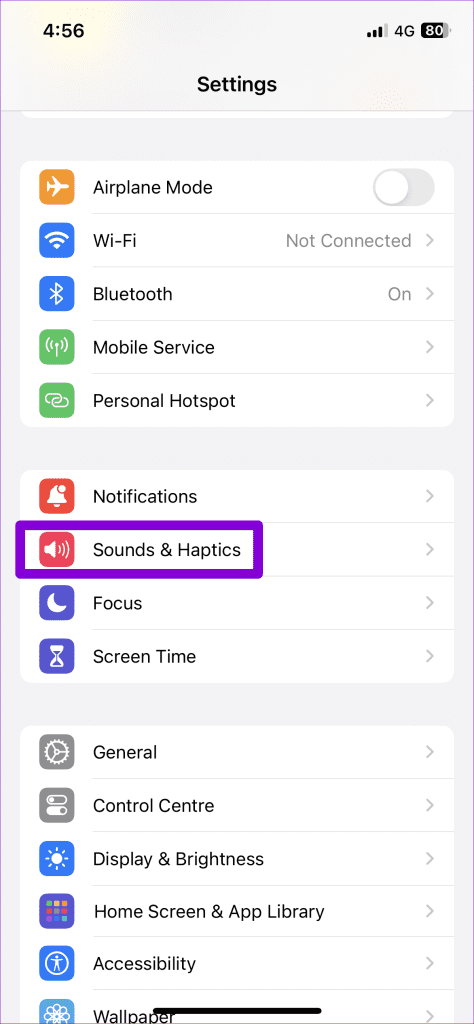
Step 1: Open the Settings app and navigate to Sounds & Haptics.
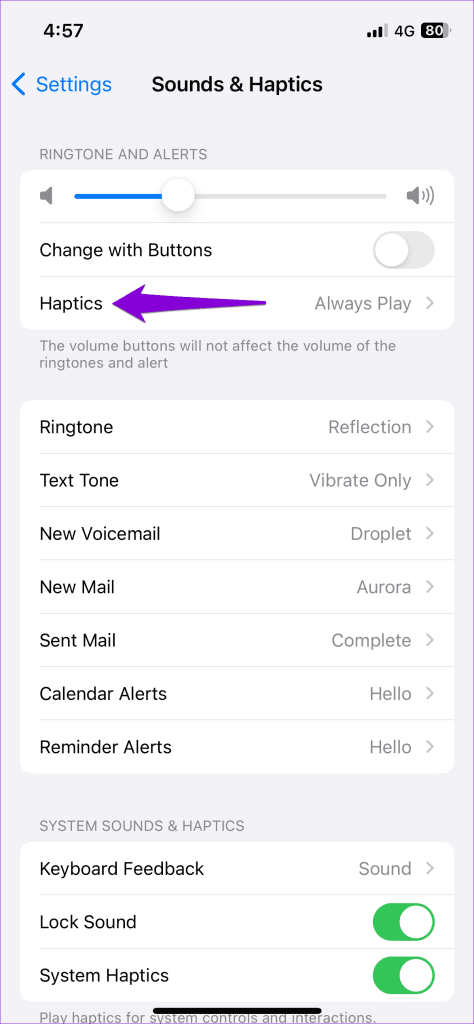
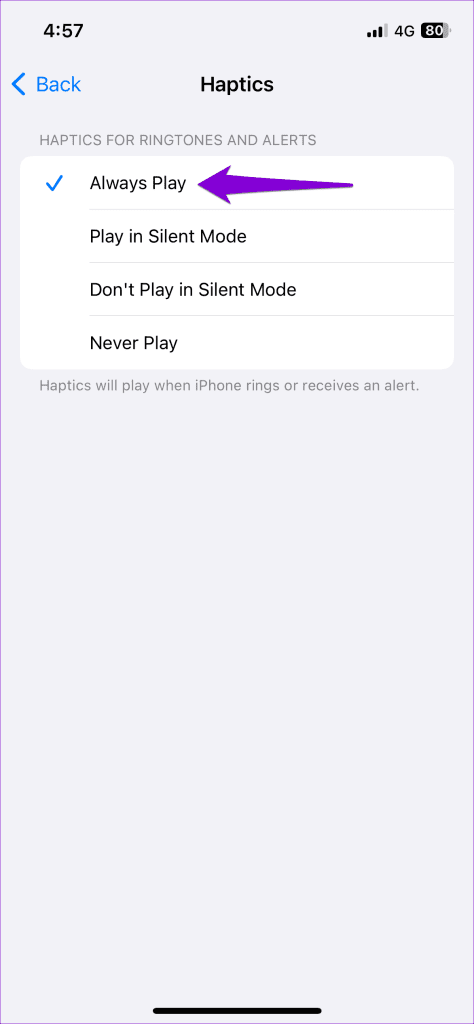
Step 2: Tap on Haptics and select Always Play in the following menu.
Fix 2: Check the Vibration Pattern
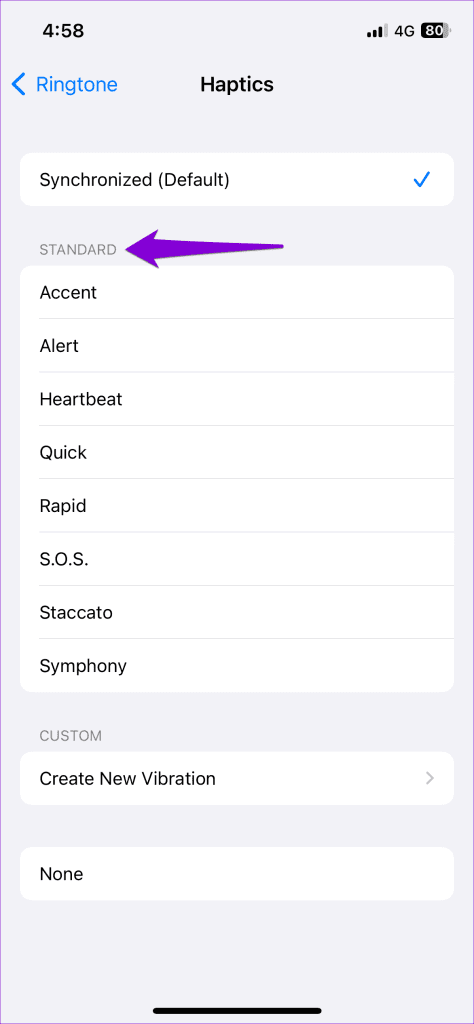
If the vibration does not work even after you enable it, check the set vibration pattern on your iPhone. If you choose to keep the vibration pattern to None, your iPhone won’t vibrate.
Here’s how to change the iPhone’s vibration pattern.
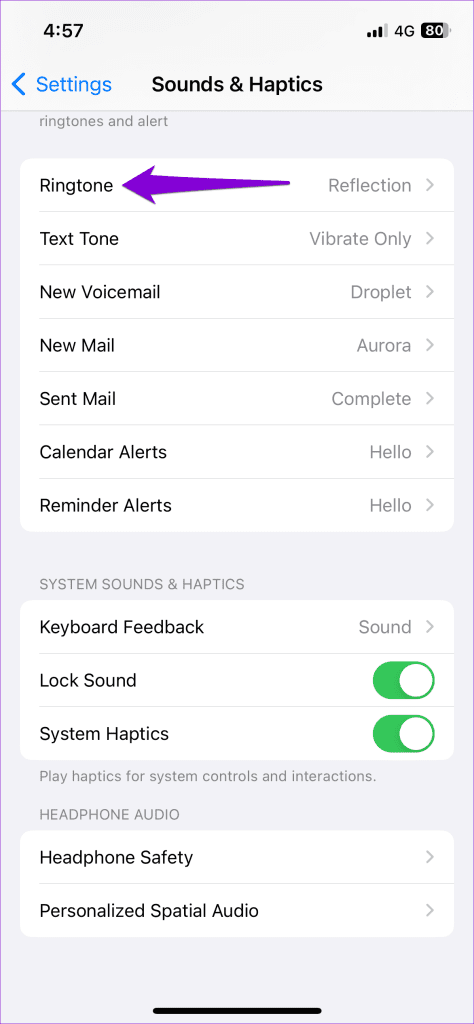
Step 1: Launch the Settings app > tap on Sound & Haptics > select Ringtone from the following menu.
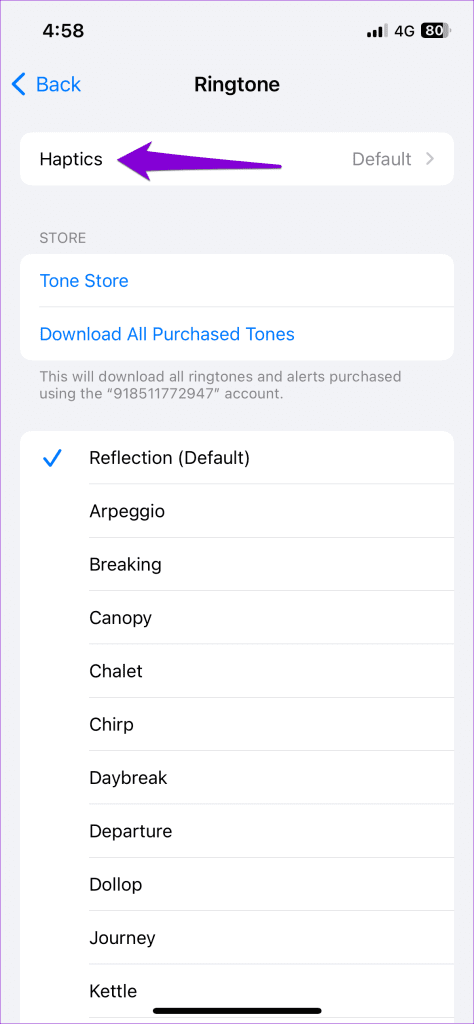
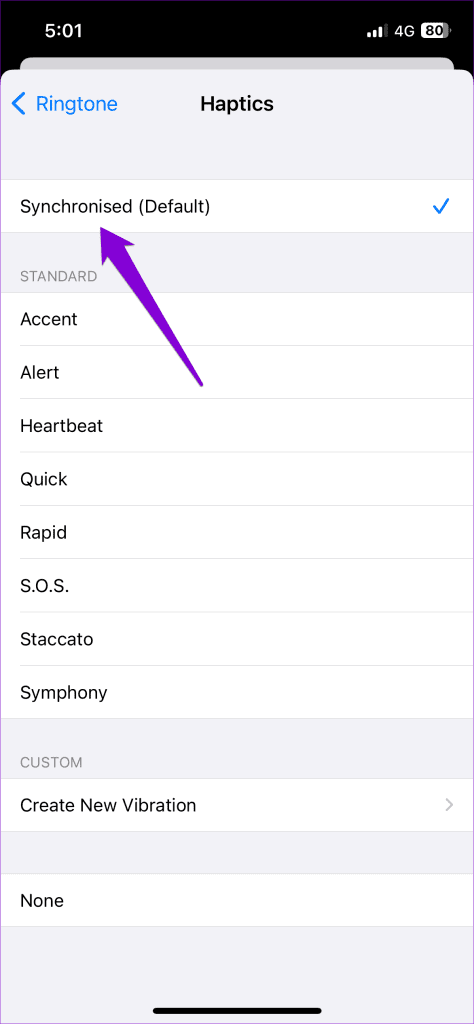
Step 2: Tap Haptics > select your preferred vibration pattern under Standard.
If your iPhone is not vibrating for calls from specific contacts, check the set vibration patterns for those contacts. To do so, use these steps:
Step 1: Open the Contacts app > locate the contact for which you want to change the vibration pattern. Then, tap on it.
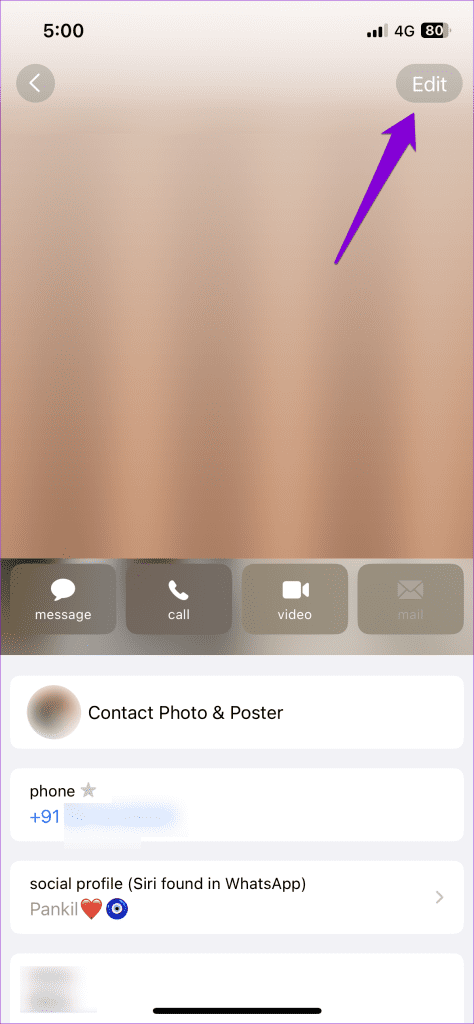
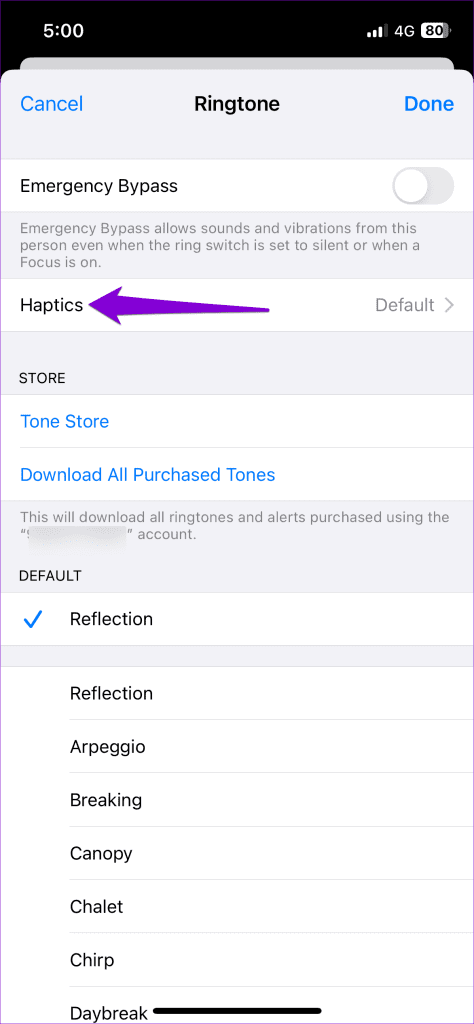
Step 2: Tap the Edit option at the top right corner > select Ringtone from the following menu.

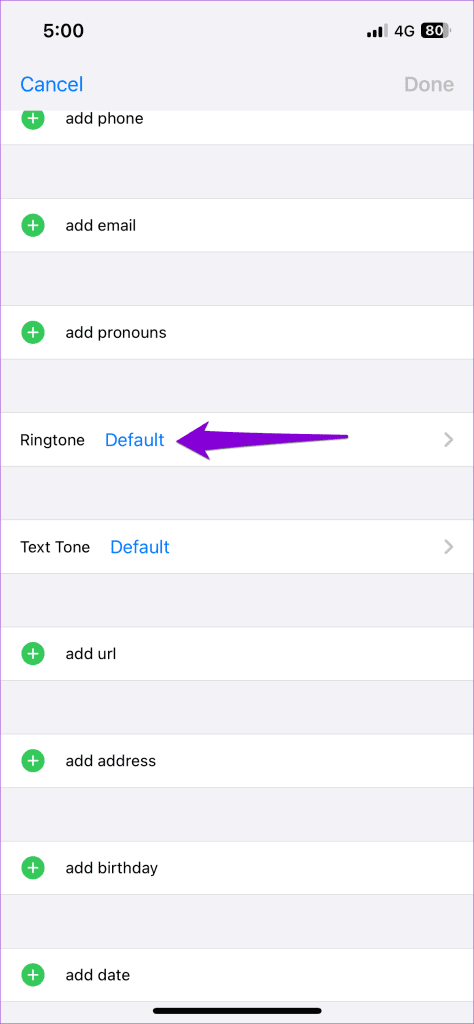
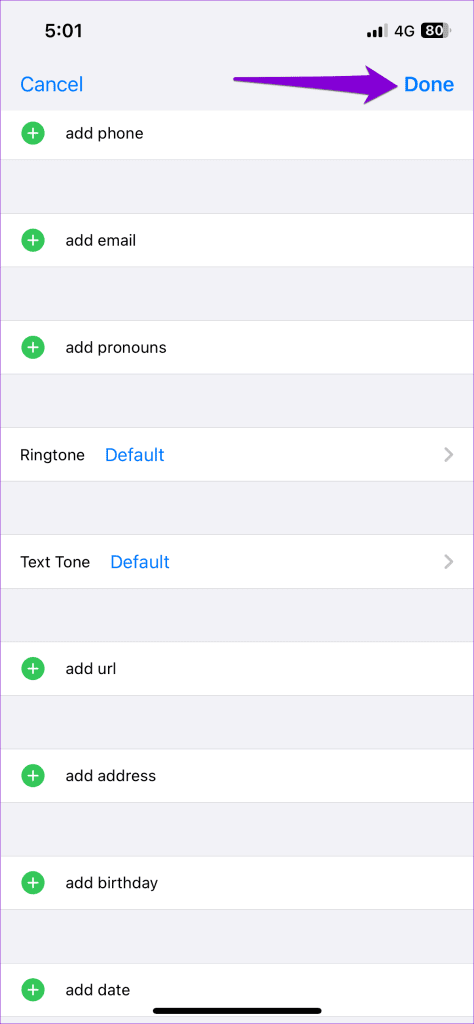
Step 3: Tap on Haptics and select the default option. Then, tap Done.
Fix 3: Check Accessibility Settings
You should also check the accessibility settings on your iPhone to ensure that the vibration isn’t turned off. Here’s how to do it.
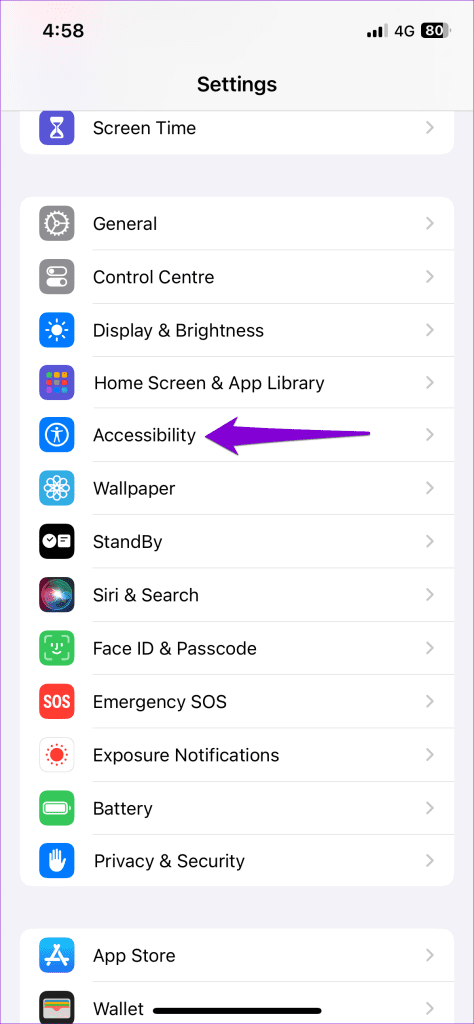
Step 1: Open the Settings app on your iPhone > scroll down to tap on Accessibility.
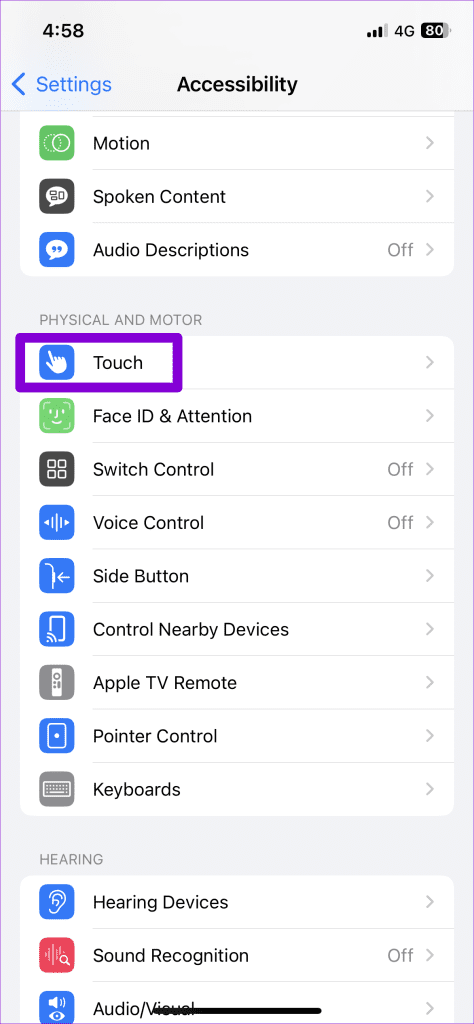
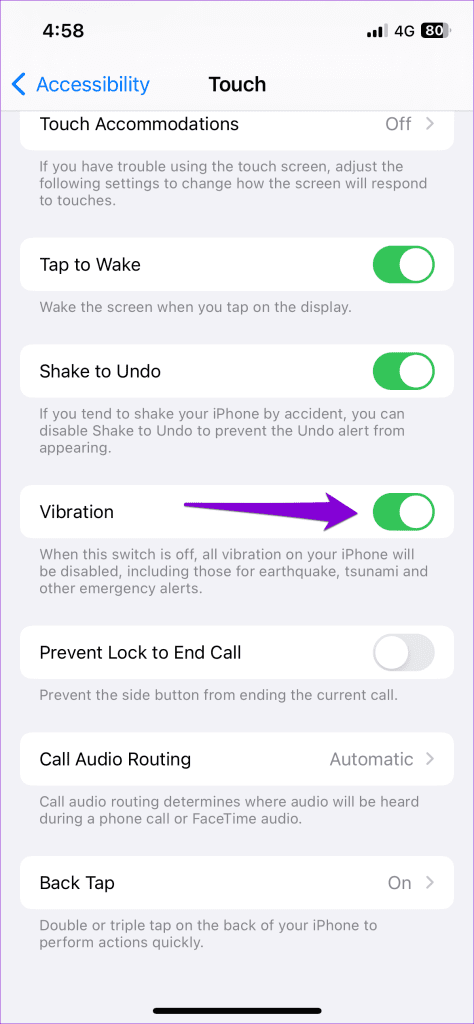
Step 2: Tap Touch and enable the toggle for Vibration in the following menu.
Fix 4: Reset Your iPhone
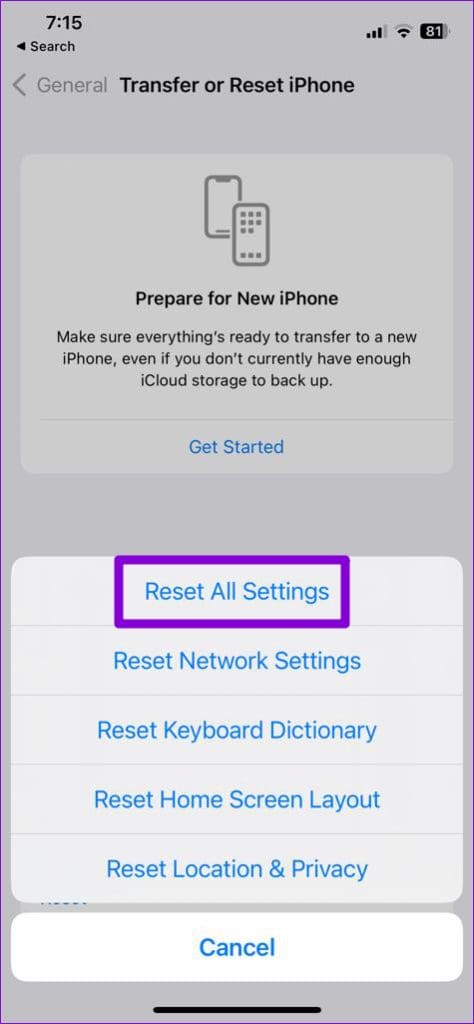
Still no luck? If so, consider resetting your iPhone as a last resort. Doing so will restore all the settings on your iPhone to their defaults. Don’t worry; your data won’t be affected by this.
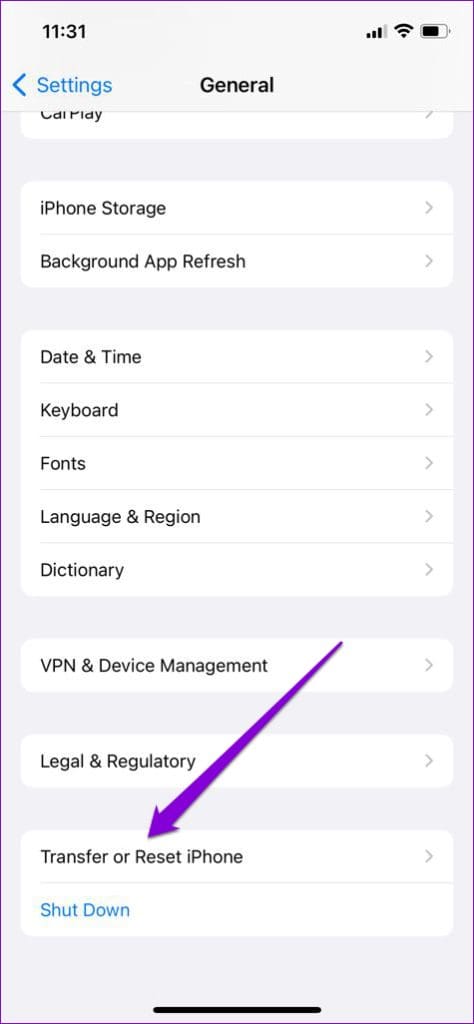
Step 1: Open the Settings app > head to General > Transfer or Reset iPhone.
Step 2: Tap Reset > select Reset All Settings from the resulting menu.

Was this helpful?
Last updated on 05 June, 2024
Read Next
 Top 10 Fixes for Vibration Not Working in Samsung Galaxy Phones
Even if you keep ringer volume at a high level, you might miss calls when you are in a loud environment.
Top 10 Fixes for Vibration Not Working in Samsung Galaxy Phones
Even if you keep ringer volume at a high level, you might miss calls when you are in a loud environment.
 2 Fixes if Chrome’s Request Desktop Site Is Not Working on iPhone
Basic Fixes Reload website: Try refreshing the webpage and use the Request Desktop Site option again.
2 Fixes if Chrome’s Request Desktop Site Is Not Working on iPhone
Basic Fixes Reload website: Try refreshing the webpage and use the Request Desktop Site option again.
 Top 11 Fixes for FaceTime Audio Not Working on iPhone and iPad
FaceTime is a fantastic video-calling service that Apple users cherish.
Top 11 Fixes for FaceTime Audio Not Working on iPhone and iPad
FaceTime is a fantastic video-calling service that Apple users cherish.
 5 Ways to Fix iMessage Notifications Not Working on iPhone
Basic Fixes Force restart your iPhone: An existing iOS glitch may suppress iMessage notifications.
5 Ways to Fix iMessage Notifications Not Working on iPhone
Basic Fixes Force restart your iPhone: An existing iOS glitch may suppress iMessage notifications.
 3 Fixes for Face ID Not Working in Notes on iPhone
Basic Fixes Clean the true-depth camera: Apple recommends using a clean, damp-free lint cloth and some warm, soapy water for this purpose.
3 Fixes for Face ID Not Working in Notes on iPhone
Basic Fixes Clean the true-depth camera: Apple recommends using a clean, damp-free lint cloth and some warm, soapy water for this purpose.
 3 Fixes for Mail App Notifications Not Working on iPhone
Basic Fixes Enable Mail app notifications: Open Settings > Mail > Notifications > Customize Notifications > enable alerts.
3 Fixes for Mail App Notifications Not Working on iPhone
Basic Fixes Enable Mail app notifications: Open Settings > Mail > Notifications > Customize Notifications > enable alerts.
 4 Fixes for Night Shift Not Working on iPhone and Mac
Basic Fix Update software version: Update the software version on your iPhone or Mac to fix bugs causing the issue.
4 Fixes for Night Shift Not Working on iPhone and Mac
Basic Fix Update software version: Update the software version on your iPhone or Mac to fix bugs causing the issue.
 3 Fixes for the Translate App Not Working on iPhone
Basic Fixes Enable or disable On-Device mode: Open Settings > Translate > Disable On-Device Mode.
3 Fixes for the Translate App Not Working on iPhone
Basic Fixes Enable or disable On-Device mode: Open Settings > Translate > Disable On-Device Mode.
The article above may contain affiliate links which help support Guiding Tech. The content remains unbiased and authentic and will never affect our editorial integrity.