

Try Basic Fixes
- Force stop and reopen Telegram: When an app on your phone starts misbehaving, the first thing to do is force close it and open it again. In most cases, it is good enough to fix any temporary glitches and prevent app crashes.
- Update the Telegram app: App updates usually bring new features, improvements, and, most importantly, bug fixes. Updating the Telegram app from the Play Store or App Store can help if a bus causes the issue.
Fix 1: Check App Permissions
If Telegram does not have the required permissions, it may fail to perform certain tasks or crash unexpectedly. You can go through Telegram’s app permissions on your phone to ensure it has all the necessary permissions.
On Android
Step 1: Long-press on the Telegram app icon > tap the info icon > Permissions.


Step 2: Allow all the essential permissions one by one.


On iPhone
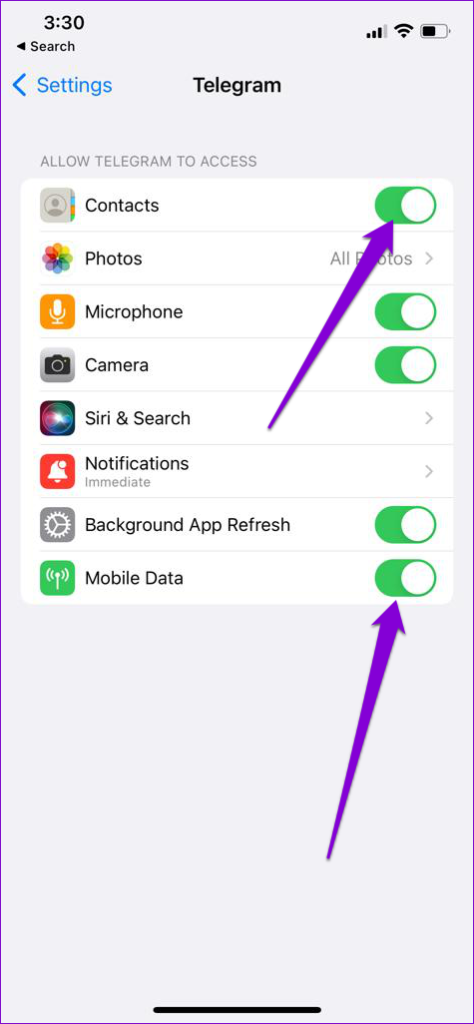
Step 1: Launch the Settings app on your iPhone > scroll down and tap on Telegram.
Step 2: Go through each permission and use the respective toggles to allow it.

Fix 2: Clear Telegram Cache
Apps like Telegram tend to gather a significant amount of cache data during their usage. But once this data gets old, it hurts more than it helps. Fortunately, Telegram carries an option to clear cache data within the app. Here’s how to access it on your Android or iPhone.
Step 1: Open Telegram on your phone > tap on the three horizontal lines at the top left > select Settings > go to Data and Storage.


Step 2: Go to Storage Usage. Under Device storage, tap Clear Cache.


Fix 3: Reset Google Play Services (Android)
Google Play Services is an essential app that works behind the scenes to connect all your apps, Google services, and Android together. If Google Play Services encounters a problem, it may cause other apps, including Telegram, to freeze or crash abruptly. Here’s how to fix it.
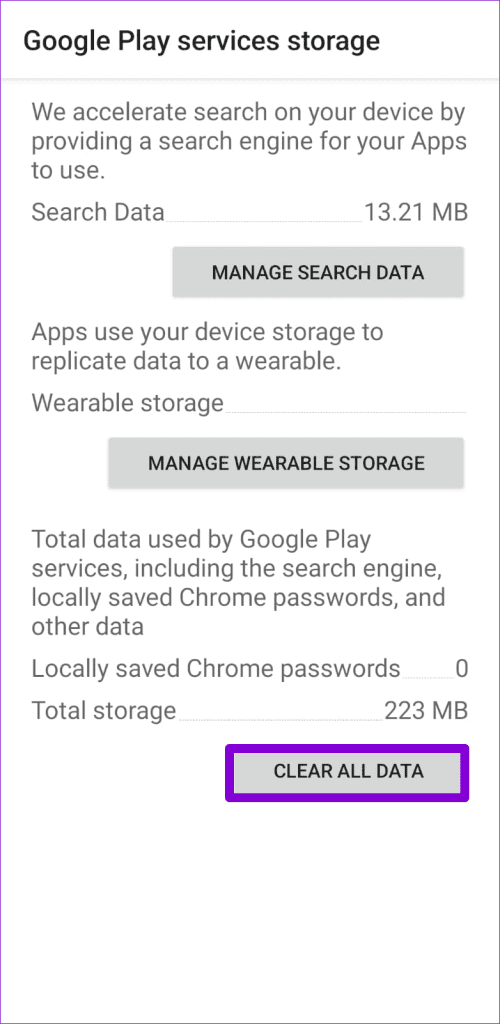
Step 1: Open the Settings app > go to Apps > scroll down to find and tap on Google Play Services.
Step 2: Select Storage.


Step 3: Tap Manage storage > select the Clear All Data button.

Was this helpful?
Last updated on 09 August, 2024
1 Comment
Leave a Reply
Read Next
 5 Ways to Fix Android Messages Keeps Crashing Issue
Basic Fixes: Restart Phone: Start the troubleshooting process by restarting your phone.
5 Ways to Fix Android Messages Keeps Crashing Issue
Basic Fixes: Restart Phone: Start the troubleshooting process by restarting your phone.
 4 Ways to Fix Discord Keeps Crashing on Android
Try Basic Fixes Free up storage space: A lack of free storage space on your Android can also cause Discord to misbehave and display the "Looks like Discord has crashed
4 Ways to Fix Discord Keeps Crashing on Android
Try Basic Fixes Free up storage space: A lack of free storage space on your Android can also cause Discord to misbehave and display the "Looks like Discord has crashed
 3 Ways to Fix if YouTube Keeps Crashing on Android
https://youtu.be/q1GnaH9pC58 Basic Fixes Free up storage space: The YouTube app requires sufficient storage space to stream content on your Android.
3 Ways to Fix if YouTube Keeps Crashing on Android
https://youtu.be/q1GnaH9pC58 Basic Fixes Free up storage space: The YouTube app requires sufficient storage space to stream content on your Android.
 3 Ways to Fix Messages App Keeps Crashing or Freezing on iPhone
Basic Fixes: Check the Messages app server status: If there is an issue with Apple's servers, it can affect the functioning of the Messages app.
3 Ways to Fix Messages App Keeps Crashing or Freezing on iPhone
Basic Fixes: Check the Messages app server status: If there is an issue with Apple's servers, it can affect the functioning of the Messages app.
 2 Fixes if WhatsApp Keeps Crashing or Won’t Open on iPhone
https://youtu.be/5vjjcO8-G2c Basic Fixes: Check WhatsApp server status: It is always worth checking if WhatsApp is working as expected.
2 Fixes if WhatsApp Keeps Crashing or Won’t Open on iPhone
https://youtu.be/5vjjcO8-G2c Basic Fixes: Check WhatsApp server status: It is always worth checking if WhatsApp is working as expected.
 4 Fixes if Facebook Messenger Keeps Crashing on Android and iPhone
Basic Fixes Update the Messenger app: Using an outdated version of an app can cause it to behave strangely.
4 Fixes if Facebook Messenger Keeps Crashing on Android and iPhone
Basic Fixes Update the Messenger app: Using an outdated version of an app can cause it to behave strangely.
 Top 10 Ways to Fix Google Chrome Keeps Freezing or Crashing on Windows 10
Google Chrome is the go-to browser of millions across the world.
Top 10 Ways to Fix Google Chrome Keeps Freezing or Crashing on Windows 10
Google Chrome is the go-to browser of millions across the world.
 5 Ways to Fix Spotify Keeps Crashing Issue on Windows
Basic Fixes Restart Spotify: Open the Task Manager, right-click on Spotify, and select End Task.
5 Ways to Fix Spotify Keeps Crashing Issue on Windows
Basic Fixes Restart Spotify: Open the Task Manager, right-click on Spotify, and select End Task.
The article above may contain affiliate links which help support Guiding Tech. The content remains unbiased and authentic and will never affect our editorial integrity.

Hey hello I’m a user and when I click on anybody like when I try to chat it freezes the whole app like I have to restart it and still I can’t chat I can only call