Basic Fixes:
- Ensure your Instagram account is not blocked/suspended: If you use Instagram excessively for several hours or take too many actions quickly, the service may temporarily block you. In that case, you can’t like new posts or add comments to existing posts and may get stuck with the old feed only.
- Check your internet connection: If your iPhone or Android has a sketchy internet connection, Instagram won’t load new posts. You must ensure an active internet connection on your phone.
- Check Instagram server status: If Instagram servers are having a rough day, the app won’t load new posts, send messages, or share stories. You can visit Downdetector to confirm the problem. If there are any new reports, wait before trying again.
- Log out and log in again: If you’ve recently changed your Instagram password, you might need to re-authenticate your account with updated details. So, log out of Instagram and log back in using the new password. Then, try again.
- Uninstall and reinstall Instagram: You can uninstall Instagram from your phone and download it again from the App Store or Google Play Store. This can help delete any custom app settings that might be causing new posts to not load properly.
Fix 1: Clear Instagram Cache (Android)
A corrupt Instagram cache may lead to issues like the app not loading new posts. In this case, you can clear the Instagram cache on your Android device. Here’s how.
Tip: Check our article to know more about clearing Instagram cache on other devices.
Step 1: Long-press on the Instagram app icon and tap on the App Info icon.
Step 2: Here, tap on Storage and cache. Then, tap on Clear cache.


Fix 2: Check Your Phone’s Time and Date
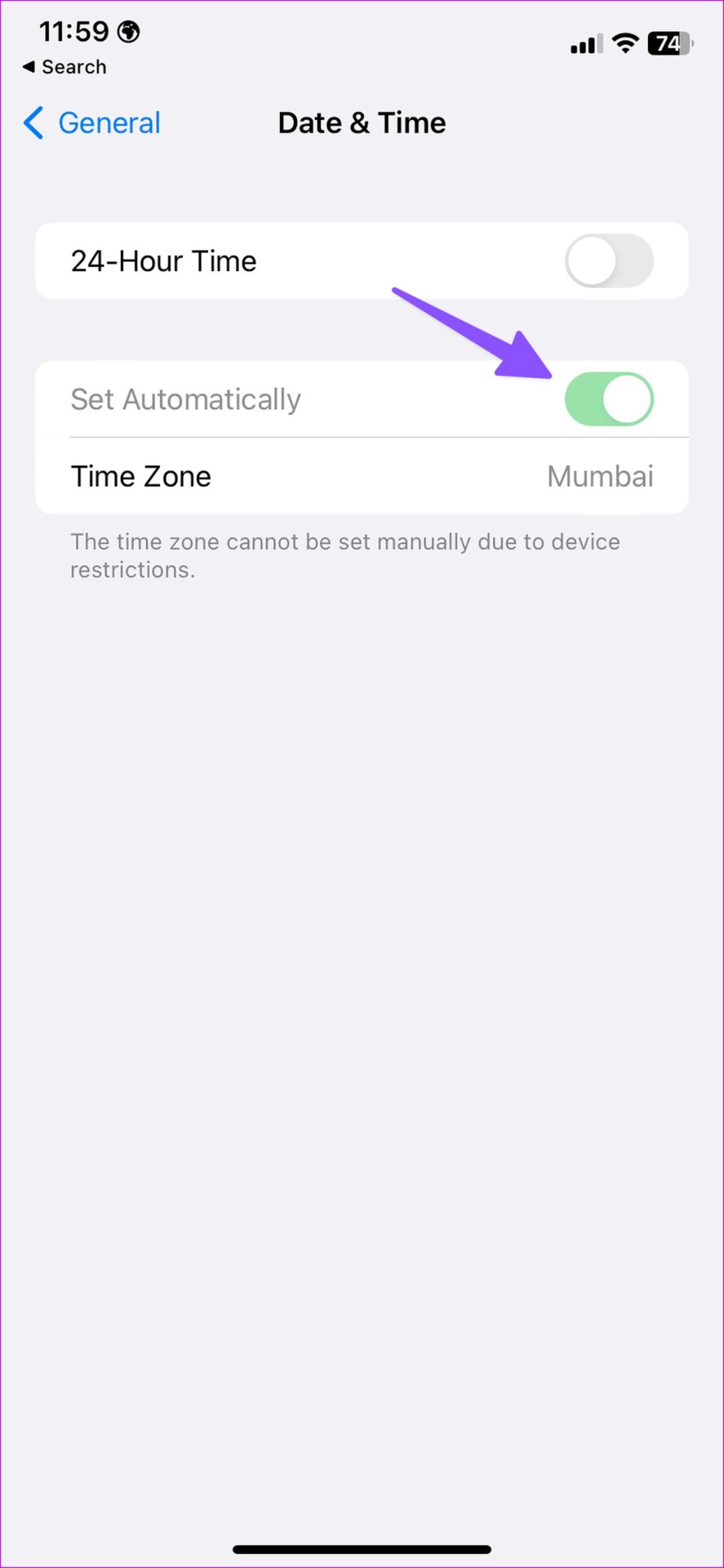
Incorrect time and date settings on your phone can lead to issues like Instagram not loading new posts. So, ensure your iPhone has accurate time and date settings as per your region and mobile network. Here’s how to confirm that.
On iPhone
Step 1: Open the Settings app > tap on General > Date & Time.
Step 2: Here, turn on the Set Automatically toggle.


On Android
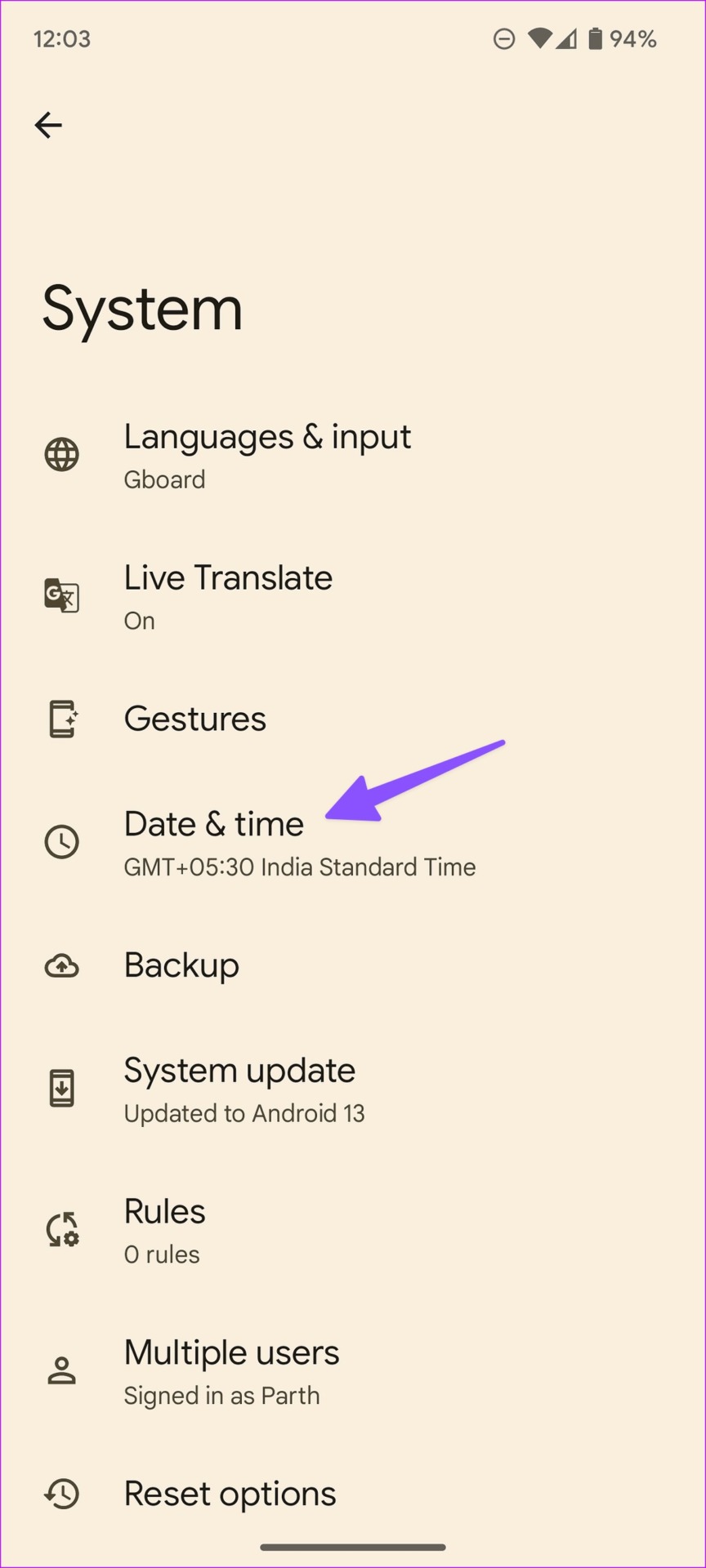
Step 1: Open the Settings app > tap on System.
Step 2: Select Date & Time > turn on the toggle for Set time automatically.


Fix 3: Ensure Mobile Date Permission (iPhone)
If you have disabled mobile data access for Instagram on your iPhone, the app won’t load new posts on a cellular network. Here’s how to enable the relevant permission to ensure this does not happen
Step 1: Open the Settings app > tap on Instagram.
Step 2: Enable the Mobile Data toggle.


Now, close and reopen the Instagram app. Then, check if you can see new posts on your Instagram.
Was this helpful?
Last updated on 20 May, 2024
Read Next
 9 Ways to Fix Videos Freezing on Instagram Stories and Posts
Ever since apps like Dubsmash and TikTok popularized short videos, popular social media apps have come up with alternatives for posting short-form content.
9 Ways to Fix Videos Freezing on Instagram Stories and Posts
Ever since apps like Dubsmash and TikTok popularized short videos, popular social media apps have come up with alternatives for posting short-form content.
 3 Easy Ways to Hide Posts From Someone on Instagram
Note: Changing settings on your desktop automatically syncs to your mobile device, so you don't have to follow the same methods on your mobile device as you would on your
3 Easy Ways to Hide Posts From Someone on Instagram
Note: Changing settings on your desktop automatically syncs to your mobile device, so you don't have to follow the same methods on your mobile device as you would on your
 3 Ways to Fix Instagram Not Working, Loading, or Crashing
Fix 1: Reinstall Instagram Most apps release bug fixes through regular updates, and Instagram is no different.
3 Ways to Fix Instagram Not Working, Loading, or Crashing
Fix 1: Reinstall Instagram Most apps release bug fixes through regular updates, and Instagram is no different.
 4 Ways to Fix Instagram Not Loading Pictures
https://youtu.be/ccdQFrpMrmo Basic Fixes: Disable VPN: Instagram may not show pictures and new posts if the connected VPN server faces an outage.
4 Ways to Fix Instagram Not Loading Pictures
https://youtu.be/ccdQFrpMrmo Basic Fixes: Disable VPN: Instagram may not show pictures and new posts if the connected VPN server faces an outage.
 4 Ways to Fix Instagram Not Loading Stories
Basic Fixes: Restart the Instagram app: It's a good idea to completely close Instagram on your phone and reopen it to load stories.
4 Ways to Fix Instagram Not Loading Stories
Basic Fixes: Restart the Instagram app: It's a good idea to completely close Instagram on your phone and reopen it to load stories.
 3 Ways to Fix Instagram Feed Not Showing Friends Posts
Why Can’t I See My Friends’ Posts on My Instagram Feed?
3 Ways to Fix Instagram Feed Not Showing Friends Posts
Why Can’t I See My Friends’ Posts on My Instagram Feed?
 How to Recover Deleted Instagram Posts, Stories, Reels, and IGTV Videos
To save people from losing their Instagram data when their account gets hacked, Instagram launched the Recently Deleted feature.
How to Recover Deleted Instagram Posts, Stories, Reels, and IGTV Videos
To save people from losing their Instagram data when their account gets hacked, Instagram launched the Recently Deleted feature.
 How to Add Reminders for Instagram Posts and Stories on Mobile App
Who Can Create Reminders for Events on Instagram Reminders are a great way to ensure you remind your followers about any of your plans and events, and they are quite
How to Add Reminders for Instagram Posts and Stories on Mobile App
Who Can Create Reminders for Events on Instagram Reminders are a great way to ensure you remind your followers about any of your plans and events, and they are quite
The article above may contain affiliate links which help support Guiding Tech. The content remains unbiased and authentic and will never affect our editorial integrity.