Basic Fixes:
- Check for software updates: If you’ve recently updated to a new MIUI version, software-related bugs can cause higher-than-normal battery drain. To fix this, another software update should have been released. So, install it at the earliest.
- Update all apps: Incompatible or out-of-date apps can cause high battery drain. So, check and ensure all your currently installed apps are updated.
- Restart your phone: Long-press the Power button and tap on Restart. Wait for your phone to finish restarting and check again. This should fix any temporary device bugs or other related issues.
- Disable Location and Bluetooth services: Bluetooth and Location services end up consuming too much battery if left enabled. So, when not in use, ensure Location and Bluetooth services are disabled on your Redmi phone.
Fix 1: Restrict Battery Usage for Apps
Certain apps can use your device’s battery even when they are not actively in use. To stop this from happening, you can restrict that app’s battery usage. This will stop these apps from working in the background unprompted. Here’s how.
Step 1: Long-press the relevant app and tap on the App info.
Step 2: Tap on Battery saver and select Restrict background activity.
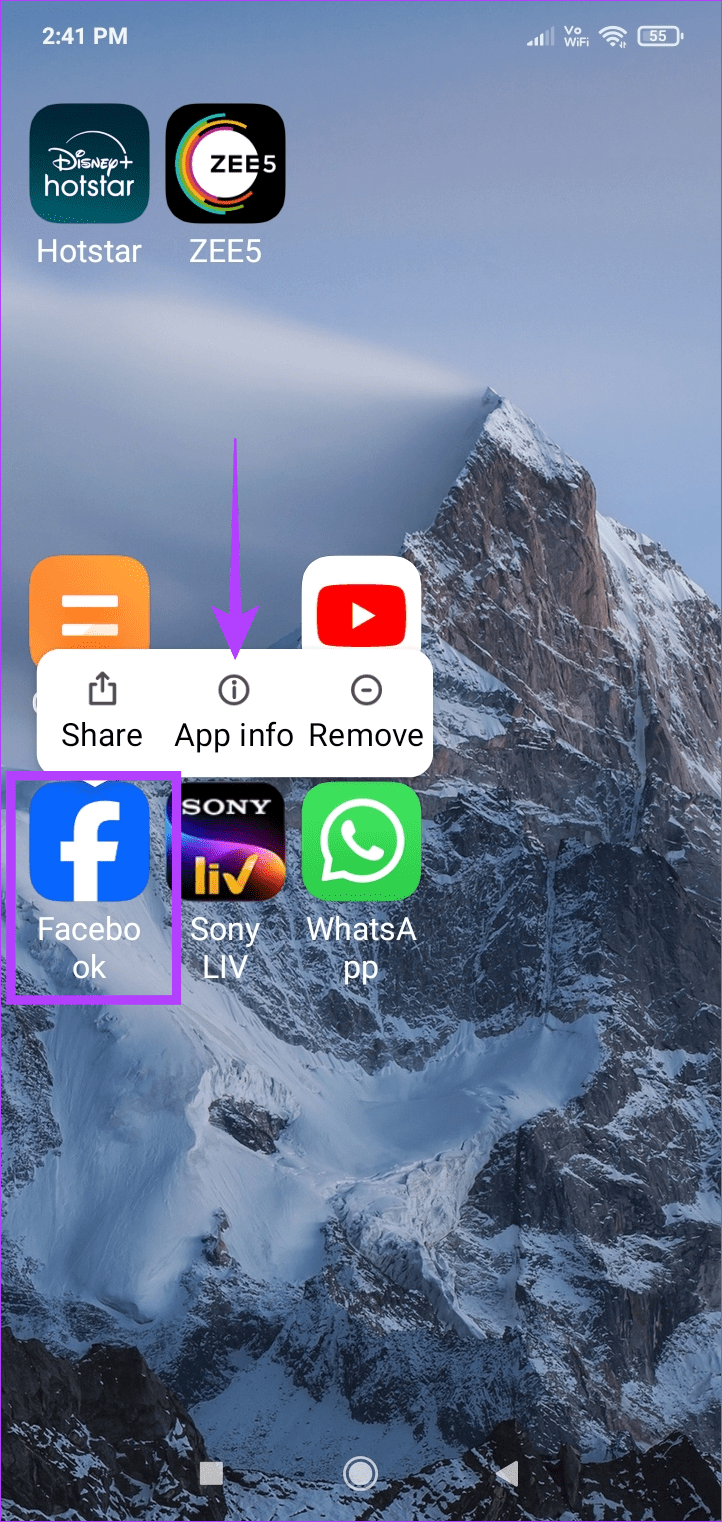


Repeat these steps to restrict any other apps on your Redmi phone. You can also use the settings menu to access the relevant app settings.
Fix 2: Disable Raise to Wake and Wake Lock Screen
Your device’s screen waking up for notifications or waking up as you raise the phone can end up increasing the overall battery consumption. To stop that, disable the relevant services on your Redmi phone using the below steps.
Step 1: Open Settings and tap on Lock screen.
Step 2: Turn off the Raise to wake and Wake Lock screen for notifications toggles.


Fix 3: Uninstall Battery Consuming Apps
We all have apps that we no longer use. And if any one of these apps is a known battery killer, uninstalling them from your device can help conserve battery life in the long run. Here’s how to do it.
Step 1: Long-press the app → App info. Tap on Uninstall and tap on OK to confirm.
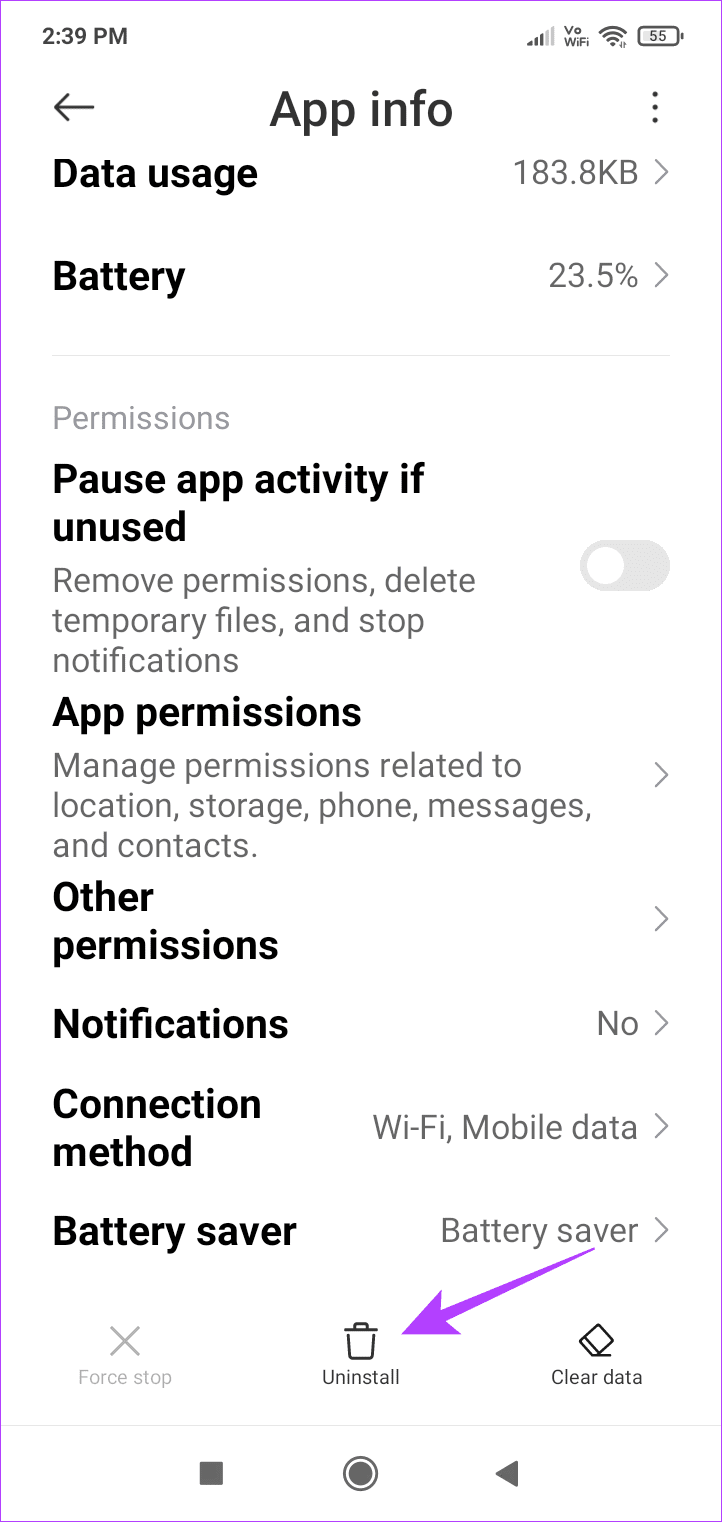

Repeat these steps to uninstall any other battery-consuming or recently installed apps from your Redmi device.
Also Read: How to fix Android phone draining battery while charging
Fix 4: Disable Glance for Mi
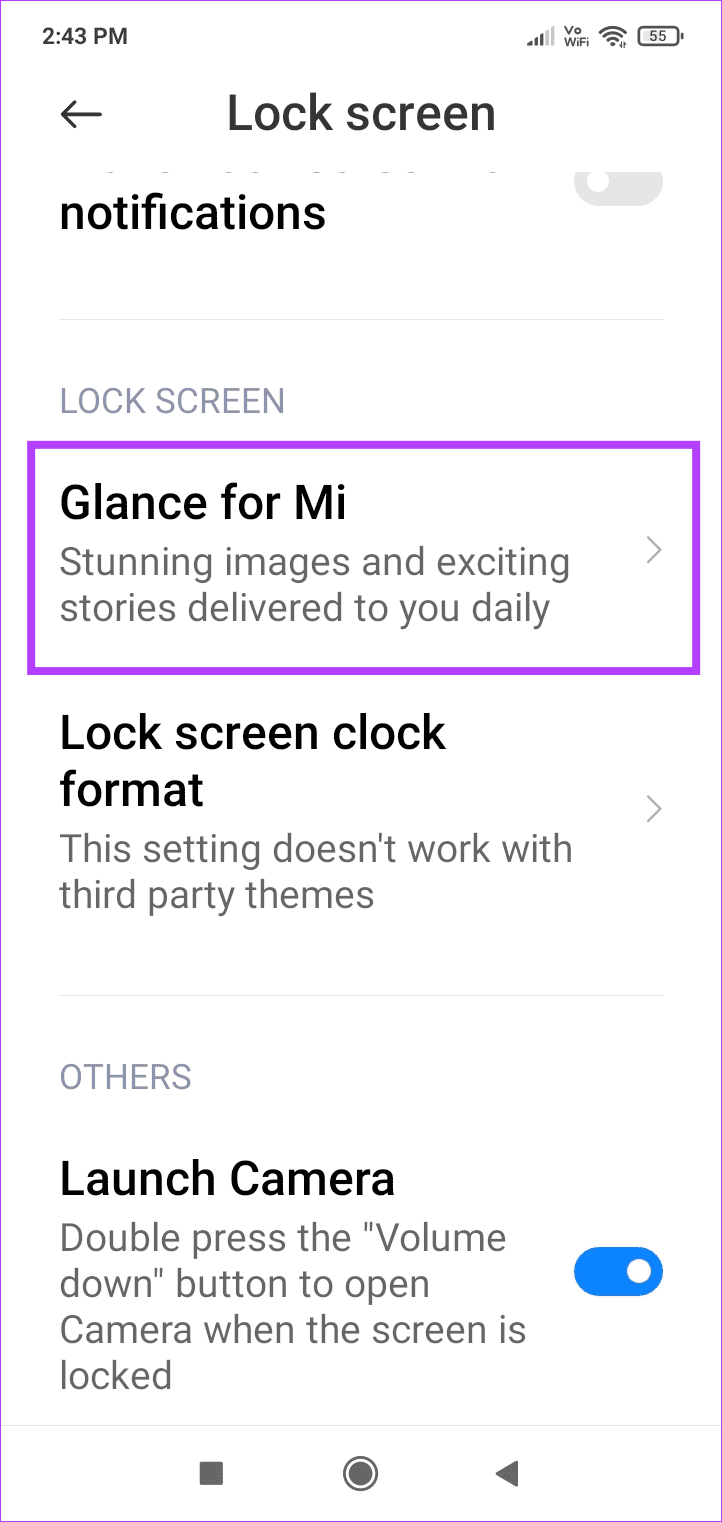
Redmi’s Glance for Mi services helps provide you with the latest images, stories, etc. on your lock screen. However, doing this requires your system’s resources, which will in turn cause your device’s battery to drain faster. So, disable this feature and then check again. Here’s how to do it.
Step 1: Open Settings → tap on Lock screen. Tap on Glance for Mi → turn the toggle off.
Fix 5: Turn off Always-on Display
Always On Display helps provide you with all the recent phone updates at a glance. However, this happens at the cost of your device’s battery life. Disable it using the below steps and monitor your device’s battery drain to check.
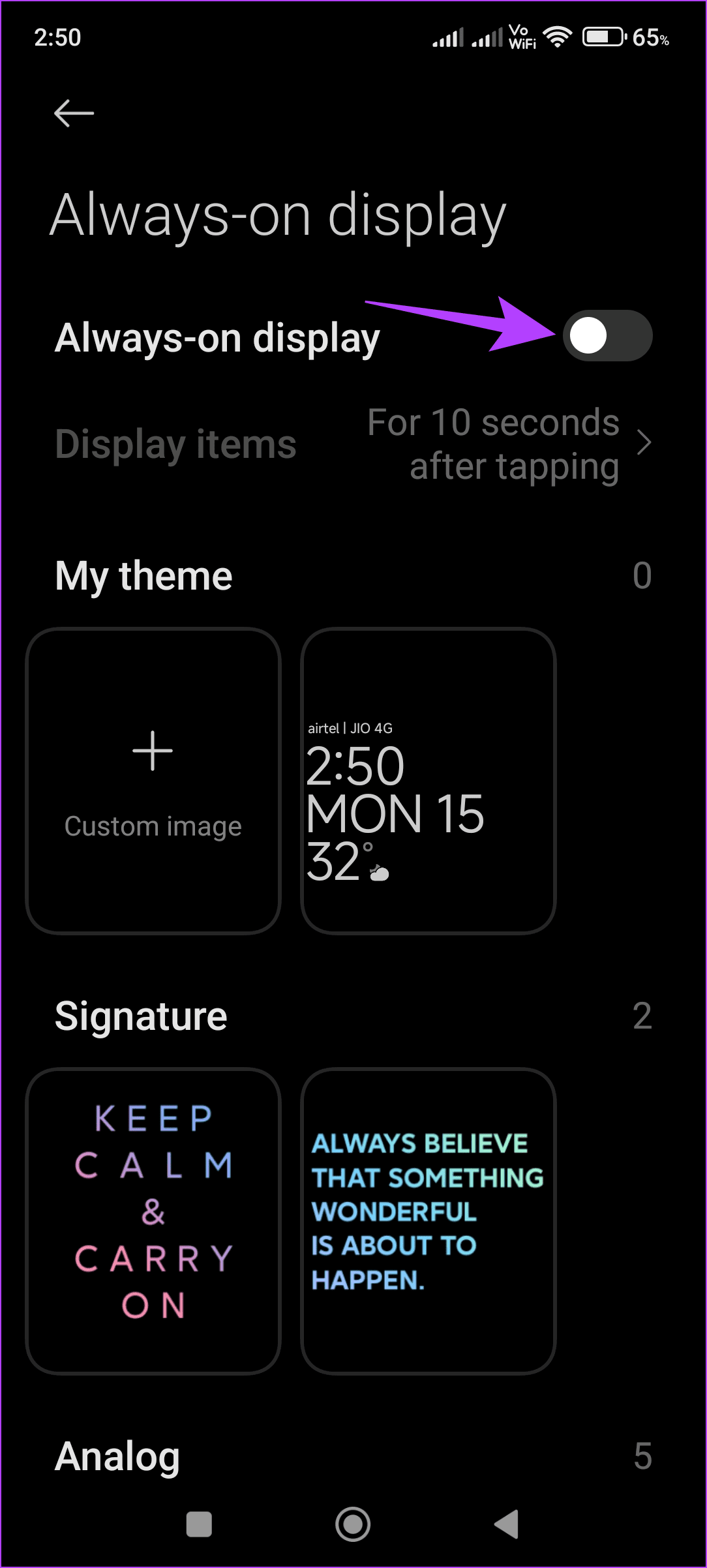
Step 1: Open Settings and tap on Wallpaper.
Step 2: Tap on Always-on display and turn the toggle off.


Also Read: Why does my Android phone’s battery drain overnight and how to fix it
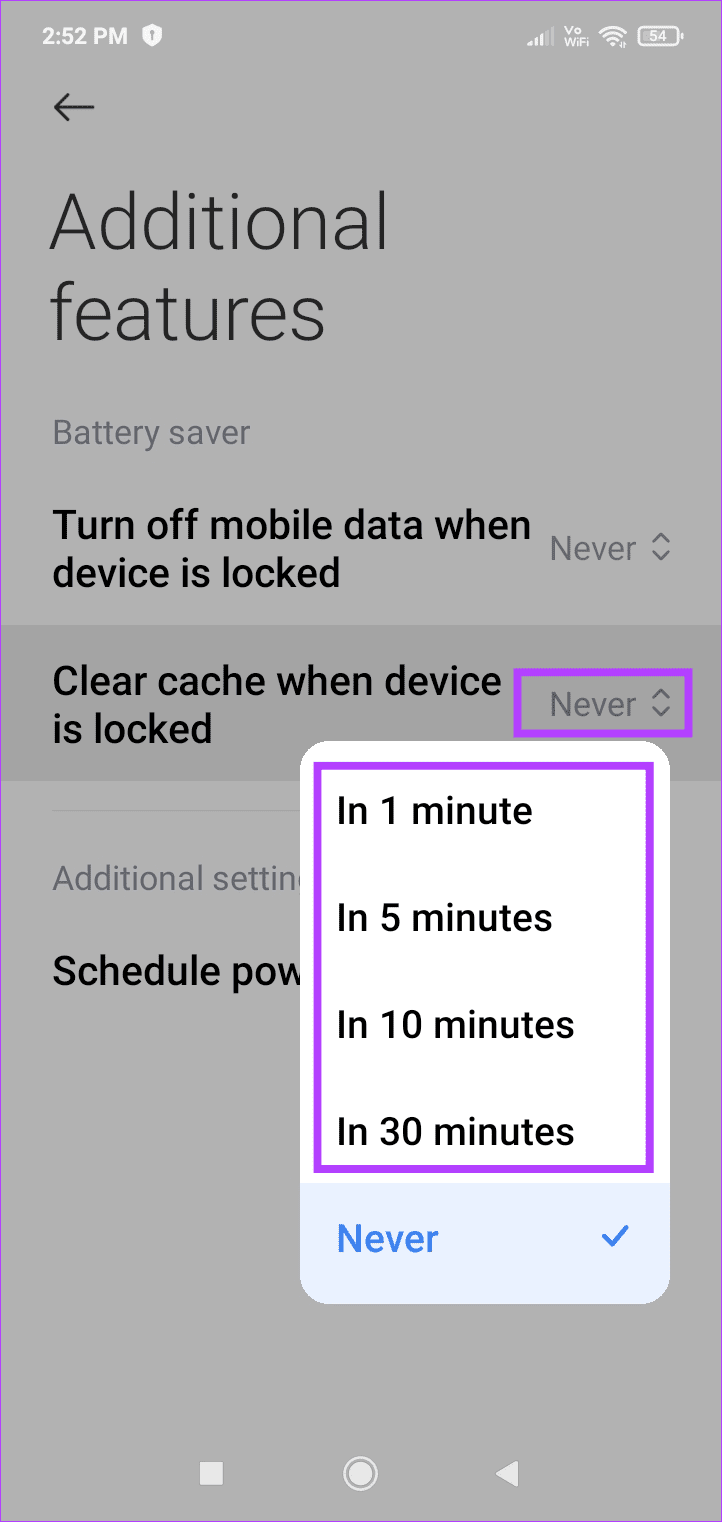
Fix 6: Enable Auto Clear Cache
While device cache can help improve your device’s efficiency, corrupt cache data can cause issues. This can also be the case if this cache gets too big. So, you can set your Redmi phone to automatically clear this cache data once your device is locked using the below-mentioned steps.
Step 1: Open Settings and tap on Battery. Tap on Additional features.
Step 2: Tap the drop-down in front of Clear cache when device is locked and select the relevant interval.


Fix 7: Enable Battery Saving Mode
Battery saver mode helps categorize and allow your device’s functions based on their requirements. This can help curb device or app functions that can cause your Redmi device’s battery to drain faster than normal. Follow the below steps to enable it.
Step 1: Open Settings → Battery → Current mode drop-down and select Battery saver.

Fix 8: Perform a Factory Reset
If you’ve tried all the above ways and are still having issues with your device’s battery draining faster than normal, you can reset your Redmi phone to factory defaults. Doing this will delete all device data, apps, settings, etc., and reset it to custom defaults, getting rid of any related issues. Here’s how to do it.
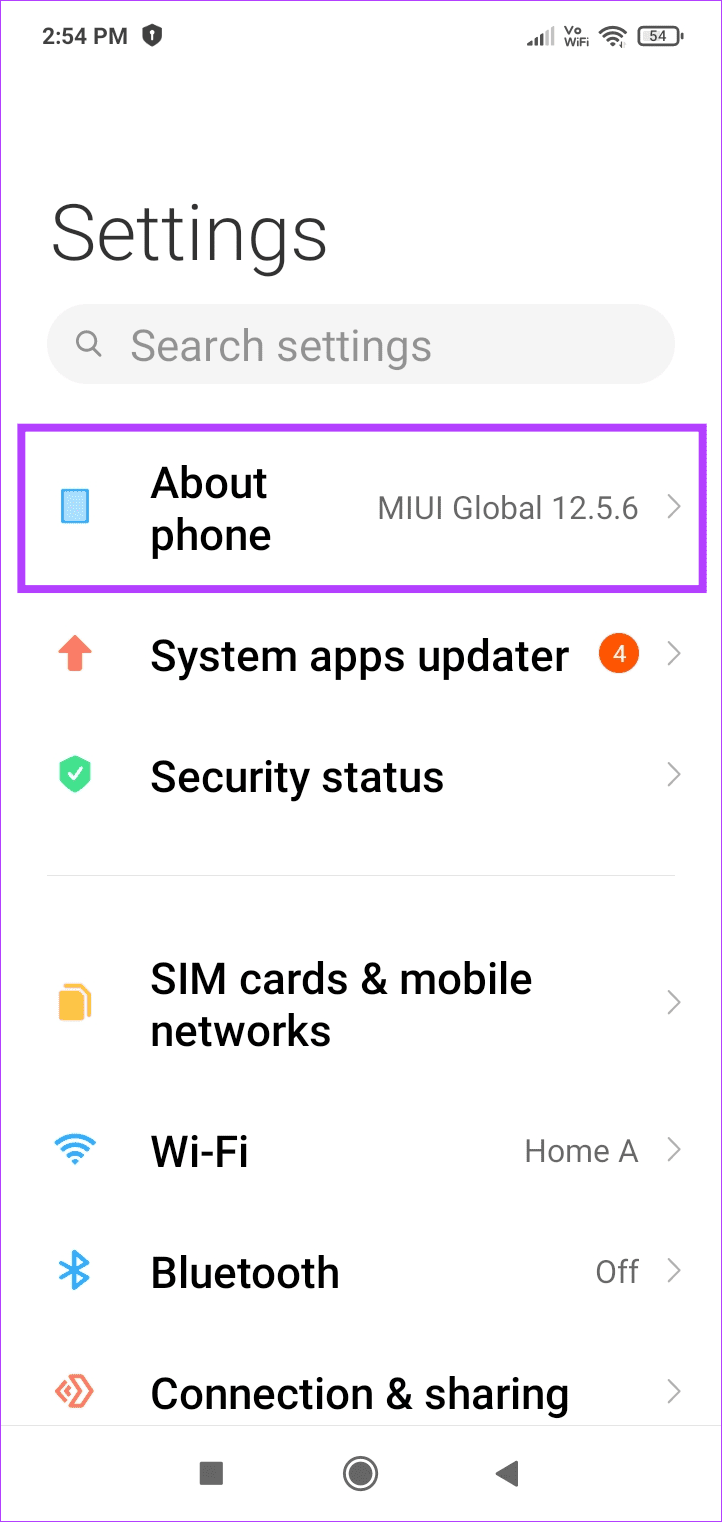
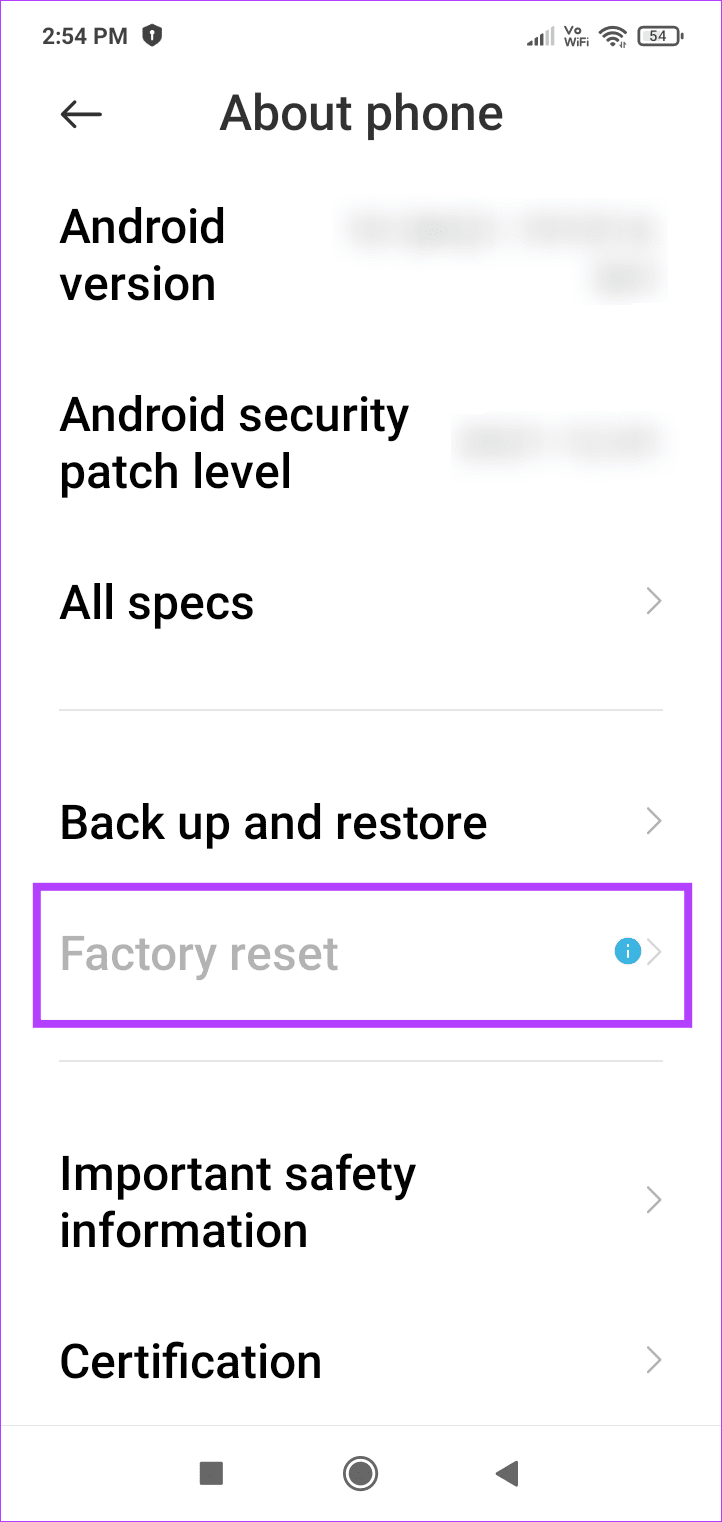
Step 1: Open Settings and tap on About phone. Tap on Factory reset.
Step 2: Tap on Erase all data and confirm the same.

Now, follow the on-screen instructions to finish the process. Then, complete the setup and use your phone for a while to check if the issue has been resolved.
Was this helpful?
Last updated on 15 July, 2024
Read Next
 5 Ways to Fix Chrome Battery Drain Issue on Android
Basic Fixes: Force stop Google Chrome app: Chrome can still operate in the background even if you close the app.
5 Ways to Fix Chrome Battery Drain Issue on Android
Basic Fixes: Force stop Google Chrome app: Chrome can still operate in the background even if you close the app.
 7 Ways to Fix Battery Drain Issue on Windows 11
Fix 1: Change Power Plan The first thing you need to do is set the default power plan on your laptop to prioritize longer battery life over performance.
7 Ways to Fix Battery Drain Issue on Windows 11
Fix 1: Change Power Plan The first thing you need to do is set the default power plan on your laptop to prioritize longer battery life over performance.
 11 Ways to Fix iOS 17 Battery Drain Issue on iPhone
If you have an eligible device, installing the latest iOS 17 update seems a no-brainer.
11 Ways to Fix iOS 17 Battery Drain Issue on iPhone
If you have an eligible device, installing the latest iOS 17 update seems a no-brainer.
 5 Ways to Fix Samsung One UI Battery Drain
Basic Fixes: Turn off Always On Display: While Always On Display gives you an easy view of all your current notifications, date, time, etc., keeping it on increases the battery
5 Ways to Fix Samsung One UI Battery Drain
Basic Fixes: Turn off Always On Display: While Always On Display gives you an easy view of all your current notifications, date, time, etc., keeping it on increases the battery
 8 Ways to Fix Battery Drain on Samsung Galaxy Phones
Basic Fixes: Disable 5G: While 5G provides faster data transfer speeds, it can increase the device's battery drain.
8 Ways to Fix Battery Drain on Samsung Galaxy Phones
Basic Fixes: Disable 5G: While 5G provides faster data transfer speeds, it can increase the device's battery drain.
 6 Ways to Fix Google App Battery Drain on Android
Fix 1: Clear the Cache of the Google App This is a simple solution you can try before moving to more rigorous methods of controlling battery drain.
6 Ways to Fix Google App Battery Drain on Android
Fix 1: Clear the Cache of the Google App This is a simple solution you can try before moving to more rigorous methods of controlling battery drain.
 How to Fix Overnight Battery Drain on Android Phone
Basic Fixes: Close background apps and restart your phone: Often, we ignore basic solutions that may be effective.
How to Fix Overnight Battery Drain on Android Phone
Basic Fixes: Close background apps and restart your phone: Often, we ignore basic solutions that may be effective.
 How to Unhide Notes in MIUI Devices and Other Cool Tips
How to Unhide Notes in MIUI (Redmi, Poco, and Xiaomi Devices) Step 1: Open the Notes app, swipe down, hold your screen, and release it to reveal the hidden notes.
How to Unhide Notes in MIUI Devices and Other Cool Tips
How to Unhide Notes in MIUI (Redmi, Poco, and Xiaomi Devices) Step 1: Open the Notes app, swipe down, hold your screen, and release it to reveal the hidden notes.
The article above may contain affiliate links which help support Guiding Tech. The content remains unbiased and authentic and will never affect our editorial integrity.