Method 1: Enable Do Not Disturb for Your Account
One of the quickest ways to disable chat notifications during meetings is to set your status to Do Not Disturb. In this manner, you can attend meetings and still use the chat, but you won’t get notifications for each message or @mention. Just remember to reset your status after the meeting.
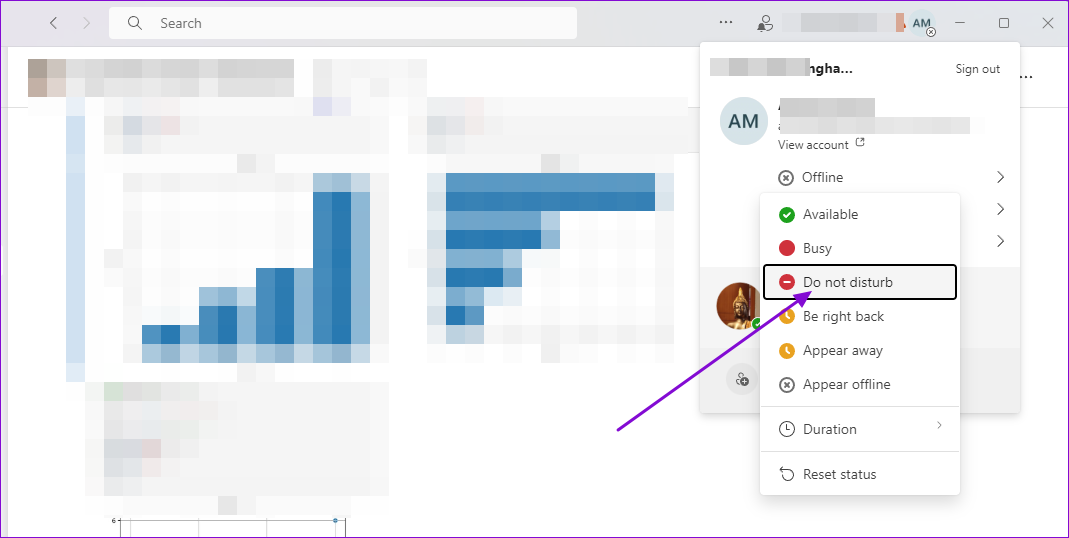
Step 1: Open Microsoft Teams and click on your profile
Step 2: Click on Offline, and then select Do not disturb from the flyout menu.
Method 2: Disable or Remove People From Priority Access
Don’t forget to check your notification settings and ensure Teams cannot send you notifications through DND.
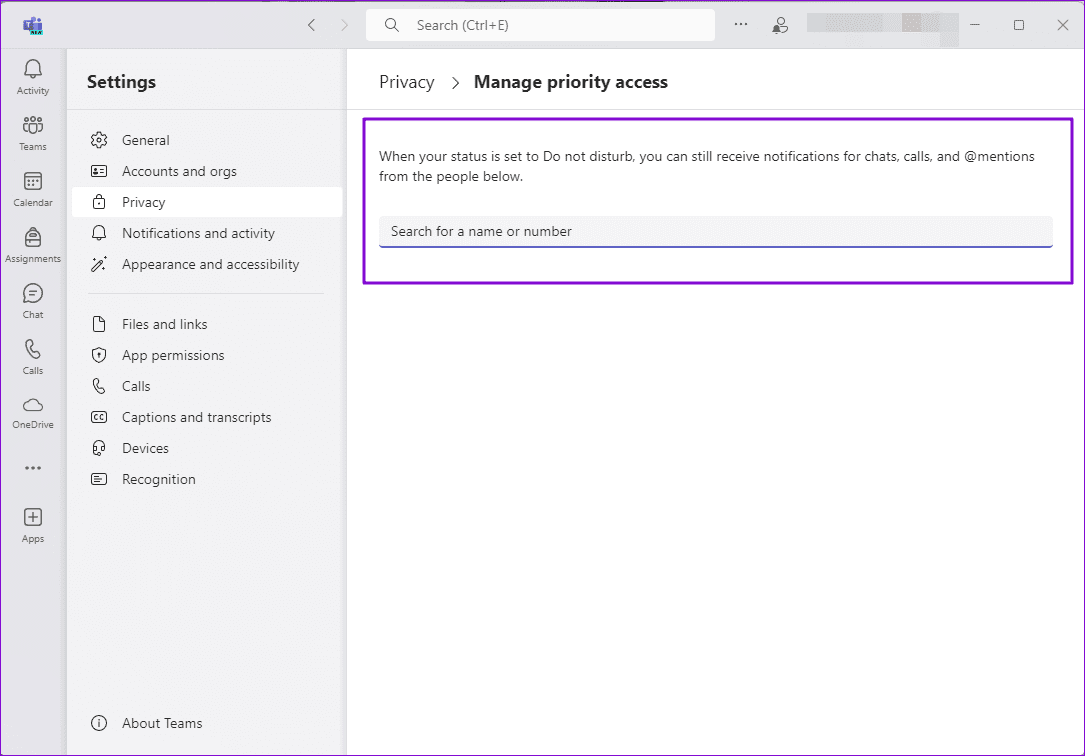
Step 1: Click on your Teams avatar and select Settings > Privacy
Step 2: Under Do Not Disturb, click Manage priority access.

Step 3: Remove people with priority access to block all chat notifications when the DND status is on.
Method 3: Enable DND Mode in Windows
Another way to block notifications during video meetings involves enabling Focus Assist.
Step 1: Go to Windows Settings (Win + I) > System
Step 2: Under Notifications from apps and other senders, locate Microsoft Teams and turn the toggle off next to it.

Step 3: If you want any notifcation from any app, toggle on the option next to Do not disturb section.

Was this helpful?
Last updated on 24 July, 2024
Read Next
 3 Fixes When Your Zoom Profile Picture Is Not Showing in Meetings
Basic Fix: Connect from an app or an alternative platform: Connecting from an alternative platform, such as your mobile device, maybe an easy workaround for the problem.
3 Fixes When Your Zoom Profile Picture Is Not Showing in Meetings
Basic Fix: Connect from an app or an alternative platform: Connecting from an alternative platform, such as your mobile device, maybe an easy workaround for the problem.
 How to Use Beauty Filter in Zoom Meetings
Use Beauty Filter in Zoom App on Desktop On Mac Step 1: Open the Zoom app on your Mac and go to Settings.
How to Use Beauty Filter in Zoom Meetings
Use Beauty Filter in Zoom App on Desktop On Mac Step 1: Open the Zoom app on your Mac and go to Settings.
 How to Use Notes in Zoom Meetings on Mobile and Desktop
How to Use Zoom Notes in Meetings on Desktop Before we get started, ensure that you have installed the latest version of the Zoom app on your Mac or Windows
How to Use Notes in Zoom Meetings on Mobile and Desktop
How to Use Zoom Notes in Meetings on Desktop Before we get started, ensure that you have installed the latest version of the Zoom app on your Mac or Windows
 How to Add Zoom Meetings to Outlook Calendar and Google Calendar
How to Add Zoom Meetings to Google Calendar The easiest way is using the Zoom for Google Workspace Google calendar add-on.
How to Add Zoom Meetings to Outlook Calendar and Google Calendar
How to Add Zoom Meetings to Google Calendar The easiest way is using the Zoom for Google Workspace Google calendar add-on.
 6 Ways to Export Microsoft Teams Chat History
Microsoft Teams has become integral to modern workplace communication, facilitating information sharing and collaboration.
6 Ways to Export Microsoft Teams Chat History
Microsoft Teams has become integral to modern workplace communication, facilitating information sharing and collaboration.
 6 Fixes When Google Chat App Notifications Are Not Working
Basic Fixes Before plunging deeper into complicated fixes, try these basic fixes.
6 Fixes When Google Chat App Notifications Are Not Working
Basic Fixes Before plunging deeper into complicated fixes, try these basic fixes.
 4 Fixes When Google Meet Lags During a Presentation
Basic Fixes Suspend other background activities and apps - Running other background activities, like downloads, may cause lag.
4 Fixes When Google Meet Lags During a Presentation
Basic Fixes Suspend other background activities and apps - Running other background activities, like downloads, may cause lag.
 How to Use Your Avatar During Video Calls on Instagram and Facebook Messenger
How to Create Your Avatar on Instagram To use your personalized avatar during video calls, you will first need to create your Instagram avatar.
How to Use Your Avatar During Video Calls on Instagram and Facebook Messenger
How to Create Your Avatar on Instagram To use your personalized avatar during video calls, you will first need to create your Instagram avatar.
The article above may contain affiliate links which help support Guiding Tech. The content remains unbiased and authentic and will never affect our editorial integrity.