Method 1: Disable Add by Email and Mobile Number
If you have this option enabled, anyone who knows either your phone number or email ID will be able to add you on Snapchat. To disable this setting and restrict random users from adding you on Snapchat, follow the below steps.
Step 1: Open the Snapchat mobile app and tap on your profile icon. Tap on the cogwheel icon.

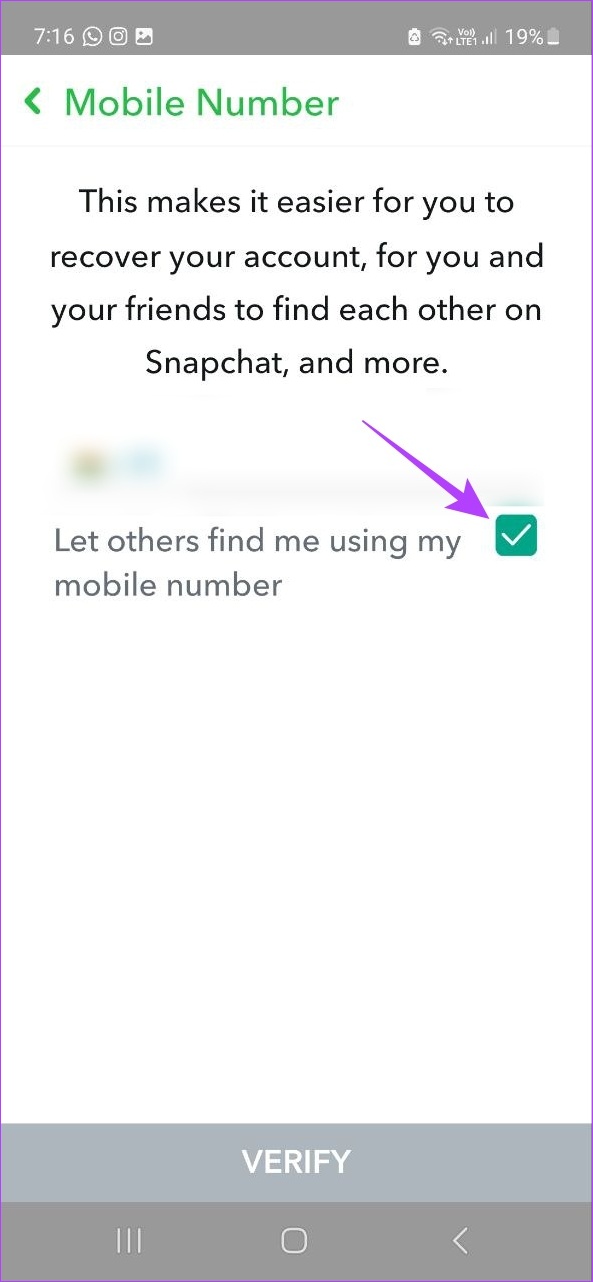
Step 2: Tap on Mobile Number and uncheck the Let others find me using my mobile number option.

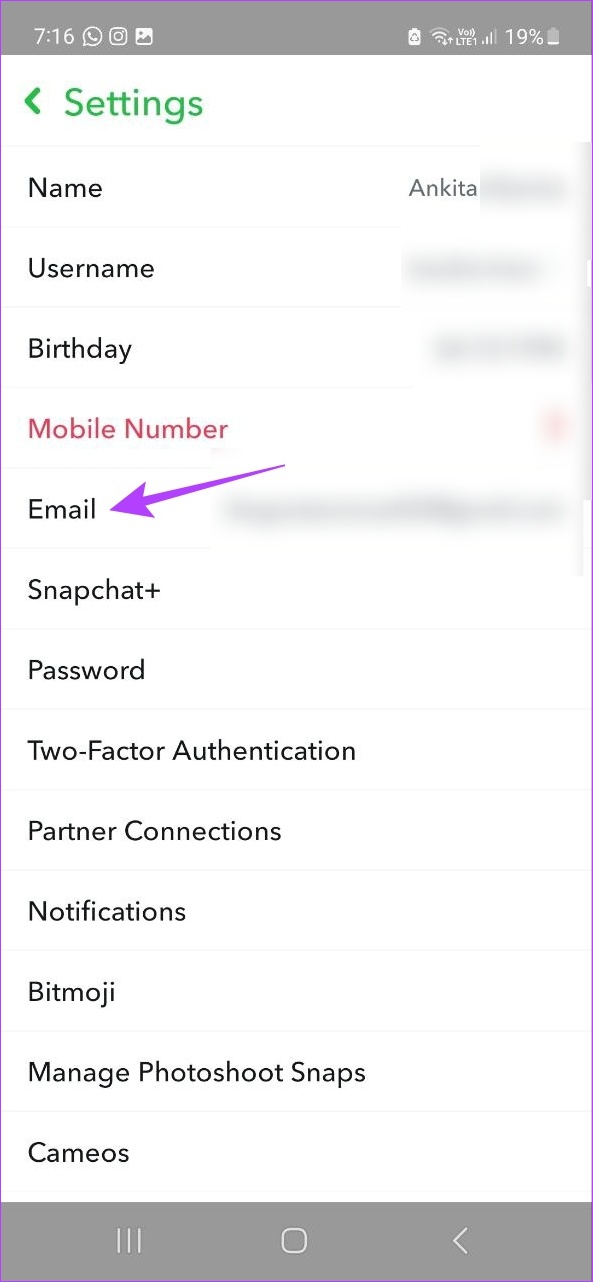
Step 3: Go back to the settings page and tap on Email.
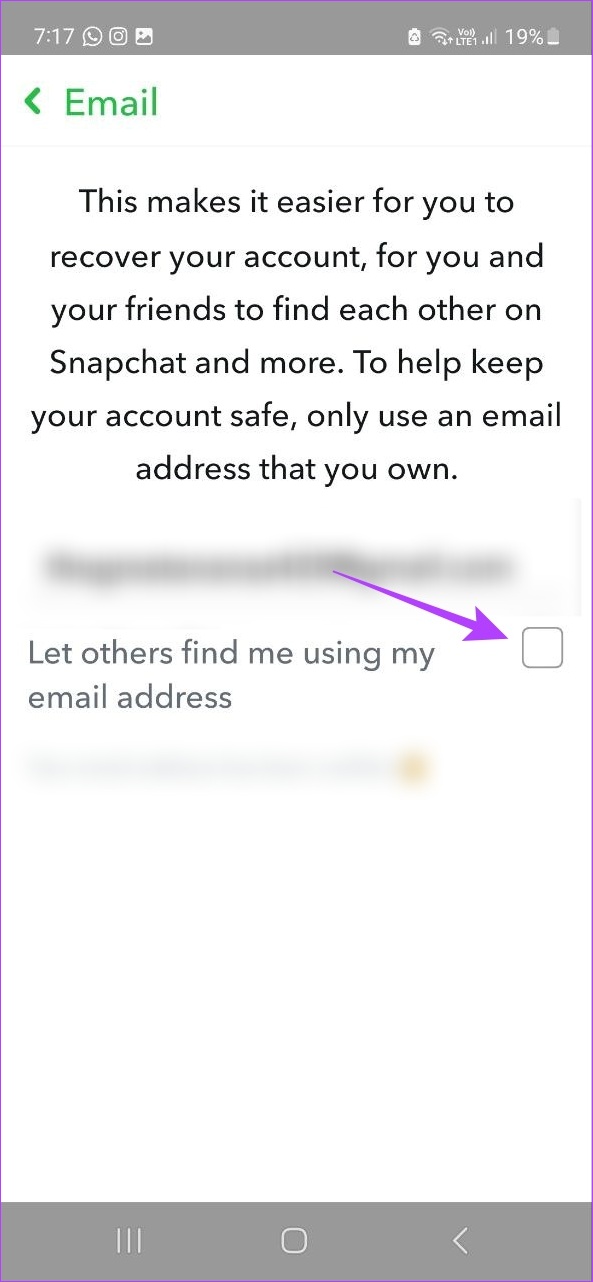
Step 4: Uncheck the Let others find me using my email address box.
Method 2: Change Snapchat Contact Me Settings
To make sure everyone on Snapchat cannot contact you, use the settings menu to restrict who can contact you to your friends or mutual contacts. This can help prevent random people or bot accounts from contacting you on Snapchat. Follow the below steps to do it.
Step 1: Open the Snapchat mobile app → profile icon → cogwheel icon.
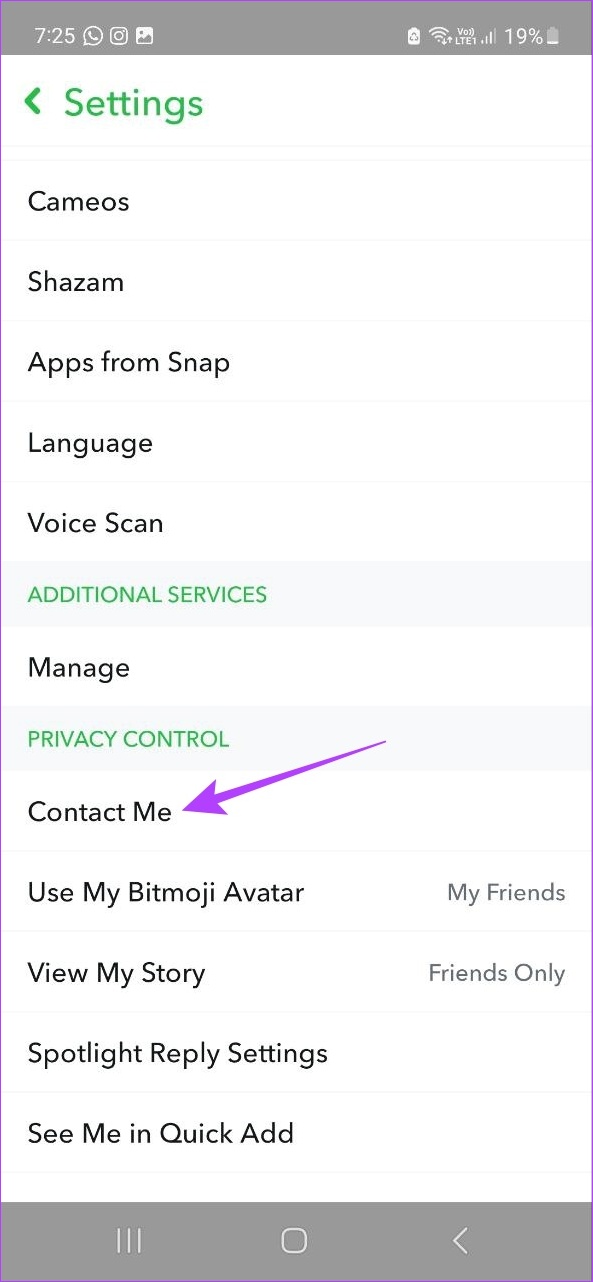
Step 2: Scroll down to the Privacy Control section and tap on Contact Me.
Step 3: Select Friends to make sure only the people you’ve added on Snapchat can contact you.
Tip: You can also select Friends and Contacts if you also want your mutual friends to get in touch with you.

Method 3: Remove Your Profile From “Quick Add” on Snapchat
The Quick Add feature makes you appear in other people’s lists. This can be helpful if you’re looking to meet like-minded people. However, it can also lead to random people finding your profile and adding you on Snapchat. To make sure this doesn’t happen, you can disable Quick Add. Here’s how.
Step 1: Open the Snapchat mobile app → profile icon → cogwheel icon.
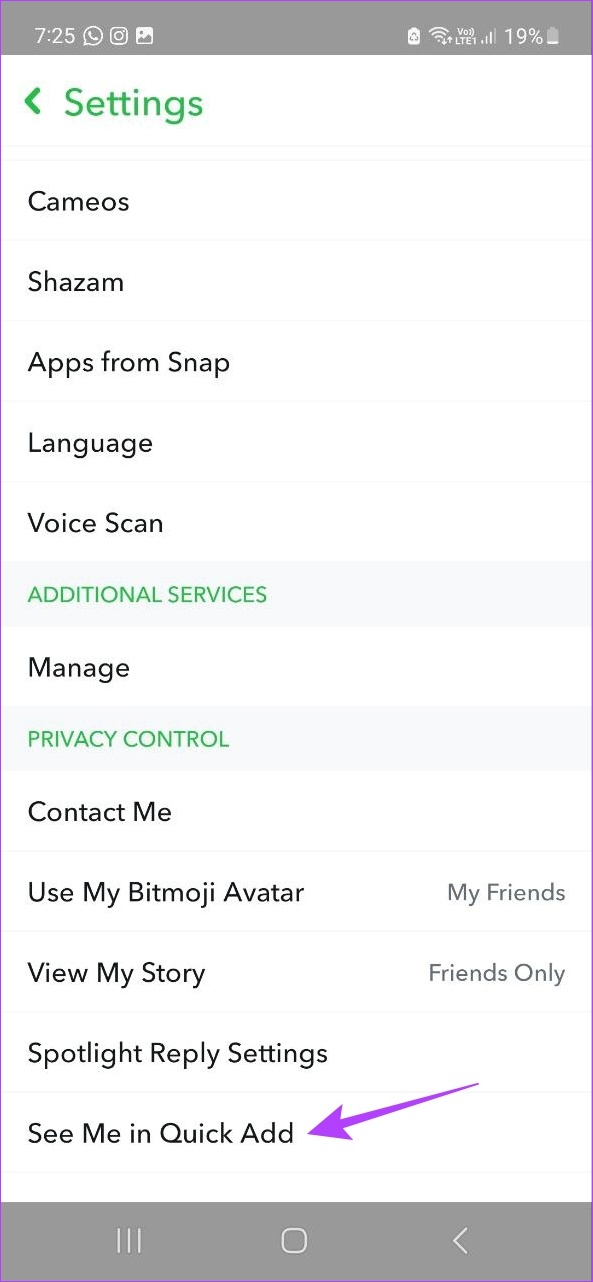
Step 2: Tap on See Me in Quick Add and ensure the Show me in Quick Add box is unchecked.

Also Read: How to see who added you or added you back on Snapchat
Method 4: Block Unwanted Snapchat Accounts
The most effective way to stop random people from adding you on Snapchat is by blocking the account. You can easily find users who are not your friends but have either been added to your Snapchat via your contact list or add requests. You can then proceed to block them using the below steps.
Using Add Friends Window
Step 1: Open Snapchat → profile icon. Scroll down and tap on Add Friends.

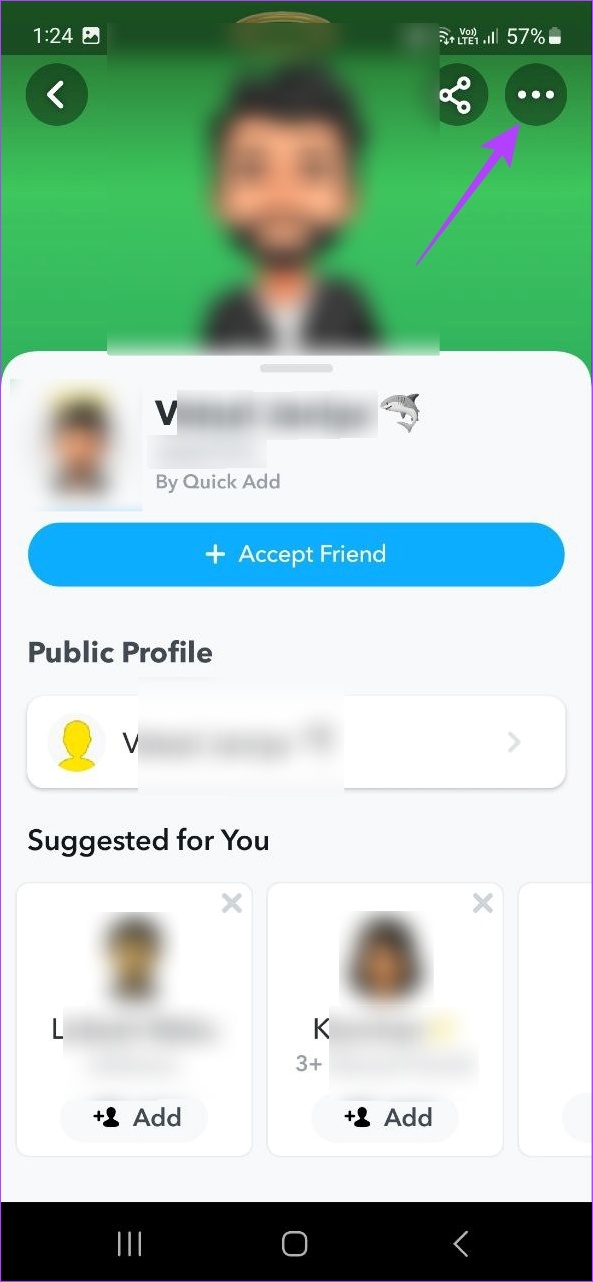
Step 2: Tap on the relevant user and tap on the three-dot icon.

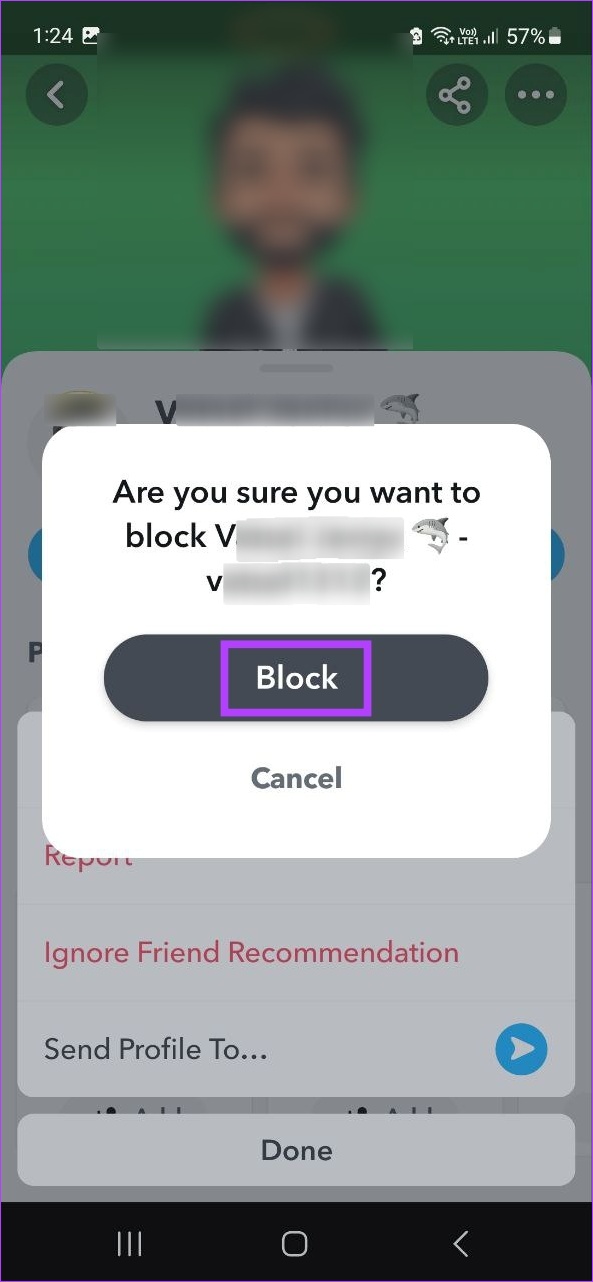
Step 3: Tap on Block and confirm the same. Repeat these steps for any other user.

Using Chat Window
Step 1: Open Snapchat → chat icon → x icon in front of the relevant user.

Step 2: Tap on Block → confirm the same.
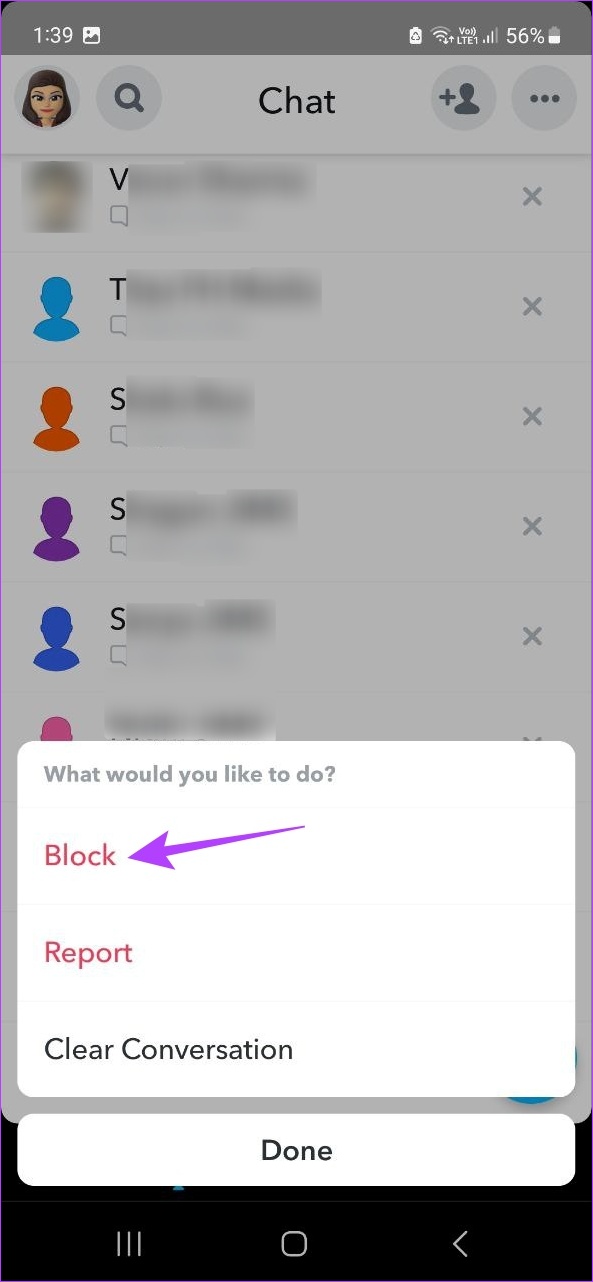

This will block the user and disable random add requests from them as well. If you’re unable to find an account on Snapchat, ensure they haven’t blocked you on Snapchat.
FAQs
Yes, you can unblock previously blocked accounts on Snapchat. To do this, tap on your profile icon → cogwheel icon to open the Settings menu. Scroll down and tap on Blocked. This will open a list of previously blocked accounts. You can then proceed to unblock the user by tapping on the x in front of their account.
Yes, you can remove a previously added account on Snapchat. To do this, open Snapchat and tap on the chat icon. Then, tap on the user you wish to delete. Once their profile opens → three-dot icon in the top right corner → Manage Friendship → Remove Friend → Remove.
Was this helpful?
Last updated on 08 July, 2024
Read Next
 How to Stop Spotify From Adding Songs to Playlist
With a tap away from listening to the music of your choice, Spotify has changed the way we stream music.
How to Stop Spotify From Adding Songs to Playlist
With a tap away from listening to the music of your choice, Spotify has changed the way we stream music.
 Top 8 Ways to Fix Random Shutdowns on Windows 11
Imagine working on your Windows PC on a busy weekday and out of the blue, it shuts down abruptly.
Top 8 Ways to Fix Random Shutdowns on Windows 11
Imagine working on your Windows PC on a busy weekday and out of the blue, it shuts down abruptly.
 How to Find and Fix Windows 10 Making Random Sounds
Recently, when I was working on my Windows 10 laptop, I heard some random ding sounds coming from the speaker.
How to Find and Fix Windows 10 Making Random Sounds
Recently, when I was working on my Windows 10 laptop, I heard some random ding sounds coming from the speaker.
 6 Ways to Search People on Telegram
Keeping in touch with friends and family has become easier, thanks to messaging apps like Telegram.
6 Ways to Search People on Telegram
Keeping in touch with friends and family has become easier, thanks to messaging apps like Telegram.
 How Facebook Picks Your People You May Know
Facebook is known for its clever algorithms, which allow you to view posts that interest you the most, connect to people you’d love to connect with and use it the
How Facebook Picks Your People You May Know
Facebook is known for its clever algorithms, which allow you to view posts that interest you the most, connect to people you’d love to connect with and use it the
 A Complete Guide to Adding and Editing Text in Paint 3D
Adding text to your image is one of the basic functionalities of any photo-editing apps.
A Complete Guide to Adding and Editing Text in Paint 3D
Adding text to your image is one of the basic functionalities of any photo-editing apps.
 How to Use the People Feature in the iPhone Photos App
Add Someone in Your People Album In the Photos album, you can add names to the people or even add new people.
How to Use the People Feature in the iPhone Photos App
Add Someone in Your People Album In the Photos album, you can add names to the people or even add new people.
 3 Ways to Stop Instagram From Automatically Following Accounts
Fix 1: Unlink Third-Party Apps and Websites Third-party apps and services linked to your Instagram account may auto-follow specific accounts in the background.
3 Ways to Stop Instagram From Automatically Following Accounts
Fix 1: Unlink Third-Party Apps and Websites Third-party apps and services linked to your Instagram account may auto-follow specific accounts in the background.
The article above may contain affiliate links which help support Guiding Tech. The content remains unbiased and authentic and will never affect our editorial integrity.