


Method 1: Change the Default Browser on Your Mac
Your Mac comes with Safari as the default browser. However, if you don’t wish to continue this and want to open links in Chrome or any other browser instead of Safari, try changing the default browser on your Mac. Here are the simple steps to do so:
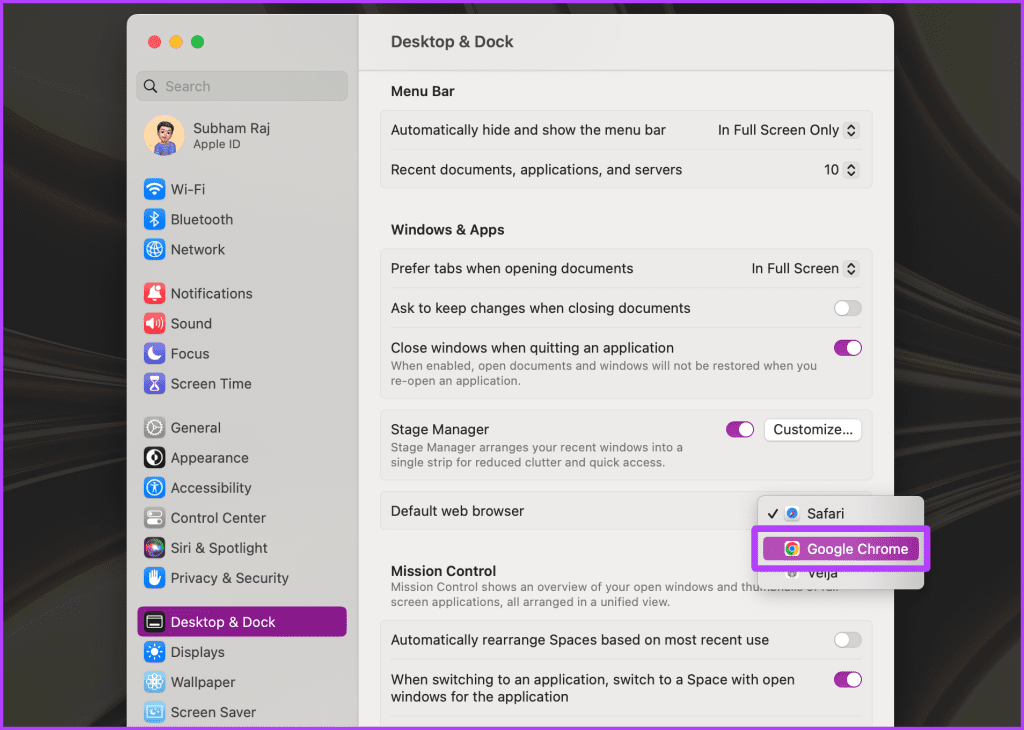
Step 1: Open the System Settings on your Mac and go to Desktop & Dock. Here, click on the drop-down next to the Default web browser.

Step 2: Select a browser of your choice in which you want to open links going forward.
Method 2: Change Default Browser per File Type
If you are struggling with links opening in Safari even after changing the default browser, you must know that macOS allows you to set the default browser (and also app) per file type. So, if you have added website shortcuts to your Mac home screen or dock, you can also change their default browsers without changing your system-wide default browser. Here’s how:
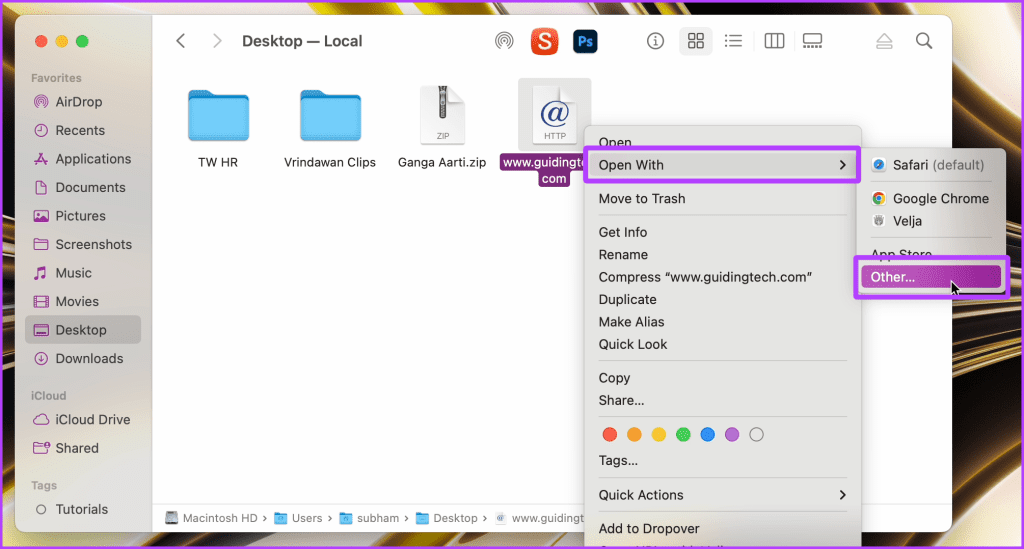
Step 1: Open Finder on your Mac and navigate to the file you wish to set the default browser. Right-click on the file and go to Open With > Other.
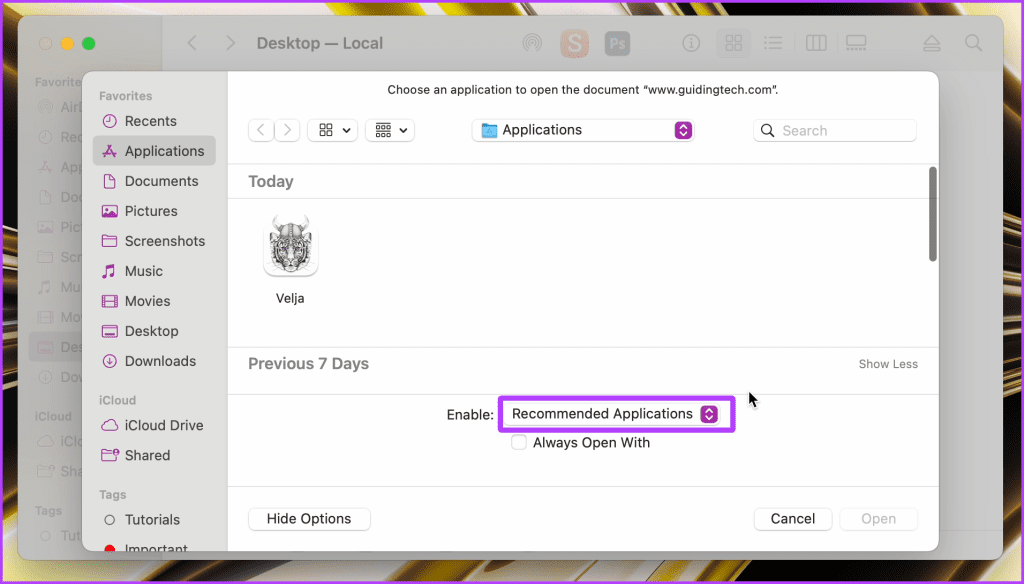
Step 2: Click on Recommended Applications.
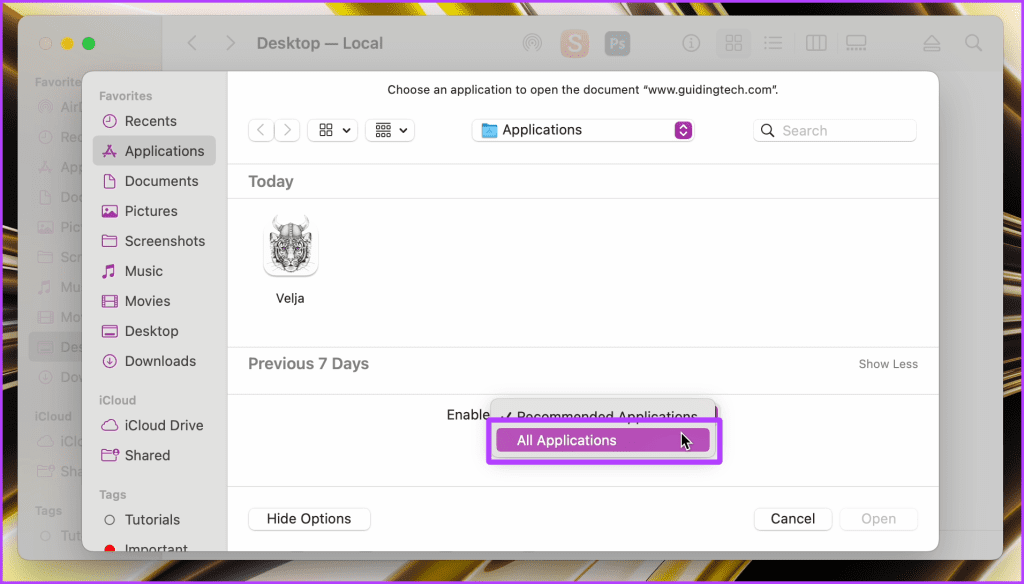
Step 3: Select All Applications from the drop-down.
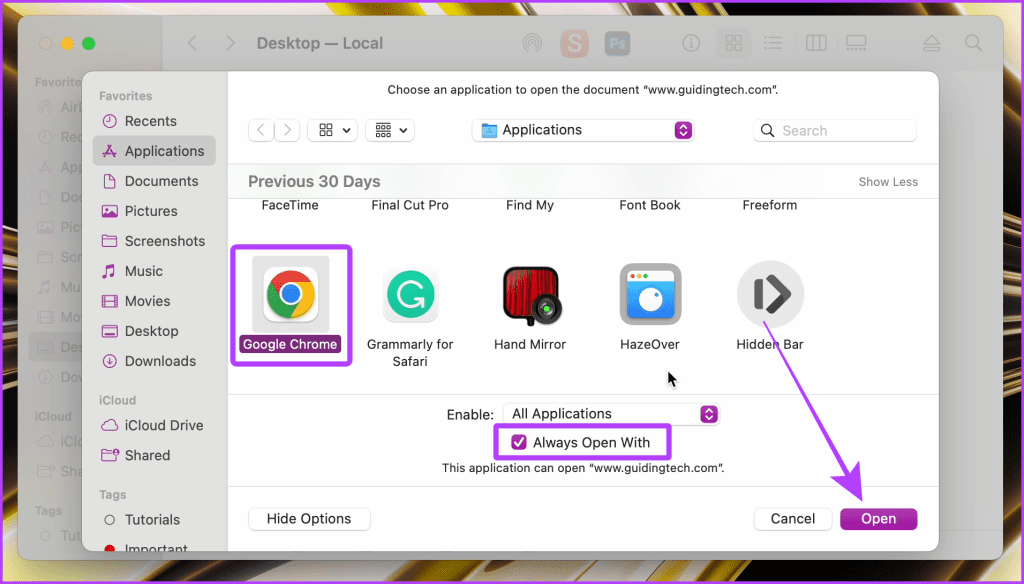
Step 4: Now, select Google Chrome (or the browser of your choice). Also, check the box for Always Open With. Once done, click Open to permanently open the selected type of file in your preferred browser.
Method 3: Use a Browser Picker (Third-Party App)
To stop your Mac from opening links in Safari, try taking the help of a browser picker on your Mac. A browser picker opens all the links in your preferred browser or pops up a prompt every time you click on a link. This allows you to prevent links from opening in Safari while enabling you to open other links like Google Meet on your preferred browser.
For this guide, we will be using Velja. It is one of the best browser pickers for Mac and is entirely free to use. Besides, it offers an elegant UI with loads of customization.
Step 1: Download and install Velja Browser Picker on your Mac.
Step 2: After installing the browser picker, open System Settings on your Mac. Go to Desktop & Dock and set your default browser to Velja (or any other browser picker).

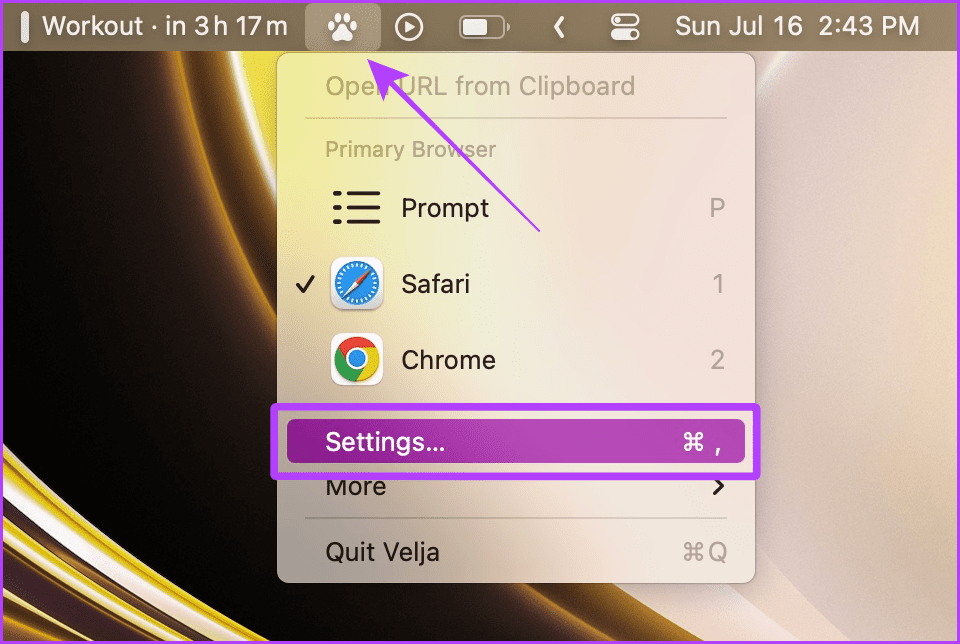
Step 3: Once done, click on the Velja (browser picker) logo from the menu bar and select Settings.
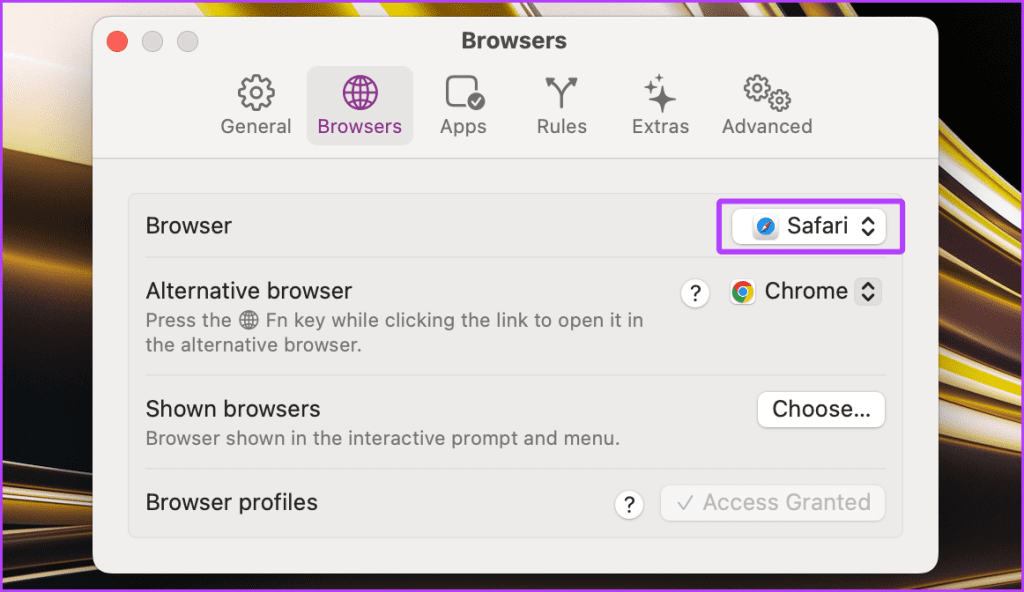
Step 4: Now, go to the Browsers tab. Here, click on Safari next to Browser to change the primary browser on your Mac.
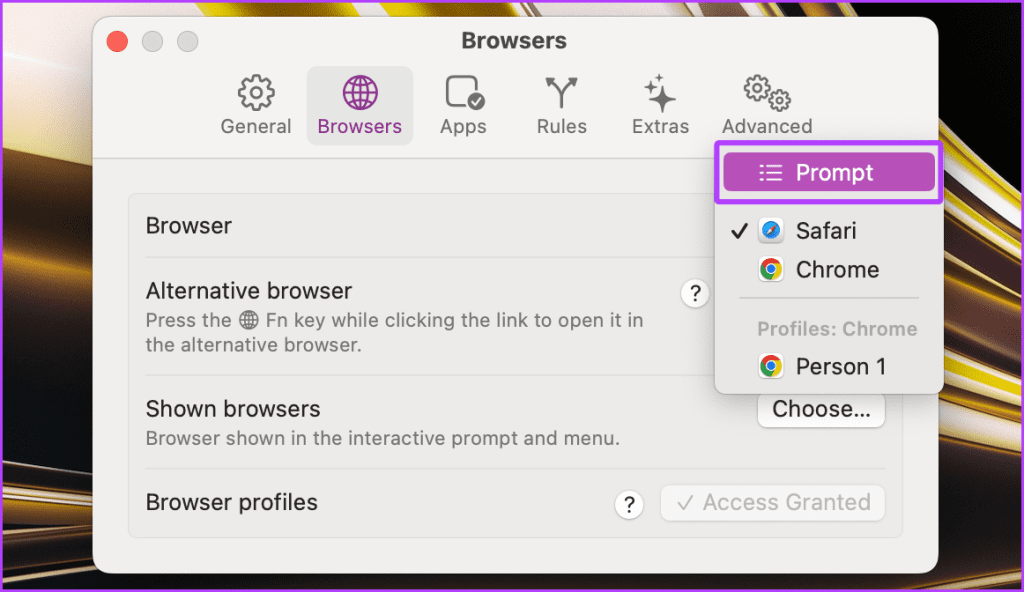
Step 5: Select your preferred browser here. For demonstration, we’re proceeding with Prompt.
Note: You can also set your alternative browser from here.
Tip: Hold the fn key on your Mac’s keyboard while clicking on a link to launch the website in the alternative browser.

Step 6: Now, navigate to any link on your Mac and click on it. It will provide you with the list of browsers on your Mac; click on any one to open the link in the preferred browser.

FAQs
Sometimes browsers don’t appear in the list of browsers in System Settings. In such cases, try re-installing the browser on your Mac and then restart your Mac.
For a browser picker to work seamlessly on your Mac, you need to select it as the default browser on your Mac by following the above-mentioned ‘Method 1’.
No. macOS on its own doesn’t allow its users to pick a browser while clicking on a link.
Yes. Some browser pickers allow you to further customize the browsing experience by making a particular set of rules to open certain websites in a specific browser on your Mac. For example, in Velja, go to ‘Settings > Rules’ to do so.
Was this helpful?
Last updated on 09 July, 2024
1 Comment
Leave a Reply
Read Next
 4 Ways to Fix X (Twitter) Links Not Opening in Chrome and Safari
Basic Fixes: Open page in Incognito Mode: Incognito mode allows you to load your browser without any extensions, cookies, or cache data.
4 Ways to Fix X (Twitter) Links Not Opening in Chrome and Safari
Basic Fixes: Open page in Incognito Mode: Incognito mode allows you to load your browser without any extensions, cookies, or cache data.
 3 Ways to Fix Links Not Opening in Google Chrome
Fix 1: Disable Browser Extensions (for Desktop Only) Using third-party extensions in Chrome allows you to extend the browser's functionality.
3 Ways to Fix Links Not Opening in Google Chrome
Fix 1: Disable Browser Extensions (for Desktop Only) Using third-party extensions in Chrome allows you to extend the browser's functionality.
 4 Ways to Fix Links Not Opening in Telegram for Android and iPhone
Try Basic Fixes Check if Telegram is down: Telegram links may stop working if there’s an issue with its servers.
4 Ways to Fix Links Not Opening in Telegram for Android and iPhone
Try Basic Fixes Check if Telegram is down: Telegram links may stop working if there’s an issue with its servers.
 How to Fix Links Not Opening or Working in X (Twitter) App
Basic Fixes: Restart your device: Restarting your smartphone helps close and restart the app process from scratch.
How to Fix Links Not Opening or Working in X (Twitter) App
Basic Fixes: Restart your device: Restarting your smartphone helps close and restart the app process from scratch.
 4 Fixes for Links Not Opening in WhatsApp on iPhone and Android
Basic Fixes Check if the link is working: If the links you shared with your contact are not working, you should check whether the link is correct.
4 Fixes for Links Not Opening in WhatsApp on iPhone and Android
Basic Fixes Check if the link is working: If the links you shared with your contact are not working, you should check whether the link is correct.
 5 Fixes for Links Not Opening in Facebook Messenger for Android and iPhone
Fix 1: Allow Messenger to Open Supported Links (Android) Messenger may fail to open links on your Android phone due to a lack of relevant permissions.
5 Fixes for Links Not Opening in Facebook Messenger for Android and iPhone
Fix 1: Allow Messenger to Open Supported Links (Android) Messenger may fail to open links on your Android phone due to a lack of relevant permissions.
 How to Find and Delete Safari’s ‘Shared With You’ Links on iPhone
How to Enable Shared With You If your iPhone runs iOS 15 or later, you can use the Shared With You feature.
How to Find and Delete Safari’s ‘Shared With You’ Links on iPhone
How to Enable Shared With You If your iPhone runs iOS 15 or later, you can use the Shared With You feature.
 4 Ways to Stop Chrome From Opening Apps in Android
Fix 1: Turn off Instant Apps When you click on a link in Chrome, it may open as an Instant app.
4 Ways to Stop Chrome From Opening Apps in Android
Fix 1: Turn off Instant Apps When you click on a link in Chrome, it may open as an Instant app.
The article above may contain affiliate links which help support Guiding Tech. The content remains unbiased and authentic and will never affect our editorial integrity.


re: “Step 1: Open the System Settings on your Mac and go to Desktop & Dock.” — This may or may not be correct, depending on which version of the Mac OS you are running. For example, in Mojave, it’s under General settings (which makes more sense, actually, since the default browser setting has nothing to do with the dock or the desktop). You could have specified that this is how it is done in the OS you were demonstrating. But a more universal suggestion would be to type “browser” into the Settings/Preferences search field, and it will show you where the setting is in your OS.