Basic Ways:
- Use a different Apple ID on both devices: A sure-shot way of ensuring your call history doesn’t appear on another iPhone is by switching to a different Apple ID on either of the devices. This will not the information from being shared between the devices, including the call history.
- Check for software updates: If the issue of your call history being visible on another iPhone is due to a software bug or glitch, there’s a good chance an update is available to fix it. So, install the latest software updates on both iPhones and check again.
Method 1: Disable iCloud Sync
If you use the same Apple ID on multiple devices, turn off sync for the Phone app from iCloud settings. This will ensure the Phone app data does not sync with iCloud, turning off call history sharing from your iPhone. However, this will also stop iCloud from backing up your Phone app details. Here’s how to do it.
Step 1: Open Settings and tap on your name. Tap on iCloud.

Step 2: Tap on Show All. Go to Phone and turn the toggle off.

Method 2: Disable Calls on Other Devices
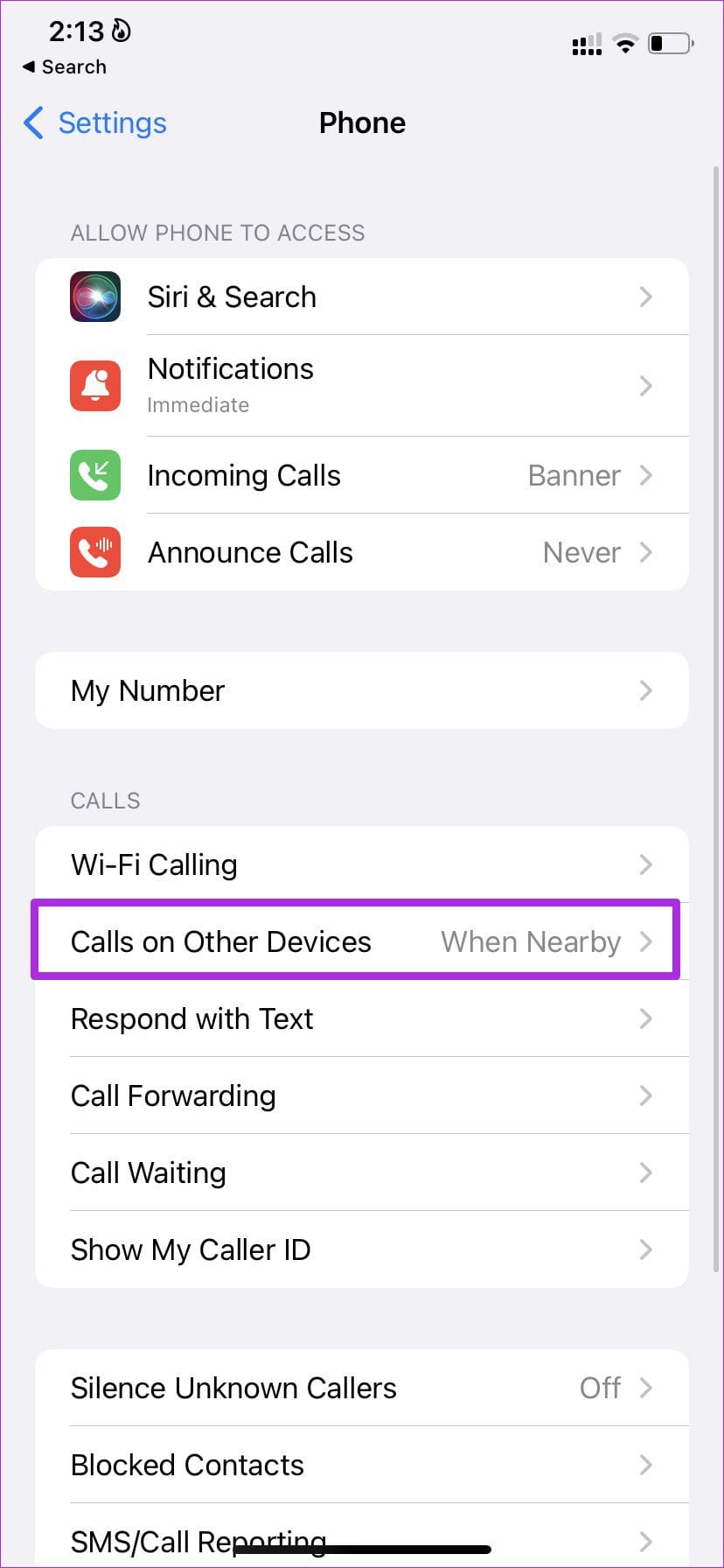
The Calls on Other Devices feature allows you to take calls on nearby Apple devices using the same Apple ID. This can result in iPhone calls showing on other devices. To stop this, disable this feature from your iPhone’s settings menu. Here’s how to do it.
Note: You can also go to Settings > Mobile Data > turn off the Allow Calls on Other Devices toggle.
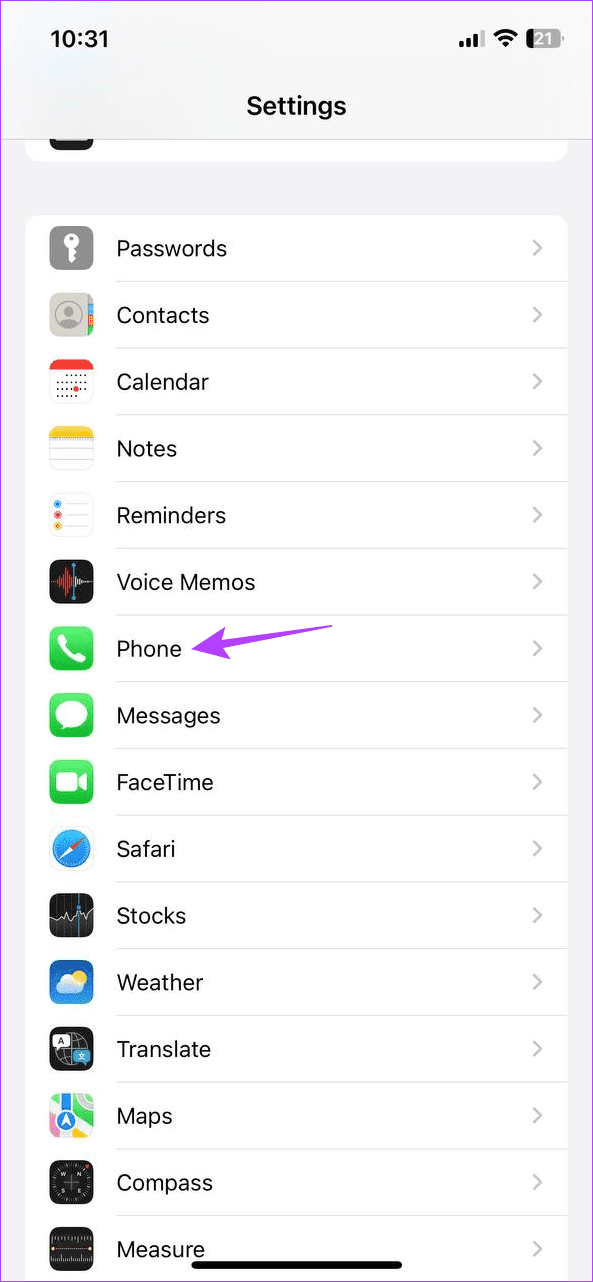
Step 1: Open Settings and tap on Phone. Tap on Calls on Other Devices.
Step 2: Either turn off the toggle for that device or turn off the Allow Calls on Other Devices toggle to disable calls on all other devices.


Method 3: Disable Handoff
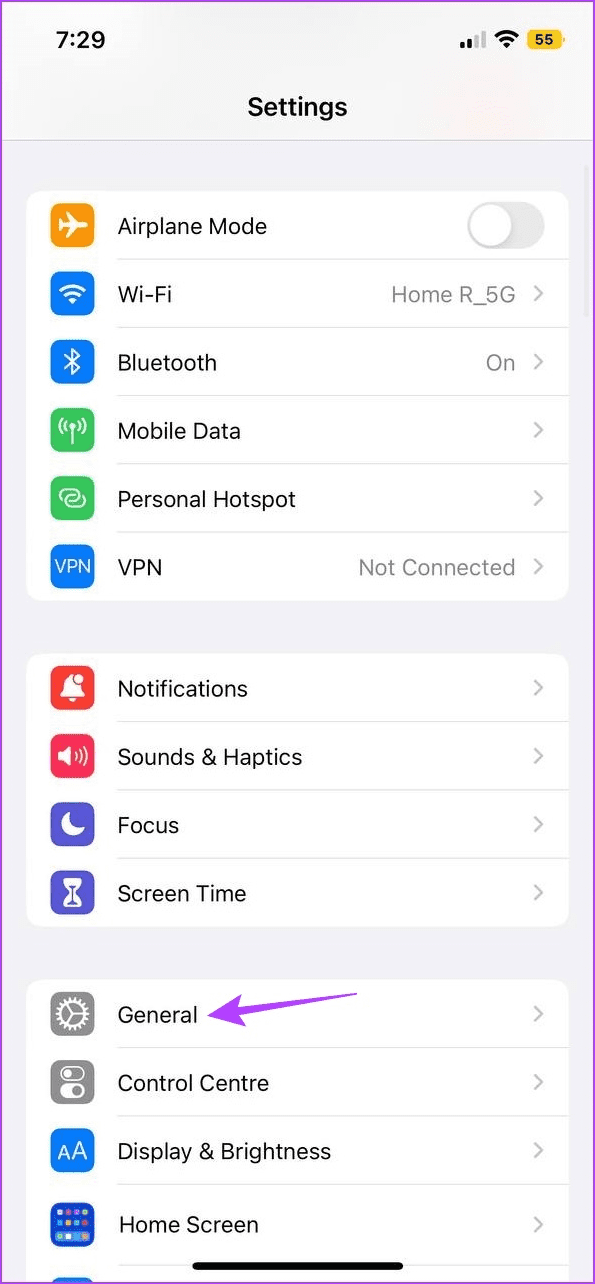
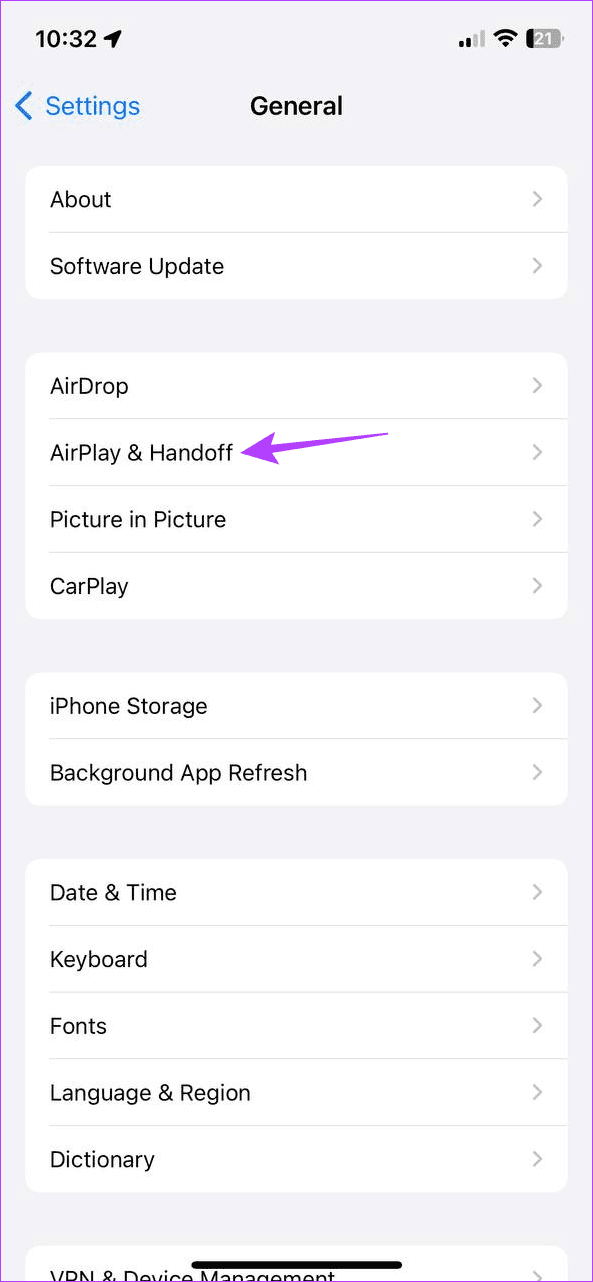
Handoff allows you to hand off your work from one Apple device to another, as long as they’re both using the same iCloud account. However, this might also cause your call history to be handed over to the other device. In this case, turn off this setting and check again. Here’s how.
Step 1: Open Settings and tap on General. Tap on AirPlay & Handoff and turn off the toggle for Handoff.

Method 4: Sign Out and Sign in Again to Your Apple ID
By signing out of your Apple ID, you will stop your data from syncing. Then, once you sign back in again, a fresh set of data will be synced. This helps resolve any issues during the previous sync that caused your call history to appear on another iPhone running the same Apple ID. Follow the below steps to do it.
Step 1: Open Settings and tap on your name. Scroll down and tap on Sign Out.

Step 2: Enter your iCloud password and tap on Turn Off. Turn the relevant toggles on and tap on Sign Out.

Once done, tap on sign in and follow the on-screen instructions to sign back into your Apple ID. Then, check both the devices to see if the issue has been fixed.
Also Read: Why can’t I sign out of my Apple ID and how to fix it
Method 5: Turn Off Call Forwarding
Call forwarding helps ensure you never miss a call by forwarding them to a secondary number whenever your primary number is unavailable. However, this might also forward your call history to the other device. So, turn off call forwarding from your iPhone and see if this fixes the issue. Here’s how.
Step 1: Open Settings and tap on Phone. Tap on Call Forwarding and turn off the toggle for Call Forwarding.


Method 6: Disable NameDrop
NameDrop lets you share your contact information with another device by holding the iPhones together. While this is mostly for sharing contact information, it can also lead to your call history being shared. In this case, turn off NameDrop on your iPhone. Follow the below steps to do it.
Step 1: Open Settings and tap on General. Tap on AirDrop and select Receiving Off. Turn off the Bringing Devices Together toggle.


This will turn off AirDrop on your iPhone and disable the NameDrop feature as well. Now, check your call history on both devices to see if this fixes the issue.
Was this helpful?
Last updated on 09 August, 2024
Read Next
 Top 8 Fixes for Call History Not Showing on iPhone
Your iPhone keeps a log of incoming, outgoing, and missed calls as Call History.
Top 8 Fixes for Call History Not Showing on iPhone
Your iPhone keeps a log of incoming, outgoing, and missed calls as Call History.
 6 Ways to Fix Call History Not Showing on Android
Fix 1: Allow the Phone App to Access Call Logs The Phone app may not show any call history if it does not have the necessary permissions to access and
6 Ways to Fix Call History Not Showing on Android
Fix 1: Allow the Phone App to Access Call Logs The Phone app may not show any call history if it does not have the necessary permissions to access and
 5 Ways to Retrieve Deleted Call History on iPhone
Method 1: Using iCloud Backup Your iPhone takes a regular backup of your data.
5 Ways to Retrieve Deleted Call History on iPhone
Method 1: Using iCloud Backup Your iPhone takes a regular backup of your data.
 How to See and Delete Call History on iPhone
How to Check Call History on iPhone If you're looking for any particular contact or just want to know who last called you, you can do it by checking your
How to See and Delete Call History on iPhone
How to Check Call History on iPhone If you're looking for any particular contact or just want to know who last called you, you can do it by checking your
 2 Ways to Fix Missed Call Notifications Not Showing on iPhone
Fix 1: Review Notification Settings for the Phone App Missed call notifications may not show up on your iPhone if you've accidentally disabled notification access for the Phone app.
2 Ways to Fix Missed Call Notifications Not Showing on iPhone
Fix 1: Review Notification Settings for the Phone App Missed call notifications may not show up on your iPhone if you've accidentally disabled notification access for the Phone app.
 Top 7 Fixes for Incoming Call Screen Not Showing Up on iPhone
The typical functionality of a phone is to show you the incoming caller’s name or number when the phone rings, along with the answer and decline buttons.
Top 7 Fixes for Incoming Call Screen Not Showing Up on iPhone
The typical functionality of a phone is to show you the incoming caller’s name or number when the phone rings, along with the answer and decline buttons.
 How to Check Call History of a Number on Android
How to Check Call History and Duration in Google Phone App Most Android phone manufacturers use Google’s Phone app by default.
How to Check Call History of a Number on Android
How to Check Call History and Duration in Google Phone App Most Android phone manufacturers use Google’s Phone app by default.
 How to Delete WhatsApp Call History on Android and iOS Devices
How to Clear All WhatsApp Call History If you wish to permanently find and delete all WhatsApp call history and start as a clean slate, WhatsApp lets you do so
How to Delete WhatsApp Call History on Android and iOS Devices
How to Clear All WhatsApp Call History If you wish to permanently find and delete all WhatsApp call history and start as a clean slate, WhatsApp lets you do so
The article above may contain affiliate links which help support Guiding Tech. The content remains unbiased and authentic and will never affect our editorial integrity.