Method 1: Share Real-Time Location
Whether on an Android device or an iPhone, Google Maps allows you to share real-time locations indefinitely on your smartphone. The process is straightforward, and the steps are identical regardless of the platform.
Note: If you use an iOS device, download Google Maps from the App Store before proceeding.
Step 1: Open Google Maps on your smartphone and tap on the blue dot. Tap Share location.
Step 2: Select the drop-down for time to show more options. Tap Until you turn this off and tap More.

Step 3: Give Google Maps the contacts permission if you haven’t already.
Step 4: Type the contact number you want to share your location with.

Step 5: Tap Share. Again, tap Share. The SMS app will open on your smartphone. Tap Send, and the live location will be sent with the contact as a link.

The other person can tap the link and see your live location on their phone.
Method 2: Share Current Location Using WhatsApp
Another way to share your live location between Android and iPhone is by using WhatsApp. WhatsApp allows you to share your live location with a contact for up to 8 hours. The process to do so is simple, as explained below.
Step 1: Open the WhatsApp chat of the contact with whom you want to share your live location and tap the + icon.
Step 2: Select Location from the options. Tap Share Live Location.

Step 3: Give WhatsApp location permission; tap Settings. Tap on Location.
Step 4: Tap Always and then tap WhatsApp (smaller one) to return to WhatsApp.

Step 5: Scroll and select the duration you want to share your live location. Tap the Send icon to share your live location with the contact.
Now, the other person can open their chat and see your live location in WhatsApp without leaving it.
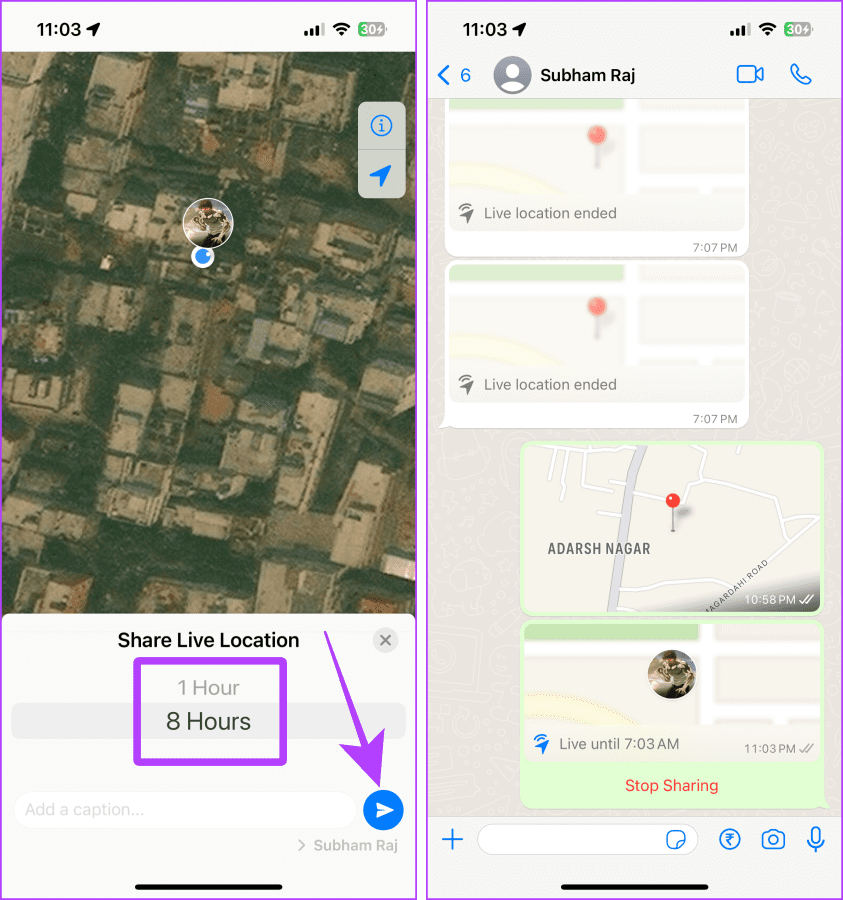
Note: To stop sharing your live location, open the chat and scroll to the shared live location message. Tap Stop Sharing.
Method 3: Share Your Static Location
Sometimes, you may share a location you want to visit or suggest a place to someone. In such cases, you can share static locations with the other person. Besides, sharing it will save you more battery on iPhone or Android than sharing live locations.
1. Share Locations Using Apple Maps
If you want to share a location from your iPhone to an Android phone, you can use Apple Maps. Let’s look at the steps to do so:
Step 1: Open Apple Maps on your iPhone and tap the blue dot.
Step 2: Tap the share button.

Step 3: Tap the Messages app from the share sheet.
Step 4: Select a contact and tap send.
The other person will receive a link for the location you sent.
Quick Tip: If the other person is using Android, they can see the location shared by you in the browser on their smartphone.

2. Share Locations Using Google Maps
You can also use Google Maps to share your current location from an Android to iPhone or vice-versa.
Step 1: Open Google Maps on your smartphone and tap and hold your preferred location on the screen.
Step 2: Swipe left to reveal more options.
Step 3: Tap Share.

Step 4: Tap on WhatsApp, SMS, or any other app you want to share the location.
Step 5: Tap and check the contact with whom you want to share the location.
Step 6: Tap Next, and the link for the location will be shared in the chat.
The other person can now click on the link to view the location.

Note: To stop the live location sharing, open Google Maps and tap on your profile picture > Location Sharing > Sharing via link > Stop.
Must Read: How to fix location sharing not updating in Google Maps
3. Share Locations Using WhatsApp
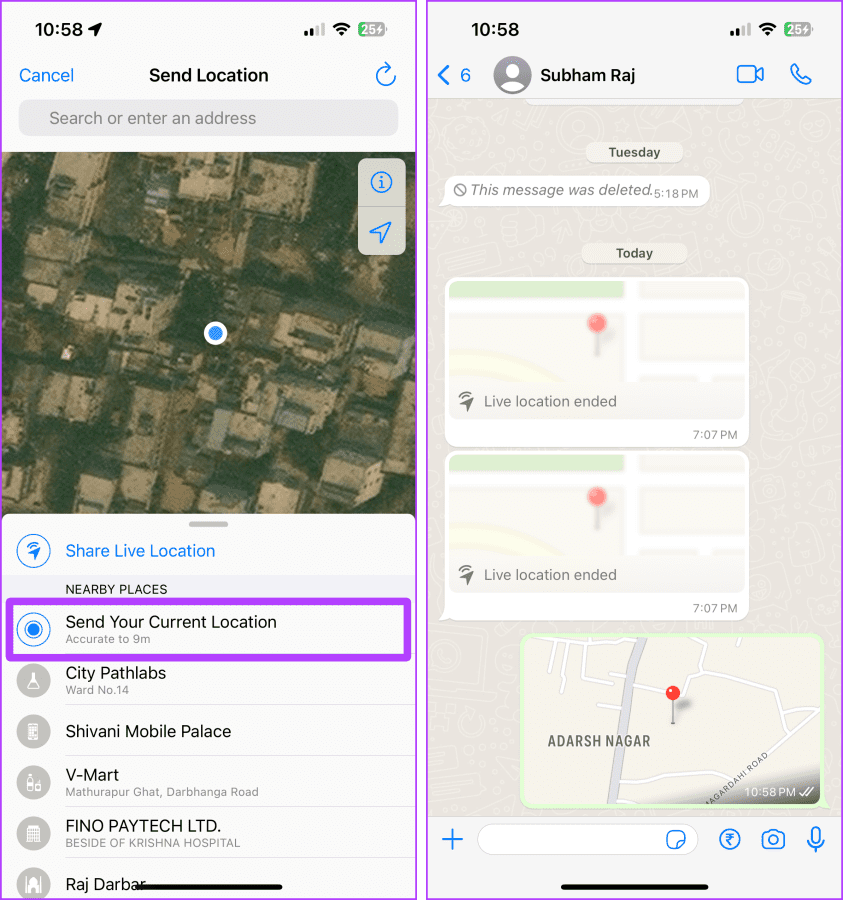
WhatsApp also allows you to share a static location from an iPhone to Android or vice-versa.
Step 1: Open the WhatsApp chat of the person and tap the ‘+’ plus button.
Step 2: Now, tap Location.

Step 3: Tap Send Your Current Location, and that’s it.
Was this helpful?
Last updated on 30 August, 2024
Read Next
 How to Ping Apple Watch from iPhone and Vice Versa
Many times, we place our Apple Watch and forget where we actually placed it.
How to Ping Apple Watch from iPhone and Vice Versa
Many times, we place our Apple Watch and forget where we actually placed it.
 How to Convert Word Documents to Pages (and Vice Versa) on Mac
How to Convert Word Files to Pages on Mac If you are fully invested in an Apple ecosystem and don’t have Microsoft apps such as OneDrive or Microsoft Word, you
How to Convert Word Documents to Pages (and Vice Versa) on Mac
How to Convert Word Files to Pages on Mac If you are fully invested in an Apple ecosystem and don’t have Microsoft apps such as OneDrive or Microsoft Word, you
 How to Get Text Messages on Fitbit Versa 2 from Android and iPhone
The Fitbit Versa 2 brings several benefits to the table.
How to Get Text Messages on Fitbit Versa 2 from Android and iPhone
The Fitbit Versa 2 brings several benefits to the table.
 3 Ways to Fix Google Maps Showing Wrong Location on Android and iPhone
Try Basic Fixes Turn off battery saver mode: When you enable battery-saving mode, your phone turns off power-hungry features such as GPS tracking and background app data to improve battery
3 Ways to Fix Google Maps Showing Wrong Location on Android and iPhone
Try Basic Fixes Turn off battery saver mode: When you enable battery-saving mode, your phone turns off power-hungry features such as GPS tracking and background app data to improve battery
 5 Ways to Fix Live Location Not Updating on Android and iPhone
Fix 1: Ensure Location Services Are Enabled Enabling location services on your phone is the most basic step before you can share your live location.
5 Ways to Fix Live Location Not Updating on Android and iPhone
Fix 1: Ensure Location Services Are Enabled Enabling location services on your phone is the most basic step before you can share your live location.
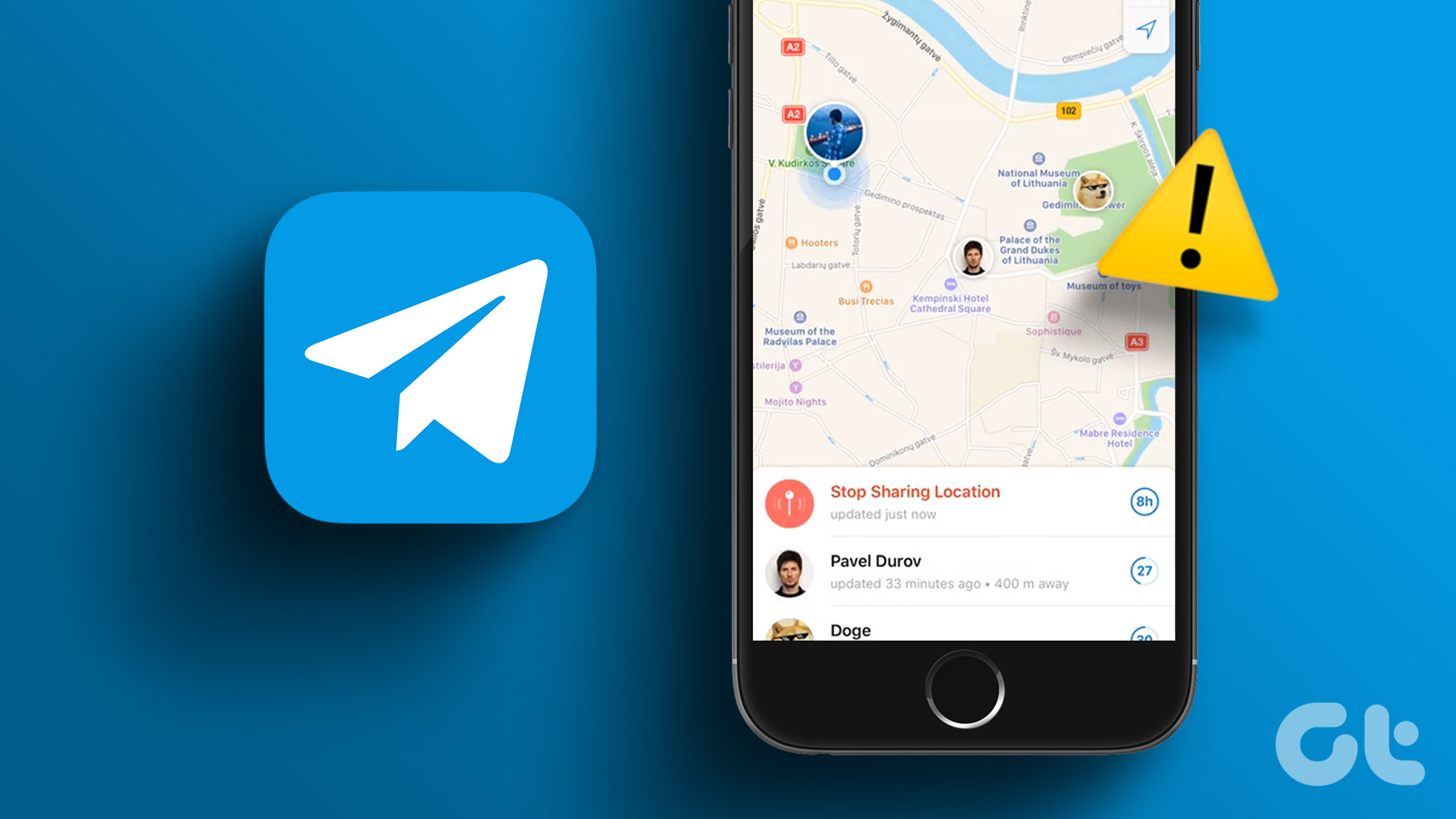 4 Fixes for Telegram Live Location Not Updating on iPhone and Android
Basic Fixes: Check internet access: For apps to access your location, you require internet access on your mobile.
4 Fixes for Telegram Live Location Not Updating on iPhone and Android
Basic Fixes: Check internet access: For apps to access your location, you require internet access on your mobile.
 5 Ways to Fix Location Sharing Not Updating in Google Maps on Phone
Common Fixes Check your internet connection - Google Maps will fail to update the location if your internet is unstable.
5 Ways to Fix Location Sharing Not Updating in Google Maps on Phone
Common Fixes Check your internet connection - Google Maps will fail to update the location if your internet is unstable.
 5 Ways to Fix Location Services Not Working on Android
Fix 1: Enable Google Location Accuracy When your Android phone fails to determine your location accurately, you may face issues while using apps like Google Maps, Uber, and such.
5 Ways to Fix Location Services Not Working on Android
Fix 1: Enable Google Location Accuracy When your Android phone fails to determine your location accurately, you may face issues while using apps like Google Maps, Uber, and such.
The article above may contain affiliate links which help support Guiding Tech. The content remains unbiased and authentic and will never affect our editorial integrity.