Create a Shortcut to Open Incognito Tab on Desktop
Nearly all browsers offer Incognito/Private mode, but the feature is named differently on every browser. The first step toward setting up an incognito mode shortcut on Windows is to create your default browser shortcut on the desktop.
Step 1: Right-click on the desktop, go to New, and select Shortcut.
Step 2: In the Shortcut wizard, click the Browse button.

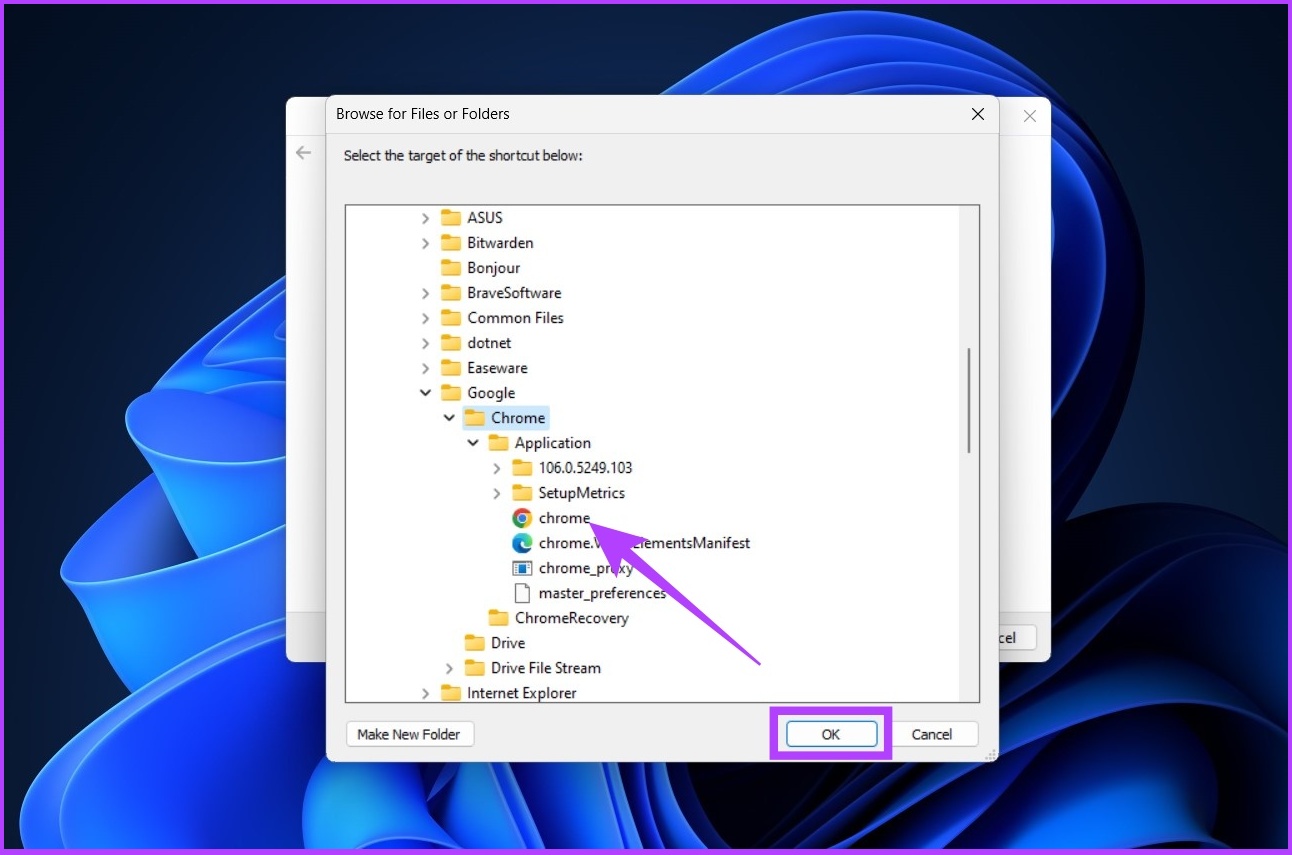
Step 3: Now, locate the browser app (Chrome, Firefox, Edge, Opera, Brave) you wish to add as a desktop shortcut and click on OK.
Step 4: Click on Next.
Step 5: Type a name (ex: Chromecognito) for the shortcut and click on Finish.

This adds your selected browser as a desktop shortcut. Mind you, making an incognito mode shortcut on Windows is incomplete. So, follow the instructions based on the browser you use.
For Google Chrome
Step 1: Right-click on the shortcut and click on Show more options.
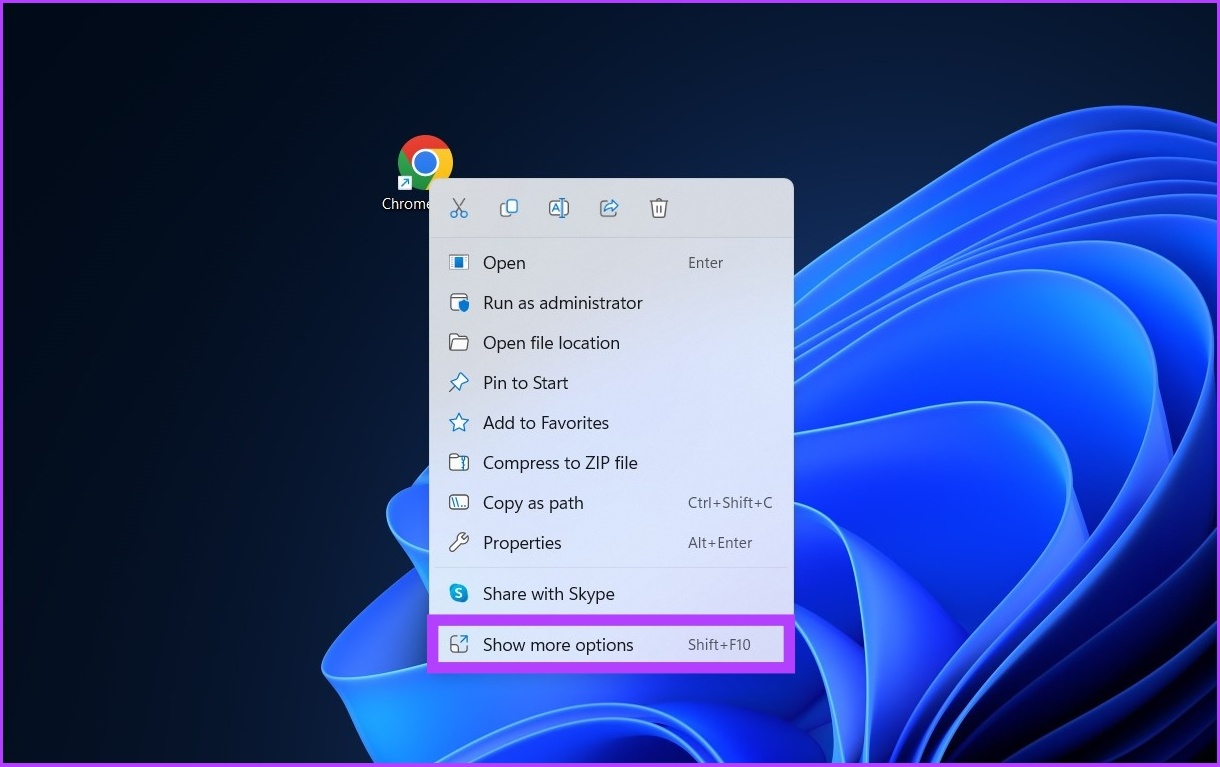
Step 2: Click on Properties.
Step 3: In the target field, after the closing quotation, type -incognito.
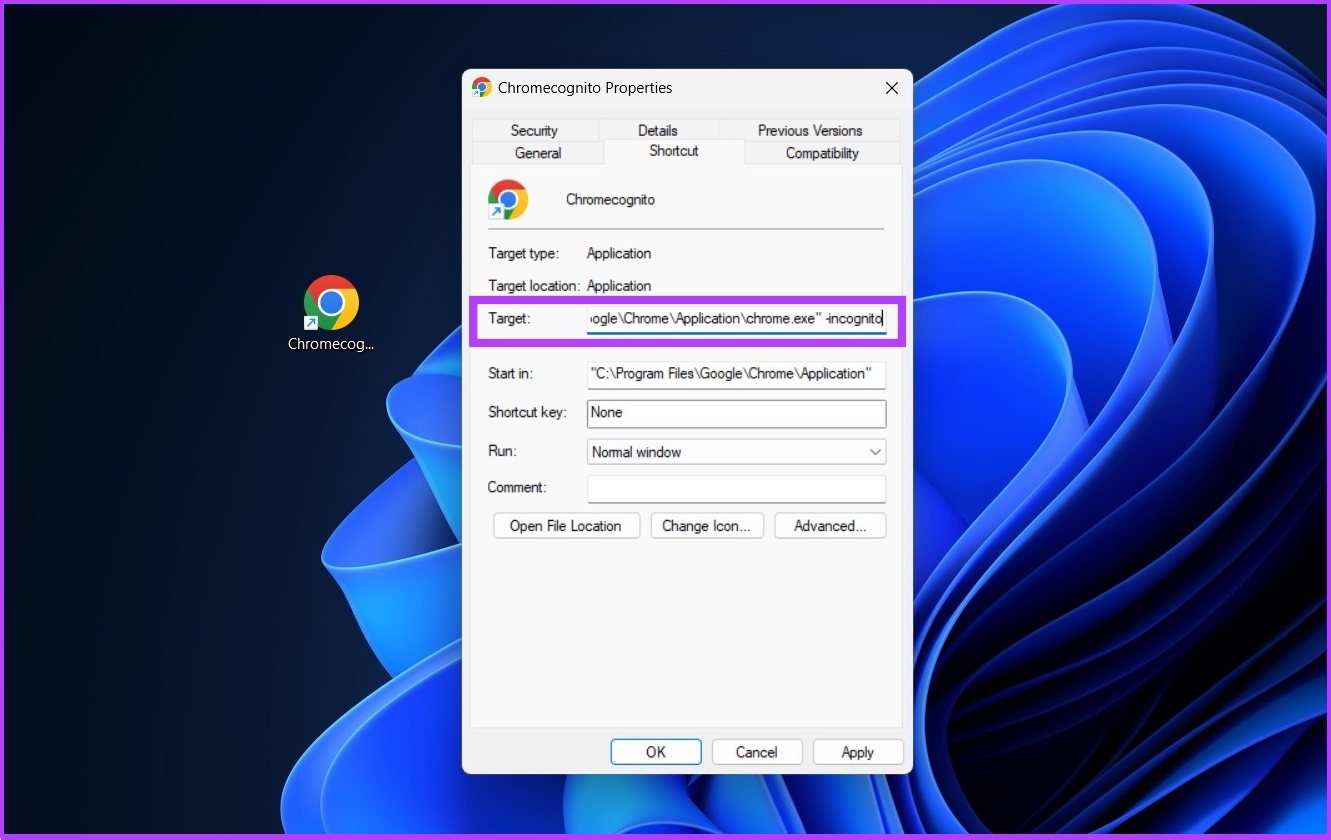
Step 4: Click on Apply > OK.
Now, your Google Chrome is all set to launch in incognito mode. If you are a Firefox user, check out the next method.
For Firefox
Step 1: Right-click on the shortcut and click on Show more options.
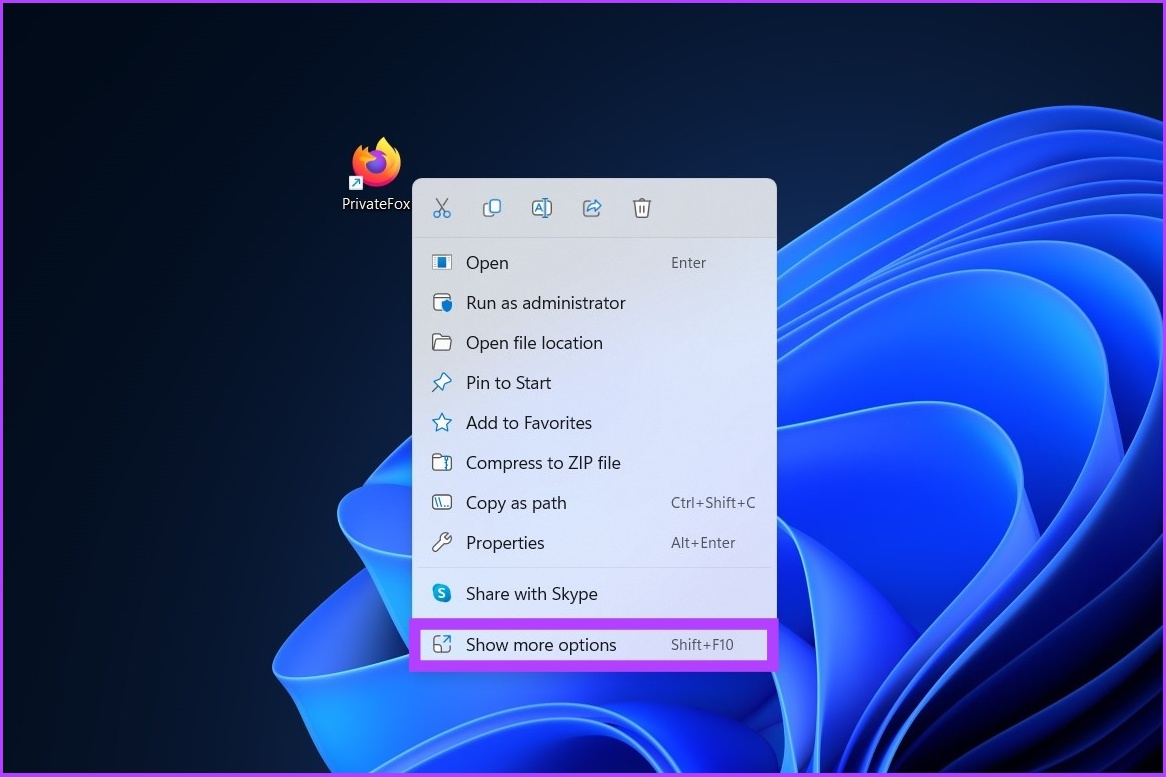
Step 2: Click on Properties.
Step 3: In the target field, after the closing quotation, append the existing path with space, type -private-window.
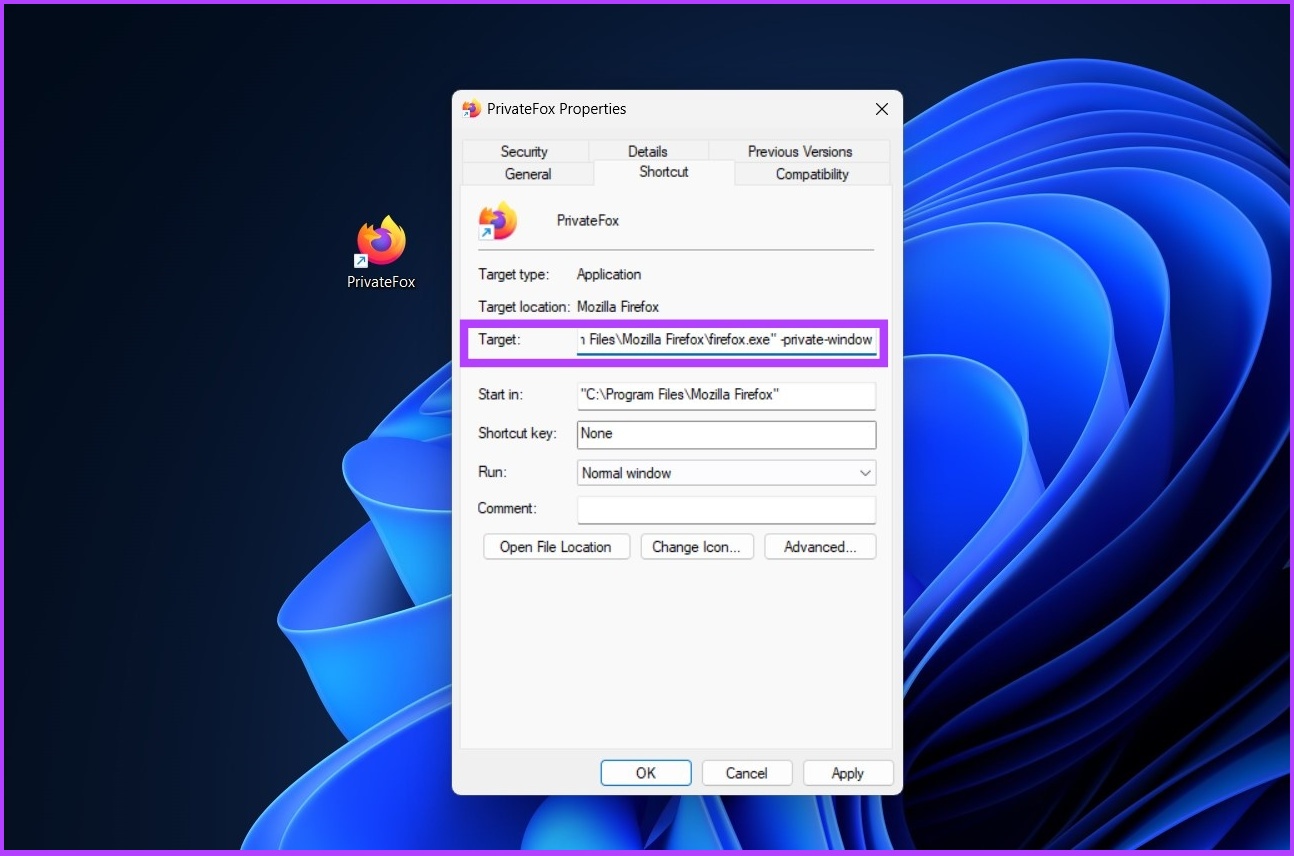
Step 4: Click on Apply > OK.
Now, your Mozilla Firefox is all set to launch in Private Browsing immediately. However, if Firefox is acting weird, check out these ways to fix Firefox not opening on Windows.
For Microsoft Edge
Chromium-based Microsoft Edge resembles many of Google Chrome’s functionalities. However, the browser uses the term InPrivate instead of incognito, which comes from early Internet Explorer.
Step 1: Right-click on the shortcut and click on Show more options.
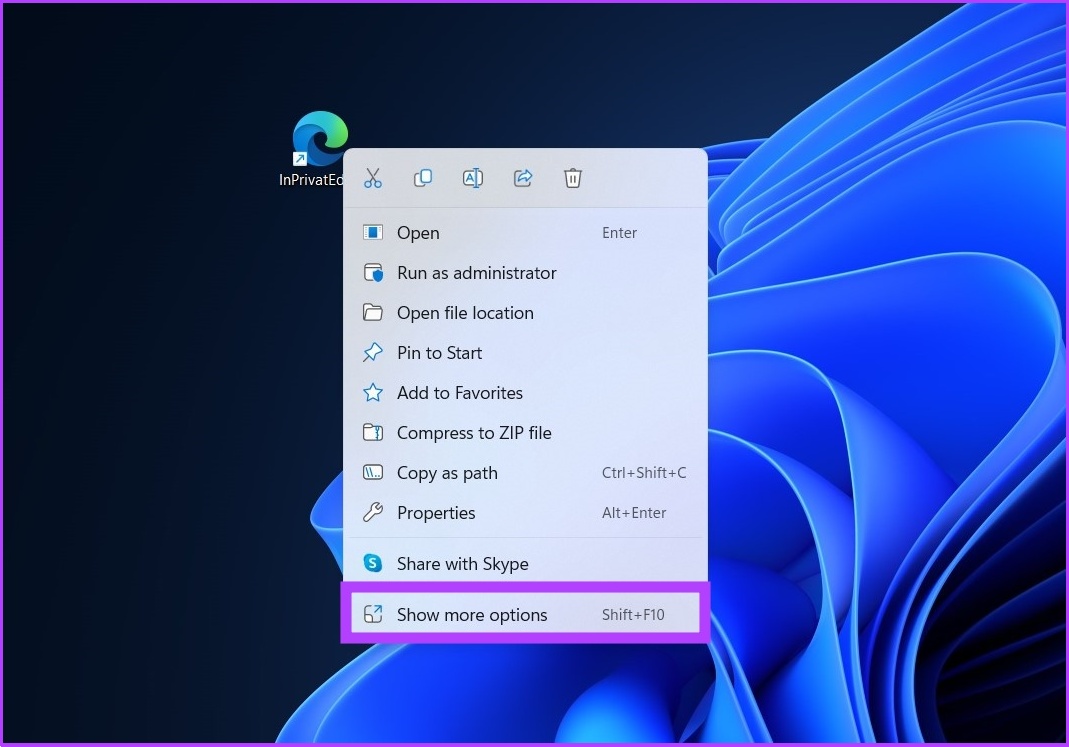
Step 2: Click on Properties.
Step 3: After the closing quotation, append the existing path with space, type -inprivate.
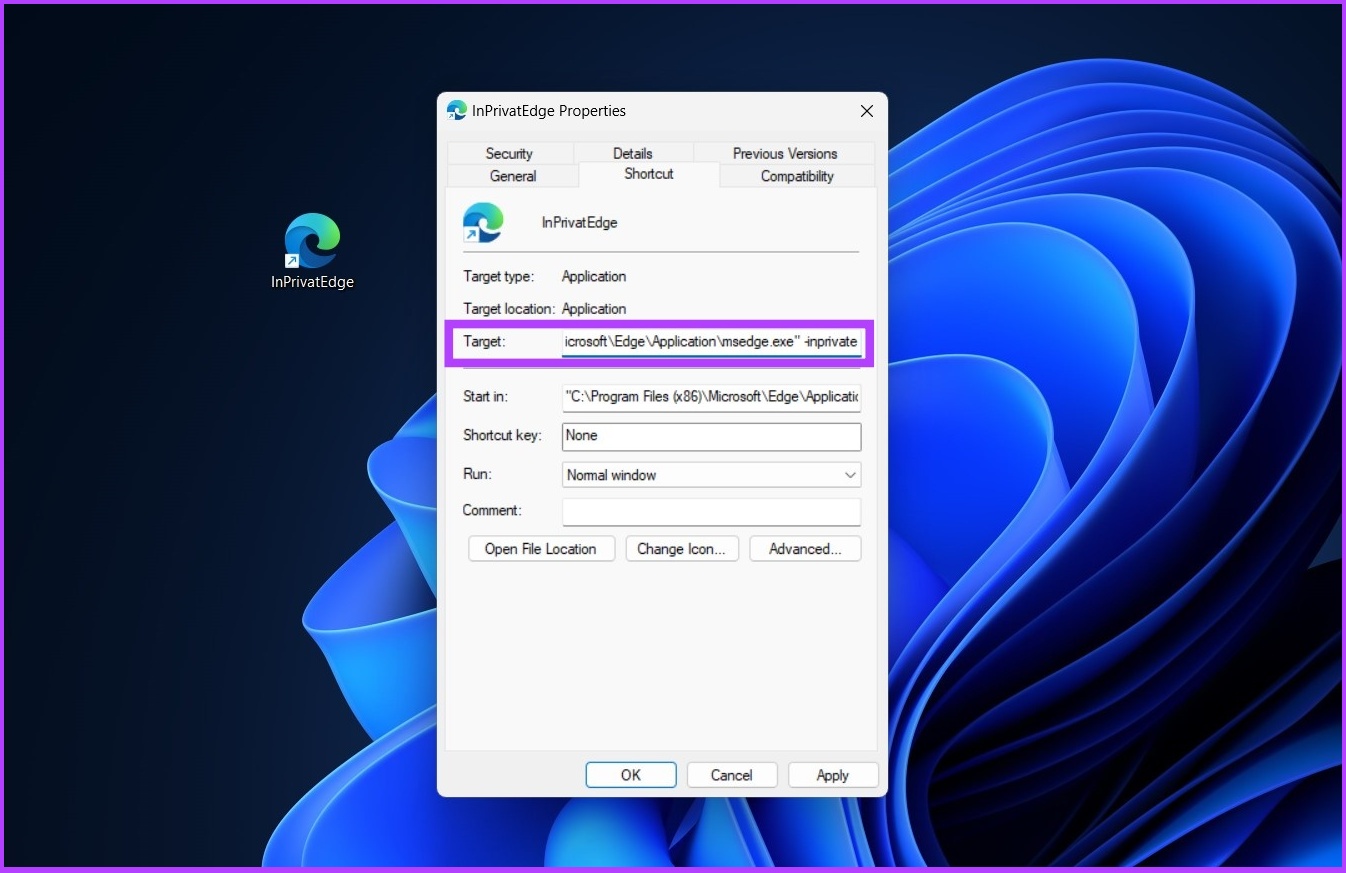
Step 4: Click on Apply, followed by OK.
For Opera
Step 1: Right-click on the shortcut and click on Show more options.
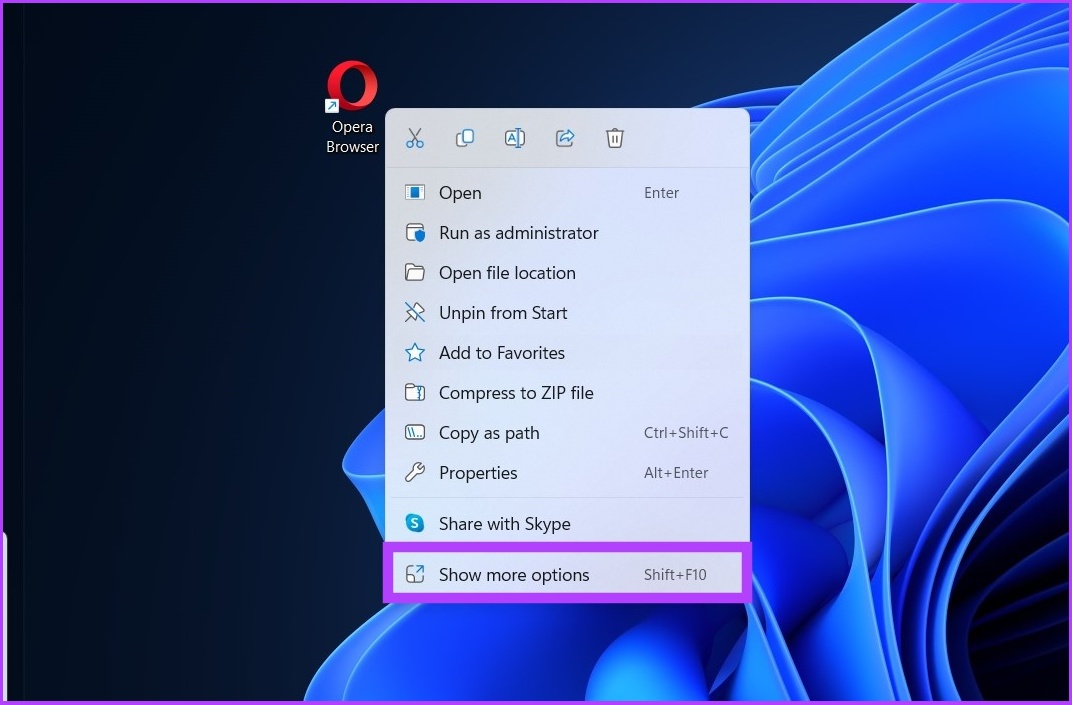
Step 2: Click on Properties.
Step 3: After the closing quotation, append the existing path with a space and type -inprivate.
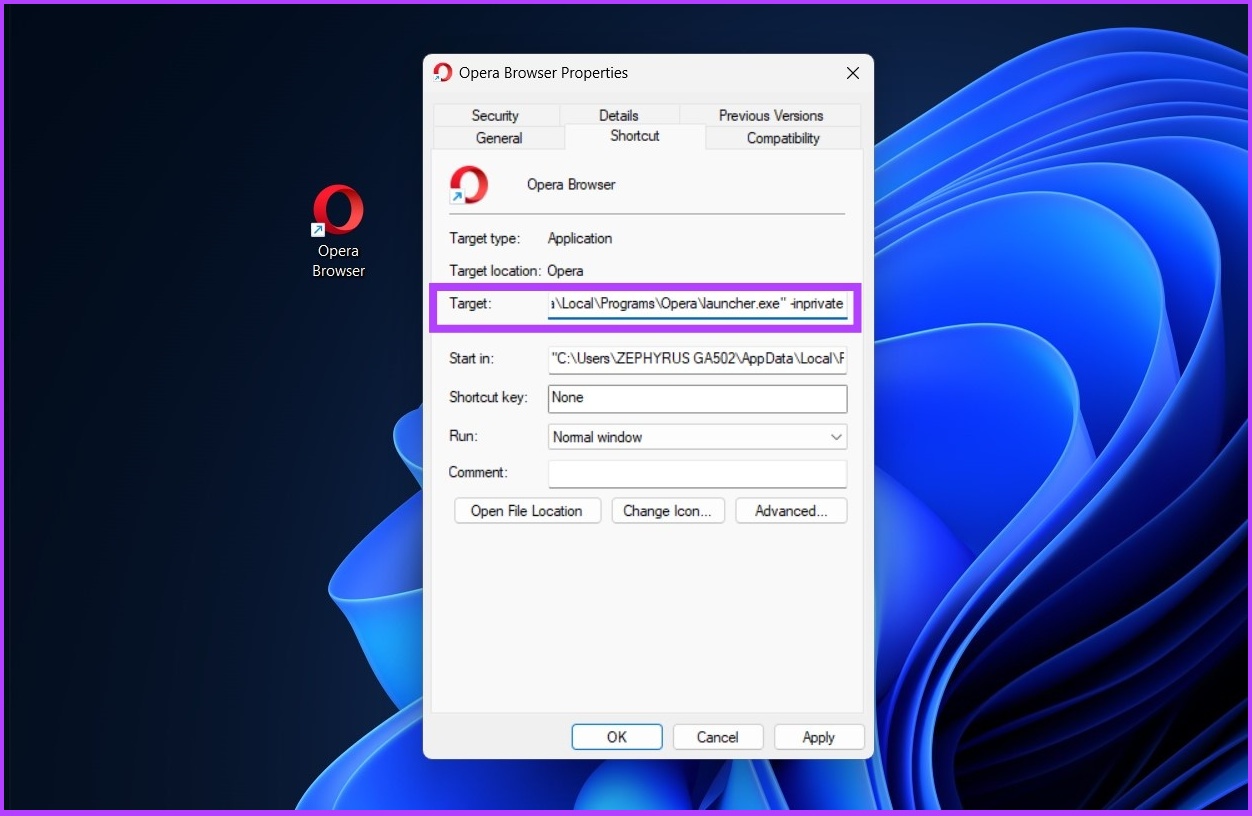
Step 4: Click on Apply and then OK.
Create Brave Browser Private Window Shortcut
Step 1: Right-click on the shortcut and click on Show more options.
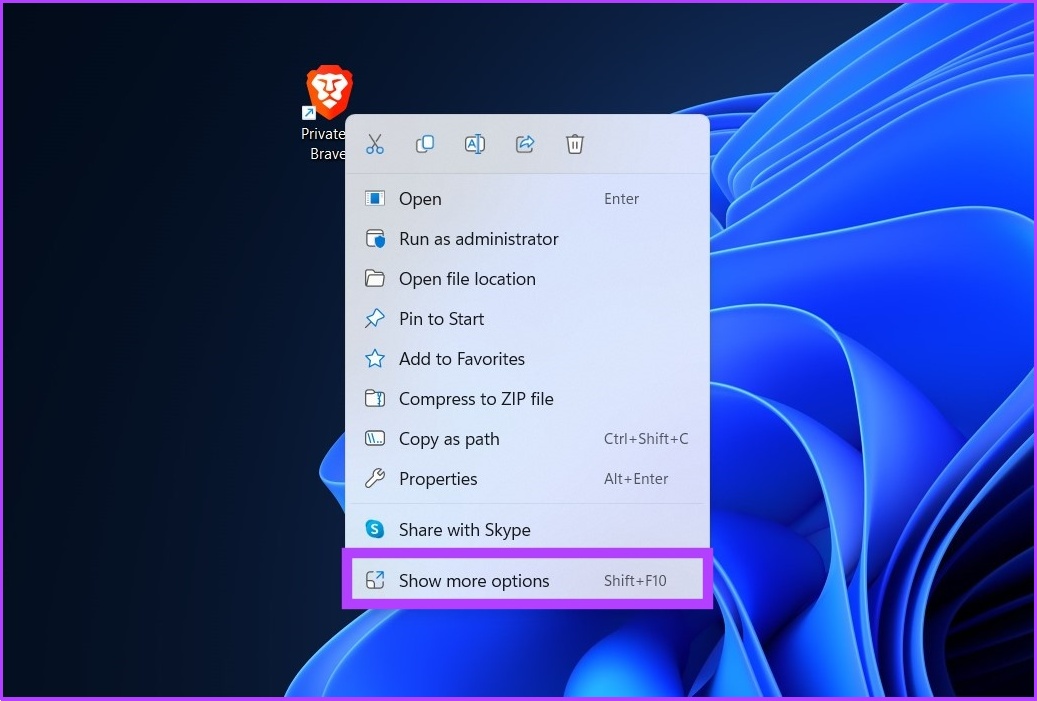
Step 2: Click on Properties.
Step 3: In the target field, after the closing quotation, append the existing path with space, type -incognito.
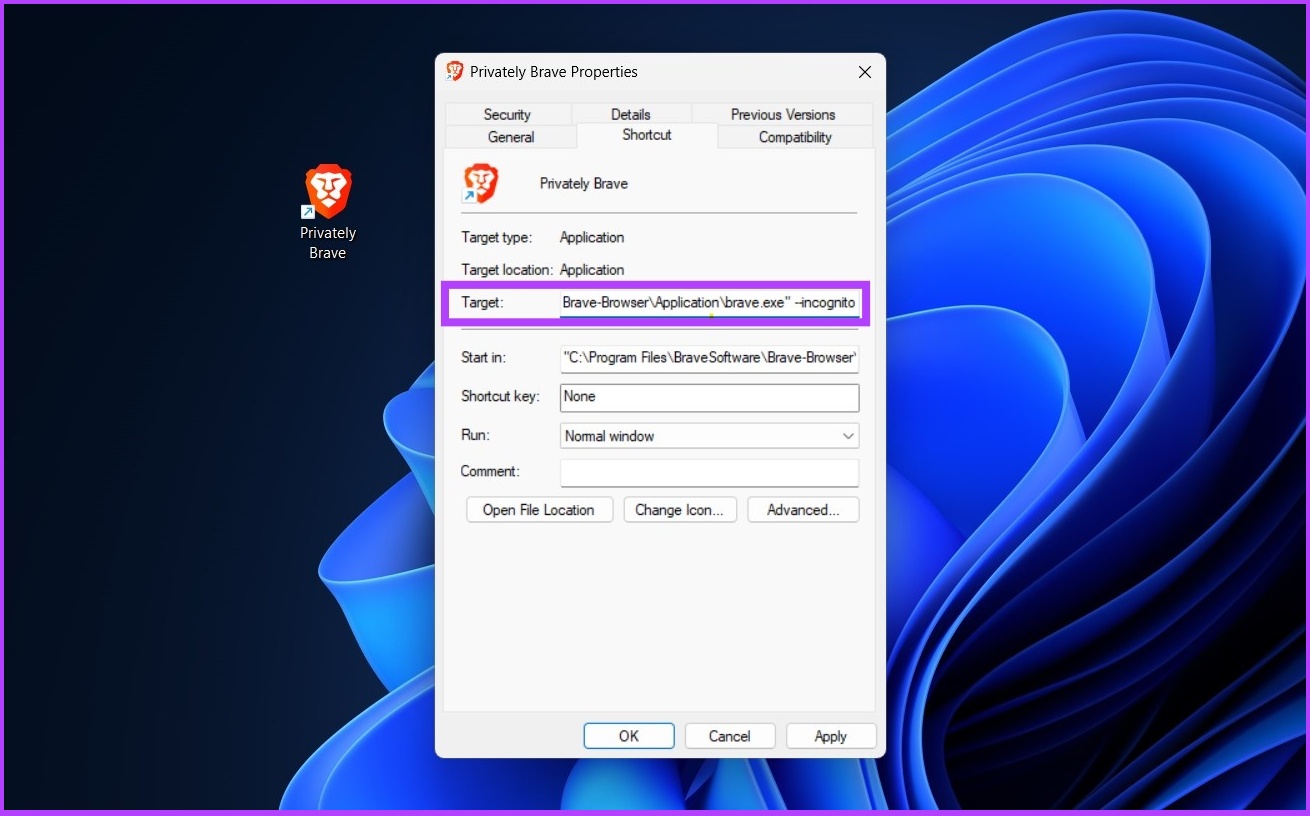
Step 4: Click on Apply and OK.
Also Read: Microsoft Edge Chromium vs. Brave
FAQs
If you don’t want to create a desktop shortcut, you can access Incognito mode by navigating to Chrome’s three-dot menu or pressing Ctrl + Shift + N keys on your keyboard.
Yes, it is safe and secure in terms of blocking trackers and cookies. However, your activity can still be visible to the internet provider.
Was this helpful?
Last updated on 30 May, 2024
Read Next
 How to Disable Chrome Incognito Mode on Windows, macOS, and Android
Disable Chrome Incognito Mode on Windows If you have Windows Pro and above, you can use Group Policy; else, use the Command prompt to update the Windows Registry.
How to Disable Chrome Incognito Mode on Windows, macOS, and Android
Disable Chrome Incognito Mode on Windows If you have Windows Pro and above, you can use Group Policy; else, use the Command prompt to update the Windows Registry.
 How to Take Screenshots in Incognito Mode on Android
How to Take Screenshots in Chrome Incognito Mode Step 1: Open the Google Chrome browser on your Android phone.
How to Take Screenshots in Incognito Mode on Android
How to Take Screenshots in Chrome Incognito Mode Step 1: Open the Google Chrome browser on your Android phone.
 3 Ways to Fix Chrome Create Shortcut Not Working Issue
Fix 1: Create Shortcut Option Grayed Out Issue Sometimes, the Create Shortcut option will be grayed out if you use an Incognito or Guest window in Chrome.
3 Ways to Fix Chrome Create Shortcut Not Working Issue
Fix 1: Create Shortcut Option Grayed Out Issue Sometimes, the Create Shortcut option will be grayed out if you use an Incognito or Guest window in Chrome.
 6 Fixes for Alt + Tab Shortcut Not Working on Windows 11
Fix 1.
6 Fixes for Alt + Tab Shortcut Not Working on Windows 11
Fix 1.
 3 Ways to Remove Shortcut Arrows in Windows
Method 1: Remove Shortcut Arrows by Manually Editing the Registry The Windows Registry is a database that stores configuration settings for your computer.
3 Ways to Remove Shortcut Arrows in Windows
Method 1: Remove Shortcut Arrows by Manually Editing the Registry The Windows Registry is a database that stores configuration settings for your computer.
 How to Create a Discord Channel on Desktop and Mobile
How to Create a Discord Channel on Desktop To improve Discord organization, you can categorize channels by topic.
How to Create a Discord Channel on Desktop and Mobile
How to Create a Discord Channel on Desktop To improve Discord organization, you can categorize channels by topic.
 Top 5 Ways to Create Desktop Shortcuts on Windows 11
Adding your frequently-used apps and folders on the desktop can bring a lot of comfort to the table.
Top 5 Ways to Create Desktop Shortcuts on Windows 11
Adding your frequently-used apps and folders on the desktop can bring a lot of comfort to the table.
 4 Ways to Fix Snipping Tool Keyboard Shortcut Not Working
Basic Fixes: Check your keyboard for damages: Any physical damage to keyboard keys might prevent them from working as expected.
4 Ways to Fix Snipping Tool Keyboard Shortcut Not Working
Basic Fixes: Check your keyboard for damages: Any physical damage to keyboard keys might prevent them from working as expected.
The article above may contain affiliate links which help support Guiding Tech. The content remains unbiased and authentic and will never affect our editorial integrity.