Method 1: Using Browser Extension
You can set a custom profile picture for your Netflix profile using the Custom Profile Photo for Netflix Chrome extension. Please note the changes made will only be limited to your browser. Additionally, the extension must be enabled to reflect the changes on your Netflix profile. Follow the below steps to do it.
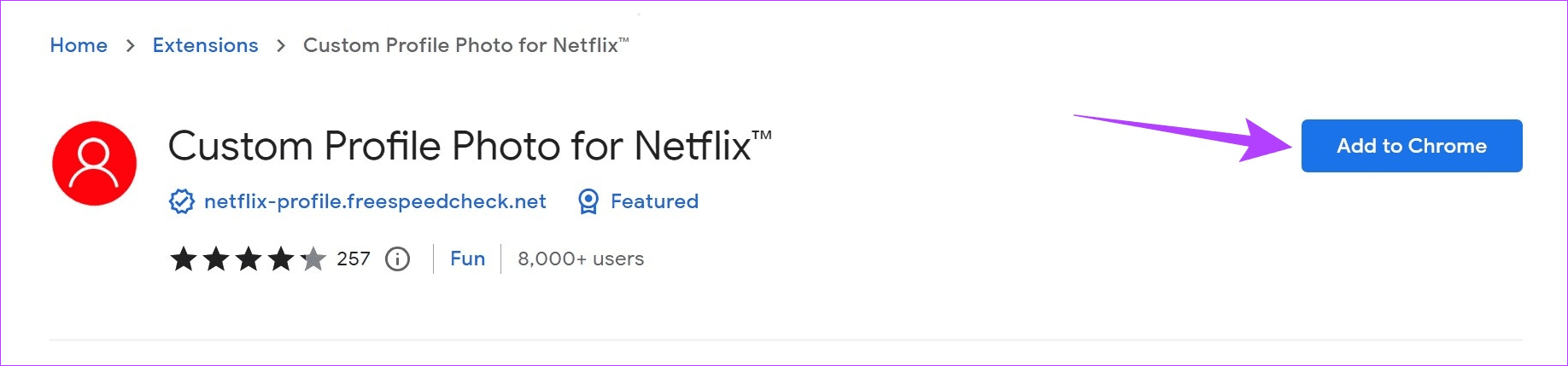
Step 1: Open Chrome or any Chromium-based browser and go to the Custom Profile Photo for Netflix extension page.
Step 2: Click on Add to Chrome.
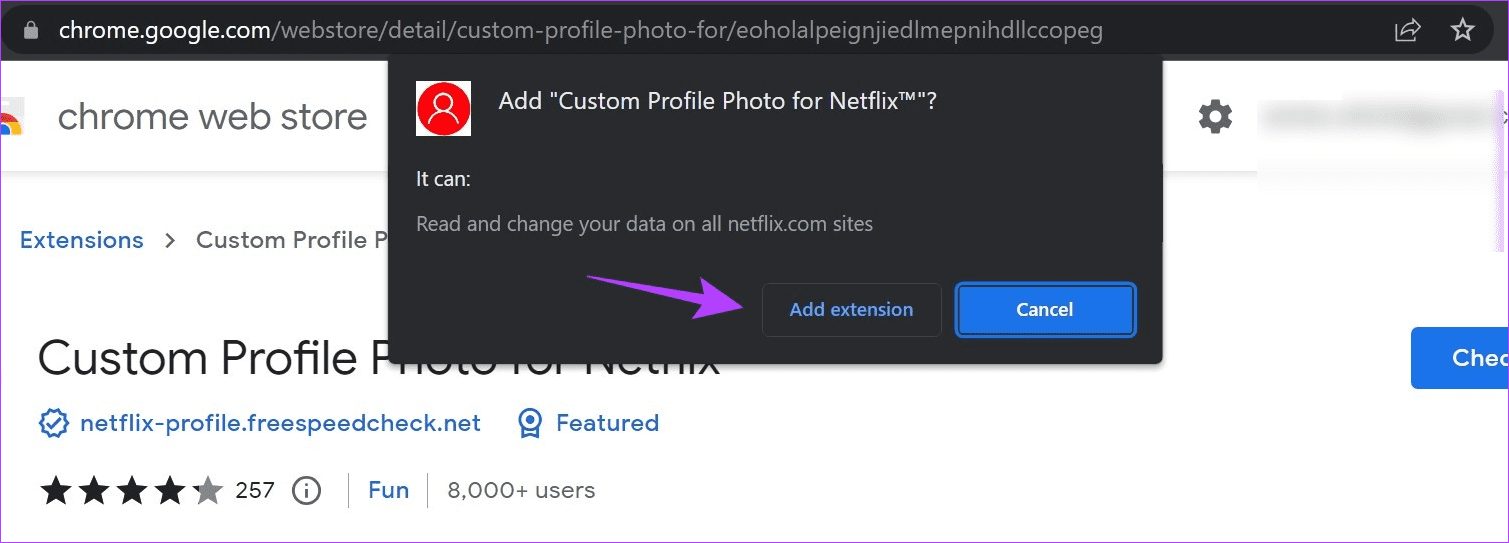
Step 3: Click on Add extension.
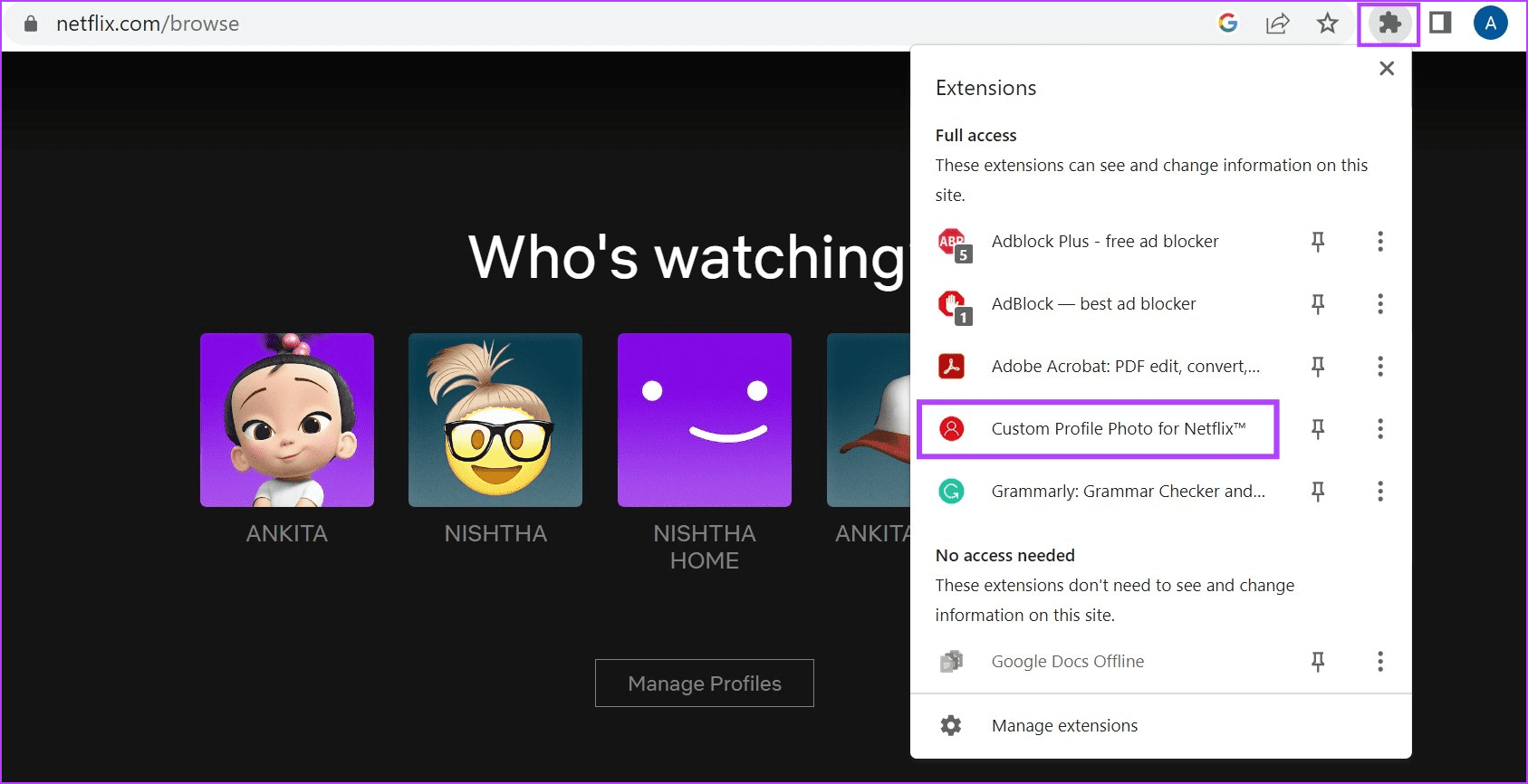
Step 4: Now, open Netflix and go to the menu bar. Click on the extensions icon.
Step 5: Select the Custom Profile Photo for Netflix extension.
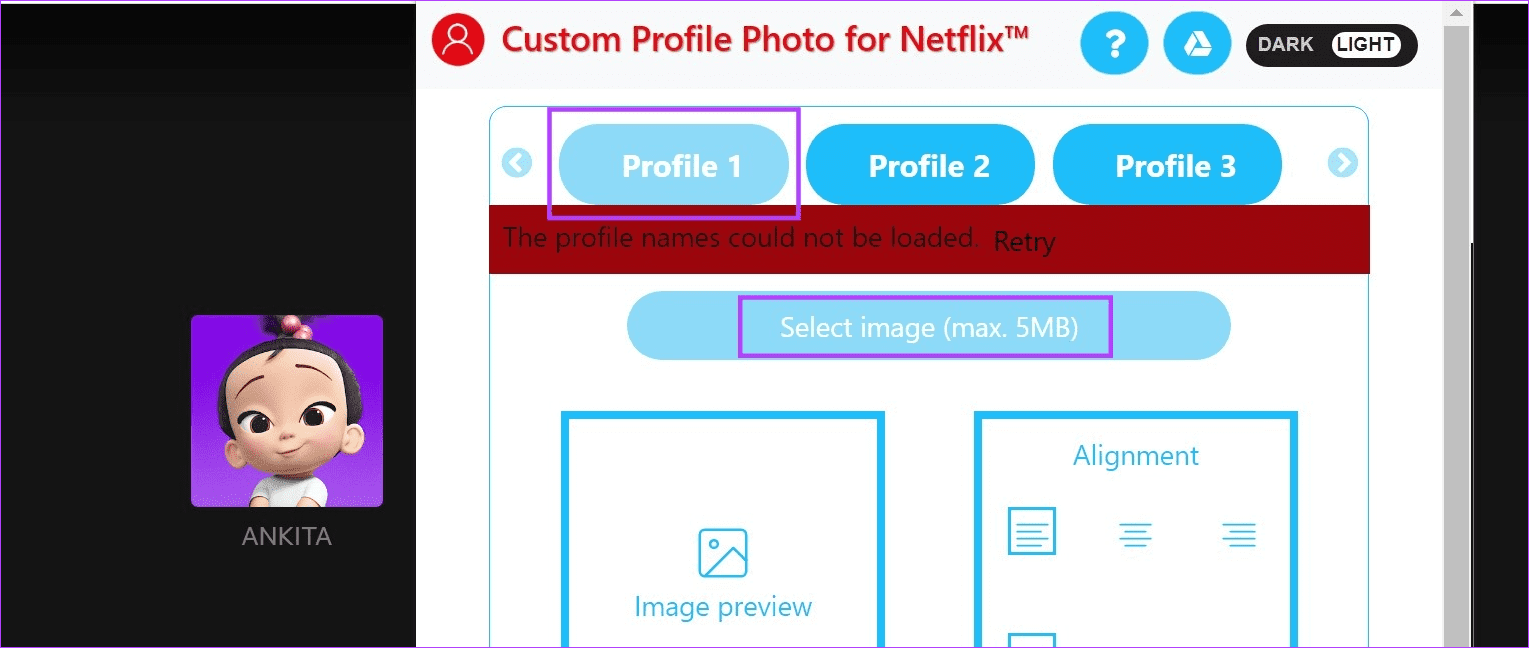
Step 6: Select the relevant profile and click on Select image. Ensure the selected image is less than 5MB.
Tip: You can also set a GIF as your profile picture. However, the results might not be as expected.
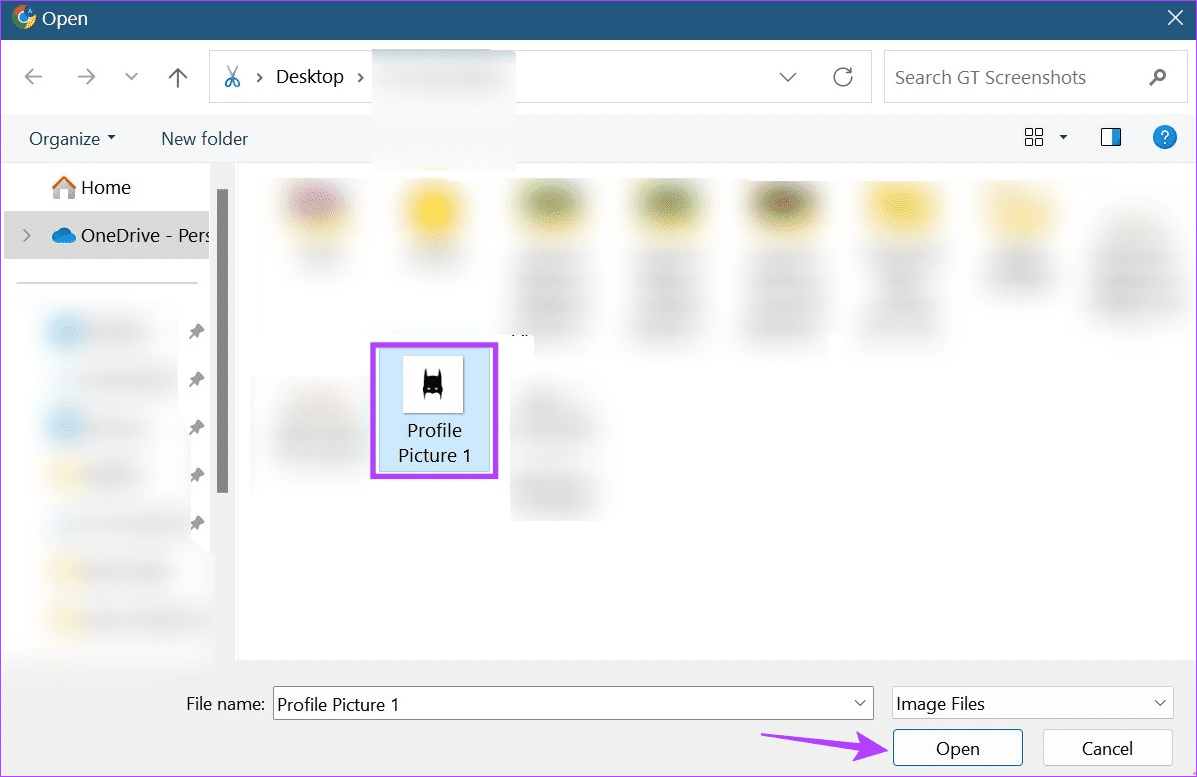
Step 7: Here, click on the relevant image and click on Open.
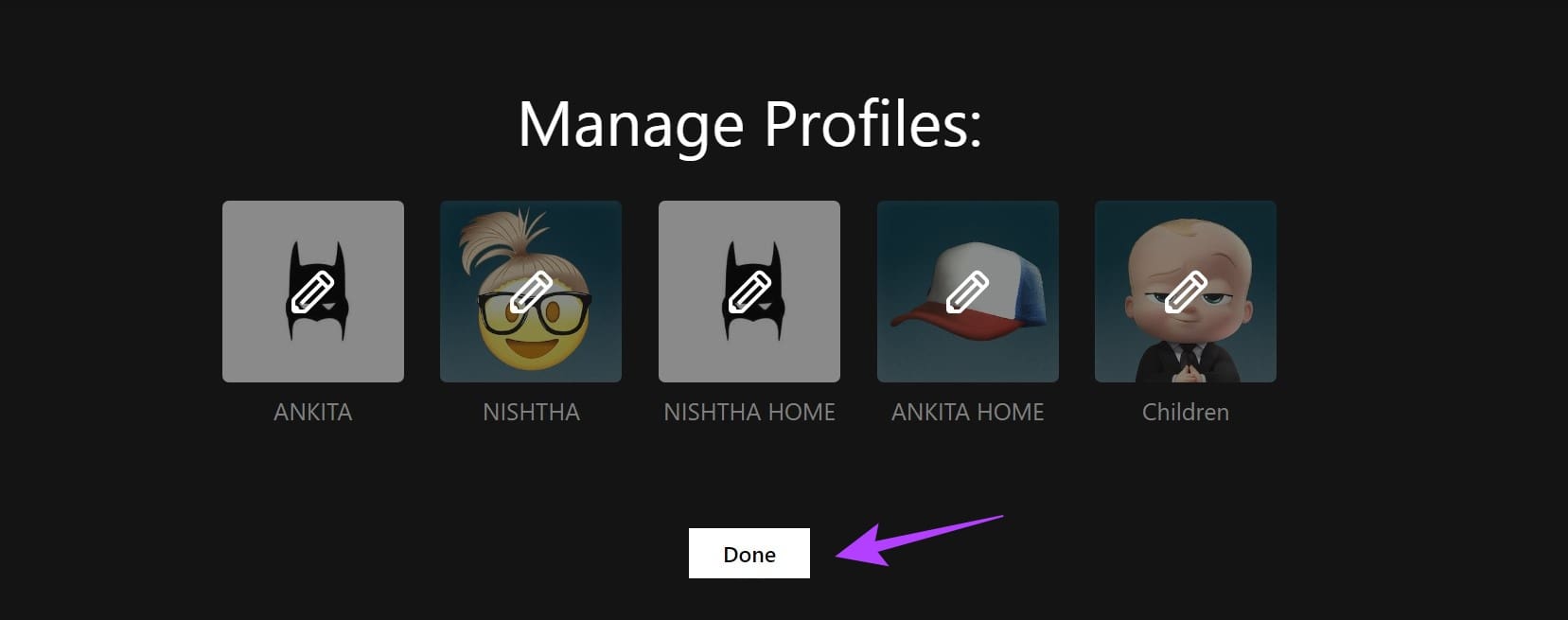
Step 8: Now, click on Done. The custom profile picture for Netflix has been set.
Method 2: Using the Netflix App Options
Whether using Netflix on your mobile or Fire TV Stick, you can easily get a custom Netflix profile picture using the menu options. Please note you can change your profile picture only from the options available in Netflix’s menu and the changes will be applied across all devices. Here’s how to do it.
I. Using Netflix App on Android or iOS
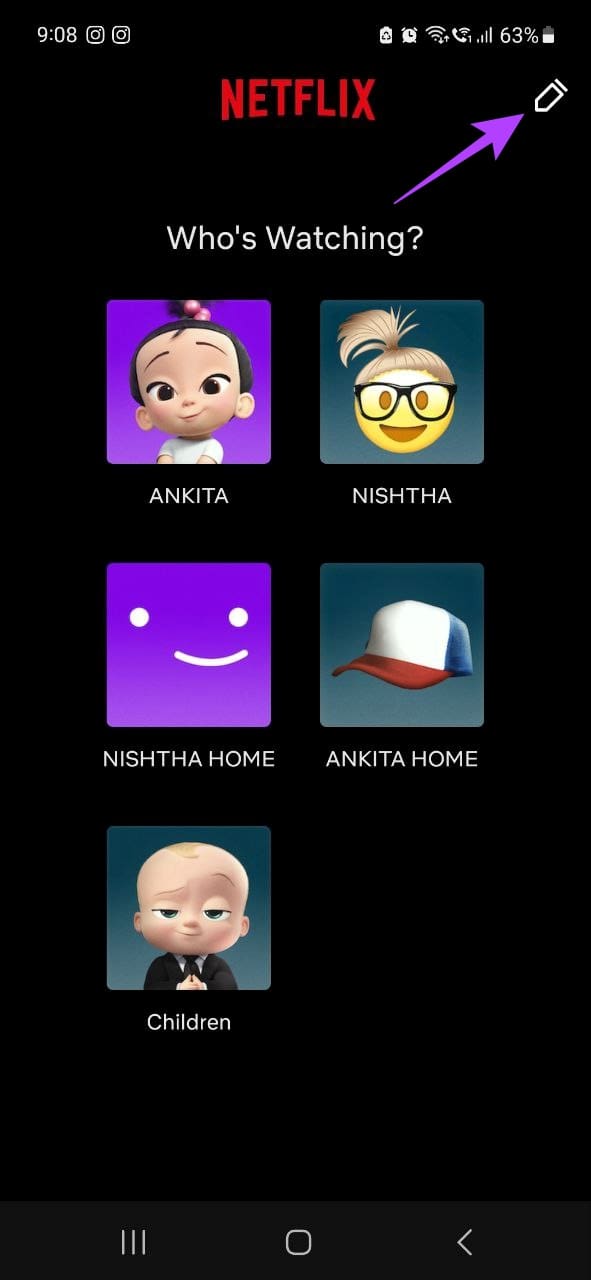
Step 1: Open the Netflix mobile app and, in the top right corner, tap the pencil icon.
Step 2: Go to the relevant profile and tap the pencil icon again.
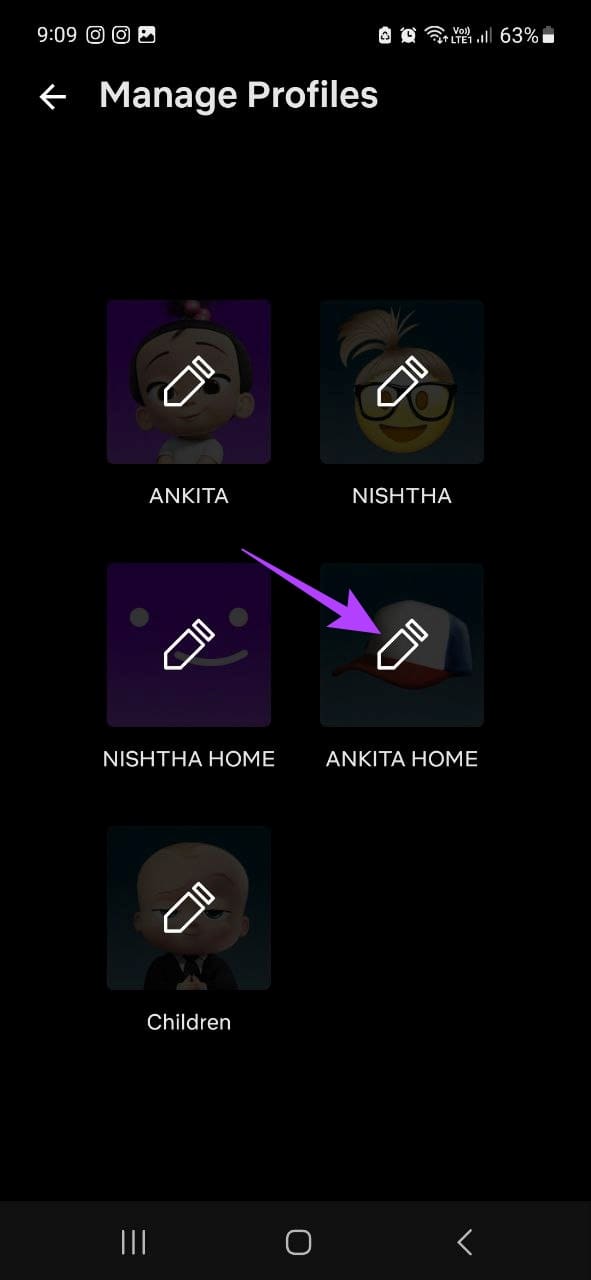
Step 3: Again, tap on the pencil icon and tap the relevant profile picture avatar.
Step 4: You can also tap on the profile name and change it as you want.
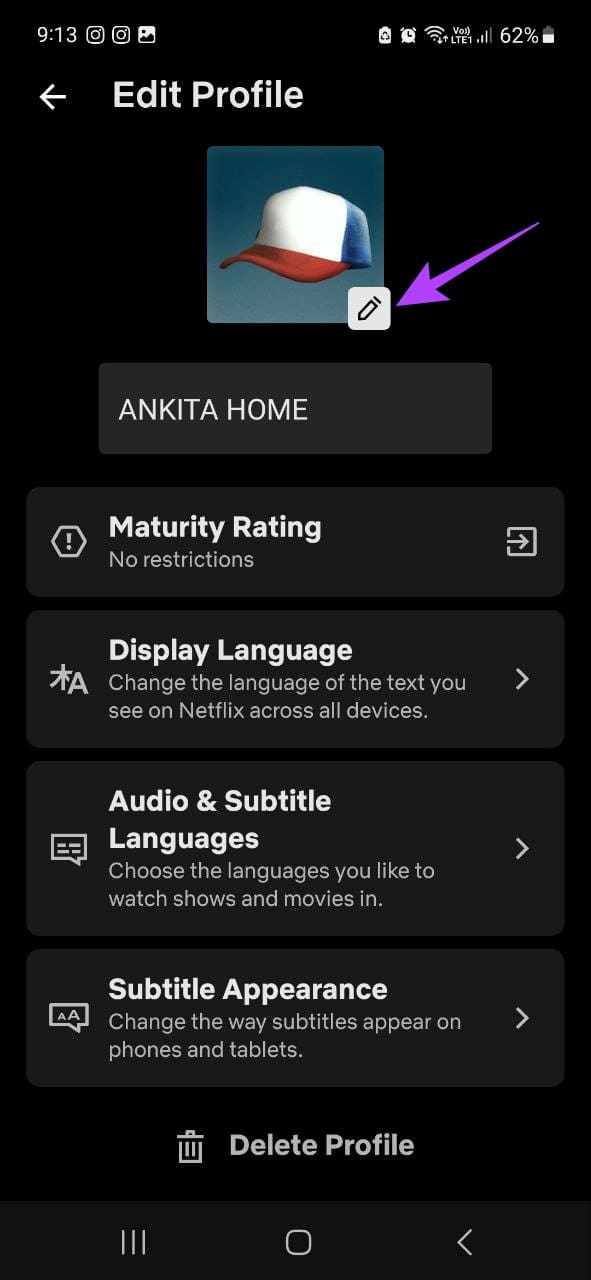
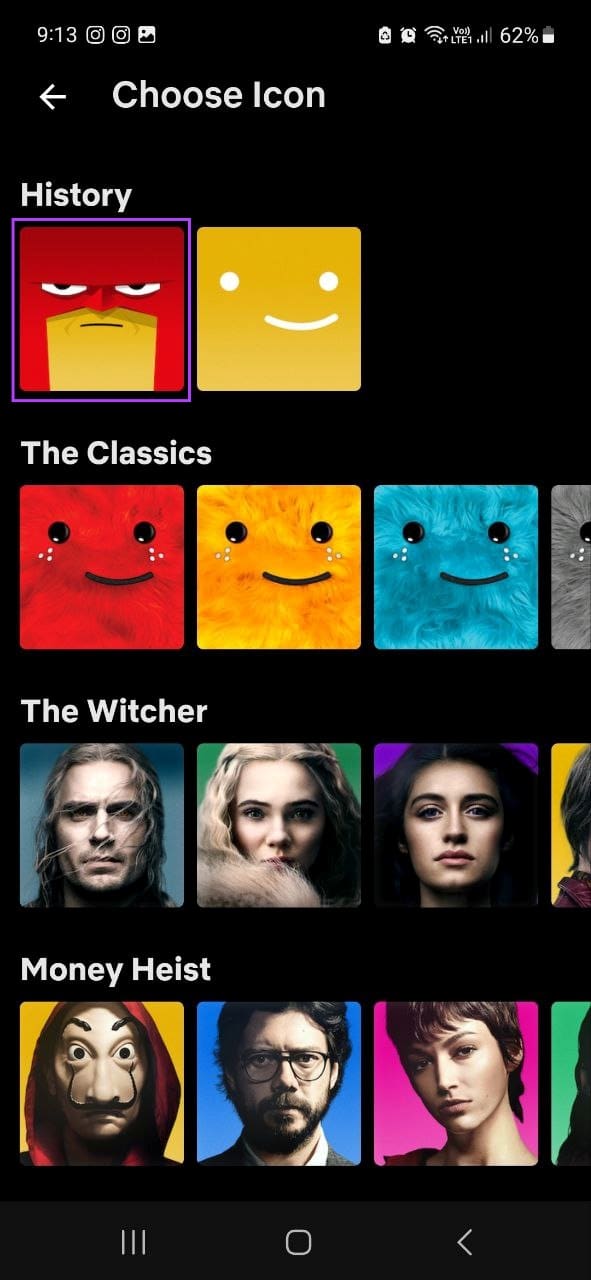
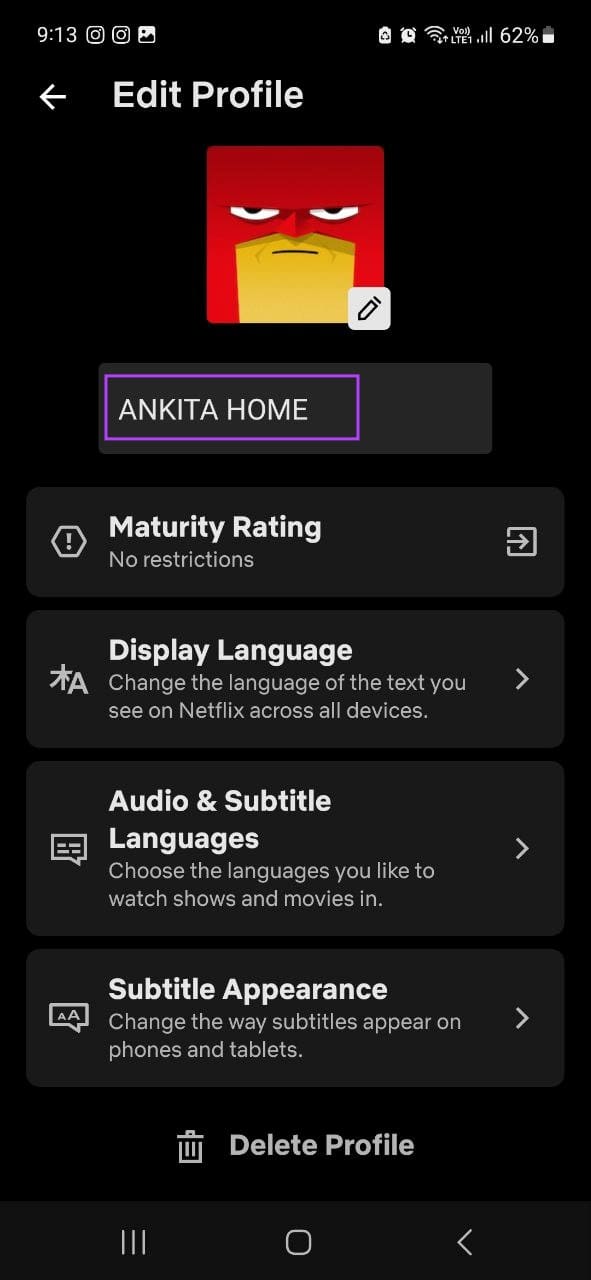
Once you exit the page, the changes will be automatically saved across all your current signed-in devices.
II. Using a Web Browser
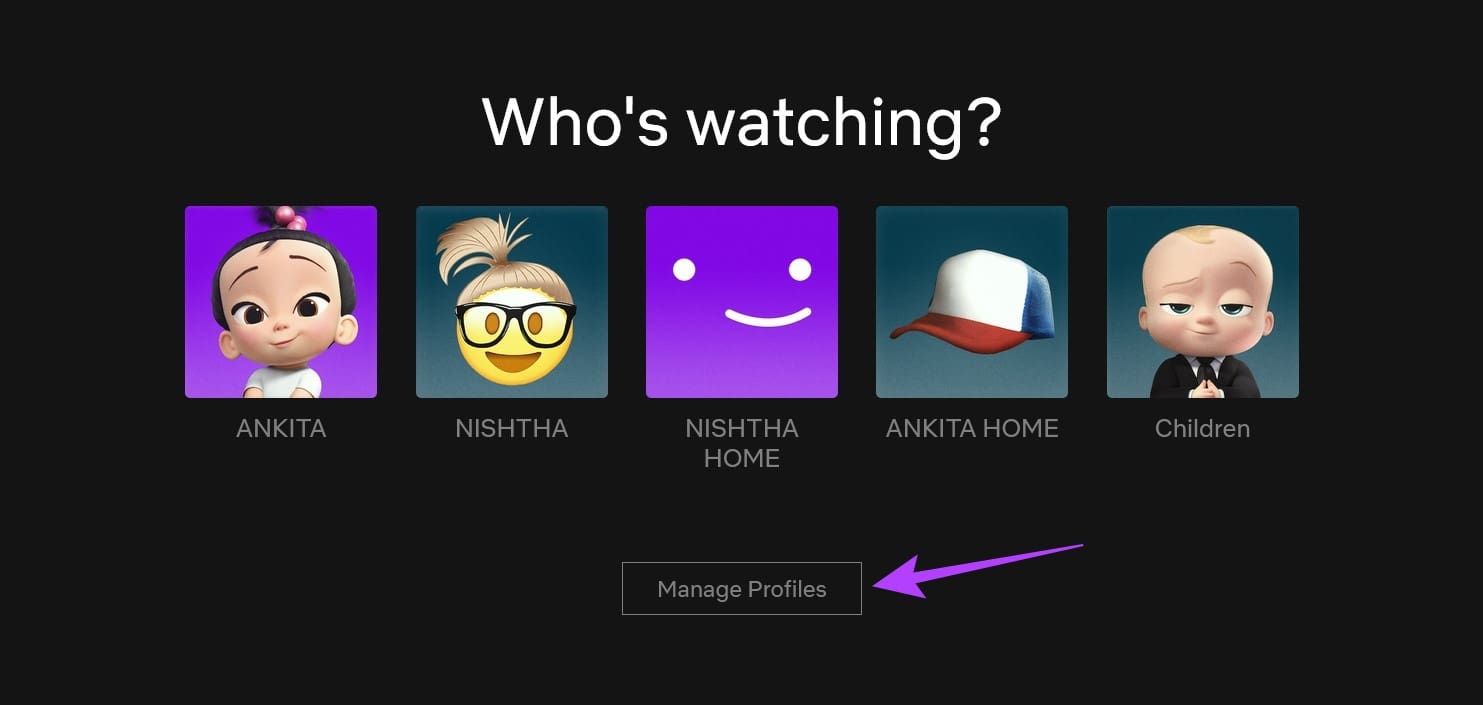
Step 1: Open Netflix on any web browser and click on Manage Profiles.
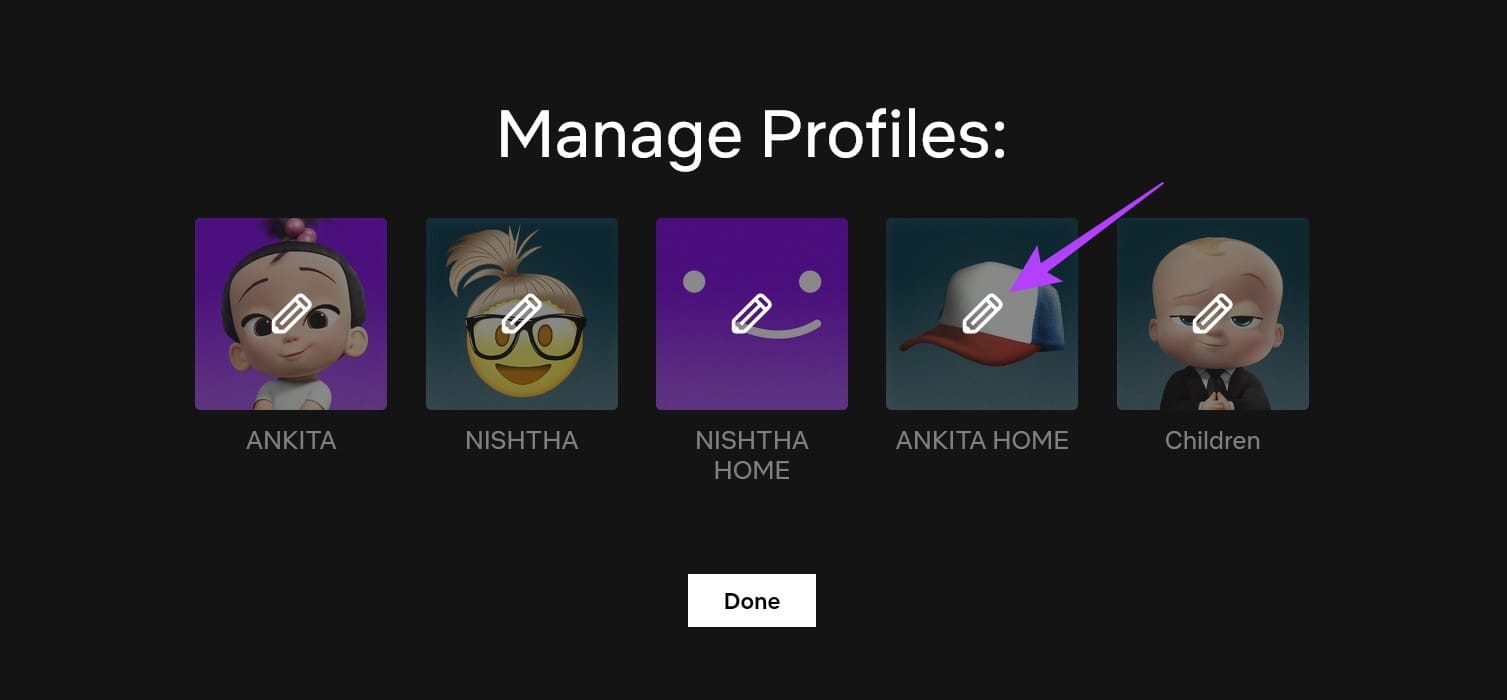
Step 2: Go to the relevant profile and click on the pencil icon.
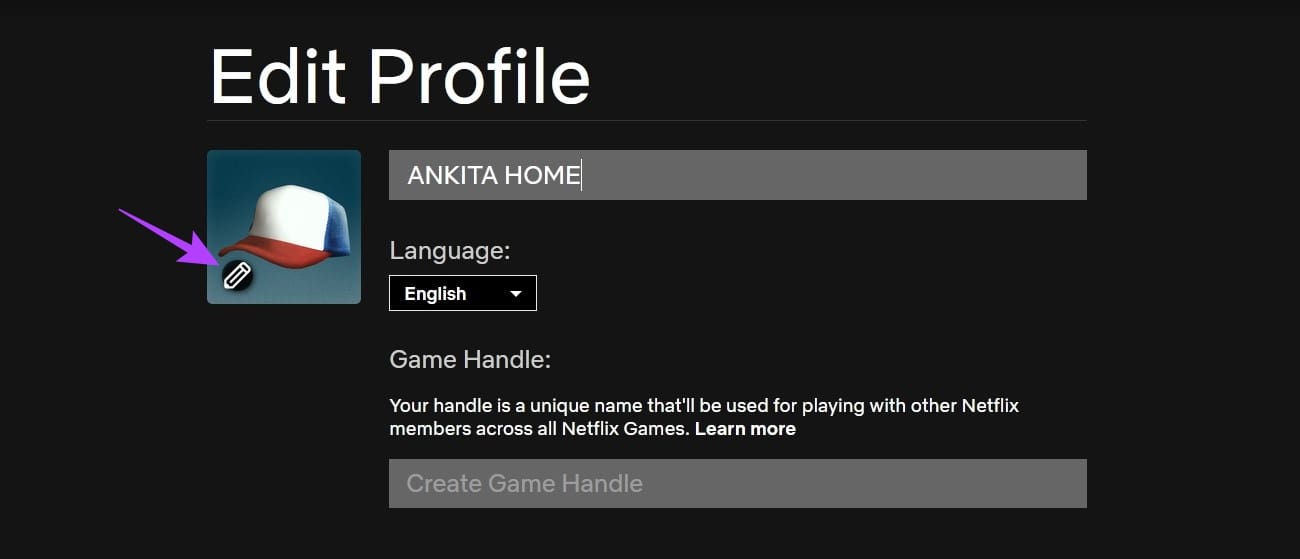
Step 3: Click on the pencil icon within the profile picture.
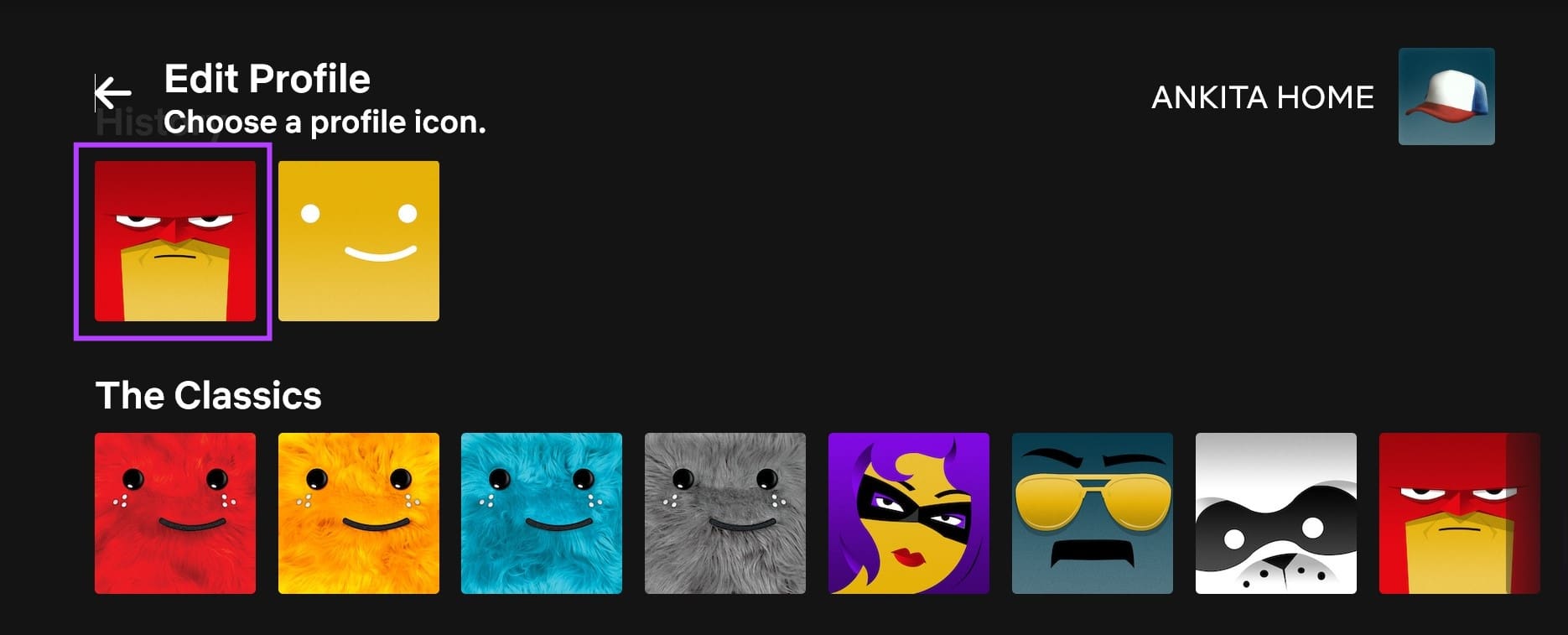
Step 4: Scroll through the page and click on the relevant avatar.
Step 5: Click on Let’s Do It to confirm.

Step 6: Here, click on your profile name and change it if required.
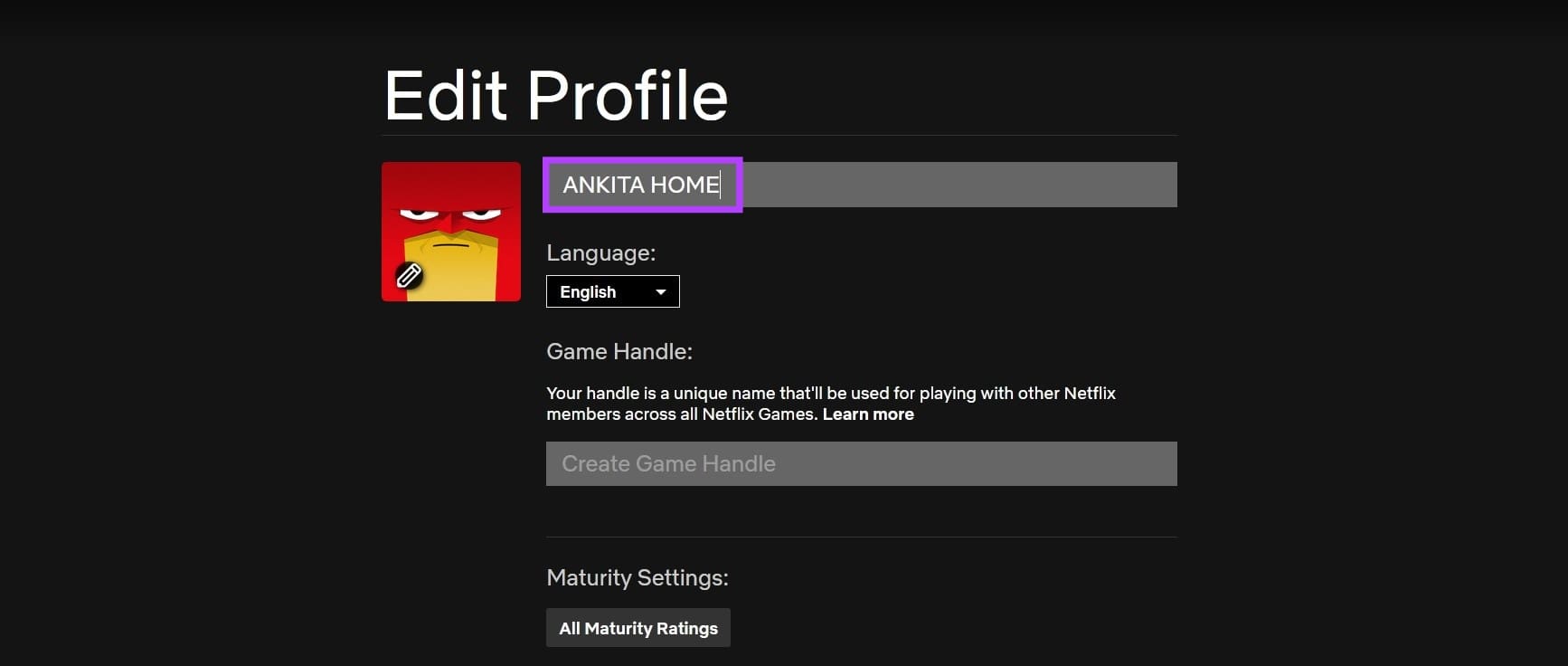
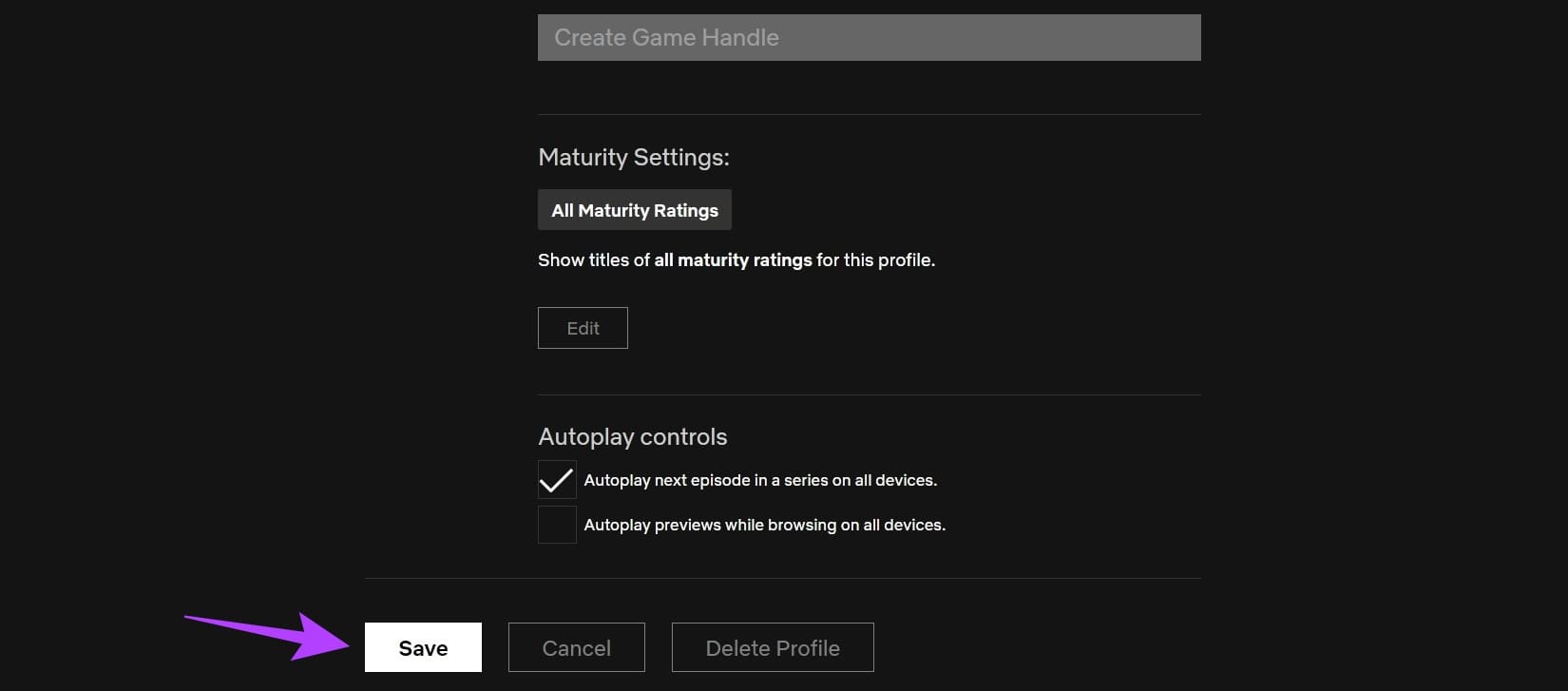
Step 7: Once all the changes have been made, scroll down and click on Save.
III. Using the Windows App
Step 1: Open the Netflix Windows app and click on the hamburger icon in the top left corner.

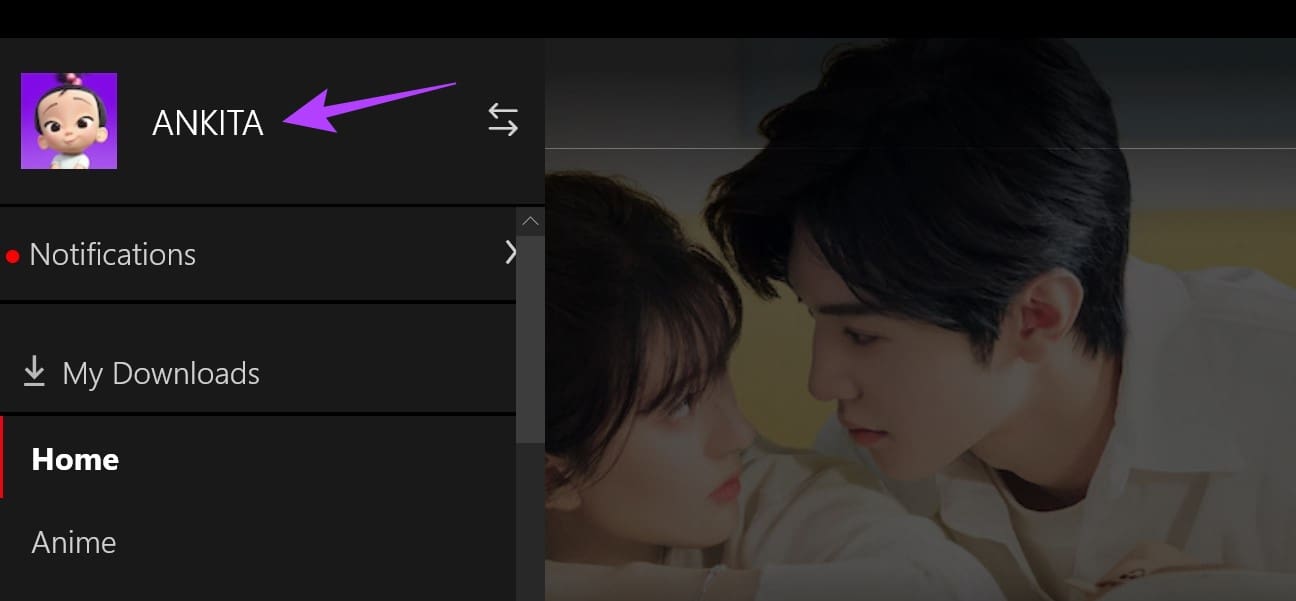
Step 2: Here, click on your profile.
Step 3: Click on Manage at the top right.
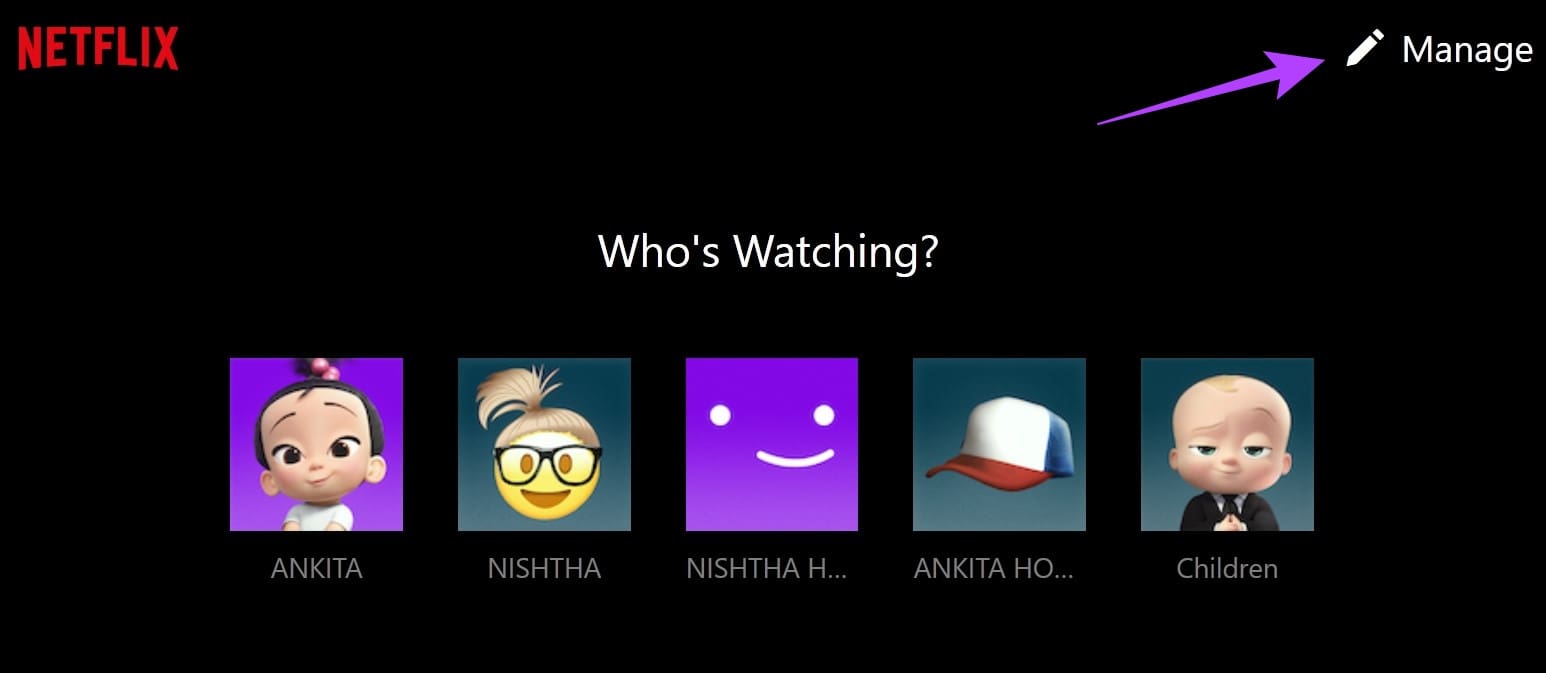
Step 4: Go to the relevant profile and click on the pencil icon.
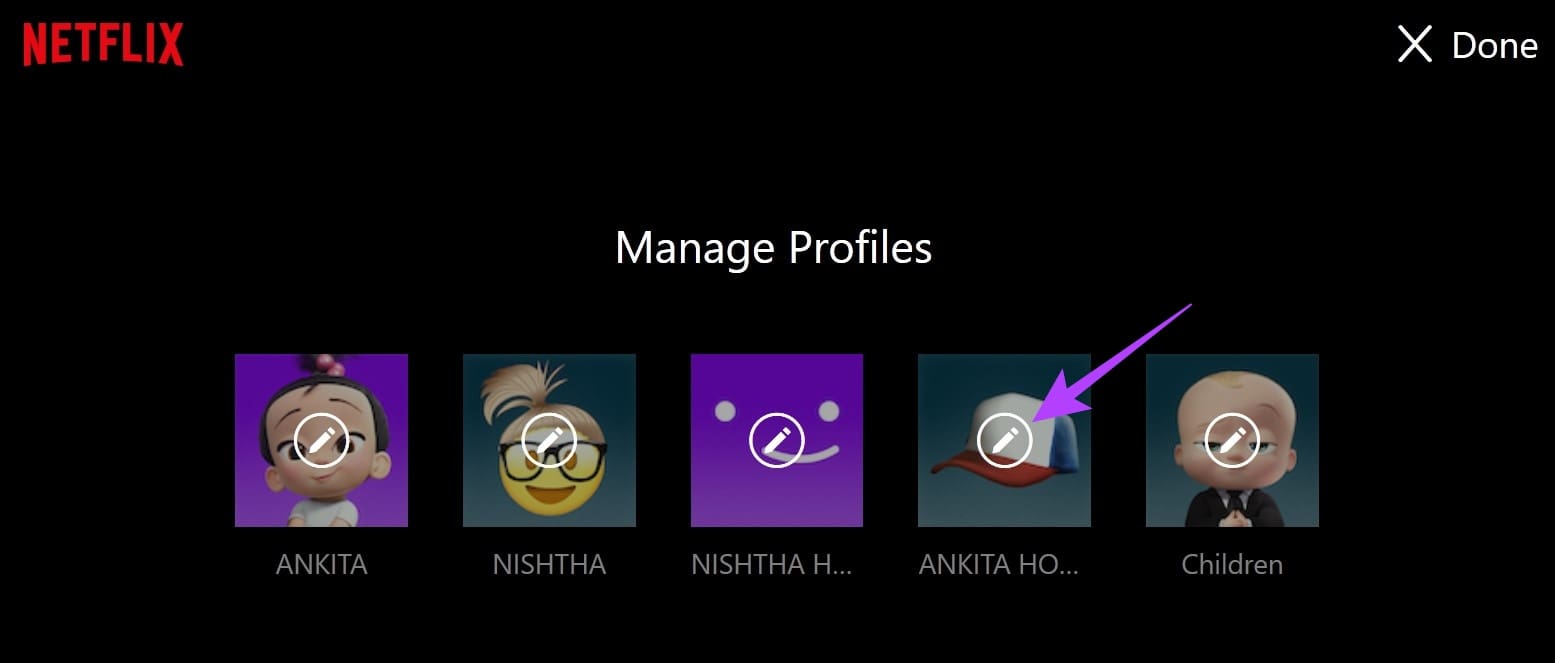
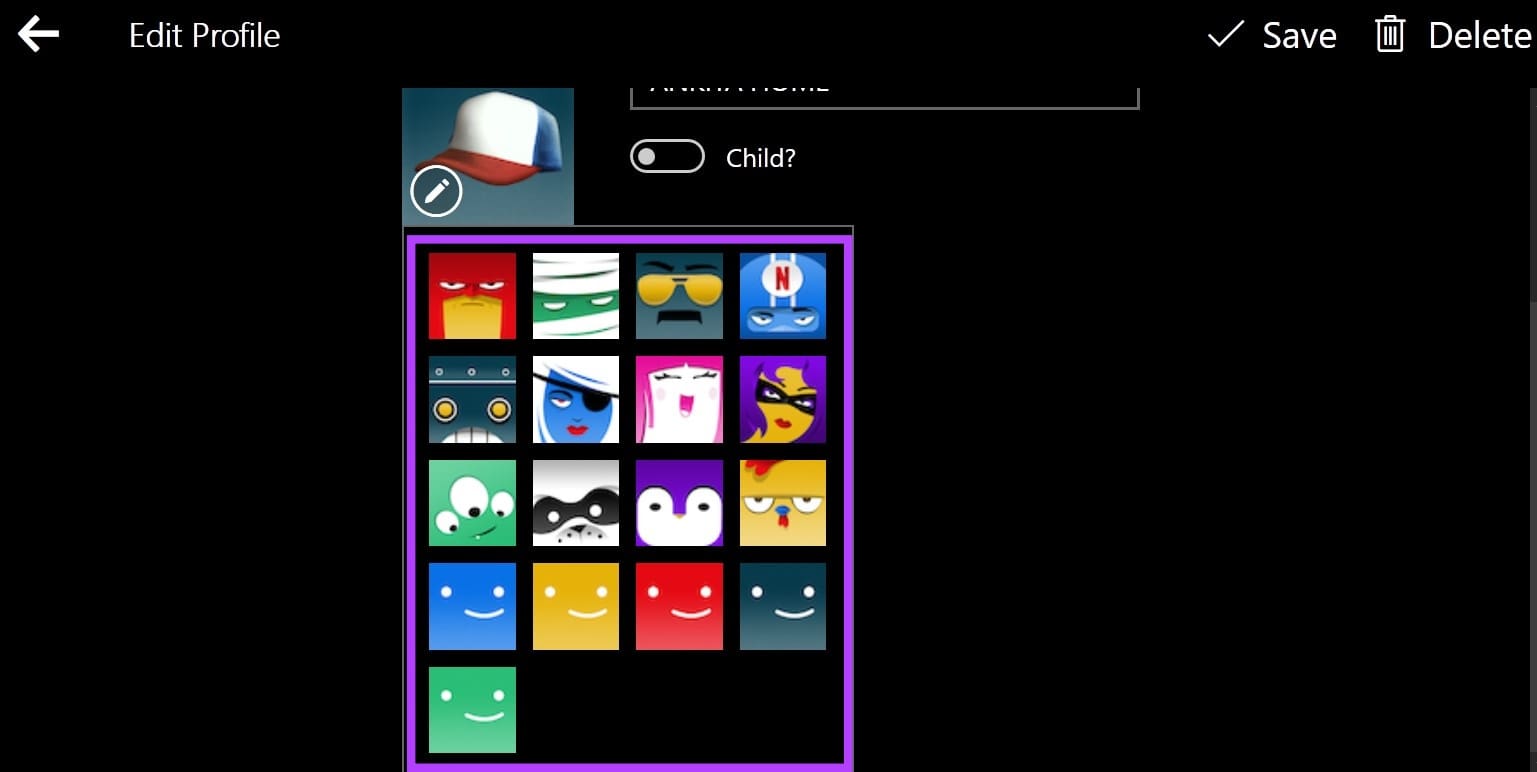
Step 5: Click on the pencil icon in the profile picture. Here, click on the relevant avatar.
Step 6: You can also click on your profile name and change it accordingly. Then, click on Save.
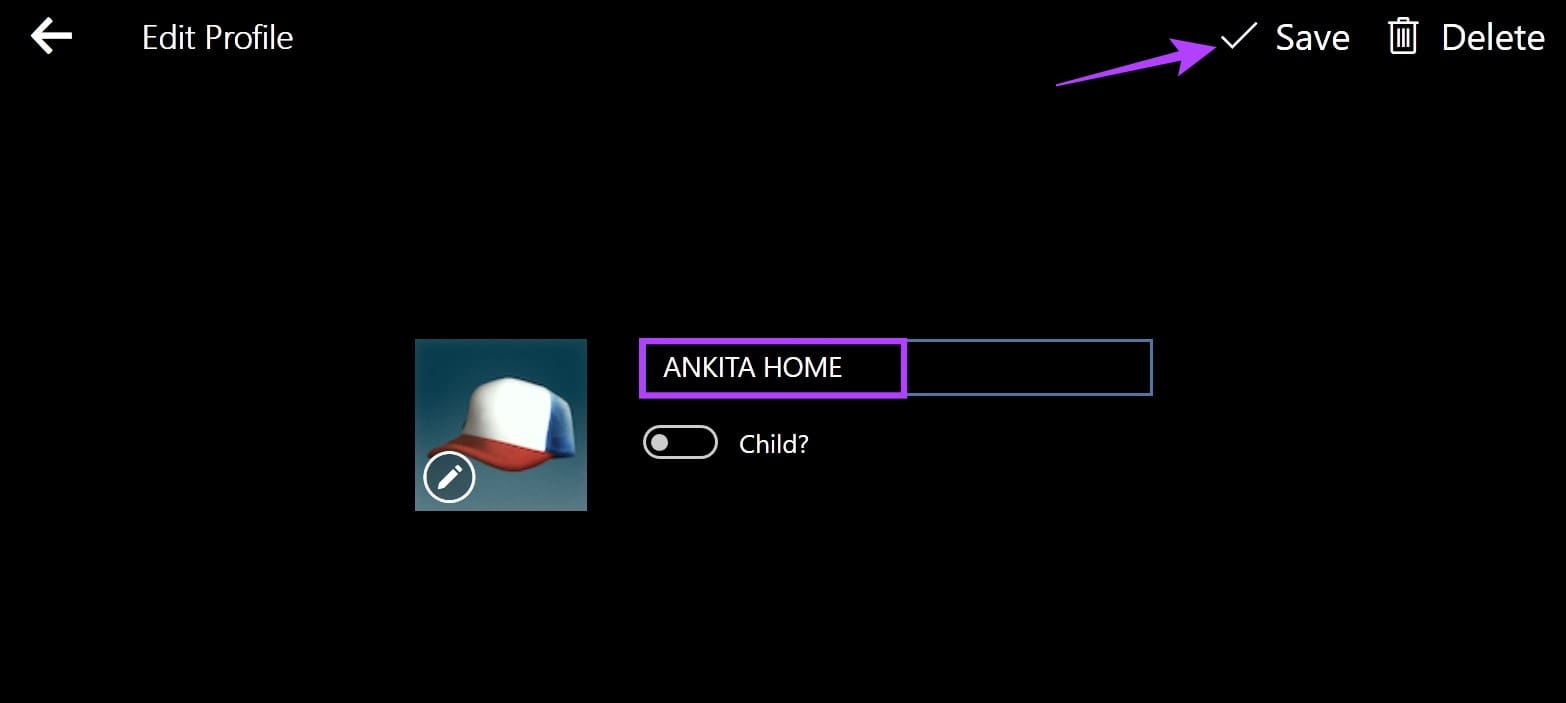
This will change your Netflix profile picture as per your preferences. While there isn’t a Netflix app for Mac, you can check our guide to see how you can download and install Netflix on MacBook.
IV. On Fire TV Stick
Step 1: On your Fire TV Stick, select Netflix to open the app.
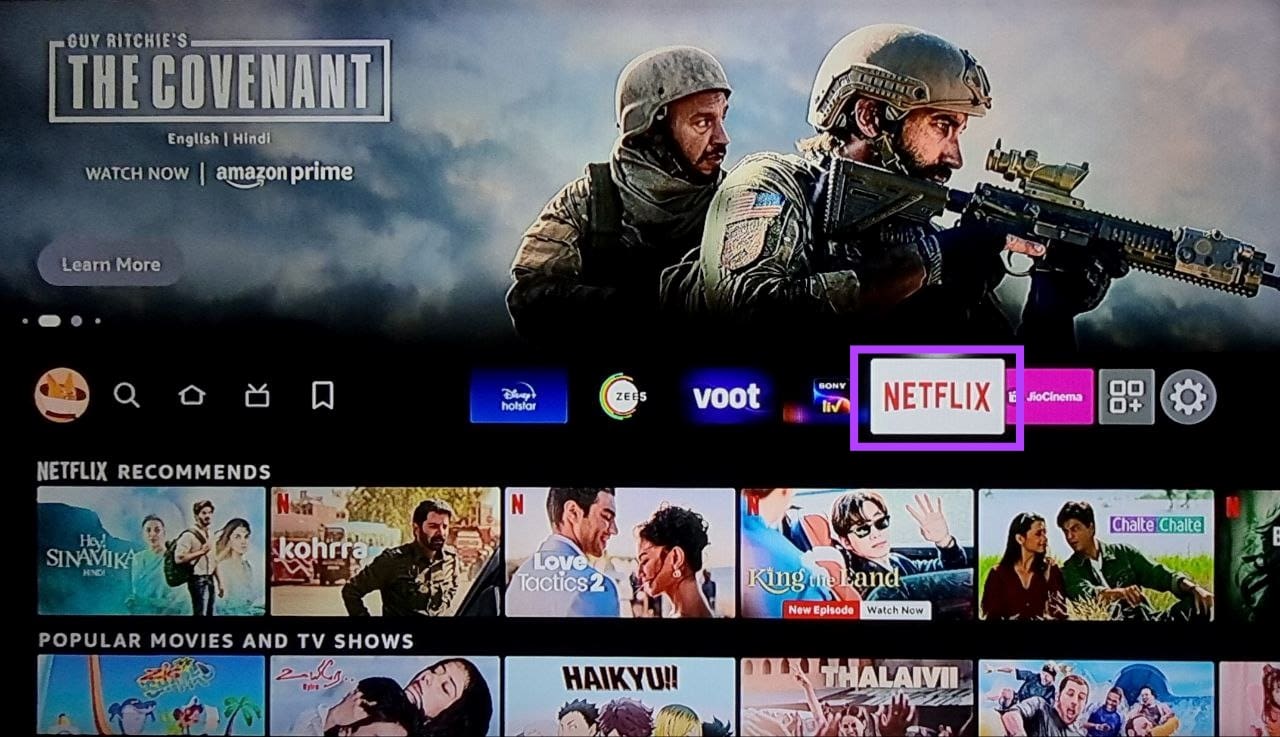
Step 2: Now, go to the relevant profile and click on the pencil icon beside it.

Step 3: Here, select Icon.
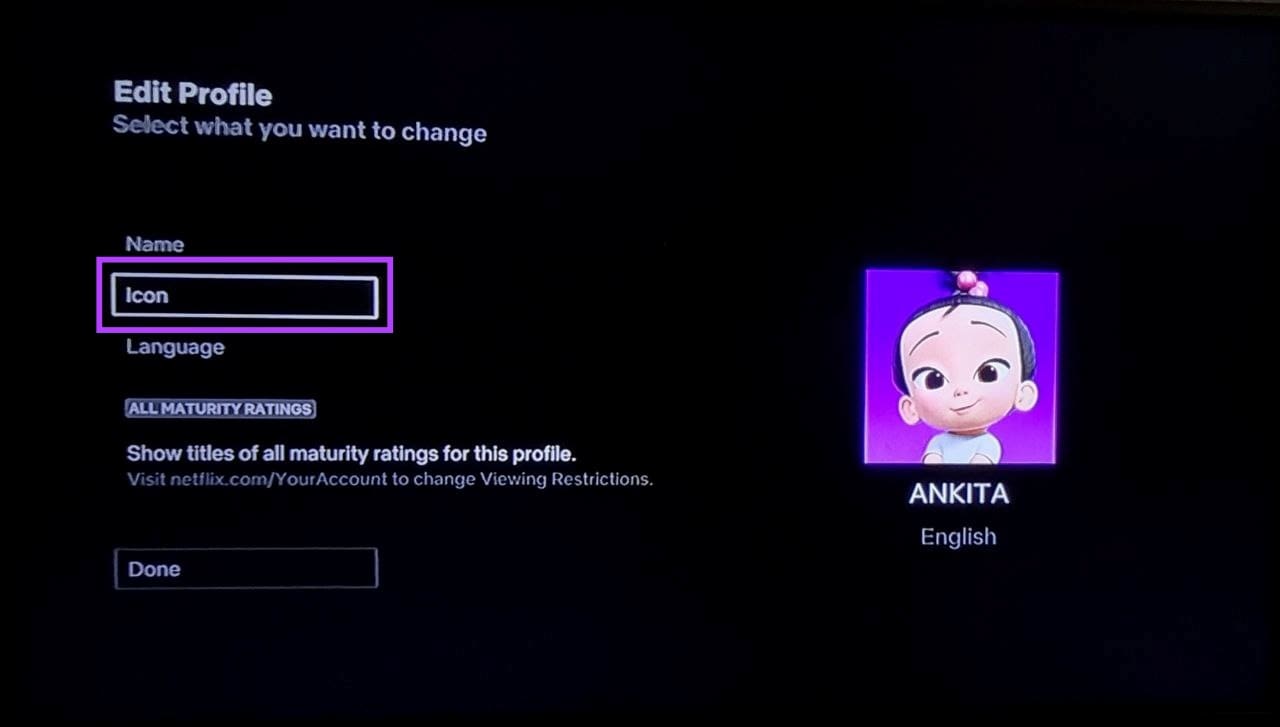
Step 4: From this list, select the relevant icon.
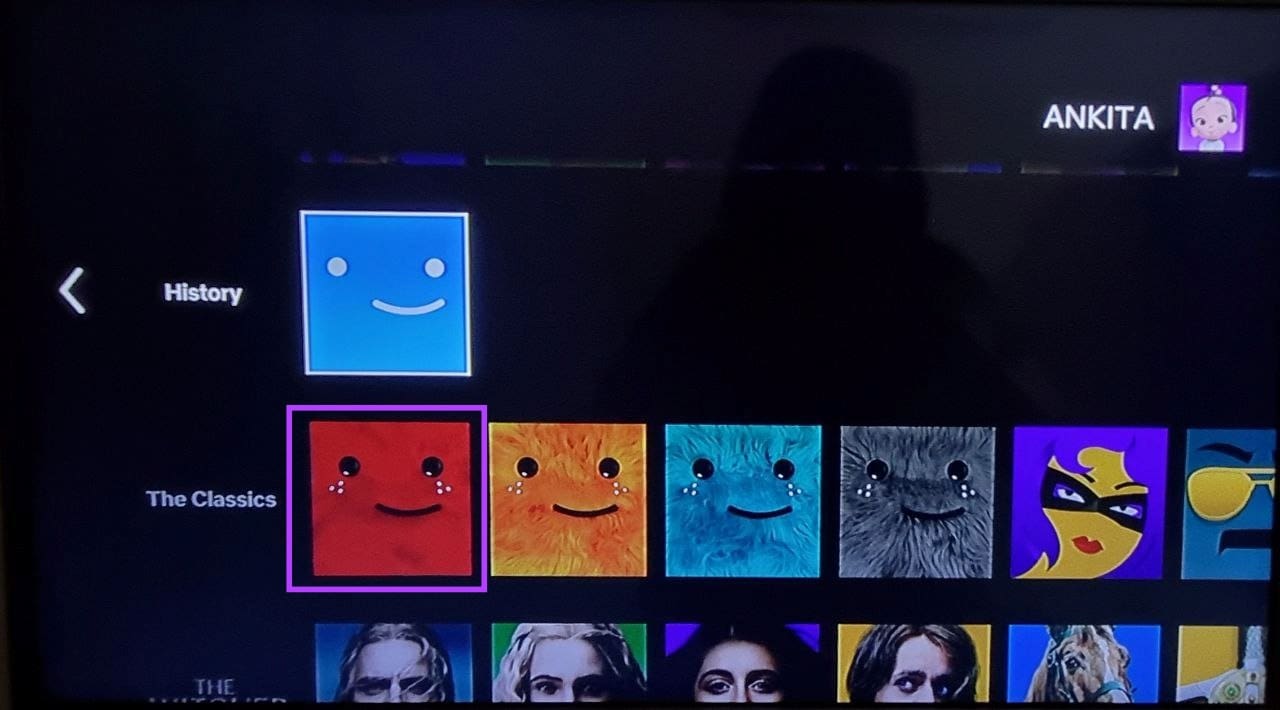
Step 5: Select Let’s Do It to confirm your selection.
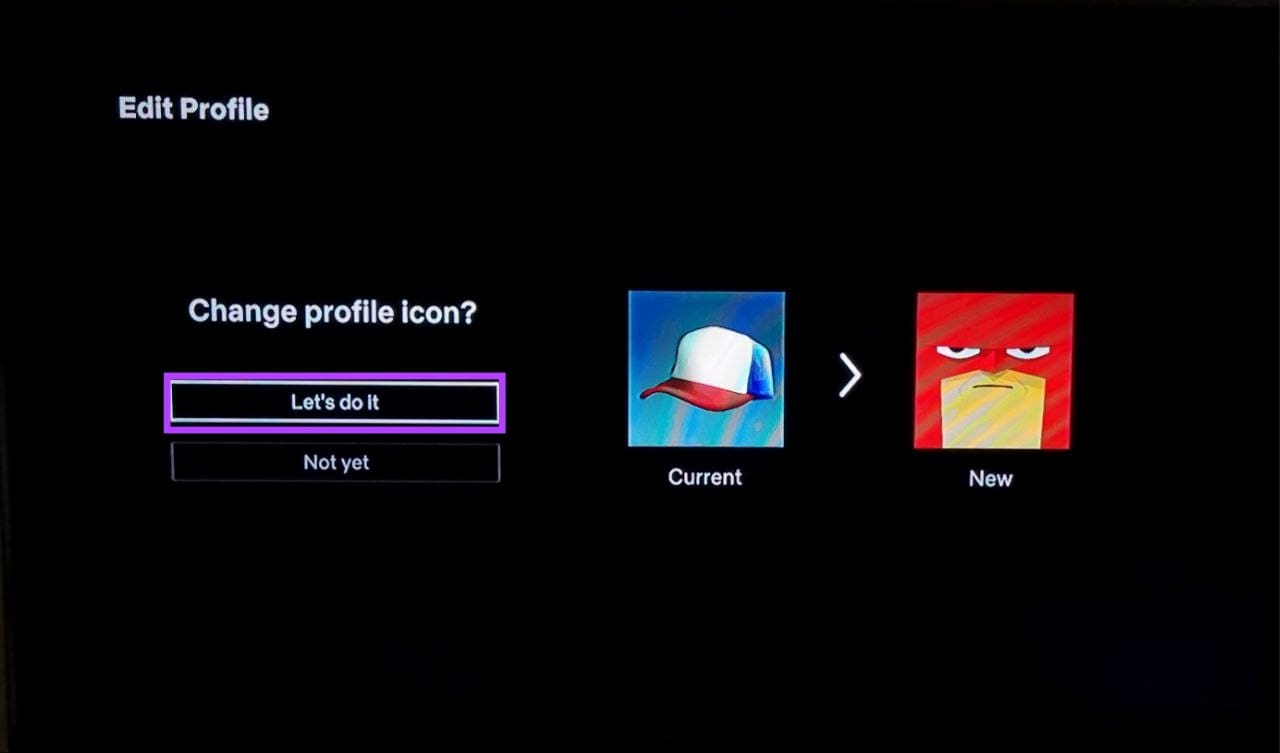
Step 6: You can also scroll up and select Name if you wish to change your profile name.
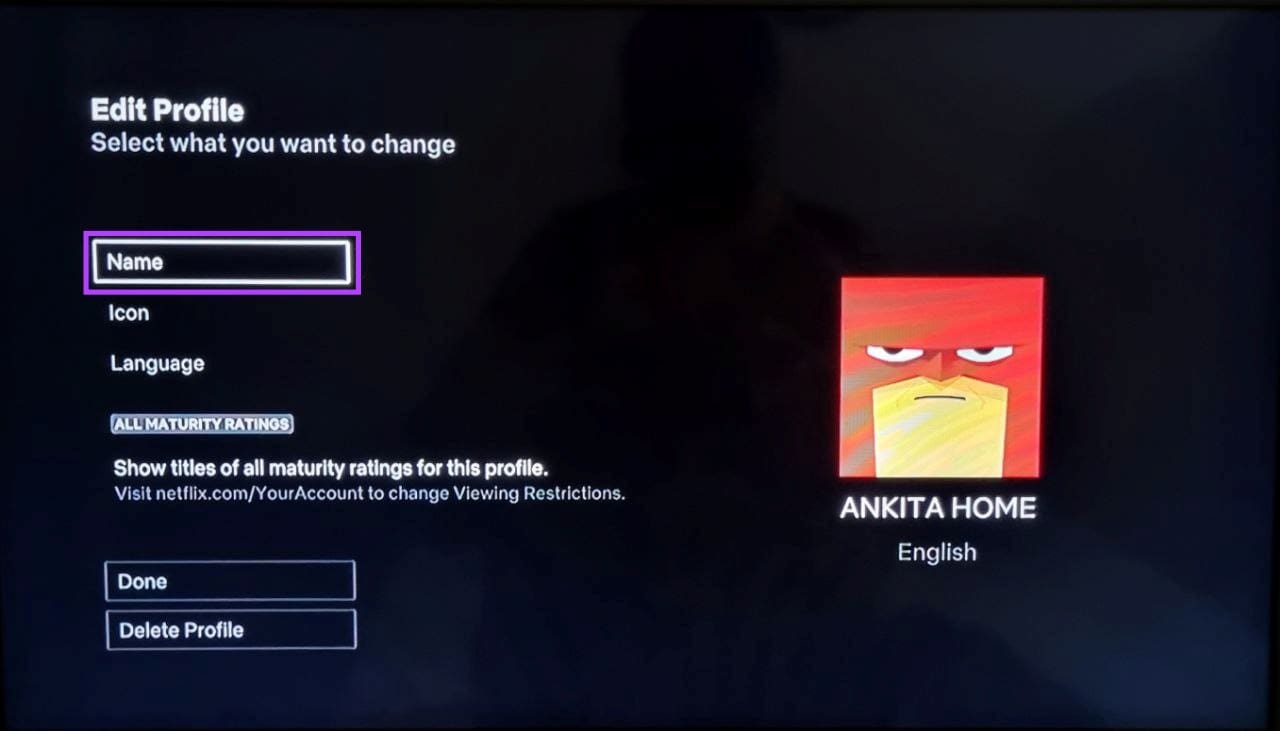
Step 7: Use the keypad to make the relevant changes. Then, select Done.
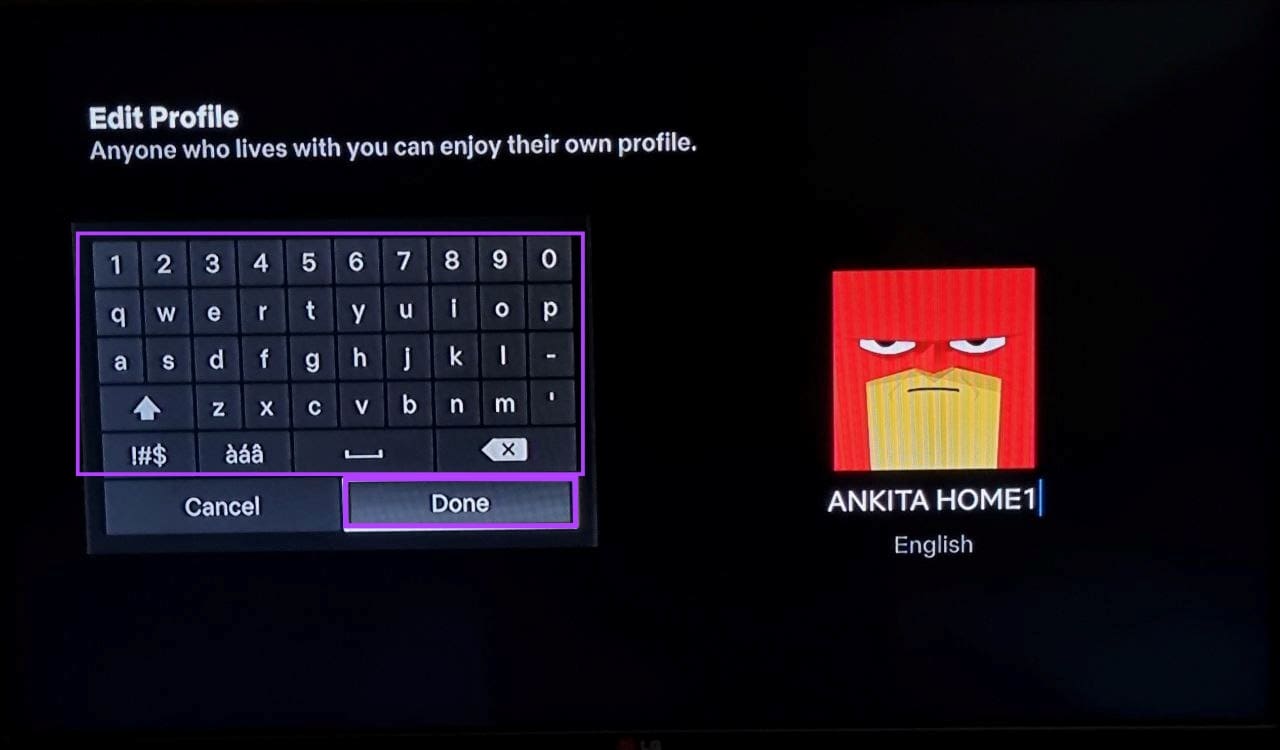
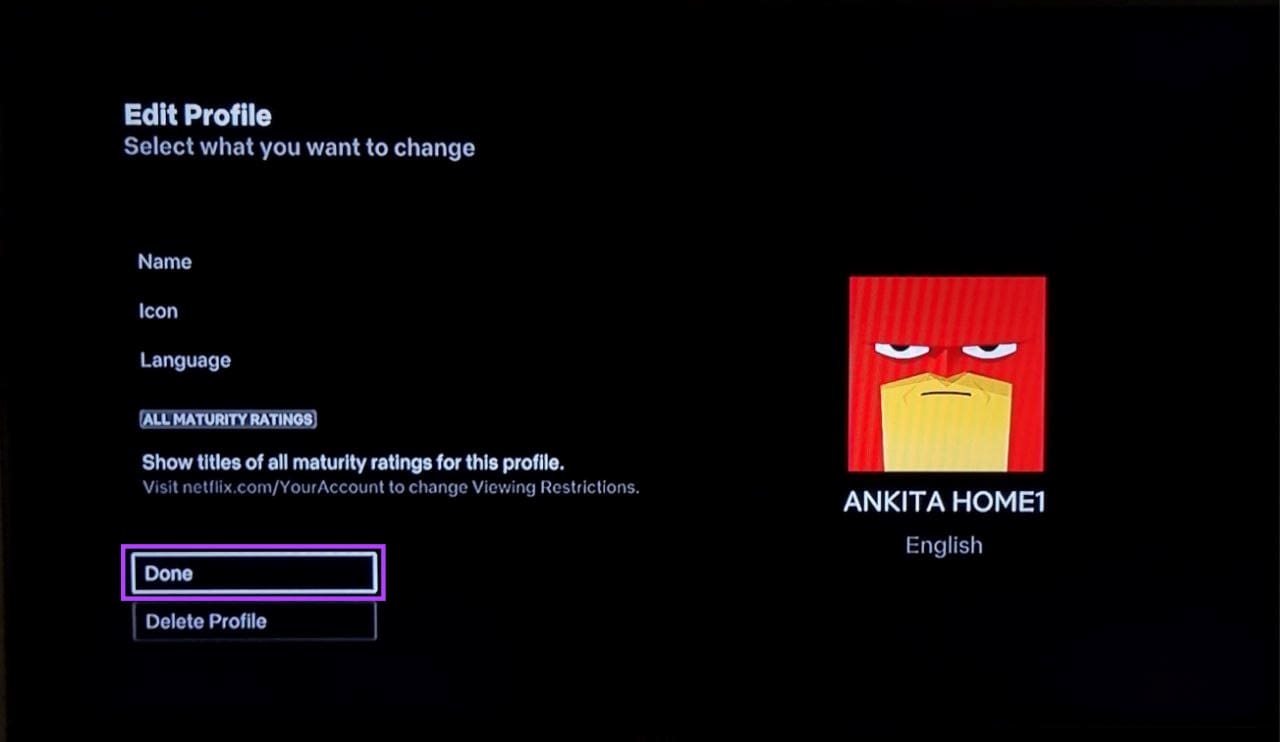
Step 8: To save all your changes, select Done.
Also Read: How to use Fire TV Stick if your remote is lost
FAQs
While this usually does not happen, Netflix might change your profile picture if the currently set avatar is no longer available in Netflix’s library.
Yes, there are no restrictions on setting the same avatar for all your Netflix profiles. However, we recommend setting different avatars to distinguish them easily.
If you use the options within the official Netflix mobile, desktop, Windows, or Fire TV Stick app, then it will change the profile picture for the selected profile across all the devices currently using this account. However, if you use the browser extension to make changes to the profile picture, then it will only change on that browser.
Was this helpful?
Last updated on 08 July, 2024
Read Next
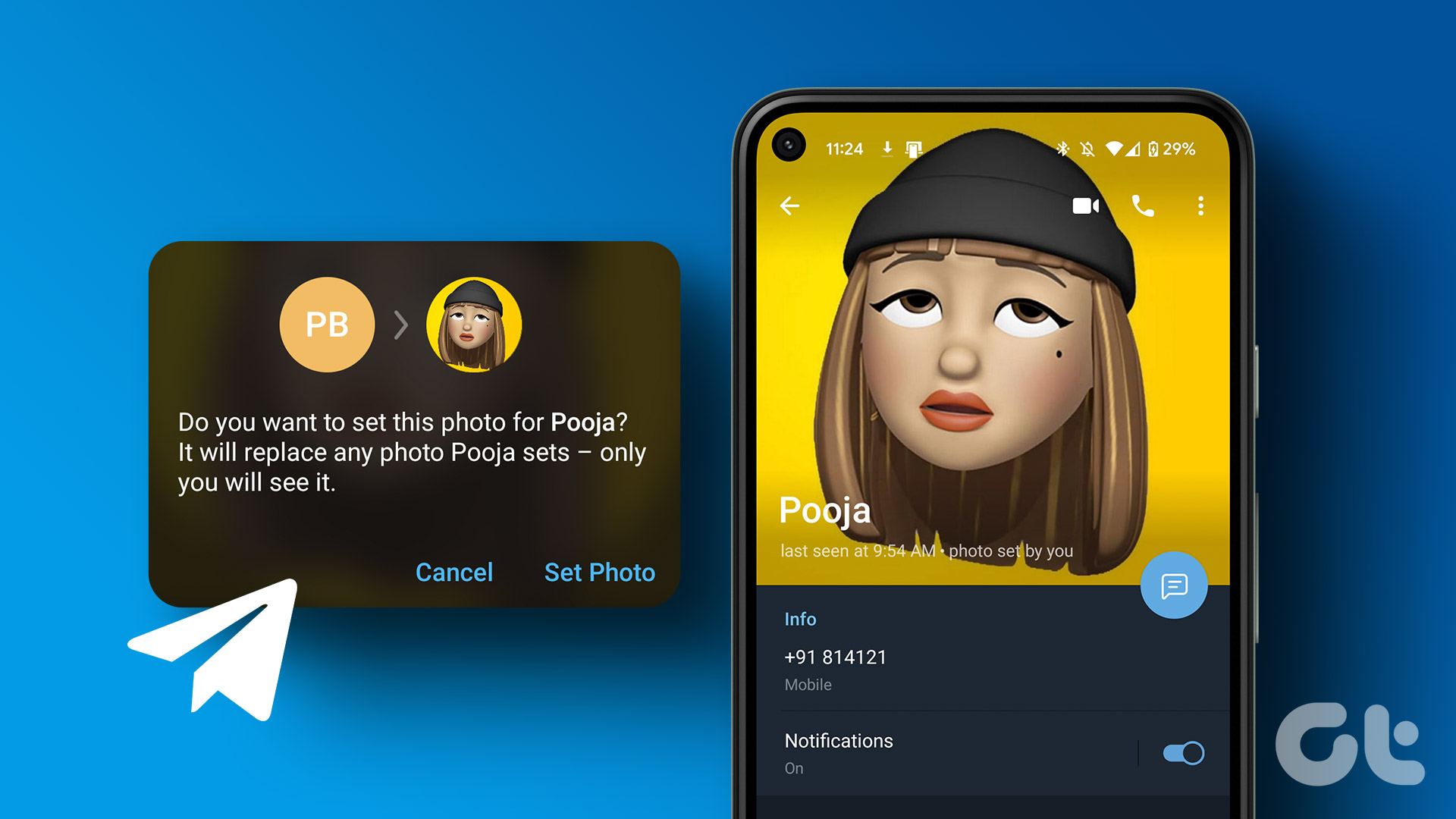 How to Set Custom Profile Picture for Contacts on Telegram
How to Set Custom Profile Picture on Telegram on Mobile Let's start by showing you the steps for Android and iPhone.
How to Set Custom Profile Picture for Contacts on Telegram
How to Set Custom Profile Picture on Telegram on Mobile Let's start by showing you the steps for Android and iPhone.
 What Is WhatsApp Profile Picture Size and How to Add Any Picture to It
What’s the Best Size for a WhatsApp profile Picture While WhatsApp has opened up to many new features, from sharing HD photos to screen sharing, it remains stringent on its
What Is WhatsApp Profile Picture Size and How to Add Any Picture to It
What’s the Best Size for a WhatsApp profile Picture While WhatsApp has opened up to many new features, from sharing HD photos to screen sharing, it remains stringent on its
 3 Fixes for Netflix Picture-In-Picture Mode Not Working on Android
Fix 1: Upgrade Netflix Plan If you are from a country where Netflix offers an ad-supported version, you must upgrade to a premium plan.
3 Fixes for Netflix Picture-In-Picture Mode Not Working on Android
Fix 1: Upgrade Netflix Plan If you are from a country where Netflix offers an ad-supported version, you must upgrade to a premium plan.
 4 Ways to Fix the iPhone Picture-in-Picture Not Working
Before you begin, try restarting your iPhone, and update the app you are trying to use picture-in-picture with, to the latest version.
3 Ways to Fix Prime Video Picture-in-Picture Not Working on Android and iPhone
Basic Fixes Restart Prime Video: Restart the Prime Video app and your smartphone to eliminate bugs and glitches.
4 Ways to Fix the iPhone Picture-in-Picture Not Working
Before you begin, try restarting your iPhone, and update the app you are trying to use picture-in-picture with, to the latest version.
3 Ways to Fix Prime Video Picture-in-Picture Not Working on Android and iPhone
Basic Fixes Restart Prime Video: Restart the Prime Video app and your smartphone to eliminate bugs and glitches.
 3 Fixes for Picture-in-Picture Not Working in Telegram
Basic Fixes Force quit and relaunch Telegram: This will give the app a fresh start on your iPhone or Android phone.
3 Fixes for Picture-in-Picture Not Working in Telegram
Basic Fixes Force quit and relaunch Telegram: This will give the app a fresh start on your iPhone or Android phone.
 2 Ways to Turn on Picture in Picture on Microsoft Edge
Method 1: Use the Inbuilt PiP Option in Microsoft Edge Picture-in-Picture (PiP) mode was officially released in Microsoft Edge with the stable release of Microsoft Edge version 78.
2 Ways to Turn on Picture in Picture on Microsoft Edge
Method 1: Use the Inbuilt PiP Option in Microsoft Edge Picture-in-Picture (PiP) mode was officially released in Microsoft Edge with the stable release of Microsoft Edge version 78.
 3 Ways to Fix Picture-In-Picture Not Working in Facebook Messenger
Common Fixes Restart device - Long-press the physical Power button and tap Reboot to restart Android.
3 Ways to Fix Picture-In-Picture Not Working in Facebook Messenger
Common Fixes Restart device - Long-press the physical Power button and tap Reboot to restart Android.
The article above may contain affiliate links which help support Guiding Tech. The content remains unbiased and authentic and will never affect our editorial integrity.