Biometric readers, TPM modules, and other verification features all fall under Security Devices, and can all be accessed from Device Manager, provided the category appears there, that is. If you’ve got a problem with Security Devices not showing in Device Manager on your PC, then don’t worry; in this article, we’ve got five fixes to set things right.
What Causes Security Devices Not Showing in Device Manager?
The primary reason for Security Devices not appearing has to do with the Trusted Platform Module (TPM) not being detected by your machine. That said, there are also a few other reasons, including:
- The TPM device is hidden or disabled
- There are problems with the TPM driver
- Some system file corruption
Fixing the Issue
Let’s take a look at five fixes aimed at helping to fix the Security Devices issue:
Confirm Security Devices aren’t Hidden
Hidden options, icons, and folders can be a cause of frustration, but are easy enough to fix. This is also true in the Device Manager. If you can’t find Security Devices in Device Manager, it’s good to check that Security Devices isn’t hidden before you attempt other fixes:
Step 1. Open the Run dialog (Win + R) and type “devmgmt.msc” and press “Enter.”
Step 2. In the Device Manager window, click “View” and select “Show hidden devices.”
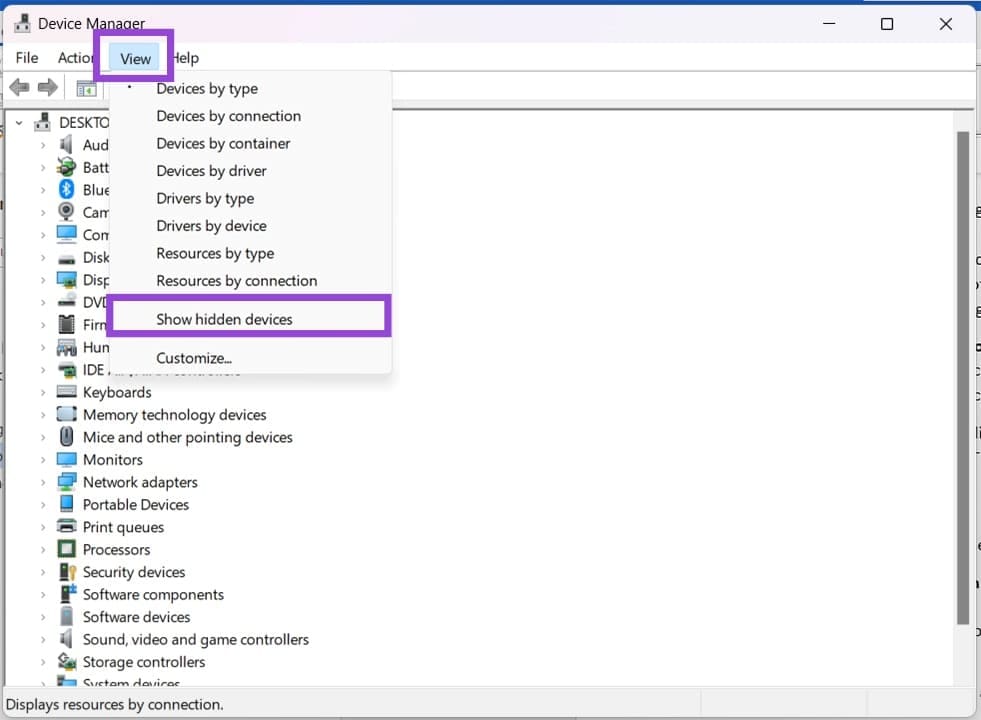
Step 3. Navigate down until you see Security Devices. If you don’t, it’s time to attempt other fixes.
Update Your PC
Outdated software can lead to no end of issues with your PC, including drivers for components like the TPM. Before proceeding further, ensure that your Windows is fully updated, including optional updates.
Check Your TPM
Seeing as this issue is almost always related to the TPM, an important first step is to check its status. Here’s what you need to do:
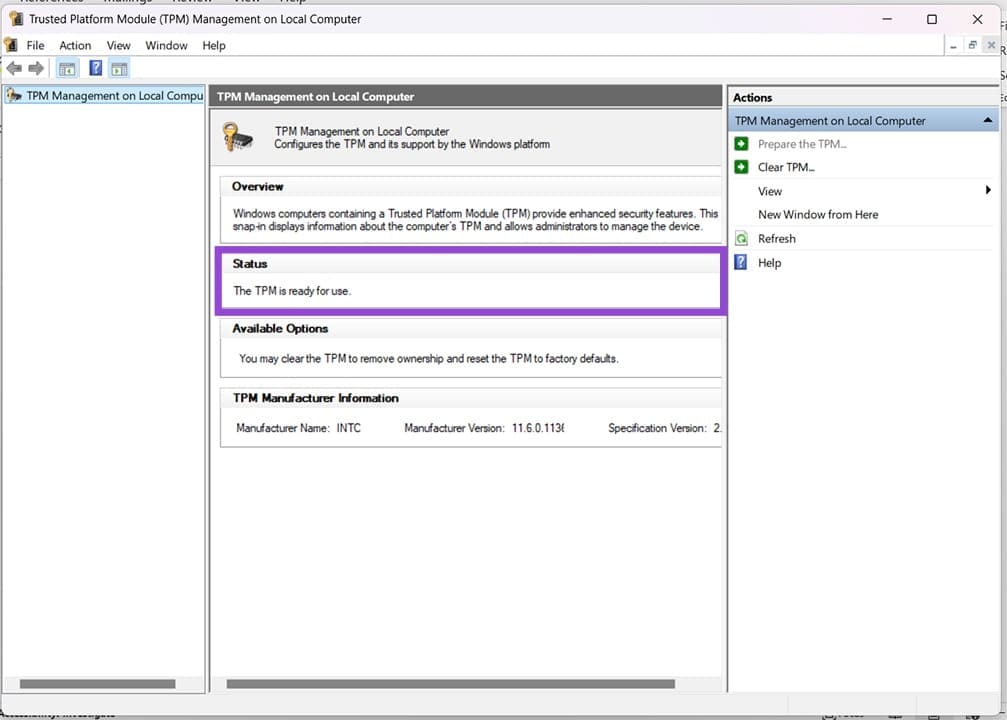
Step 1. Open the Run dialog (Win + R) and type “tpm.msc” before hitting “Enter.”
Step 2. You’ll be taken to a new window. If it displays properly and the “Status” subsection indicates everything is running, you should be okay.
Check TPM in Your BIOS
Your BIOS is the bedrock on which everything else on your PC rests. If you’re encountering TPM issues, you’ll need to head into the BIOS and ensure that it’s enabled. Every BIOS, its settings, and menu options vary according to manufacturer, but here are some general guidelines:
Step 1. Restart your machine and press the BIOS key (usually a Function or special character key) to enter the BIOS.
Step 2. Once in, look for an option that mentions Trusted Computing, TPM, Security, Trusted Platform Module, Advanced, or similar, and ensure that the TPM module is enabled.
Step 3. Once done, save your changes, boot into Windows, and check that the issue has been resolved.
Run SFC, Disk Check
If you suspect system corruption is to blame, you can run the System File Checker (SFC) in Command Prompt:
Step 1. Open the Run Dialog (Win + R) and type “cmd” then hit (Ctrl + Shift + Enter) to run as Admin.
Step 2. In Command Prompt, type: “sfc /scannow” and press “Enter.”
Step 3. Restart your machine once the process finishes.
Was this helpful?
Last updated on 03 April, 2026
Read Next
 8 Fixes for “Your Device Is Missing Important Security and Quality Fixes” on Windows
Is there anything more frustrating than seeing the "Your Device Is Missing Important Security and Quality Fixes" message when waiting for your Windows updates to complete?
8 Fixes for “Your Device Is Missing Important Security and Quality Fixes” on Windows
Is there anything more frustrating than seeing the "Your Device Is Missing Important Security and Quality Fixes" message when waiting for your Windows updates to complete?
 5 Fixes for Windows Security App Showing White Screen on Windows 11
Common Fixes Reboot PC: Press the Windows + X shortcut to open the Power User Menu, select Shut down or sign out, and click Restart.
5 Fixes for Windows Security App Showing White Screen on Windows 11
Common Fixes Reboot PC: Press the Windows + X shortcut to open the Power User Menu, select Shut down or sign out, and click Restart.
 How to Fix Bluetooth Missing from Device Manager in Windows 10
Bluetooth is present today in every household, so we no longer think of it as something awesome or advanced.
How to Fix Bluetooth Missing from Device Manager in Windows 10
Bluetooth is present today in every household, so we no longer think of it as something awesome or advanced.
 How to Fix Bluetooth Missing From Device Manager in Windows 11
Basic Fix: Replug your Bluetooth adapter: This applies to those using Bluetooth adapter on Windows 11 PCs.
How to Fix Bluetooth Missing From Device Manager in Windows 11
Basic Fix: Replug your Bluetooth adapter: This applies to those using Bluetooth adapter on Windows 11 PCs.
 4 Ways to Fix Device Manager Not Opening on Windows
Fix 1: Open Device Manager With Admin Rights To start, you can try opening Device Manager with admin rights on Windows and see if it works.
4 Ways to Fix Device Manager Not Opening on Windows
Fix 1: Open Device Manager With Admin Rights To start, you can try opening Device Manager with admin rights on Windows and see if it works.
 4 Ways to Open Device Manager in Windows 11
Basic Ways: Via Run command: Use the Windows + R key to open Run.
4 Ways to Open Device Manager in Windows 11
Basic Ways: Via Run command: Use the Windows + R key to open Run.
 Check Your Android Device’s Security Patch Level in 3 Steps
Security is of paramount importance, especially in the highly connected modern world, where devices are vulnerable to remote attacks and everything from your financial to personal data can be mined
Check Your Android Device’s Security Patch Level in 3 Steps
Security is of paramount importance, especially in the highly connected modern world, where devices are vulnerable to remote attacks and everything from your financial to personal data can be mined
 6 Fixes if Windows 11 Is Not Recognizing USB Devices
Fix 1: Unlock and Trust the Device Some devices, like iPhones or Androids, have an added layer of authentication to verify user identity.
6 Fixes if Windows 11 Is Not Recognizing USB Devices
Fix 1: Unlock and Trust the Device Some devices, like iPhones or Androids, have an added layer of authentication to verify user identity.
The article above may contain affiliate links which help support Guiding Tech. The content remains unbiased and authentic and will never affect our editorial integrity.