How to Search for Specific Words in Google Docs on Desktop
Google Docs offers multiple ways to search for a specific word. We will explain all the methods in a step-by-step format. Let’s start with the easiest method.
Method 1: Using the Shortcut Command
Step 1: Go to Google Docs on your computer. Navigate to the document in which you want to do a word search.
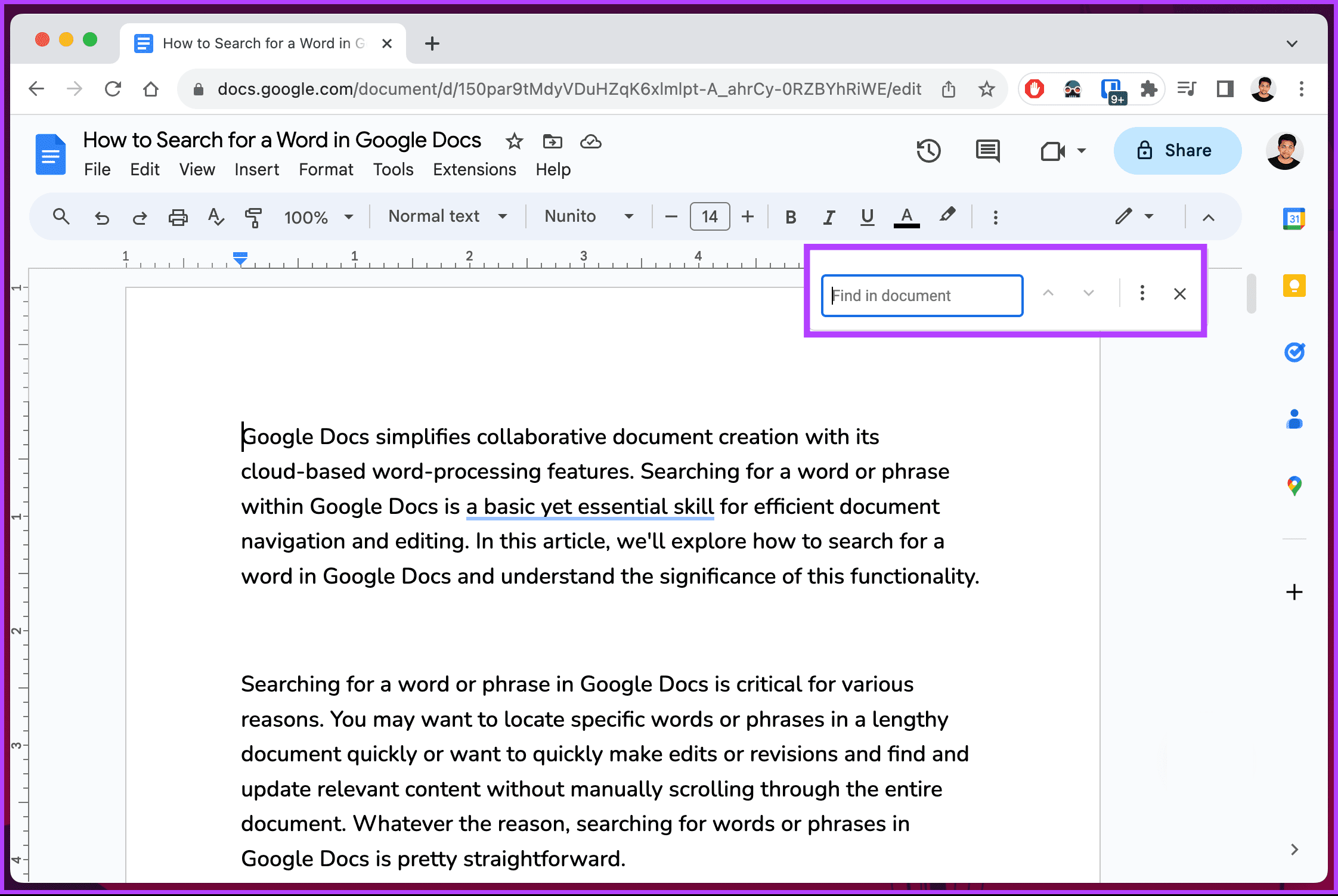
Step 2: Once the document opens, press Ctrl + F on your Windows keyboard or Command + F on your Mac keyboard.
A search box will appear in the top-right corner of the screen.
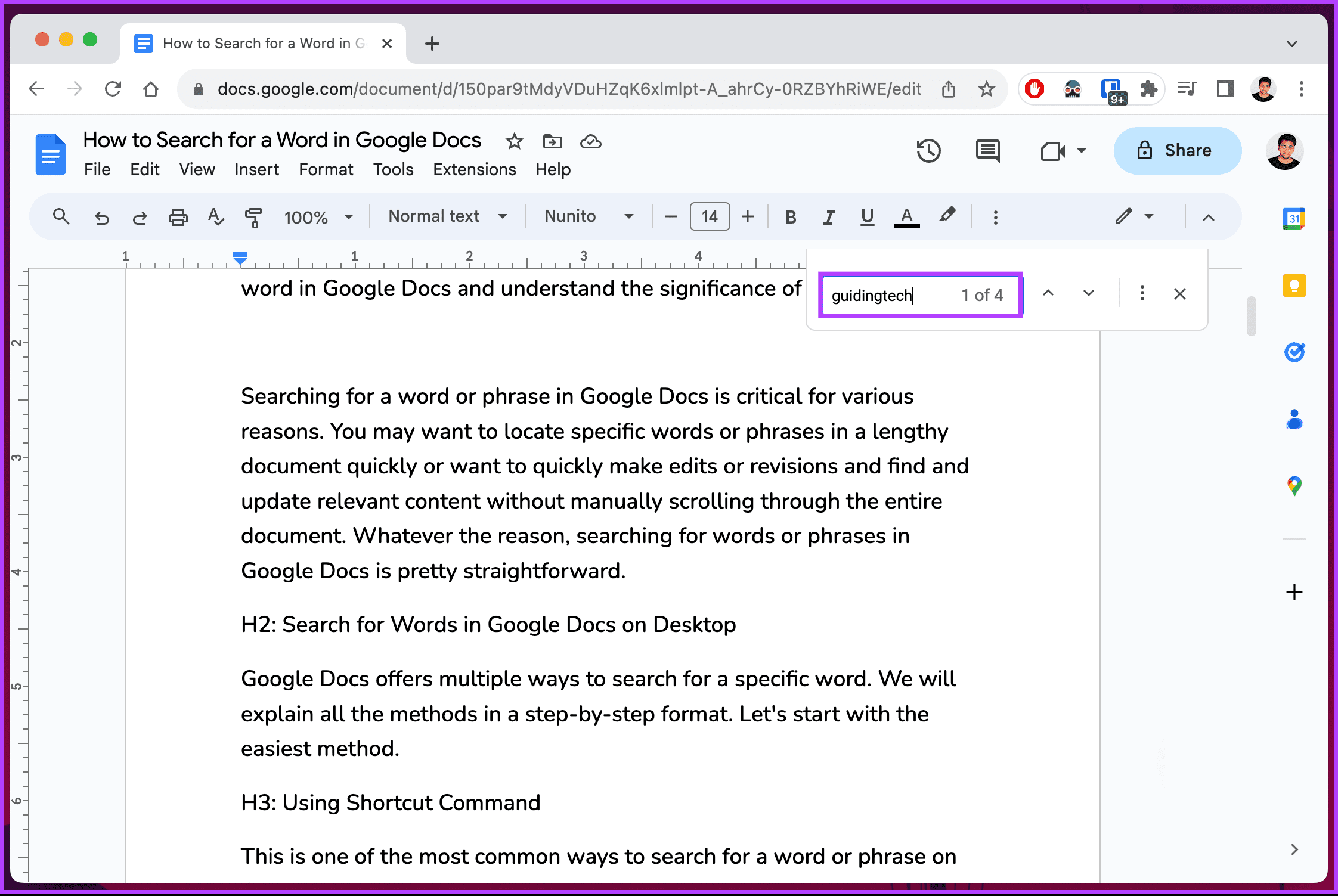
Step 3: Type the word or phrase you want to search for in the box. Ex: guidingtech
Note: The search isn’t case-sensitive, meaning the uppercase and lowercase letters are treated as the same. For example, if you search for guidingtech, you will get the same results as if you search for GuidingTech or GUIDINGTECH.
That’s it. You have successfully searched for specific words in Google Docs. It is important to note that Google Docs will highlight which instance of that word you are currently on in the document if there are multiple instances. The current instance of the word you are reading is highlighted in dark green, while the others are highlighted in light green.
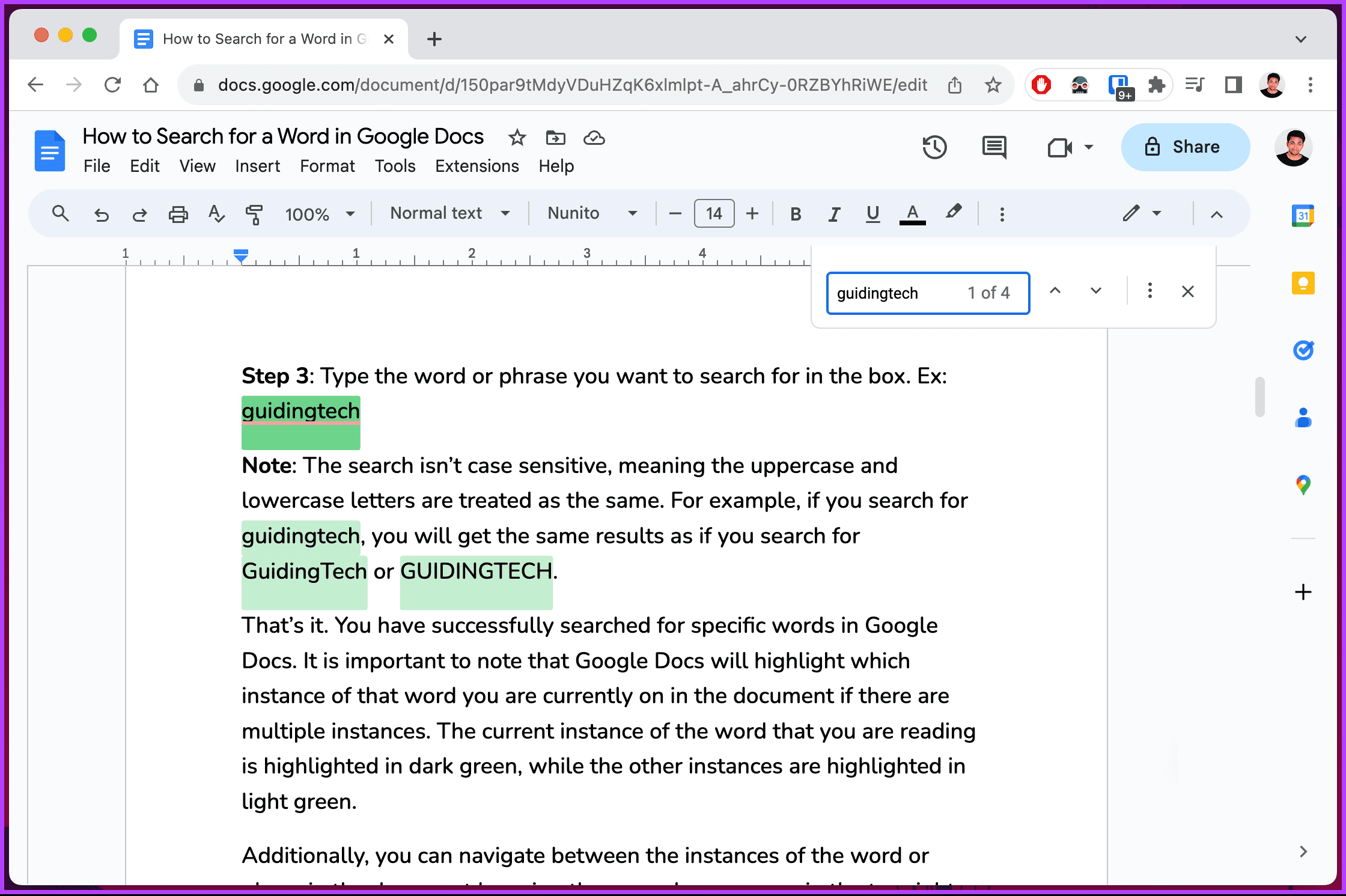
Additionally, you can navigate between the instances of the word or phase in the document using the up or down arrows in the top right corner of the search box.
Method 2: Using Regular Expressions (RegEx)
Unlike simple text searches, with RegEx, you can search for words or patterns within your document using sequences of characters that define a search pattern.
Look at the syntax for regular expression before we begin with the steps.
Step 1: Go to Google Docs on your computer. Navigate to the document in which you want to do a word search.
Step 2: Once the document opens, press Ctrl + F on your Windows keyboard or Command + F on your Mac keyboard.
A search box will appear in the top-right corner of the screen.
Step 3: Click on the three-dots icon for more options.
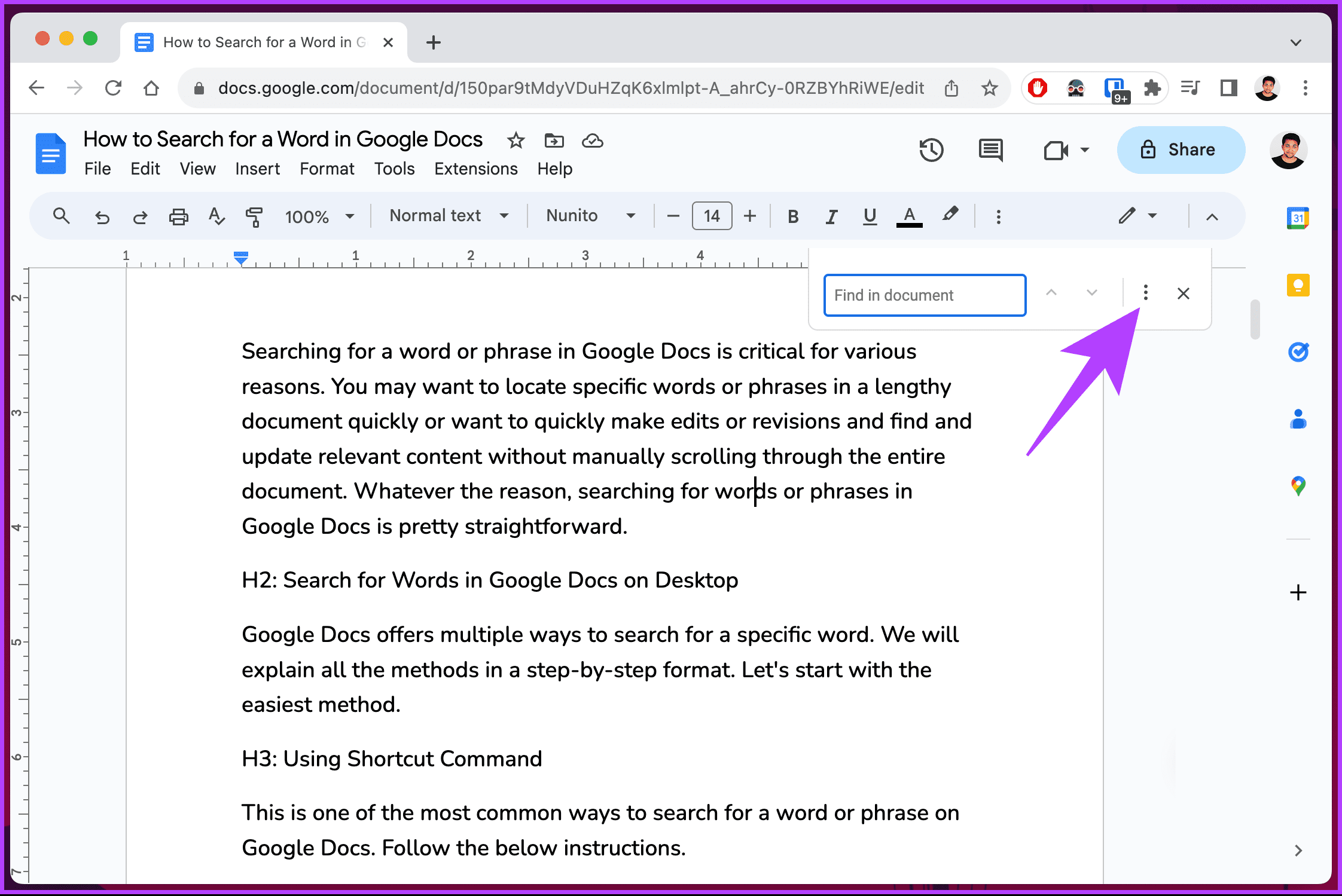
Step 4: Check the box next to Use regular expressions.
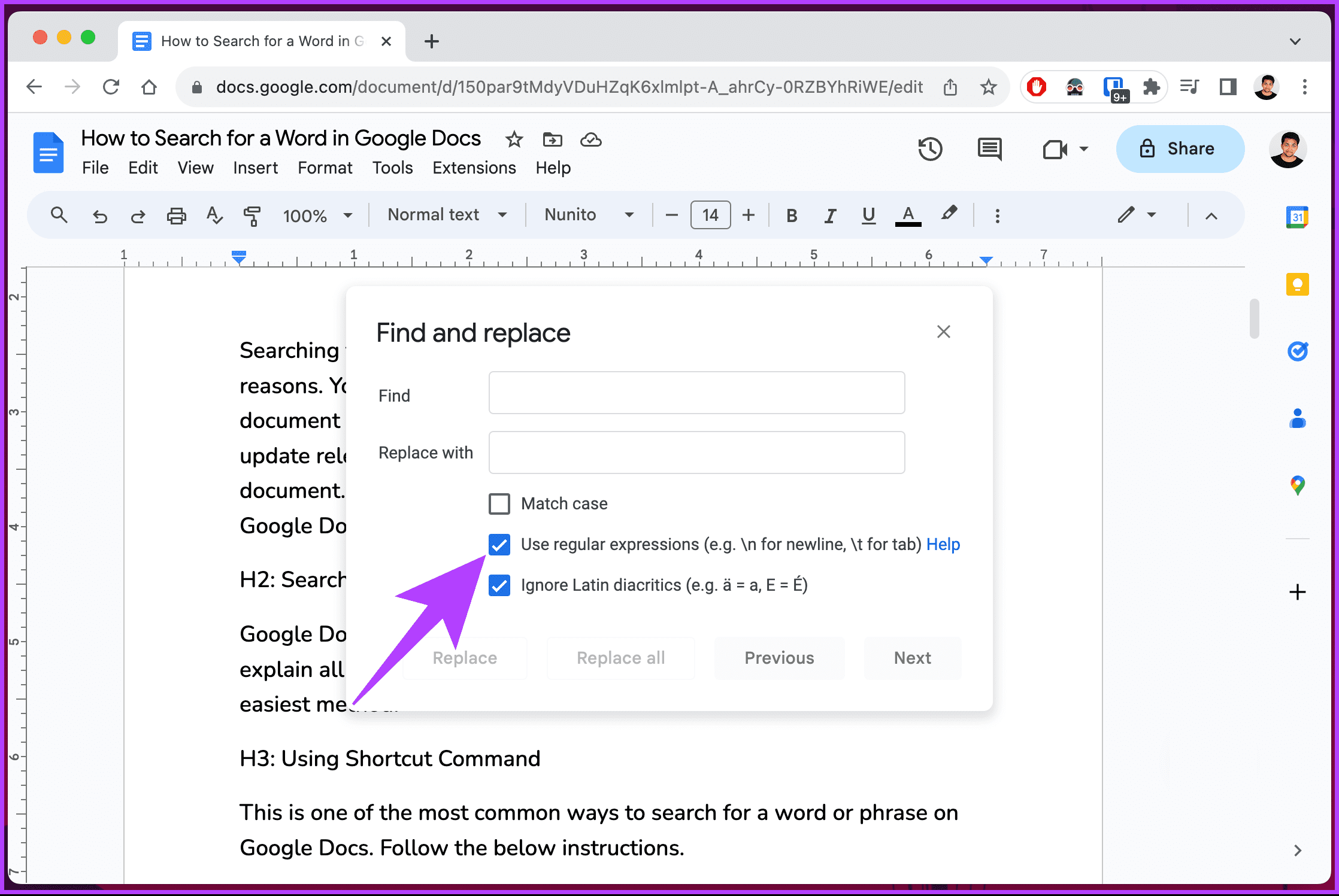
Step 5: Now, enter the regular expressions in the text box adjacent to Find and hit the Enter/Return key on your keyboard. Ex: wo\w
Note: By clicking Previous and Next, you can navigate through all results.

Now you know how to do an advanced search in Google Docs using regular expressions.
Some examples of regular expressions include:
- \s – To replace any whitespace character with a comma. It will replace Hello World with Hello, World, 1 2 3 with 1,2,3, etc.
- favou?r – To search both favor and favour.
- cat\w* – To find any word that starts with cat. For example, this will match cat, catch, caterpillar, etc.
- \w+@\w+\.com – To find any email address that ends with .com. For example, this will match ‘example@gmail.com,’ etc.
- \d{2}/\d{2}/\d{4} – To find any date in the dd/mm/yyyy format. For example, this will match ’14/11/2023,’ ’01/01/2021,’ etc.
If you can’t access your desktop and want to find certain words in Google Docs, continue reading.
How to Search for Words in Google Docs on Mobile
Step 1: Launch the Google Docs app on your Android or iOS device. Then, navigate to the document where you want to search for a word or phrase.
Step 2: In the document, tap the three-dot icon. From the menu, choose Find and replace.
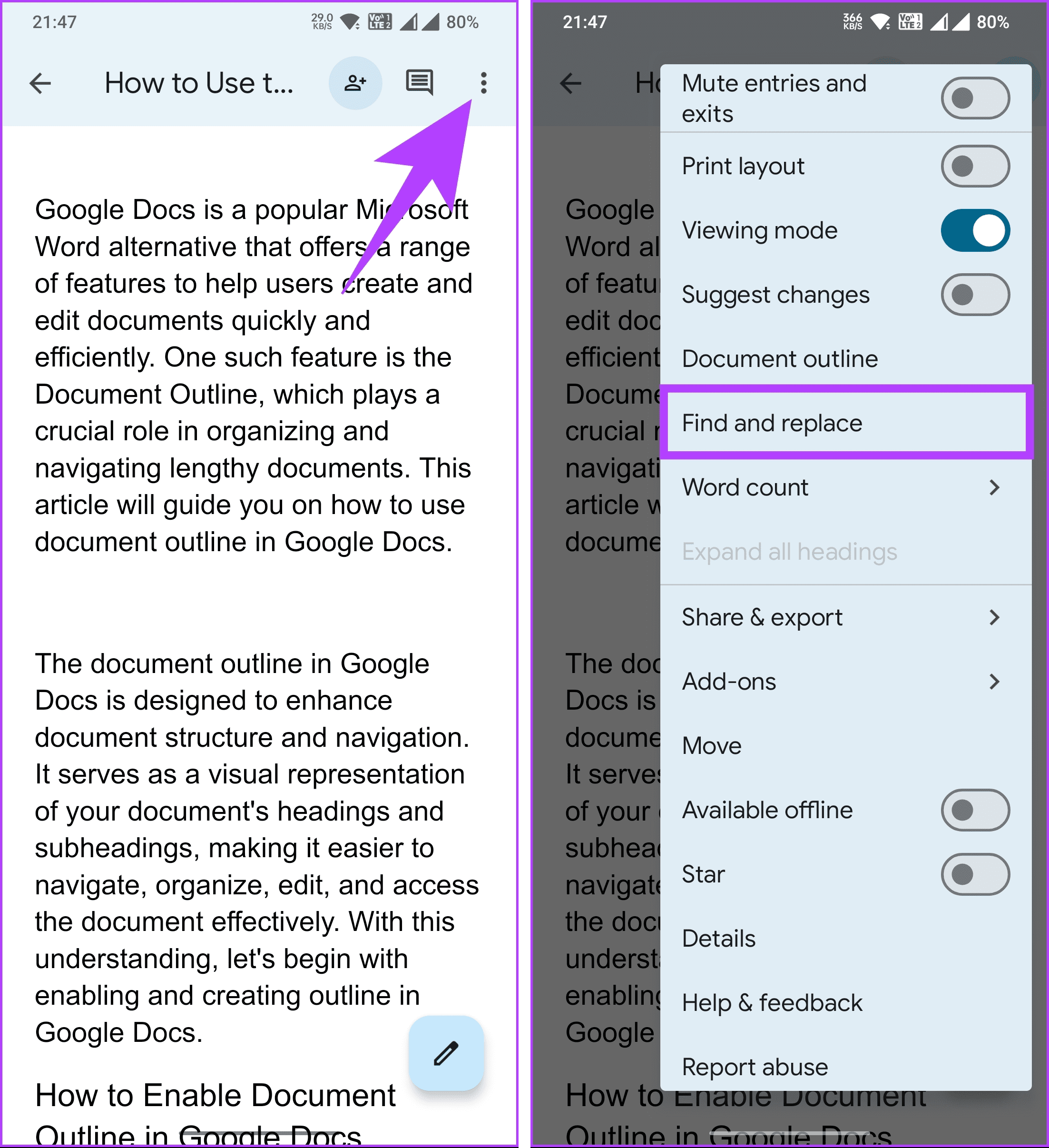
Step 3: Now, type the word you wish to search for and tap the search or enter button. Ex: Google
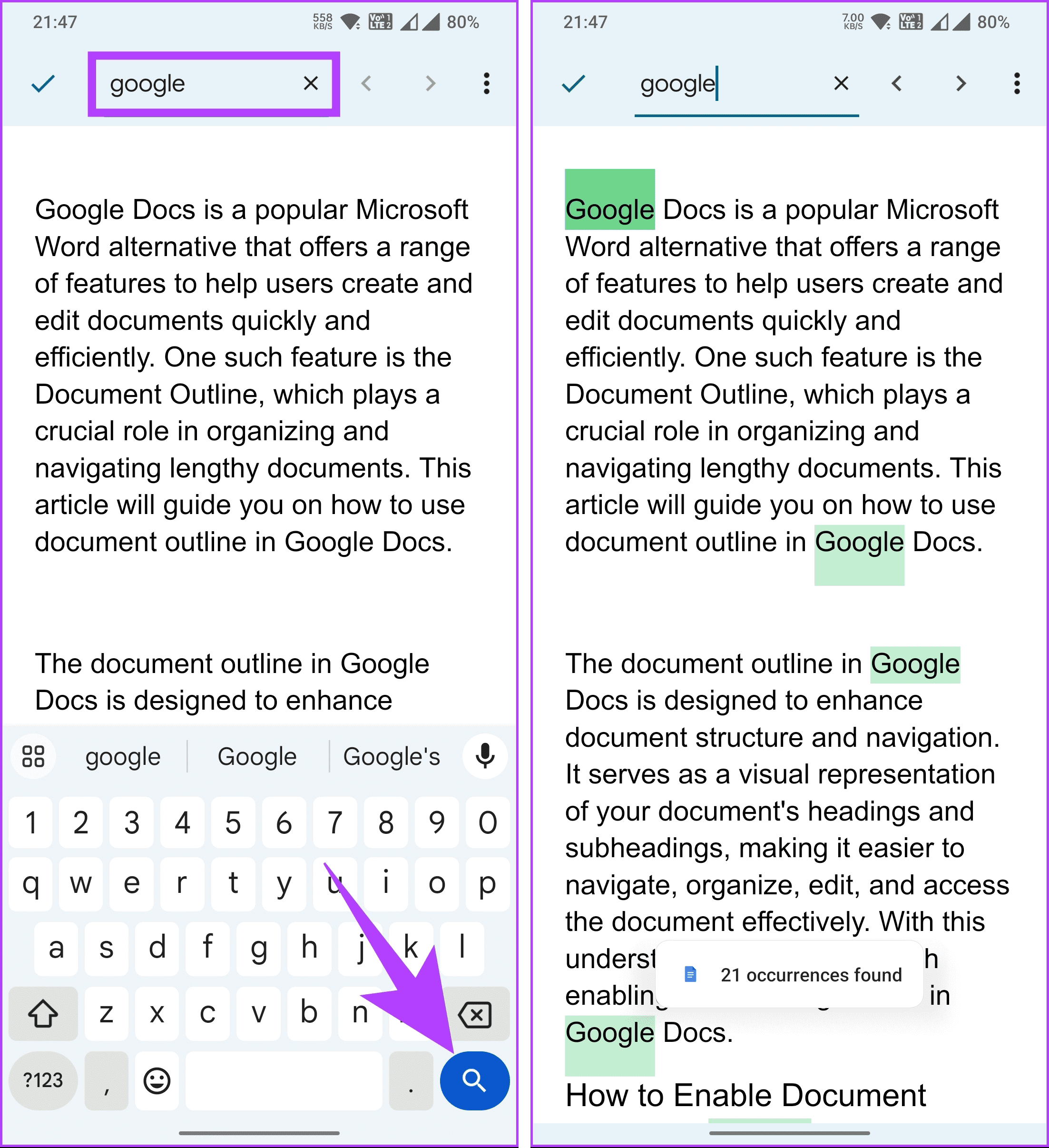
There you go. The result will appear immediately, and you can use the arrows to navigate between the instances of the word.
Continue reading if you can’t search in a Google Docs document.
Why Can’t I Search in Google Docs
- The search functionality might sometimes be temporarily disabled due to updates or maintenance.
- Browser-related issues, such as outdated versions or cache problems, can affect search functionality.
- Complex formatting or embedded elements might hinder search performance.
- Poor or unstable internet connection can hinder the search feature.
- Very large documents may slow down or disrupt search capabilities.
This may resolve any temporary glitches affecting Google Docs search functionality. If nothing works, reach out to Google Docs support.
FAQs on Finding Certain Words in Google Docs
Yes, Google Docs allows you to search for partial words or phrases. When you enter your search term, Google Docs will find all instances that match your input, whether they are complete words or part of a word.
Yes, Google Docs supports searching for words in various languages. It’s not limited to English, and you can search for words in the language of your choice.
To clear the search results in Google Docs, click the X button in the search bar or press Esc on your keyboard.
Now that you know how to search in Google Docs, efficiently navigate documents, edit content, collaborate with others, correct errors, and so on.
Was this helpful?
Last updated on 29 July, 2024
Read Next
 Google Docs vs. Microsoft Word Online: Which Word Processor Is Better
Google Docs vs.
Google Docs vs. Microsoft Word Online: Which Word Processor Is Better
Google Docs vs.
 How to Save Google Docs as PDF on Desktop and Mobile
Save Google Docs as PDF Despite a few differences, the steps are similar for Android, iOS, and Desktop devices.
How to Save Google Docs as PDF on Desktop and Mobile
Save Google Docs as PDF Despite a few differences, the steps are similar for Android, iOS, and Desktop devices.
 How to Use Voice Typing on Google Docs on Mobile and Desktop
While Google Docs is primarily geared toward drafting formal letters, invites, meeting notes, and table of contents, you can also use it to jot down ideas or as a journal.
How to Use Voice Typing on Google Docs on Mobile and Desktop
While Google Docs is primarily geared toward drafting formal letters, invites, meeting notes, and table of contents, you can also use it to jot down ideas or as a journal.
 How to Convert Google Forms to PDF, Google Docs, or Word
How to Convert Google Forms to PDF Google Forms doesn’t have a native option to convert it into PDF.
How to Convert Google Forms to PDF, Google Docs, or Word
How to Convert Google Forms to PDF Google Forms doesn’t have a native option to convert it into PDF.
 How to Delete a Word Document on Desktop, Web, and Mobile
Deleting a Word document may seem straightforward, but the process can vary across platforms.
How to Delete a Word Document on Desktop, Web, and Mobile
Deleting a Word document may seem straightforward, but the process can vary across platforms.
 How to Give and Revoke Permission to Edit Google Docs on Mobile and Web
How to Give Permission to Edit Google Docs on PC Since a Google Docs document can be shared in two ways, the steps to grant or revoke the permission to
How to Give and Revoke Permission to Edit Google Docs on Mobile and Web
How to Give Permission to Edit Google Docs on PC Since a Google Docs document can be shared in two ways, the steps to grant or revoke the permission to
 How to Insert and Edit Pictures in Google Docs on Mobile and PC
How to Insert a Picture in Google Docs on PC Drag and drop: Open the Google Docs document and place your cursor where you want to insert the image.
How to Insert and Edit Pictures in Google Docs on Mobile and PC
How to Insert a Picture in Google Docs on PC Drag and drop: Open the Google Docs document and place your cursor where you want to insert the image.
 A Guide to Using the Search Bar and Search Operators in Microsoft Outlook
How to Use the Microsoft Outlook Search Bar There are two ways to use the Microsoft Outlook Search bar.
A Guide to Using the Search Bar and Search Operators in Microsoft Outlook
How to Use the Microsoft Outlook Search Bar There are two ways to use the Microsoft Outlook Search bar.
The article above may contain affiliate links which help support Guiding Tech. The content remains unbiased and authentic and will never affect our editorial integrity.