Types of Attachments Supported by Google Docs
Besides charts, tables, and drawings, you can add images in all formats, such as JPG, PNG, GIFs, etc., to Docs. However, you cannot add PDF files to it. Now, PDF files are important to mention here because scanned documents are usually saved as PDFs.
So, what’s the alternative? Keep reading.
Method 1: Save the Scanned Document as JPG in Google Docs
Instead of saving the scanned files in the PDF format, you must save them as JPGs. Fortunately, many scanner apps provide both saving options. You can try the following apps:
Once you save your scanned document as an image, it’s time to add it to Google Docs. For that, follow these steps:
Step 1: Launch the Google Docs app on your phone. Then, open the document where you want to add the scanned image.
Step 2: Once in the document, tap wherever you want to add the scanned image and hit the add icon at the top.
Step 3: From the menu, select Image, followed by From photos.


Step 4: Navigate to the scanned image. It will be added to your document.
The above method has a limitation if you have a multi-page document. In that case, you must scan and insert every page individually.
Method 2: Directly Add an Image From the Phone Camera
In the past few years, smartphone cameras have improved significantly. You can use them directly to insert a photo in Docs. That is, instead of using a scanner app first, capture a picture right from the camera in the Google Docs app and add it to your document.
Open Google Docs > tap the Plus icon > Images > From camera > choose the image from the Gallery app.

The only limitation of this method is that you need to position the camera to fit the document without any useless parts. That’s not the case with scanner apps. They recognize the outlines of your document and thereby make it easy to keep only the necessary portions.
Method 3: Attach Google Drive Link for Images
In this method, you will learn to attach the Google Drive link of the scanned file (could be an image or a PDF file) instead of the actual photo. The receiver needs to click on the link to view the scanned image.
To do so, follow these steps:
Step 1: Open the Google Drive app on your iPhone or Android and tap the Scan icon at the bottom-right corner.
Step 2: After scanning your document, it gets saved as a PDF file. Tap on Save at the top right to confirm.


Step 3: Open the newly created PDF file and hit the three-dot icon at the top. From the menu, tap on Copy Link.
Step 4: Open the Google Docs document and hit the Plus icon at the top. Choose From web.
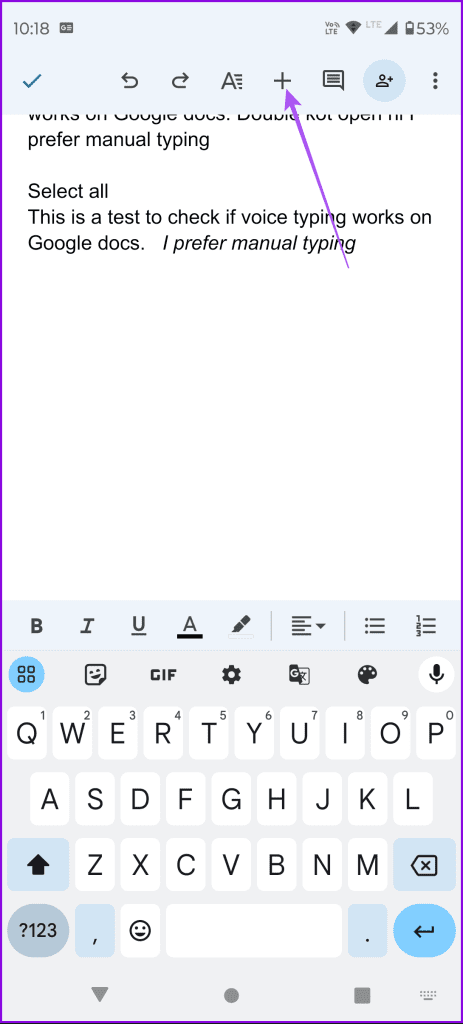

Step 5: Enter the text to display over the link and paste the link in the Link box. Hit the check icon at the top. The link will be added to your document.
Scan Documents Using Google Drive
Well, why not use the built-in scan functionality of Google Drive to insert it into Google Docs? That’s because Google Drive saves the scanned documents as PDFs and as mentioned before, Google Docs doesn’t let you add PDFs.
However, Drive has an amazing feature on its website that lets you extract and insert text from scanned documents into Docs. You can use this feature to extract text from any image or PDF file.
Step 1: For that, first, scan the document using the native scan feature of the Drive app. Next, you must use Google Drive on your computer.
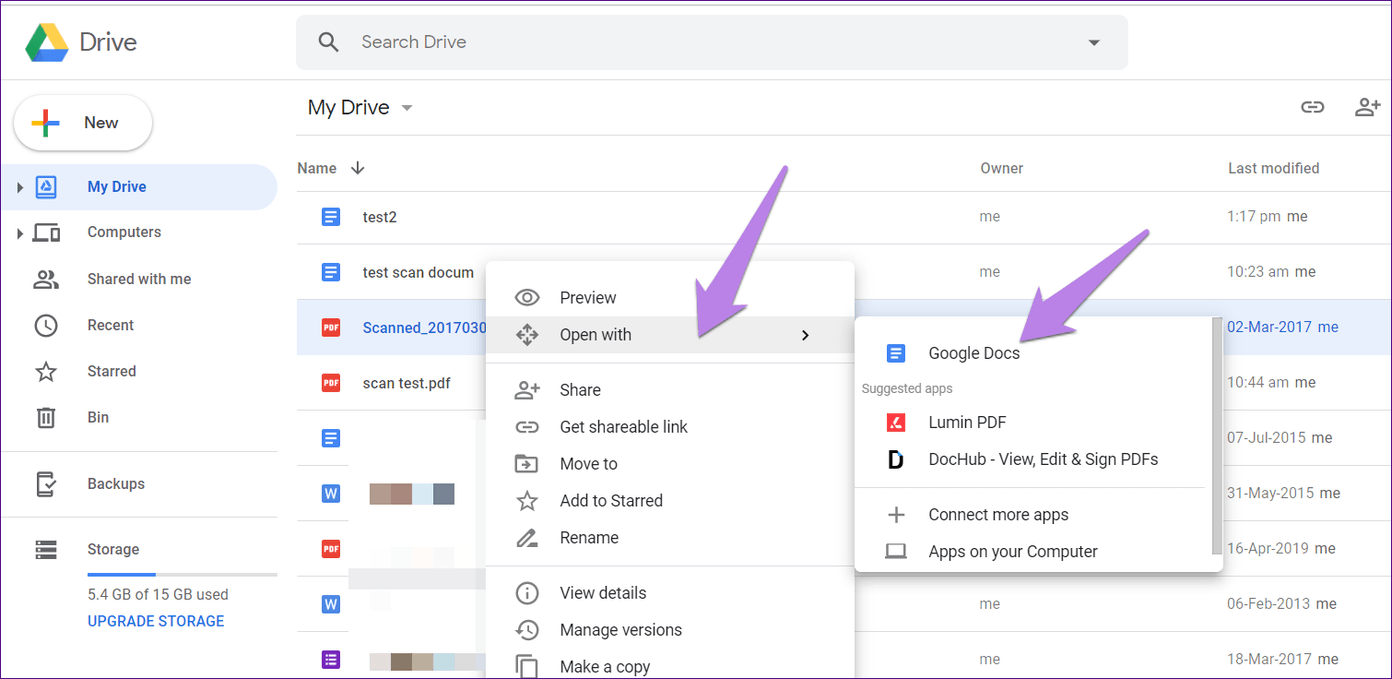
Step 2: Open the Google Drive website > right-click on the PDF file whose text you want to extract in Docs. From the menu, select Open with > Google Docs. You will be taken to the Docs website with your PDF successfully converted into text.
Was this helpful?
Last updated on 23 August, 2024
Read Next
 How to Insert Videos in a Microsoft Word Document
How to Insert an Online Video in Microsoft Word Microsoft Word for desktop allows you to insert videos from Vimeo, YouTube, and SlideShare.
How to Insert Videos in a Microsoft Word Document
How to Insert an Online Video in Microsoft Word Microsoft Word for desktop allows you to insert videos from Vimeo, YouTube, and SlideShare.
 3 Ways to Insert an Excel Spreadsheet into a Word Document
Method 1: Using the Insert Table Option The Insert tab on the Word Ribbon has different options, including an Insert Table button, which can be used to insert an Excel
3 Ways to Insert an Excel Spreadsheet into a Word Document
Method 1: Using the Insert Table Option The Insert tab on the Word Ribbon has different options, including an Insert Table button, which can be used to insert an Excel
 How to Insert a Date Picker in Google Sheets and Google Docs
Google Sheets and Google Docs provide a free, online alternative to Microsoft Office, along with unique features.
How to Insert a Date Picker in Google Sheets and Google Docs
Google Sheets and Google Docs provide a free, online alternative to Microsoft Office, along with unique features.
 2 Ways to Convert Google Docs Document to JPEG
Method 1: Use an Online Converter Certain online converters can convert docx or PDF files to jpeg.
2 Ways to Convert Google Docs Document to JPEG
Method 1: Use an Online Converter Certain online converters can convert docx or PDF files to jpeg.
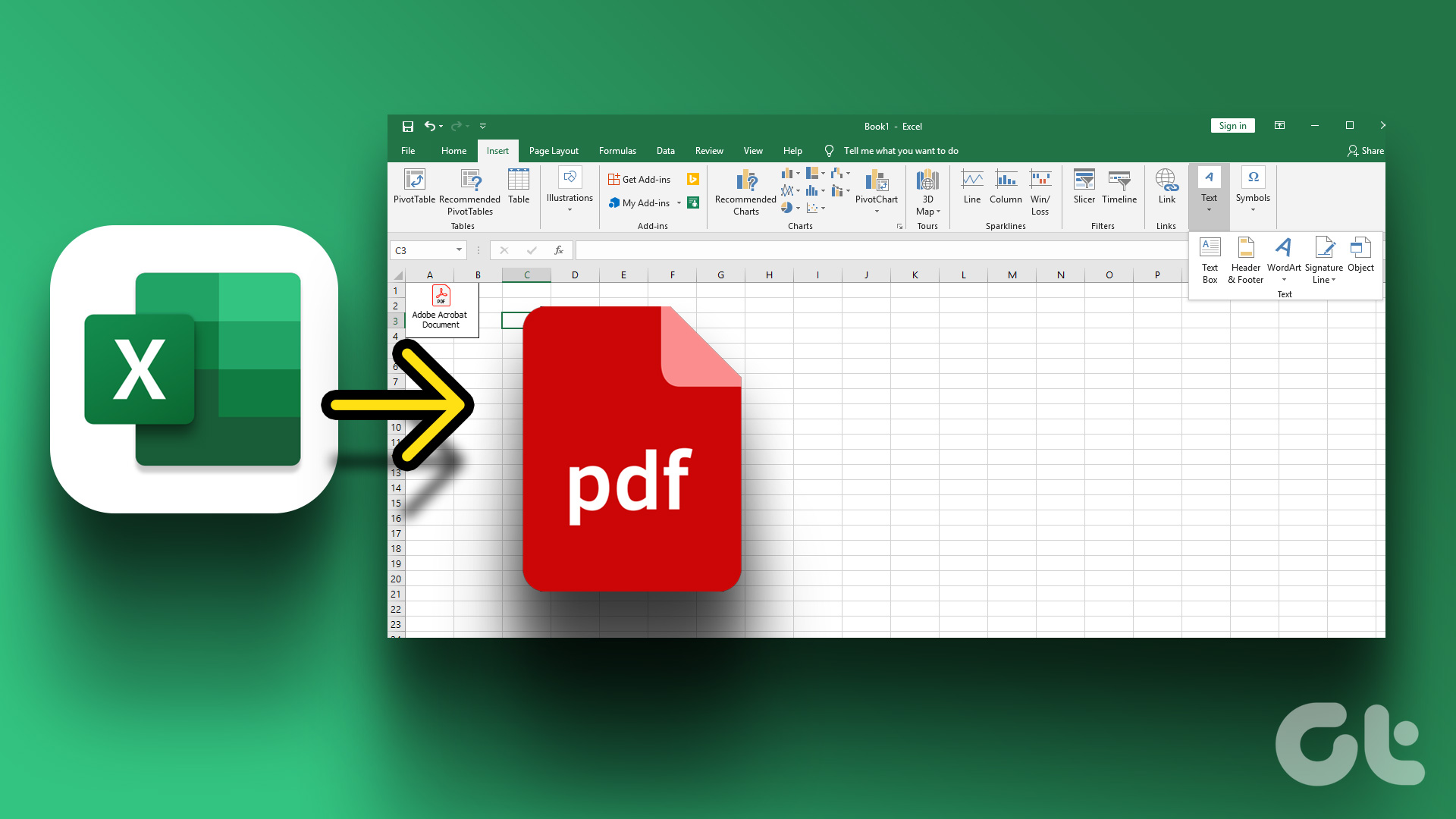 3 Ways to Insert a PDF Document into an Excel Spreadsheet on Windows
Method 1: Insert a PDF Document in Excel Spreadsheet Here's how you can insert a PDF into Excel and make sure the document is visible and easily accessible on the
3 Ways to Insert a PDF Document into an Excel Spreadsheet on Windows
Method 1: Insert a PDF Document in Excel Spreadsheet Here's how you can insert a PDF into Excel and make sure the document is visible and easily accessible on the
 4 Ways to Insert an Arrow in Word Document
Method 1: How to Add Arrows in Word Using Shapes On PC or Mac Step 1: Open the Word document where you want to add an arrow.
4 Ways to Insert an Arrow in Word Document
Method 1: How to Add Arrows in Word Using Shapes On PC or Mac Step 1: Open the Word document where you want to add an arrow.
 3 Ways to Send Scanned Documents From iPhone Notes
Method 1: Send in Apps Directly The Notes app automatically creates a PDF file when you scan documents.
3 Ways to Send Scanned Documents From iPhone Notes
Method 1: Send in Apps Directly The Notes app automatically creates a PDF file when you scan documents.
 How to Insert Endnotes and Footnotes in Google Docs
How to Insert a Footnote in Google Docs On Web Step 1: Go to Google Docs and open the file where you want to add the endnotes or footnotes.
How to Insert Endnotes and Footnotes in Google Docs
How to Insert a Footnote in Google Docs On Web Step 1: Go to Google Docs and open the file where you want to add the endnotes or footnotes.
The article above may contain affiliate links which help support Guiding Tech. The content remains unbiased and authentic and will never affect our editorial integrity.