Method 1: Restore Chrome Icon From Start Menu
One of the easiest ways to put the Google Chrome icon on your desktop is to drag and drop it from the Start Menu. Here’s how to go about it.
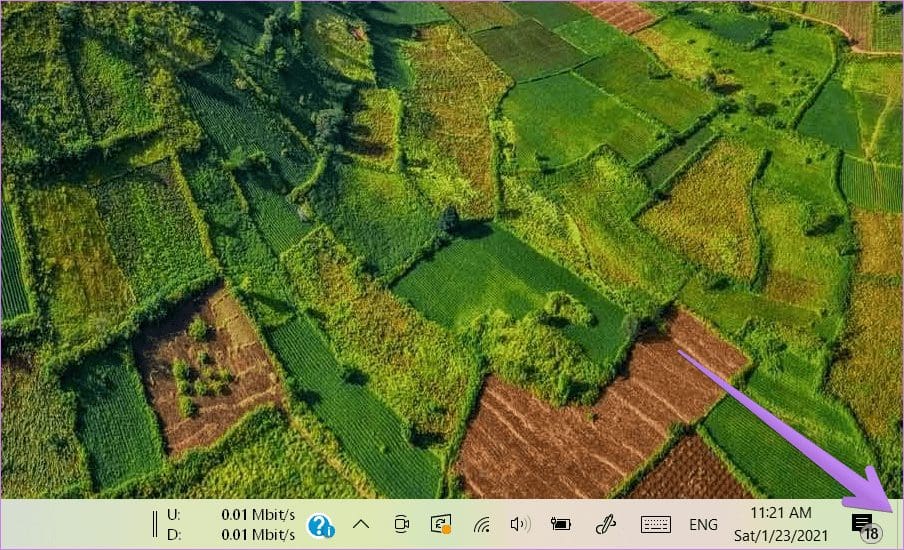
Step 1: Minimize all the open windows on your computer so that only the desktop is visible. You can press the Show desktop icon present at the bottom-right corner too.
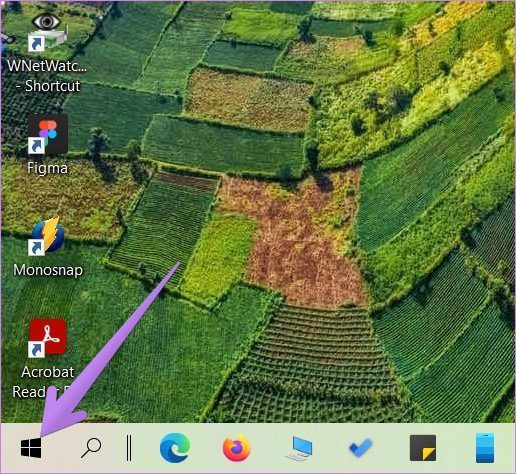
Step 2: Open the Start Menu on your computer by clicking the Start Menu icon. Alternatively, press the Windows key on your keyboard to open the Start Menu.
Step 3: Look for Google Chrome from the list of apps. Now drag and drop it onto the desktop.
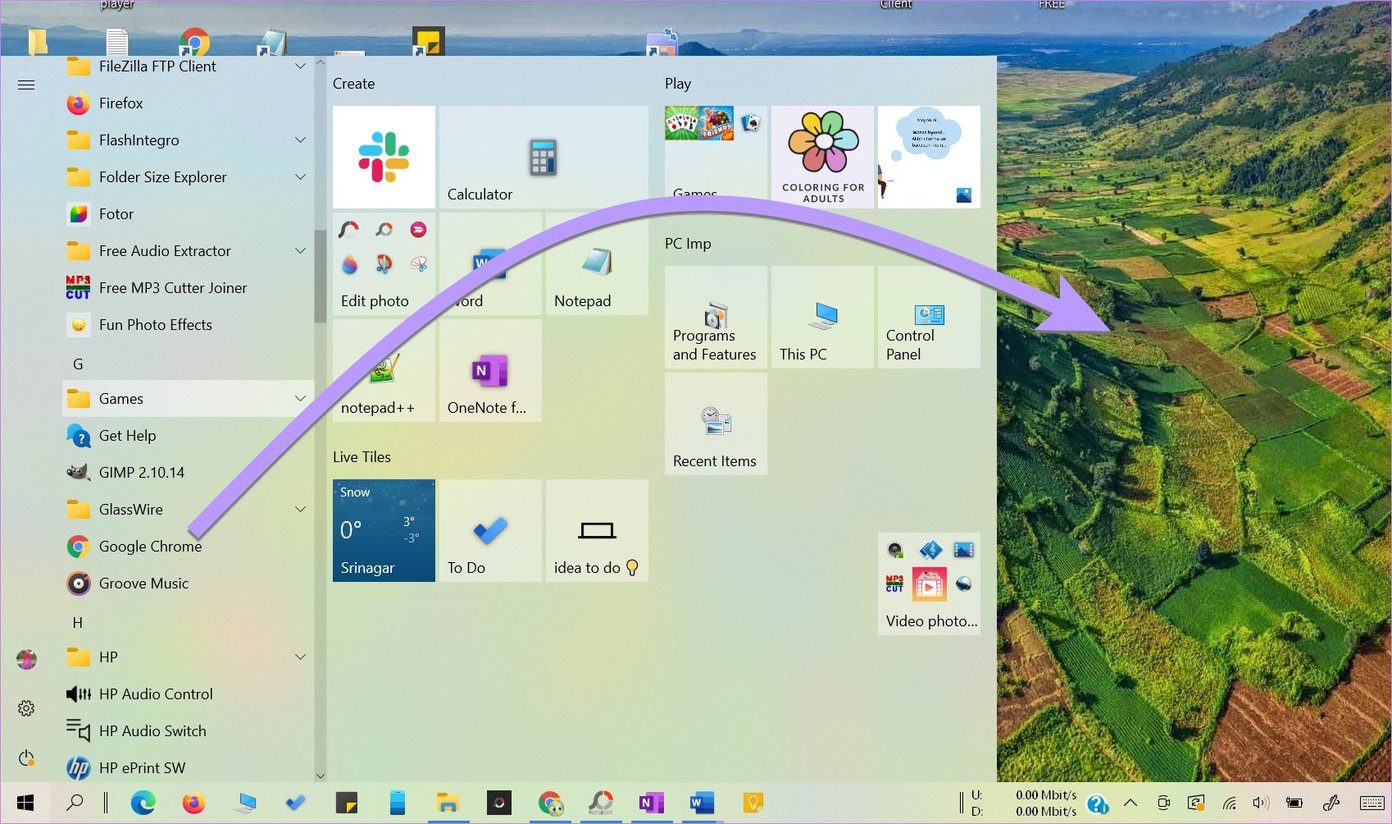
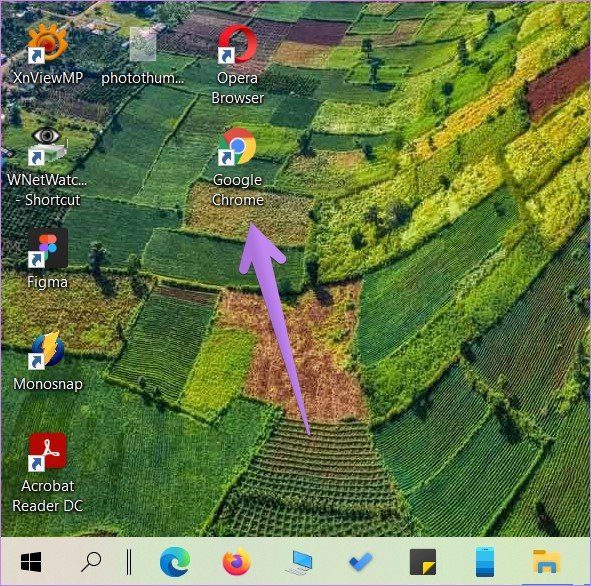
The Google Chrome icon will appear on the desktop. You can move it and place it anywhere you like.
Tip: You can also pin Chrome to Start Menu tiles as well. For that, right-click on Google Chrome and select Pin to Start Menu.
Method 2: Add Chrome Icon From Search
Step 1: Open Windows search on your computer and type Chrome.
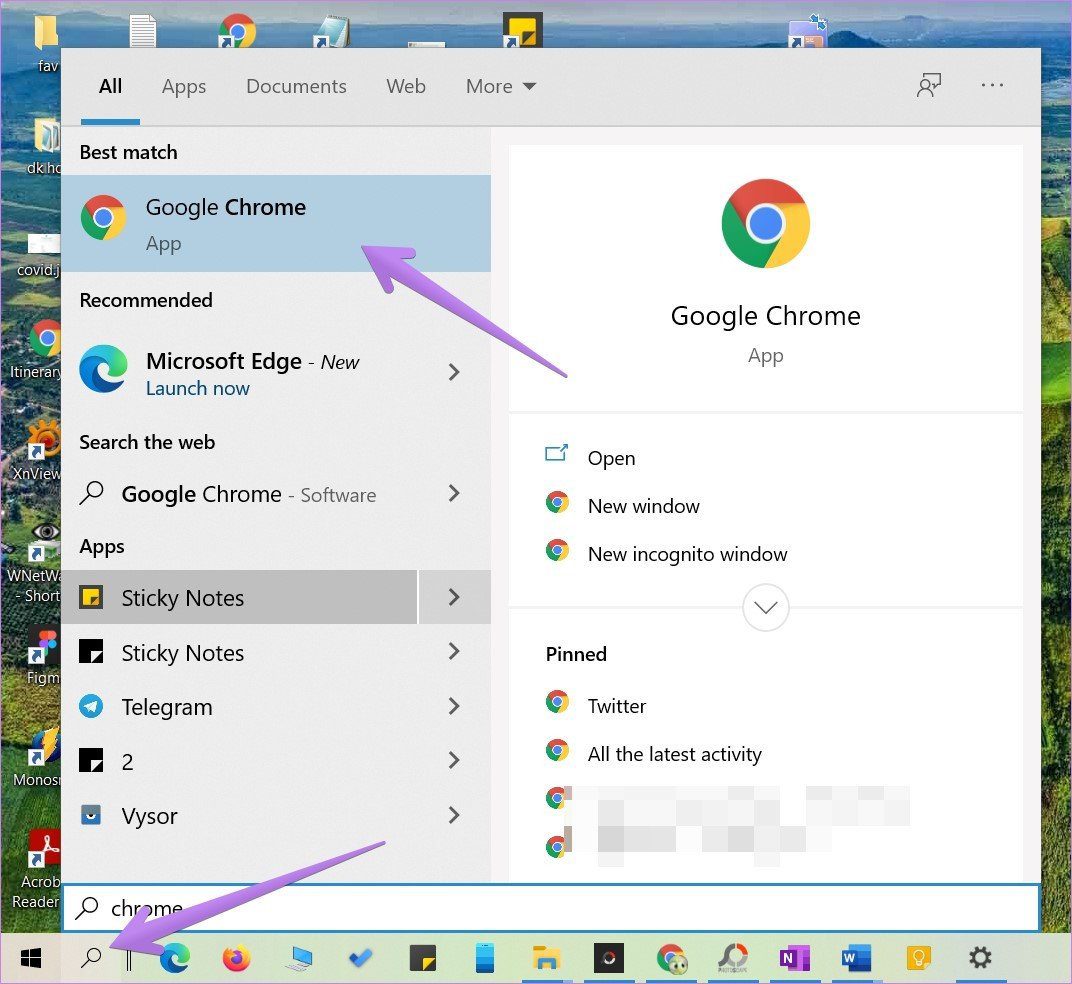
Step 2: Right-click the Chrome icon and select Open file location.

Tip: You can right-click on the Chrome icon from the Start Menu as well and select Open file location.
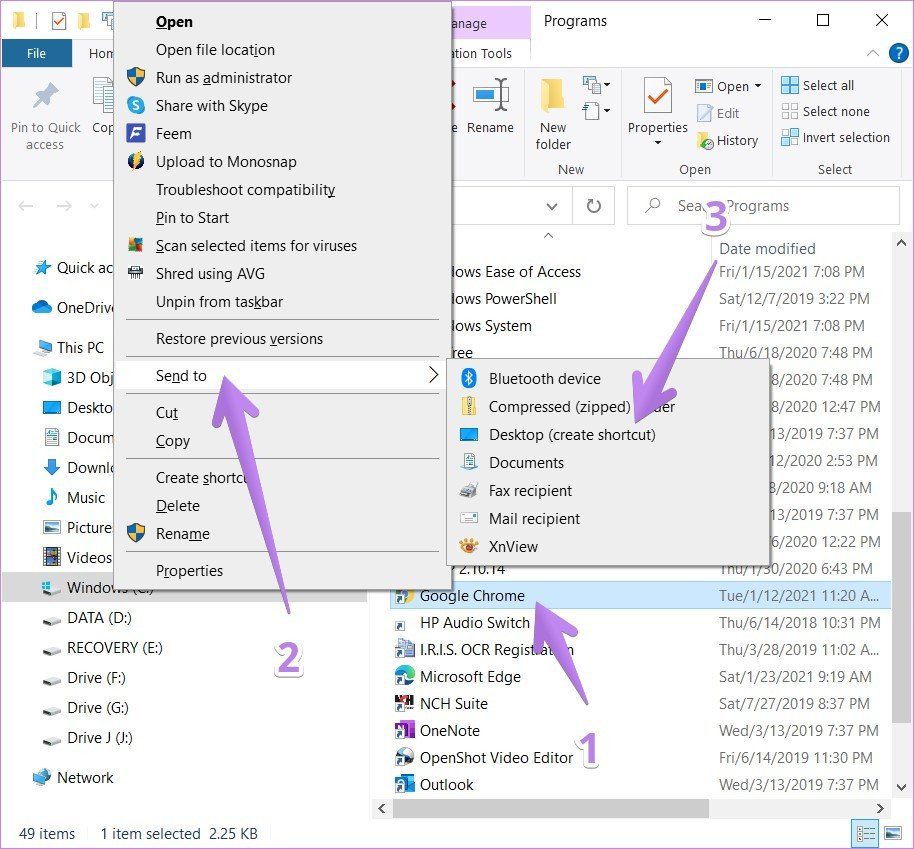
Step 3: A new window will open. Right-click the Chrome icon and select Send to > Desktop (create shortcut). Go to your desktop and you will see the new Chrome icon.
Method 3: Restore the Chrome Icon From File Explorer
If the above two methods did not work, here’s another way to add a Chrome icon to your desktop.
Step 1: Open File Explorer on your PC. You can open it by pressing the Windows key + E shortcut.
Step 2: Go to C Drive > Program Files(X86) > Google > Chrome > Application.
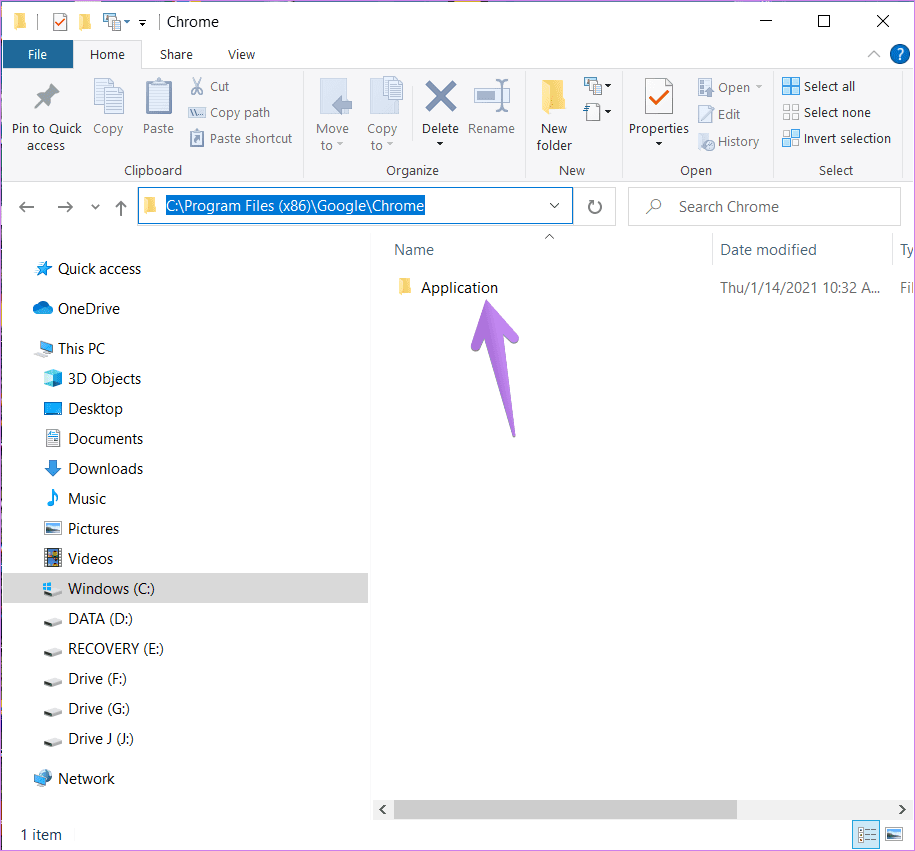
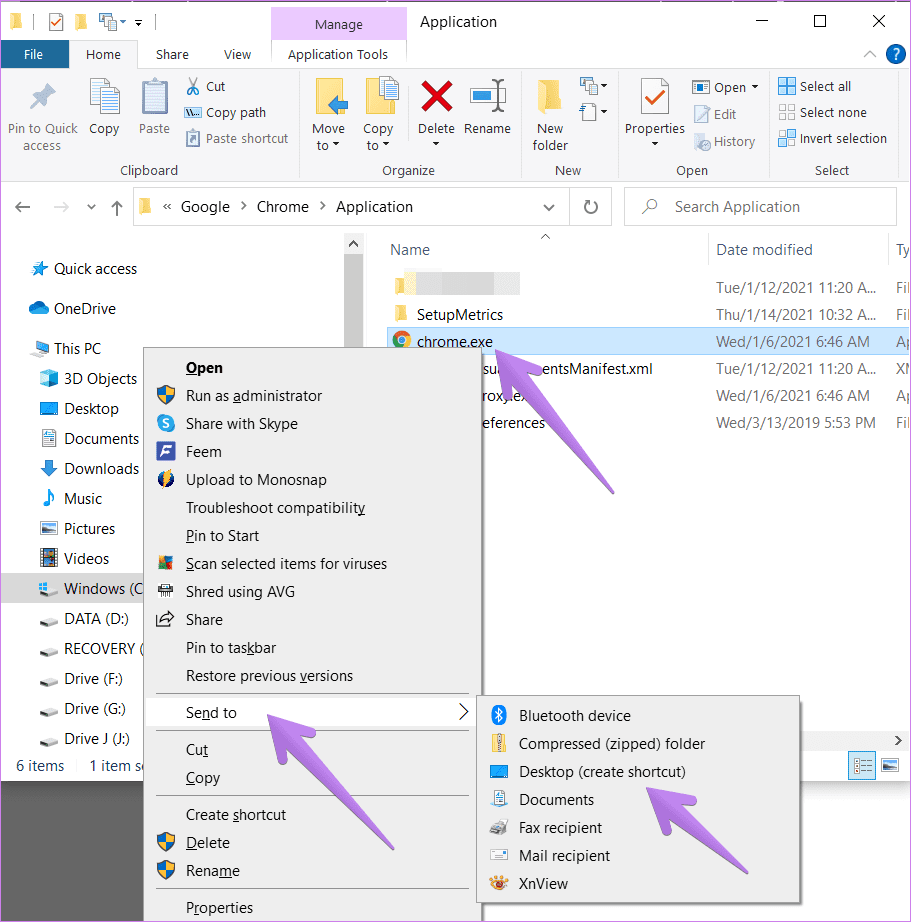
Step 3: Inside the Application folder, you will find the Chrome.exe file. Now you can drag and drop this file on your desktop to create its shortcut. Alternatively, right-click on Chrome.exe and go to Send to > Desktop (create shortcut).
Method 4: Pin Google Chrome to The Taskbar
Apart from adding a Chrome icon to the desktop, you can even pin it to your taskbar. For that, look for Google Chrome in the Start Menu. Alternatively, type Chrome in Windows search. Right-click the Chrome icon from any of the two places and select More > Pin to taskbar.
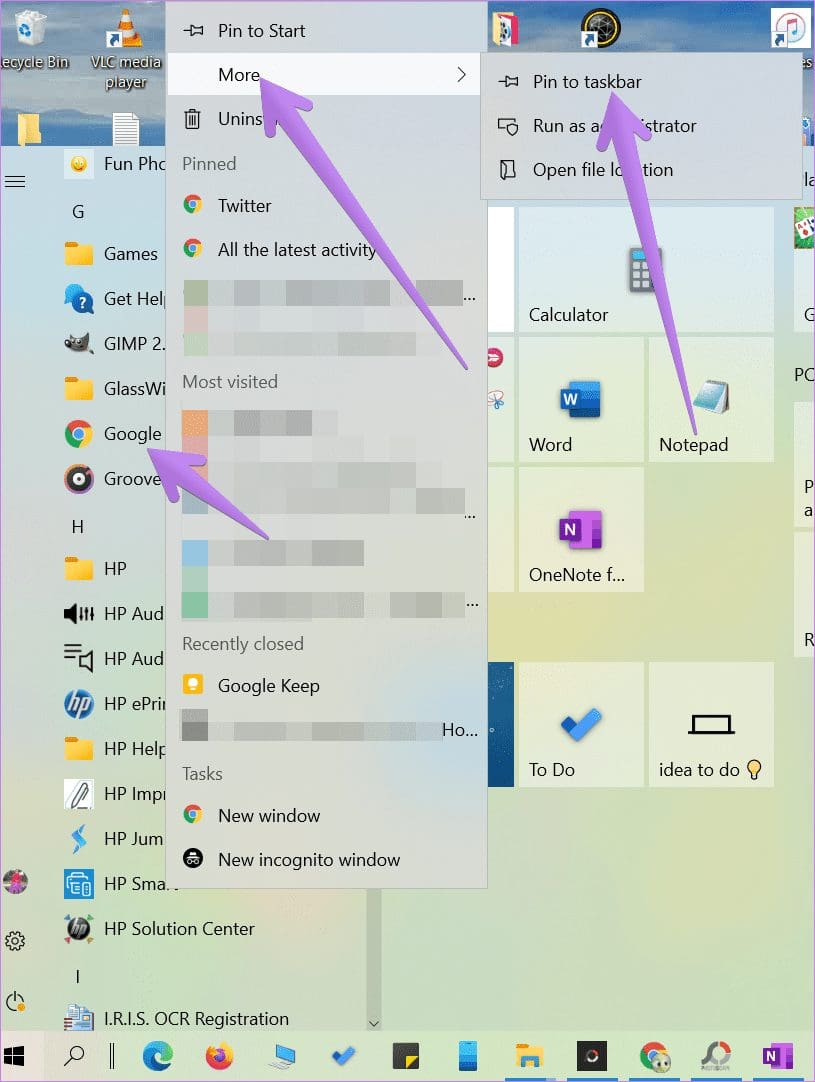
In case you see Unpin from the taskbar, but the Chrome icon doesn’t appear in the taskbar or doesn’t open when you click on it, click on Unpin from the taskbar. That will remove it from the taskbar. Now pin it again as shown above.
Method 5: Fix and Restore Blank Chrome Icon
Often, the Chrome icon shows a blank image instead of the regular icon. In such cases, you can delete that icon and add a new icon to the desktop, as shown using the above three methods. Alternatively, you can simply change Chrome’s icon as shown below.
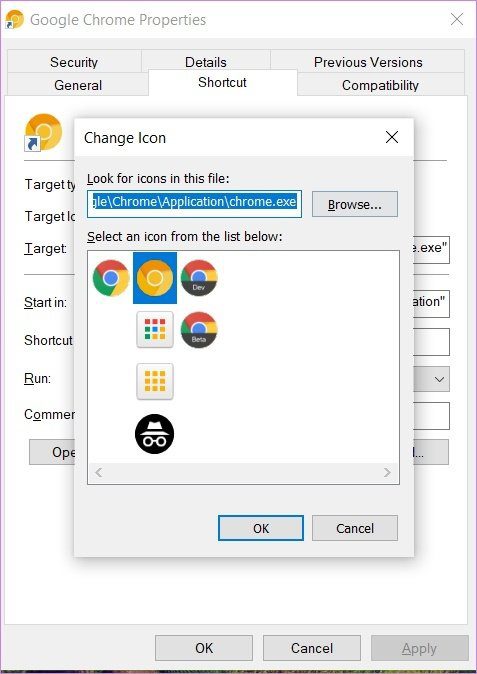
Step 1: Right-click the problematic Chrome icon on the desktop. Go to Properties.

Step 2: Click on the Change Icon button under the Shortcut tab.
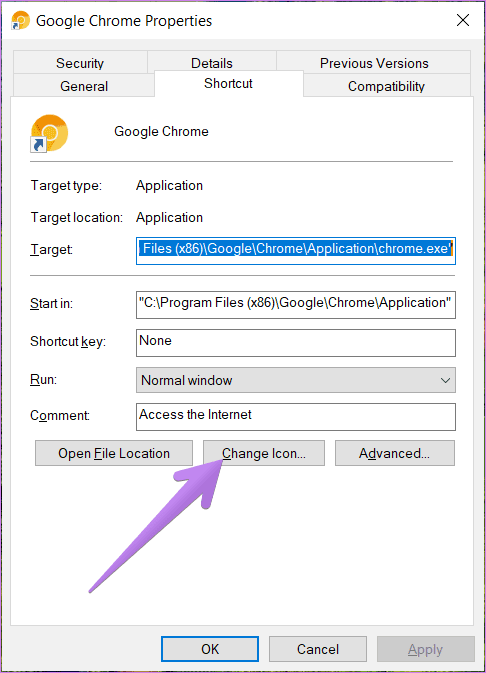
Step 3: Select a new icon from the Change icon window and hit Ok followed by Apply.
Method 6. Reinstall Chrome
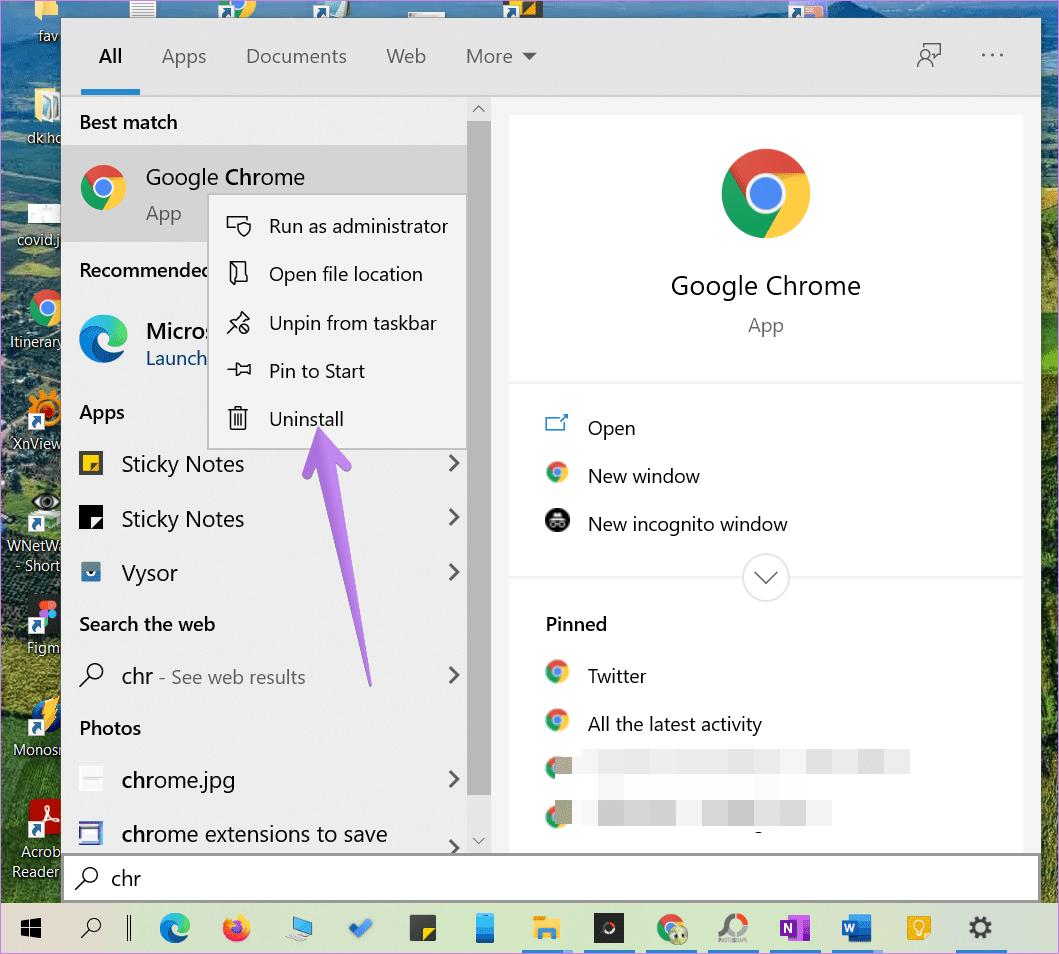
If by following the above methods you are still unable to add the Chrome icon to the desktop, you should re-install Chrome. For that, first, uninstall Chrome by right-clicking the Chrome icon in the Start Menu. Select Uninstall.
Once uninstalled, restart the computer. Then install Chrome again. The issue might have occurred due to corrupted or outdated files. Reinstalling should fix it.
Moreover, don’t forget to keep your Chrome browser updated, it keeps issues like Chrome not opening or Chrome keeps changing themes at bay.
Was this helpful?
Last updated on 15 August, 2024
Read Next
 How to Restore the Missing Google Chrome Toolbar
Fix 1: Re-Enable or Reinstall Extensions If Chrome is not showing your favorite extensions on the toolbar, try disabling and re-enabling them.
How to Restore the Missing Google Chrome Toolbar
Fix 1: Re-Enable or Reinstall Extensions If Chrome is not showing your favorite extensions on the toolbar, try disabling and re-enabling them.
 5 Ways to Restore the Missing Personal Hotspot on iPhone
Try Basic Fixes Check with your carrier: It's important to note that not all cellphone carriers or cellular plans support the Personal Hotspot feature on the iPhone.
5 Ways to Restore the Missing Personal Hotspot on iPhone
Try Basic Fixes Check with your carrier: It's important to note that not all cellphone carriers or cellular plans support the Personal Hotspot feature on the iPhone.
 7 Ways to Solve Safely Remove Hardware Icon Missing in Windows 10
Windows often advices to use the Safely Remove Hardware option before unplugging any USB device from a PC.
7 Ways to Solve Safely Remove Hardware Icon Missing in Windows 10
Windows often advices to use the Safely Remove Hardware option before unplugging any USB device from a PC.
 How to Get Back a Missing OneDrive Icon on Windows 10 Taskbar
The OneDrive icon on the Windows 10 system tray isn’t just another meaningless icon.
How to Get Back a Missing OneDrive Icon on Windows 10 Taskbar
The OneDrive icon on the Windows 10 system tray isn’t just another meaningless icon.
 How to Restore Tabs & Save Tab Groups In Google Chrome
Usually when Google Chrome crashes, it gives you a restore tabs option when you open the chrome browser again.
How to Restore Tabs & Save Tab Groups In Google Chrome
Usually when Google Chrome crashes, it gives you a restore tabs option when you open the chrome browser again.
 How to Save Tabs Before Closing Chrome and Restore Lost Ones
Use Built-In Chrome Feature to Reopen Tabs Automatically Google Chrome has a native feature to open the last used tabs automatically.
How to Save Tabs Before Closing Chrome and Restore Lost Ones
Use Built-In Chrome Feature to Reopen Tabs Automatically Google Chrome has a native feature to open the last used tabs automatically.
 Missing Cast Option in Chrome? Here’s How to Add It Back to the Toolbar
Chrome lets you cast your browser tabs or the entire screen to all the nearby devices with Chromecast support.
Missing Cast Option in Chrome? Here’s How to Add It Back to the Toolbar
Chrome lets you cast your browser tabs or the entire screen to all the nearby devices with Chromecast support.
 How to Bring Back the Missing “Customize Chrome” Button
Fix 1: Check the Requirements First things first.
How to Bring Back the Missing “Customize Chrome” Button
Fix 1: Check the Requirements First things first.
The article above may contain affiliate links which help support Guiding Tech. The content remains unbiased and authentic and will never affect our editorial integrity.