Fix 1. Clear Data to Reset All Settings
If you want to completely reset the Samsung message settings to their default values, you must clear the data of the Samsung Messages app. Doing so will not delete your messages but reset all the customizations you made in the Messages app to default values.
Step 1: Open Settings on your phone.
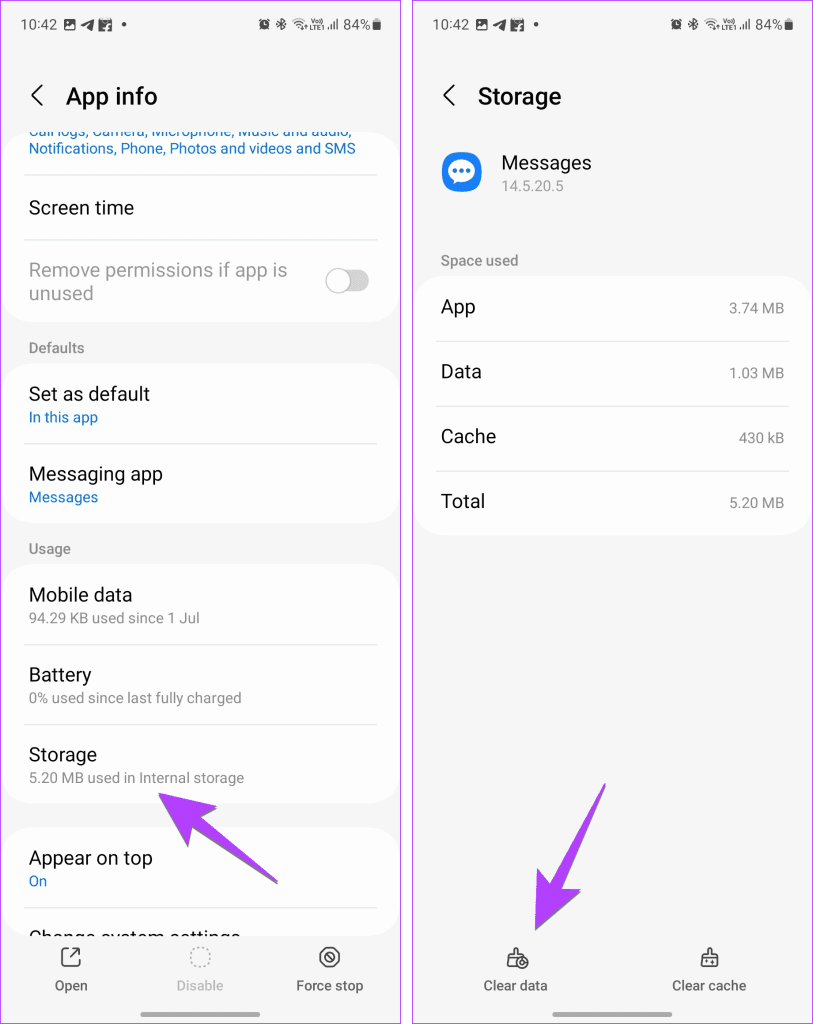
Step 2: Go to Apps > Messages.
Step 3: Tap on Storage > Clear data. A confirmation pop-up will appear. Tap on Clear to reset text message settings.
Tip: Some Samsung Galaxy phones come with Google Messages app pre-installed. If you use the Google Messages app instead of Samsung Messages, select the Google Messages app in step 2 instead of the Samsung app.
Fix 2. Reset Chat Room Background
If you’ve customized the chat room background in the Messages app, follow these steps to reset it to the default setting:
Step 1: In the Samsung Messages app, open the chat room whose chat background you want to reset to default.
Step 2: Tap on the three-dot icon and select Customize chat room.
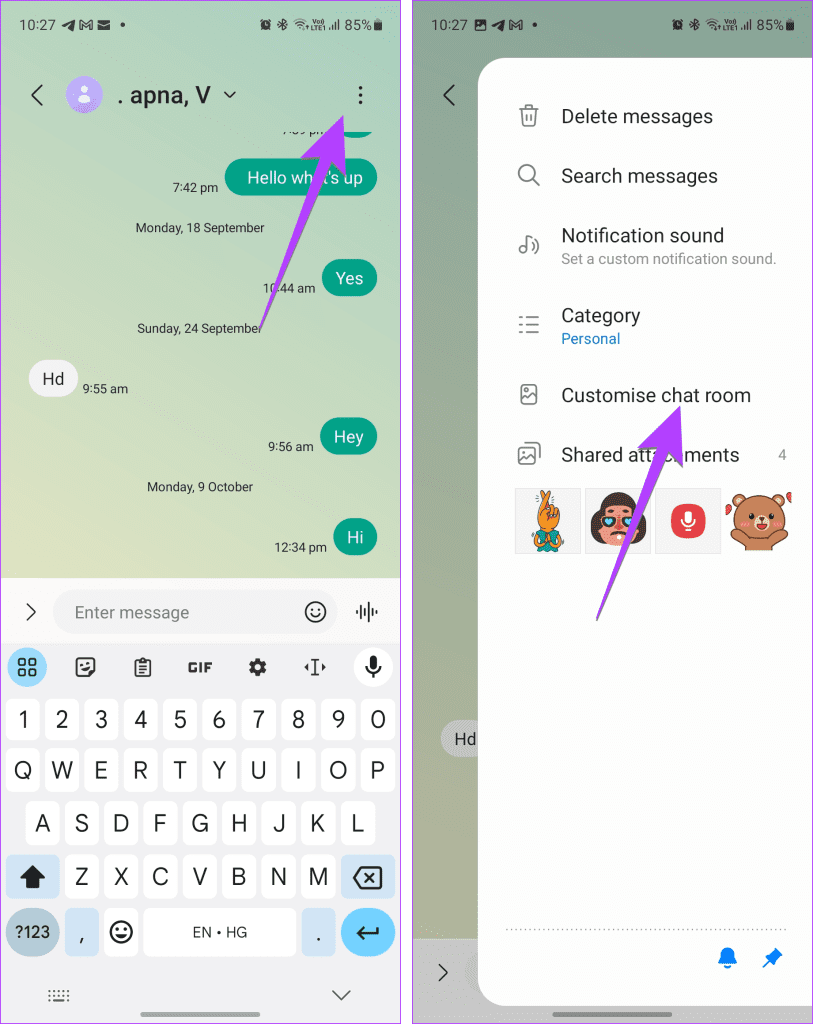
Step 3: Tap on Reset at the top. A confirmation pop-up will appear. Tap on Reset to change the chat room’s appearance.
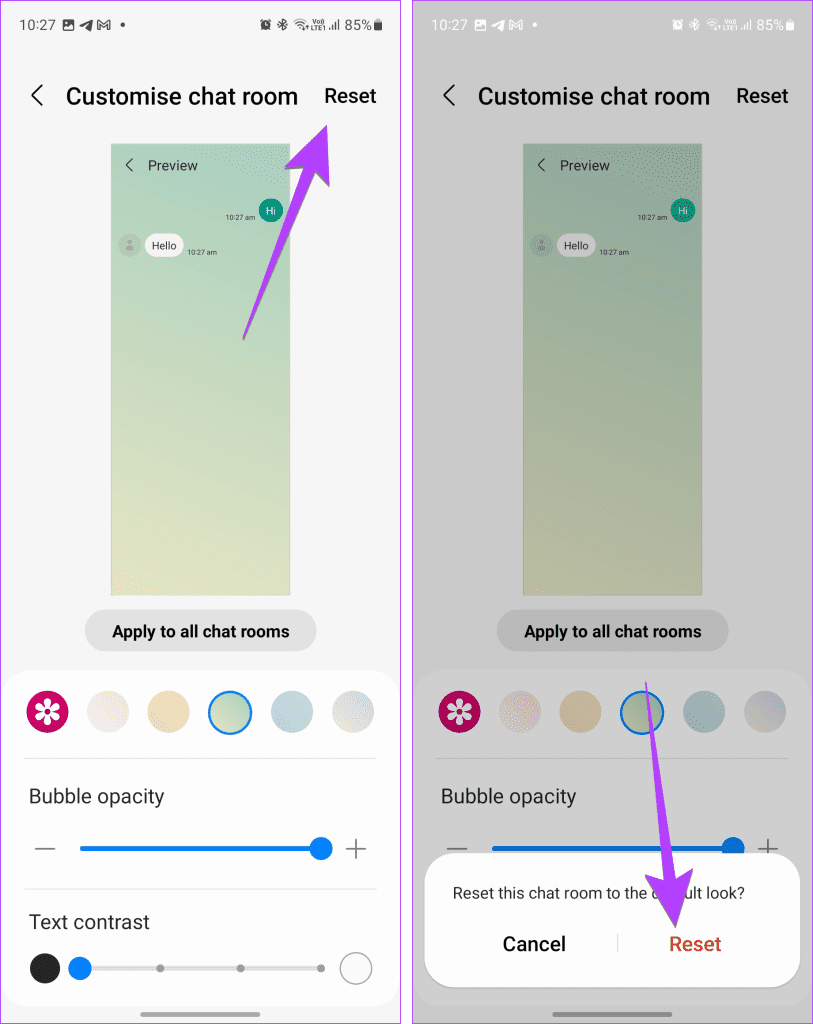
Step 4: If you have applied the custom background to all the chat threads, clear the data of the Messages app to reset the background of all conversations.
Tip: Check out other cool text message settings on Samsung.
Fix 3. Reset Pinned Messages
Samsung allows you to change the order of pinned messages. But if you want to reset the pinned messages to their original order, follow the steps outlined below:
Step 1: Open the Samsung Messages app on your phone.
Step 2: Tap on the three-dot icon at the top and select Reorder pinned.
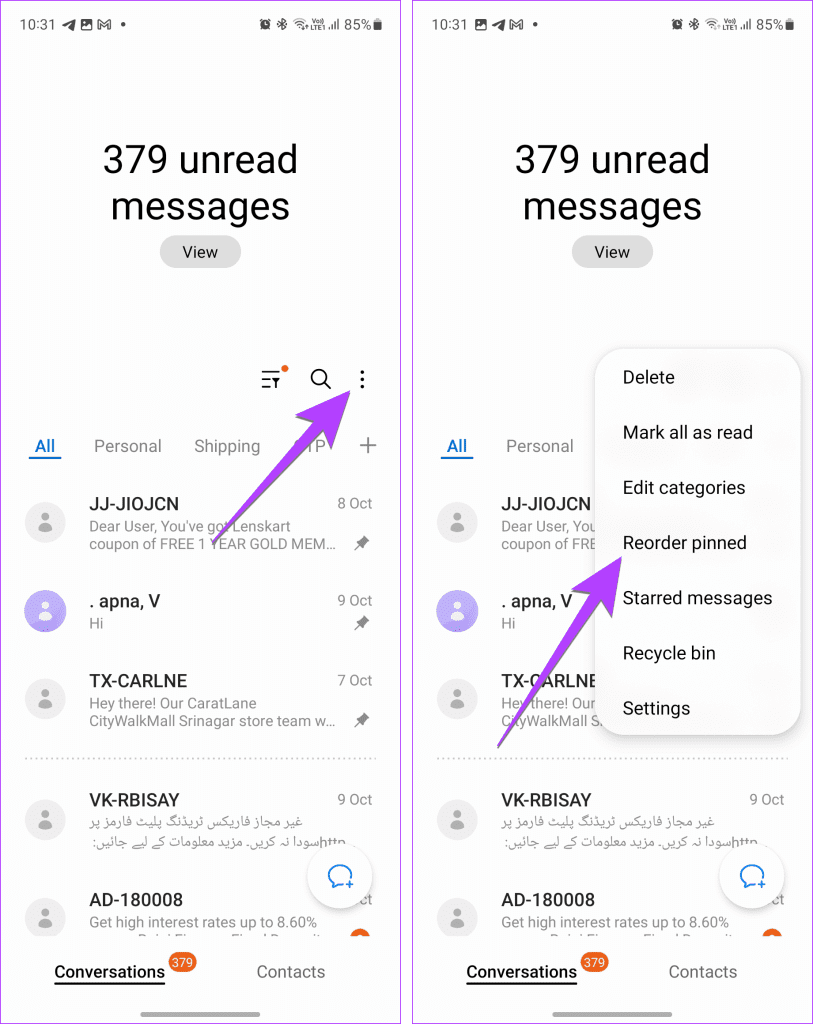
Step 3: Press the Reset button at the top to revert to the default order.
Fix 4. Reset Custom Notification Sound for Individual Contacts
If you have set a custom notification sound for a contact, you can easily switch back to the original one by following the steps mentioned below:
Step 1: Open the message thread of the designated person in the Samsung Messages app.
Step 2: Tap the three-dot icon > select Notification sound.
Step 3: Select the Default notification sound option.
Tip: Learn how to set custom notification sound for different apps on Samsung Galaxy phones.
Was this helpful?
Last updated on 11 July, 2024
Read Next
 5 Fixes for Samsung Health App Not Tracking Steps
Basic Fixes Ensure that step counter is enabled: Open the Health app > Tap on Steps > Three dots in the top-right corner > Check and ensure that the step
5 Fixes for Samsung Health App Not Tracking Steps
Basic Fixes Ensure that step counter is enabled: Open the Health app > Tap on Steps > Three dots in the top-right corner > Check and ensure that the step
 How to Use Quick Settings Panel on Samsung Galaxy Phones
How to Access the Quick Settings Panel You can access the Quick Settings panel by swiping down from the top of the screen.
How to Use Quick Settings Panel on Samsung Galaxy Phones
How to Access the Quick Settings Panel You can access the Quick Settings panel by swiping down from the top of the screen.
 How to Reset Home Screen Layout on Android Including Samsung Phones
Is your Android phone's home screen messed up?
How to Reset Home Screen Layout on Android Including Samsung Phones
Is your Android phone's home screen messed up?
 4 Ways to Create a GIF on Samsung Galaxy Phones
Method 1: Create a GIF Using Photos Creating a GIF on your Samsung Galaxy phone is easiest if you use a bunch of images.
4 Ways to Create a GIF on Samsung Galaxy Phones
Method 1: Create a GIF Using Photos Creating a GIF on your Samsung Galaxy phone is easiest if you use a bunch of images.
 6 Fixes for Google Play Store Not Working on Samsung Galaxy Phones or Tablets
Try Basic Fixes Free up storage space: The Google Play Store may not download or update apps on your Samsung device if there is not enough storage space.
6 Fixes for Google Play Store Not Working on Samsung Galaxy Phones or Tablets
Try Basic Fixes Free up storage space: The Google Play Store may not download or update apps on your Samsung device if there is not enough storage space.
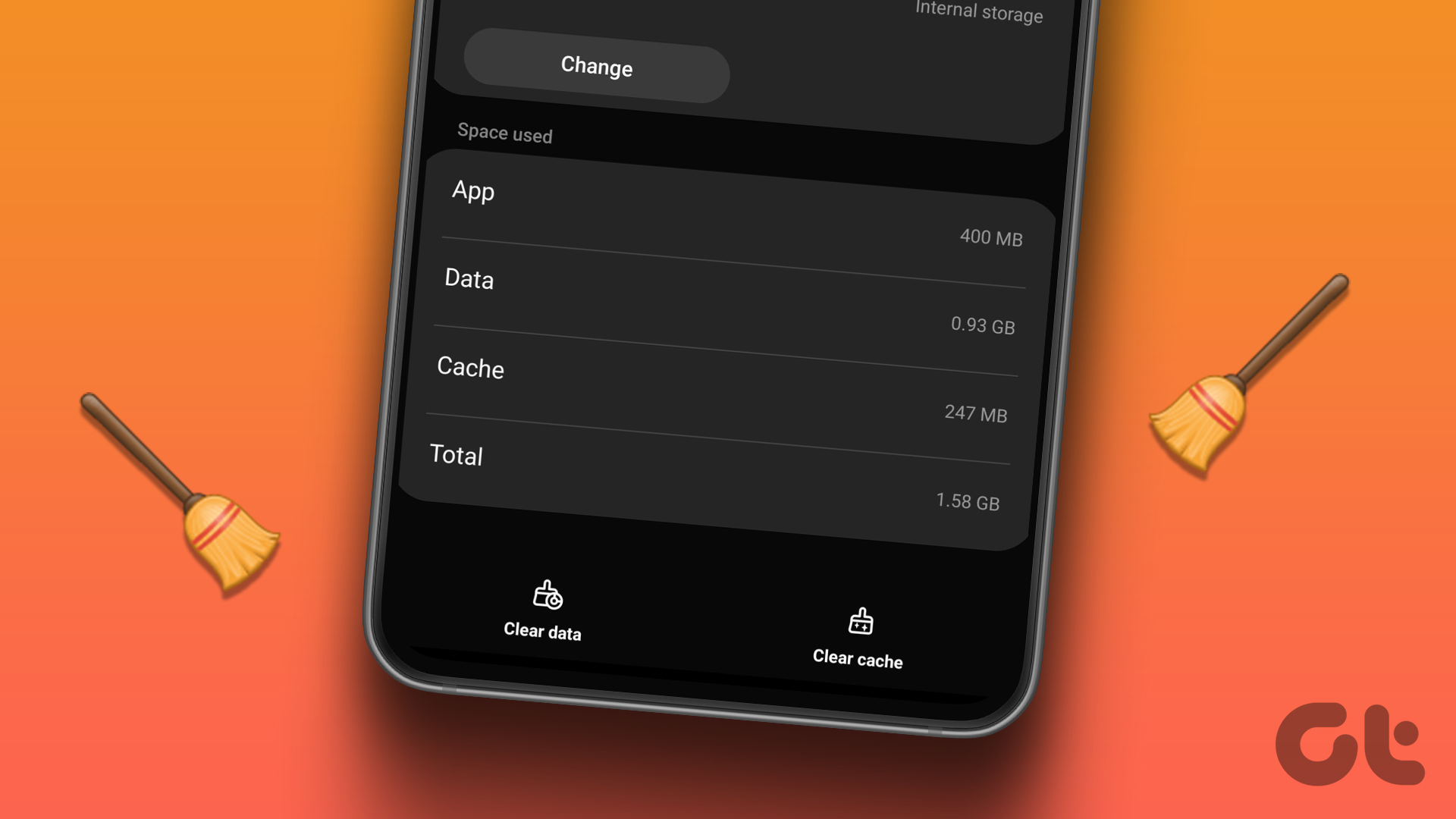 4 Ways to Clear Cache in Samsung Galaxy Phones
https://youtu.be/cwc-25dz6Pc Method 1: Clear Cache of One App on a Samsung Phone Step 1: Open Settings on your phone and go to Apps.
4 Ways to Clear Cache in Samsung Galaxy Phones
https://youtu.be/cwc-25dz6Pc Method 1: Clear Cache of One App on a Samsung Phone Step 1: Open Settings on your phone and go to Apps.
 4 Ways to Fix Contacts App Not Syncing on Samsung Galaxy Phones
Common Fixes Verify correct date and time - Incorrect date and time prevents the Contacts app from syncing data.
4 Ways to Fix Contacts App Not Syncing on Samsung Galaxy Phones
Common Fixes Verify correct date and time - Incorrect date and time prevents the Contacts app from syncing data.
 10 Ways to Fix Moisture Detected in Charging Port Error on Samsung Galaxy Phones
Most Samsung Galaxy devices these days come with an IP rating.
10 Ways to Fix Moisture Detected in Charging Port Error on Samsung Galaxy Phones
Most Samsung Galaxy devices these days come with an IP rating.
The article above may contain affiliate links which help support Guiding Tech. The content remains unbiased and authentic and will never affect our editorial integrity.