Method 1: Reset Microsoft Account Password
Windows now uses Microsoft Account to sign into your computer. So, if you have an admin account connected to a Microsoft account, you can reset it online using another device or from a Windows PC Lock Screen.
Step 1: On the Windows login screen, click on I forgot my password > I forgot my PIN. It will only appear if you use a PIN to sign in. If you use the password, it will directly take you to the password reset screen.
Step 2: Next, Windows shows the prompt where it can send a notifcation to another device where you are already signed in, or you can choose the Use your password instead link. It will take you to the Microsoft login page. From there, you can follow the onscreen steps to enter your Microsoft account and password and reset your Windows login.

Step 3: Once you reset your password, return to the PC and sign in again.
Method 2: Use Another Administrator Account (Local Account)
If you have another Administrator account on your Windows, use it to reset the password for the other account.
Step 1: Log in to your Windows PC using the other Administrator account.
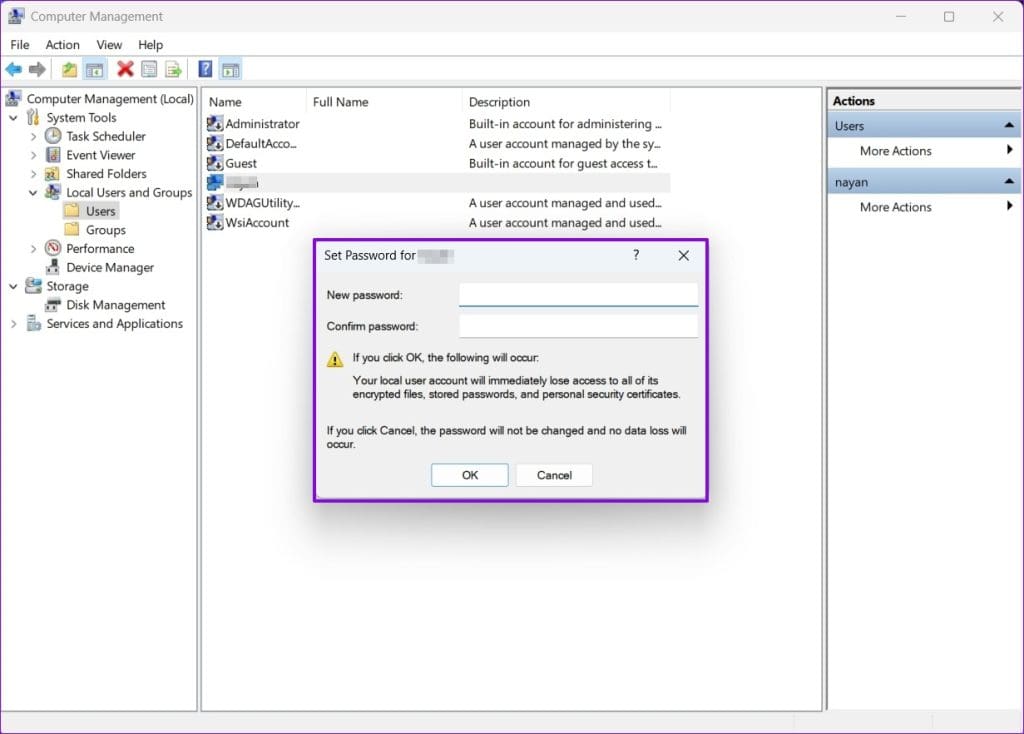
Step 2: Next, press Windows Key + R to open the Run prompt, type compmgmt.msc, and press Enter.
Step 3: Go to Local Users and Groups > Users. Right-click on the user name and select Set password.

Step 4: Finally, enter a new password, and you’re all set.
Method 3: Using Net User Command on Terminal (Local Account)
If you don’t have additional Windows accounts, you can enable a hidden Admin account on Windows and use it to reset the password.
Step 1: First, restart your computer while pressing the Shift key.
Step 2: Go to Troubleshoot > Advanced options > Command Prompt.

Step 3: Run the following command and press Enter.
net user administrator /active:yes

Step 4: After executing the command, close Command Prompt and click Continue.
After that, your computer will boot up normally, and on the login screen, you will see an account named Administrator without a password. You can now use this hidden Admin account to reset the password for the existing user account using Method 2, or you can create a new user account.
Was this helpful?
Last updated on 08 July, 2024
Read Next
 Top 10 Fixes for ‘Can’t Access Router Admin Page’ on Windows 11
For the most part, most users don't have to constantly access their Wi-Fi router's admin page.
Top 10 Fixes for ‘Can’t Access Router Admin Page’ on Windows 11
For the most part, most users don't have to constantly access their Wi-Fi router's admin page.
 Forgot Your Discord Password: 4 Ways to Change or Reset It
How to Change Discord Password For Mobile Note: The steps to change your Discord password are the same for Android phones and iPhones.
Forgot Your Discord Password: 4 Ways to Change or Reset It
How to Change Discord Password For Mobile Note: The steps to change your Discord password are the same for Android phones and iPhones.
 The Complete Guide to Facebook Group Admin Roles and Responsibilities
Any group without a leader can quickly spiral to chaos.
The Complete Guide to Facebook Group Admin Roles and Responsibilities
Any group without a leader can quickly spiral to chaos.
 How to Make Someone Server Admin or Owner on Discord
How to Make Someone Server Admin on Discord You can grant someone admin privileges on Discord via the PC or mobile app.
How to Make Someone Server Admin or Owner on Discord
How to Make Someone Server Admin on Discord You can grant someone admin privileges on Discord via the PC or mobile app.
 How to Reset iPhone and What Happens When You Reset iPhone
https://youtu.be/VPnZOK4EqVQ How to Reset iPhone to Factory Settings Before we move on to erasing data or settings on the iPhone, check out the section below to ensure your data or
How to Reset iPhone and What Happens When You Reset iPhone
https://youtu.be/VPnZOK4EqVQ How to Reset iPhone to Factory Settings Before we move on to erasing data or settings on the iPhone, check out the section below to ensure your data or
 5 Ways to Fix iCloud on Windows 10 Keeps Asking for Password Issue
Basic Fixes: Check iCloud Server Status: As a starting point, you should check whether iCloud's servers are running normally.
5 Ways to Fix iCloud on Windows 10 Keeps Asking for Password Issue
Basic Fixes: Check iCloud Server Status: As a starting point, you should check whether iCloud's servers are running normally.
 How to Disable the Login Password Screen in Windows 10
Entering a password every time you log in to your Windows 10 computer can get tiring after a while.
How to Disable the Login Password Screen in Windows 10
Entering a password every time you log in to your Windows 10 computer can get tiring after a while.
 How to Password Protect a Folder on Windows 11
How to Lock a Folder on Windows 11 Using Built-in Encryption Function Note: The steps to encrypt files on Windows 11 are the same as those for encrypting folders. Step
How to Password Protect a Folder on Windows 11
How to Lock a Folder on Windows 11 Using Built-in Encryption Function Note: The steps to encrypt files on Windows 11 are the same as those for encrypting folders. Step
The article above may contain affiliate links which help support Guiding Tech. The content remains unbiased and authentic and will never affect our editorial integrity.