Remove Telegram Stickers from Mobile Apps
Telegram for iPhone
Step 1: Open Telegram on your iPhone.
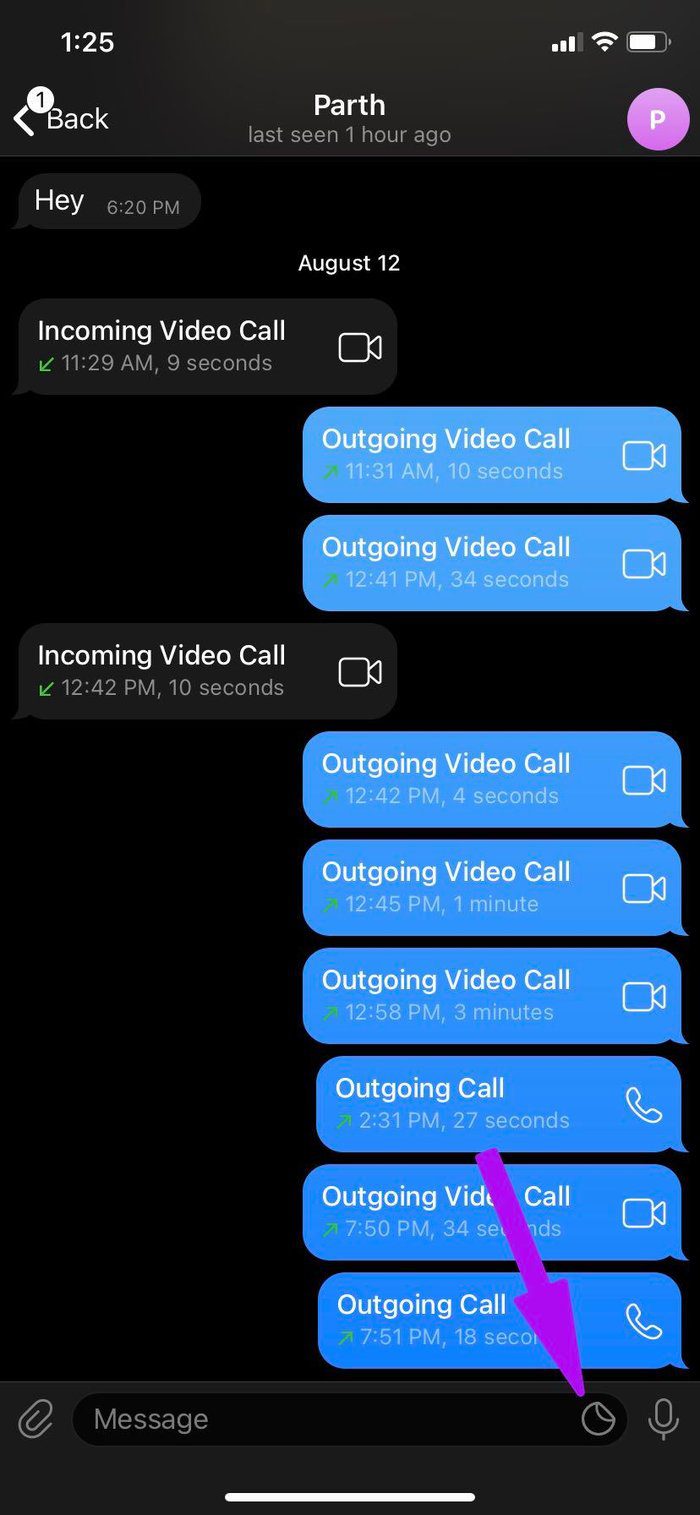
Step 2: Open any chat and tap on the sticker icon in the message bar.
Step 3: Scroll horizontally on the sticker packs at the top and go to Settings.
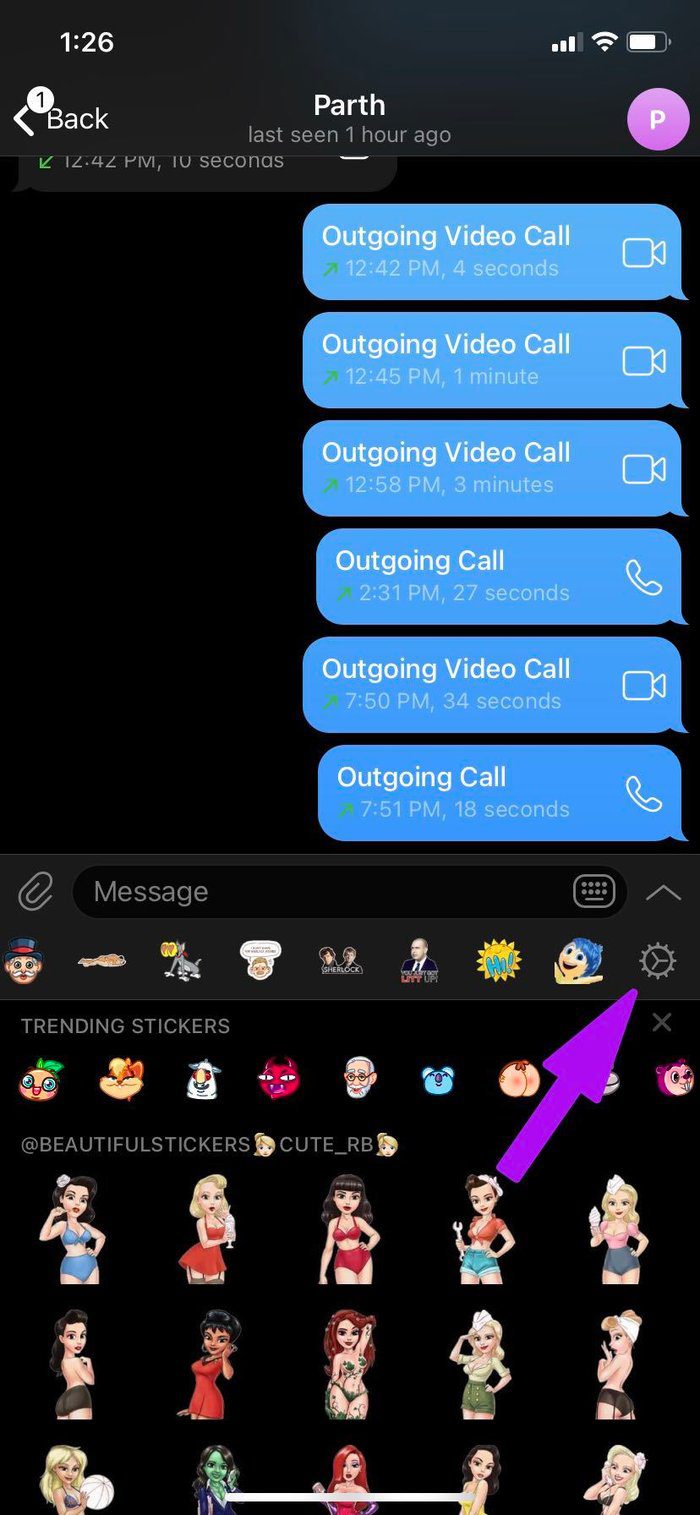
Step 4: You will see the Sticker sets menu at the bottom.
Step 5: Select the sticker packs you want to remove and tap on Delete at the bottom.


You can also swipe left on any sticker pack and use the Delete button to remove the sticker pack from the Telegram account.
Telegram for Android
Step 1: Open Telegram on your Android phone and go to any chat.
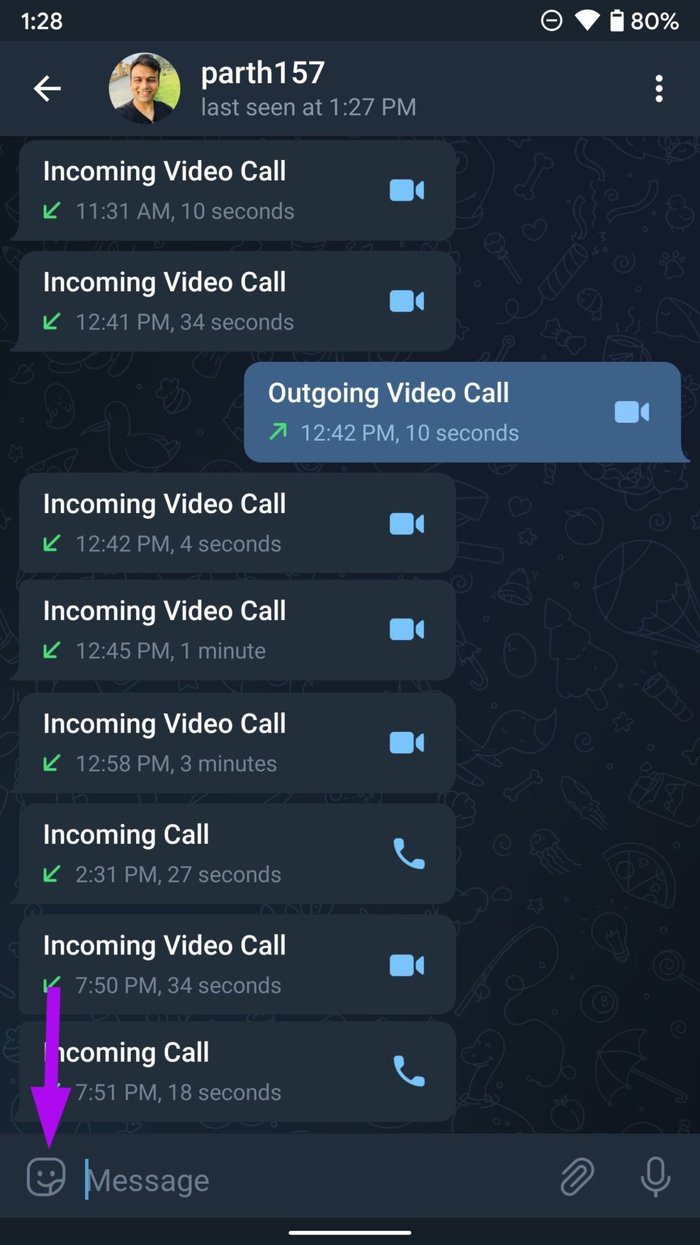
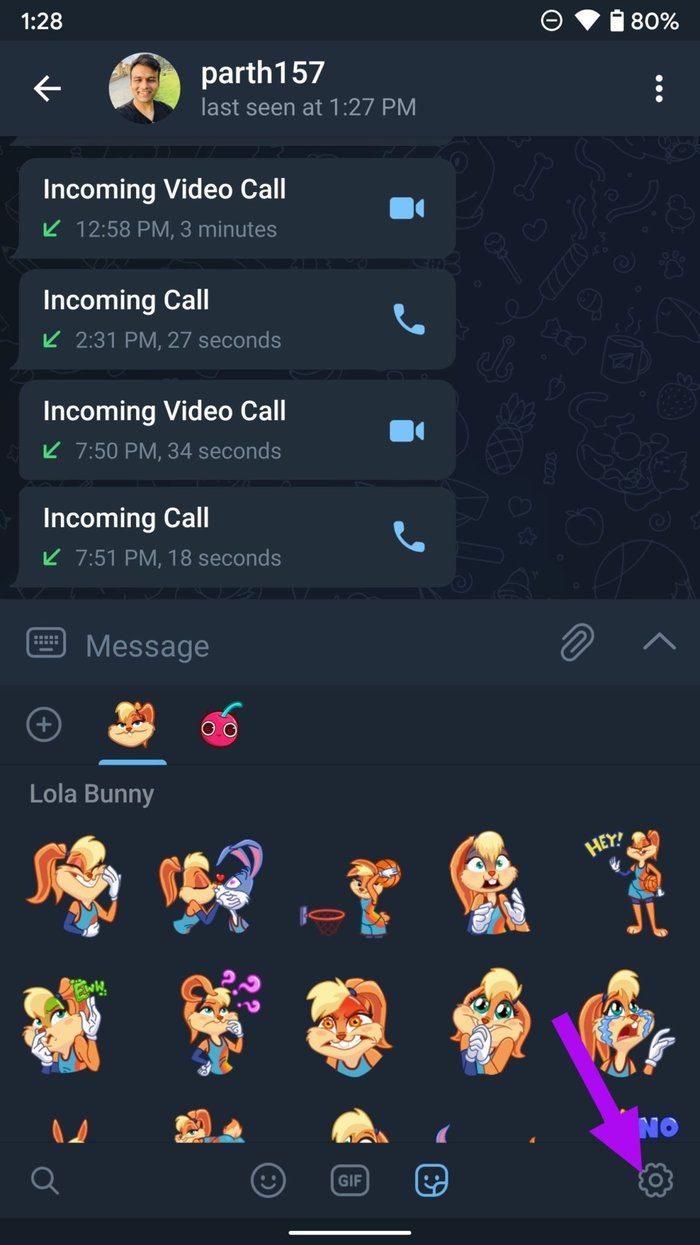
Step 2: Tap on the little emoji icon at the bottom left corner.
Step 3: It will open the emoji menu and select Move to the Stickers menu.
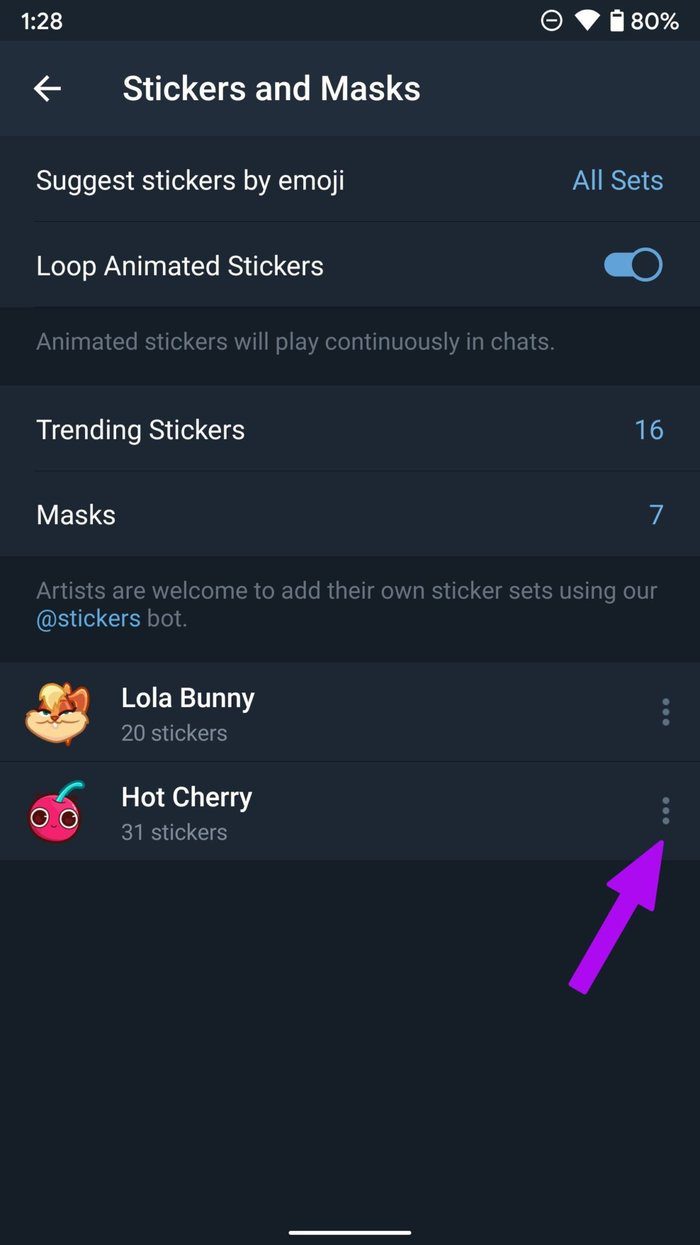
Step 4: Tap on the Gear icon and open the Stickers and Masks menu.
Step 5: Tap on the three-dot menu beside the sticker pack and select Remove from the following menu.
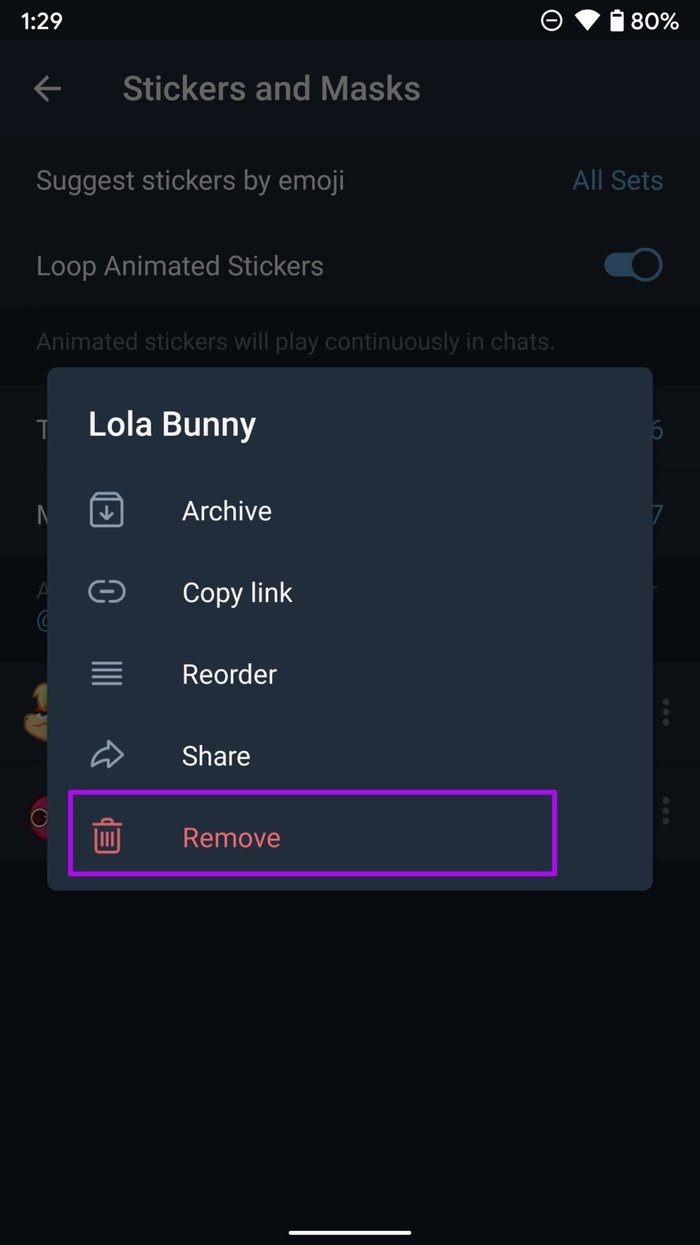
You can also archive a sticker pack from Telegram and reuse it from the same Stickers and Masks menu.
Remove Telegram Stickers from Desktop Apps
Unlike WhatsApp and Signal, Telegram does offer truly native desktop apps with the same feature-set as their mobile apps.
Telegram on macOS
Step 1: Open the Telegram app on your Mac.
Step 2: Click on the Settings gear at the bottom.
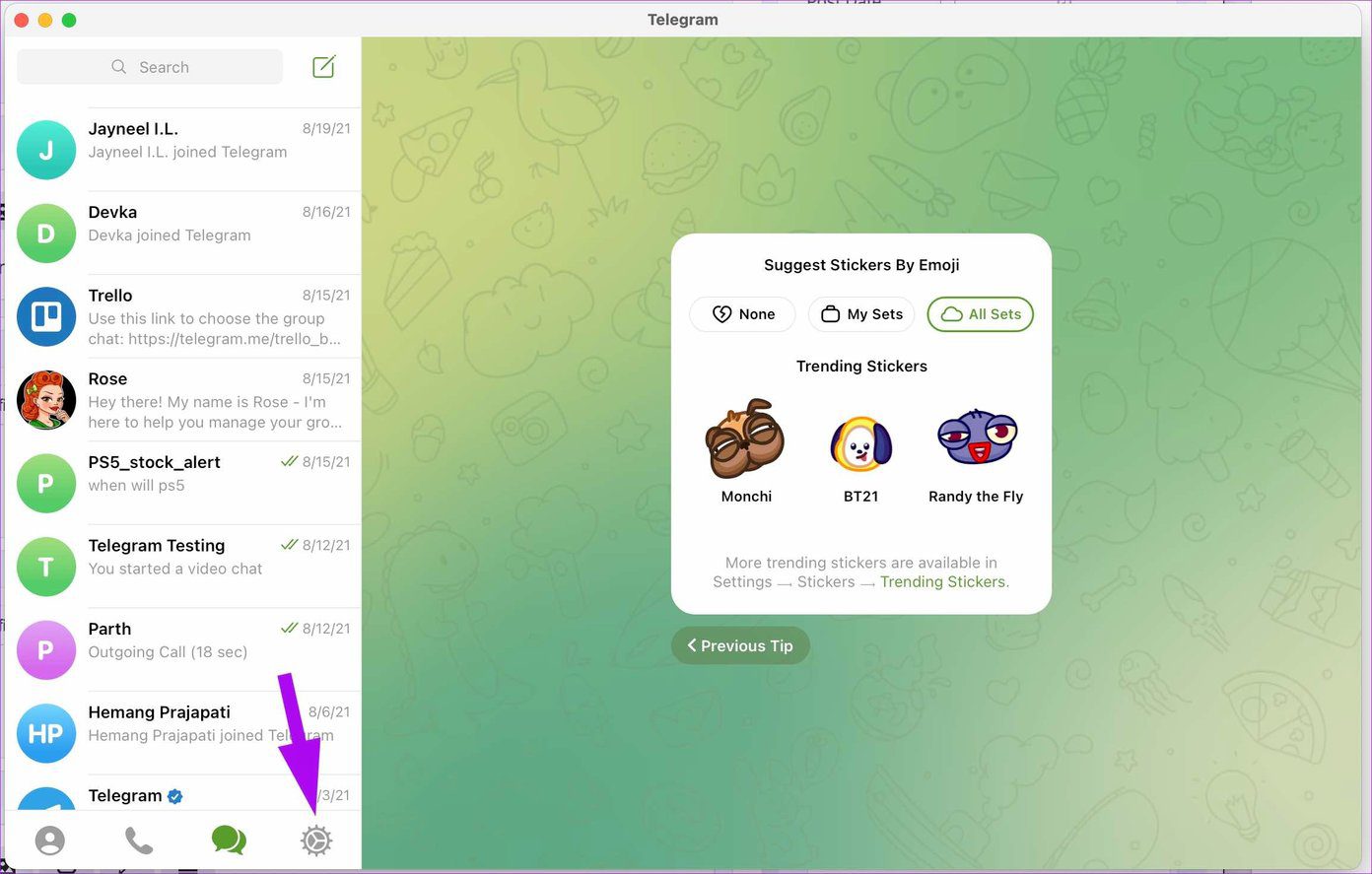
Step 3: Go to the Stickers menu.
Step 4: From Sticker sets, click on the Delete icon beside the sticker pack that you want to remove.

Telegram will ask for your confirmation. Select Delete and you are all set to use Telegram without annoying stickers.
Telegram on Windows
Telegram’s Windows app is completely different from the Mac app. It looks similar to the Android app.
Step 1: Open Telegram on Windows.
Step 2: Click on the hamburger menu at the top and go to Settings.
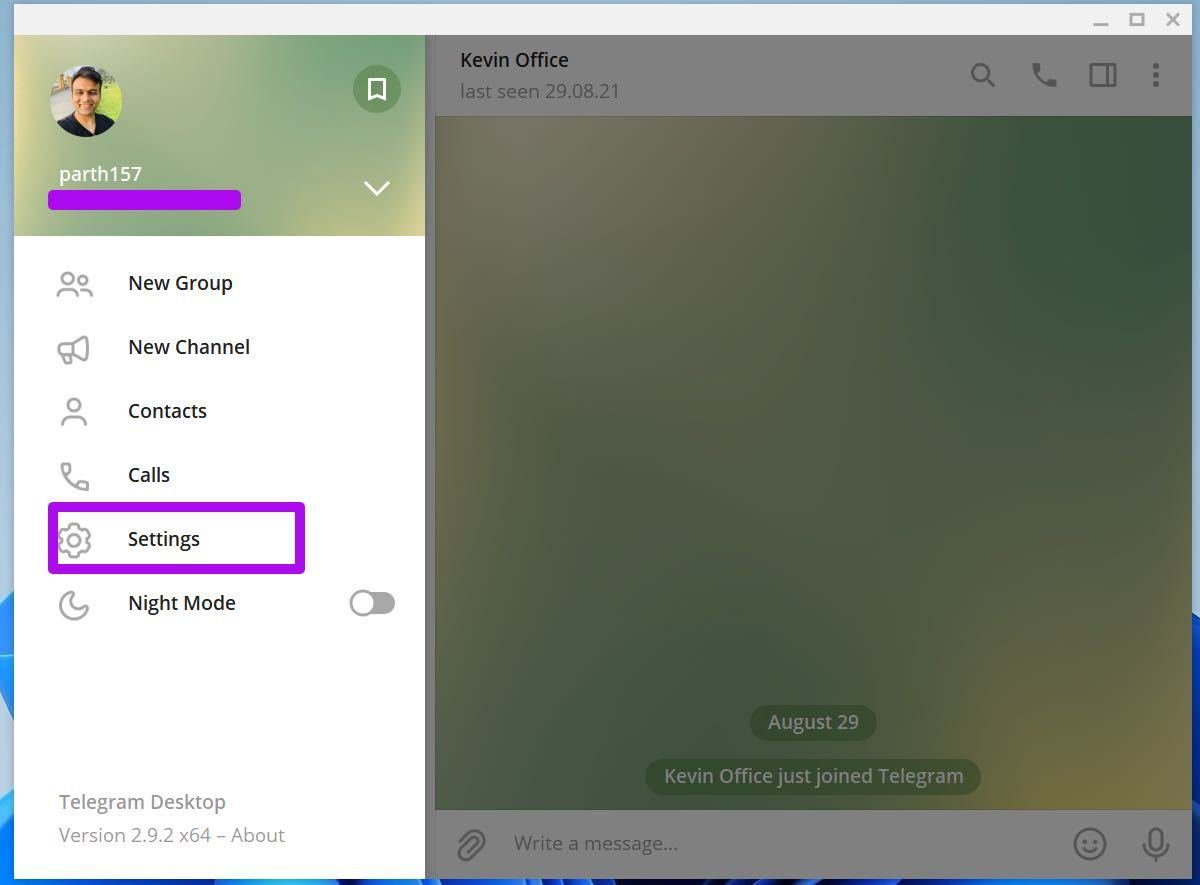
Step 3: Go to the Chat Settings menu.
Step 4: Scroll down and click on Manager sticker sets.

Step 5: Click on the little delete icon beside the sticker pack.
You can also rearrange them based on your convenience from the same menu.

Telegram stickers are addictive. Finding the perfect sticker to use can become a headscratcher. You should remove the unnecessary ones and clear your sticker pack library once in a while.
Was this helpful?
Last updated on 07 July, 2024
Read Next
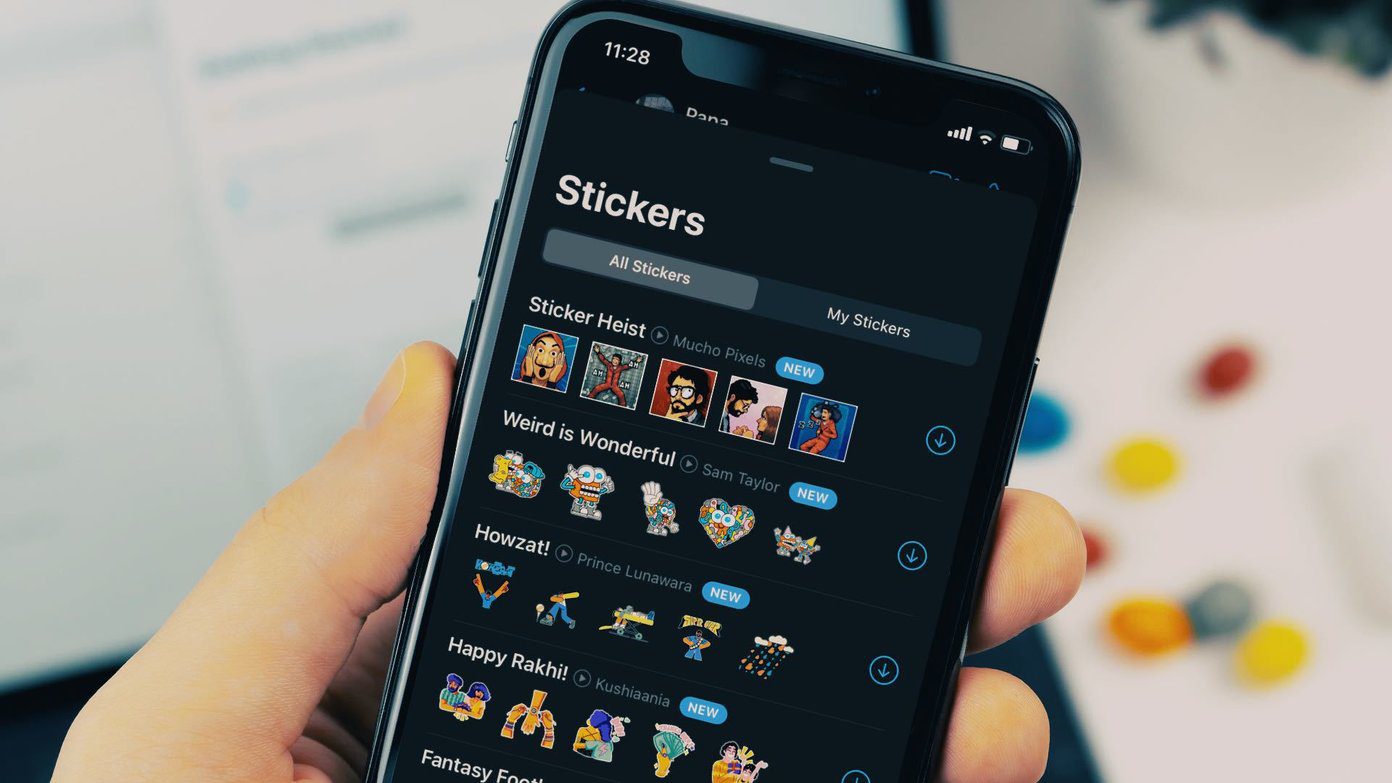 How to Remove Stickers From WhatsApp
Remove Sticker Pack From WhatsApp on iOS WhatsApp follows the OS guidelines on each platform, which means that the iPhone and Android apps use different interfaces.
How to Remove Stickers From WhatsApp
Remove Sticker Pack From WhatsApp on iOS WhatsApp follows the OS guidelines on each platform, which means that the iPhone and Android apps use different interfaces.
 How to Use Telegram Stickers in WhatsApp for Android
Download Telegram Stickers To download Telegram stickers, it involves three major steps.
How to Use Telegram Stickers in WhatsApp for Android
Download Telegram Stickers To download Telegram stickers, it involves three major steps.
 5 Best Meta Quest 3 Battery Packs For Extended Gaming Sessions
The Meta Quest 3 improves upon its predecessor thanks to its focus on Mixed Reality.
5 Best Meta Quest 3 Battery Packs For Extended Gaming Sessions
The Meta Quest 3 improves upon its predecessor thanks to its focus on Mixed Reality.
 How to Create Poll in Telegram on Desktop and Mobile
How to Make a Poll on the Telegram Channel or Group On Desktop or Web Step 1: Launch the Telegram app or open the Telegram web.
How to Create Poll in Telegram on Desktop and Mobile
How to Make a Poll on the Telegram Channel or Group On Desktop or Web Step 1: Launch the Telegram app or open the Telegram web.
 How to Schedule Messages in Telegram (Desktop and Mobile)
Schedule Messages on Telegram While Telegram offers its Premium subscription to unlock more features, the option to schedule messages is available to other users, too.
How to Schedule Messages in Telegram (Desktop and Mobile)
Schedule Messages on Telegram While Telegram offers its Premium subscription to unlock more features, the option to schedule messages is available to other users, too.
 How to Send a Video Message (Bubble) on Telegram
Record and Send Telegram Video Messages on iPhone and Android A Video Message on Telegram is an alternative to sending a voice message to your contact.
How to Send a Video Message (Bubble) on Telegram
Record and Send Telegram Video Messages on iPhone and Android A Video Message on Telegram is an alternative to sending a voice message to your contact.
 How to Send High Quality Photos and Video on Telegram
Send High-Quality Photos and Videos on Telegram on Mobile Let us show you the steps to send photos and videos without losing quality on your iPhone and Android using Telegram.
How to Send High Quality Photos and Video on Telegram
Send High-Quality Photos and Videos on Telegram on Mobile Let us show you the steps to send photos and videos without losing quality on your iPhone and Android using Telegram.
 How to Lock Telegram Using Passcode on Desktop and Mobile
Lock Telegram Using Passcode on Desktop You can choose to lock Telegram's desktop app using a passcode as well.
How to Lock Telegram Using Passcode on Desktop and Mobile
Lock Telegram Using Passcode on Desktop You can choose to lock Telegram's desktop app using a passcode as well.
The article above may contain affiliate links which help support Guiding Tech. The content remains unbiased and authentic and will never affect our editorial integrity.