Method 1: Use Google Chrome Desktop
Step 1: Open Google Chrome, click the three-dot menu, and select Settings.
Step 2: Navigate to Autofill and passwords and click on the link next to Google Password Manager.

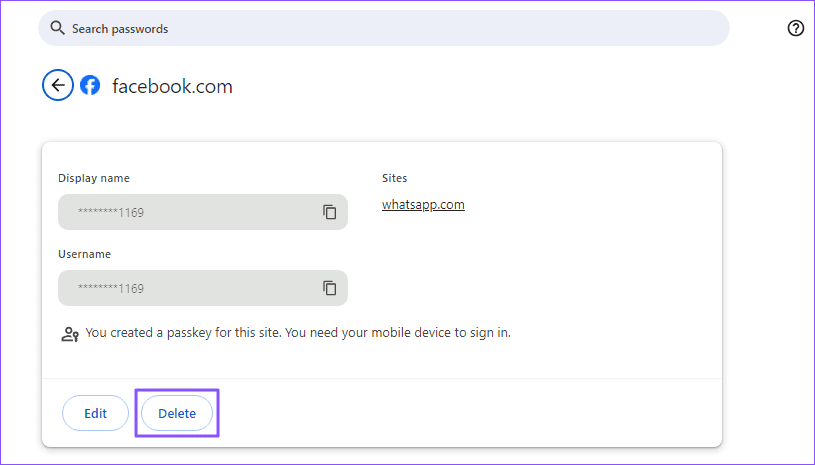
Step 3: Here, you will see a list of saved passwords with website names and usernames. Scroll down to the website info you want to delete and click on the arrow next to it.
Step 4: The next screen will reveal the account details, username, and password. Click on Delete to remove the password, followed by a confirmation.
Method 2: Use Google Chrome on Mobile
Google Chrome lets you view and manage saved login information from mobile apps. Follow the steps below to delete saved passwords from the Google Chrome Android app.
On Android
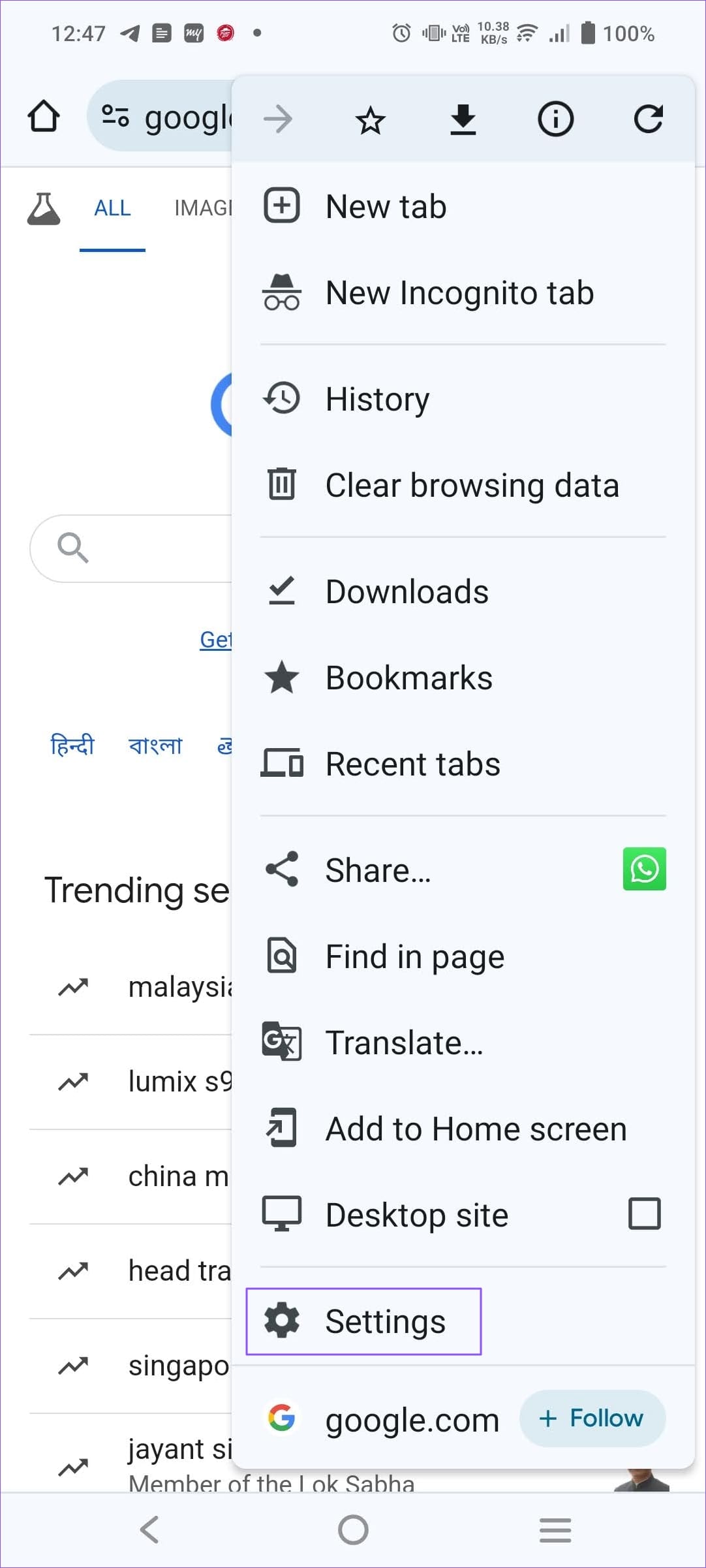
Step 1: Open Chrome > tap the three-dot menu at the upper right corner > go to Settings > click on Password Manager.

Step 2: Tap on the account you want to remove and select Delete.
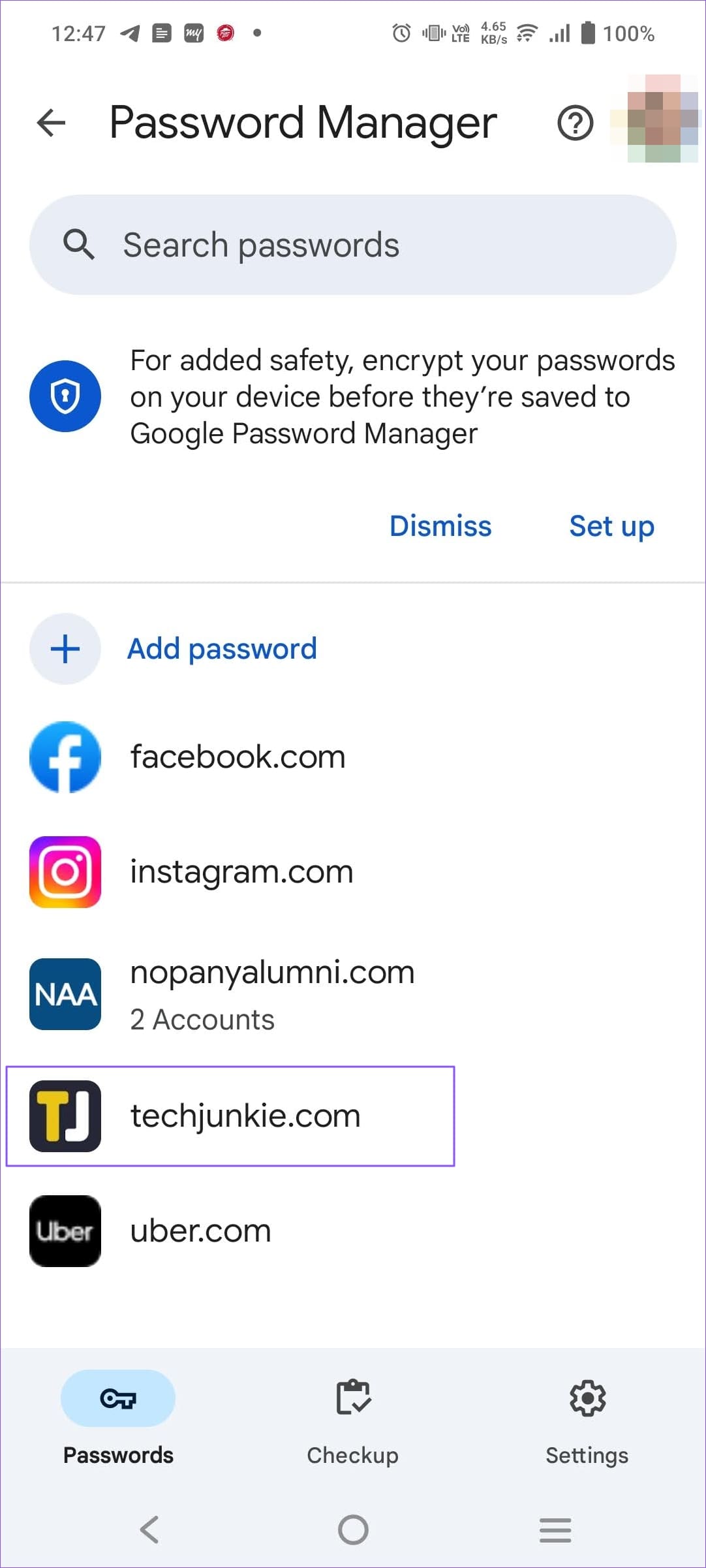

The steps are identical to those for the iPhone. The only difference is that you must go to the Settings menu from the bottom bar.
On iPhone
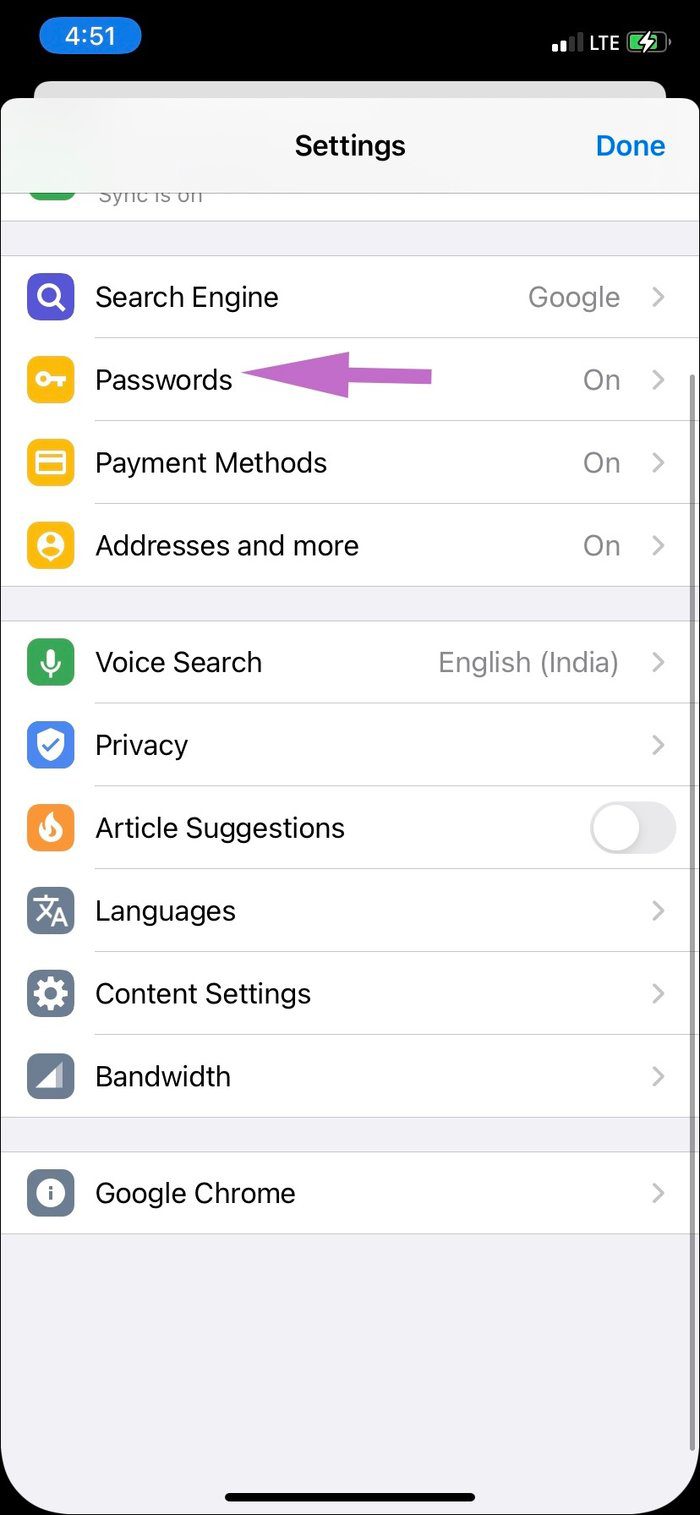
Step 1: Open Google Chrome on the iPhone.
Step 2: Go to the Settings menu from the bottom bar menu and navigate to the Passwords menu.
Step 3: Tap on the website name whose login info you want to delete and select Delete from the following menu.

FAQs
How Do You Turn off Password Saving in Chrome?
You must go to Google Password Manager in Chrome and turn off the Offer to save passwords option. This will ensure that Chrome does not save passwords if you use it as an alternate browser.
How Do You Export Passwords From Chrome?
In Chrome Password Manager, you have the option to Export passwords. Click on the Download File button anytime to export the password in plain text format. Chrome may prompt you to sign in with your Google account.
Was this helpful?
Last updated on 08 July, 2024
Read Next
 3 Ways to Remove Saved Snapchat Account From Any Device
Method 1: Remove Account Information From Snapchat App When you log out from Snapchat on your phone, the app doesn’t ask you to delete saved login information.
3 Ways to Remove Saved Snapchat Account From Any Device
Method 1: Remove Account Information From Snapchat App When you log out from Snapchat on your phone, the app doesn’t ask you to delete saved login information.
 How to Recover Deleted Passwords in Google Chrome
Recover Deleted Passwords in Google Chrome Step 1: Launch Google Chrome on the computer you have previously logged into your Google account.
How to Recover Deleted Passwords in Google Chrome
Recover Deleted Passwords in Google Chrome Step 1: Launch Google Chrome on the computer you have previously logged into your Google account.
 3 Ways to Turn off Windows Hello for Google Chrome Passwords
“Google Chrome Is Trying to Fill Your Password” Explained The "Google Chrome is trying to fill your password" pop-up appears when Google Chrome uses Windows Hello to auto-fill saved passwords.
3 Ways to Turn off Windows Hello for Google Chrome Passwords
“Google Chrome Is Trying to Fill Your Password” Explained The "Google Chrome is trying to fill your password" pop-up appears when Google Chrome uses Windows Hello to auto-fill saved passwords.
 Top 4 Ways to Export Chrome Bookmarks and Passwords
1.
Top 4 Ways to Export Chrome Bookmarks and Passwords
1.
 How to Export Chrome Passwords to CSV
Are you tired of losing or forgetting your passwords?
How to Export Chrome Passwords to CSV
Are you tired of losing or forgetting your passwords?
 Top 10 Ways to Fix Chrome Passwords Not Syncing Issue
Chrome's built-in password manager may lack the advanced functionalities of dedicated services such as 1Password, LastPass, or Dashlane, but it sure is convenient to use.
Top 10 Ways to Fix Chrome Passwords Not Syncing Issue
Chrome's built-in password manager may lack the advanced functionalities of dedicated services such as 1Password, LastPass, or Dashlane, but it sure is convenient to use.
 How to Delete and Change Saved Places in the Uber App
How to Delete Saved Places in the Uber App Step 1: Open the Uber app and tap on Account.
How to Delete and Change Saved Places in the Uber App
How to Delete Saved Places in the Uber App Step 1: Open the Uber app and tap on Account.
 How to Find Saved Posts and Jobs on LinkedIn
How to Save a Job Search on LinkedIn On Desktop Step 1: Open LinkedIn in your preferred browser and go to Jobs at the top navigation bar.
How to Find Saved Posts and Jobs on LinkedIn
How to Save a Job Search on LinkedIn On Desktop Step 1: Open LinkedIn in your preferred browser and go to Jobs at the top navigation bar.
The article above may contain affiliate links which help support Guiding Tech. The content remains unbiased and authentic and will never affect our editorial integrity.