How to Remove a Google Account
Unfortunately, you cannot remove an account from Google Photos. To do so, you must remove the Google Account from your device. Doing this will sign you out and remove the account for all the Google apps on your device.
On Android
Step 1: Open the Settings app and scroll to Passwords & accounts.
Step 2: Select the Google account you want to remove. Tap on Remove account.


On iPhone
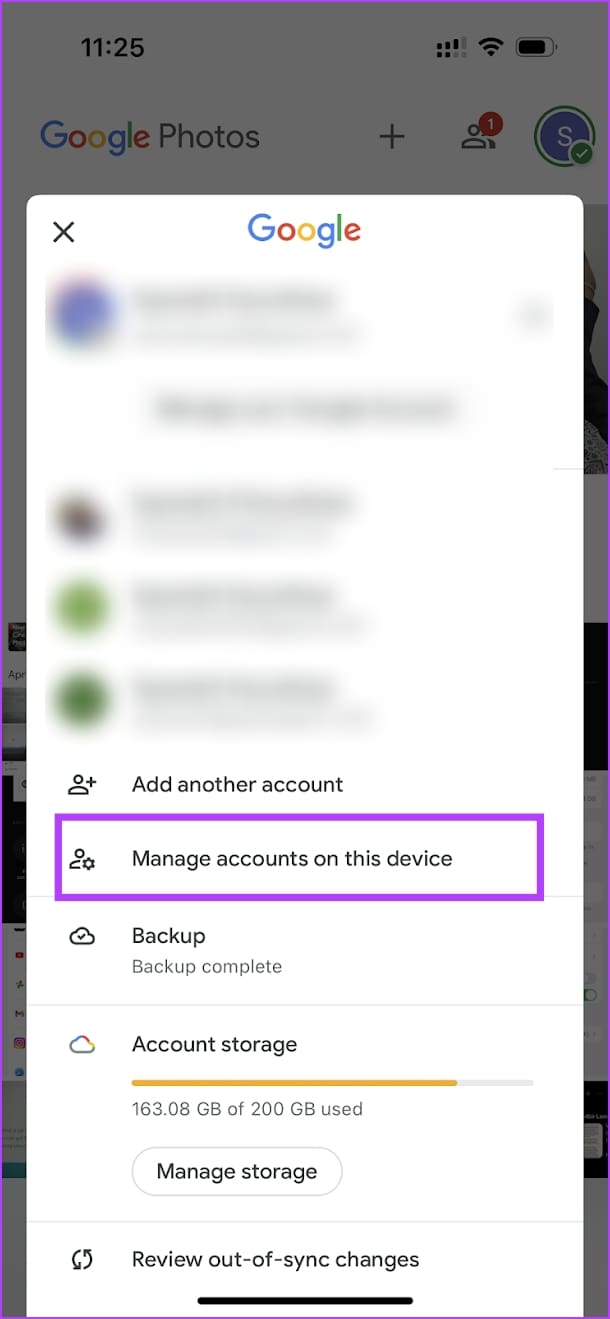
Step 1: Open Google Photos and tap on the Profile Picture icon at the top right.
Step 2: Tap on Manage Accounts on This Device and Remove the account from the list.


If you don’t want to remove the Google account, you can browse Google Photos without an account or turn off the account’s backup.
How to Use Google Photos Without an Account (Android)
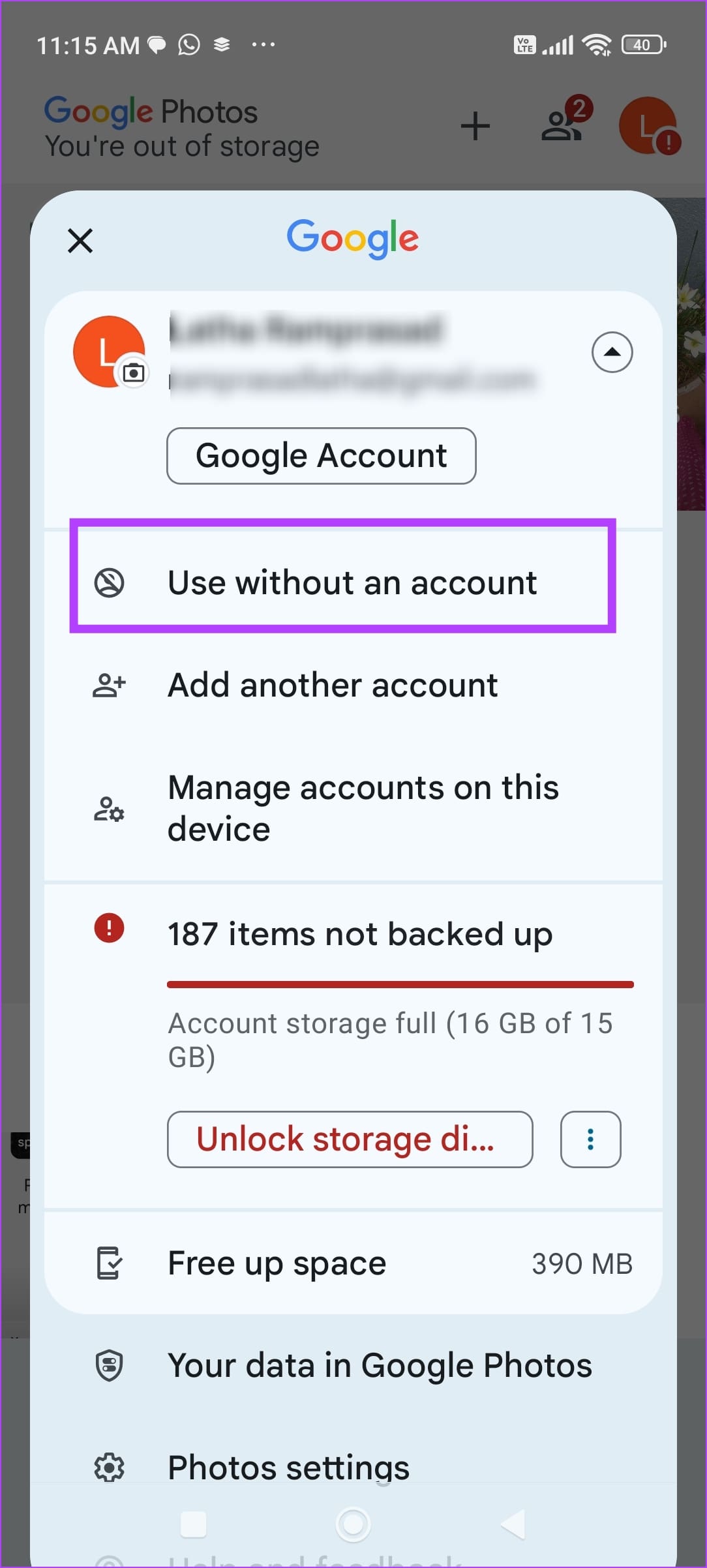
On your Android device, you can use Google Photos without an account. Tap on the Profile icon at the top right and select Use Without an Account.

Also Read: How to download photos from Google Photos
How to Turn off Backup
You can prevent photos from backing up to an account by tapping on your profile icon > opening Settings > going to Backup > turning it off.


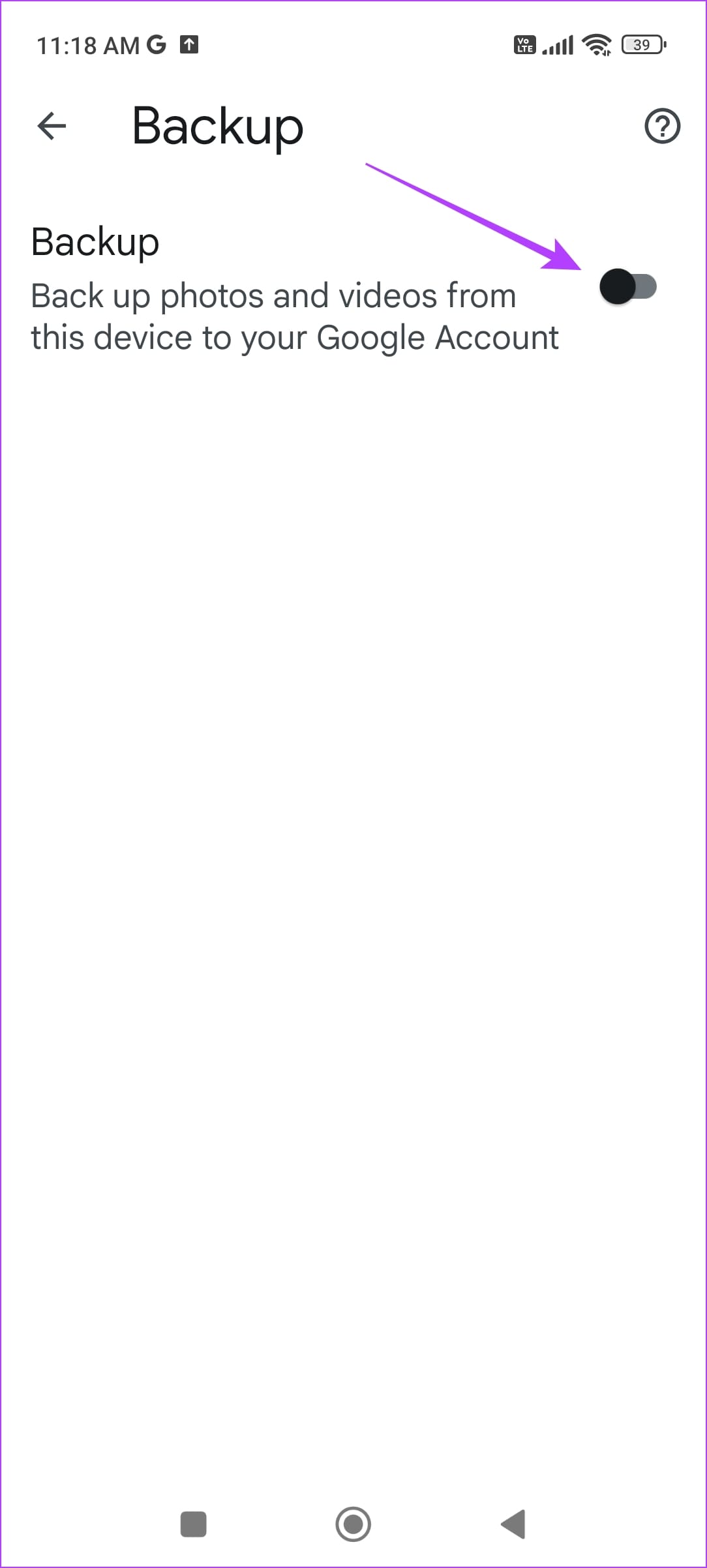
You can then choose a new account and enable backup for the same.
Also Read: How to use Magic Editor in Google Photos
Was this helpful?
Last updated on 14 May, 2024
Read Next
 How to Remove Photos from Google Drive but Not Google Photos
Google Drive and Photos are two similar yet distinct products for storing photos and videos.
How to Remove Photos from Google Drive but Not Google Photos
Google Drive and Photos are two similar yet distinct products for storing photos and videos.
 Google Drive vs Google Photos: Which Is Best for Storing Photos
Google Drive vs Google Photos Comparison Key Differences Feature Google Drive Google PhotosFile Types All types Photos, Videos, GIFsOrganization Folders & Subfolders AlbumsPhoto Quality Original Original, High (compressed), Express (compressed)Storage
Google Drive vs Google Photos: Which Is Best for Storing Photos
Google Drive vs Google Photos Comparison Key Differences Feature Google Drive Google PhotosFile Types All types Photos, Videos, GIFsOrganization Folders & Subfolders AlbumsPhoto Quality Original Original, High (compressed), Express (compressed)Storage
 How to Remove a Google Account From Chrome
Note: It’s best to review the Chrome Sync settings and back up any unsynced data to your Google Account before proceeding.
How to Remove a Google Account From Chrome
Note: It’s best to review the Chrome Sync settings and back up any unsynced data to your Google Account before proceeding.
 2 Best Ways to Remove Old Phone From Google Account
How to Remove Old Phone From Google Account on Mobile Step 1: Launch the Phone Settings menu.
2 Best Ways to Remove Old Phone From Google Account
How to Remove Old Phone From Google Account on Mobile Step 1: Launch the Phone Settings menu.
 What Happens When You Remove a Google Account from Your Phone
1.
What Happens When You Remove a Google Account from Your Phone
1.
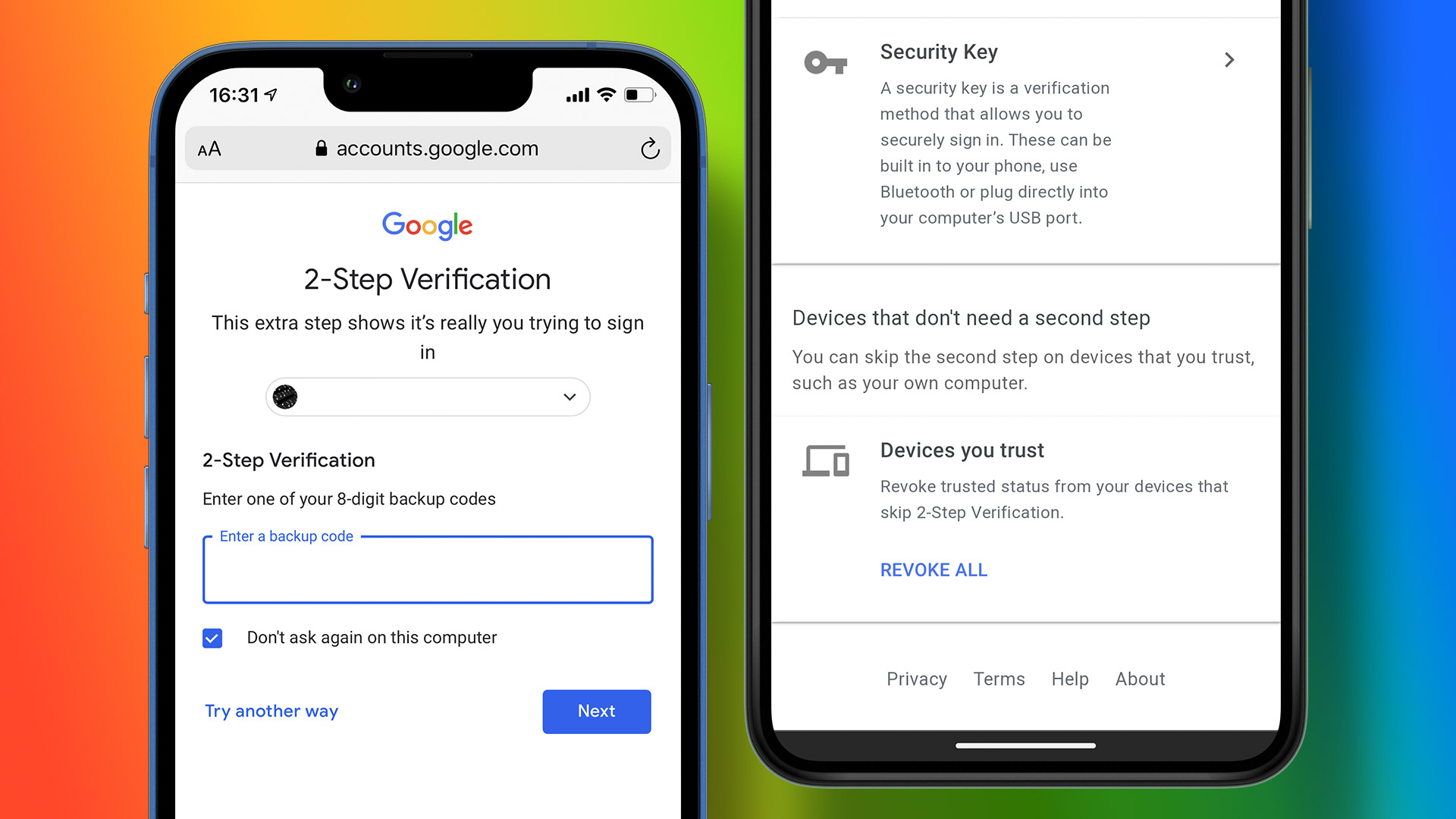 How to Add or Remove a Trusted Device From Your Google Account
How to Add a Trusted Device to Your Google Account Follow the steps below to add a trusted device to your Google account using your PC, or your smartphone.
How to Add or Remove a Trusted Device From Your Google Account
How to Add a Trusted Device to Your Google Account Follow the steps below to add a trusted device to your Google account using your PC, or your smartphone.
 How to Move Google Photos From One Account to Another
Method 1: Add a Partner Account Sometimes, you may accidentally add photos to the wrong Google account or want to migrate them to another Google Photos account.
How to Move Google Photos From One Account to Another
Method 1: Add a Partner Account Sometimes, you may accidentally add photos to the wrong Google account or want to migrate them to another Google Photos account.
 How to Delete Photos From Google Photos But Not From Phone
What Happens When You Delete Photos?
How to Delete Photos From Google Photos But Not From Phone
What Happens When You Delete Photos?
The article above may contain affiliate links which help support Guiding Tech. The content remains unbiased and authentic and will never affect our editorial integrity.