The Microsoft Office Suite has fully embraced life in your browser, as well as it has life as an app. Microsoft Outlook is no exception. Sometimes, though, you want things to open as a program, so if Outlook is insisting on doing otherwise, then we’ve got a few fixes for you to try.
In this article, we’ll be looking at how to fix Outlook opening in browser instead of app.
What Causes Outlook Opening Browser Instead of App?
There are a few reasons your Outlook opens in browser instead of app. The new Outlook can cause some conflicts with the old Outlook and its access shortcuts. Some major reasons include:
- Using a shortcut with a different path (e.g., Old Outlook)
- A Windows Update is resetting Outlook’s defaults
- A corrupted cache
Fixing the Online Outlook Problem
Let’s take a look at some solutions to get the new Outlook and its shortcuts running on your PC once again:
Check and Change the Shortcuts
If you’ve got an Outlook shortcut pinned to your desktop or taskbar, it might be taking you to the online version of Outlook instead of the local app. Here’s how to fix it:
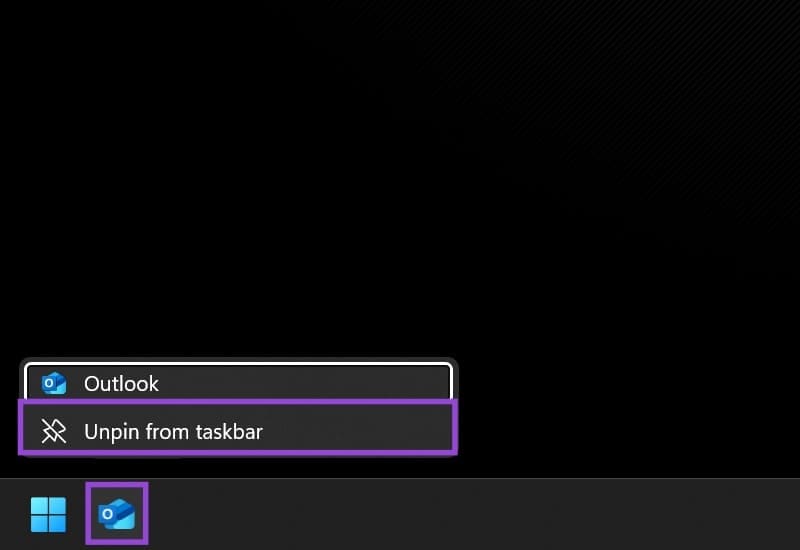
Step 1. Right-click the taskbar shortcuts and select “Unpin from taskbar,” and delete any existing Desktop shortcuts.
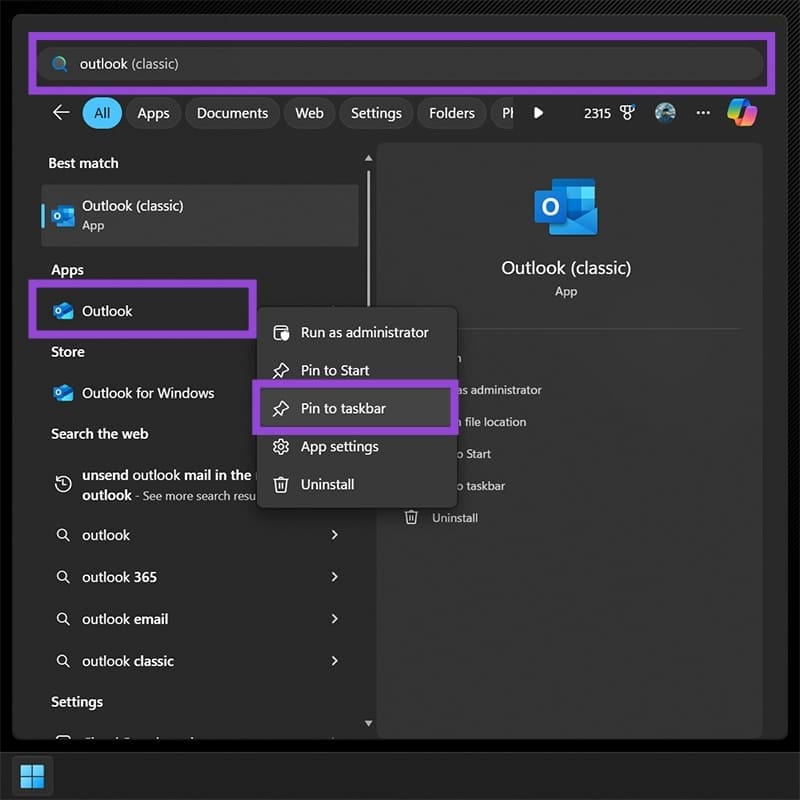
Step 2. Type Outlook into the search bar and look for the app (not Classic Outlook).
Step 3. Right-click the app and choose “Pin to taskbar.”
Step 4. Check to see if the issue has been resolved.

Change the Default App
Sometimes the problem is Windows switching away from Outlook as your default app. You can change this back in Settings:
Step 1. Open Settings (Win + I) and choose “Apps” from the sidebar.
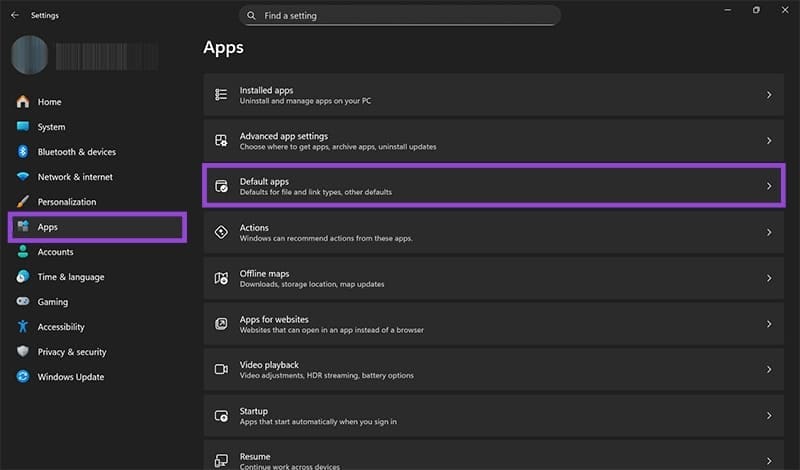
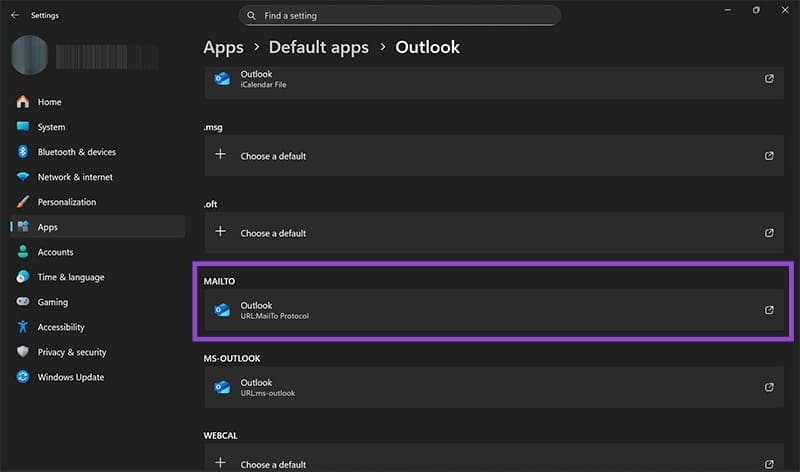
Step 2. Choose “Default Apps,” then navigate down until you reach the “MAILTO” subsection.
Step 3. Click and choose “Outlook” from the list of options, again ensuring you pick the app and not Classic Outlook.
Step 4. See if the issue is resolved.
Clearing the Cache
There’s a lot that can get corrupted in a cache that’s not been cleared, especially with frequent system updates and changes. A good fix is to clear your Outlook cache and remove any potential web settings that are in there. Never fear, your emails won’t be deleted in the process. Here’s what to do:
Step 1. Open an Explorer Window (Win + E) and type “%localappdata%\Microsoft\Olk” into the address bar at the top.
Step 2. In the OLK folder, click the cache. Press (Shift +Del) to remove the entire cache instead of moving it to the Recycle Bin.
Step 3. Restart your machine. The Cache folder will be rebuilt automatically.
If this doesn’t resolve the issue, you can also try deleting both the logs and EBWebView folders in the same way, restarting afterwards.
Force a Sign Out
Another way to control when Outlook redirects to browser is to force the app to sign out and ensure that the sign-in process through your app makes it the only destination. Here’s what to do:
Step 1. Open an Explorer window (Win + E) and type “%localappdata%\Microsoft\OneAuth” into the address bar.
Step 2. Delete the “OneAuth” folder (Shift + Del), and you’ll be signed out locally.

Step 3. Use the new Outlook app to sign back in and check if the problem’s fixed.
Was this helpful?
Last updated on 28 November, 2025
Read Next
 Top 4 Ways to Open PDF Document in Adobe Reader Instead of Browser
Are your PDF files opening in the Microsoft Edge on Windows 10 PC?
Top 4 Ways to Open PDF Document in Adobe Reader Instead of Browser
Are your PDF files opening in the Microsoft Edge on Windows 10 PC?
 How to Force Send Text Message Instead of iMessage to a Contact
Let's see how to force send a text message instead of iMessage to a contact on your iPhone and iPad.
How to Force Send Text Message Instead of iMessage to a Contact
Let's see how to force send a text message instead of iMessage to a contact on your iPhone and iPad.
 3 Fixes for iMessage Sending From Email Instead of Phone Number
Basic Fixes Force quit and relaunch Messages app: This will give the app a fresh start and reload your chats.
3 Fixes for iMessage Sending From Email Instead of Phone Number
Basic Fixes Force quit and relaunch Messages app: This will give the app a fresh start and reload your chats.
 You Can’t Activate Creator Mode on LinkedIn Anymore – Here’s What You Can Do Instead
You’re creating posts and getting some solid engagement on LinkedIn but wouldn’t call yourself a true “creator” yet, and certainly not a LinkedIn influencer.
You Can’t Activate Creator Mode on LinkedIn Anymore – Here’s What You Can Do Instead
You’re creating posts and getting some solid engagement on LinkedIn but wouldn’t call yourself a true “creator” yet, and certainly not a LinkedIn influencer.
 How to Fix Windows 10 Shuts Down Instead of Going to Sleep or Hibernating
Windows operating system comes with a lot of simple features that are a real time saver.
How to Fix Windows 10 Shuts Down Instead of Going to Sleep or Hibernating
Windows operating system comes with a lot of simple features that are a real time saver.
 6 Ways to Fix Samsung Internet Browser Keeps Opening Automatically
Fix 1: Block Pop-Ups Blocking pop-ups on Samsung Internet is one of the most effective ways to stop the browser from opening on its own.
6 Ways to Fix Samsung Internet Browser Keeps Opening Automatically
Fix 1: Block Pop-Ups Blocking pop-ups on Samsung Internet is one of the most effective ways to stop the browser from opening on its own.
 How to Show Profile Picture Instead of Video in Zoom Meeting
https://youtu.be/n6ihTbONm_I Keep Picture Instead of Video or Name in Zoom on PC It’s not rocket science to show your picture in Zoom.
How to Show Profile Picture Instead of Video in Zoom Meeting
https://youtu.be/n6ihTbONm_I Keep Picture Instead of Video or Name in Zoom on PC It’s not rocket science to show your picture in Zoom.
 7 Fixes When Printer on Windows 11 Keeps Printing Landscape Instead of Portrait
1.
7 Fixes When Printer on Windows 11 Keeps Printing Landscape Instead of Portrait
1.
The article above may contain affiliate links which help support Guiding Tech. The content remains unbiased and authentic and will never affect our editorial integrity.