

Basic Ways:
- By right-clicking on the desktop: One of the easiest ways to open display settings in Windows 11 is to right-click on any empty space on your desktop and click the Display settings option.
- Via Search: Use the Windows Search bar to look up your device’s display settings. Then, click on the relevant app from the search results to open it.
- Using the Run command: Use the Windows + R key to open the Run window. Here, type ms-settings:display and press enter to open Windows display settings.
Method 1: Using the Settings Menu
The Windows Settings app is a hub for all the important Windows settings and features. So, it comes as no surprise that it has provisions to access the display settings menu. Here’s how.
Step 1: Use the Windows + I key to open the Settings menu. From the menu options, click on System > Display.
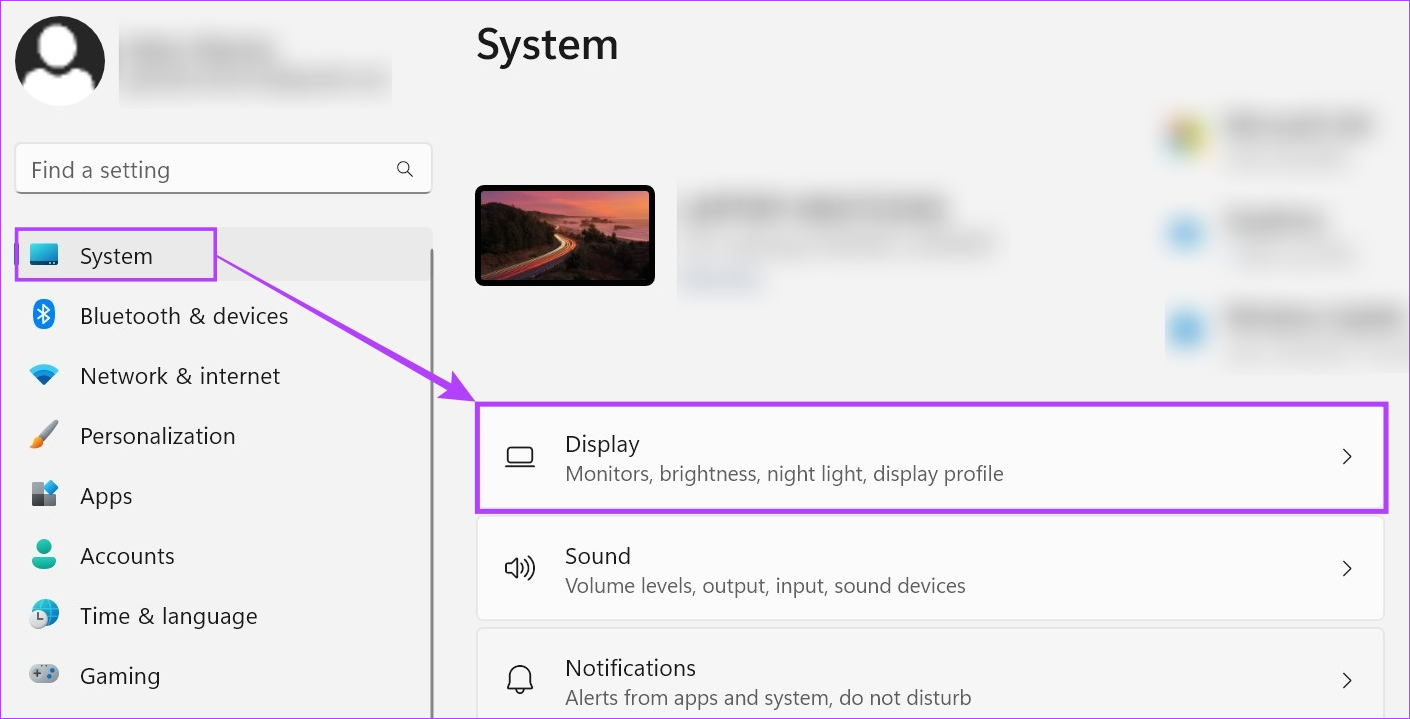
Now, use the display settings to adjust your device’s brightness, orientations, and more.
Method 2: Using Command Prompt
Specific commands help you open the Windows display settings menu. While this might be complicated, use it if you’re feeling adventurous and want to try a new method. Here’s how to do it.
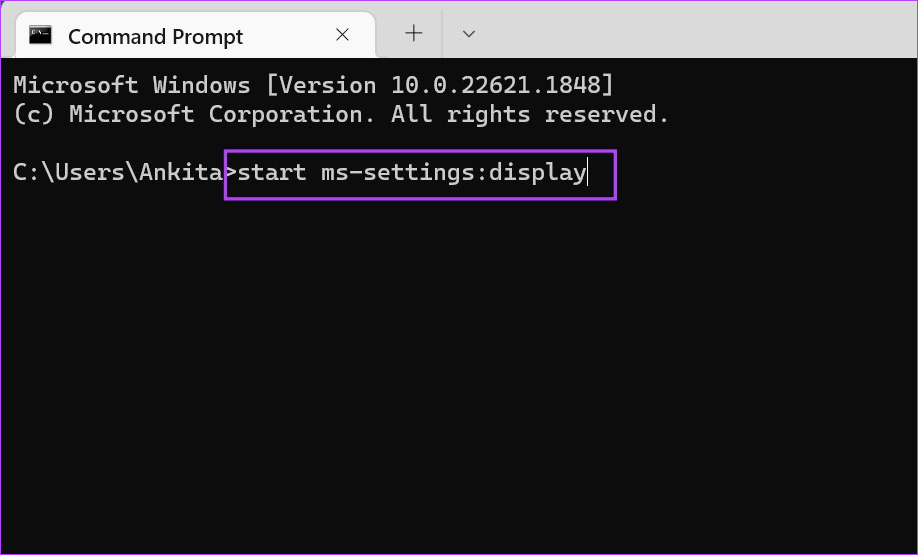
Step 1: Open Command Prompt and type the following command. Press enter to execute and open display settings.
start ms-settings:display
Also Read: How to fix Command Prompt not working on Windows 11
Method 3: Using Windows PowerShell
Just like using the Command Prompt, you can also use Windows PowerShell to open display settings on your Windows 11 device. Follow the below steps to do it.
Step 1: Open Windows PowerShell and enter the following command. Press enter to execute the command and open display settings.
start-process ms-settings:display

Method 4: Create a Desktop Shortcut to Display Settings
If you don’t fancy clicking different icons to open the display settings in Windows 11, create a display setting shortcut. This will allow you to open display settings at the click of a button from your device’s desktop. Here’s how.
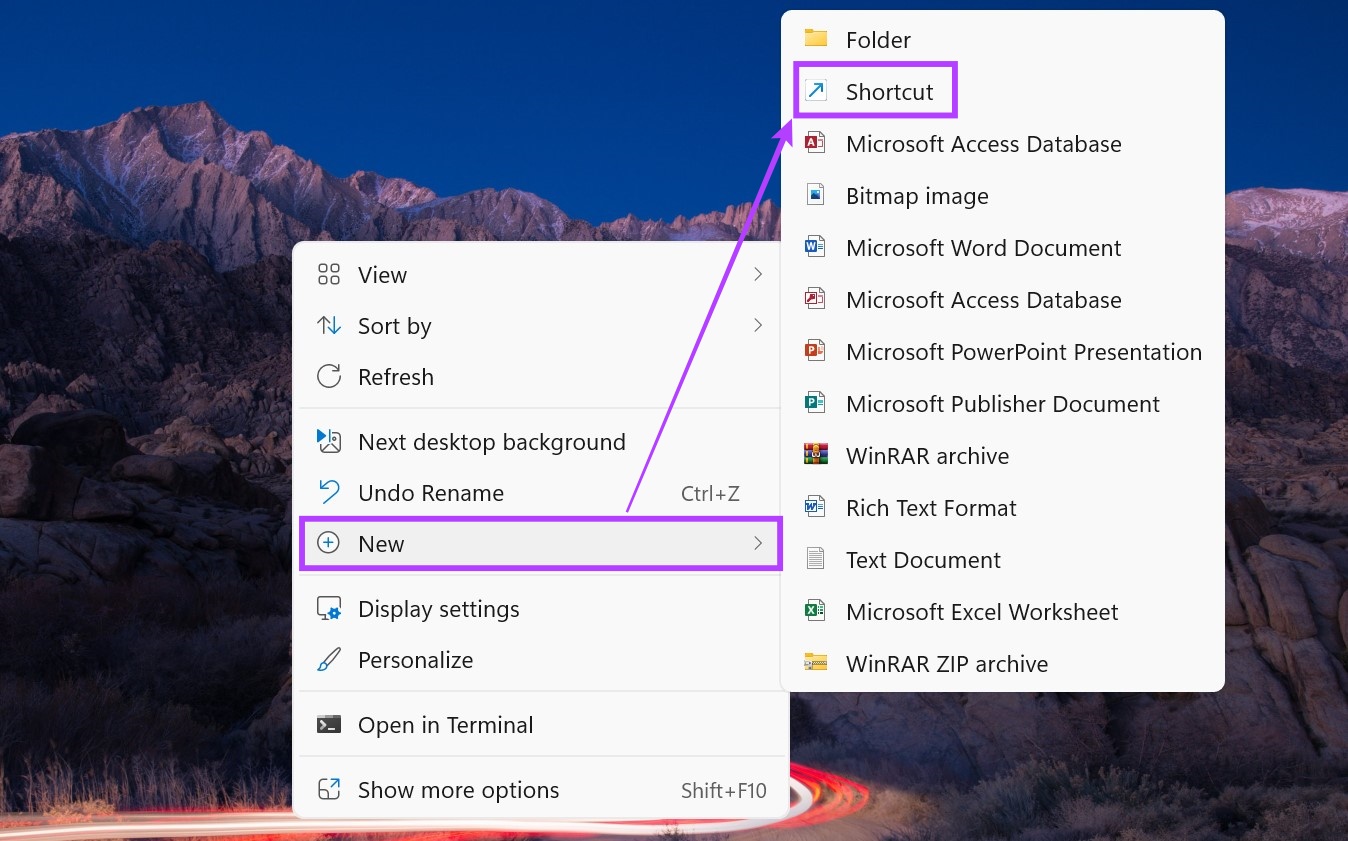
Step 1: Right-click on any empty space on your desktop. Go to New and click on Shortcut.
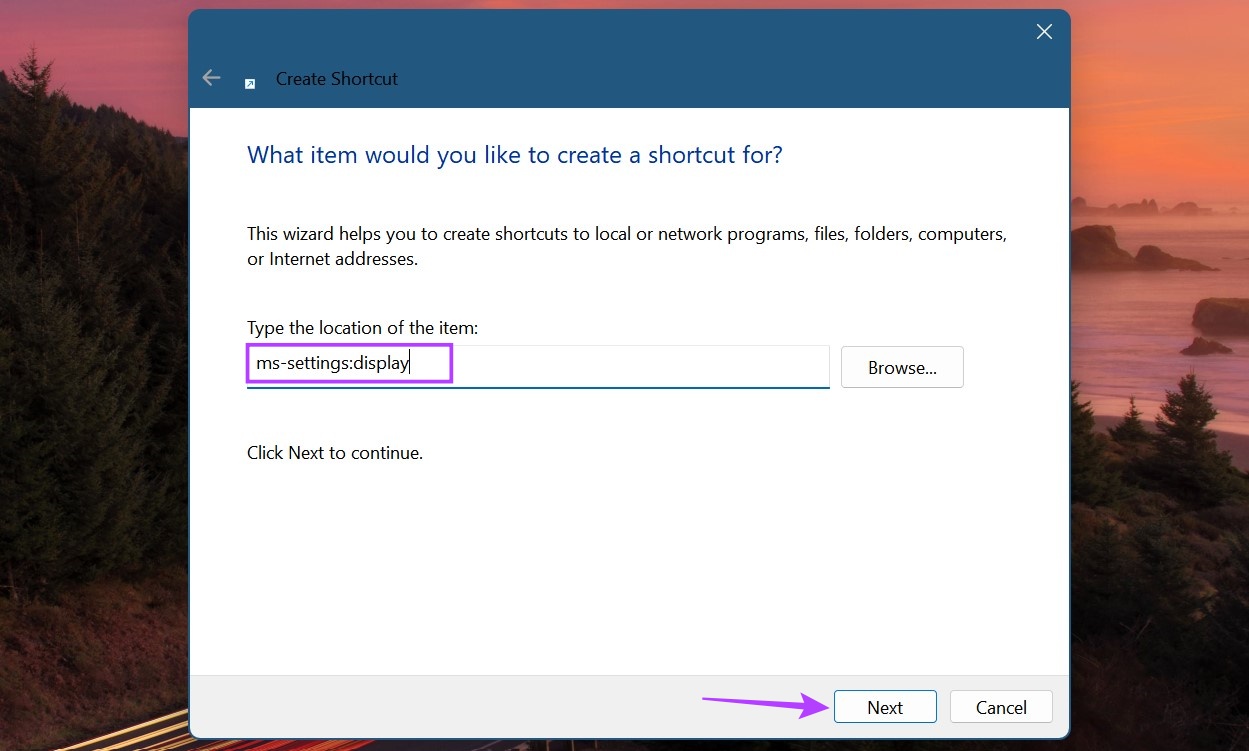
Step 2: Here, type ms-settings:display and click on Next.
Step 3: You can also rename the shortcut to Display Settings Shortcut. Once done, click on Finish.
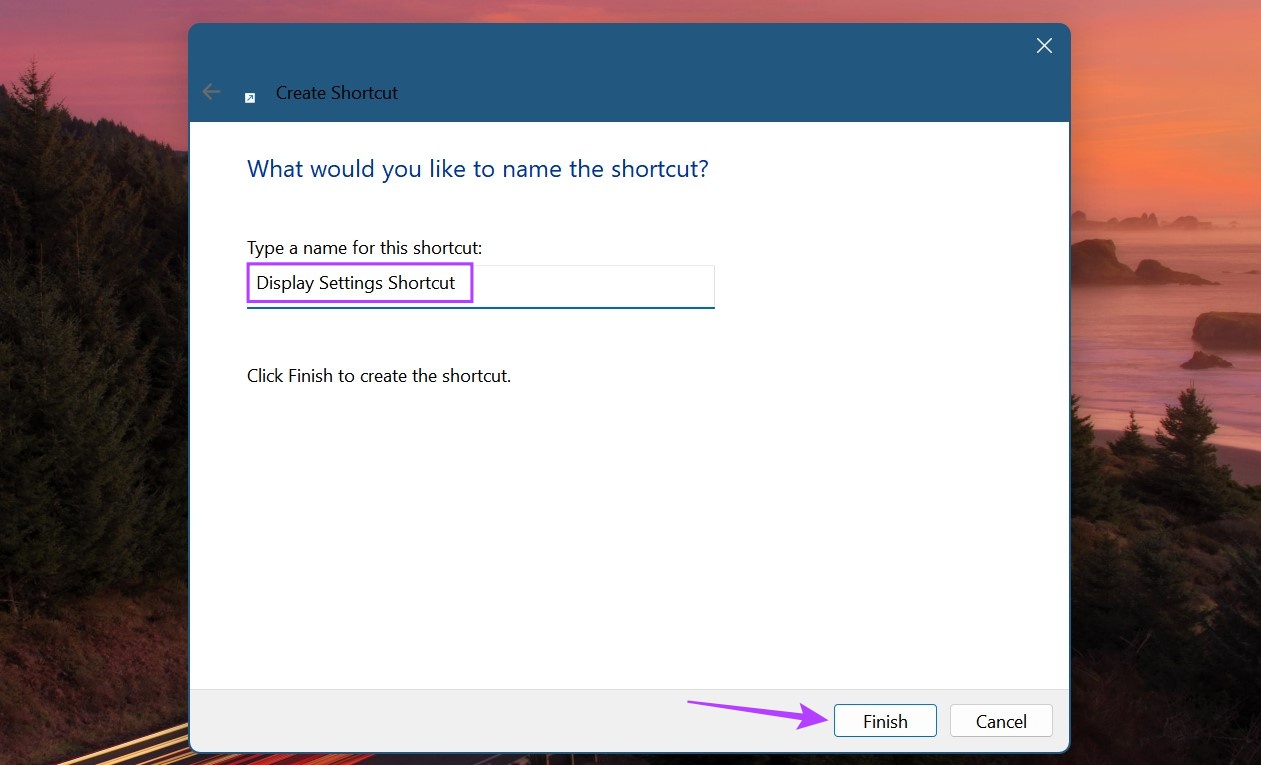
This will create a shortcut for display settings on your desktop. Now, double-click on this shortcut to open display settings on your Windows 11 PC.
Was this helpful?
Last updated on 26 June, 2024
1 Comment
Leave a Reply
Read Next
 How to Reset Display Settings to Default on Windows 10
Often a software update might end up messing up your display settings on a Windows 10 PC.
How to Reset Display Settings to Default on Windows 10
Often a software update might end up messing up your display settings on a Windows 10 PC.
 5 Ways to Fix Computer Turns on but No Display on Windows 11
Basic Fixes: Ensure the monitor is turned on: If you're using an external monitor or if your laptop's monitor has an external power switch, ensure it is turned on before
5 Ways to Fix Computer Turns on but No Display on Windows 11
Basic Fixes: Ensure the monitor is turned on: If you're using an external monitor or if your laptop's monitor has an external power switch, ensure it is turned on before
 6 Best Ways to Adjust the Display Brightness on Windows 11
Whether you're working late into the night or working outdoors, having the perfect brightness level on your Windows machine can make all the difference.
6 Best Ways to Adjust the Display Brightness on Windows 11
Whether you're working late into the night or working outdoors, having the perfect brightness level on your Windows machine can make all the difference.
 6 Ways to Fix NVIDIA’s ‘Unable to Change Display Mode’ Error on Windows 11
Method 1: Terminate and Restart the NVIDIA Control Panel It is common for apps and their associated processes to encounter glitches and stop working properly.
6 Ways to Fix NVIDIA’s ‘Unable to Change Display Mode’ Error on Windows 11
Method 1: Terminate and Restart the NVIDIA Control Panel It is common for apps and their associated processes to encounter glitches and stop working properly.
 Top 10 Ways to Fix ‘Display Driver Failed to Start’ Error in Windows 10 and 11
Display drivers facilitate communication between the Windows operating system (or any OS) with your GPU.
Top 10 Ways to Fix ‘Display Driver Failed to Start’ Error in Windows 10 and 11
Display drivers facilitate communication between the Windows operating system (or any OS) with your GPU.
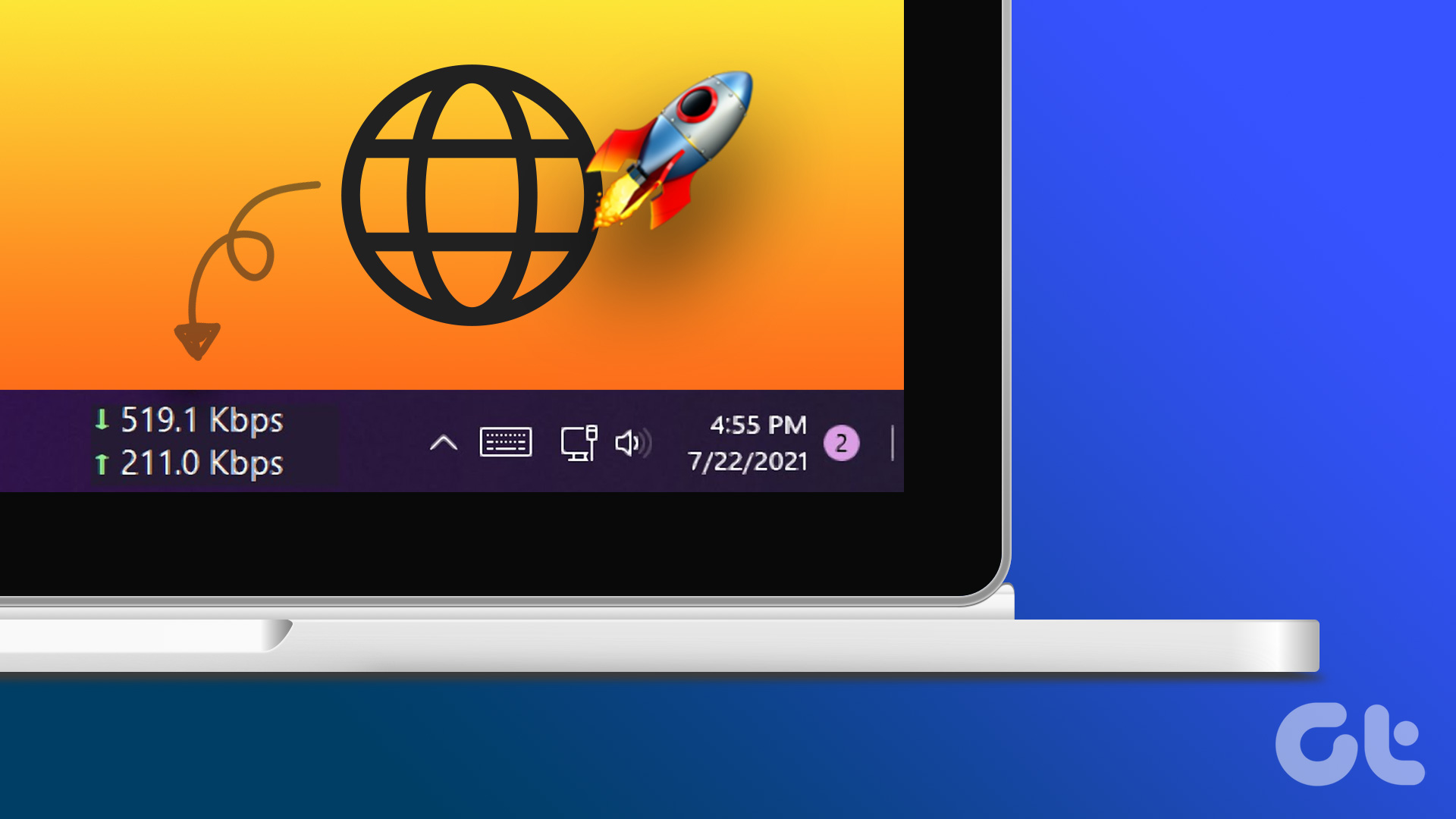 How to Display Internet Speed on Taskbar in Windows
https://youtu.be/m62gwMYvYVk Download Internet Speed Meter for Windows for Real-Time Monitoring To show internet speed in the taskbar on Windows, you will have to download a dedicated app known as NetSpeedMonitor.
How to Display Internet Speed on Taskbar in Windows
https://youtu.be/m62gwMYvYVk Download Internet Speed Meter for Windows for Real-Time Monitoring To show internet speed in the taskbar on Windows, you will have to download a dedicated app known as NetSpeedMonitor.
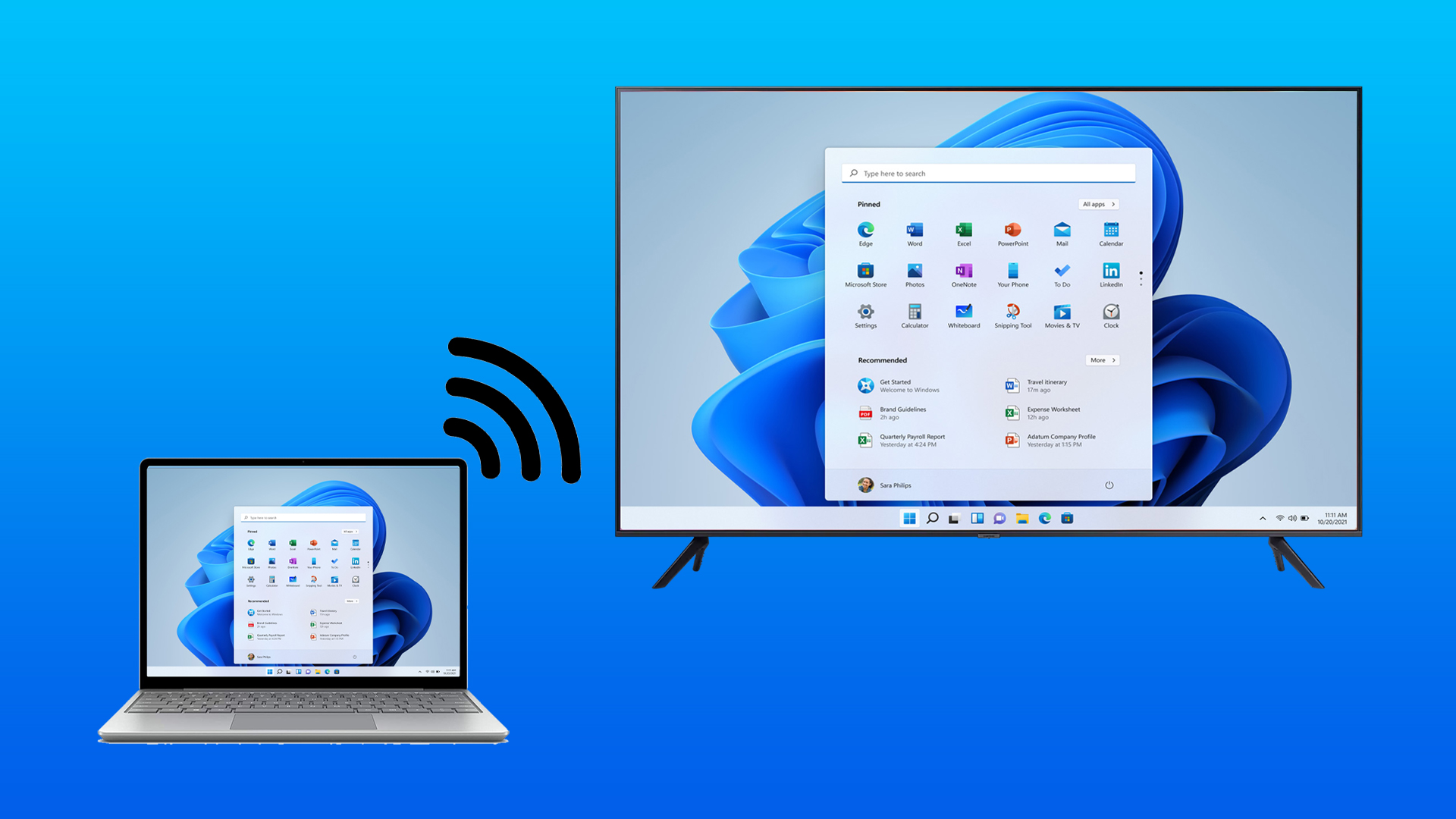 5 Fixes When Wireless Display Feature is Not Working on Windows 11
Basic Fixes: Ensure your devices support Miracast and Wi-Fi Direct protocol: One essential prerequisite for using the wireless display feature on Windows 11 is that all your devices, including your
5 Fixes When Wireless Display Feature is Not Working on Windows 11
Basic Fixes: Ensure your devices support Miracast and Wi-Fi Direct protocol: One essential prerequisite for using the wireless display feature on Windows 11 is that all your devices, including your
 3 Fixes for Display Connection Might Be Limited Error on Windows
Try Basic Fixes Rule out any compatibility issues: Only computers with USB-C ports that support DisplayPort alternate modes can transmit video and audio signals.
3 Fixes for Display Connection Might Be Limited Error on Windows
Try Basic Fixes Rule out any compatibility issues: Only computers with USB-C ports that support DisplayPort alternate modes can transmit video and audio signals.
The article above may contain affiliate links which help support Guiding Tech. The content remains unbiased and authentic and will never affect our editorial integrity.


Please help with problem