New updates bring new features, but occasionally they come with the regrettable side effect of interfering with others. Today’s issue is no exception. If you’ve updated your browser only to find the “Location is turned off in system settings” error, Edge needs a fix, and this is the article to help you out.
“Location is turned off in system settings” Error Edge – Fixes to Try
Disabled location services for Edge are more annoying than game-breaking. There are a few fixes to try to get you back on the map:
Confirm Edge Permissions
A good place to start is with the permissions. Some sites may be blocked and disable location services by default. If this is the case, you can check location sites in the following way:
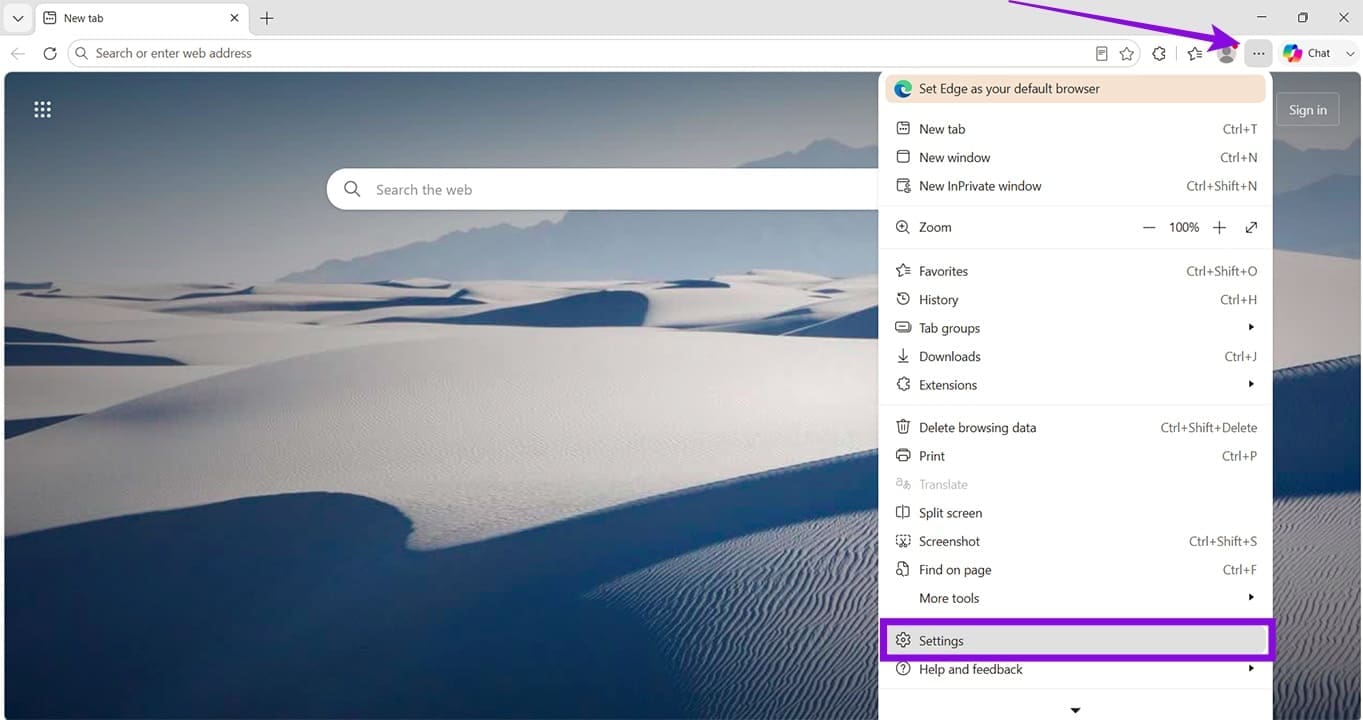
Step 1. Click the ellipses menu (three dots), scroll down to “Settings” and click it.
Step 2. In the “Settings” menu, click “Privacy, search, and services” in the sidebar.
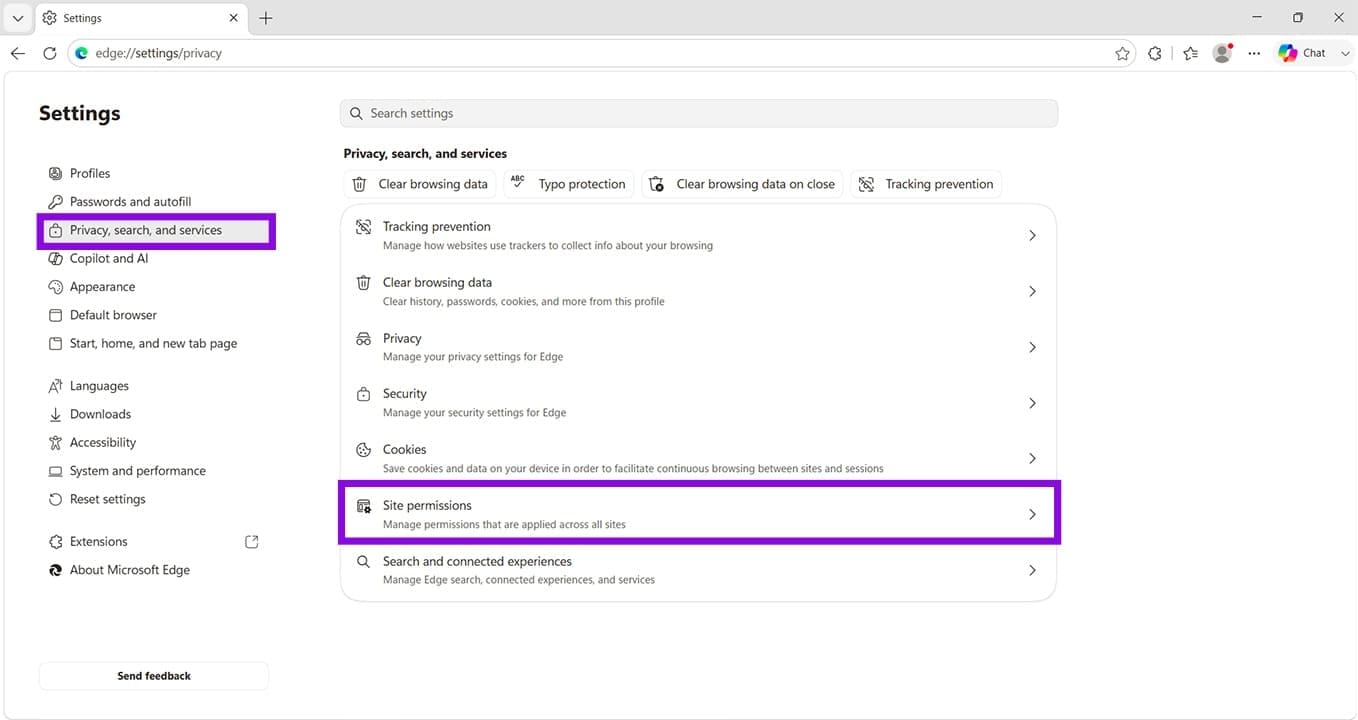
Step 3. Click “Site permissions” in the main window.
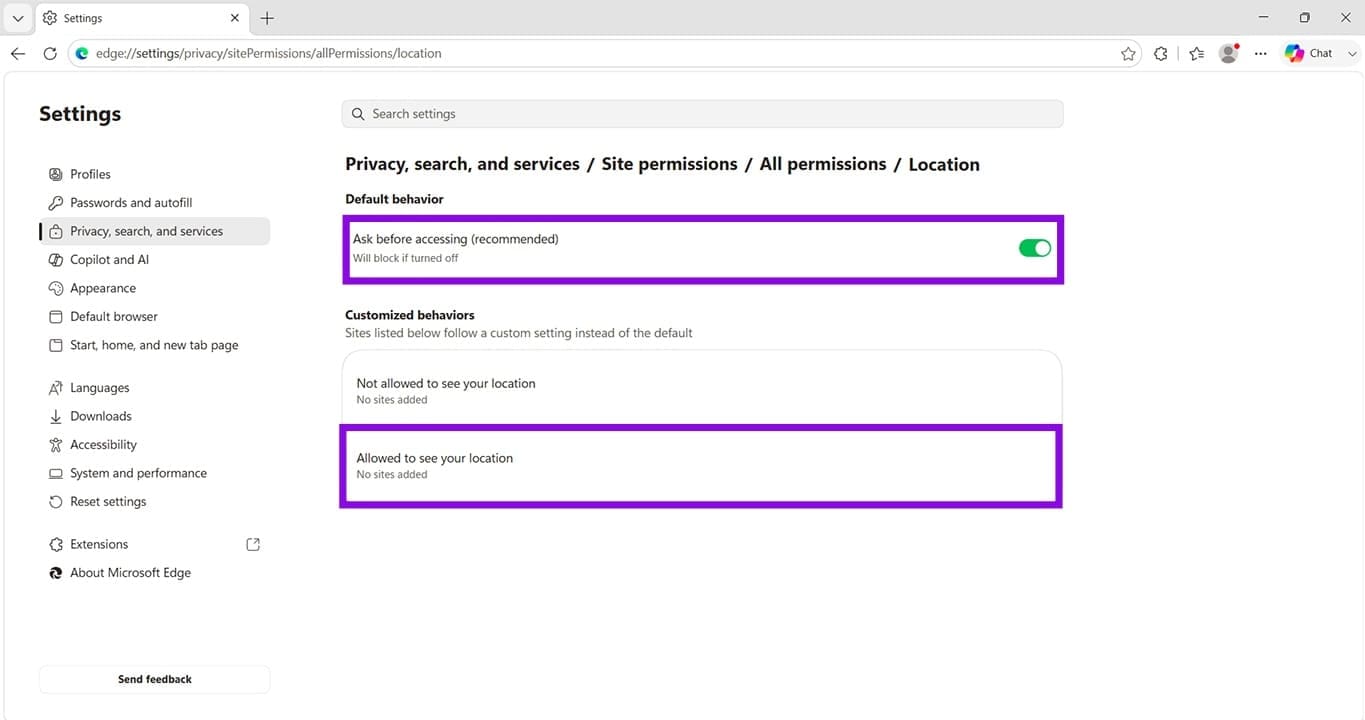
Step 4. In the next screen, click “All permissions.”

Step 5. Ensure “Ask before accessing” is on. If it’s disabled, websites may be unable to request location access. Check that the site you’re accessing is listed under “Allowed to see your location.” If it isn’t, you’ll need to visit it again and change its settings, especially if it’s listed under “Not allowed to see your location.”
Check the Edge Policies
If you’re worried about geolocation in Edge version 149, you can check in the browser’s policies. Here’s what to do:
Step 1. In the Address Bar, type “edge://policy” and click “Enter.”

Step 2. In the Search Box provided, type “DefaultGeoLocationSettings.” Ensure that it is not set to the value “2,” which disables all geolocation, but rather “1” (Allows all) or “3” (Asks permission).
Step 3. “GeolocationBlockedForURLs” controls which sites specifically cannot access location.
Step 4. “PreciseGeolocationAllowedForURLs” shows which URLs have access granted.
Disable Extensions
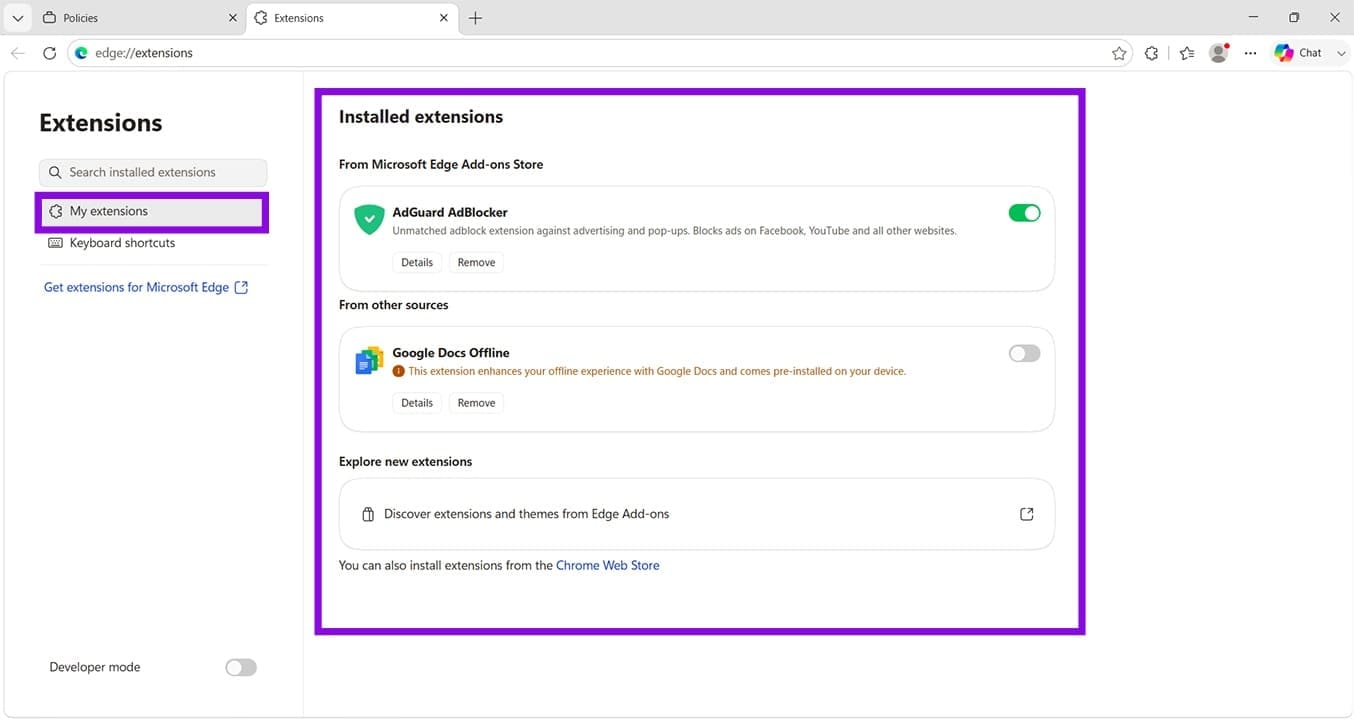
Third-party extensions can sometimes conflict with browser functions and cause errors, especially in the case of a new update. You can also try disabling your extensions and retrying your location services. If location services begin working again, re-enable extensions one at a time to find the problem.
Extensions can be found and managed in the “Extensions” menu found in “Settings.”
Check Windows Location Settings
It might be that Version 149 isn’t causing location trouble at all, but rather Windows 11 itself. If other browsers and apps are experiencing location issues, here’s how to check and fix:
Step 1. Open “Settings” (Win + I) and click “Privacy & security” in the sidebar.
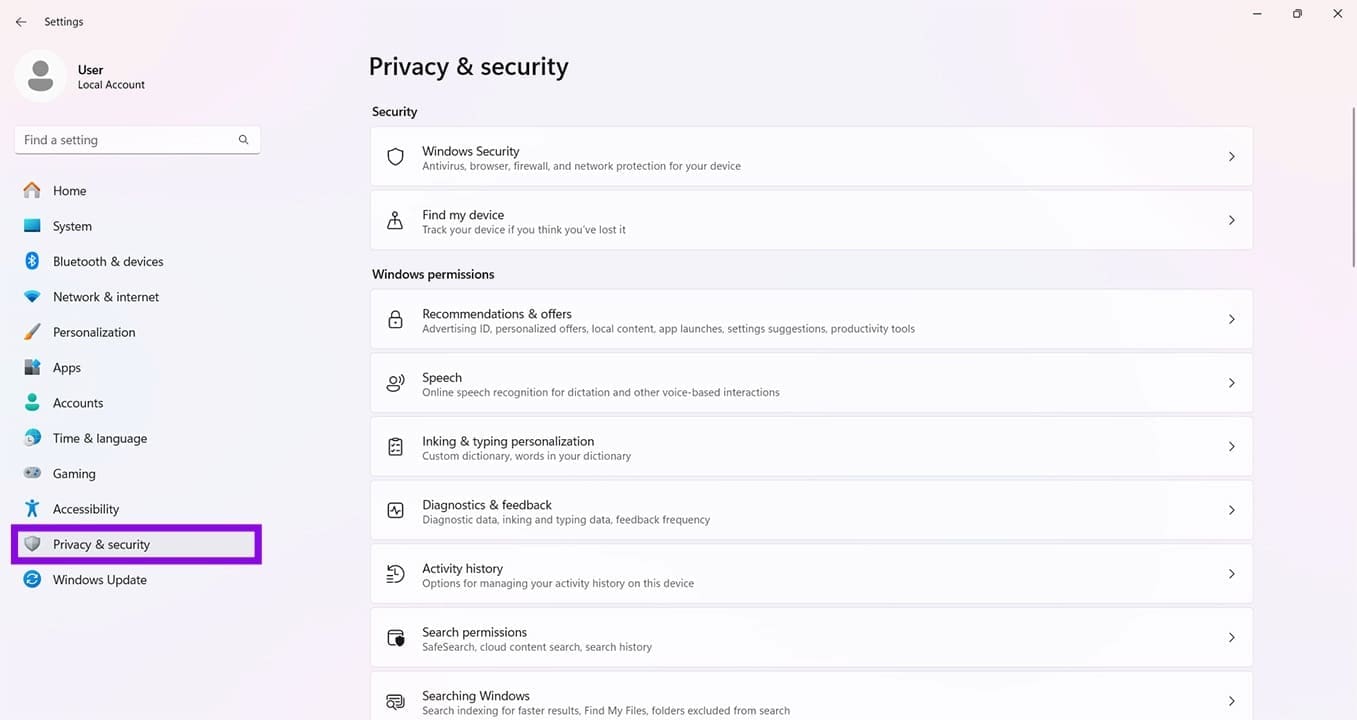
Step 2. Scroll down to “Location” and click it.
Step 3. In the next window, ensure “Location services” is enabled. Also, verify that desktop apps are allowed to access location data if you have that option on your system.

Restart Windows Geolocation
It’s also worth checking Windows Geolocation if you’re not having luck. A quick restart of this service might solve things:
Step 1. Open the “Run Dialog” (Win + R) and type “services.msc” before clicking “Enter.”
Step 2. In “Services,” scroll down to “Geolocation Service” and, if it isn’t running, right-click the service and either click “Start” or “Restart.”

Was this helpful?
Last updated on 18 June, 2026
Read Next
 Top 4 Ways to Fix Taskbar Turned White Issue in Windows 10
Most of us click on the Taskbar to access frequently used apps, services, view time, and so on.
Top 4 Ways to Fix Taskbar Turned White Issue in Windows 10
Most of us click on the Taskbar to access frequently used apps, services, view time, and so on.
 How to Fix Windows Security Center Is Turned off Error
The Windows Security Center comes preinstalled with all versions of Windows 10 computers.
How to Fix Windows Security Center Is Turned off Error
The Windows Security Center comes preinstalled with all versions of Windows 10 computers.
 What Is Meant by Disappearing Messages Were Turned off in WhatsApp
What Are Disappearing Messages in WhatsApp If the ephemeral WhatsApp status wasn’t enough, Facebook launched another feature on WhatsApp: Disappearing messages.
What Is Meant by Disappearing Messages Were Turned off in WhatsApp
What Are Disappearing Messages in WhatsApp If the ephemeral WhatsApp status wasn’t enough, Facebook launched another feature on WhatsApp: Disappearing messages.
 4 Ways to Check the .NET Framework Version on Windows 11
Method 1: Visit the Installation Folder Browsing the .NET Framework installation folder on Windows 11 is a nifty trick to check its version details.
4 Ways to Check the .NET Framework Version on Windows 11
Method 1: Visit the Installation Folder Browsing the .NET Framework installation folder on Windows 11 is a nifty trick to check its version details.
 How to Download ORCA MSI Editor Standalone Version
How to Download and Install the ORCA MSI Editor Downloading the standalone MSI installer file is quite difficult.
How to Download ORCA MSI Editor Standalone Version
How to Download and Install the ORCA MSI Editor Downloading the standalone MSI installer file is quite difficult.
 How to Use the Edge Bar in Microsoft Edge on Windows 11
How to Enable Edge Bar in Microsoft Edge Step 1: Launch Microsoft Edge on your PC > click the three-dot menu icon at the top right > select Settings.
How to Use the Edge Bar in Microsoft Edge on Windows 11
How to Enable Edge Bar in Microsoft Edge Step 1: Launch Microsoft Edge on your PC > click the three-dot menu icon at the top right > select Settings.
 How to Change or Fake Location in Chrome, Edge, and Firefox
Method 1: Use a VPN to Fake Your Location in Chrome, Edge, and Firefox VPN makes your private network truly private when you connect to its servers.
How to Change or Fake Location in Chrome, Edge, and Firefox
Method 1: Use a VPN to Fake Your Location in Chrome, Edge, and Firefox VPN makes your private network truly private when you connect to its servers.
 How to Hide Your Location in Microsoft Edge
Many modern websites track the locations of those who visit them.
How to Hide Your Location in Microsoft Edge
Many modern websites track the locations of those who visit them.
The article above may contain affiliate links which help support Guiding Tech. The content remains unbiased and authentic and will never affect our editorial integrity.