


How to Mute Instagram Broadcast Channel Notifications
If you have joined an Instagram broadcast channel but don’t want to be notified of new messages, follow these steps.
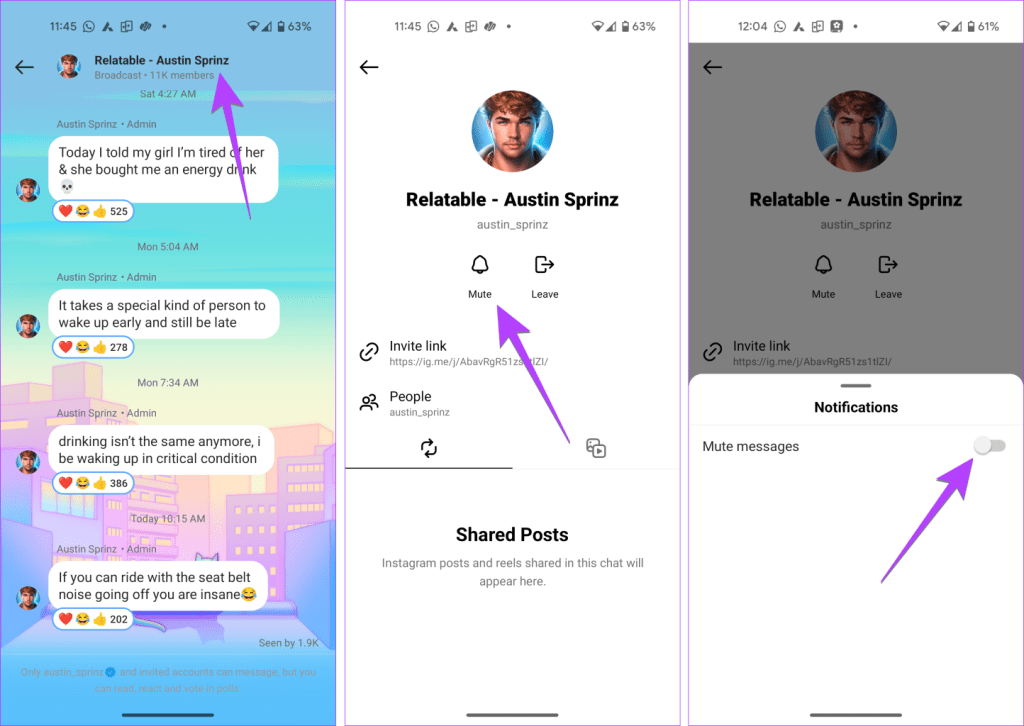
Step 1: From your inbox, tap on the broadcast channel whose notifications you want to disable.
Step 2: Tap on the channel name at the top. Press the Mute button and enable the toggle next to it.
Tip: Know the difference between mute, block, and hide on Instagram.
How to Turn Off Notifications for New Broadcast Channels
If you don’t want to receive a notification when a creator makes a broadcast channel on Instagram, you must turn off the creator’s Broadcast channel notifications as shown below:
Step 1: Open the Instagram profile of the creator whose broadcast notifications you want to stop.
Step 2: Tap on the Bell icon at the top and turn off the toggle for Broadcast channels.

Here’s how you can stop broadcast channel notifications from all creators at once using the steps given below:
Step 1: Open the Profile tab on Instagram > tap on the three-bar icon > and select Settings and Privacy from the menu.
Step 2: Go to Notifications, followed by Messages. Scroll down and select Off under Broadcast channel invites.

How to Leave a Broadcast Group Channel on Instagram
Open the broadcast channel that you want to leave. Tap on the broadcast channel name at the top and tap on Leave.
If you don’t see the Leave button, tap on the three-dot icon and select Leave from the menu.

You can also delete the broadcast channel from your inbox, making you leave the channel. Swipe left or long-tap on the broadcast channel in your inbox and use the Delete button.
Also Read: How to stop seeing Threads posts and notifications on Instagram
Was this helpful?
Last updated on 23 April, 2024
1 Comment
Leave a Reply
Read Next
 How to Leave a Facebook Group on Mobile or Desktop
Facebook is a hub for community connection.
How to Leave a Facebook Group on Mobile or Desktop
Facebook is a hub for community connection.
 How to Leave a WhatsApp Group Without Anyone Knowing
How to Exit a WhatsApp Group Silently Note: The steps remain the same regardless of which platform you use.
How to Leave a WhatsApp Group Without Anyone Knowing
How to Exit a WhatsApp Group Silently Note: The steps remain the same regardless of which platform you use.
 How to Leave a Slack Workspace on Desktop or Mobile
How to Leave a Slack Workspace Note: The steps remain the same for Windows, Mac, iOS and Android.
How to Leave a Slack Workspace on Desktop or Mobile
How to Leave a Slack Workspace Note: The steps remain the same for Windows, Mac, iOS and Android.
 Should You Leave Wi-Fi On on Your Smartphone
How Does Wi-Fi Impact Battery Life?
Should You Leave Wi-Fi On on Your Smartphone
How Does Wi-Fi Impact Battery Life?
 How to Leave Beta Program on Google Play Store
What Happens When You Leave an Early Access or Beta Program The following changes occur when you opt out of the beta testing program on the Google Play Store: You
How to Leave Beta Program on Google Play Store
What Happens When You Leave an Early Access or Beta Program The following changes occur when you opt out of the beta testing program on the Google Play Store: You
 How to Turn off Contact Joined Notifications on Telegram
How to Disable Notifications for New Contacts on Telegram On iPhone Open the Telegram app and go to the Settings tab.
How to Turn off Contact Joined Notifications on Telegram
How to Disable Notifications for New Contacts on Telegram On iPhone Open the Telegram app and go to the Settings tab.
 How To Turn Off Twitter News for You Notifications
Are you getting weird and unrelated 'News for you' notifications on Twitter?
How To Turn Off Twitter News for You Notifications
Are you getting weird and unrelated 'News for you' notifications on Twitter?
 How to Fix Instagram Not Sending DM Notifications
Basic Fixes Reinstall Instagram: Reinstalling the app will clear out temporary issues, and when you log in, it will default to settings that are restricted to the app.
How to Fix Instagram Not Sending DM Notifications
Basic Fixes Reinstall Instagram: Reinstalling the app will clear out temporary issues, and when you log in, it will default to settings that are restricted to the app.
The article above may contain affiliate links which help support Guiding Tech. The content remains unbiased and authentic and will never affect our editorial integrity.

You are a lifesaver 🫶🏾