

If you’re having issues with a flickering screen, or if a new update of Windows has your system doing strange things, you’re probably looking for an answer. And that answer might be a guide to installing AMD Graphics driver. You’re in luck, because we’re here to help you through the entire process.
Installing AMD Graphics Driver Manually
While it might seem intimidating, manually installing any graphics driver isn’t a difficult process, just one with a few steps. We’ve grouped these into subsections to make the whole process easier.
Visit the AMD Site
Your first stop is the AMD website to pick the right drivers for your particular make of graphics card. Here’s what to do:
Step 1. Open your browser and navigate to the AMD website.
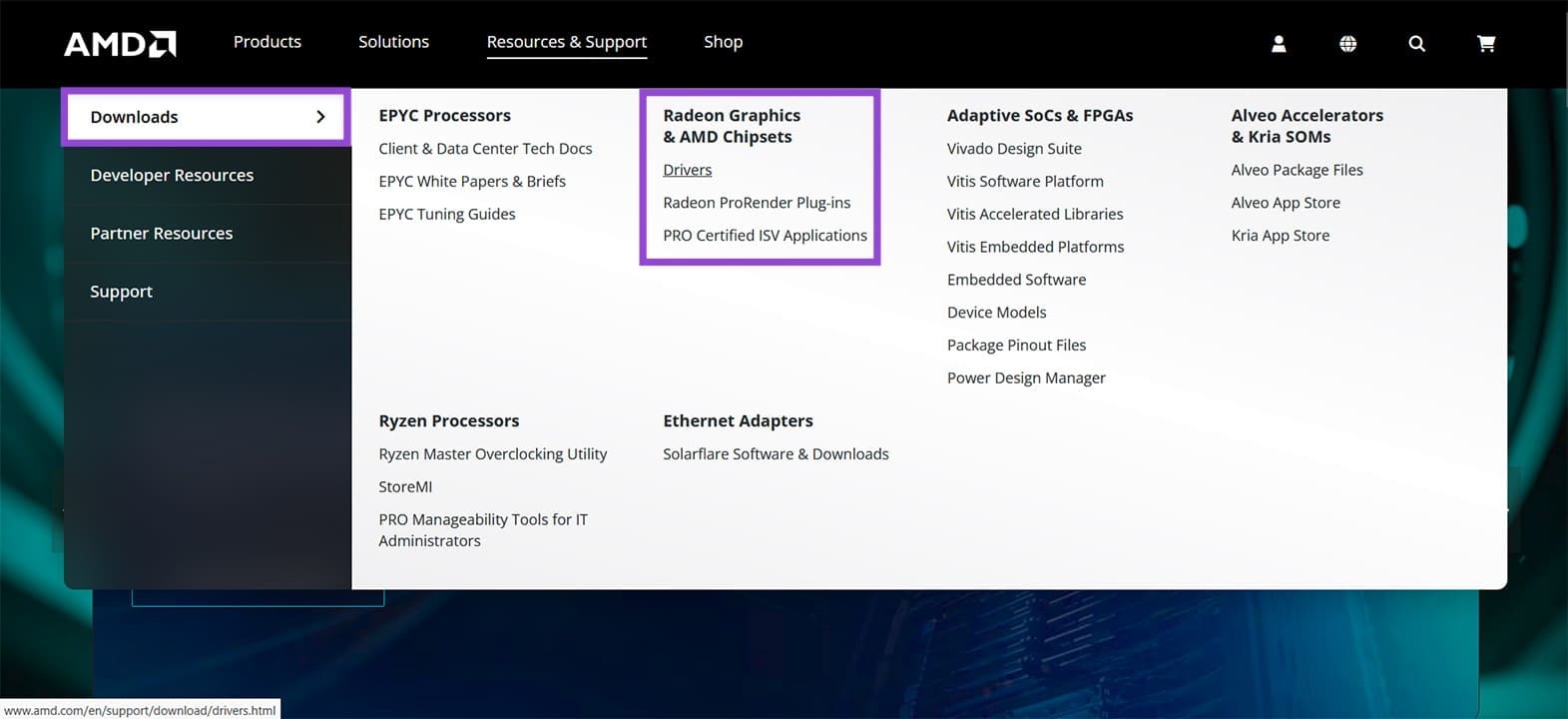
Step 2. Click “Resources & Support” on the homepage menu.

Step 3. In the “Downloads” tab, under “Radeon Graphics & AMD chipsets,” click the “Drivers” option.
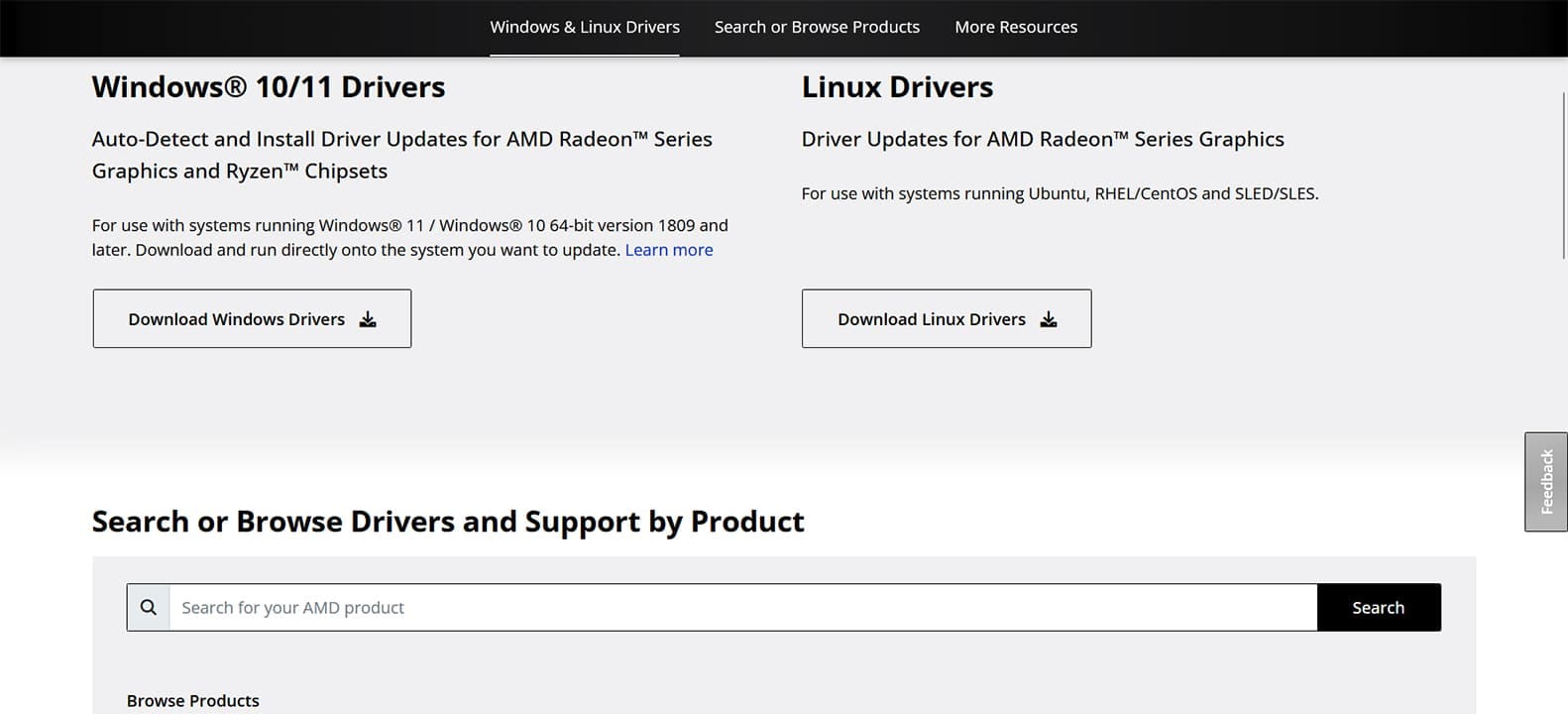
Step 4. AMD gives you the option to auto-detect and download the right drivers for your graphics card. Alternatively, you can manually search for the model and download the drivers yourself.
Step 5. If you’re finding your model manually, you’ll also need to select the correct operating system to download.
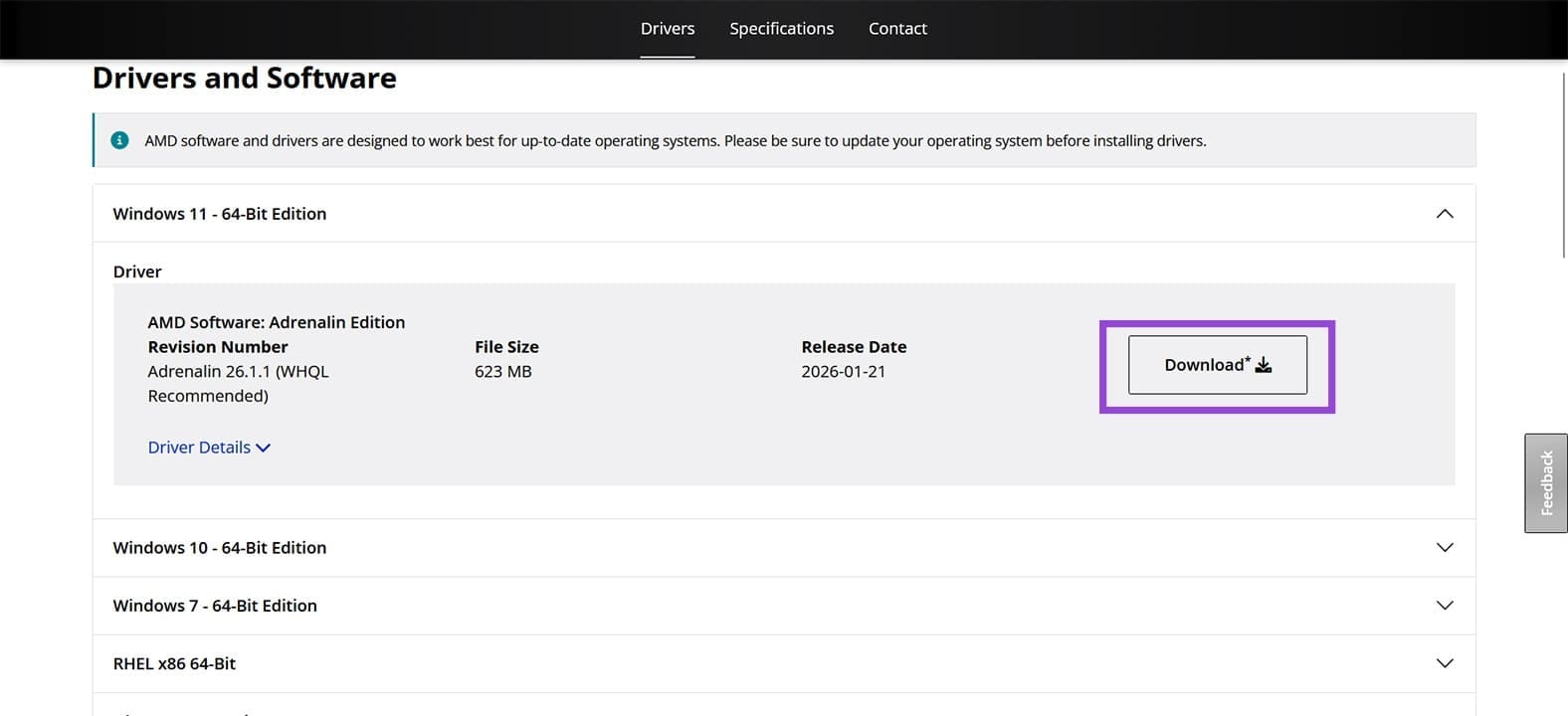
Step 6. Select a download location for your file and begin the process. Once done, double-click on the file to begin the installation.
Installing the Driver
With the right file downloaded for your graphics card, you can begin to install AMD graphics driver:
Step 1. Open the installation file that’s been downloaded, and select an install location for your driver. The default location should do the trick.
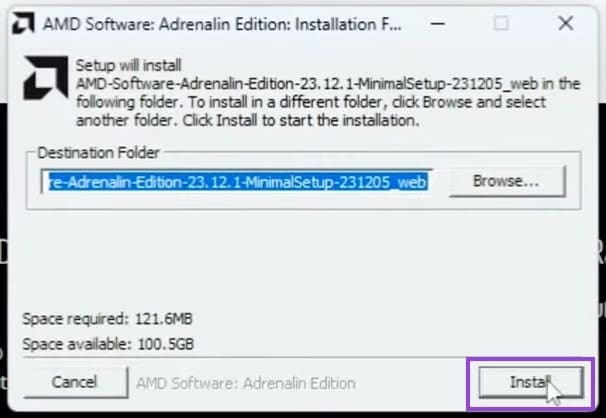
Step 2. If you’ve asked AMD to detect your graphics card during the driver download steps in the section above, the installer will run a detection process to do so. You can choose the version recommended and also choose the installation type and location.
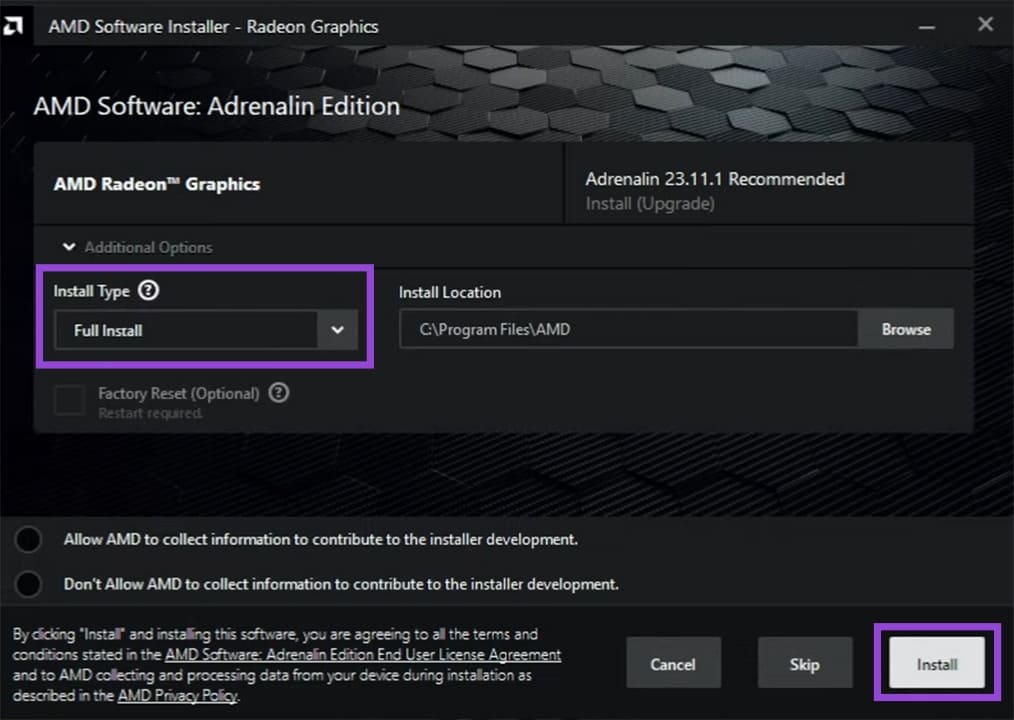
Step 3. This option also includes the “Factory Reset” option, which allows you to remove all previous drivers for a fresh install from scratch. You will need a system restart. Whatever you choose, click “Install” once done.
Step 4. The driver will be downloaded if you’re using the automatic option, or install from the file you’ve downloaded if you’re doing things manually. The automatic installer will offer you the option to install other AMD drivers before this process begins.
Step 5. Once the drivers have installed, you’ll need to restart your PC.
Check Your Installation
With your drivers installed and your system restarted, it’s time to check that everything is working well:
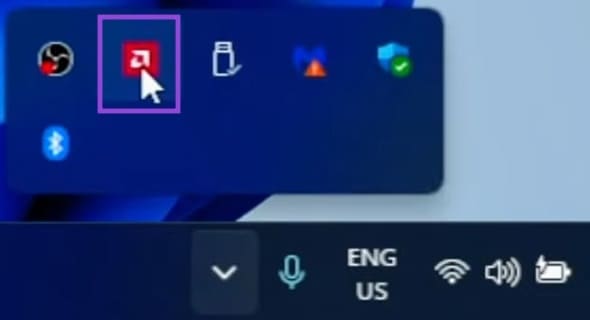
Step 1. Navigate to your system tray on startup and see if the AMD icon is there. Click it, and it’ll bring up the AMD Adrenalin Client.
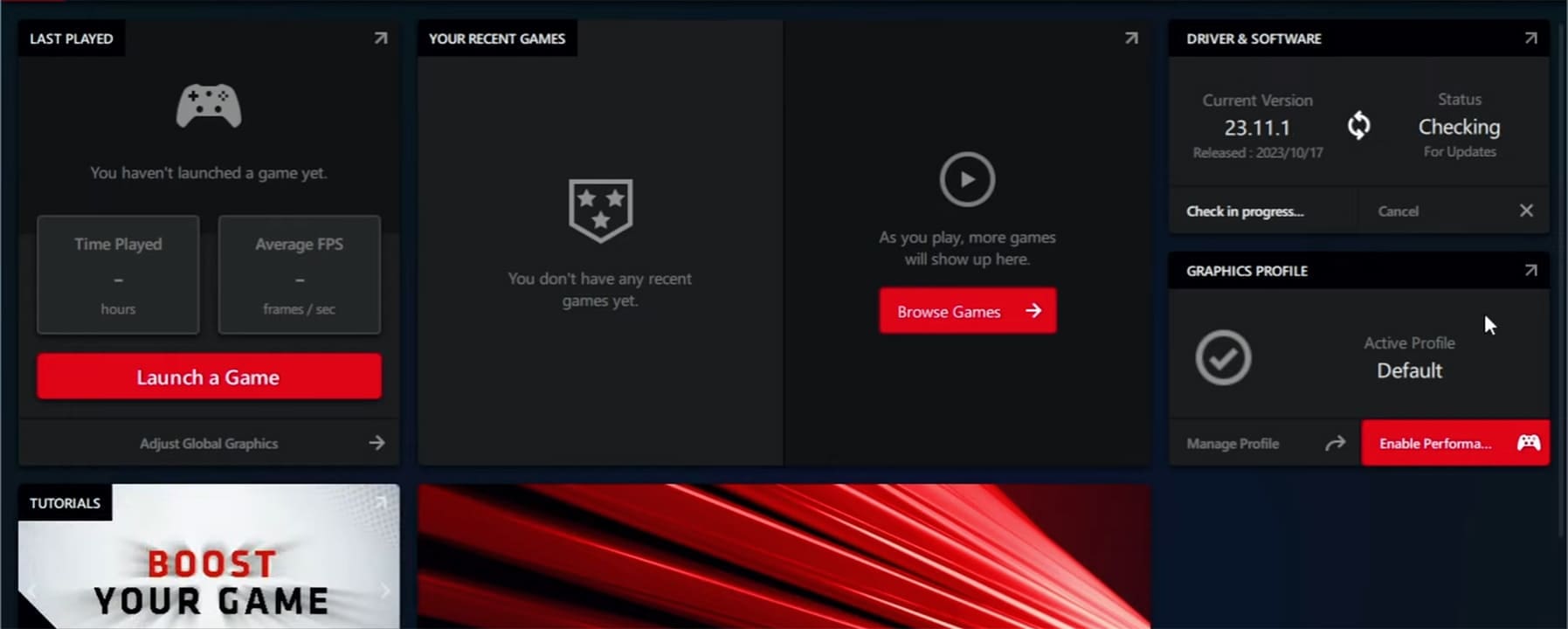
Step 2. Set up the Adrenalin tool either via the “Quick Setup” button or manually if you prefer. From here, you can check your driver version, tweak settings on your graphics card, and a whole host of other features.
Was this helpful?
Last updated on 10 March, 2026
Read Next
 How to Fix Windows Update Replaced Your AMD Graphics Driver
If you have an AMD graphics card installed in your PC, then you may have run into an error where Windows informs you that it has replaced your graphics driver,
How to Fix Windows Update Replaced Your AMD Graphics Driver
If you have an AMD graphics card installed in your PC, then you may have run into an error where Windows informs you that it has replaced your graphics driver,
 4 Ways to Fix Graphics Device Driver Error Code 22 on Windows
Fix 1: Enable and Update the Graphics Driver You may see error code 22 on Windows if you have previously disabled the graphics driver or if it's outdated.
4 Ways to Fix Graphics Device Driver Error Code 22 on Windows
Fix 1: Enable and Update the Graphics Driver You may see error code 22 on Windows if you have previously disabled the graphics driver or if it's outdated.
 How to Overclock a Monitor: NVIDIA, AMD, and Intel GPUs
When gaming, having a high-performance monitor can make a significant difference in your overall experience.
How to Overclock a Monitor: NVIDIA, AMD, and Intel GPUs
When gaming, having a high-performance monitor can make a significant difference in your overall experience.
 7 Fixes for AMD Adrenalin Software Not Working or Opening
Fix 1: Run AMD Radeon Software With Admin Privileges If your AMD Adrenalin software is not working or opening, one of the initial fixes to perform is to run it
7 Fixes for AMD Adrenalin Software Not Working or Opening
Fix 1: Run AMD Radeon Software With Admin Privileges If your AMD Adrenalin software is not working or opening, one of the initial fixes to perform is to run it
 How to Use AMD FSR3 on NVIDIA RTX GPUs
If you already own an NVIDIA GPU, one of the best features available is DLSS technology.
How to Use AMD FSR3 on NVIDIA RTX GPUs
If you already own an NVIDIA GPU, one of the best features available is DLSS technology.
 AMD Folder Getting Increasingly Large – What to Do
Over time, you might notice that your C drive is starting to run out of space, which can force you to stop updating apps or even Windows entirely.
AMD Folder Getting Increasingly Large – What to Do
Over time, you might notice that your C drive is starting to run out of space, which can force you to stop updating apps or even Windows entirely.
 3 Ways to Prevent Users From Installing New Software on Windows 11
Method 1: Turn Off Windows Installer via Group Policy The Group Policy Editor on Windows lets you make various administrative-level changes.
3 Ways to Prevent Users From Installing New Software on Windows 11
Method 1: Turn Off Windows Installer via Group Policy The Group Policy Editor on Windows lets you make various administrative-level changes.
 How to Fix Optional Features Missing or Not Installing on Windows 11
Fix 1: Disable Metered Connection Windows has a metered connection feature that reduces data consumption and helps save on internet bills.
How to Fix Optional Features Missing or Not Installing on Windows 11
Fix 1: Disable Metered Connection Windows has a metered connection feature that reduces data consumption and helps save on internet bills.
The article above may contain affiliate links which help support Guiding Tech. The content remains unbiased and authentic and will never affect our editorial integrity.

