Is Apex Legends Playable on Steam Deck
Before we get into the nitty-gritty of installation, let’s address the burning question: Is Apex Legends compatible with the Steam Deck? The answer is a resounding yes! Respawn Entertainment has worked hard to ensure their popular battle royale title is fully playable on Valve’s handheld gaming device. In fact, the game is officially Deck Verified by Valve.

Because the Steam Deck doesn’t offer cutting-edge hardware, nor is Apex Legends a lightweight game, you can’t truly expect stellar performance.
That being said, Steam Deck allows you to enjoy Apex Legends at a stable 60 FPS, provided you do some tinkering with settings. We’ll get to that later in this guide, but first, let’s start by installing Apex Legends on your Deck.
How to Install and Play Apex Legends on Steam Deck
Since Apex Legends is available on the Steam marketplace, installing the game shouldn’t be a hassle. However, as you might already know, Apex Legends uses Easy Anti Cheat or EAC to protect against hackers. It’s a separate module, which is crucial to launching Apex Legends. Here’s how to install it on your Steam Deck.
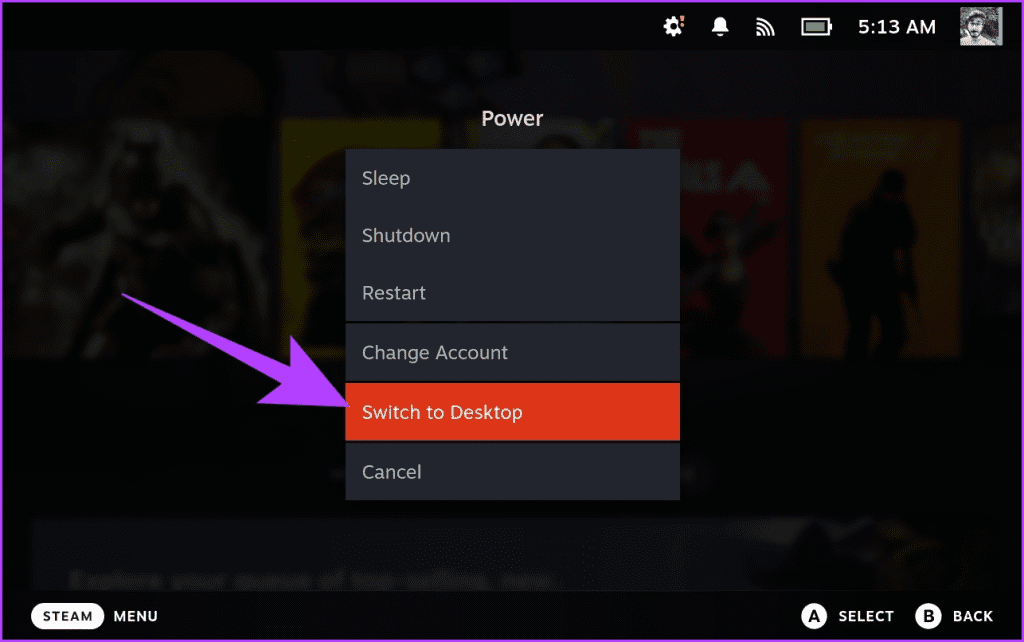
Step 1: Hold the power button on your Steam Deck. Now, select ‘Switch to Desktop‘ from the list of options.
Step 2: Inside the Desktop mode, launch the Steam app. Switch to the Library tab and search for ‘Proton EasyAntiCheat Runtime’.

Next, click on Install to install it on your Steam Deck.
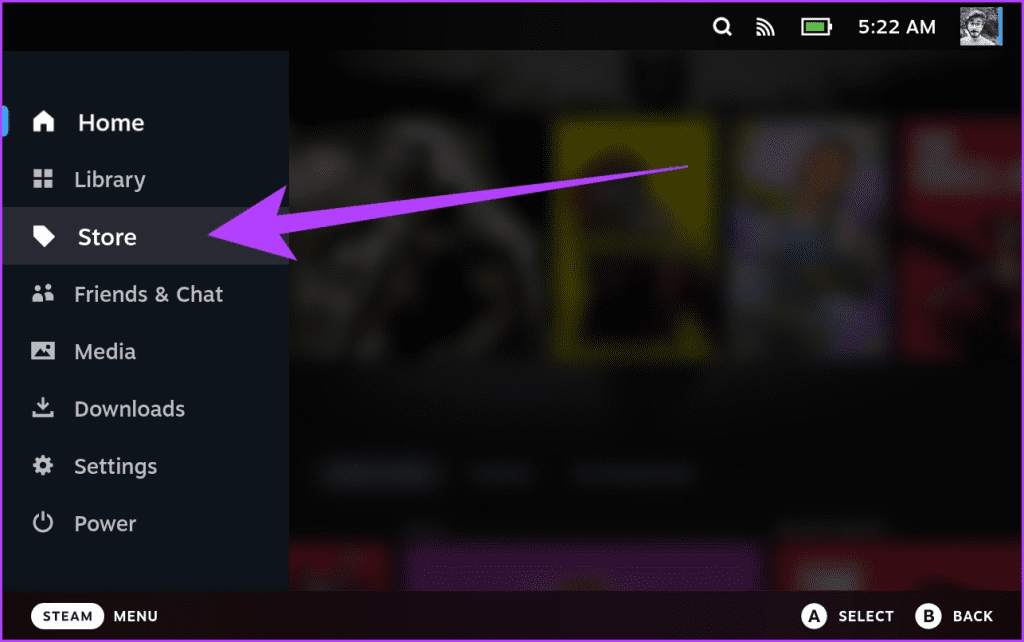
Step 3: Now that EAC is installed, you can install Apex Legends on your Steam Deck. To do that, first switch to the Gaming Mode. Then, press the Steam button on your Deck and select Store.
Step 4: Now, inside the Steam store, search for ‘Apex Legends’ and select Install.

Step 5: Once the game has been downloaded, launch it. The game will first install multiple scripts for DirectX, EasyAntiCheat service, and more. After installing all the scripts, the game will start normally.
Step 6: At this point, log in with your EA account. Click on the bottom dialog box to log in, or tap on Register to create a new EA account.

Step 7: Once done, you can play Apex Legends on your Steam Deck.

Recommended Settings for Apex Legends on Steam Deck
Now that Apex Legends is up and running, let’s tweak the settings for optimal performance and battery life. To adjust them, head to Settings and switch to the Video tab.
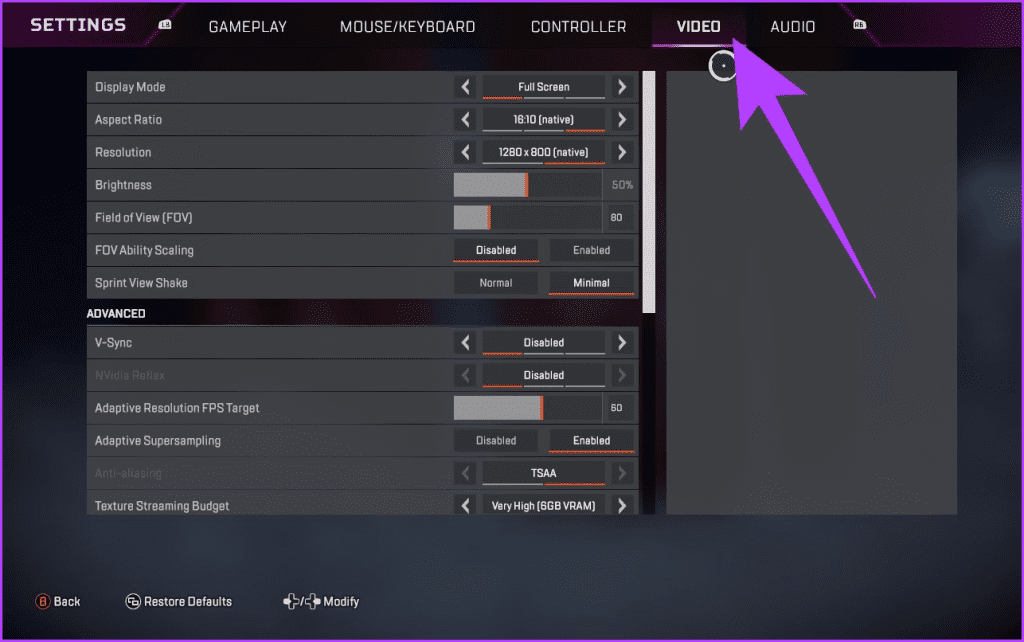
Here are the recommended Apex Legends Steam Deck settings
- Display Mode: Full Screen
- Aspect Ratio: 16:10 (native)
- Resolution: 1280 x 800 (native)
- Field of View (FOV): 80
- FOV Ability Scaling: Disabled
- Sprint View Shake: Minimal
- V-Sync: Disabled
- Adaptive Resolution FPS Target: 60
- Adaptive Supersampling: Enabled
- Texture Streaming Budget: Very High (6GB VRAM)
- Texture Filtering: Bilinear
- Ambient Occlusion Quality: Medium
- Sun Shadow Coverage: Low
- Sun Shadow Detail: Low
- Spot Shadow Detail: Low
- Volumetric Lighting: Disabled
- Dynamic Spot Shadows: Disabled
- Model Detail: Medium
- Effects Detail: Low
- Impact Marks: Low
- Ragdolls: Low
Once you’re done with the changes, press the ‘Y’ key on your Steam Deck to save and apply these changes. Apart from that, it’s worth noting that Apex Legends still uses Proton to run on the Steam Deck. As such, you can try installing and using Proton GE on your Steam Deck to see if it improves your performance.
Was this helpful?
Last updated on 09 July, 2024
Read Next
 Apex Legends Won’t Launch on PC: Here Are 8 Ways to Fix It
Apex Legends is the latest battle royal game that is challenging the dominance of Fortnite and PUBG.
Apex Legends Won’t Launch on PC: Here Are 8 Ways to Fix It
Apex Legends is the latest battle royal game that is challenging the dominance of Fortnite and PUBG.
 How to Install Proton GE on Steam Deck
 Step 1: Hold the power button and select Switch to Desktop on your Steam Deck.
How to Install Proton GE on Steam Deck
How to Install Proton GE on Steam Deck Step 1: Hold the power button and select Switch to Desktop on your Steam Deck.
 How to Install EmuDeck on Steam Deck
Valve's Steam Deck is one of the most powerful handheld gaming consoles on the market, giving you the power of a gaming PC in a portable format.
How to Install EmuDeck on Steam Deck
Valve's Steam Deck is one of the most powerful handheld gaming consoles on the market, giving you the power of a gaming PC in a portable format.
 7 Best Steam Deck Protective Cases That You Can Buy
The Valve Steam Deck has been gaining popularity quickly thanks to its performance.
7 Best Steam Deck Protective Cases That You Can Buy
The Valve Steam Deck has been gaining popularity quickly thanks to its performance.
 How to Watch Movies on Steam Deck
Stream YouTube, Netflix, or Other Websites on Steam Deck Step 1: Ensure your Steam Deck is connected to the Internet.
How to Watch Movies on Steam Deck
Stream YouTube, Netflix, or Other Websites on Steam Deck Step 1: Ensure your Steam Deck is connected to the Internet.
 How to Connect AirPods and Other Bluetooth Accessories to Steam Deck
Put Bluetooth Accessories Into Pairing Mode Before connecting your AirPods or other Bluetooth accessories to the Steam Deck, you must put them into pairing mode.
How to Connect AirPods and Other Bluetooth Accessories to Steam Deck
Put Bluetooth Accessories Into Pairing Mode Before connecting your AirPods or other Bluetooth accessories to the Steam Deck, you must put them into pairing mode.
 How to Factory Reset a Steam Deck: A Complete Guide
Your Steam Deck is a powerful handheld gaming PC, but like any computer, it can accumulate glitches and performance issues over time.
How to Factory Reset a Steam Deck: A Complete Guide
Your Steam Deck is a powerful handheld gaming PC, but like any computer, it can accumulate glitches and performance issues over time.
 How to Check, Calibrate, and Disable the Gyro on Steam Deck
If you're the proud owner of a Steam Deck, you're already well-versed in the joys of portable gaming.
How to Check, Calibrate, and Disable the Gyro on Steam Deck
If you're the proud owner of a Steam Deck, you're already well-versed in the joys of portable gaming.
The article above may contain affiliate links which help support Guiding Tech. The content remains unbiased and authentic and will never affect our editorial integrity.