What Is Active Directory Users and Computers (ADUC) on Windows
Simply put, think about a big address book for a company’s computer network and everything that is a part of it. ADUC is the tool you use to look up and manage entries and activities in that address book.
- You can create, delete, and modify user accounts. These accounts are used by people to log in to the network and access resources like files and printers.
- You can manage these accounts, that represent the computers connected to the network.
- You can organize users and computers into groups, making it easier to manage permissions and access to resources.
- You can create organizational units to structure and organize your network.
- You can set permissions and policies for different users and computers. This allows you to control who can do what on the network.
Note: You can install Remote Server Administration Tools for Windows only on the full release of Windows Professional or Windows Enterprise. Otherwise, you will receive a “This update does not qualify for your computer.” message when you try to install it.
Also Read: How to disable Virtualization-Based Security (VBS) in Windows
Install Active Directory Users and Computers on Windows 11 and 10 Version 1809 and Higher
Step 1: Open the Settings app on your Windows PC.
Step 2: Click on Apps in the side panel and select Optional features.
On Windows 10, select Manage optional feature > Add feature.

Step 3: Tap on View Features next to ‘Add an Optional Feature’.

Step 4: Search for RSAT.
Step 5: Select RSAT: Active Directory Domain Services and Lightweight Directory Services Tools and click on Next.
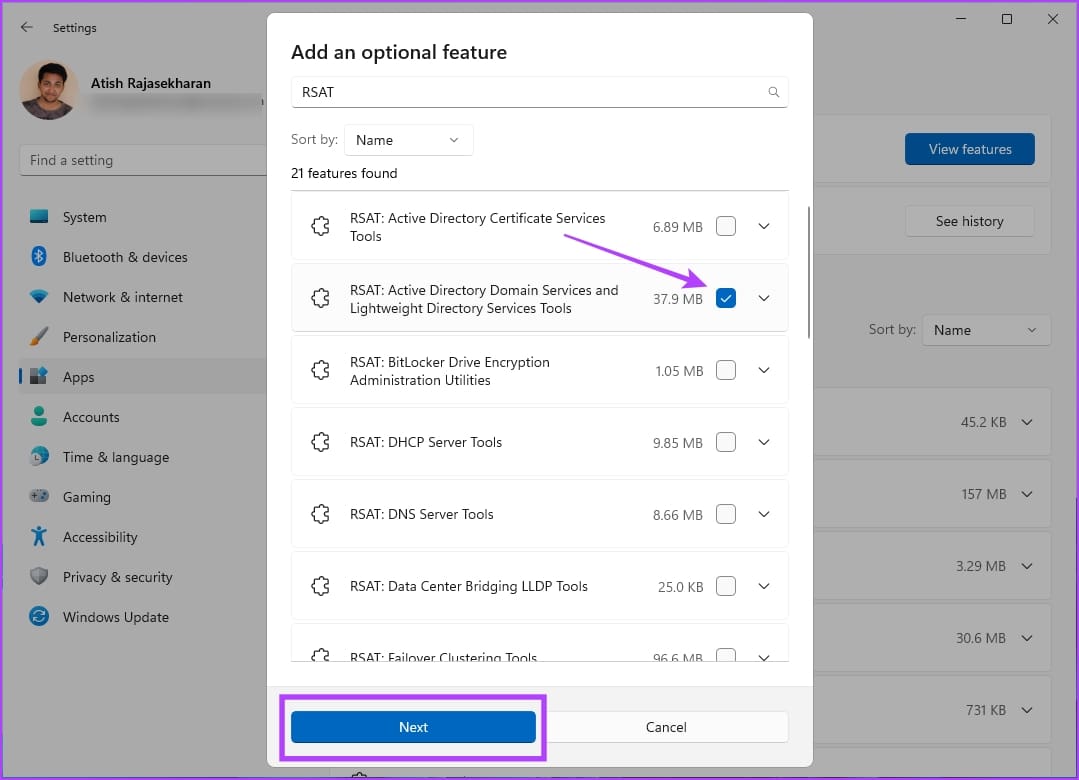
Step 6: Click on Install and wait for the process to be completed.

Also Read: How to back up the local Group Policy Editor on Windows 11
Install Active Directory Users and Computers on Windows 8 and Windows 10 Version 1803 or Lower
Here’s how to install Active Directory Users and Computers on Windows 8 and Windows 10 version 1803 or lower.
Step 1: You must download and install Remote Server Administration Tools on your Windows PC. Download and install it for Windows 10, Windows 8.1, or Windows 8.
Step 2: Open the Control Panel and select Programs.

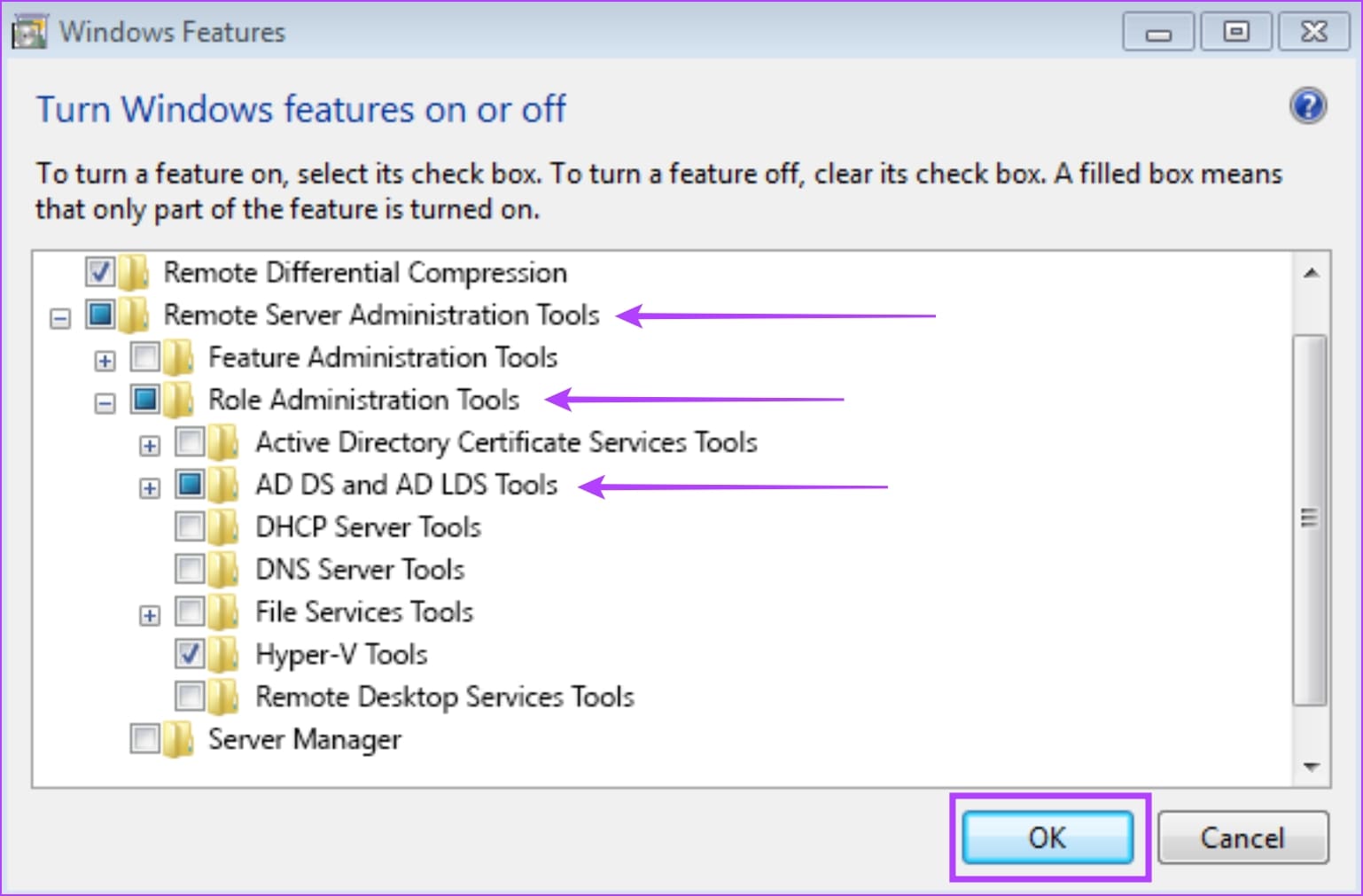
Step 4: Under Programs and Features, Select Turn Windows Features on or off.

Step 4: Scroll down and expand the Remote Server Administration Tools section.
Step 5: Expand Role Administration Tools.
Step 6: Expand AD DS and AD LDS Tools. Ensure that “AD DS Tools” is checked and select OK.
Once you install ADUC on Windows, you can see it as an option under Start > Windows Administrative Tools.
Was this helpful?
Last updated on 26 June, 2024
Read Next
 How to Share Sticky Notes Between Computers
Gone are the days when you had to rely on Google Drive or simple copy-paste method to move your Sticky Notes from one computer to another.
How to Share Sticky Notes Between Computers
Gone are the days when you had to rely on Google Drive or simple copy-paste method to move your Sticky Notes from one computer to another.
 How to Use Two Computers With One Display Monitor
Method 1: Insert Two Cables Into One Monitor Most monitors have multiple input ports at the back.
How to Use Two Computers With One Display Monitor
Method 1: Insert Two Cables Into One Monitor Most monitors have multiple input ports at the back.
 3 Ways to Prevent Users From Installing New Software on Windows 11
Method 1: Turn Off Windows Installer via Group Policy The Group Policy Editor on Windows lets you make various administrative-level changes.
3 Ways to Prevent Users From Installing New Software on Windows 11
Method 1: Turn Off Windows Installer via Group Policy The Group Policy Editor on Windows lets you make various administrative-level changes.
 3 Ways to Disable Task Manager for Specific Users in Windows
Method 1: Using Command Line or Powershell Step 1: Press the Windows key, type PowerShell or Command Prompt, and click on Run as administrator.
3 Ways to Disable Task Manager for Specific Users in Windows
Method 1: Using Command Line or Powershell Step 1: Press the Windows key, type PowerShell or Command Prompt, and click on Run as administrator.
 How to Prevent Users From Running Certain Programs on Windows 11
Method 1: Prevent Users From Running Certain Programs via the Group Policy Editor The Local Group Policy Editor on Windows makes it easy to apply system-wide changes on a computer.
How to Prevent Users From Running Certain Programs on Windows 11
Method 1: Prevent Users From Running Certain Programs via the Group Policy Editor The Local Group Policy Editor on Windows makes it easy to apply system-wide changes on a computer.
 18 WhatsApp Web and Desktop Shortcuts for Windows and Mac users
WhatsApp Shortcuts for Web and Desktop ShortcutDescriptionTab Change focusShift + TabChange focus: + Emoji nameDisplays emojis with the alphabet combinationSpecial Characters:-) = 🙂, :-( = 🙁, :-| = 😐, :-\
18 WhatsApp Web and Desktop Shortcuts for Windows and Mac users
WhatsApp Shortcuts for Web and Desktop ShortcutDescriptionTab Change focusShift + TabChange focus: + Emoji nameDisplays emojis with the alphabet combinationSpecial Characters:-) = 🙂, :-( = 🙁, :-| = 😐, :-\
 How to Use HP Active Pen: A Guide with Tips
First of all, congrats on buying that new HP Active Pen or a touch HP laptop.
How to Use HP Active Pen: A Guide with Tips
First of all, congrats on buying that new HP Active Pen or a touch HP laptop.
 16 WhatsApp Group Tips and Tricks That All Users Should Know
Note: The below features have been illustrated with images and instructions using an iPhone.
16 WhatsApp Group Tips and Tricks That All Users Should Know
Note: The below features have been illustrated with images and instructions using an iPhone.
The article above may contain affiliate links which help support Guiding Tech. The content remains unbiased and authentic and will never affect our editorial integrity.