How to Set Up Zoom on Your Apple TV 4K
The Zoom app is available to download from the App Store on your Apple TV 4K. But there are some prerequisites for setting it up and using it for your meetings.
- The Zoom app is compatible with Apple TV 4K (2nd generation) and later.
- Continuity Camera should be enabled on your iPhone or iPad.
- Both your Apple TV and iPhone/iPad must be connected to the same Wi-Fi network.
After you have taken care of the above points, you can set up the Zoom app on Apple TV 4K.
Step 1: Open the App Store on your Apple TV 4K and then download the Zoom app.
Step 2: Open the app > Sign in to your account either using your web browser or by entering email address.

Step 3: To log in, open your web browser on mobile or computer, and then visit the web page to pair your Zoom account.
Step 4: Sign in to your Zoom account and then enter the CAPTCHA displayed on your Apple TV 4K screen.
Step 5: Click on Continue to log in.
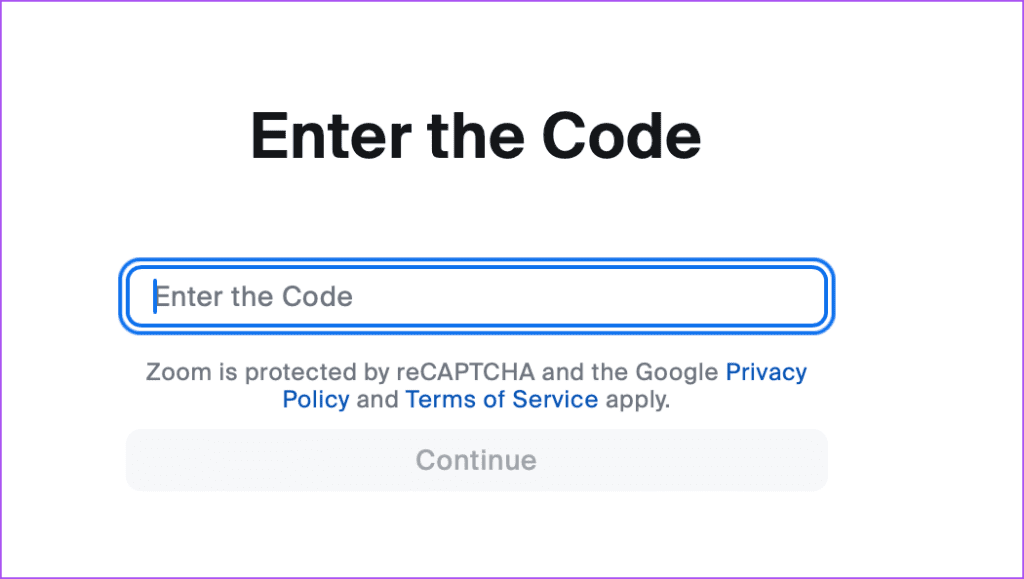
Step 6: Select Yes to confirm your login on Apple TV 4K.
Step 7: After logging in to your Zoom account, select your account name on your Apple TV 4K screen.
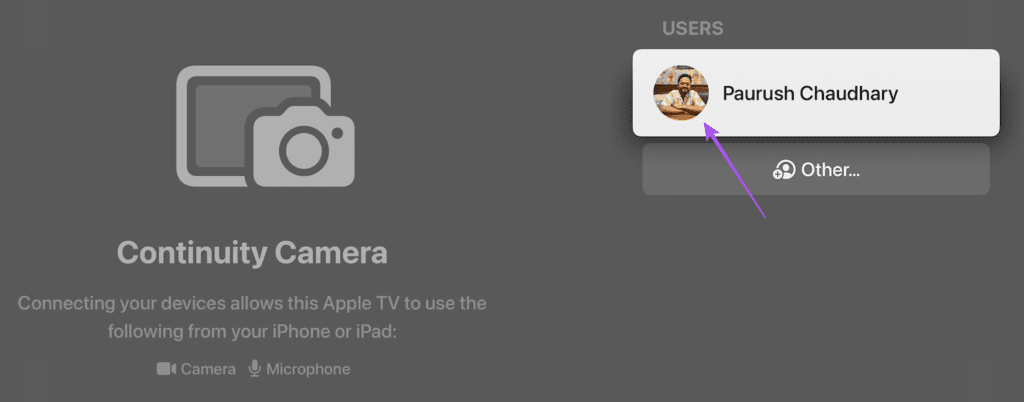
You might have to wait for some time for your account name to show up.
Step 8: On your iPhone or iPad, tap the Continuity Camera notification and then accept the request.


Step 9: Allow access to your iPhone or iPad camera for the Zoom app on Apple TV 4K.
The Zoom account window will show up on your TV screen. Place your iPhone or iPad near your TV.

Start Zoom Calls on Apple TV 4K
After you have set up the Zoom app, you can start your calls on Apple TV 4K.
Step 1: In the Zoom app, select New Meeting at the bottom-left corner.
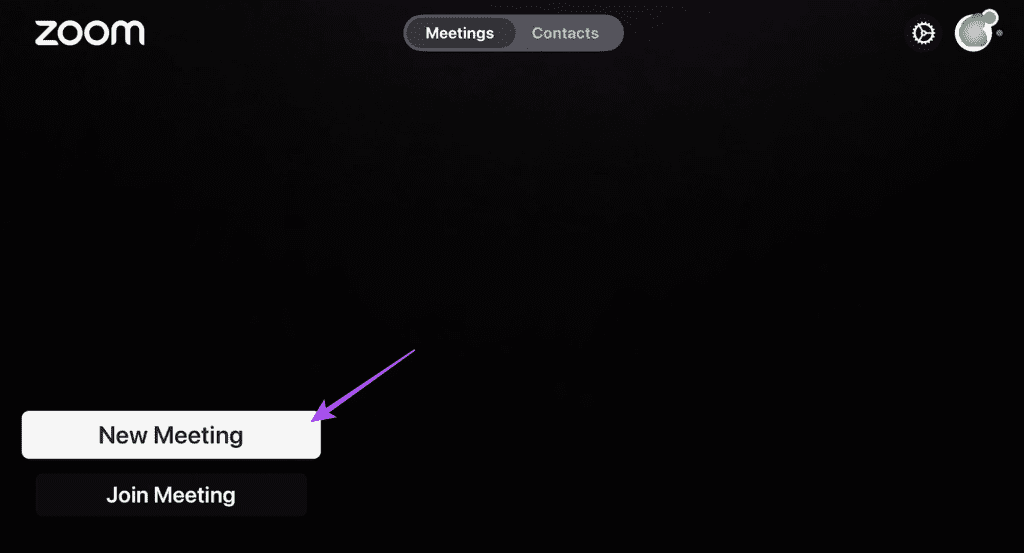
Step 2: Allow the app to use the microphone.
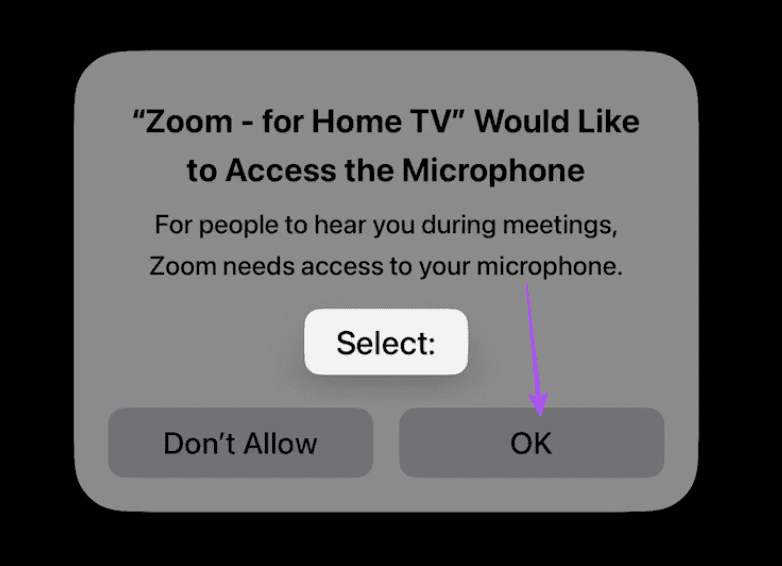
When the meeting screen opens, you will see the options like on your mobile or desktop.
Step 3: Select More from the bottom Menu Bar > Select Invite.
Step 4: Select Invite.
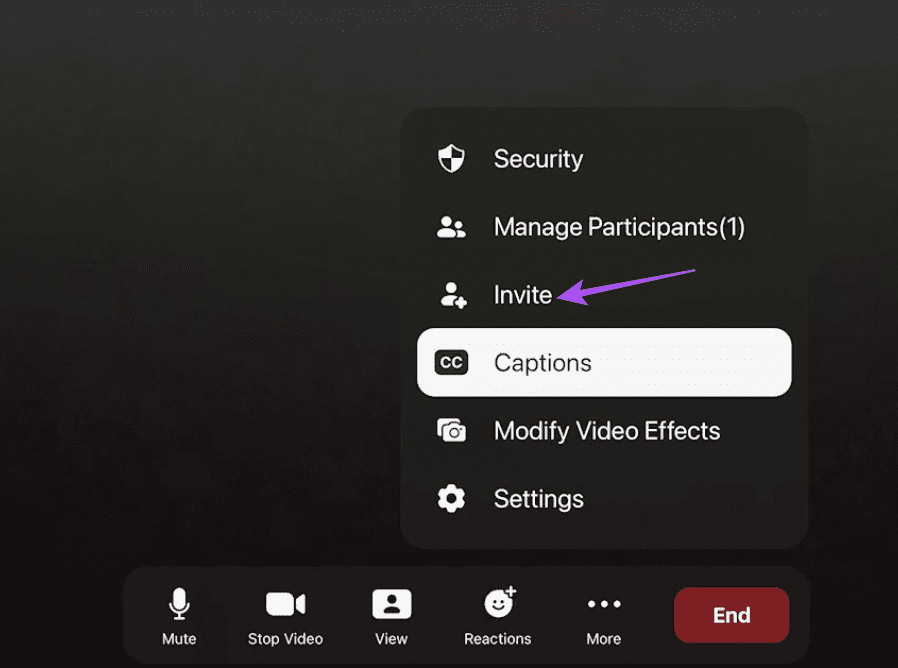
Step 5: You can choose to enter the name of your participant or the email address.
You can choose to turn off your camera or mic during the meeting.
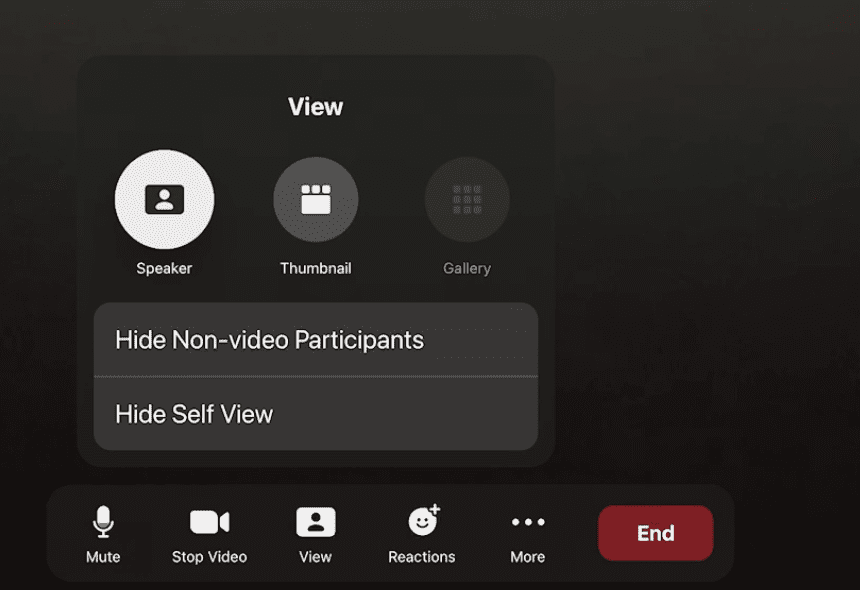
You can select the Meeting View in the Zoom app when you have more than 2 participants.
Camera and Mic Settings in Zoom App on Apple TV 4K
Step 1: On the app screen, select Settings at the top-right corner.

Step 2: Select Microphone.
Step 3: You can enable Echo Cancellation and Noise Suppression during your video calls.

Step 4: Go back and then select Camera. You can select between multiple devices for Continuity Camera.
Set Current Presence Status
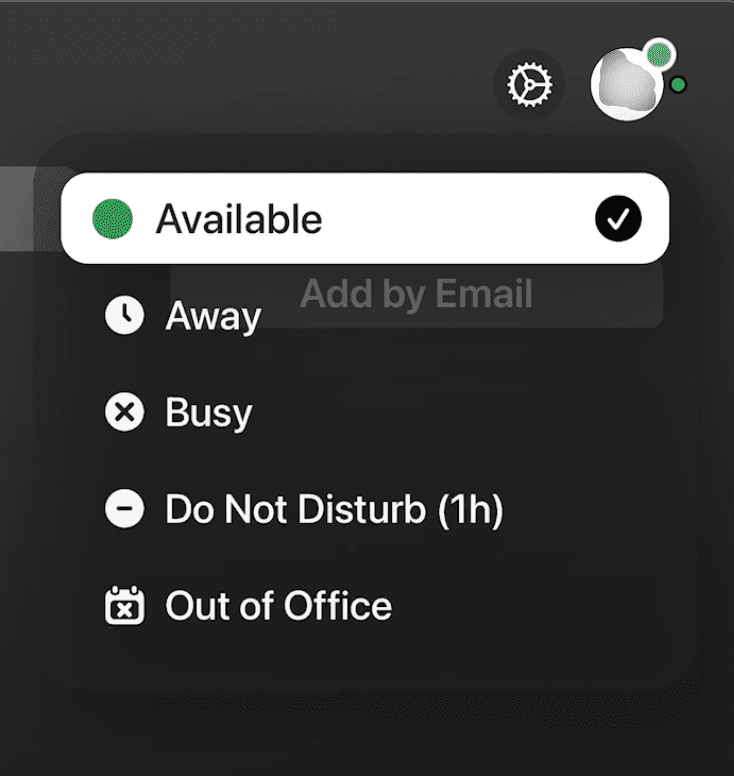
Step 1: In the Zoom app on your Apple TV 4K, select the profile icon at the top-right corner.
Step 2: Choose from the different options for presence status. You can even select Out Of Office.
Set Meeting Password
Step 1: Open the Zoom app and then start a new meeting.
Step 2: Select More Options > Security.
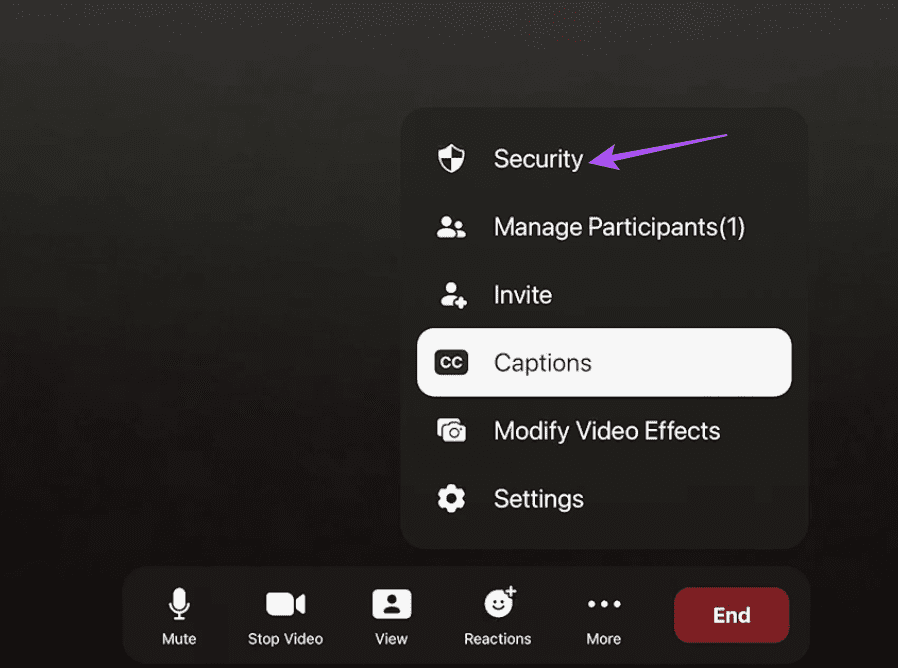
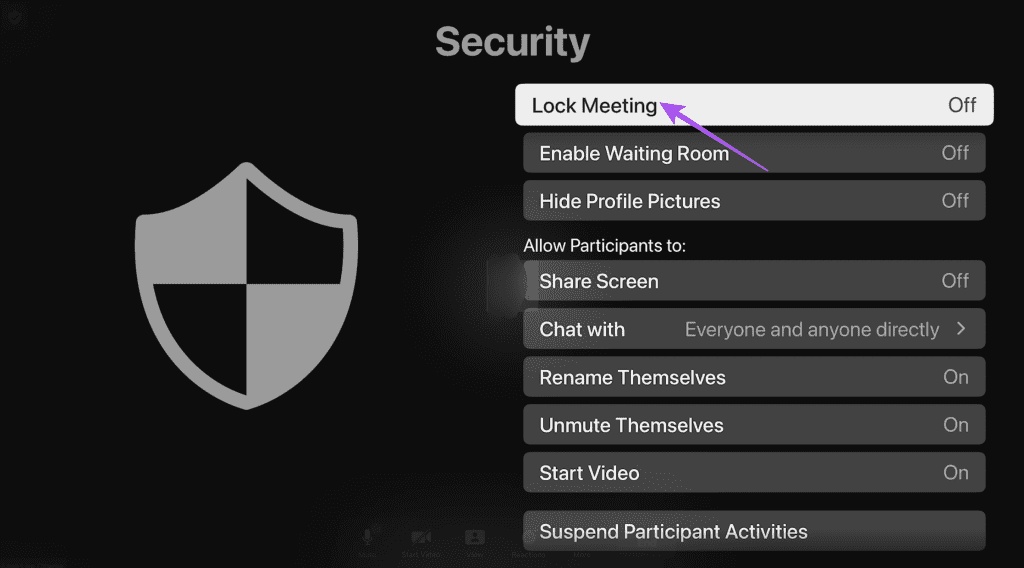
Step 3: Select Lock Meeting and then set your meeting password.
Tip: Check out our guide for using annotations in Zoom.
Was this helpful?
Last updated on 28 August, 2024
Read Next
 How to Change Zoom App Ringtone and Notification Sound
How to Change Zoom Incoming Call Ringtone on Android, iPhone, and iPad If you use Zoom daily, you might be bored of its same ringtone or notification sound.
How to Change Zoom App Ringtone and Notification Sound
How to Change Zoom Incoming Call Ringtone on Android, iPhone, and iPad If you use Zoom daily, you might be bored of its same ringtone or notification sound.
 3 Fixes for Background Blur Not Working in Zoom App
Basic Fixes Clean camera lens: This is something that can cause issues with background blur on the Zoom app.
3 Fixes for Background Blur Not Working in Zoom App
Basic Fixes Clean camera lens: This is something that can cause issues with background blur on the Zoom app.
 How to Add Zoom Meetings to Outlook Calendar and Google Calendar
How to Add Zoom Meetings to Google Calendar The easiest way is using the Zoom for Google Workspace Google calendar add-on.
How to Add Zoom Meetings to Outlook Calendar and Google Calendar
How to Add Zoom Meetings to Google Calendar The easiest way is using the Zoom for Google Workspace Google calendar add-on.
 How to Find Zoom Meeting Password on Mobile and PC
Were you trying to join a Zoom meeting when you were shown a ‘Enter Zoom meeting password’ pop-up?
How to Find Zoom Meeting Password on Mobile and PC
Were you trying to join a Zoom meeting when you were shown a ‘Enter Zoom meeting password’ pop-up?
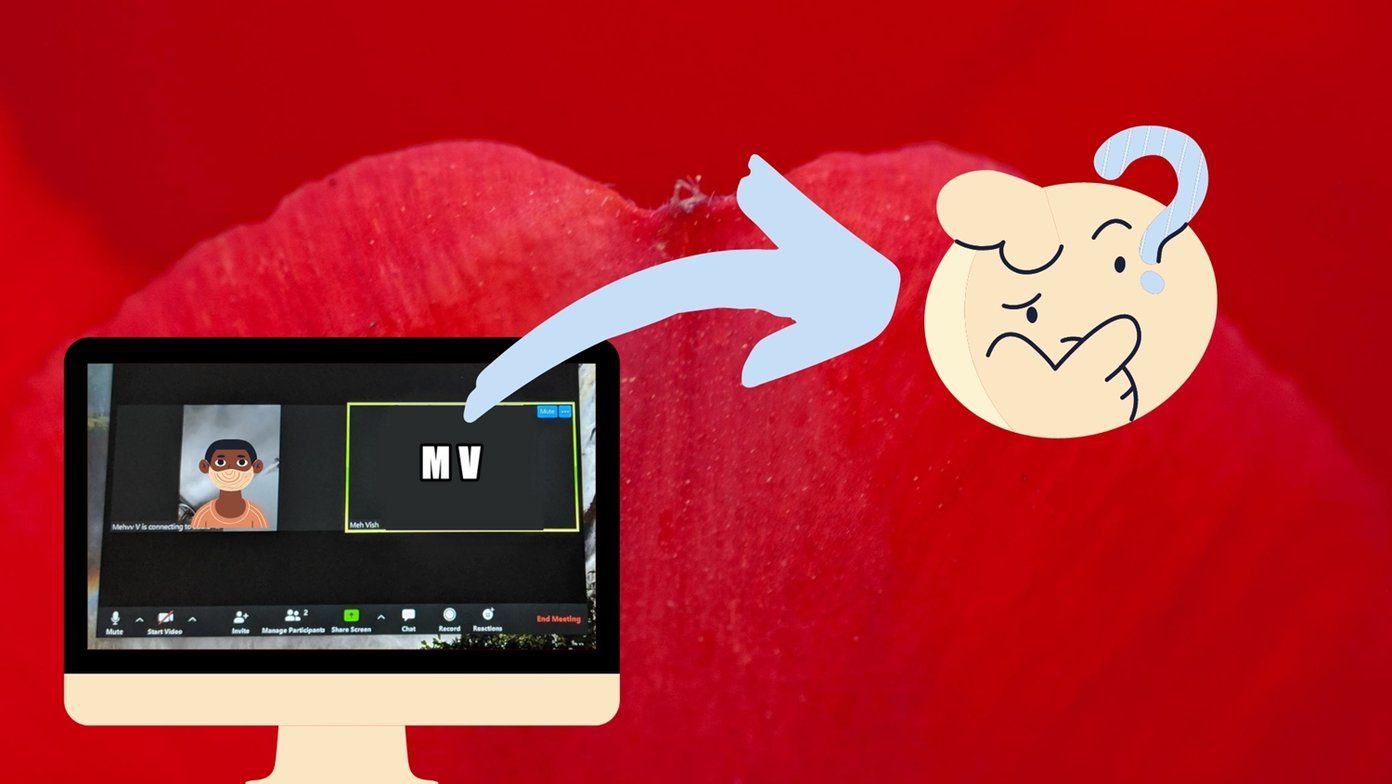 3 Fixes When Your Zoom Profile Picture Is Not Showing in Meetings
Basic Fix: Connect from an app or an alternative platform: Connecting from an alternative platform, such as your mobile device, maybe an easy workaround for the problem.
3 Fixes When Your Zoom Profile Picture Is Not Showing in Meetings
Basic Fix: Connect from an app or an alternative platform: Connecting from an alternative platform, such as your mobile device, maybe an easy workaround for the problem.
 How to Change Name in Zoom (Desktop and Mobile)
How to Change Profile Name in Zoom on Desktop Method 1: Change Zoom Name for All Meetings Step 1: Click on the profile picture icon at the top.
How to Change Name in Zoom (Desktop and Mobile)
How to Change Profile Name in Zoom on Desktop Method 1: Change Zoom Name for All Meetings Step 1: Click on the profile picture icon at the top.
 How to Show Profile Picture Instead of Video in Zoom Meeting
https://youtu.be/n6ihTbONm_I Keep Picture Instead of Video or Name in Zoom on PC It’s not rocket science to show your picture in Zoom.
How to Show Profile Picture Instead of Video in Zoom Meeting
https://youtu.be/n6ihTbONm_I Keep Picture Instead of Video or Name in Zoom on PC It’s not rocket science to show your picture in Zoom.
 A Guide to Use Annotations in Zoom
How to Enable Annotations in Zoom Whenever you share your screen in a Zoom meeting, you can use Annotations to present and explain your ideas or topics better to the
A Guide to Use Annotations in Zoom
How to Enable Annotations in Zoom Whenever you share your screen in a Zoom meeting, you can use Annotations to present and explain your ideas or topics better to the
The article above may contain affiliate links which help support Guiding Tech. The content remains unbiased and authentic and will never affect our editorial integrity.