

How to Download Steam and Install It on Windows 11
Step 1: Visit Steam’s official website and click the Install Steam button at the top.

Step 2: Next, click on the Install Steam blue box.

Step 4: Once the download is finished, click on the downloaded file (SteamSetup.exe).

In the prompt, select Yes.
Step 5: In the Steam Setup Window, click on the Next > button.
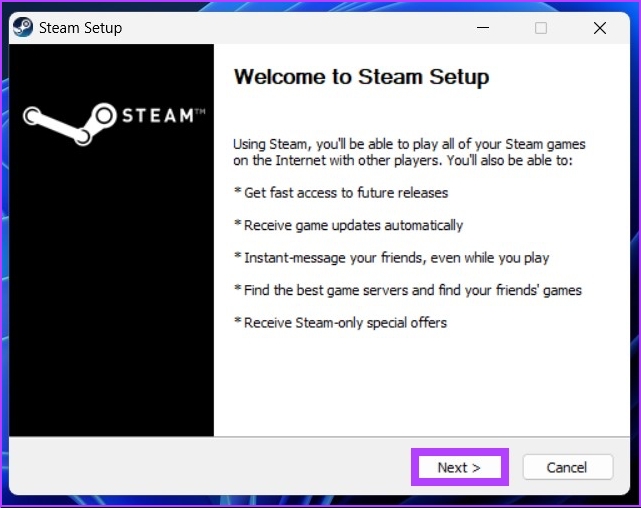
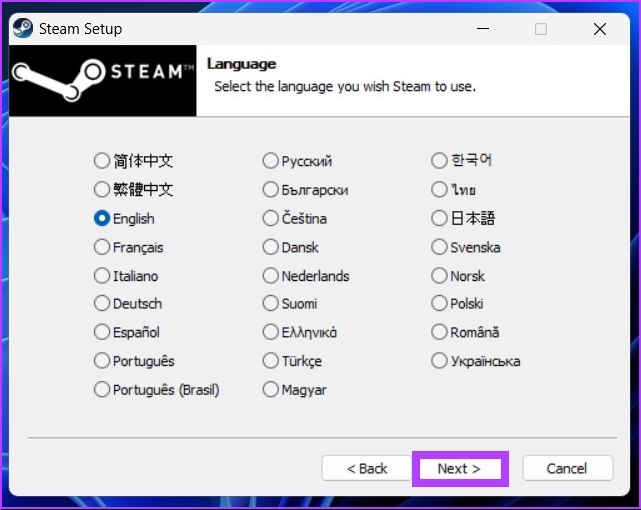
Step 6: Select your Language and click on the Next > button.
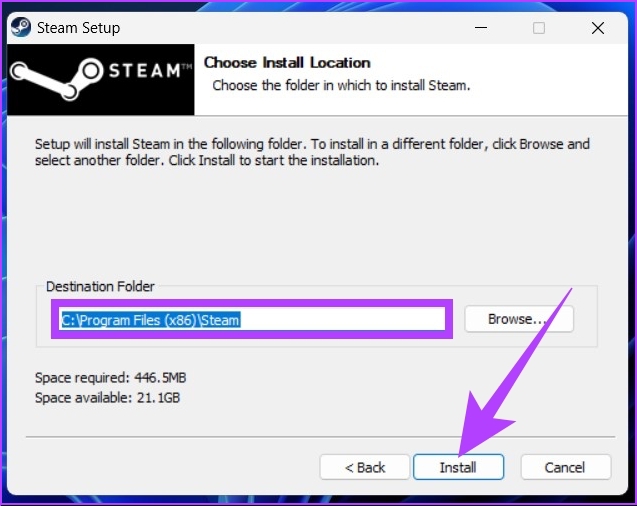
Step 7: Select the location to install the application and click on Install.
Step 8: Finally, click on the Finish button.

You have installed the Steam application on your computer. Follow along to understand how to run the application and play your favorite game.
How to Log in to Steam on Windows 11
Now that you have downloaded and installed the Steam application, it is relatively easy to run and log in to Steam. Mind you, Steam doesn’t allow users to download or play the game without logging in. So, follow the instructions below.
Step 1: Press the Windows key, type Steam, and click on Run as administrator.
Step 2: Click on the Create a Free Account at the bottom right if you don’t already have one.
Note: If you have an account, enter the credentials and proceed.

Step 3: Fill in the details, check the necessary conditions, and click Continue.
Note: You must verify your email address to create an account.

Step 4: Enter your account name and password, and click Sign in.
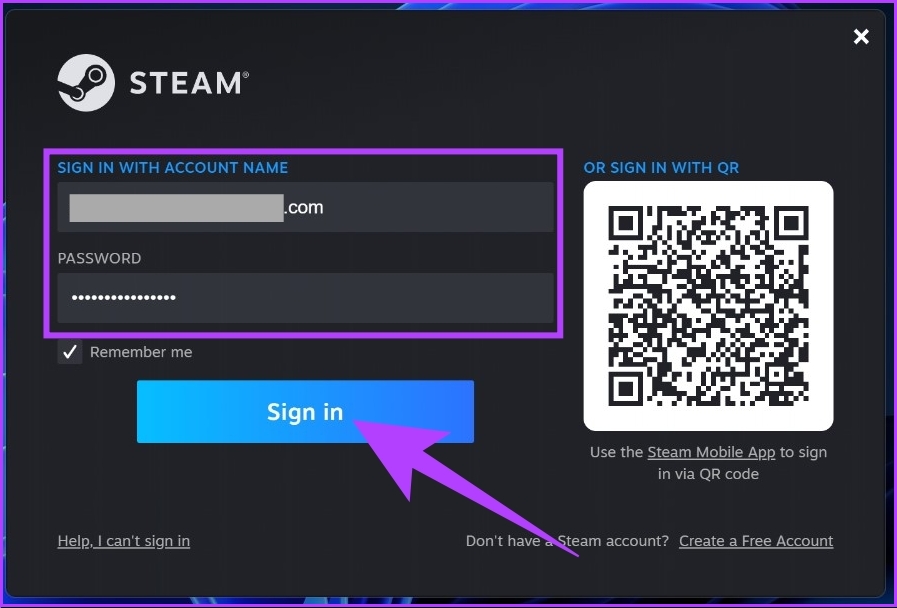
There you go. You are now logged into Steam. From here, you can install and play your favorite games quickly. Since you will buy games and save your payment methods, it is ideal to enable two-factor authentication on Steam for safety and privacy.
How to Install and Uninstall a Steam Game
Install a Steam Game
Step 1: Press the Windows key, type Steam, and click on Run as administrator.
Step 2: Enter your login credentials and click on Sign in.
Step 3: Go to the Store section.

Step 4: Search for the game you want to play.
Step 5: Once you finalize the game you wish to purchase, scroll down and click on the Add to Cart button.

Step 6: Now, select the Purchase for myself button.

Step 7: Purchase it by adding your credit card or any other means.

Step 8: Once you have purchased it, move to the Library section and click the Install button.
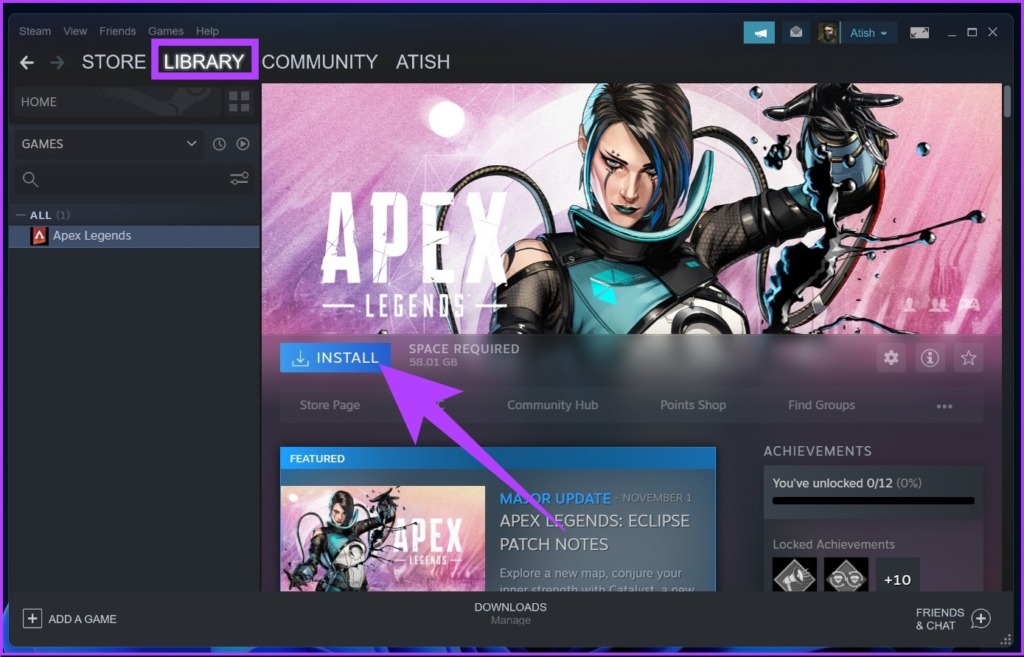
Run the game when it’s downloaded. This was about installing a game on Steam. But sometimes, Steam runs into an issue and you find yourself with a download games error, which can be easily fixed.
However, if you want to uninstall a game from Steam, follow the steps below.
Uninstall a Steam Game
Step 1: Press the Windows key, type Steam, and click on Run as administrator.
Step 2: Under the Library section, right-click on the game you wish to remove > select Manage > choose Uninstall.

There you have it. The game you wanted to remove from Steam has been removed. That aside, if you want to try out Steam before purchasing a game, you can try playing free games. Follow the steps below to learn how to
How to Play Free Games on Stream
Step 1: Press the Windows key, type Steam, and click on Enter.
Step 2: Go to the Store, scroll down, and click FREE GAMES.

Step 3: Select the game you want to play.
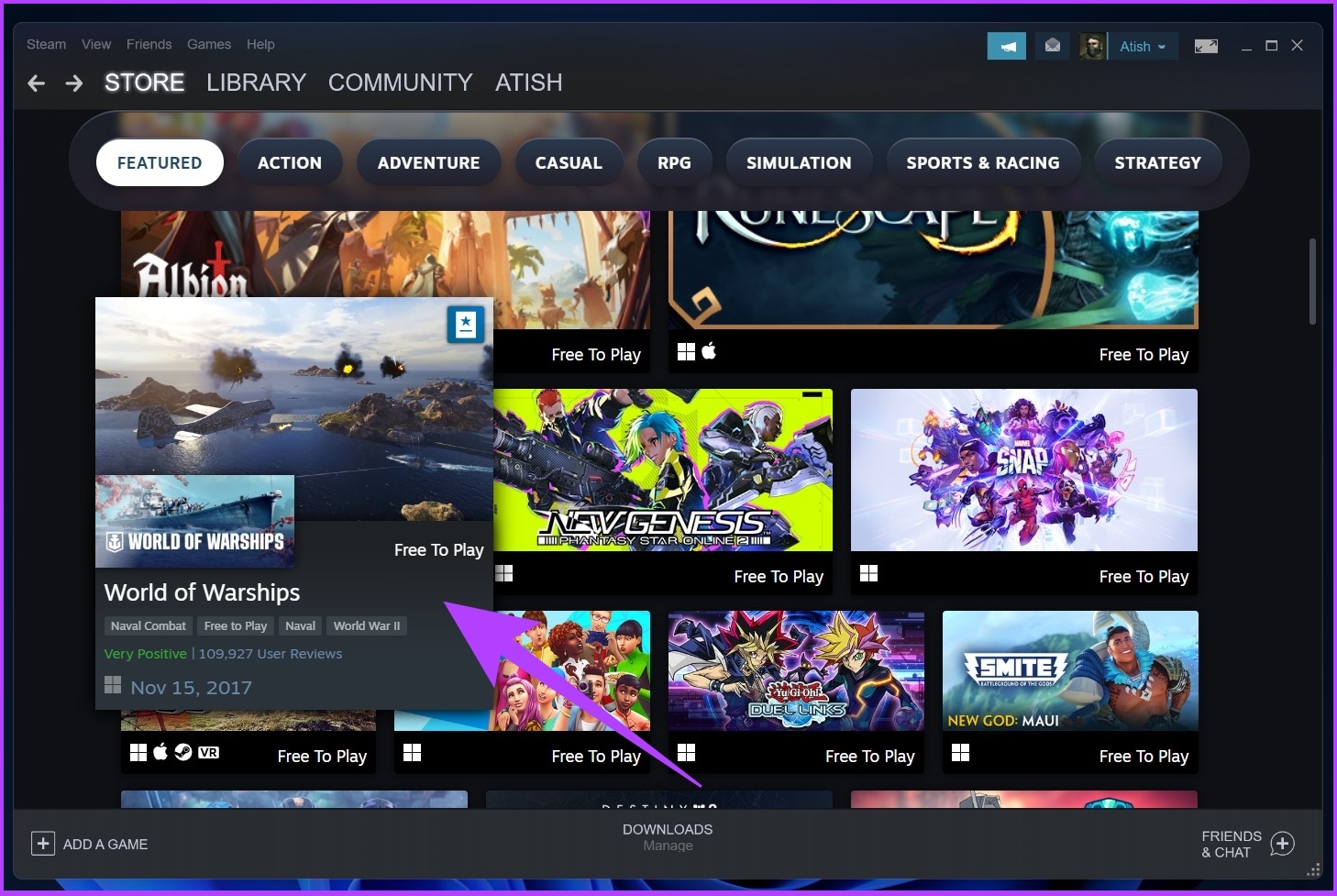
Step 4: Scroll down and click on Free to Play.
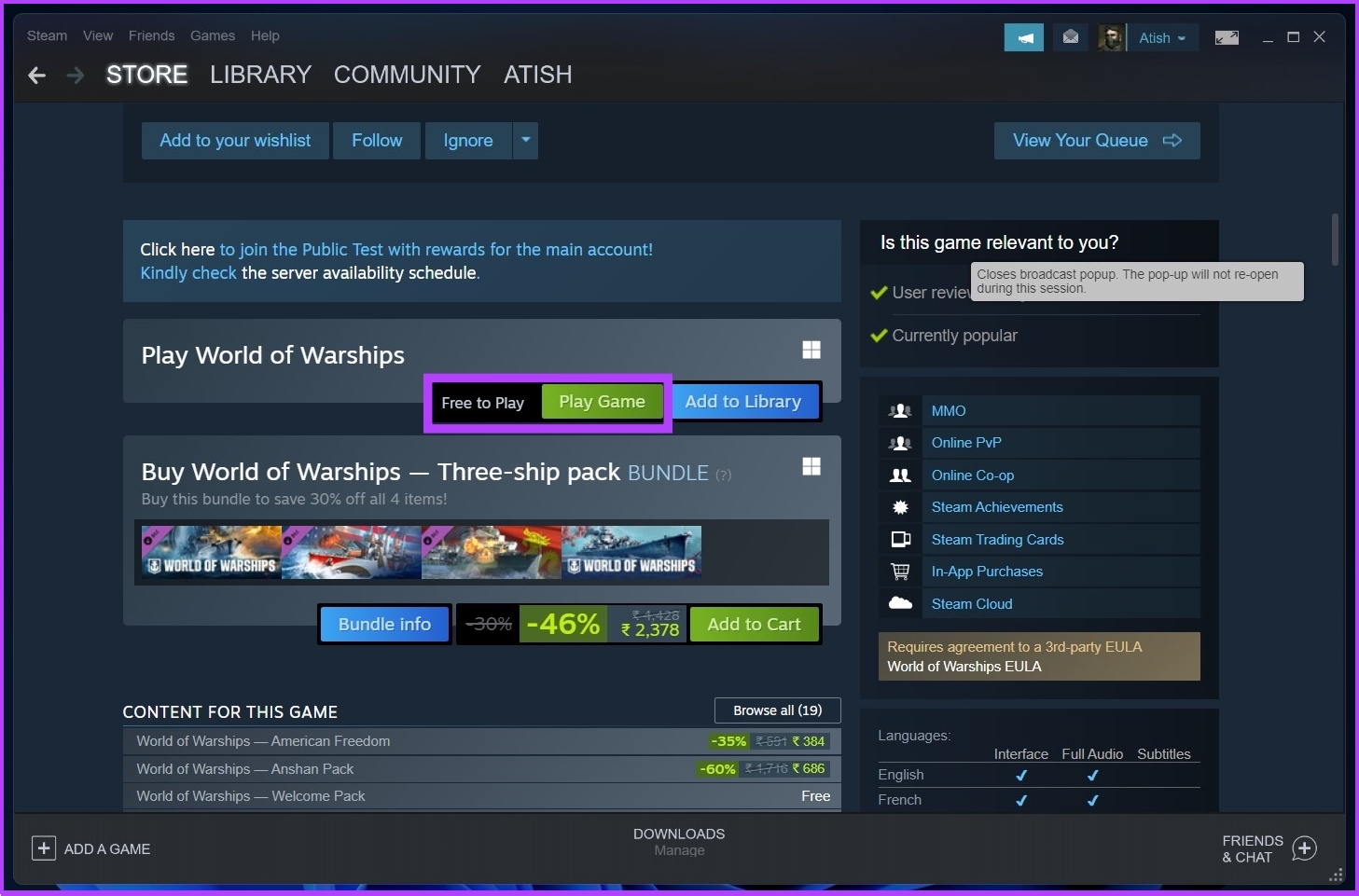
That’s about it. The game will get installed, and you will be able to play. There are many games available for free play. You can filter the game by New & Trending or Top Sellers.
FAQs on Steam for Windows 11 and 10
While the Steam setup file for Windows is around 2MB, the total size of Steam after installation comes to around 5GB, which exceeds when you download games.
In most cases, 8GB of RAM will suffice. But some Steam games may need a more powerful computer or lag a bit at full resolution.
Yes, if you choose to uninstall Steam from your Windows 11 PC, all the games you downloaded from Steam will also get uninstalled from your PC.
Steam is available on almost all the major operating systems, including Windows, Mac, Android, and iOS.
You should be able to keep your Steam games forever, provided you don’t delete your Steam account.
Downloading and installing, as you see, is a straightforward process. There is, of course, a small learning curve when it comes to figuring out where the options and features are on the Steam app.
Was this helpful?
Last updated on 26 August, 2024
2 Comments
Leave a Reply
Read Next
 How to Make Steam Downloads Faster in Windows 11
Try These Fixes First Close network hogging apps from the background: Unnecessary apps running in the background, especially those connected to the internet, can dramatically slow down your download speed
How to Make Steam Downloads Faster in Windows 11
Try These Fixes First Close network hogging apps from the background: Unnecessary apps running in the background, especially those connected to the internet, can dramatically slow down your download speed
 7 Ways to Fix Steam Not Opening or Crashing on Windows 11 or 10
Try Basic Fixes Check if Steam is down: If Steam servers face an outage, you might run into errors.
7 Ways to Fix Steam Not Opening or Crashing on Windows 11 or 10
Try Basic Fixes Check if Steam is down: If Steam servers face an outage, you might run into errors.
 Top 12 Ways to Fix Steam Not Connecting to the Internet on Windows
Steam is one of the popular gaming apps on Windows.
Top 12 Ways to Fix Steam Not Connecting to the Internet on Windows
Steam is one of the popular gaming apps on Windows.
 4 Ways to Fix the Login Error Code E84 in Steam for Windows
Switch to a different network connection: A slow or intermittent internet connection can also cause login errors in Steam.
4 Ways to Fix the Login Error Code E84 in Steam for Windows
Switch to a different network connection: A slow or intermittent internet connection can also cause login errors in Steam.
 Top 7 Ways to Fix Steam Not Recognizing Controller on Windows 11
Select games on your PC are more fun with a controller rather than the keyboard and mouse combo.
Top 7 Ways to Fix Steam Not Recognizing Controller on Windows 11
Select games on your PC are more fun with a controller rather than the keyboard and mouse combo.
 6 Ways to Fix Failed to Load Web Page Error in Steam for Windows
Fix 1: Terminate Steam Processes and Reopen the App The "Failed to load web page" error in Steam can occur if one of the app processes is experiencing issues.
6 Ways to Fix Failed to Load Web Page Error in Steam for Windows
Fix 1: Terminate Steam Processes and Reopen the App The "Failed to load web page" error in Steam can occur if one of the app processes is experiencing issues.
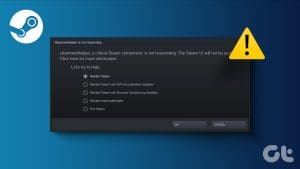 How to Fix Critical Steam Component (steamwebhelper) Not Responding on Windows 11
Preliminary Fixes Restart Steam with administrator privileges: Steamwebhelper.exe manages all the web features inside the Steam client.
How to Fix Critical Steam Component (steamwebhelper) Not Responding on Windows 11
Preliminary Fixes Restart Steam with administrator privileges: Steamwebhelper.exe manages all the web features inside the Steam client.
 4 Ways to Fix Steam Family Sharing Not Working on Windows 11
Steam Family Sharing Limitations Steam Family Sharing may not work on your Windows 11 PC due to one of the following limitations: Family Sharing not enabled: Ensure that the Family
4 Ways to Fix Steam Family Sharing Not Working on Windows 11
Steam Family Sharing Limitations Steam Family Sharing may not work on your Windows 11 PC due to one of the following limitations: Family Sharing not enabled: Ensure that the Family
The article above may contain affiliate links which help support Guiding Tech. The content remains unbiased and authentic and will never affect our editorial integrity.
How were you just now getting steam with 20 gigs?
Does this work if you are using win11 in s-mode ?
and if not how do you turn s-mode off and do you think that is a good idea ?