


What Is Smart View on Samsung Phones and How Does It Work
Smart View is a feature in Samsung Galaxy phones that lets you mirror your phone to a bigger screen, like a smart TV, via a wireless connection. Mirroring the phone means whatever is visible on your phone’s screen will show on the TV.
The mirroring feature goes by different names on different devices. This screen mirroring feature is called Smart View on Galaxy devices and AirPlay on iPhones. For Smart View to work, your Samsung Galaxy phone and TV must be connected to the same Wi-Fi network. The Smart View feature will work with Samsung smart TVs, but it also supports TVs from other brands such as LG, Sony, etc., provided they support the Miracast wireless technology.
How to Use Smart View on Samsung Galaxy Phones
There are multiple ways to connect Samsung Smart View to your TV.
Method 1: Use Smart View to Mirror Phone to TV
Step 1: On your Samsung Galaxy phone, swipe down twice to open the Quick Settings panel and tap the Smart View tile. Alternatively, go to Settings > Connected devices > Smart View.
Step 2: Your phone will start looking for nearby supported devices. Once it finds your TV, tap on the TV’s name and hit Start Now.
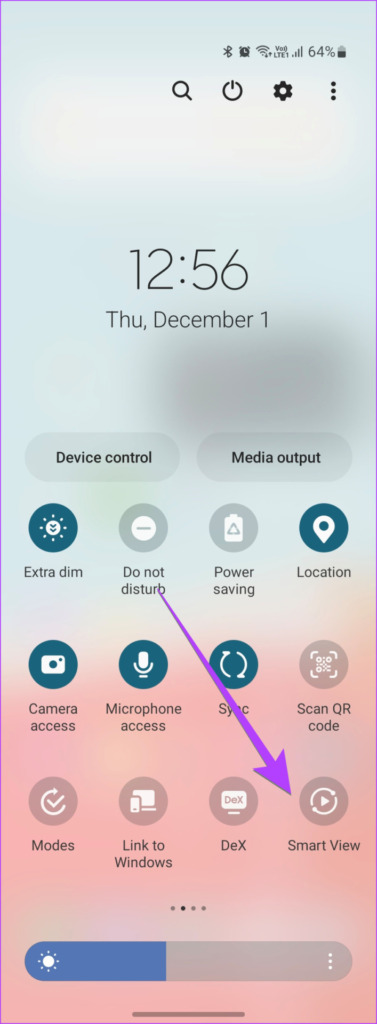


Note: If you are using a steaming device like Fire Stick, Roku, etc., you might need to enable the screen mirror feature in its settings.
Method 2: Stream TV’s Screen to Samsung Galaxy Phone
Open the Quick Settings panel and tap on Smart View. Then, tap on Other devices > phone and select your TV.
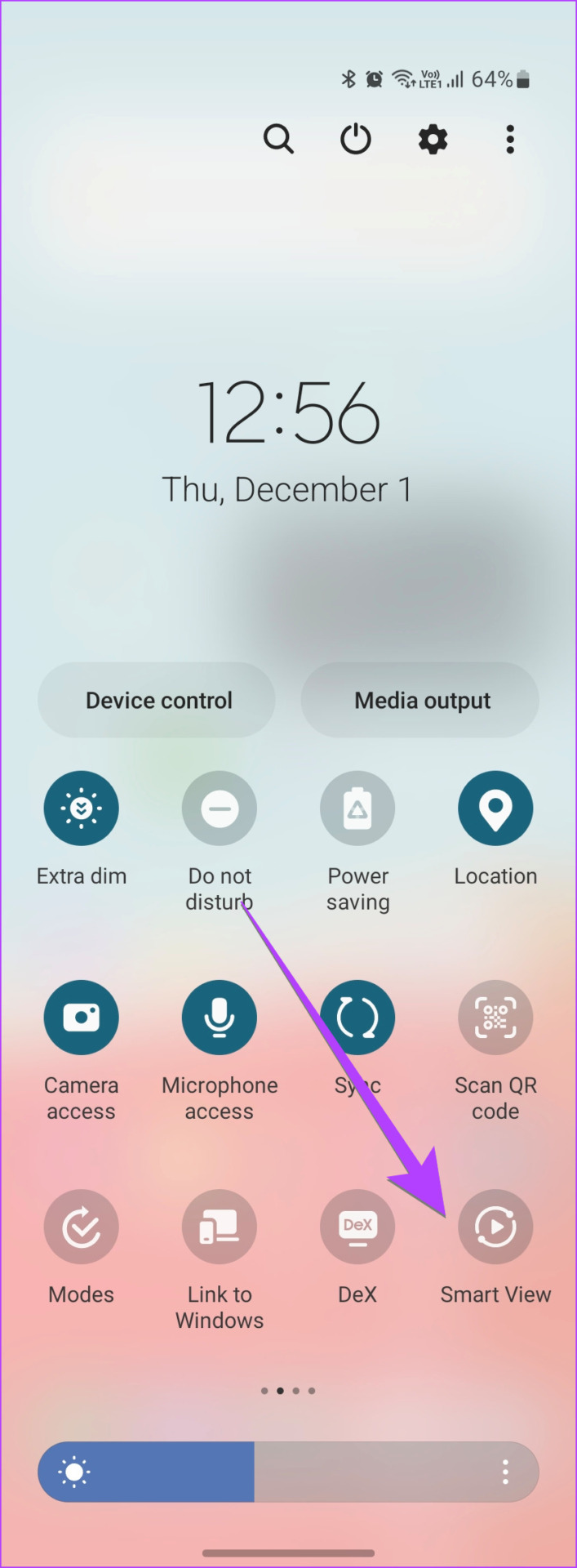
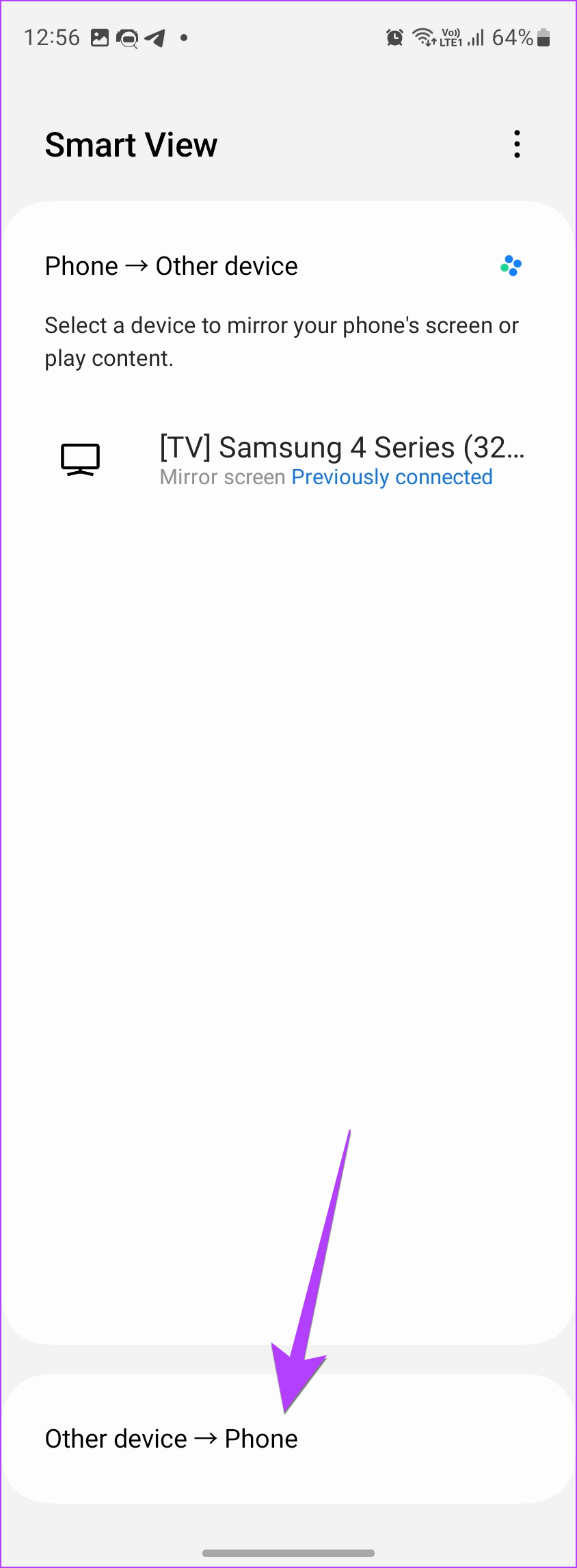
Method 3: View Photos on TV Using Smart View
Step 1: Open the Samsung Gallery app and open the photo that you want to show on TV.
Step 2: Tap the Smart view icon at the top and select your TV.


Method 4: Use Smart View With the SmartThings App
The SmartThings app on your Galaxy phone can act as a remote for your TV and other smart home gadgets. The app also lets you mirror your phone to the TV using the built-in Smart View feature.
Step 1: Install and open the SmartThings app on your Samsung Galaxy phone, in case it’s not pre-installed.
Step 2: Go to the Devices tab and tap the + button at the top.
Step 3: Scroll down and tap on TV. Find your TV and follow the on-screen instructions to add the TV to the app.


Step 4: Once the TV has been added, tap on it to view the available features, such as using the remote control, opening apps, and turning the TV on or off.
Step 5: To use the Smart View feature, tap the three-dot icon and select Mirror Screen (Smart View). Tap on Start Now in the pop-up.
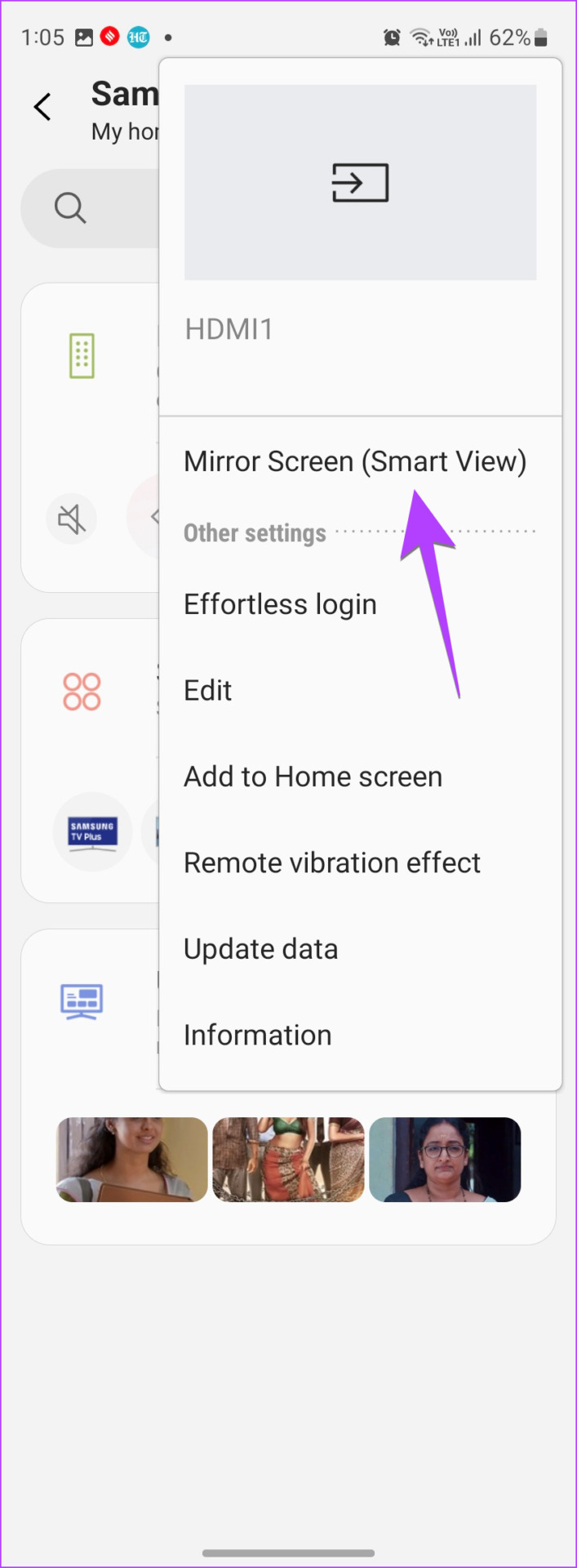
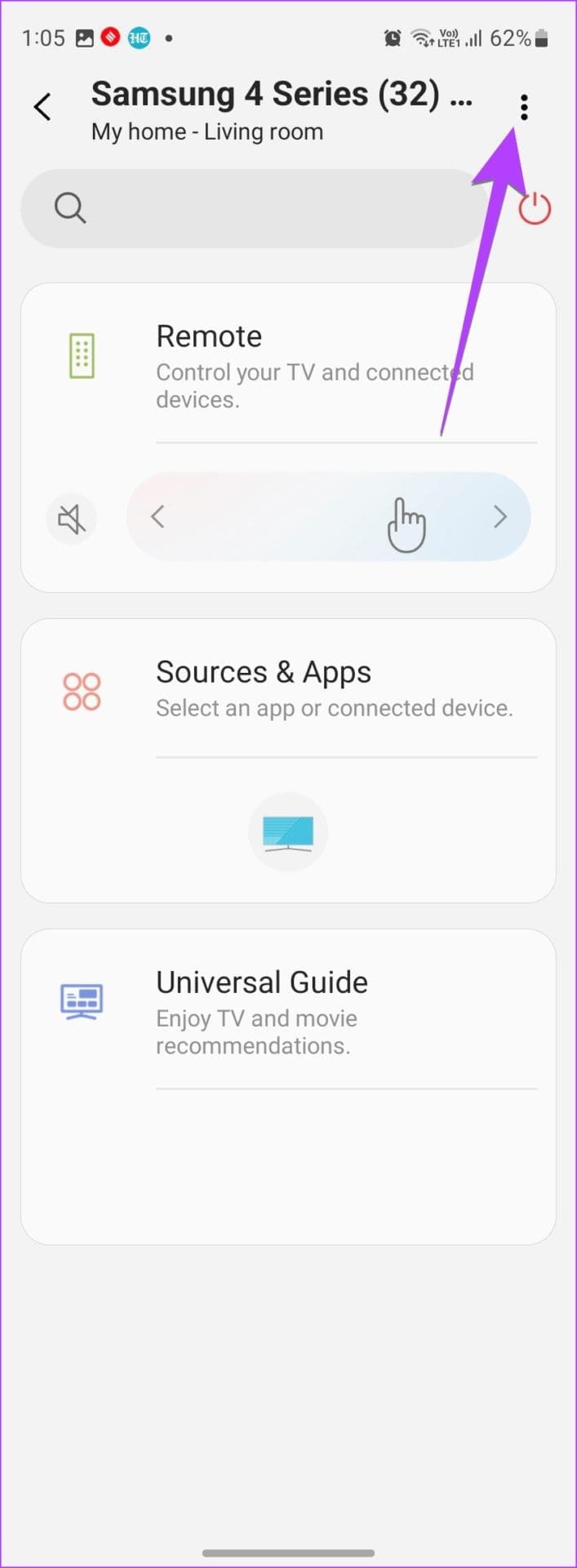
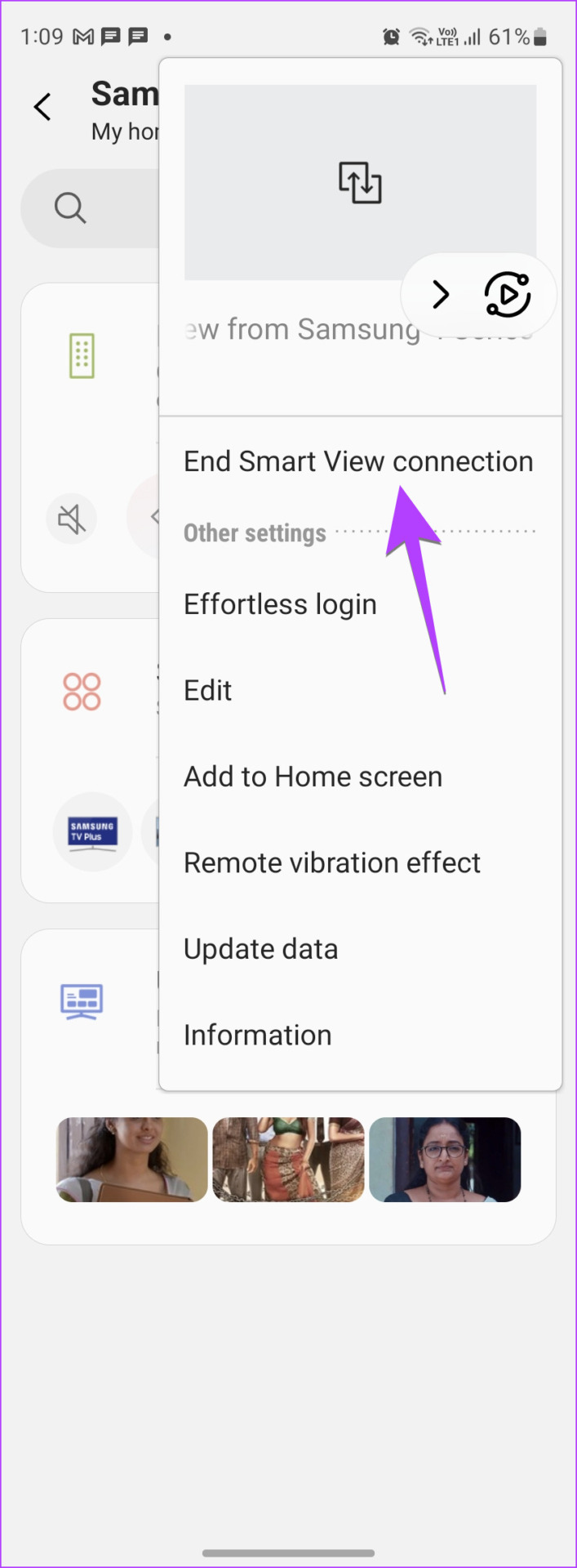
Step 6: To disconnect Smart View, go to your TV from the SmartThings app and tap on the three-dot icon. Select End Smart View connection.
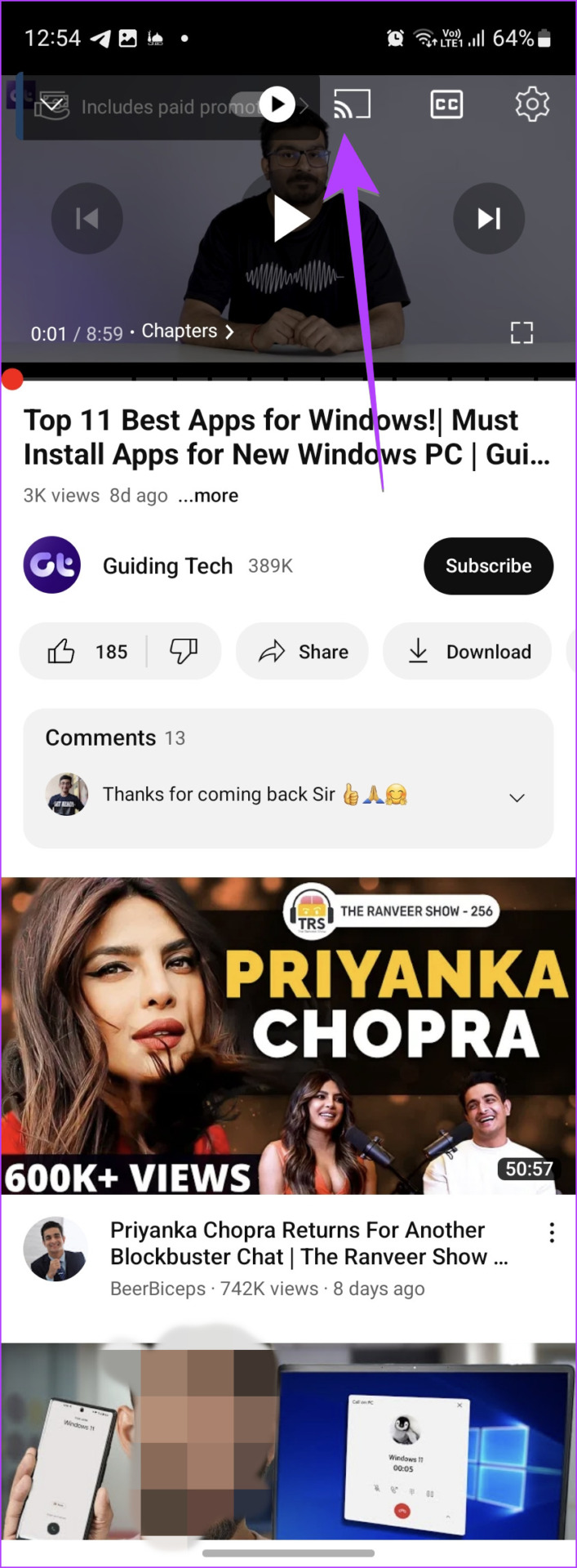
Method 5: Cast to the TV From a Samsung Galaxy Phone
To only cast the app’s content to your TV, open the desired app. You will see the Cast icon. Tap on it and then select the TV to connect to it.

How to Change Aspect Ratio and Notification Settings in Smart View
After connecting your Samsung Galaxy phone to the TV using Smart View, you can customize several features for a better viewing experience. These include adjusting the aspect ratio of the image on the TV, choosing whether to view or hide notifications while mirroring, and deciding whether to keep the phone screen on during the session.
Step 1: Connect your Samsung Galaxy phone to the TV using the Smart View feature. Then, long-press the Smart View tile in Quick Panel to open its settings.
Step 2: Tap on the three-dot icon on the Smart view screen and select Settings.
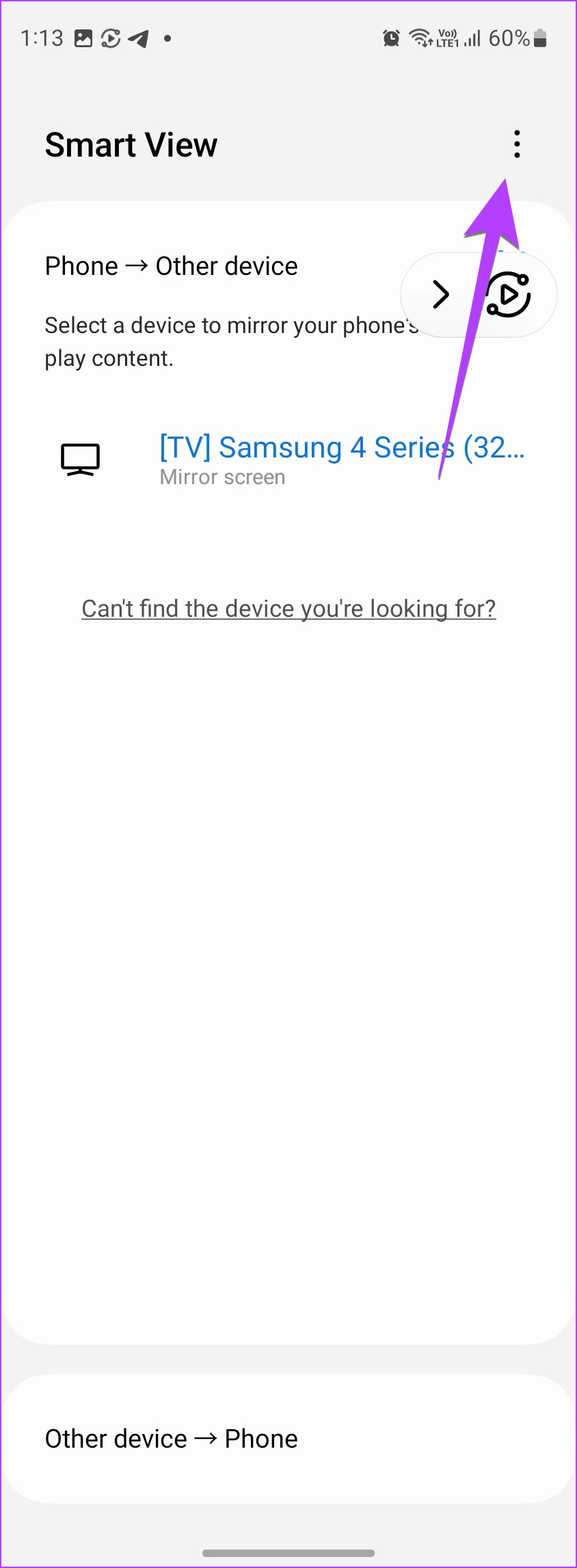

Step 3: Tap on Set aspect ratio and choose Full screen on connected devices. This will increase the size of the image on the TV.
Step 4: Similarly, use the toggles to hide notifications on TV or keep your phone screen on.


How to Disconnect Smart View From TV
To disconnect Smart View from your TV, tap on the Smart view icon present on your phone’s screen and hit the Disconnect button.
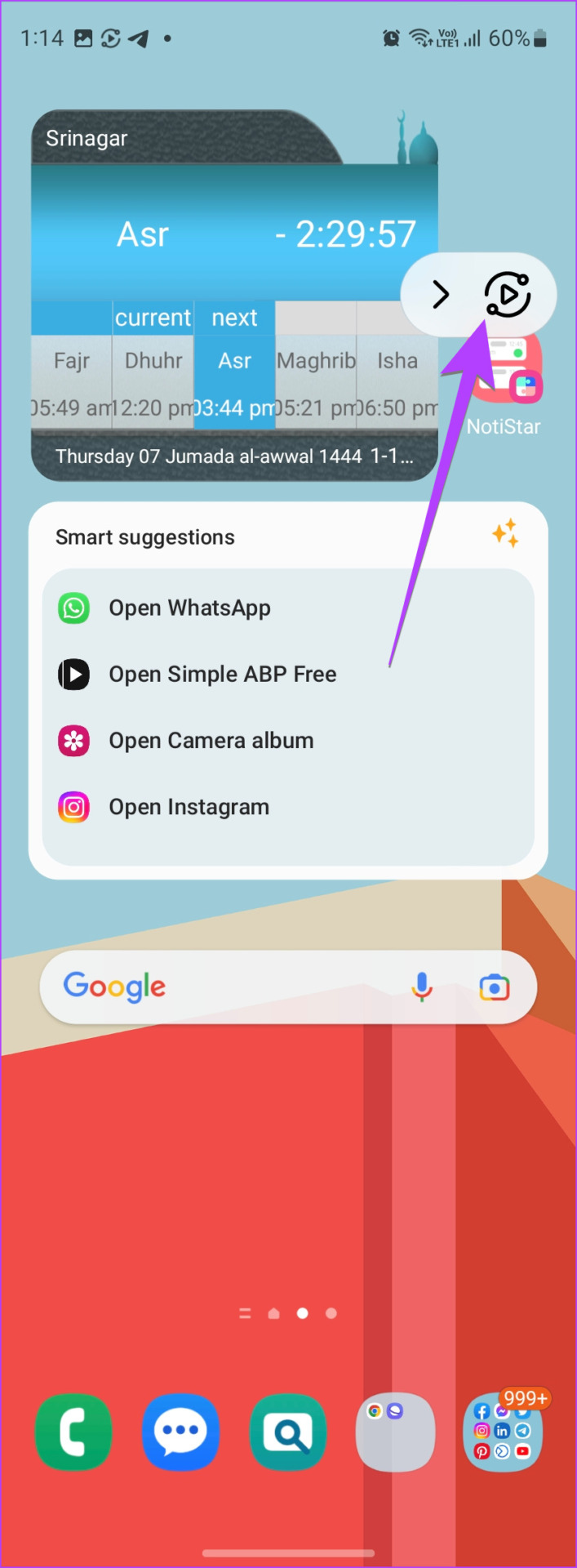
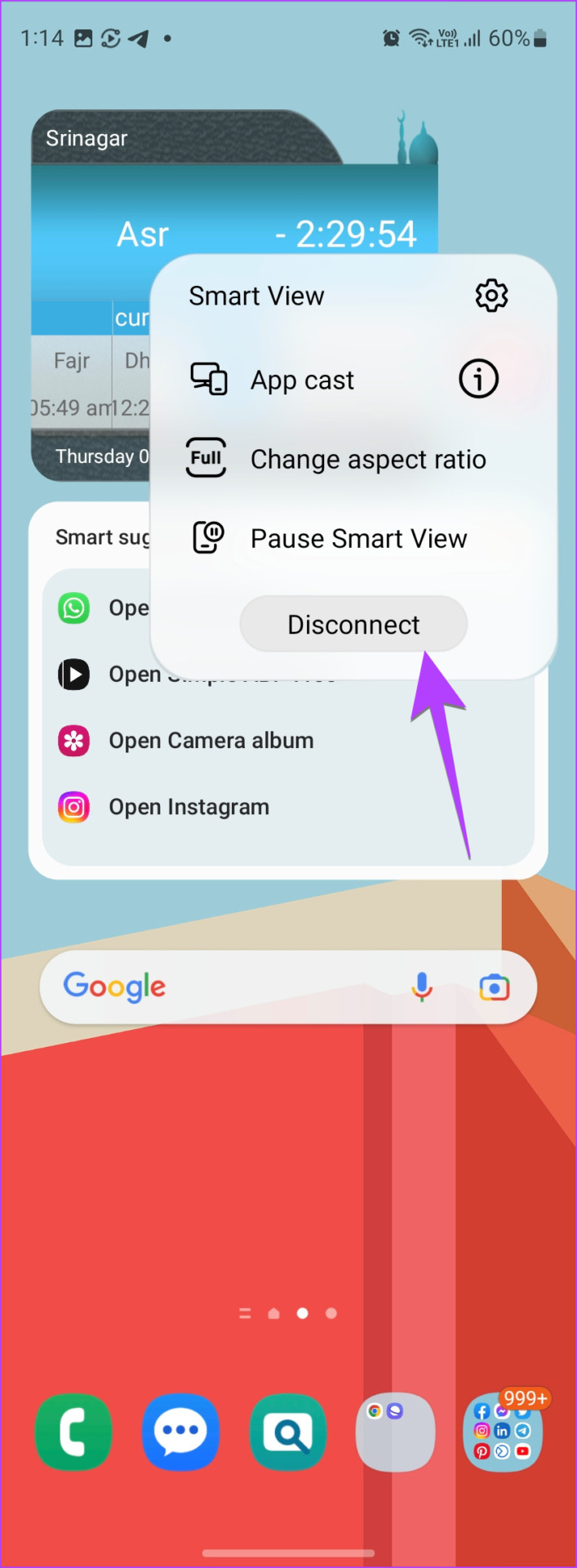
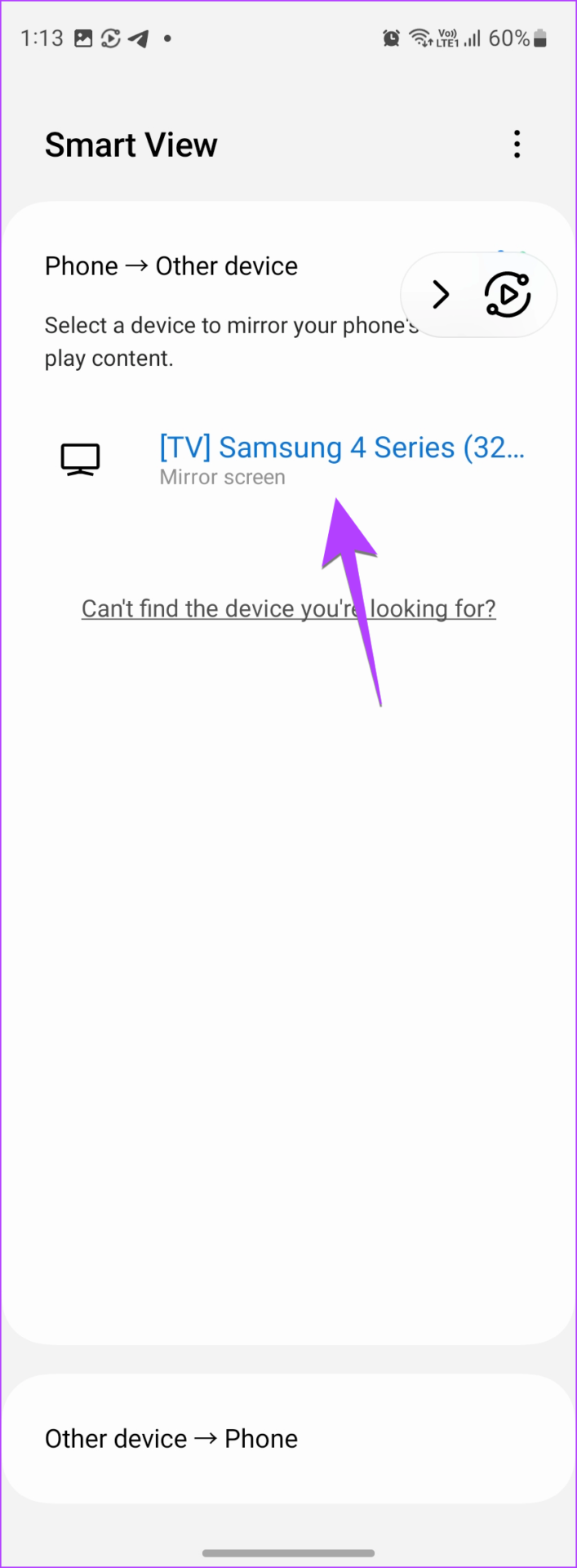
You can also go to phone Settings > Connected devices > Smart View. Then, tap on your TV to disconnect it.

Was this helpful?
Last updated on 03 September, 2024
1 Comment
Leave a Reply
Read Next
 4 Best Ways to Fix Smart View Not Working on Samsung Galaxy Phones
Basic Fixes: Restart devices: If the Smart View feature isn’t working on your Samsung Galaxy phone, the first thing you must do is restart it.
4 Best Ways to Fix Smart View Not Working on Samsung Galaxy Phones
Basic Fixes: Restart devices: If the Smart View feature isn’t working on your Samsung Galaxy phone, the first thing you must do is restart it.
 5 Best Smart Relay Switches to Make Your Existing Sockets Smart
Smart relay switches connect to the internet and can control the socket they are attached to -- be it a wall outlet, a light bulb, or your air conditioner.
5 Best Smart Relay Switches to Make Your Existing Sockets Smart
Smart relay switches connect to the internet and can control the socket they are attached to -- be it a wall outlet, a light bulb, or your air conditioner.
 4 Ways to Fix Samsung Smart Switch Not Working on Android
Basic Fixes: Ensure Smart Switch is installed on both devices: The Samsung Smart Switch app must be installed on both devices to ensure a smooth transition.
4 Ways to Fix Samsung Smart Switch Not Working on Android
Basic Fixes: Ensure Smart Switch is installed on both devices: The Samsung Smart Switch app must be installed on both devices to ensure a smooth transition.
 5 Ways to Delete and Reinstall Apps on Samsung Smart TV
Is your Samsung TVs storage full or do you want to troubleshoot an app?
5 Ways to Delete and Reinstall Apps on Samsung Smart TV
Is your Samsung TVs storage full or do you want to troubleshoot an app?
 How to Use Samsung Smart Switch to Back Up and Transfer Data on Galaxy Phones
Buying a new phone and transferring data always seem to go hand in hand.
How to Use Samsung Smart Switch to Back Up and Transfer Data on Galaxy Phones
Buying a new phone and transferring data always seem to go hand in hand.
 How to Clear Cache on Samsung Smart TV
Clear Cache of All Apps on Samsung Smart TV Running the Device Care functionality on a Samsung Smart TV diagnoses the system and frees up memory space by clearing all
How to Clear Cache on Samsung Smart TV
Clear Cache of All Apps on Samsung Smart TV Running the Device Care functionality on a Samsung Smart TV diagnoses the system and frees up memory space by clearing all
 How to Control Samsung Smart TV With Android or iPhone
Control Samsung TV With Android Samsung Galaxy phones and tablets come with SmartThings app built-in.
How to Control Samsung Smart TV With Android or iPhone
Control Samsung TV With Android Samsung Galaxy phones and tablets come with SmartThings app built-in.
 How to View Samsung Notes on Windows
Samsung Notes app gives a tough competition to the numerous note-taking apps on Android.
How to View Samsung Notes on Windows
Samsung Notes app gives a tough competition to the numerous note-taking apps on Android.
The article above may contain affiliate links which help support Guiding Tech. The content remains unbiased and authentic and will never affect our editorial integrity.
Nice, up-to-date article – thanks! The best one I’ve read so far. One thing is missing, though.
In the section titled ‘HOW TO DISCONNECT SMART VIEW FROM TV’, second image (this image address – https://www.guidingtech.com//wp-content/uploads/Samsung-Smart-View-Icon-Disconnect.jpg ) there’s an icon ‘App cast’ but you don’t describe its function. I’ve found it to be very similar to ChromeCast functionality, but not quite the same. I ONLY see it when in Netflix and Amazon Prime Video (and it doesn’t work in Amazon). Email me if you want to explore further what I’ve discovered.