

Linked Devices on WhatsApp
WhatsApp introduced Linked Devices, which replaced the old WhatsApp Web functionality. This feature lets you link up to 4 devices to your WhatsApp account. Once linked, you can use WhatsApp on these devices independent of your smartphone.
However, up until now, you could only use the Linked Devices feature with a computer or via a browser on a different phone. This wasn’t an ideal solution for those who wanted to use one WhatsApp account on two phones. That’s no longer an issue, thanks to the latest update to the app.
How to Install WhatsApp on Two Devices With the Same Number
Needless to say, you will need two phones for this to work. Once you have both of them with you, follow these steps.
Method 1: If Your Secondary Phone Runs Android
Step 1: Install and sign in to WhatsApp on your primary phone. If you’re already using WhatsApp on your phone, skip this step.
Step 2: Install WhatsApp from the Play Store on your secondary device. If you already have WhatsApp installed on this phone, uninstall and re-install it.
Step 3: Open WhatsApp on your secondary phone and select your language of choice. Then, tap on Agree and Continue.
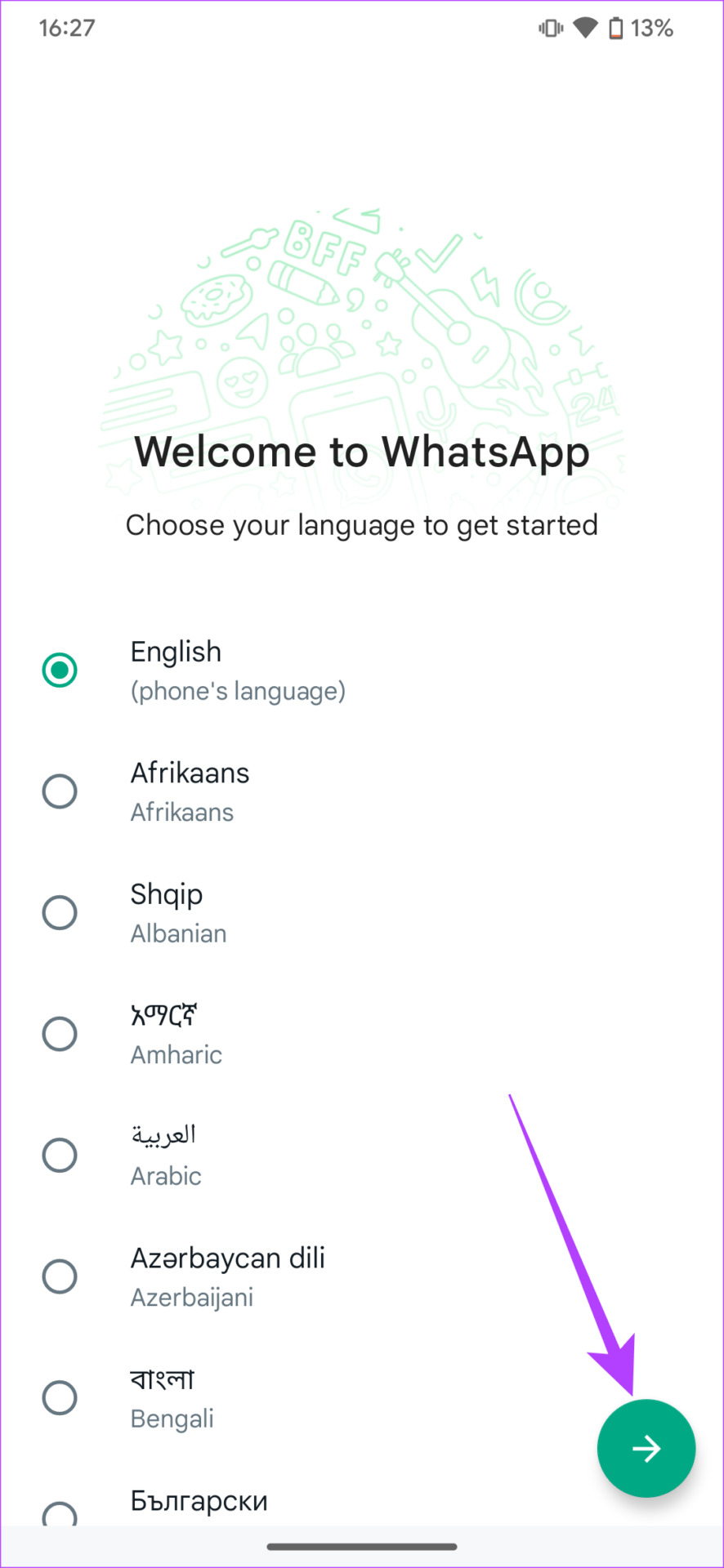
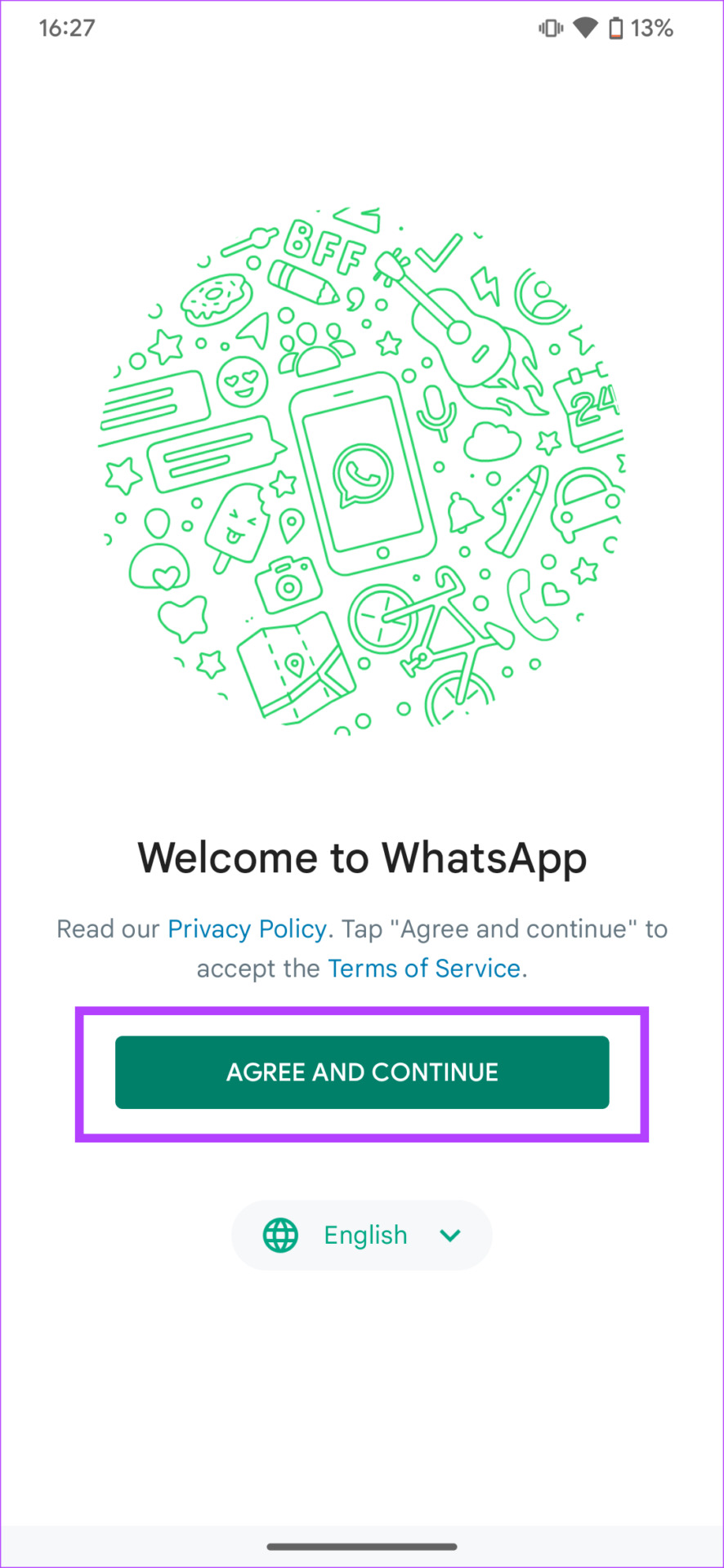
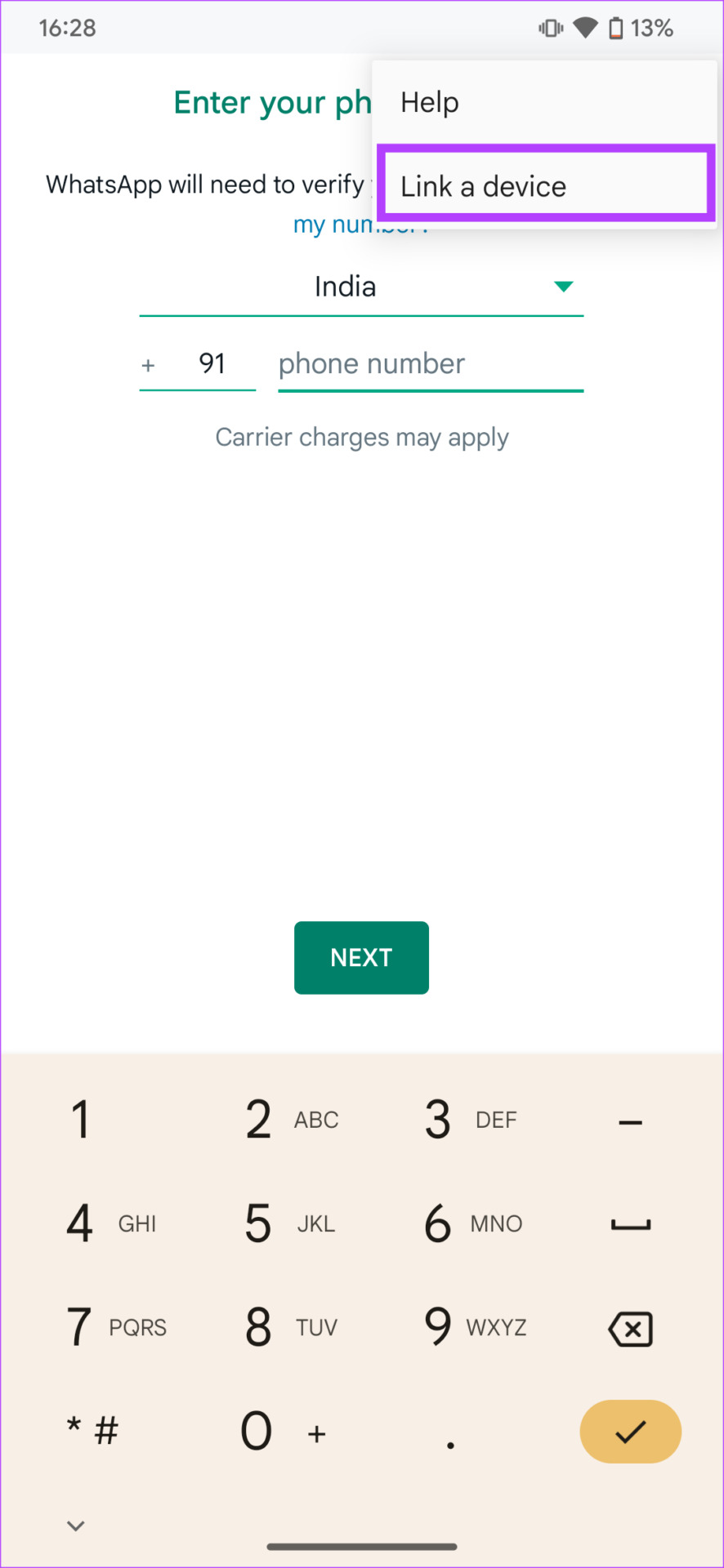
Step 4: Press the three dots at the top-right corner of your screen when prompted to enter your phone number. Then, tap on Link a device.
You will now see a QR Code displayed on your phone’s screen. Switch to your primary device to scan this code.
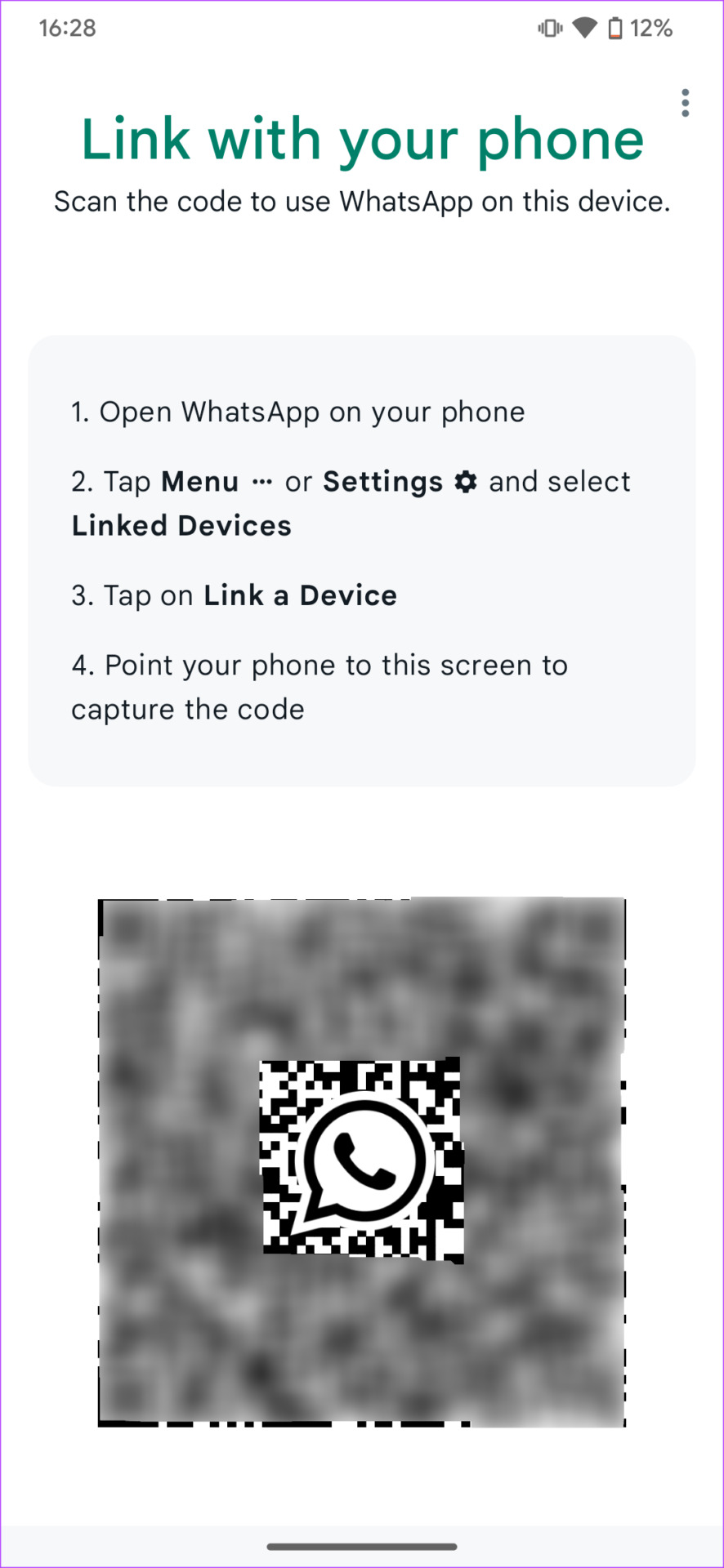
Follow the on-screen instructions to set up WhatsApp on the device.
Note: If you don’t see the ‘Link a device’ option, see how you can fix the issue of being unable to use WhatsApp on two devices.
Method 2: If Your Secondary Device Is an iPhone
Step 1: Install and sign in to WhatsApp on your primary phone. If you’re already using WhatsApp on your phone, skip this step.
Step 2: Install WhatsApp from the App Store on your secondary device. If you already have WhatsApp installed on this phone, uninstall and re-install it.
Step 3: Open WhatsApp on your secondary phone. Tap on Agree & Continue. Then, select the link this device option.
You will now see a QR Code displayed on your phone’s screen. Switch to your primary device to scan this code.
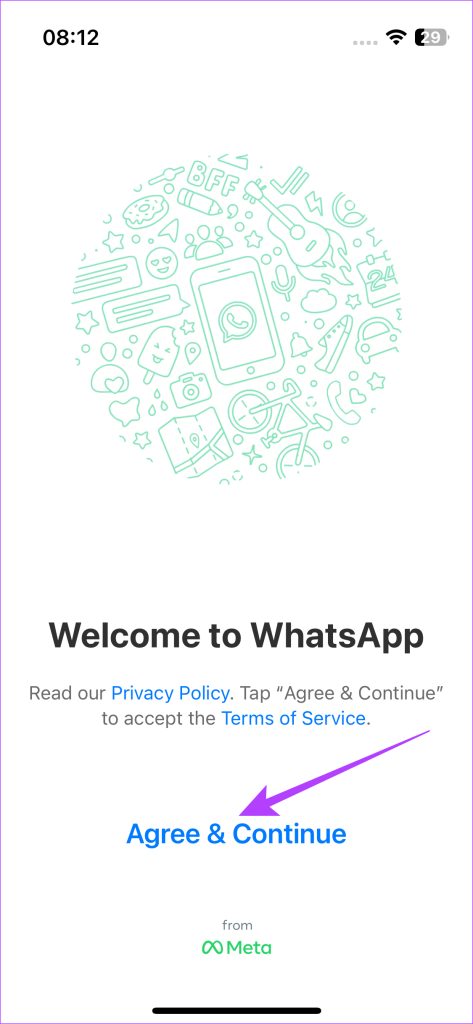
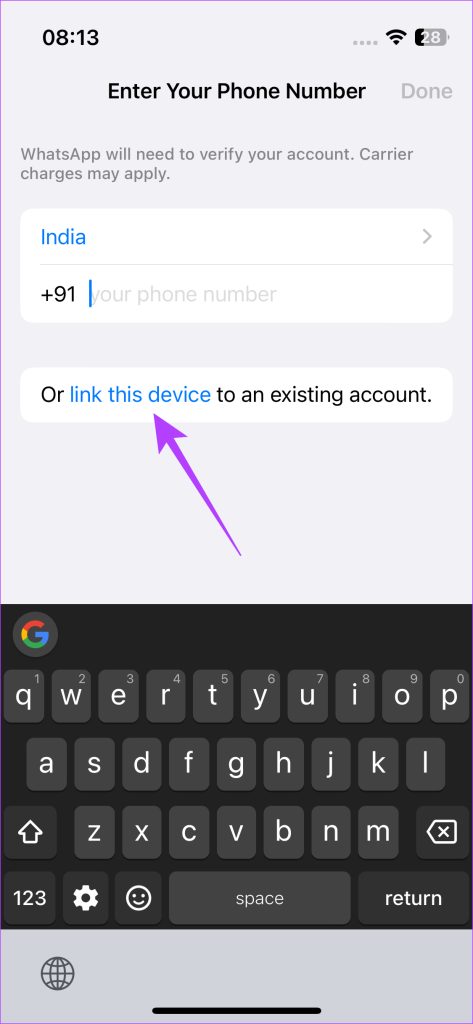
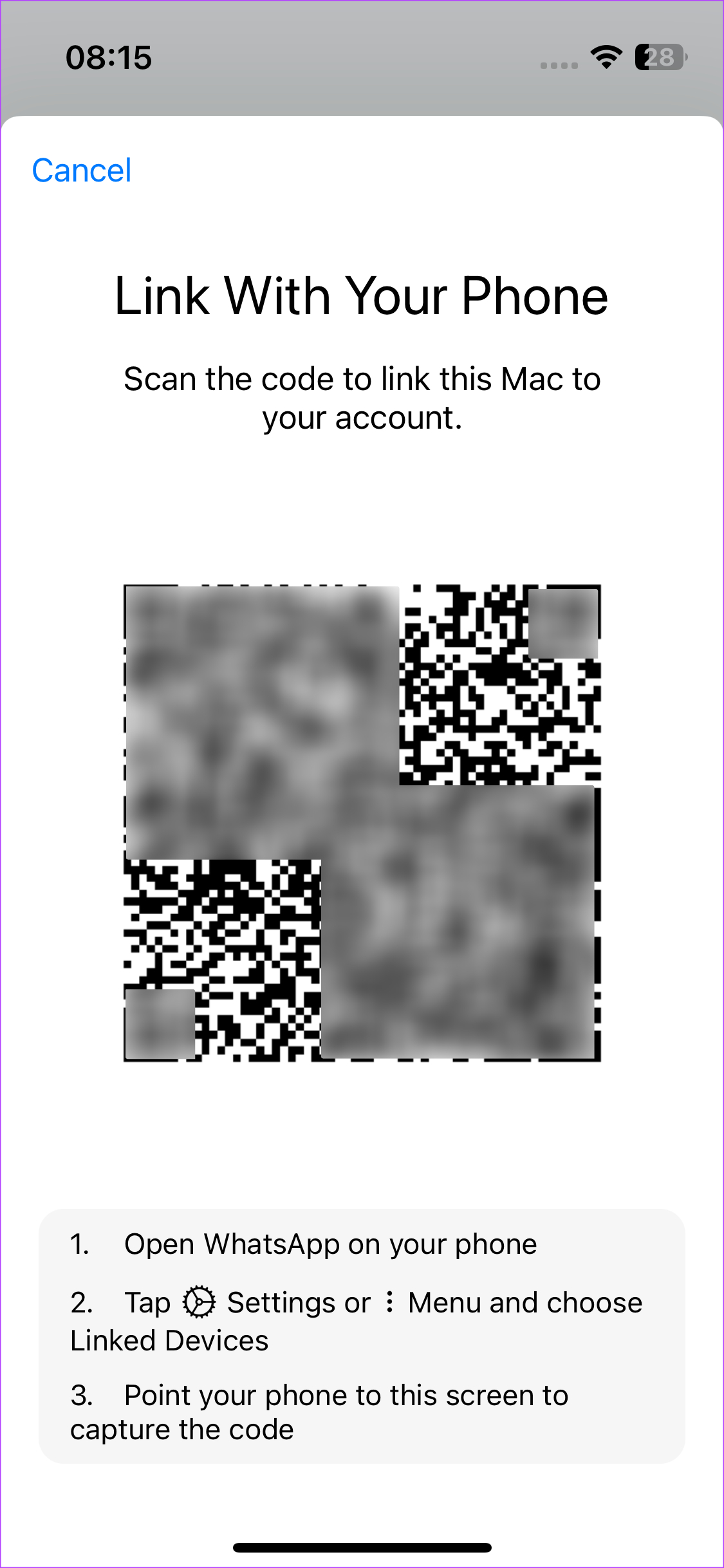
Follow the on-screen instructions to set up WhatsApp on the device.
Also Read: How to create polls in WhatsApp for desktop and mobile
FAQs on Using the Same WhatsApp Account on Two Phones
The Linked Devices feature allows you to link up to 4 different devices to the same WhatsApp account. So, if you’ve not linked any other devices like your computer, you can use WhatsApp on up to 4 phones at the same time.
Yes, WhatsApp Web will continue to work without any issues as they work independently.
No, you don’t need a SIM card on your secondary phone to use WhatsApp from your primary number. However, you do need an active internet connection.
Was this helpful?
Last updated on 29 August, 2024
6 Comments
Leave a Reply
Read Next
 11 Best Ways to Free Up Storage on Samsung Phones and Tablets
Android phones come with two different types of storage spaces – internal and external.
11 Best Ways to Free Up Storage on Samsung Phones and Tablets
Android phones come with two different types of storage spaces – internal and external.
 8 Ways to Fix Battery Drain on Samsung Galaxy Phones
Basic Fixes: Disable 5G: While 5G provides faster data transfer speeds, it can increase the device's battery drain.
8 Ways to Fix Battery Drain on Samsung Galaxy Phones
Basic Fixes: Disable 5G: While 5G provides faster data transfer speeds, it can increase the device's battery drain.
 4 Ways to Fix Fingerprint Sensor Not Working on Android Phones
Try Basic Fixes Make sure your fingers are dry and clean: Capacitive and optical fingerprint scanners cannot read your fingers if they are wet or dirty.
4 Ways to Fix Fingerprint Sensor Not Working on Android Phones
Try Basic Fixes Make sure your fingers are dry and clean: Capacitive and optical fingerprint scanners cannot read your fingers if they are wet or dirty.
 How to Use Quick Settings Panel on Samsung Galaxy Phones
How to Access the Quick Settings Panel You can access the Quick Settings panel by swiping down from the top of the screen.
How to Use Quick Settings Panel on Samsung Galaxy Phones
How to Access the Quick Settings Panel You can access the Quick Settings panel by swiping down from the top of the screen.
 How to Use Clipboard on Samsung Galaxy Phones
Use Clipboard in Samsung Keyboard You can use One UI's native clipboard if Samsung Keyboard is your default keyboard app.
How to Use Clipboard on Samsung Galaxy Phones
Use Clipboard in Samsung Keyboard You can use One UI's native clipboard if Samsung Keyboard is your default keyboard app.
 5 Ways to Fix Bixby Not Working on Samsung Galaxy Phones
Fix 1: Enable App Permissions for Bixby Bixby requires a few permissions to access your phone's microphone, location, sensors, and other features.
5 Ways to Fix Bixby Not Working on Samsung Galaxy Phones
Fix 1: Enable App Permissions for Bixby Bixby requires a few permissions to access your phone's microphone, location, sensors, and other features.
 Where to Find Downloads on Samsung Galaxy Phones
Where to Find Downloaded Files on Samsung Galaxy Phone If you're new to Samsung Galaxy phones, you may wonder where your downloaded files are.
Where to Find Downloads on Samsung Galaxy Phones
Where to Find Downloaded Files on Samsung Galaxy Phone If you're new to Samsung Galaxy phones, you may wonder where your downloaded files are.
 3 Ways to Fix Blurry Camera on Android Phones
Basic Fixes: Check camera lens for damage: If your device's camera lens is damaged or has scratches, it can cause photos to appear blurry on your Android phone.
3 Ways to Fix Blurry Camera on Android Phones
Basic Fixes: Check camera lens for damage: If your device's camera lens is damaged or has scratches, it can cause photos to appear blurry on your Android phone.
The article above may contain affiliate links which help support Guiding Tech. The content remains unbiased and authentic and will never affect our editorial integrity.

Im not seeing the Link a Device option in Step 5, even after sideloading the APK file. What am i doing wrong?
I tryed i downloaded the beta apk but not showing link device in the corner
This doesn’t seem to work as there is no Link Device in the corner (whether through the store or via the APK download). It seems that Whatsapp has removed this option in the newest update.
I tried this option on my second Huawei P40pro but I cannot see this option in my whatsapp after selecting agree and continue. I even download the beta version you provided but when open the app, it says download latest version as this version is obsolete on 15 January 2023.
Any idea?
If my main phone is an iPhone and my second phone is android. Will the account that’s on my android device also backup my account on the android device? Or is backup only on the primary device?
Thanks for the step by step instructions. Now I am able to link my WhatsApp number in two phones.
I have to side loan apk beta file.
Regards