How to Create Your Avatar on Instagram
To use your personalized avatar during video calls, you will first need to create your Instagram avatar. Here’s how you can go about it.
Step 1: Open the Instagram app on your phone and tap the profile tab at the bottom-right corner. Then, tap the Edit profile button.
Step 2: Tap on Edit picture or avatar. Switch to the Avatar tab and select the Create avatar button.


Step 3: Follow the on-screen prompts to select your preferred skin tone, face shape, hairstyle, outfit, and more.


Step 4: Tap on Save Changes. Wait for the app to update your avatar and then tap Next.


How to Use Your Avatar During Video Calls on Instagram
After you have created your Instagram avatar, you can use it during video calls. Here’s how.
Step 1: Open the Instagram app and initiate a video call with a friend.
Step 2: Tap the avatar icon on your left to replace your feed with your Instagram avatar.


Step 3: You can tap the avatar icon again to use other readily available avatars instead.


The best part about using your avatar is that it mimics your facial expressions. This way, your Instagram avatar never appears out of place or disconnected during a video call, resulting in more natural and immersive interaction. If you wish to discontinue using your avatar at any time, tap the avatar icon featuring the X sign.


How to Create Your Avatar on Facebook
If Facebook Messenger is your go-to platform for video calls, you can also use your avatar there. You’ll need to set up your avatar using the Facebook app if you haven’t already done so.
Step 1: Open the Facebook app on your phone. Tap the menu icon (three horizontal lines) in the top right corner.
Step 2: Tap on Avatars.


Step 3: Follow the on-screen prompts to select your preferred skin tone, hairstyle, face shape, and more to create your avatar. Then, tap Save.
Step 4: Wait for Facebook to create your avatar and tap Next.


How to Use Your Avatar During Video Calls on Facebook Messenger
Follow these steps to use your Facebook avatar in Messenger video calls on Android or iPhone.
Step 1: Open the Messenger app on your Android or iPhone.
Step 2: Use the search bar to locate the person or group you want to video call and tap on it. Initiate a video call by tapping the icon in the top right corner.


Step 3: Tap the avatar icon on your left. Give it a few seconds, and the app will replace your feed with your avatar.


Step 4: You can tap the avatar icon again to use one of the available avatars for your video call.


Like on Instagram, your avatar in Messenger will mimic your facial expressions during video calls. To stop using your avatar at any point, tap the avatar icon with the X sign on it.
Was this helpful?
Last updated on 01 August, 2024
Read Next
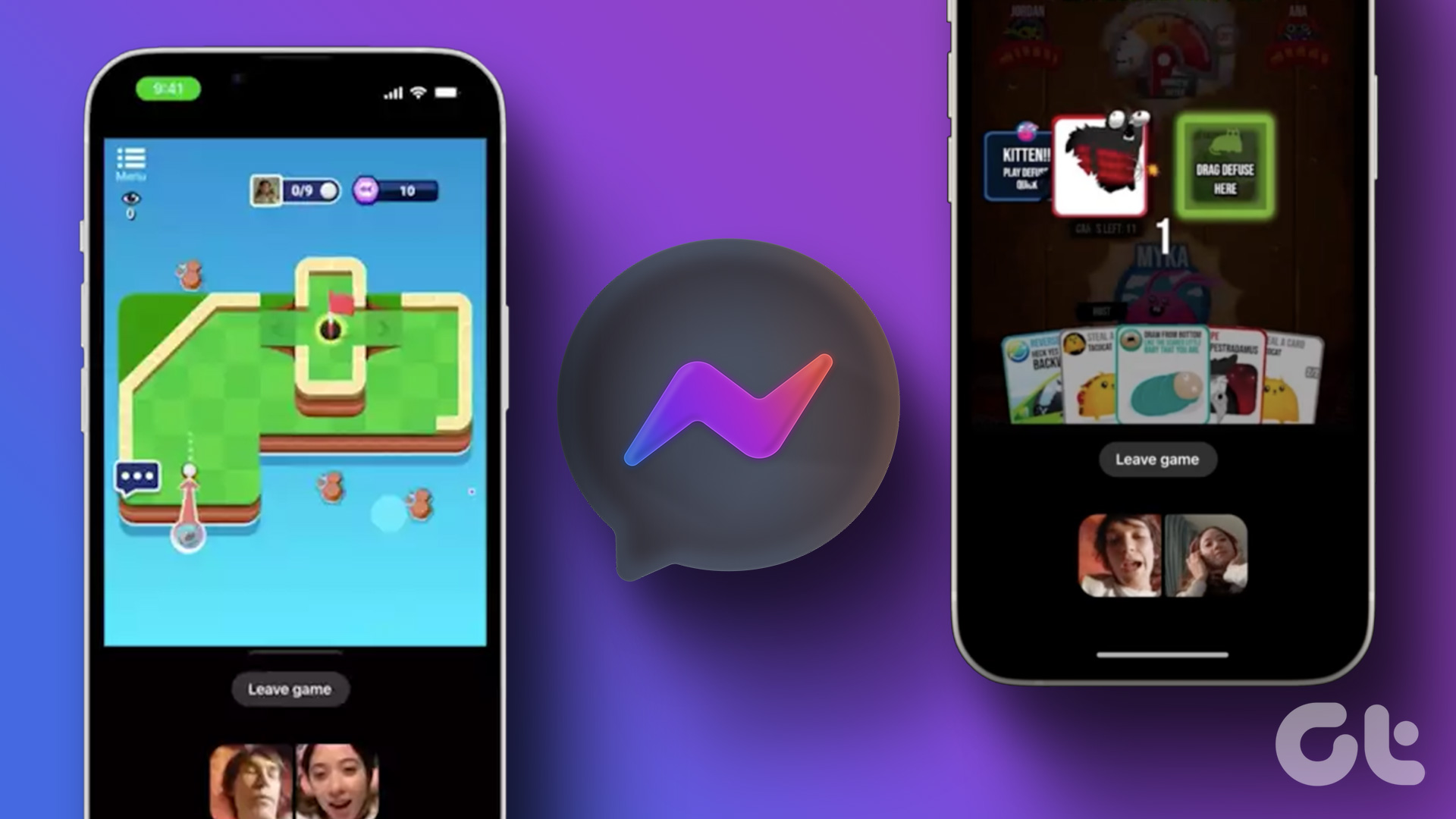 How to Play Games During Messenger Video Calls
 on Android or iPhone All the games available in Messenger are free to play and do not require installation on your Android
How to Play Games During Messenger Video Calls
How to Play Games During Messenger Video Calls on Android or iPhone All the games available in Messenger are free to play and do not require installation on your Android
 3 Fixes for No Sound in Facebook Messenger Video Calls
Basic Fixes Check volume levels: Check whether you have optimum volume levels on your iPhone or Android phone.
3 Fixes for No Sound in Facebook Messenger Video Calls
Basic Fixes Check volume levels: Check whether you have optimum volume levels on your iPhone or Android phone.
 A Complete Guide to Creating and Using Facebook Avatar
The times are changing.
A Complete Guide to Creating and Using Facebook Avatar
The times are changing.
 How to Fix Messenger Video Calls Not Working on Windows 11
Basic Fixes Login again to your Messenger account: The very first thing you should do is to log out and then back into your Messenger account.
How to Fix Messenger Video Calls Not Working on Windows 11
Basic Fixes Login again to your Messenger account: The very first thing you should do is to log out and then back into your Messenger account.
 Top 5 Ways to Fix Facebook Messenger Calls Not Working (iPhone and Android)
Preliminary Fixes Check the Network Connection: A stable internet connection is crucial for Messenger calls.
Top 5 Ways to Fix Facebook Messenger Calls Not Working (iPhone and Android)
Preliminary Fixes Check the Network Connection: A stable internet connection is crucial for Messenger calls.
 Top 8 Ways to Fix Proximity Sensor Not Working During Calls on Android
There are several components that contribute to the basic functioning of a smartphone.
Top 8 Ways to Fix Proximity Sensor Not Working During Calls on Android
There are several components that contribute to the basic functioning of a smartphone.
 3 Fixes for iPhone Speaker Not Working During Calls
https://youtu.be/dTAtDgY5NPc Basic Fixes Disable Bluetooth devices: Disconnect Bluetooth devices from your iPhone.
3 Fixes for iPhone Speaker Not Working During Calls
https://youtu.be/dTAtDgY5NPc Basic Fixes Disable Bluetooth devices: Disconnect Bluetooth devices from your iPhone.
 How to Fix Echo on iPhone During Voice Calls or FaceTime
We make or receive numerous calls daily.
How to Fix Echo on iPhone During Voice Calls or FaceTime
We make or receive numerous calls daily.
The article above may contain affiliate links which help support Guiding Tech. The content remains unbiased and authentic and will never affect our editorial integrity.