Enable and Use Animated Reactions in Zoom on Desktop
To start using Animated Reactions during Zoom calls, you must enable the feature in the Zoom app on your computer. Here’s how to do it on your Mac and Windows PC.
Step 1: Open the Zoom app on your Mac or Windows PC.
Step 2: Click the Settings icon at the top-right corner and select General.

Step 3: Scroll to the bottom and look for Reactions.

Step 4: Under Reactions, check the box for Animate these emojis to enable Animated Reactions.

As of writing this guide, Zoom has enabled Animated Reactions for six emojis. You cannot add more emojis to be used as Animated Reactions. Also, you cannot change the skin tone of the emoji to use it as an Animated Reaction.
To use an animated reaction, click on Reactions in the bottom Menu Bar during a Zoom call. Then, select your emoji.

Enable and Use Animated Reactions in Zoom on Mobile
If you prefer using Zoom mostly on your mobile device, use animated reactions during your meetings. But before that, check if the feature is enabled. The steps to check that are the same for Android and iPhone.
Step 1: Open Zoom on your iPhone or Android. Tap the three dots at the bottom-right corner and select Meetings.
Step 2: Scroll to the bottom and enable the toggle for Animated Reactions.
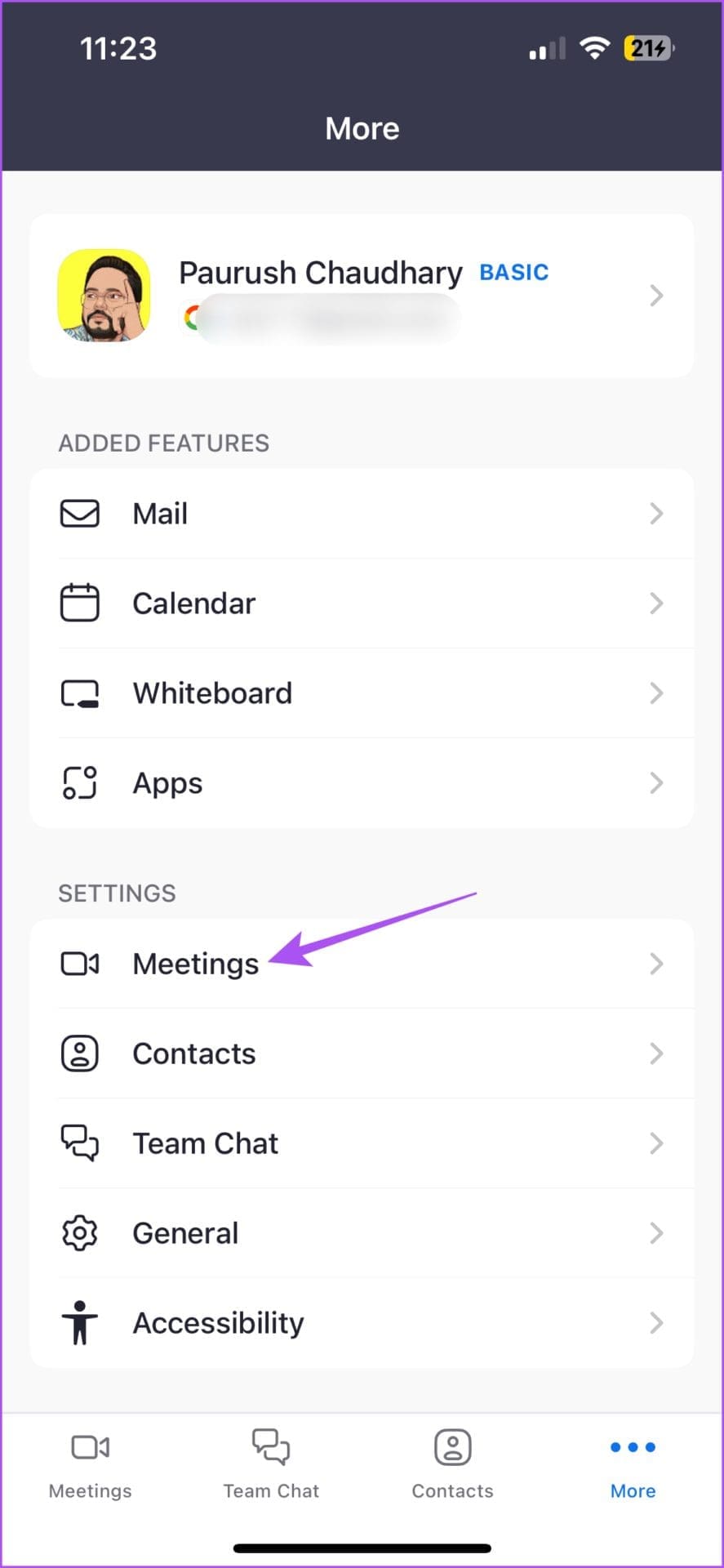

Note that you cannot change the skin tone of your emoji and use it as an animated reaction.
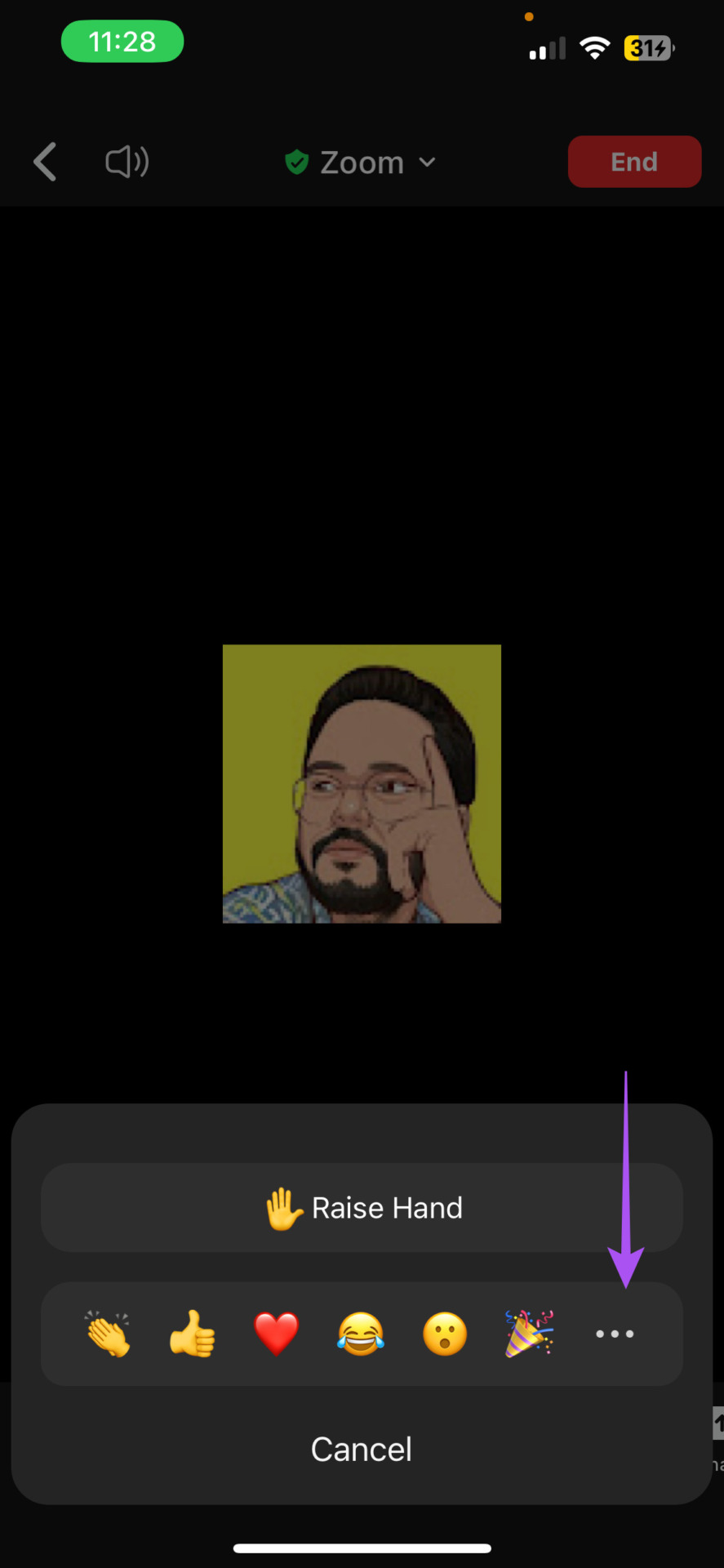
To send a reaction, tap the Reactions icon on the bottom Menu Bar > tap the three dots to get options for animated reactions.


Was this helpful?
Last updated on 02 July, 2024
Read Next
 How to Change Quick and Double-tap Reactions on Messenger
How to React to Messages on Facebook Messager With Any Emoji It's very easy to react to messages on Facebook Messenger with any emoji.
How to Change Quick and Double-tap Reactions on Messenger
How to React to Messages on Facebook Messager With Any Emoji It's very easy to react to messages on Facebook Messenger with any emoji.
 How to Change or Remove Reactions in WhatsApp Messages
How to Remove WhatsApp Emoji Reaction Let's say you have reacted to a message on WhatsApp using an emoji.
How to Change or Remove Reactions in WhatsApp Messages
How to Remove WhatsApp Emoji Reaction Let's say you have reacted to a message on WhatsApp using an emoji.
 3 Fixes for Message Reactions Not Working on Instagram
Basic Fixes Log in again to your profile: If you cannot react to messages on Instagram, you can log out and sign in again on your iPhone or Android.
3 Fixes for Message Reactions Not Working on Instagram
Basic Fixes Log in again to your profile: If you cannot react to messages on Instagram, you can log out and sign in again on your iPhone or Android.
 How to Use Message Reactions in Telegram
https://youtu.be/_tWPPbvEwvI Use Message Reactions in Telegram on Mobile or Desktop Here's how to add emoji reactions to messages in the Telegram app on your mobile or desktop.
How to Use Message Reactions in Telegram
https://youtu.be/_tWPPbvEwvI Use Message Reactions in Telegram on Mobile or Desktop Here's how to add emoji reactions to messages in the Telegram app on your mobile or desktop.
 3 Fixes for Reactions Not Working in Facebook Messenger
Basic Fixes Log in again to your Facebook account: This will load all your chats and preferences again in the Facebook Messenger app.
3 Fixes for Reactions Not Working in Facebook Messenger
Basic Fixes Log in again to your Facebook account: This will load all your chats and preferences again in the Facebook Messenger app.
 How to Use Reactions in Messages on Android
How to Get Started With Message Reactions Before we begin with the steps to use Message Reactions, there are some prerequisites to consider.
How to Use Reactions in Messages on Android
How to Get Started With Message Reactions Before we begin with the steps to use Message Reactions, there are some prerequisites to consider.
 3 Fixes if Reactions Are Not Working on Google Messages
Basic Fixes Force quit and relaunch Google Messages: This will give the app a fresh start.
3 Fixes if Reactions Are Not Working on Google Messages
Basic Fixes Force quit and relaunch Google Messages: This will give the app a fresh start.
 What Are Emphasized Reactions and How to Use Them on iPhone
Reaction Types and What They Mean Heart: This can be used to emphasize a message you loved from the sender.
What Are Emphasized Reactions and How to Use Them on iPhone
Reaction Types and What They Mean Heart: This can be used to emphasize a message you loved from the sender.
The article above may contain affiliate links which help support Guiding Tech. The content remains unbiased and authentic and will never affect our editorial integrity.