Use Add to Queue on YouTube on Desktop
Before we start, this feature is only available for YouTube Premium subscribers. The YouTube website enables this feature by default when you access the site from a desktop. Here’s how to use it.
Method 1
Step 1: Open the YouTube website in a browser tab on your computer.
Step 2: Click the three dots on the bottom right of the video’s thumbnail.

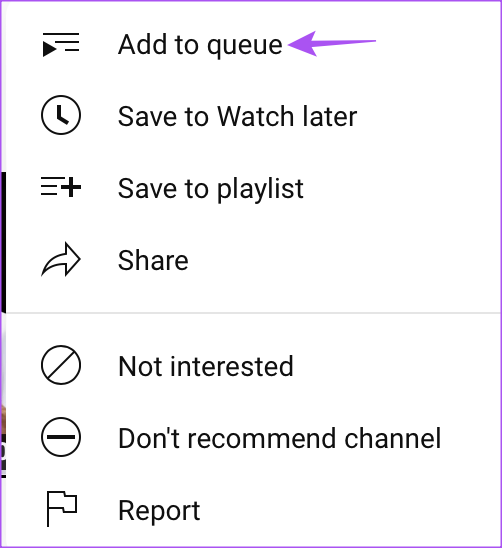
Step 3: Select Add to queue.
You will notice a mini-player being created at the bottom left of your YouTube web page. This shows that you can add more videos to the current queue.
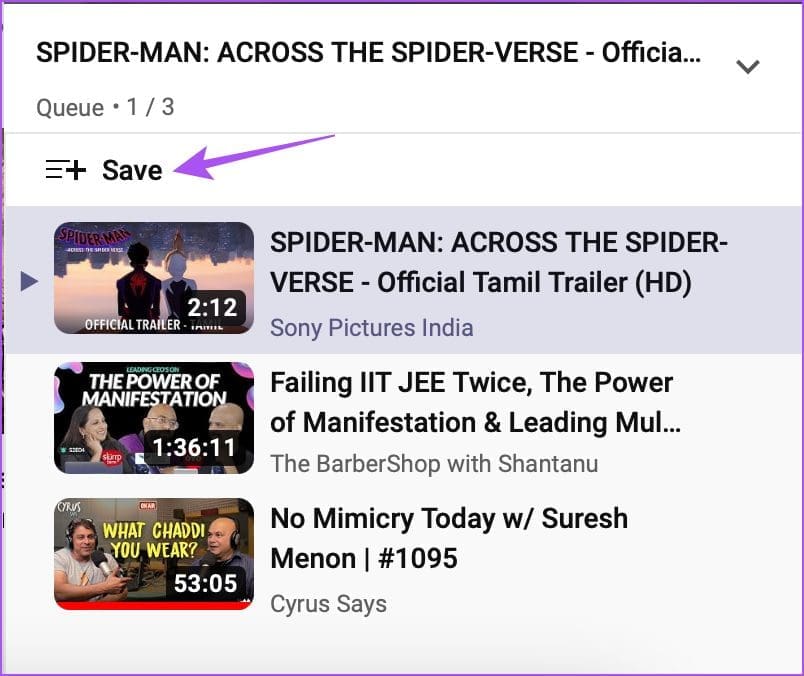
You can repeat the same process to keep adding videos to the queue. After that, click the upward arrow icon below the thumbnail in the mini-player.

You will see all the videos in the current queue. You can click on a video to drag and drop it to change the viewer order. You can click on the video to start watching the videos without opening them separately.
Method 2
Alternatively, here’s how you can use the Add to Queue feature on YouTube on Desktop.
Step 1: Bring your mouse pointer to the thumbnail of the video on the YouTube website.
Step 2: Click on the Add to Queue icon at the top of a thumbnail.

Step 3: After that, click on Save in the mini player window and then select your Playlist to add to the Queue.
How to Clear Video Queue on YouTube on Web
If you wish to clear the video queue on YouTube on your computer, here are the steps.
Step 1: Click the X icon at the bottom right of the miniplayer.

Step 2: Click on Close player.
Use Add to Queue on YouTube on Mobile
If you have subscribed to YouTube Premium, you must first enable this feature. The steps are the same for iPhone and Android. Here’s how to do it.
Step 1: Open the YouTube app on your iPhone or Android.
Step 2: Tap on your profile icon at the top right > select Settings.
Step 3: Tap Try New Features > Under Queue, click on Try It Out. A new window will appear showing the list of available features for Premium users.
Close the YouTube app and wait for the feature to be enabled. After that, here’s how to use the Add to Queue feature on the YouTube app.


Step 4: Tap the three dots at the bottom right of the video thumbnail and then select Play last in queue.


YouTube will add your video to Queue at the bottom. You can repeat the steps mentioned above to add more videos to Queue on YouTube. Just like on the web, drag the video names to change the playback in order of viewing preference.
How to Clear Video Queue on YouTube’s Mobile App
Step 1: Open the YouTube app on your iPhone or Android.
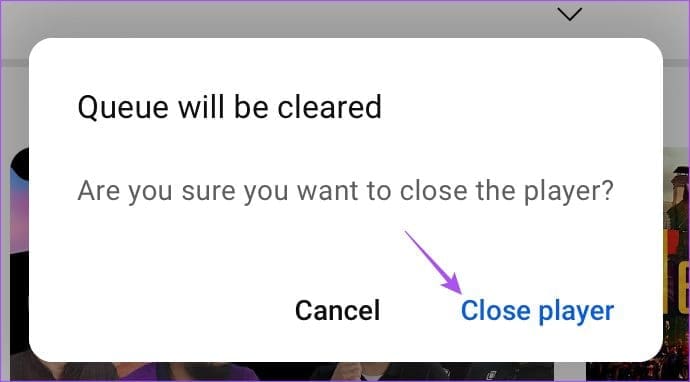
Step 2: Tap the X icon at the bottom right of the mini-player > tap on Close player. Your video Queue will be cleared.


Tip: Refer to our post if the Add to Queue feature is not working on YouTube
Was this helpful?
Last updated on 30 August, 2024
Read Next
 2 Fixes for “Add To Queue” Not Working on YouTube
Basic Fixes Force quit and relaunch YouTube app: This will give the app a fresh start if it has been running in the background for quite some time now.
2 Fixes for “Add To Queue” Not Working on YouTube
Basic Fixes Force quit and relaunch YouTube app: This will give the app a fresh start if it has been running in the background for quite some time now.
 How to Use YouTube’s Multi Audio Track Feature
Gone are the days when you needed to switch to different YouTube dubbed videos to listen to a specific language.
How to Use YouTube’s Multi Audio Track Feature
Gone are the days when you needed to switch to different YouTube dubbed videos to listen to a specific language.
 What Is Gmail’s Mute Feature and How to Use It Effectively
What Is Gmail’s Mute Feature?
What Is Gmail’s Mute Feature and How to Use It Effectively
What Is Gmail’s Mute Feature?
 Top 11 Things to Know About Snooze Feature on Facebook
Sometimes, I feel people get married to post their pictures on Facebook.
Top 11 Things to Know About Snooze Feature on Facebook
Sometimes, I feel people get married to post their pictures on Facebook.
 What Is Facebook Take a Break Feature and How to Use it
What Is Take a Break Feature The Take a break feature lets you literally take a break from someone on Facebook without blocking or restricting them.
What Is Facebook Take a Break Feature and How to Use it
What Is Take a Break Feature The Take a break feature lets you literally take a break from someone on Facebook without blocking or restricting them.
 Instagram’s Secret Sharing: Unraveling the Close Friends Feature
What Is the Close Friends List on Instagram?
Instagram’s Secret Sharing: Unraveling the Close Friends Feature
What Is the Close Friends List on Instagram?
 How to Use Microsoft Edge Drop Feature to Share Files Between Devices
How to Send Files From Your Desktop Using Microsoft Edge Drop Microsoft Edge’s Drop feature is only available in version 110.0.1587.41 or later.
How to Use Microsoft Edge Drop Feature to Share Files Between Devices
How to Send Files From Your Desktop Using Microsoft Edge Drop Microsoft Edge’s Drop feature is only available in version 110.0.1587.41 or later.
 How to Use the Read Aloud Feature in Microsoft Edge
Use Read Aloud in Microsoft Edge on Desktop Microsoft Edge’s Read Aloud feature is simple to use and does not require any setup.
How to Use the Read Aloud Feature in Microsoft Edge
Use Read Aloud in Microsoft Edge on Desktop Microsoft Edge’s Read Aloud feature is simple to use and does not require any setup.
The article above may contain affiliate links which help support Guiding Tech. The content remains unbiased and authentic and will never affect our editorial integrity.