Basic Ways:
- Disable shortcuts: You can also look in the Apple Shortcuts app and see if any shortcut is set to enable Dark Mode on your iPhone. If you see any such shortcut, delete it from your iPhone.
- Use Siri: You can also use Siri to get rid of Dark Mode on your iPhone. Open Siri by saying Hey Siri or pressing the Home button on your iPhone. Then, say “Turn off dark mode” to disable Dark Mode.
Method 1: Get Rid of Black Background on iPhone From Settings
One of the easiest ways to turn off dark mode on your iPhone or iPad is from the Settings app. This will allow you to stop dark mode from automatically turning on during a specific time of the day, like after sunset. Here’s how.
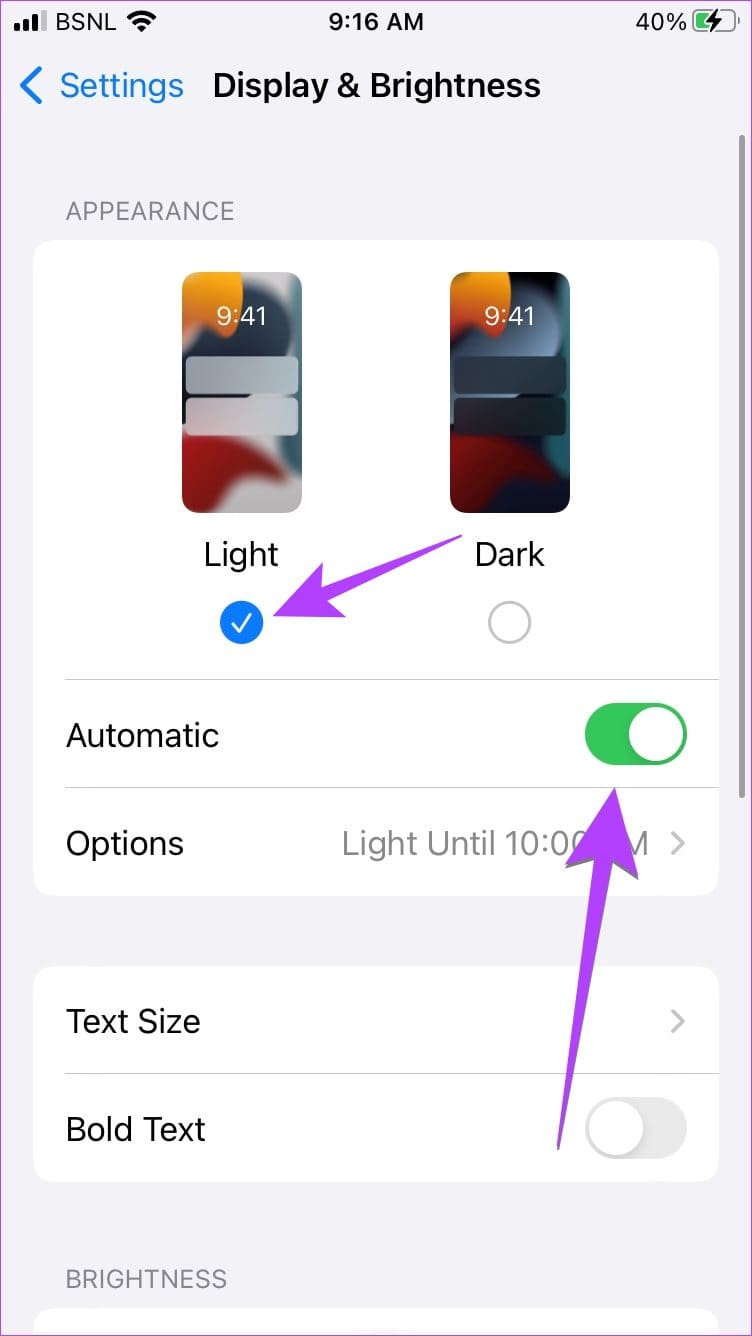
Step 1: Open the Settings app > tap on Display & Brightness.
Step 2: Here, tap on Light > turn off the toggle for Automatic.

Method 2: Remove the Dark Screen on iPhone From Control Center
You can also turn off Dark Mode from the Control Center on your iPhone. This will allow you to revert to Light Mode, that too, without going into the Settings menu. Here’s how to do it.
Step 1: Open the Control Center on your iPhone and long-press the brightness slider.
Step 2: Tap on the Dark Mode button at the bottom to turn off dark mode on your iOS device.


Method 3: Unlink Dark Mode From Focus Filters
iOS 16 introduced the concept of focus filters in Focus Modes, which allows you to turn your iPhone’s screen black when a linked Focus profile is activated. This feature might be why dark mode gets activated automatically on your iPhone. To turn it off, follow the below steps.
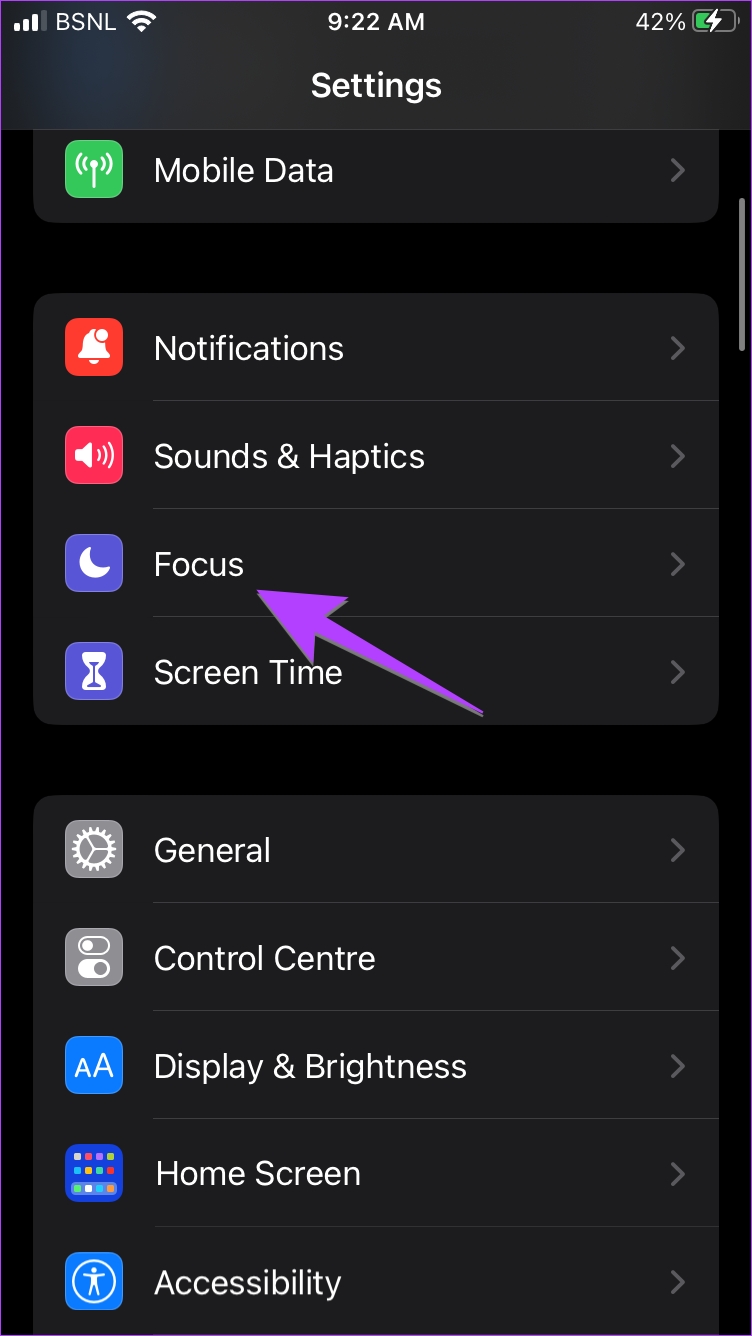
Step 1: Open the Settings app > tap on Focus. Then, tap on all the Focus Modes one by one, starting with Do Not Disturb.

Step 2: Scroll down and if you see Appearance (set to dark), tap on it. Then, turn off the toggle for Enabled. Finally, tap on Done.


Now, go back to the Focus screen and repeat the above steps for other Focus modes on your iPhone.
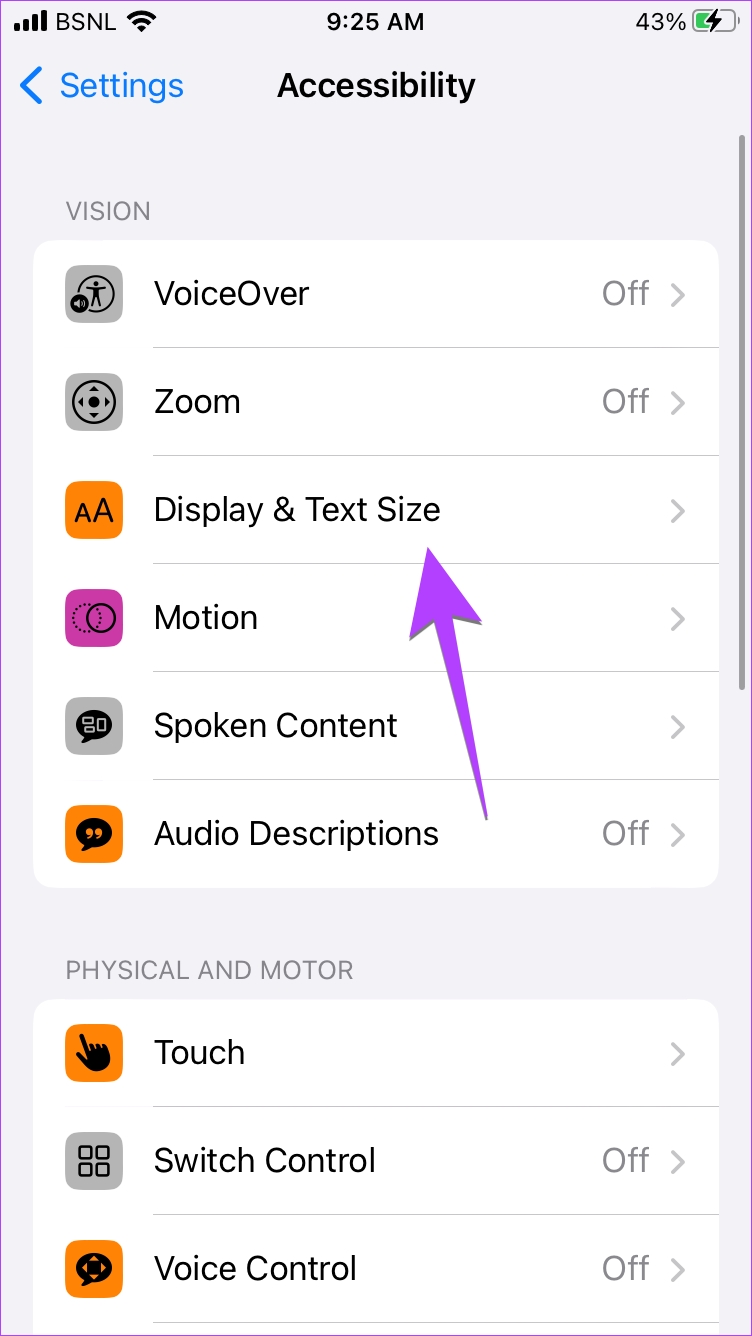
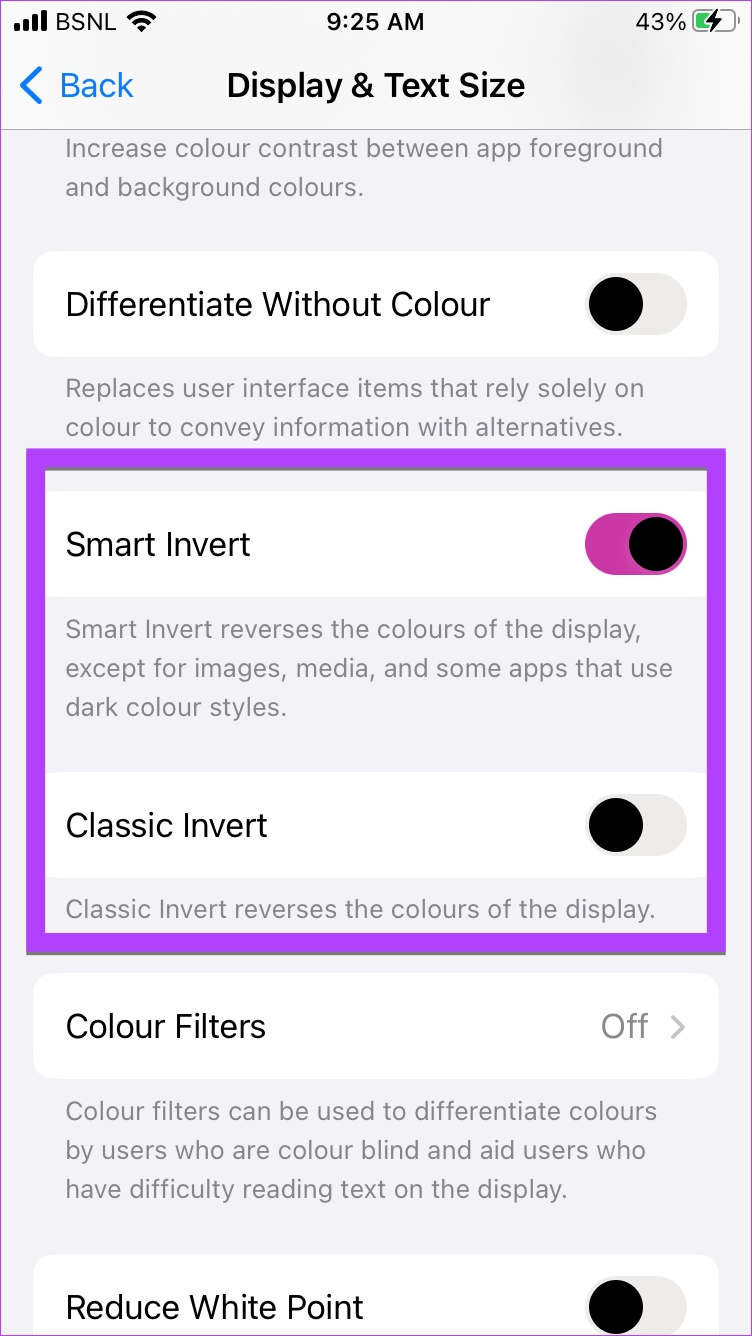
Method 4: Turn off Smart and Classic Invert to Remove Black Screen
If turning off dark mode using the above methods didn’t remove the black screen, you might have enabled color invert on your iPhone. To get rid of the black background on your iPhone, follow these steps.
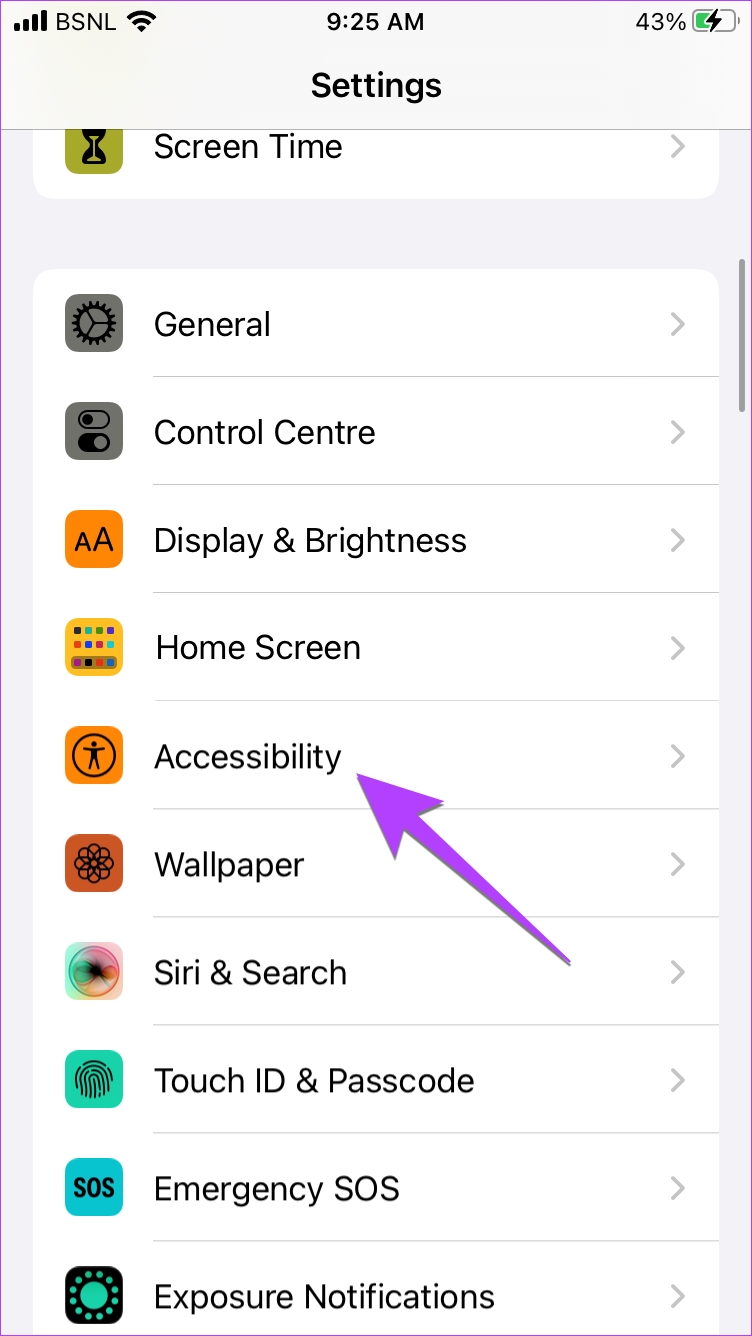
Step 1: Open Settings and tap on Accessibility. Then tap on Display & Text Size.
Step 2: Turn off the toggle for Smart Invert and Class Invert, depending on which one is enabled.
Also Read: How to fix iPhone screen colors messed up or distorted
Method 5: Turn off Color Filters
Another accessibility setting that could cause your iPhone to turn black or grey is the color filter setting. You can turn it off to restore your iPhone’s screen colors to normal. Here’s how.
Step 1: Open Settings and tap on Accessibility. Then tap on Display & Text Size.
Step 2: Here, tap on Color Filters. Then, turn off the toggle for Color Filters.


Once done, any currently active Color Filter settings will be turned off, disabling dark mode on your iPhone.
Was this helpful?
Last updated on 16 May, 2024
Read Next
 How to Turn off Dark Mode in Microsoft Excel, Word, and PowerPoint
Dark mode is savored by many.
How to Turn off Dark Mode in Microsoft Excel, Word, and PowerPoint
Dark mode is savored by many.
 How to Turn On or Off Dark Mode on Samsung Galaxy Phones
On any device, dark mode turns your screen's background black and the text white.
How to Turn On or Off Dark Mode on Samsung Galaxy Phones
On any device, dark mode turns your screen's background black and the text white.
 4 Ways to Enable or Disable Dark Mode on Chromebook
Method 1: From Quick Settings Step 1: Click on the bottom right corner (on the time) of your Chromebook to open the Quick Settings panel.
4 Ways to Enable or Disable Dark Mode on Chromebook
Method 1: From Quick Settings Step 1: Click on the bottom right corner (on the time) of your Chromebook to open the Quick Settings panel.
 5 Ways to Turn Off Do Not Disturb on iPhone or iPad
Method 1.
5 Ways to Turn Off Do Not Disturb on iPhone or iPad
Method 1.
 4 Ways to Turn on Grayscale on iPhone and iPad
Basic Ways: Use Siri: If your device has Siri enabled, you can also use the ‘Hey Siri’ command to wake up Siri and turn on the Black and White mode
4 Ways to Turn on Grayscale on iPhone and iPad
Basic Ways: Use Siri: If your device has Siri enabled, you can also use the ‘Hey Siri’ command to wake up Siri and turn on the Black and White mode
 How to Disable Dark Mode in Windows 10, macOS, Android, and iOS
Disable Dark Mode in Windows 11 The system-level color scheme is customizable so that it can display darker tones on menus and backgrounds, making it easier on your eyes.
How to Disable Dark Mode in Windows 10, macOS, Android, and iOS
Disable Dark Mode in Windows 11 The system-level color scheme is customizable so that it can display darker tones on menus and backgrounds, making it easier on your eyes.
 How to Enable Dark Mode in Microsoft Edge on Desktop and Mobile
How to Enable Dark Mode in Microsoft Edge on Desktop There are multiple ways to enable dark mode in Microsoft Edge.
How to Enable Dark Mode in Microsoft Edge on Desktop and Mobile
How to Enable Dark Mode in Microsoft Edge on Desktop There are multiple ways to enable dark mode in Microsoft Edge.
 How to Enable Dark Mode Everywhere in Safari on Mac
Enable Dark Theme for Safari on Mac On macOS Catalina, you have a built-in dark color scheme that renders the entire operating system along with native apps, including Safari and
How to Enable Dark Mode Everywhere in Safari on Mac
Enable Dark Theme for Safari on Mac On macOS Catalina, you have a built-in dark color scheme that renders the entire operating system along with native apps, including Safari and
The article above may contain affiliate links which help support Guiding Tech. The content remains unbiased and authentic and will never affect our editorial integrity.