Things to Know Before Switching Apple ID
Firstly, it’s important to note that you cannot use multiple Apple IDs simultaneously on one phone. You can log in to two Apple IDs for emails (we’ll demonstrate that later) but that’s pretty much it. Here are some prerequisites that you need to be aware of before you switch iCloud accounts on an iPhone:
- You cannot sync your purchases or other iCloud data like notes, voice memos, photos, etc. from both accounts.
- Items synced to iCloud on your earlier ID will be removed from your iPhone when you switch to a new ID. They will still be accessible when you log in to iCloud with your old ID.
- You cannot use the same phone number or email ID linked with your old account to create a new Apple account.
- All the data present locally on your iPhone, including files, apps, contacts, photos, etc., will not be erased.
- Your subscriptions like Apple Music and Apple TV+ will not carry over to your new account.
- If you have multiple Apple devices, they won’t be able to communicate with each other unless you log in with the same Apple ID on all of them.
How Do I Find My Apple ID
In case you don’t know what your current Apple ID is, here’s how you can find out.
Step 1: Open the Settings app on your iPhone. Tap on your name at the top.
Step 2: The email ID or phone number displayed right beneath your picture is your current Apple ID.


How to Switch Apple IDs on iPhone and iPad
Now that you’re ready, follow the below steps to switch between multiple Apple IDs on iPad or iPhone.
Disabling Important Features
Step 1: Open the Settings app on your iPhone. Scroll down to tap Messages.
Step 2: Turn off the toggle next to iMessage. This is to ensure your iMessages don’t go to your old ID even after signing out.

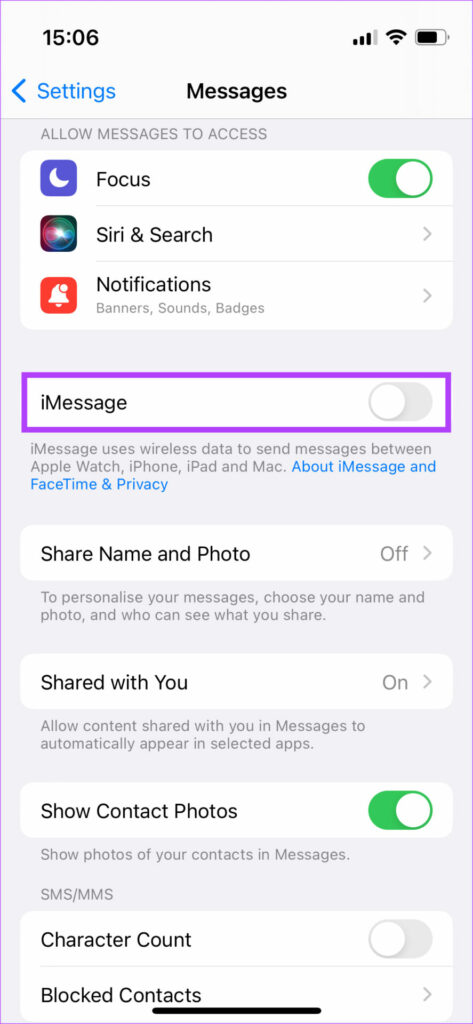
Step 3: Go to FaceTime and turn off the toggle here as well.


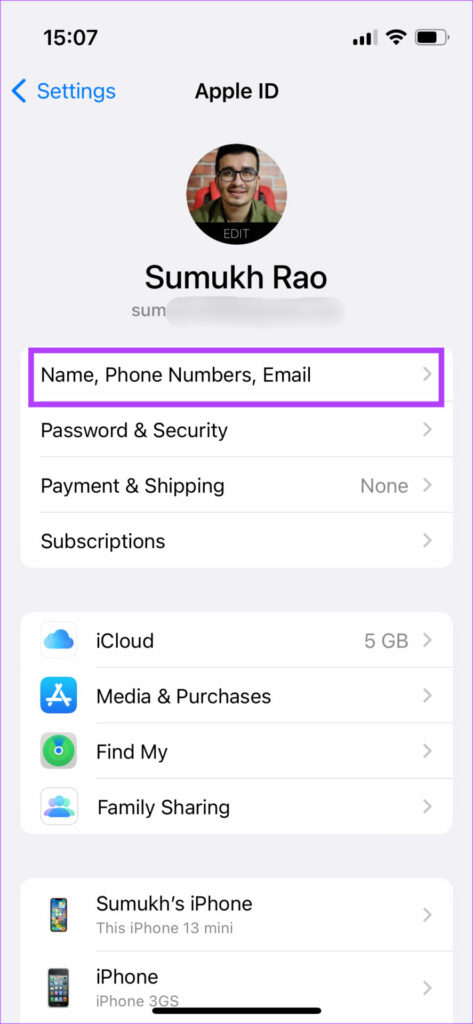
Step 4: Now, tap on your name at the top of the Settings app.
Step 5: Select the Name, Phone Numbers, Email option.
Step 6: Under Contactable At, you will see the list of your email IDs and phone numbers linked to iCloud. If you wish to use any of these with your new Apple ID, tap Edit and delete them from the list.


How to Sign Out of Old Apple ID
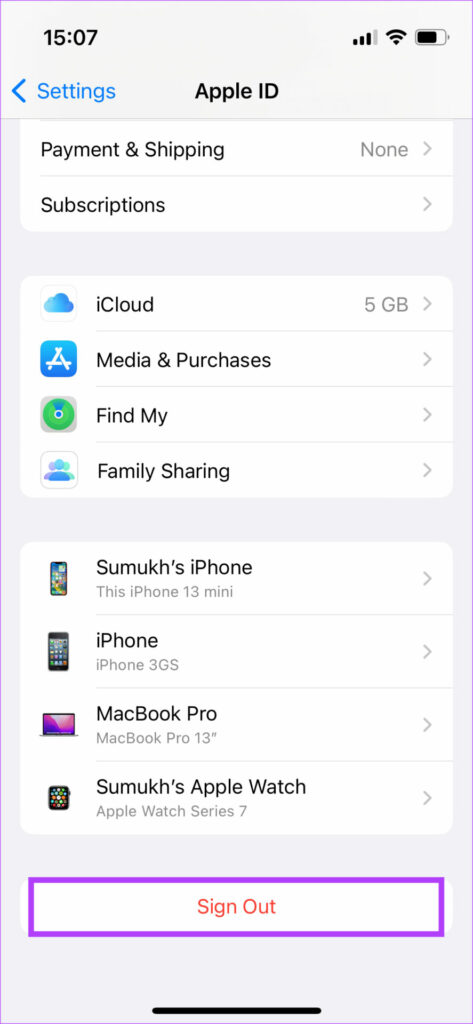
Step 1: Now, you need to sign out of your Apple ID. Go back to the previous screen and scroll down to the bottom. Tap on Sign Out at the bottom.
Step 2: You will be asked if you want to keep a copy of any of your iCloud data on the iPhone. If you wish to sync this data with your new Apple ID, select all the relevant options. If you wish to start afresh on your other ID, don’t select any option here.
Step 3: Tap Sign Out in the top-right corner.

How to Sign In to New Apple ID
Step 1: Tap on the Sign in to your iPhone option at the top of the Settings app.
Step 2: Enter the new Apple ID you want to log in to. If you don’t have one, you can create a new Apple ID from this section.
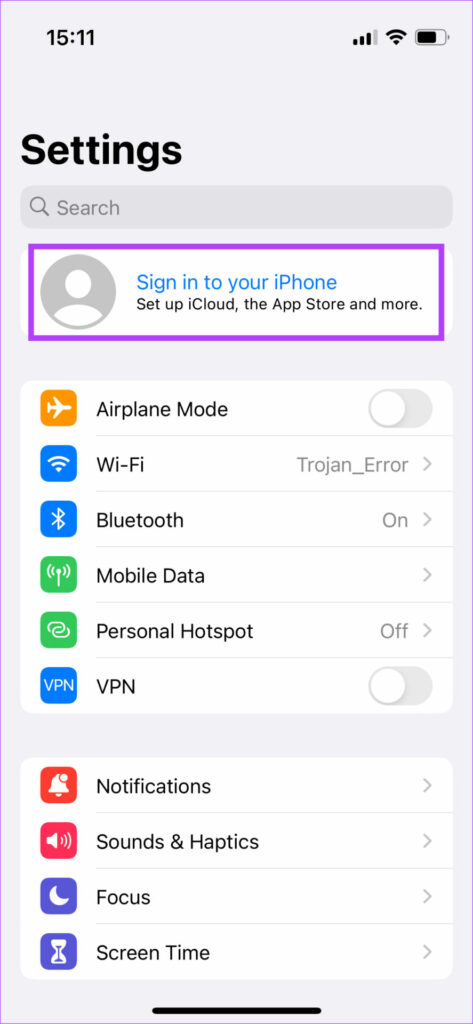


The new Apple ID can be found right below your picture, confirming that you have indeed switched your Apple ID to a new one.
How to Log Back Into Your Old Apple ID
Just follow the instructions above to switch your Apple ID once again. This time, though, input your old Apple ID, and you should be logged back in. Don’t forget to select the right items to keep a copy of, or else you will end up mixing the contents of both iCloud accounts, which you may not want to do.
How to Add Two Apple IDs on iPhone for Mail and Contacts
While you cannot log in to two Apple IDs simultaneously on your iPhone, you can add multiple Apple IDs to sync your mail, contacts, calendar, etc. Here’s how to do it.
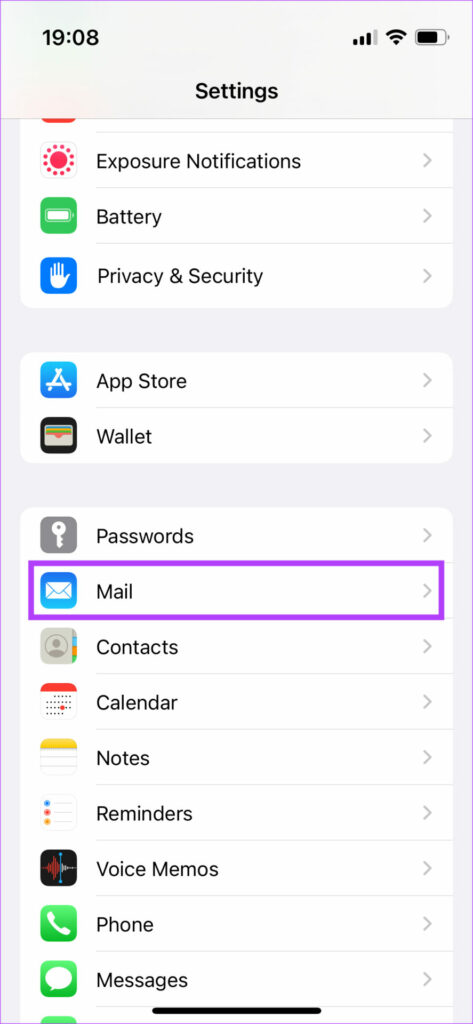
Step 1: Open the Settings app on your iPhone. Scroll down and tap on Mail.
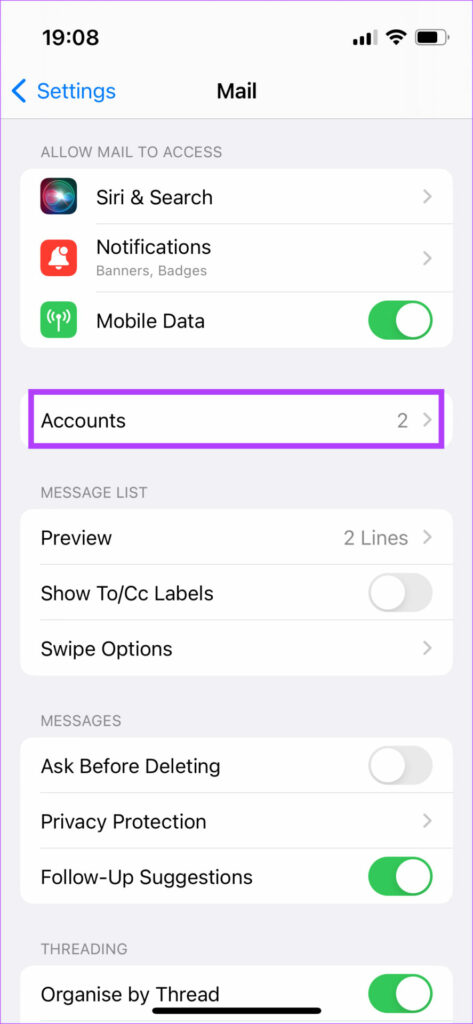
Step 2: Go to Accounts and select Add Account.

Step 3: Select iCloud at the top.
Step 4: Enter the Apple ID you want to add and sync. Enter the password as well.

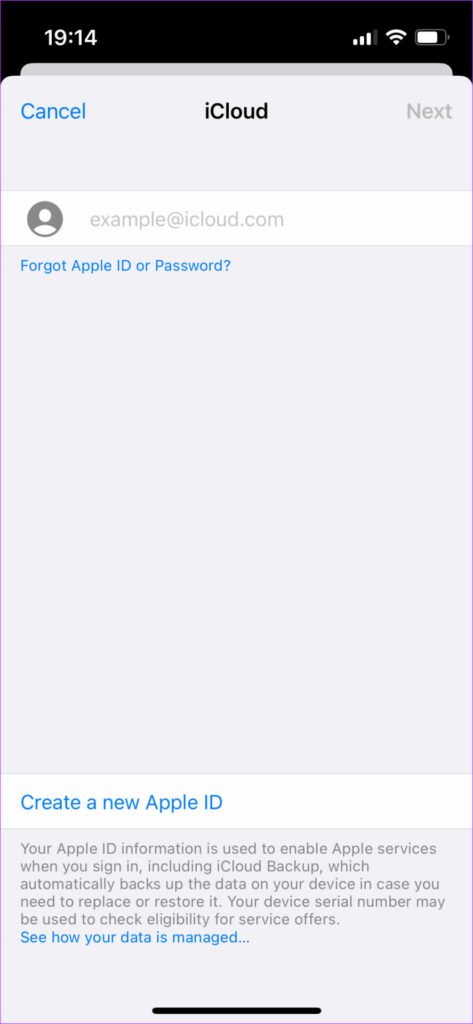
Note that you can use this account only to sync emails, notes, calendars, and contacts. Your Apple ID will still remain the same as earlier.
Was this helpful?
Last updated on 03 September, 2024
Read Next
 How to Switch Between KM and Miles in Google Maps and Apple Maps
How to Change Kilometers to Miles in Apple Maps To change KM to Miles (or vice versa) on iPhone, iPad, and Mac, all you need to do is change your
How to Switch Between KM and Miles in Google Maps and Apple Maps
How to Change Kilometers to Miles in Apple Maps To change KM to Miles (or vice versa) on iPhone, iPad, and Mac, all you need to do is change your
 3 Best Ways to Fix Apple Books Not Syncing Between iPhone and iPad
Try Basic Fixes Ensure both devices are connected to Wi-Fi: The syncing of any content between an iPhone and iPad happens via iCloud.
3 Best Ways to Fix Apple Books Not Syncing Between iPhone and iPad
Try Basic Fixes Ensure both devices are connected to Wi-Fi: The syncing of any content between an iPhone and iPad happens via iCloud.
 4 Ways to Fix Messages Not Syncing Between iPhone and iPad
https://youtu.be/L9BxANv4g00 Basic Fixes: Ensure you're using the same Apple account: You need to use the same Apple account on both iPad and iPhone to enable message syncing.
4 Ways to Fix Messages Not Syncing Between iPhone and iPad
https://youtu.be/L9BxANv4g00 Basic Fixes: Ensure you're using the same Apple account: You need to use the same Apple account on both iPad and iPhone to enable message syncing.
 Fix: Apple Music Playlists Not Syncing Between Mac and iPhone
Basic Fixes Use the same Apple account: Once you do that, all your devices will have all your Apple Music data synced.
Fix: Apple Music Playlists Not Syncing Between Mac and iPhone
Basic Fixes Use the same Apple account: Once you do that, all your devices will have all your Apple Music data synced.
 How to Bulk Delete Multiple Apps on iPhone or iPad
Note: While you can delete multiple apps on your iPhone, you can't select all and delete them in one go.
How to Bulk Delete Multiple Apps on iPhone or iPad
Note: While you can delete multiple apps on your iPhone, you can't select all and delete them in one go.
 How to Switch Google Accounts in Chrome for iOS, iPad and Android
Things to Know Before Switching Google Accounts in Chrome When you switch Google accounts in Chrome, your browsing history, bookmarks, passwords, and other settings associated with the current account will
How to Switch Google Accounts in Chrome for iOS, iPad and Android
Things to Know Before Switching Google Accounts in Chrome When you switch Google accounts in Chrome, your browsing history, bookmarks, passwords, and other settings associated with the current account will
 5 Best Ways to Transfer Files Between iPhone and Windows PC
We always speak about how convenient the Apple ecosystem is.
5 Best Ways to Transfer Files Between iPhone and Windows PC
We always speak about how convenient the Apple ecosystem is.
 3 Fixes for Voice Memos Not Syncing Between iPhone and Mac
Basic Fixes Use the same Apple account: Apple devices will sync only when they are using the same Apple account.
3 Fixes for Voice Memos Not Syncing Between iPhone and Mac
Basic Fixes Use the same Apple account: Apple devices will sync only when they are using the same Apple account.
The article above may contain affiliate links which help support Guiding Tech. The content remains unbiased and authentic and will never affect our editorial integrity.