How to Hide Threads’ Posts and Notifications Manually
Instagram uses algorithms to suggest posts and accounts based on your interactions within the app. However, you can hide post suggestions you don’t like, preventing Instagram from showing similar posts. Here’s how you can use that option to hide Threads post suggestions in the Instagram app.
Step 1: Open the Instagram app on your phone and locate any Threads posts on your feed.
Step 2: Tap the three-dot icon next to the post and select Hide from the menu that pops up.


Similarly, you can hide Threads notifications on Instagram. To do so, head to the Notifications section in the Instagram app. Long press the Threads notification and select the Turn off notifications like this option.


If you’re using Instagram on an iPhone, swipe left on the Threads notification, tap the three-dot icon, and select the Turn off notifications like this option.


You may have to repeat the above steps a couple of times. Following that, Instagram will not show you any posts or notifications from Threads.
How to Change the Instagram Feed to Following to Hide Thread Posts
By default, your Instagram feed includes posts from accounts you don’t follow. This can result in Threads and other irrelevant Instagram posts appearing frequently in your feed. To avoid this, you can configure the Instagram feed to only show posts from the accounts you follow.
Open the Instagram app on your phone. Tap the Instagram logo in the top left corner and select Following. After this, you will only see posts from the accounts you follow, effectively hiding Threads posts from your feed.


How to Modify Instagram Notification Settings to Hide Threads Alerts
Instagram offers you full control over the notifications that you receive. If you don’t want Threads alerts to appear in Instagram’s notifications section, follow these steps:
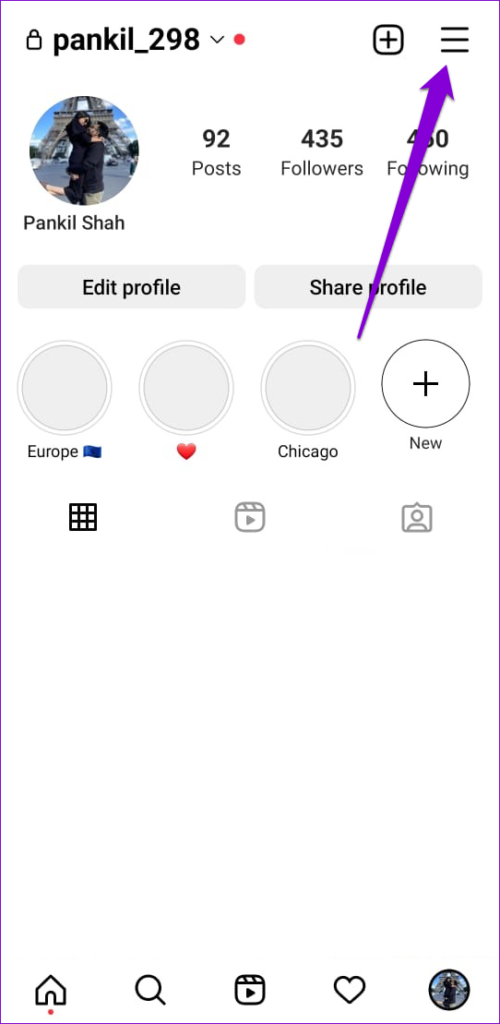
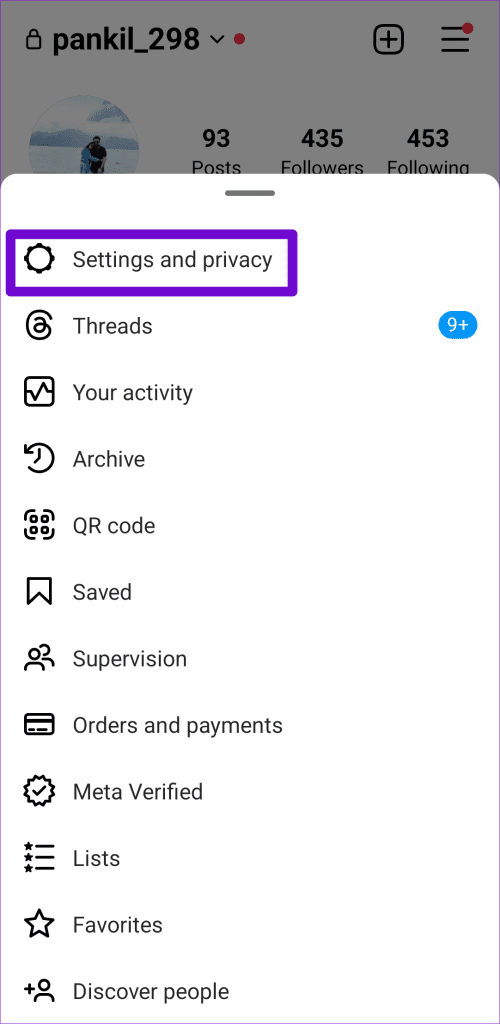
Step 1: Open the Instagram app and switch to the profile tab. Tap the menu icon at the top right corner and select Settings and privacy.
Step 2: Select Notifications and tap From Instagram.
Step 3: Select Off under Product announcements & feedback.


If Nothing Works, Simply Deactivate Your Threads Account
Deactivating your Threads account is another way to stop seeing Threads on Instagram. This can be useful if you’re not using Threads anyway.
Step 1: Open the Threads app on your phone. Switch to the profile tab. Tap the menu icon at the top-right corner and select Account from the following menu.


Step 2: Select the Deactivate or delete profile option.
Step 3: Tap Deactivate profile and choose Deactivate to confirm.


Once you deactivate your profile, you should not see any Threads post suggestions and notifications on Instagram. Alternatively, if you don’t plan on using Threads again, you can choose to delete your Threads account permanently.
Was this helpful?
Last updated on 27 August, 2024
Read Next
 Stop Facebook Friends from Seeing Your Activity and Hide It
How to Hide Your Friends List on Facebook On Desktop Step 1: Go to Facebook on your Windows or Mac computer and log in with your account credentials.
Stop Facebook Friends from Seeing Your Activity and Hide It
How to Hide Your Friends List on Facebook On Desktop Step 1: Go to Facebook on your Windows or Mac computer and log in with your account credentials.
 3 Ways to Fix Threads Posts Failed to Upload
Fix 1: Check Cellular Data Access If you're trying to post on Threads using mobile data and it does not seem to work, check if you've disabled cellular data access
3 Ways to Fix Threads Posts Failed to Upload
Fix 1: Check Cellular Data Access If you're trying to post on Threads using mobile data and it does not seem to work, check if you've disabled cellular data access
 How to Get Notifications When Someone Posts on Facebook
Information overload is a significant issue on social media platforms, and Facebook is no exception.
How to Get Notifications When Someone Posts on Facebook
Information overload is a significant issue on social media platforms, and Facebook is no exception.
 How to Collaborate on Instagram Posts With Your Friends
Note: Instagram Collaboration makes things easier as there’s no need to share the same post from two or more separate accounts while also allowing you to reach a wider audience.
How to Collaborate on Instagram Posts With Your Friends
Note: Instagram Collaboration makes things easier as there’s no need to share the same post from two or more separate accounts while also allowing you to reach a wider audience.
 How to See Posts You’ve Liked on Instagram
With over one billion monthly active users, it's no surprise that the Meta-owned app focuses on providing great user experience by adding new features such as Stories.
How to See Posts You’ve Liked on Instagram
With over one billion monthly active users, it's no surprise that the Meta-owned app focuses on providing great user experience by adding new features such as Stories.
 How to Add Reminders for Instagram Posts and Stories on Mobile App
Who Can Create Reminders for Events on Instagram Reminders are a great way to ensure you remind your followers about any of your plans and events, and they are quite
How to Add Reminders for Instagram Posts and Stories on Mobile App
Who Can Create Reminders for Events on Instagram Reminders are a great way to ensure you remind your followers about any of your plans and events, and they are quite
 How to Comment a GIF On Instagram Posts
https://youtu.be/oRgXtG1K0ao Step 1: Tap on the comment button under a post.
How to Comment a GIF On Instagram Posts
https://youtu.be/oRgXtG1K0ao Step 1: Tap on the comment button under a post.
 3 Ways to Fix Instagram Feed Not Showing Friends Posts
Why Can’t I See My Friends’ Posts on My Instagram Feed?
3 Ways to Fix Instagram Feed Not Showing Friends Posts
Why Can’t I See My Friends’ Posts on My Instagram Feed?
The article above may contain affiliate links which help support Guiding Tech. The content remains unbiased and authentic and will never affect our editorial integrity.