

Method 1: Hide a Windows Update Using the Show or Hide Updates Troubleshooter
Microsoft’s “Show or hide updates” tool makes it simple to stop a specific Windows Update from installing on your computer. You can use this tool to hide system updates you don’t want to install. Since this tool is not pre-installed on your Windows computer, download it first.
After downloading the tool, follow the steps below to hide a specific update on your Windows computer.
Step 1: Double-click the downloaded file to launch the Show or hide updates tool and click Next.

Step 2: Select Hide updates.

Step 3: The tool will list all the pending updates. Use the checkbox to select the update you want to hide and click Next.

Step 4: Wait for the troubleshooter to hide the specified update and click the Close button to exit the tool.
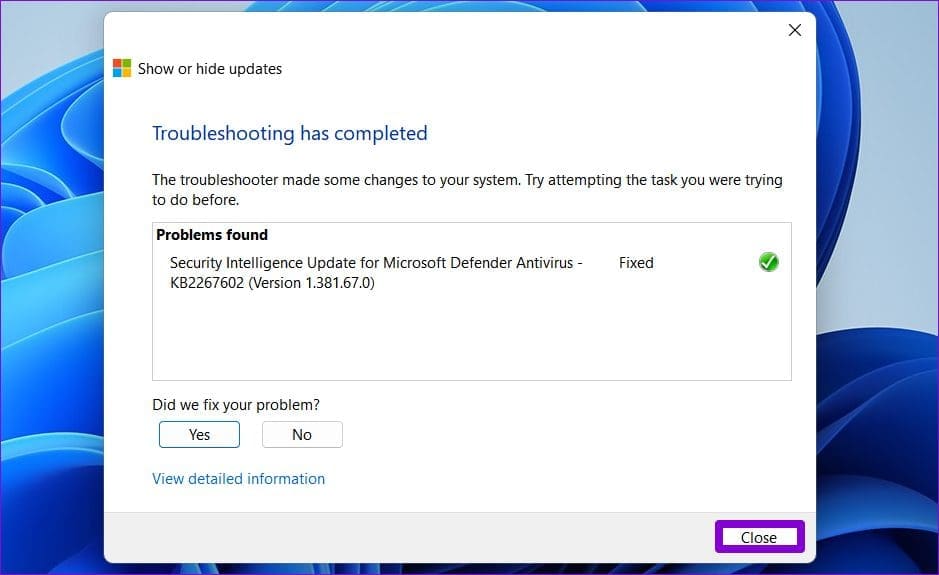
After that, Windows will no longer show the specified update. But, if a problematic update is already installed on your computer, you must uninstall the update and use this tool to hide it.
If you change your mind later, you can always unhide these updates with the same tool. Here’s how:
Step 1: Open the Show or hide updates tool on your computer and click Next.
Step 2: Select the Show hidden updates option.

Step 3: Select the update you want to unhide and click Next.

Step 4: Click on Close.

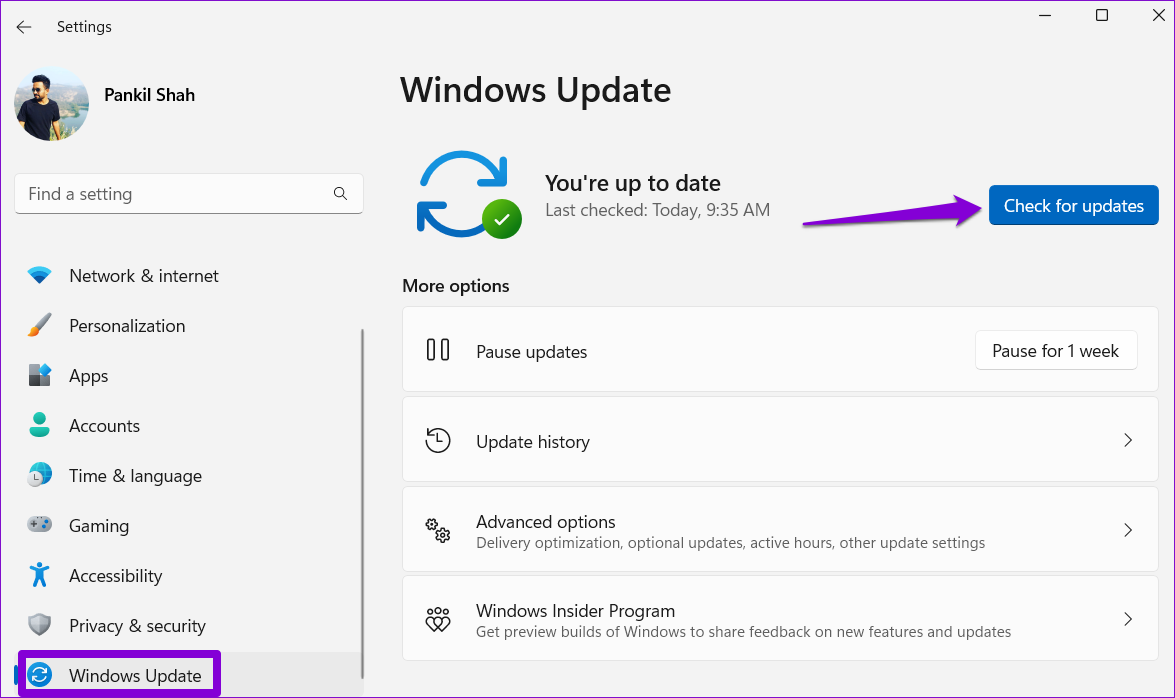
Step 5: Press the Windows key + I to open the Settings app and go to the Windows Update section. Click the Check for updates button, and your updates will appear.
Method 2: Hide a Windows Update Using PowerShell
PowerShell is a command-line tool that lets you interact with Windows through text commands. Here’s how to use Windows PowerShell to stop a specific update from installing.
Step 1: Click the search icon on the taskbar, type Windows PowerShell in the box, and select Run as administrator.

Step 2: Paste the following command and press Enter to install the PSWindowsUpdate module on your computer.
Install-Module PSWindowsUpdate
Step 3: Type A and press Enter to confirm.

Step 4: Paste the following command and press Enter to view a list of pending Windows updates.
Get-WUList
Step 5: Note down the name of the update you want to hide from the Title column.

Step 6: Run the following command and press Enter to hide the update.
Hide-WindowsUpdate -Title "UpdateName"
Replace UpdateName in the above command with the actual name of the update noted earlier.

Step 7: Press the A key and then Enter to confirm your choice.

After that, Windows will hide the specified update. You can confirm this change by checking the update status in the Status column.
If you want to unhide the update later, run the following command in PowerShell.
Show-WindowsUpdate -Title “UpdateName”
Ensure to replace the UpdateName in the above command with the actual name of the update.

Was this helpful?
Last updated on 02 May, 2024
1 Comment
Leave a Reply
Read Next
 5 Ways to Fix Windows Keeps Installing the Same Update
Fix 1: Run the Windows Update Troubleshooter Whenever you encounter any issues with Windows Updates, you should first run the built-in troubleshooter.
5 Ways to Fix Windows Keeps Installing the Same Update
Fix 1: Run the Windows Update Troubleshooter Whenever you encounter any issues with Windows Updates, you should first run the built-in troubleshooter.
 7 Ways to Fix Windows 11 Updates Not Downloading or Installing
Fix 1: Run the Windows Update Troubleshooter Windows 11 includes a dedicated troubleshooter that can automatically scan, detect, and fix any issues with Windows Updates.
7 Ways to Fix Windows 11 Updates Not Downloading or Installing
Fix 1: Run the Windows Update Troubleshooter Windows 11 includes a dedicated troubleshooter that can automatically scan, detect, and fix any issues with Windows Updates.
 3 Ways to Prevent Users From Installing New Software on Windows 11
Method 1: Turn Off Windows Installer via Group Policy The Group Policy Editor on Windows lets you make various administrative-level changes.
3 Ways to Prevent Users From Installing New Software on Windows 11
Method 1: Turn Off Windows Installer via Group Policy The Group Policy Editor on Windows lets you make various administrative-level changes.
 How to Fix Optional Features Missing or Not Installing on Windows 11
Fix 1: Disable Metered Connection Windows has a metered connection feature that reduces data consumption and helps save on internet bills.
How to Fix Optional Features Missing or Not Installing on Windows 11
Fix 1: Disable Metered Connection Windows has a metered connection feature that reduces data consumption and helps save on internet bills.
 3 Ways to Fix DirectX Not Installing Error on Windows 11
Basic Fixes Check the internet connection: The DirectX web installer requires internet connectivity to download files from the server.
3 Ways to Fix DirectX Not Installing Error on Windows 11
Basic Fixes Check the internet connection: The DirectX web installer requires internet connectivity to download files from the server.
 Top 5 Fixes For ‘No Device Drivers Were Found’ While Installing Windows 11/10
Preliminary Fixes Check/Switch the USB Ports: One common cause of this error is the USB port being used.
Top 5 Fixes For ‘No Device Drivers Were Found’ While Installing Windows 11/10
Preliminary Fixes Check/Switch the USB Ports: One common cause of this error is the USB port being used.
 3 Ways to Disable Task Manager for Specific Users in Windows
Method 1: Using Command Line or Powershell Step 1: Press the Windows key, type PowerShell or Command Prompt, and click on Run as administrator.
3 Ways to Disable Task Manager for Specific Users in Windows
Method 1: Using Command Line or Powershell Step 1: Press the Windows key, type PowerShell or Command Prompt, and click on Run as administrator.
 How to Make Shortcuts to Open with Specific Browser on Windows
https://youtu.be/m5J0_Q3djik Method 1.
How to Make Shortcuts to Open with Specific Browser on Windows
https://youtu.be/m5J0_Q3djik Method 1.
The article above may contain affiliate links which help support Guiding Tech. The content remains unbiased and authentic and will never affect our editorial integrity.

I used the Show or Hide Updates Tool and it worked great. My only comment is Windows Update continues to report You’re not up to date, and Your device is missing important security and quality fixes. Is there any way to get rid of that without blocking other updates?