

How to Share Your Screen in a Discord Voice Channel
As a channel member, Discord lets you share your device’s screen with up to 50 people at once. Here’s how to share your screen in a Discord voice channel.
On Desktop
Step 1: Open the Discord app on your computer and go to a voice channel on a server where you want to share your screen.
Step 2: Click the Share Your Screen button at the bottom-left corner.

Step 3: Under the Applications tab, select one of the app windows you want to share. Alternatively, if you want to share the entire screen, select your screen under the Screens tab.
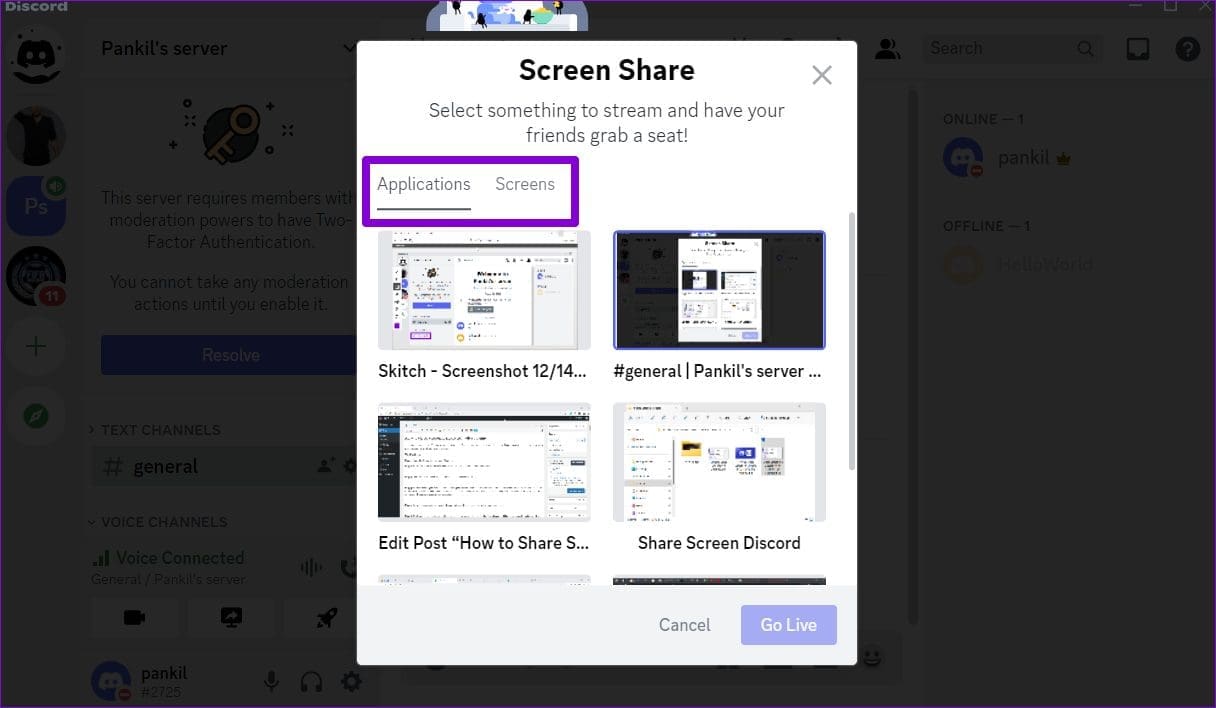
Step 4: After choosing a screen, select your preferred stream quality using the drop-down menu.
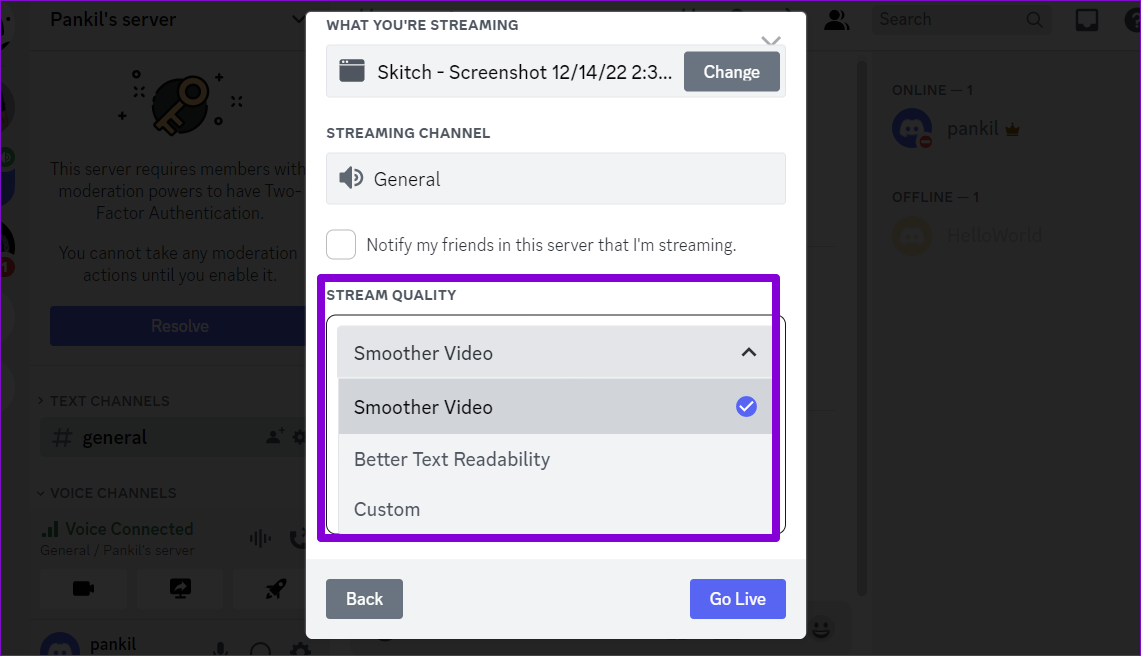
Step 5: Specify your stream’s resolution and frame rate. By default, the streaming rate will be 720p at 30 FPS. You can select a higher resolution and frame rate with a Discord Nitro subscription.

Step 6: Click the Go Live button to start sharing your screen. You can preview what’s being shared in a small window within the Discord app.

Step 7: While sharing your screen, change the stream quality, switch windows, or end the stream session by clicking the Share Your Screen button at the bottom-left corner.

Optionally, enable your webcam while streaming. To do so, click on the video icon at the bottom corner.

On Android or iPhone
Step 1: Open the Discord app on your phone and navigate to the voice channel where you want to share your screen.
Step 2: Tap the Join Voice button at the bottom.
Step 3: Swipe up from the bottom and select Share Your Screen.
Step 4: A screen share prompt should appear on your phone. Tap the Start now button to continue. If you use Discord on an iPhone, select Start Broadcast.
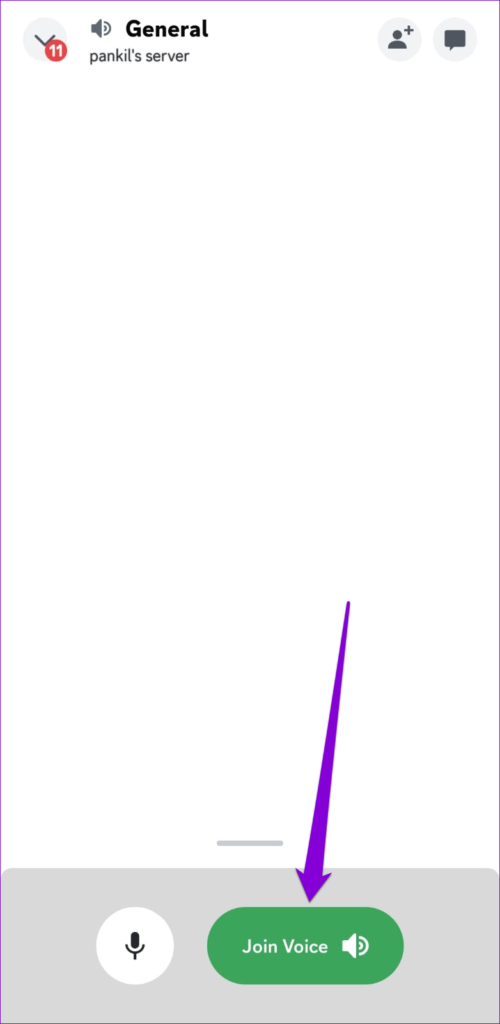


Anyone who joins the voice channel can view your stream. To enable your camera while streaming, tap the video icon at the bottom. You can stop sharing your screen at any point by tapping the Stop sharing button.


How to Share Your Screen During Discord Calls
Aside from voice channels, Discord lets you share your device’s screen with your friends during voice and video calls. Here’s how:
On Desktop
Step 1: In the Discord app, navigate to the Direct Messages tab and select the contact with whom you want to share your screen.
Step 2: Start a voice or video call with your friend.

Step 3: Click the Share Your Screen button.
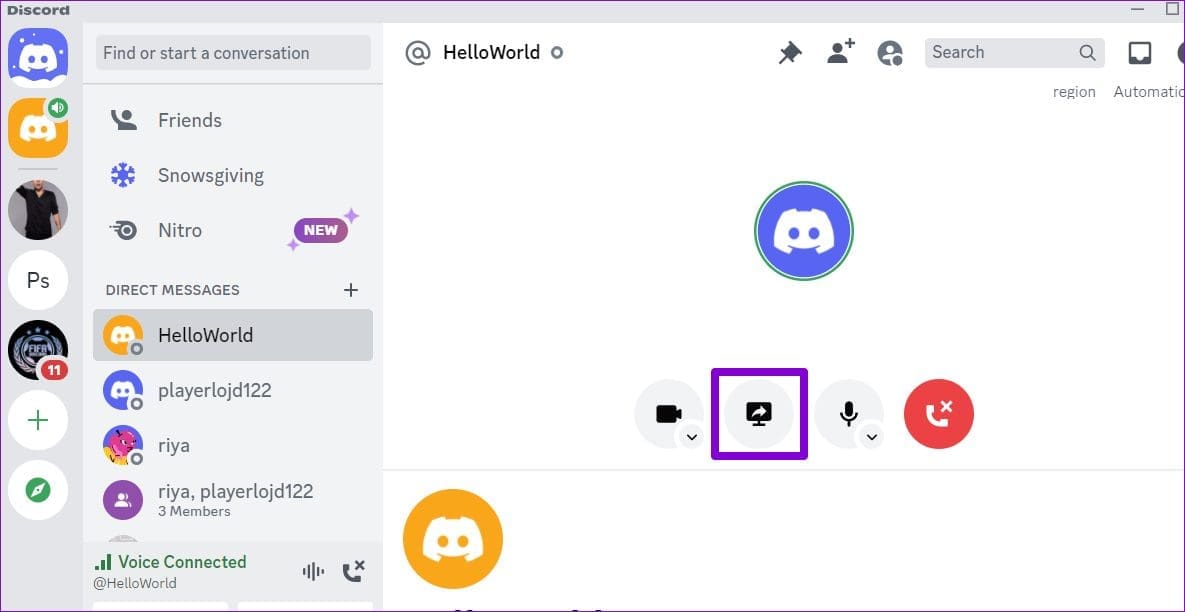
Step 4: Select the screen you want to share.
Step 5: Select your preferred streaming quality, screen resolution, and frame rate. Then, click the Go Live button to start sharing your screen.
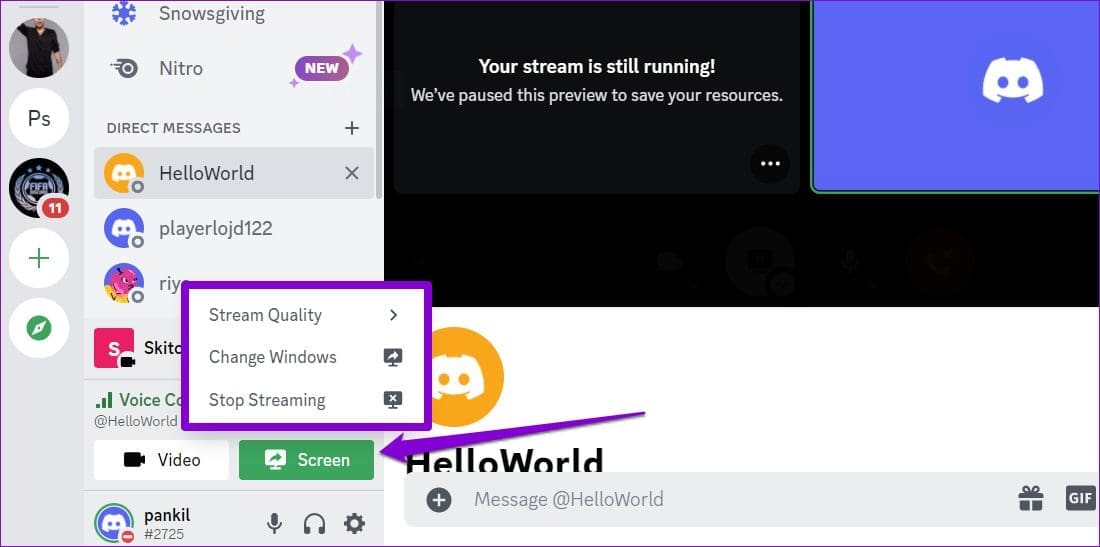
While sharing the screen, you can change the stream quality or switch windows by clicking the Screen button at the bottom left corner. To end your streaming session, select the Stop Streaming option.
On Android or iPhone
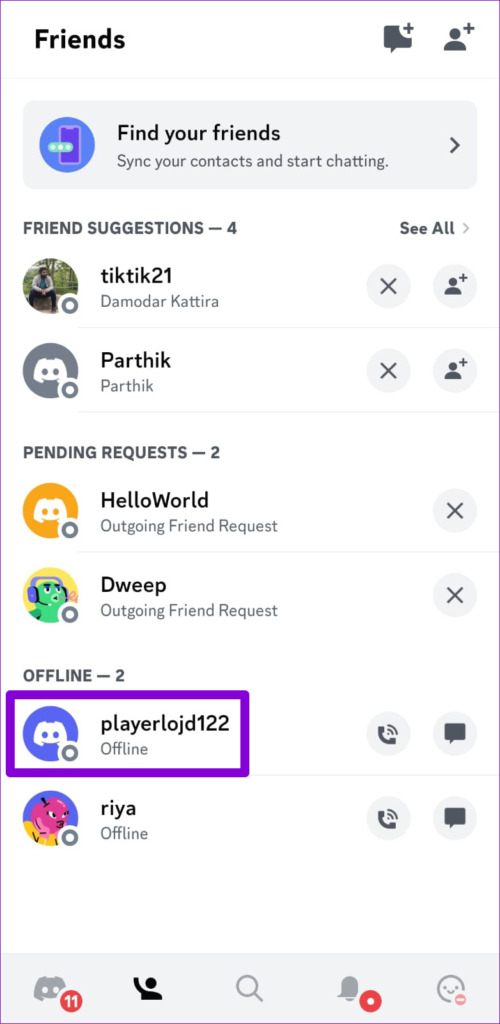
Step 1: In the Discord app, navigate to the Friends tab.
Step 2: Select a contact with whom you want to share your screen and start a voice or video call.
Step 3: Swipe up from the bottom and select Share Your Screen.
Step 4: When the screen share prompt appears, tap Start now or Start Broadcast.


Was this helpful?
Last updated on 26 July, 2024
Read Next
 4 Ways to Fix Screen Share Not Working on Discord
Try Basic Fixes Switch to windowed mode: It's important to know that Discord only supports screen sharing for apps and games that are windowed.
4 Ways to Fix Screen Share Not Working on Discord
Try Basic Fixes Switch to windowed mode: It's important to know that Discord only supports screen sharing for apps and games that are windowed.
 How to Share Pinterest Boards on Desktop and Mobile
Pinterest is the one-stop destination to find any image primarily design ideas, trends, and inspirational photos.
How to Share Pinterest Boards on Desktop and Mobile
Pinterest is the one-stop destination to find any image primarily design ideas, trends, and inspirational photos.
 How to Share OneNote Notebook on Desktop and Mobile
How to Share OneNote Notebook on Mobile (Android or iOS) OneNote's Android app doesn't let you share the notebook.
How to Share OneNote Notebook on Desktop and Mobile
How to Share OneNote Notebook on Mobile (Android or iOS) OneNote's Android app doesn't let you share the notebook.
 2 Best Ways to Create a Poll on Discord for Desktop and Mobile
Want a quick and easy way to gain input from friends, family, or a community on Discord?
2 Best Ways to Create a Poll on Discord for Desktop and Mobile
Want a quick and easy way to gain input from friends, family, or a community on Discord?
 How to Create a Discord Channel on Desktop and Mobile
How to Create a Discord Channel on Desktop To improve Discord organization, you can categorize channels by topic.
How to Create a Discord Channel on Desktop and Mobile
How to Create a Discord Channel on Desktop To improve Discord organization, you can categorize channels by topic.
 How to Log Out of Discord on Desktop and Mobile
How to Log out of a Discord Account After using Discord for a while, you might want to log out.
How to Log Out of Discord on Desktop and Mobile
How to Log out of a Discord Account After using Discord for a while, you might want to log out.
 How to React to Messages on Discord (Mobile and Desktop)
How to React to Discord Messages on Desktop You can also react with custom emojis on Discord if you have Manage Emoji permission, are server owners, or have Discord Nitro.
How to React to Messages on Discord (Mobile and Desktop)
How to React to Discord Messages on Desktop You can also react with custom emojis on Discord if you have Manage Emoji permission, are server owners, or have Discord Nitro.
 How to Hide Mutual Servers in Discord on Desktop and Mobile
Method 1: Hide Discord Mutual Servers Using Hidden Folders Categorizing mutual servers into folders on Discord is one of the easiest ways to hide them from mutual friends.
How to Hide Mutual Servers in Discord on Desktop and Mobile
Method 1: Hide Discord Mutual Servers Using Hidden Folders Categorizing mutual servers into folders on Discord is one of the easiest ways to hide them from mutual friends.
The article above may contain affiliate links which help support Guiding Tech. The content remains unbiased and authentic and will never affect our editorial integrity.

