

How to Set Custom Profile Picture on Telegram on Mobile
Let’s start by showing you the steps for Android and iPhone. This feature was made available for iPhone owners with the Telegram app v9.3.2 and Android with the Telegram app v9.3.3. So, check if you have updated to these versions on your respective devices.
For iPhone
Step 1: Open Telegram on your iPhone and choose the contact. Then, tap on your contact’s profile picture at the top-right corner.
Step 2: Tap on Edit at the top-right corner and select Set Photo for (Contact Name).


Step 3: Swipe right to select your picture or tap on Open Gallery.
Step 4: After you select it, make the adjustments and tap the Blue Tick icon at the bottom-right corner. Then, tap on Set to confirm.


Step 5: Tap on Done at the top-right corner to apply the changes.
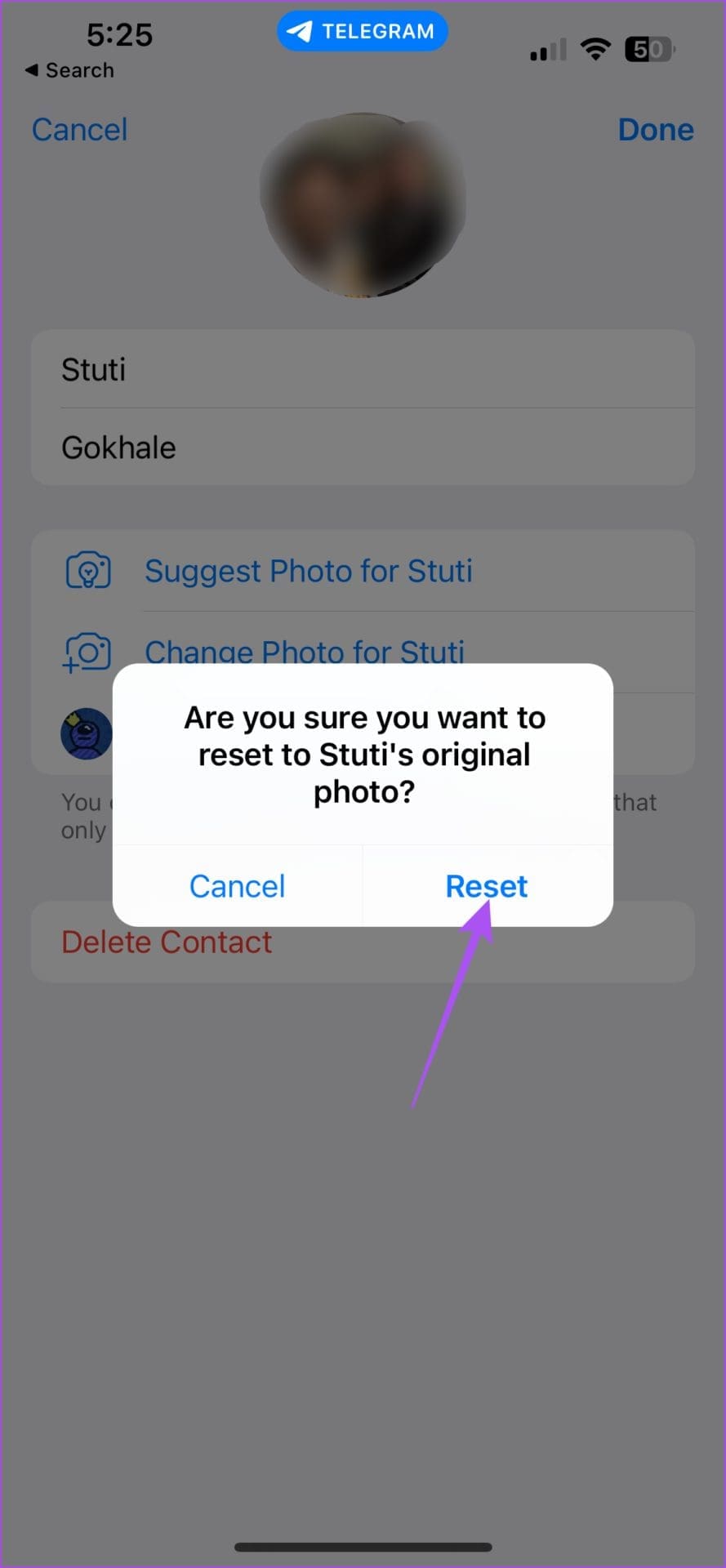
You can also choose to Reset the original profile picture for the contact.

On Android
Step 1: Open Telegram and select the contact you want to set the custom profile picture.
Step 2: Tap the three dots at the top-right corner and select Edit Contact.
Step 3: Tap on Set Photo For (Contact Name).
Step 4: Select a picture from the gallery, make the adjustments, and tap on the Blue Tick icon at the bottom-right corner. Tap on Set Photo to confirm your choice.


Step 5: Tap on Done at the top-right corner to confirm.
You can also choose to Reset the original profile picture for the contact.
Tip: Read our post to learn how to create a QR code for your Telegram profile.
Set Custom Profile Picture on Telegram
The Telegram Desktop app allows you to set a custom profile picture for contacts. We have laid out the steps for Mac and Windows apps. This feature is helpful when your contact doesn’t have a profile photo.
On Mac
Step 1: Open Telegram, select the contact, and click on the contact name at the top.
Step 2: Click on Edit at the top-right corner and select Set Photo For (Contact Name).

Step 3: Select a picture from your Mac, make the adjustments, and tap on Done at the bottom.

Step 4: Tap on Set to confirm your choice.
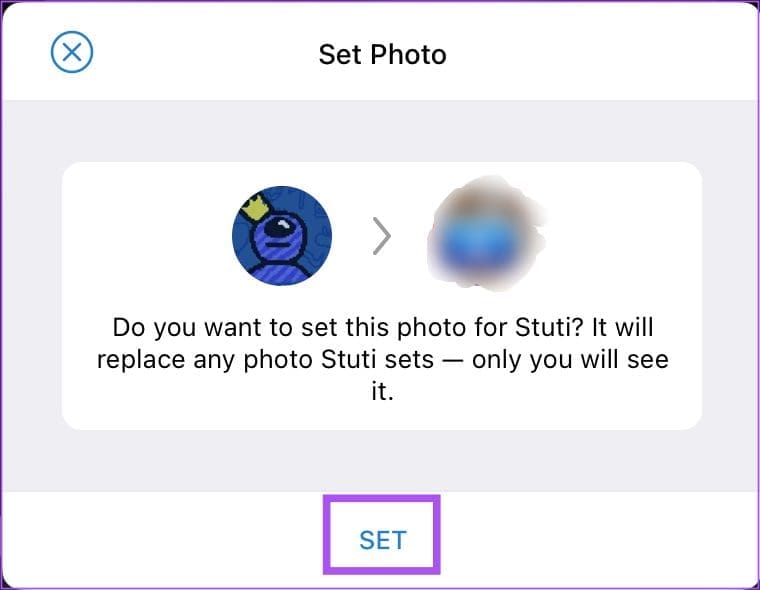
Step 5: Tap on Done at the top-right corner.
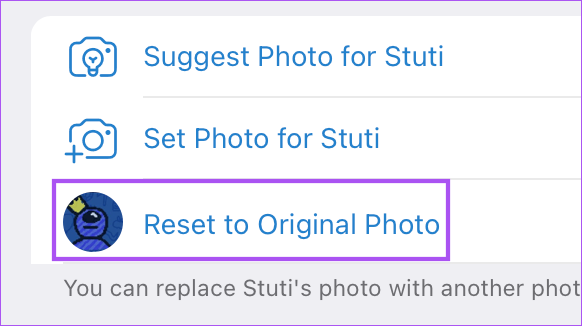
You can also choose to Reset the original profile picture for the contact.
On Windows
Step 1: Open Telegram, select the contact, and click on the contact name.
Step 2: Click the three dots at the top-right side and click on Edit contact.

Step 3: Click the contact profile picture and select Set Profile Photo.

Step 4: Choose a profile picture of your choice, make the adjustments, and click on Set Photo.
Step 10: Click on Done to confirm your choice.
To revert to the original profile picture, click on the new contact profile picture again and tap on Reset to Original.

Tip: Learn how to hide your Telegram profile picture from specific contacts.
FAQs
The contact will only be notified if you suggest a profile photo. After selecting Set Profile Photo, the contact won’t be notified.
No, it will only be visible to you. But if your contact accepts a photo you suggest, it will be visible to all.
Was this helpful?
Last updated on 17 July, 2024
1 Comment
Leave a Reply
Read Next
 How to Suggest Profile Picture to Your Telegram Contacts
How to Suggest a Picture Photo on Telegram Mobile App You can suggest a profile photo to your Telegram contacts on the Telegram mobile app.
How to Suggest Profile Picture to Your Telegram Contacts
How to Suggest a Picture Photo on Telegram Mobile App You can suggest a profile photo to your Telegram contacts on the Telegram mobile app.
 How to Set Custom Profile Picture on Netflix
Method 1: Using Browser Extension You can set a custom profile picture for your Netflix profile using the Custom Profile Photo for Netflix Chrome extension.
How to Set Custom Profile Picture on Netflix
Method 1: Using Browser Extension You can set a custom profile picture for your Netflix profile using the Custom Profile Photo for Netflix Chrome extension.
 What Is WhatsApp Profile Picture Size and How to Add Any Picture to It
What’s the Best Size for a WhatsApp profile Picture While WhatsApp has opened up to many new features, from sharing HD photos to screen sharing, it remains stringent on its
What Is WhatsApp Profile Picture Size and How to Add Any Picture to It
What’s the Best Size for a WhatsApp profile Picture While WhatsApp has opened up to many new features, from sharing HD photos to screen sharing, it remains stringent on its
 3 Fixes for Picture-in-Picture Not Working in Telegram
Basic Fixes Force quit and relaunch Telegram: This will give the app a fresh start on your iPhone or Android phone.
3 Fixes for Picture-in-Picture Not Working in Telegram
Basic Fixes Force quit and relaunch Telegram: This will give the app a fresh start on your iPhone or Android phone.
 How to Hide Your Profile Picture From Specific Contacts on WhatsApp
What Happens When You Hide Your Profile Picture From Specific Contacts on WhatsApp The selected WhatsApp contacts can no longer view your account photo.
How to Hide Your Profile Picture From Specific Contacts on WhatsApp
What Happens When You Hide Your Profile Picture From Specific Contacts on WhatsApp The selected WhatsApp contacts can no longer view your account photo.
 Google Contacts vs Samsung Contacts: Which App Is Best for Saving and Managing Contacts
Apart from phones running Stock Android, all other Android phones have their own set of basic apps.
Google Contacts vs Samsung Contacts: Which App Is Best for Saving and Managing Contacts
Apart from phones running Stock Android, all other Android phones have their own set of basic apps.
 iCloud Contacts vs Google Contacts: Where Should You Save Contacts on Your iPhone
When you are using an Android phone, one prefers using Google Contacts to store and manage contacts.
iCloud Contacts vs Google Contacts: Where Should You Save Contacts on Your iPhone
When you are using an Android phone, one prefers using Google Contacts to store and manage contacts.
 How to Set Custom Notification Sound for Specific Contacts on WhatsApp
Set Specific Tones on WhatsApp iOS You can set different notification tones on WhatsApp for all contacts or groups and custom tones for individual contacts or groups.
How to Set Custom Notification Sound for Specific Contacts on WhatsApp
Set Specific Tones on WhatsApp iOS You can set different notification tones on WhatsApp for all contacts or groups and custom tones for individual contacts or groups.
The article above may contain affiliate links which help support Guiding Tech. The content remains unbiased and authentic and will never affect our editorial integrity.

Does the contact will notify if i set a photo for him?